
How to Plan Desk Space for a Laptop, Monitor, and Paperwork
Affiliate Disclosure: We may earn a small commission on qualifying Amazon purchases at no extra cost to you. Full disclosure →
A laptop, external monitor, and notebook can each fit on a desk while leaving no sensible way to use them together. The laptop becomes a shelf for papers, the keyboard sits too close to the edge, and the mouse moves around a document pile. The issue is often task sequencing rather than a shortage of organizers.
Quick answer: Define the main screen and input position first, then reserve a paper-work zone and a deliberate laptop location. Plan both simultaneous work and transitions between typing and writing. Trace complete bases, cables, and document openings. A laptop stand or monitor arm is useful only if it preserves the tasks the desk needs to support.
This guide focuses on a mixed digital-and-paper workflow. It does not repeat our two monitors on a shallow desk guide, which addresses a different display arrangement.
List the tasks that actually overlap
Write down a few common work sequences. You might read a report while taking notes, type from a printed form, use the laptop for a call while the external display holds a document, or clear the screen area for a workbook. These sequences tell you which objects need to be present at the same time.
Separate permanent tools from temporary material. A keyboard and mouse may stay all day, while a large reference book appears only for one task. Do not allocate permanent space to every occasional object, but do give temporary material a landing place. Otherwise it will occupy whichever surface is least convenient.
Identify the most common sequence and optimize for that first. A desk designed for a rare task can make ordinary work harder. Keep the less frequent task possible through a planned transition rather than forcing every item into permanent simultaneous display.
Choose the primary screen deliberately
Decide whether the external monitor or laptop is the main display. Put the primary content where you can use it without persistent twisting or leaning. A laptop open to one side can serve reference or communication, but it should not pull the main task away from your seated position merely because its stand looks neat.
Check how the laptop is used. If its keyboard is the main input, raising the whole laptop changes typing position as well as screen position. A stand often works better with separate input devices, but those need their own footprint. Our external keyboard and mouse guide explains that relationship.
If the laptop will be closed, verify that the device supports the intended operating mode and follow its power and ventilation requirements. Do not put it in a generic tight slot without checking compatibility. A vertical holder saves space only when the device can operate appropriately in that arrangement.
Draw the desk in useful zones
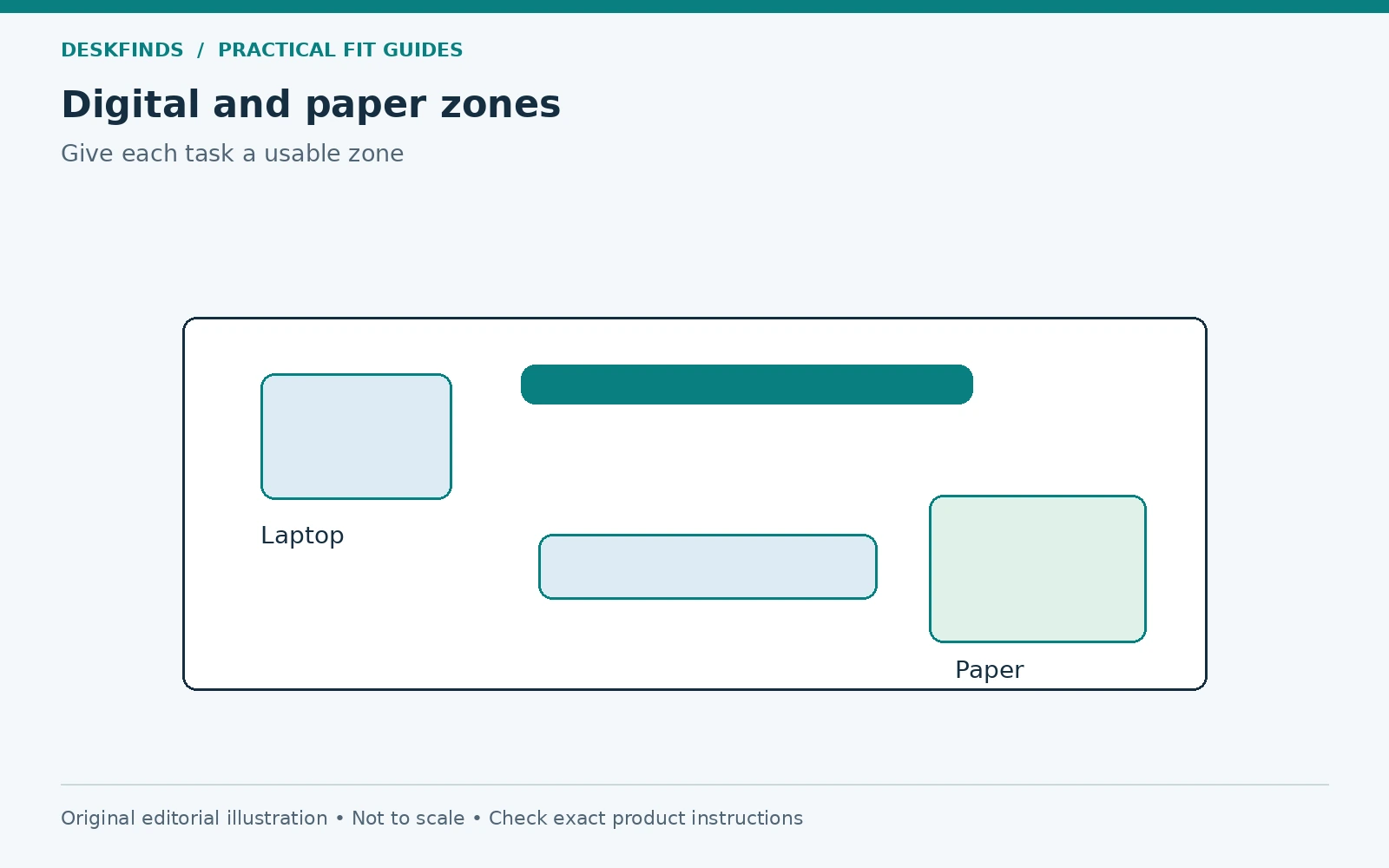
Mark a central input zone, a screen-support zone, a paper zone, and a small temporary landing zone. These need not be equal rectangles. Their purpose is to prevent an organizer or stand from consuming space that the task requires. Keep frequently used items within a practical reach from the actual chair position.
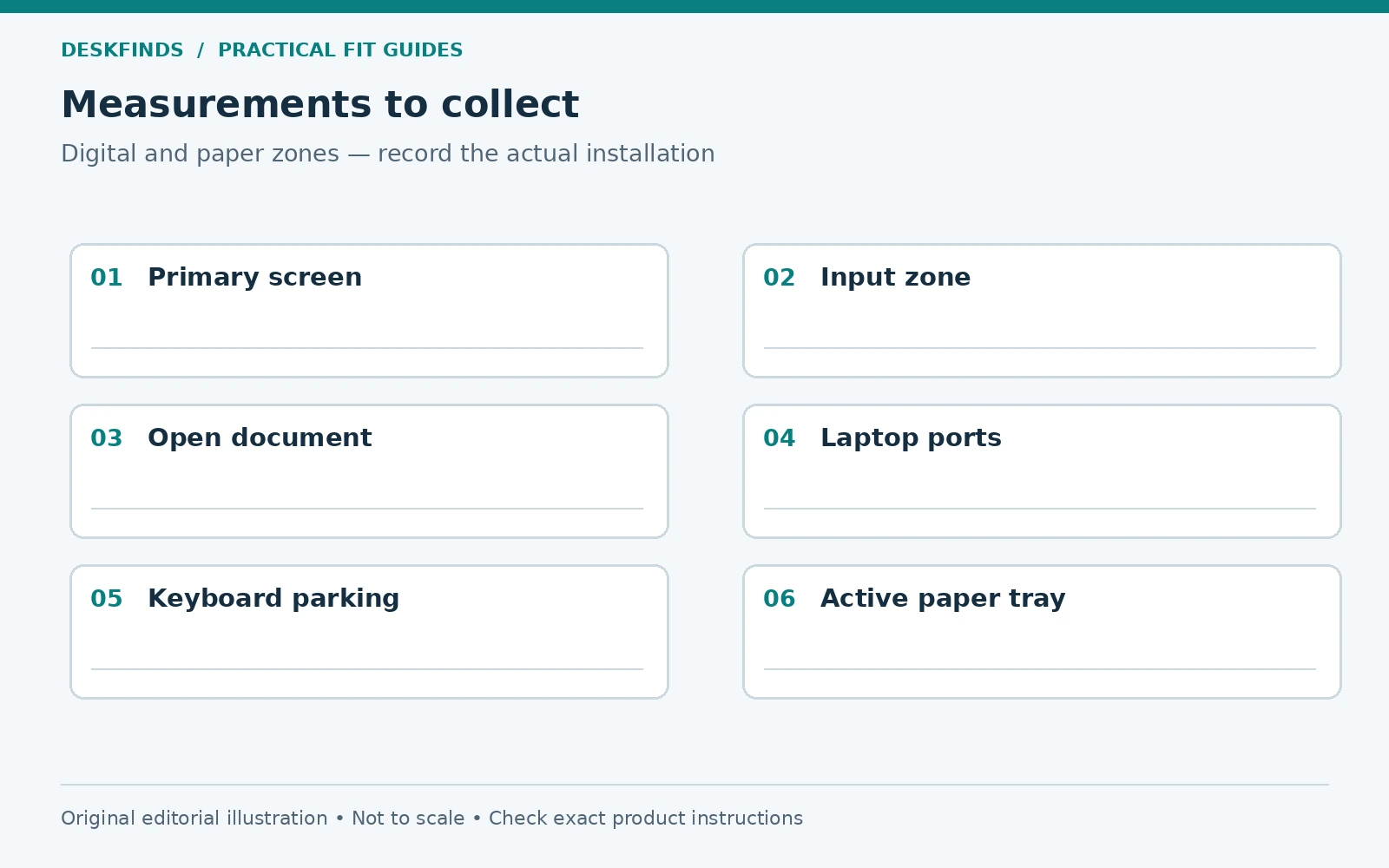
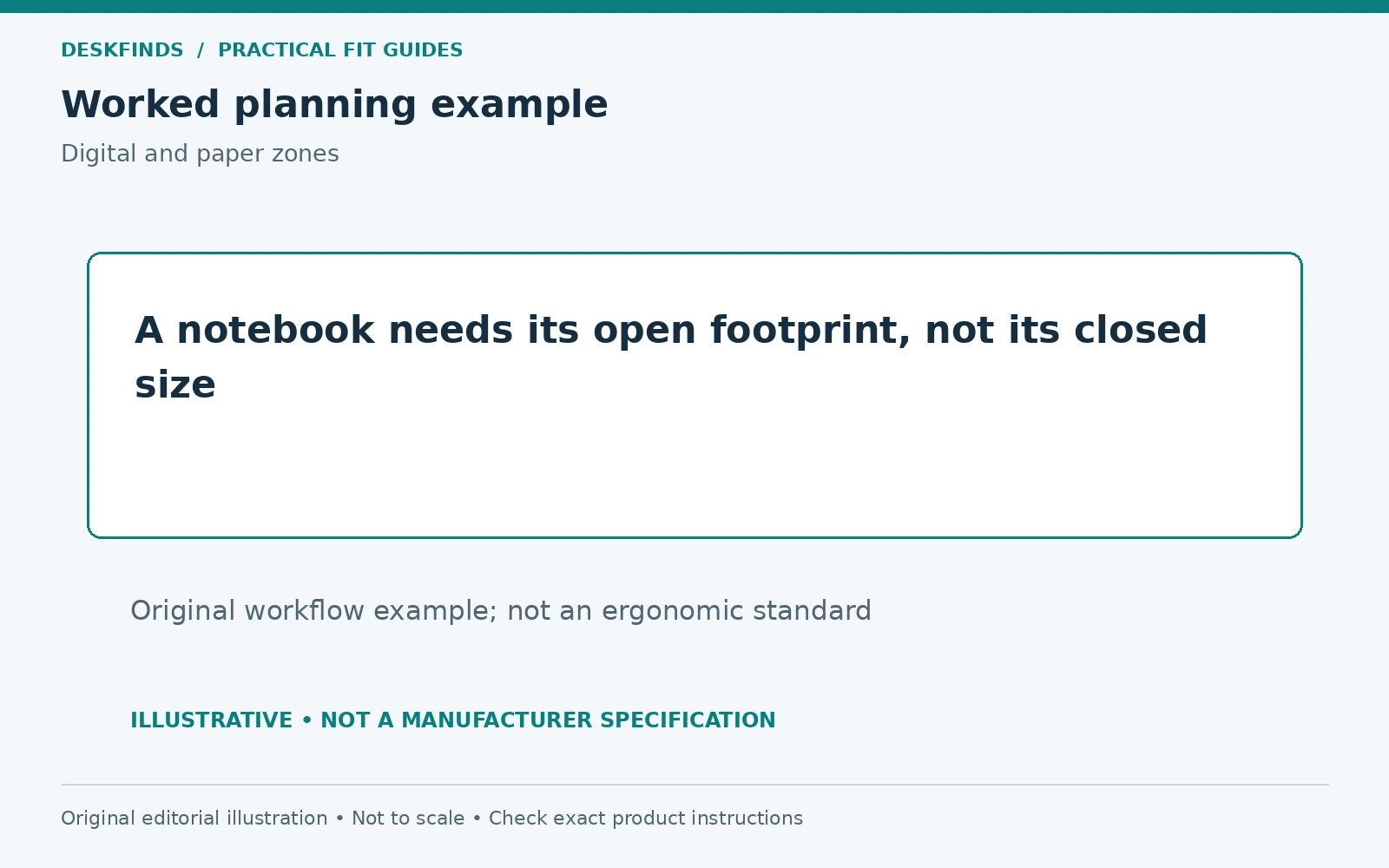
Trace the monitor base, laptop, keyboard, mouse area, and largest document in use. For a book or binder, include the open footprint rather than the closed cover. A folded notebook can fit beside the keyboard while its open pages overlap the mouse. Use the real object where possible.
Add cable exits and access to the laptop's ports. A position that fits the body may leave no room for a plug or daily connection. Our charger routing guide covers the cable side of the layout. Hardware should not need to be lifted from a crowded corner every time a lead is connected.
Compare three working arrangements
The first is a primary external monitor with a laptop to one side and a clear writing zone on the other. This can suit frequent paper notes, provided the laptop is not used so intensively that the side position becomes the main task. Test the actual applications rather than assuming the secondary role.
The second places paper near the main screen in a suitable document holder, leaving a separate flat writing area. This can help copying tasks, but the holder needs support and should not obscure the screen or reflect the lamp. It is a reference position, not necessarily a writing surface.
The third uses a planned switch between typing and paper work. The keyboard moves to a suitable parking space, and a notebook occupies the central area. This can serve a small desk when simultaneous use is rare. The transition must be quick, stable, and compatible with cable slack.
| Work pattern | Layout priority |
|---|---|
| Frequent notes while reading | Clear flat writing zone beside the input area |
| Copying from printed material | Supported reference position near the screen |
| Long paper sessions | Simple keyboard parking and central paper space |
| Laptop calls plus external work | Camera framing without displacing the main input area |
Protect mouse movement before adding storage
Place the mouse and perform a normal selection or editing task. Do not estimate its area from the mouse body alone. A notebook edge, lamp base, or cup can restrict movement even when the device itself fits. Keep the area useful with the largest ordinary document open.
A compact keyboard can free width, but assess the keys you need. If removing a number pad makes data entry slower, the space saving has a work cost. A separate number pad may offer flexibility, though it also needs a landing and storage position. Choose by task rather than a minimalist appearance.
Avoid solving every conflict by moving the keyboard to the front edge. That can reduce support and bring the user farther from the screen. A tray is another option, but it introduces mounting, legroom, and room-space checks. Our keyboard tray fit guide covers those conditions.
Make paper storage support active work
Use an inbox or tray for current material, not a permanent pile of everything you might need. Separate active documents from reference archives. A few clearly defined categories are easier to maintain than many tiny compartments whose purpose is unclear. Keep the tray within reach without sacrificing the flat writing zone.
If a binder is used daily, give it a support and retrieval path suited to its size. Storing it behind the monitor may technically fit but require moving the screen to retrieve it. A shelf or side location can be more useful if it keeps the task area clear and remains accessible.
For documents that need privacy or particular preservation conditions, choose appropriate storage rather than leaving them in open desktop trays. This article is about layout, not a universal retention or security policy. Our filing cabinet comparison provides a starting point for storage types.
Example: a desk used for invoices and notes
A freelancer uses an external display for accounting, the laptop for messages, and paper invoices for entry. The original arrangement centers both screens and leaves the invoices on top of the keyboard. The repeated movement between paper and input is the main source of friction.
The revised plan centers the accounting display, keeps messages secondary, and uses a suitable document holder for the current invoice. A clear flat area remains for notes and signatures. The user checks the holder with the largest ordinary sheet and the lamp on. The improvement comes from task placement rather than adding several organizers.
The laptop still needs readable placement and accessible ports, but it no longer determines the center of the desk. This is an illustrative workflow, not a prescription for all accounting work. The method is to give the highest-frequency sequence a deliberate path.
Example: a student alternates between typing and a workbook
A student rarely types and writes for long periods at the same time. Keeping both areas permanently open would require a larger desk. Instead, the student plans a stable keyboard parking position and a central space for the open workbook, with enough cable allowance for the transition.
The laptop and external screen stay supported, and the notebook does not rest on the laptop keyboard or vents. A small tray holds the current pen and calculator. The desk can switch modes without moving fragile displays or unplugging several devices. The routine is tested during an ordinary study session.
If the transition becomes cumbersome, revise it. A pack-away mode is useful only when it can be repeated easily. Our evening pack-away guide extends that idea to a room that changes function after work.
Check camera and lighting side effects
A laptop on a high stand may change the camera's view, while a low side position may produce an awkward angle. Open a local preview at the actual chair setting. Adjust the camera or laptop only within a useful screen and support arrangement. Do not sacrifice the main work position for an occasional call without considering alternatives.
Test the lamp on the paper and the screen. A document holder can introduce a new reflective surface or shadow. Our lamp placement guide provides a mixed-task test. The final setup should work with the notebook open and the lamp operating, not only with all surfaces clear.
If daylight changes the task, note the window covering and desk orientation. A layout that works at night may need a simple lighting adjustment during the day. Keep these changes easy to repeat rather than requiring a daily rearrangement of all equipment.
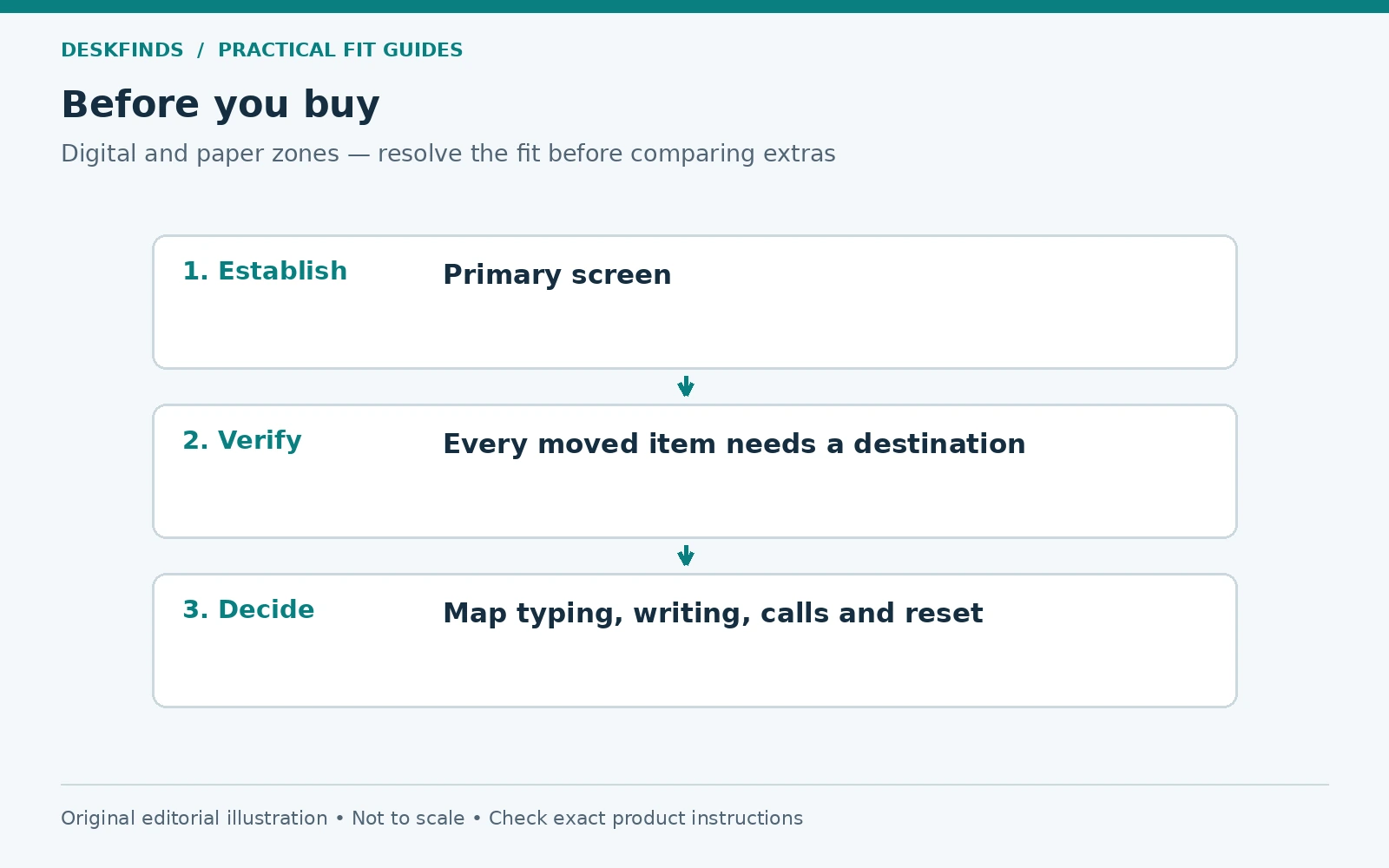
Give every moved object a landing place
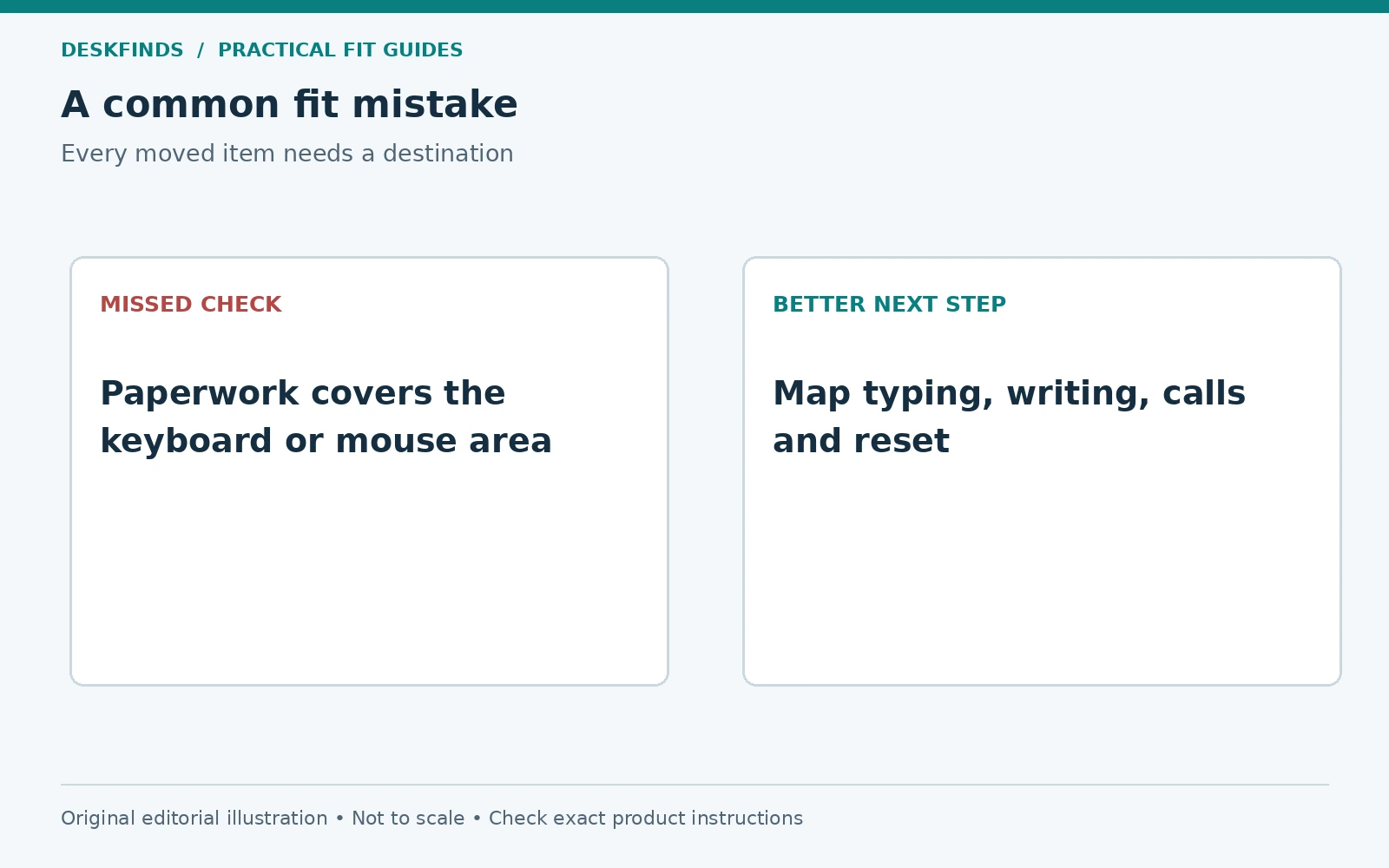
If the keyboard moves, decide where it rests. If paper leaves the desk, decide which tray receives it. If the laptop is taken away, decide how its cable ends remain accessible without falling behind the desk. A transition fails when each moved item simply displaces another.
Use a small state table: typing, paper work, call, and end-of-day reset. List the location of each object in each state. This makes hidden storage demands visible. A desk can have enough room for every state while still lacking a safe transition between them.
Keep the number of daily moves proportionate to the value. One keyboard slide may be easy; lifting a display and relocating several power adapters is not. Choose accessories that simplify the transition, and remove those that create extra handling without improving the task.
Review the layout after a real week
Note the items that repeatedly migrate into the mouse area or onto the laptop. They indicate an unmet storage or landing need. Do not blame the user for clutter before checking whether the layout gives ordinary objects somewhere useful to go. A small change in tray location can be more effective than a larger desk organizer.
Check whether the secondary laptop has become the primary screen in practice. If so, revise the layout to match the real work. The initial plan is a hypothesis, not a fixed design. Keep the task sequence as the basis for the next change.
Compare laptop stands for small desks and desk organizers only after identifying the remaining constraint. The right combination leaves input, reference, writing, and transitions usable. That is a more durable goal than fitting three categories of equipment into one attractive photograph.
Use a task-state table for every moved object
Create columns for typing, paper work, calls, and reset. Add a row for the keyboard, mouse, laptop, notebook, reference material, and active-document tray. Write the location of each object in each state. Empty cells reveal missing landing places, while repeated moves reveal where the layout is asking too much of the user.
For example, a keyboard may stay in the input zone for typing and calls, then move to a suitable parking area for long handwriting. The notebook moves from its tray to the center, while reference papers stay in a supported holder. This is only a planning example; the actual sequence should follow the tasks and available supports.
Check transitions as well as final states. A notebook can fit centrally after the keyboard moves, but there may be nowhere stable to place the keyboard during the move. A cable can reach both laptop positions yet catch on a stand between them. The table helps expose these small but repeated obstacles.
Distinguish active paper from intake and archive
An active document is one you are using now. Intake is material awaiting a decision or next action. Archive is material kept under the applicable retention and access policy. These categories need not all live on the desk. Mixing them in one tray can make a layout appear short of space when the real issue is undefined flow.
Give active paper a place tied to the current task and intake a limited, reviewable location. Move archive material to suitable storage rather than letting it become a permanent screen-side wall. This is an organization method, not a legal retention schedule. Keep sensitive or preservation-sensitive records in storage appropriate to their needs.
A useful test is to end a session and identify the next action for every paper left out. If its status is unclear, adding another tray may only postpone the decision. The desk layout should make the work easier to resume without becoming an indefinite holding area.
Compare an arm, riser and original stand on the same drawing
Use the same screen position and input zone when comparing support methods. Trace the original base, then the complete footprint and rear envelope of a compatible alternative. Do not let one option appear better simply because the screen has been moved closer or the mouse area omitted from its sketch.
A riser may create a suitable parking opening beneath the screen, but its legs and internal clearance need measurement. An arm can remove the original feet but introduce a clamp and joint path. The original stand may be simplest if moving a nonessential object recovers enough area. Compare the whole working state, not the accessory's reputation for saving space.
If the desk material or room geometry rules out a candidate, remove it from the shortlist before comparing convenience features. A layout should not depend on an unverified mounting surface or a screen balanced on a narrow support. The task plan and the mechanical plan need to pass together.
Keep a one-week friction log
Note each time you move an object only to reach something else, put paper on the laptop, or lose mouse area. Record the repeated action rather than judging the desk as generally messy. A few entries often identify the same missing landing place or poorly located category.
Use those observations for one targeted change. A clearer tray role or different laptop position may be enough. Recheck the normal task sequence afterward, and keep the change only if it improves access without creating a new conflict elsewhere.
Sources and scope
- OSHA document holders - general reference for printed material used with a computer.
- OSHA workstation components - coordinated workstation planning background.
The task maps and cases are original editorial examples. No desk dimensions, comfort outcome or product performance was established by hands-on testing.