
How to Fit Two Monitors on a Shallow Desk
Affiliate Disclosure: We may earn a small commission on qualifying Amazon purchases at no extra cost to you. Full disclosure →
Two monitors can fit across a desk while leaving too little depth to use them comfortably. Their stands compete with the keyboard, the mouse ends up near the edge, and the screens may sit closer than you intended. Solving the problem requires a layout that works from your chair, not simply enough width for two display panels.
Quick answer: Start with the screen you use most directly in front of you, establish a readable screen distance, and measure the complete bases or mounts. Then test the second screen's angle and the keyboard and mouse area. A compact stand or compatible arm can recover surface space, but neither increases the physical depth of the room.
This guide focuses on front-to-back space. If you are still choosing a display arrangement, our ultrawide versus dual-monitor comparison covers the broader trade-offs. The dimensions below are illustrative layout examples, not prescribed viewing distances.
Measure the space that remains after the screen is placed
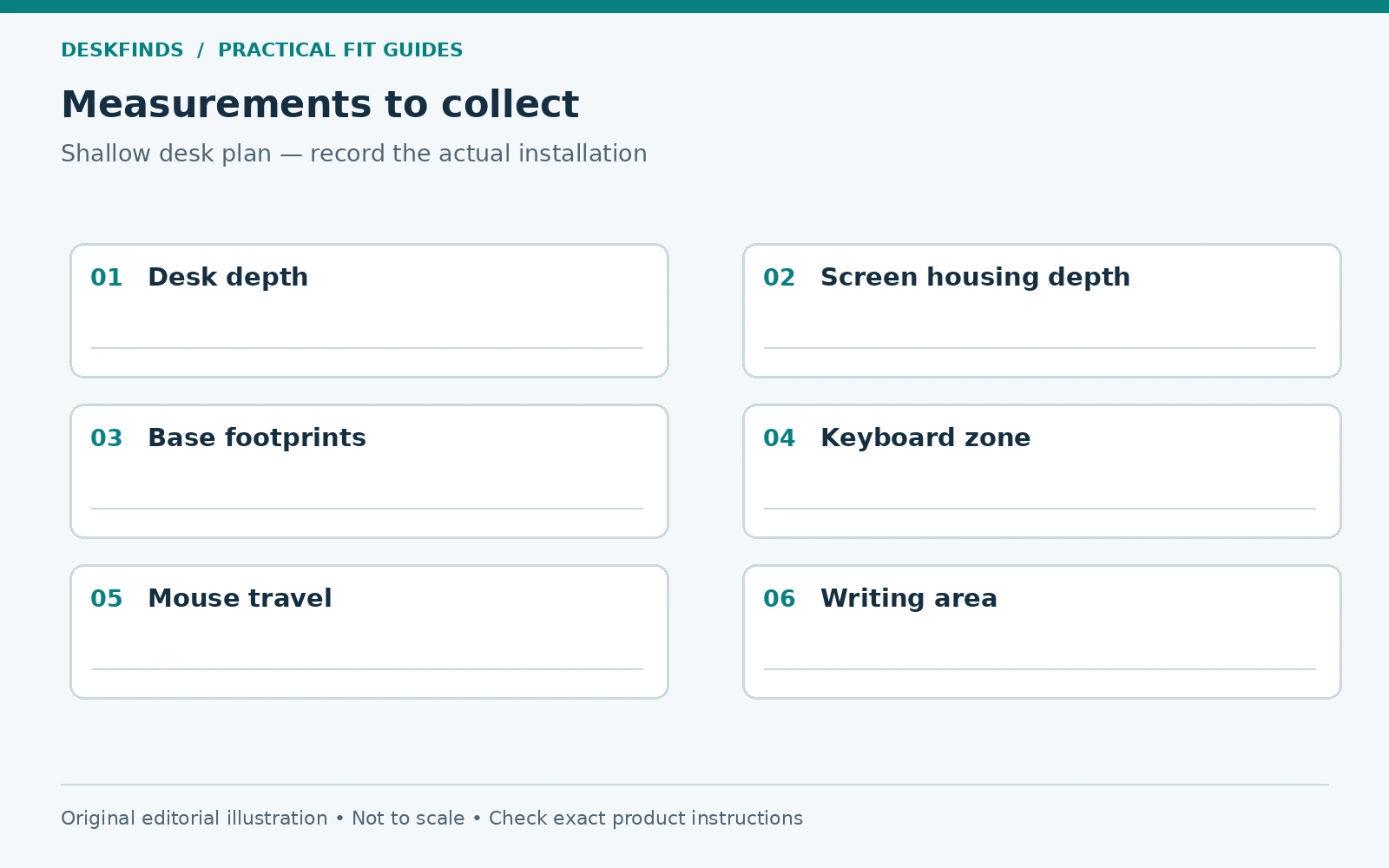
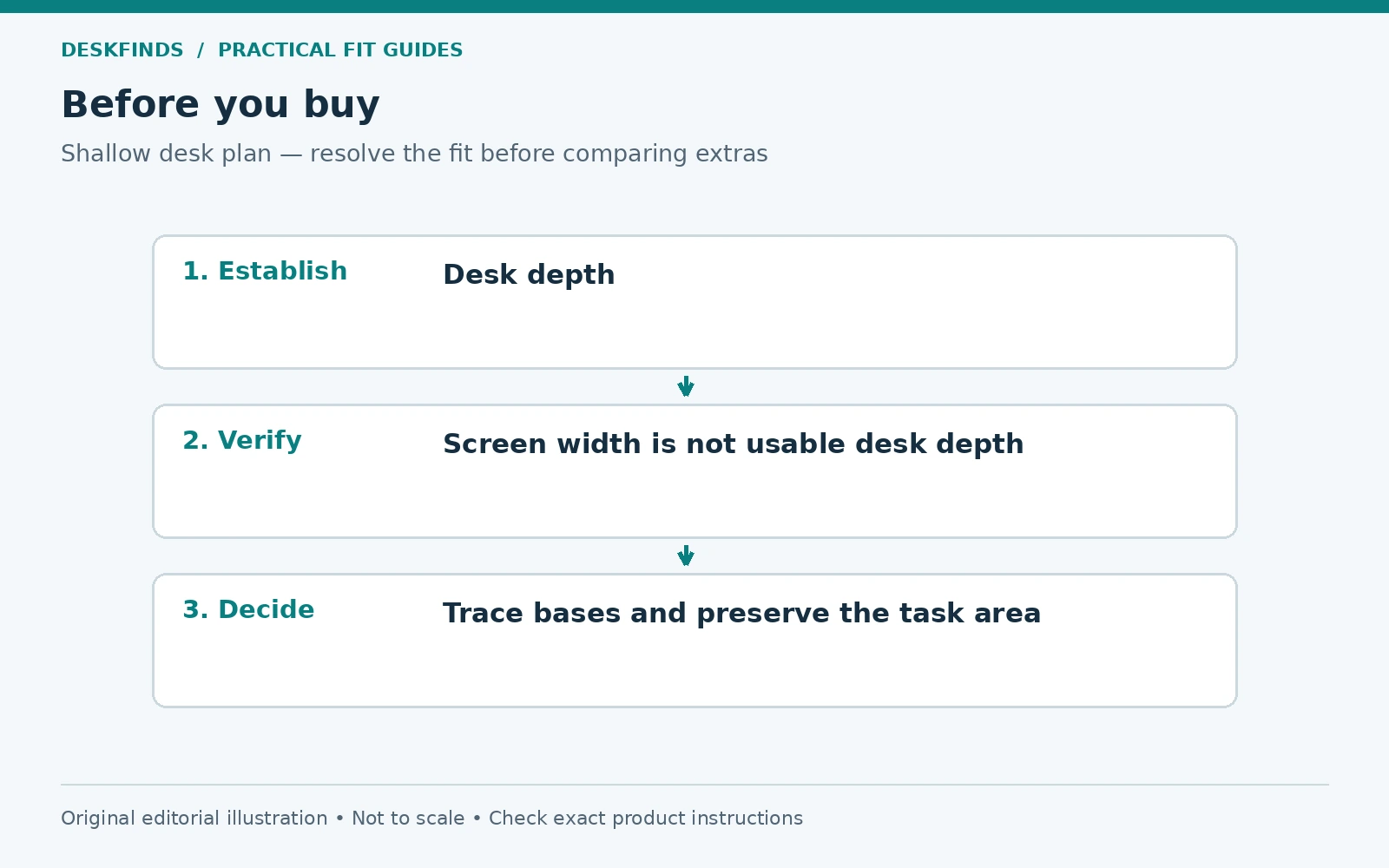
Measure desktop depth from the front edge to the back edge at the actual working position. Include a rear hutch, shelf, window sill, or wall gap as separate features. A corner or curved desk can have different depths depending on where you sit. Write down the depth at the keyboard center rather than relying on the largest figure in the listing.
Next, measure the monitor bases. Their advertised width does not reveal how far the feet extend toward you or behind the display. Put paper beneath each stand and trace its complete outline. Mark the screen plane on that outline so you can distinguish the space taken by the base from the position of the panel.
Measure the keyboard and your normal mouse movement area too. Include anything that stays on the desk during work, such as a notebook or audio controller. A layout that fits two screens only after removing the tools you need is not a complete plan. Decide which items can genuinely move elsewhere and which need a permanent place.
Choose a primary-screen or equal-use arrangement
If most of your work happens on one display, start with that screen in front of your normal seated position. Put the secondary screen to the side where you can consult it without keeping your body twisted. The goal is to reduce repeated reaching and rotation, not to center the seam between screens for appearance alone.
If you use both equally, try a balanced arrangement and test actual tasks. A wide spreadsheet spanning both screens behaves differently from email on one and a document on the other. Consider whether application placement can reduce unnecessary head movement before changing the hardware. Sometimes the software layout is the cheapest improvement.
Do not force both panels into identical angles if the desk or room makes that awkward. A wall, bookshelf, or neighboring workstation may constrain one side. Evaluate the screen you actually look at, the place you sit, and the space your hands need together. Symmetry is optional; comfortable access to the work is not.
Use a full-size template before buying hardware
Cut paper rectangles to the actual monitor widths and mark their thickness at the base. Tape them to lightweight cardboard supports that cannot fall onto you or your equipment. Alternatively, draw the entire layout on the desk with paper outlines while keeping the actual screens on their supported stands.
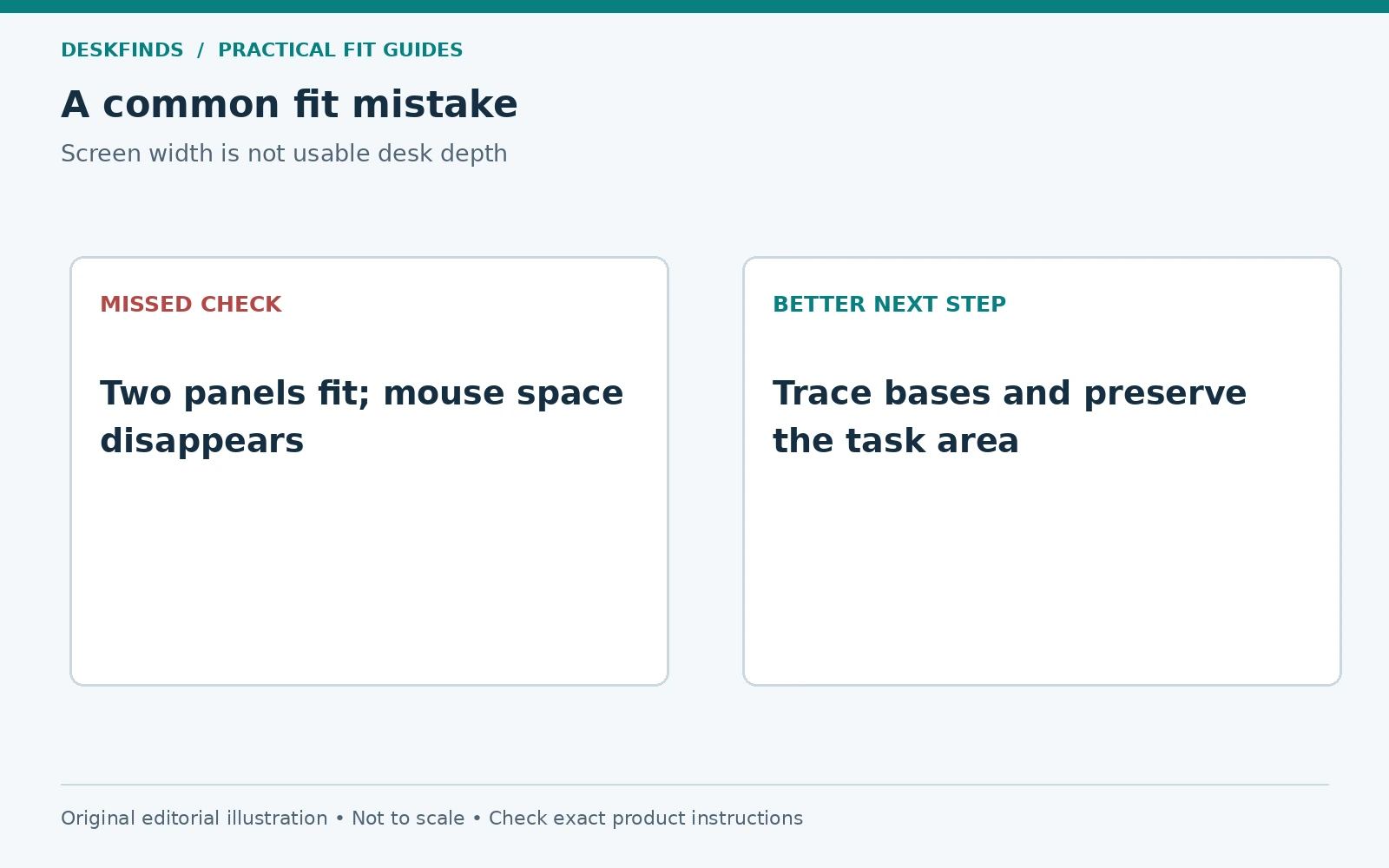
Arrange the templates at the intended angles and sit down. Check whether the corners project beyond the desk, approach a door, or interfere with curtains. Then place the keyboard and mouse outlines. If the mouse area disappears when the secondary screen turns inward, that conflict needs to be solved before a mount is ordered.
Allow space for normal adjustments. You may want to pull one screen forward for a detailed task, rotate a panel, or move the keyboard while writing. A layout that fits only in one exact static position may still be workable, but recognize the limitation. Do not buy an adjustable arm for movement that the surrounding room prevents.
Recover depth by changing the bases
Original stands vary widely in footprint. Before replacing both, see whether one stand is causing most of the problem. Moving a secondary display to portrait orientation may change its panel width but does not necessarily shrink its base. Measure the stand in the configuration you intend to use rather than assuming rotation solves everything.
A suitable monitor arm removes the original feet from the work surface. Its base, joints, and rear movement still need room. Some arms bring the screen farther forward than an original stand when folded near a wall. Our rear-clearance guide explains how to check that geometry before buying.
A compatible freestanding dual mount can consolidate the bases, but its own base may be broad or deep. It also has screen-size, weight, and stability requirements. Compare the complete footprint with the two existing stands. Replacing two small bases with one large one can make the desk look cleaner without recovering much usable depth.
Do not use screen overhang as the only solution
A panel extending beyond the desktop is not necessarily a problem if the support system and surroundings permit it, but the room still has to accommodate it. Check for people walking past, a nearby bed, opening doors, and the risk of a screen being struck. Keep all components within their approved mounting conditions.
A monitor base partly hanging off the edge is a different issue. Do not sacrifice its intended support to gain typing room. Similarly, avoid raising a stand on an unstable stack of books to tuck a keyboard beneath it. A suitable riser needs to support the entire base and the combined load in the intended position.
If both screens require impractical overhang, reconsider the size or arrangement. A smaller secondary display, a portrait screen, or a laptop used only when needed may serve the task better. The correct screen count is the one your work and space can support, not the largest number that can be balanced above the desk.
Plan the input area as a protected zone
Reserve a clear area for keyboard and mouse use before placing accessories. Keep frequently used controls within easy reach. If the mouse is repeatedly pushed onto a small corner, move a nonessential item rather than accepting a cramped work pattern. A smaller keyboard can help, but only if its missing keys do not disrupt your tasks.
A keyboard tray may recover surface depth, but it changes typing height and seat position. Check desk-frame clearance, legroom, usable tray width, and how far the platform projects into the room. Our clamp-on tray fit guide covers those checks. A tray is a separate compatibility decision, not a guaranteed companion to two monitors.
Keep space for the moments when you are not typing. If you sign documents or make notes throughout the day, plan a writing area or a quick way to move the keyboard. An attractive dual-screen setup that requires dismantling each time you open a notebook will not stay organized for long.
Example one: a 24-inch-deep desk with two stands
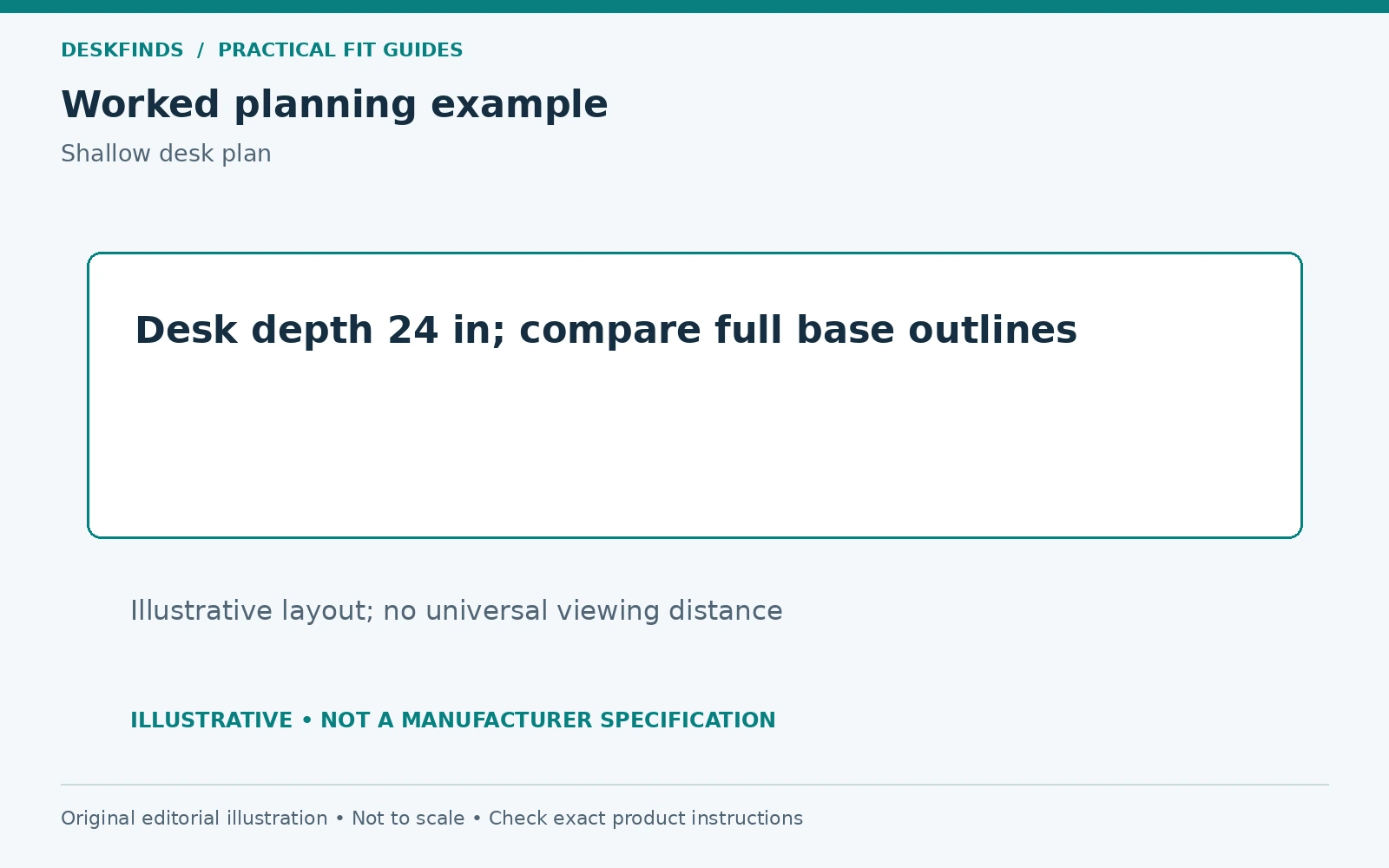
Imagine a desk with a depth of 24 inches and two original monitor stands. One base reaches well forward of its screen, while the other sits mostly behind its panel. The user has centered the pair and pushed the keyboard toward the front edge. The uncomfortable typing space is being driven mainly by one stand, not by the existence of two screens.
The first experiment is to center the main screen, angle the secondary, and move a lamp off the critical area. Paper traces show that this recovers enough mouse space without new hardware. The secondary screen remains on its original stand, and the user can still reach the desk for writing. This is a valid outcome even if it is less visually symmetrical.
If the main stand still blocks the keyboard, the next comparison is a compatible single arm for that screen. The desk material, clamp location, load, and rear geometry all need to pass. Buying one arm after measuring may solve the problem more directly than ordering a dual arm based only on screen diagonal.
Example two: the desk is against a wall
A second user has enough width but almost no gap behind the desk. A proposed dual arm reaches both screens, yet its elbows need space behind the top when the screens are pulled back. Moving the desk forward would narrow the room's only walkway. In this layout, the arm's adjustability is less valuable than a compact stationary arrangement.
The user compares a documented pole-style mount and the original stands using full-size outlines. One arrangement preserves the desired screen plane without rear joint movement. That candidate still needs a compatible desk and correct screen weights, but it better matches the room. The key is checking the folded position rather than the most extended product photograph.
If neither option works, a different screen arrangement may be necessary. A single larger monitor, a smaller secondary, or occasional laptop use could reduce the depth conflict. The decision should be based on the tasks that benefit from the second screen, not on an assumption that every desk needs two.
Keep cables and connectors out of the recovered space
A thin screen can still have rear-facing plugs that set its minimum wall gap. Measure the installed cable ends and check their natural bend. Do not crush connectors or pull cables tight to hold a screen in position. If an adapter is needed, verify its dimensions, orientation, and technical compatibility first.
Route cables away from mouse movement and the front edge. With an arm, leave the movement allowance specified by the manufacturer and check it at every intended position. Two screens can create crossed cable routes that look harmless until one display moves. Labeling the cables helps when disconnecting only one screen for service.
If you also use a docking station, check that its location does not reclaim the very space the mount saved. A ventilated and accessible position may be more useful than hiding it behind the screens. Keep frequently used ports reachable without leaning over the displays or pulling on their connections.
Test the finished layout with real work
Use the arrangement for the tasks you perform most often. Read a document, move between applications, enter data, and write a note. Check whether you lean toward one screen, rotate your torso for long periods, or lose mouse space. These observations are more useful than whether the desk looks evenly filled.
Adjust text scaling and application placement before moving the screens closer. If one display is noticeably harder to read, investigate its settings and resolution rather than assuming the entire pair needs to shift. Our display scaling guide provides a starting point for that process.
On a standing desk, repeat the layout check at the heights you use. A screen corner may approach a shelf, and a cable may become taut as the top rises. Confirm that mounts and accessories remain clear of the frame and wall. A setup that works seated has only passed one operating position.
Build a purchase brief instead of a shopping guess
Before comparing products, write down the maximum base footprint, acceptable screen plane, available wall gap, monitor weights, VESA patterns, and desk construction. Include the usable keyboard and mouse zone. If a candidate cannot meet the space brief from its documentation, ask for the missing dimensions before buying.
Use our dual monitor arm guide and small-desk monitor stands to compare suitable support methods. Treat load range, mounting surface, and geometry as qualifying conditions. Features such as cable covers and tool storage matter after the arrangement fits.
A shallow desk can support an effective dual-monitor workstation when the layout protects viewing distance and hand space. Start with the tasks, model the complete hardware, and accept a simpler arrangement when it works better. The most useful setup is the one you can work at comfortably without continually moving equipment out of the way.
Plan a real writing session, not just a screen arrangement
Many shallow-desk layouts fail when the user opens a notebook. The keyboard is already near the front edge, both monitor bases occupy the rear, and the only remaining patch is beside the mouse. Before choosing mounts, put the actual notebook or paperwork on the desk and decide where the keyboard goes during that task.
A keyboard that can slide into a suitable space beneath a riser may help, but check the complete opening and the riser's permitted load. Do not assume the keyboard fits because the riser is wider than it. Legs, dividers, and a low underside can reduce the usable opening. A safe parking space for the keyboard should not pull its cable taut or leave it balanced on a narrow edge.
If paperwork is frequent, reserve a permanent writing zone and accept a less symmetrical screen layout. If it is occasional, use a clear, repeatable transition. The goal is to avoid moving several fragile or connected objects each time you change tasks. An arrangement that supports both digital and paper work has more value than one optimized for a single desk photograph.
Compare portrait orientation by task, not only by width
Turning a secondary monitor vertically can reduce its horizontal panel footprint, but it changes height and the information visible without scrolling. Check that the display supports the intended orientation and that the mount can accommodate it within its limits. The base may remain the same size even when the panel turns.
Try the applications you use on the secondary screen. A long document or reference page may suit portrait orientation, while a wide spreadsheet or video may not. Consider the height of the topmost content and whether the screen can sit at a usable position. A narrower layout is not automatically a more comfortable one.
Also check the rotation path. A panel that fits once vertical may hit the desktop or neighboring monitor while turning. Follow the mount instructions and do not force the movement. If rotation is occasional, make sure it can be done without dismantling cables or moving the whole desk away from the wall.
Use a layout scorecard before buying another display
Rate each candidate arrangement against five concrete tasks: primary work, secondary reference, mouse use, writing, and access to ports. Add a note about rear wall space and installation compatibility. This is an editorial worksheet, not a numerical product rating. Its purpose is to show which compromise affects your work most.
You may find that a smaller secondary screen provides enough reference space while preserving a better input area. You may instead find that one larger display meets the same task with simpler support. Neither conclusion is a downgrade if it fits the work better. Buy the display arrangement after the task and space checks, rather than making the room accommodate a predetermined screen count.
Sources and scope
- Ergotron desk mounts - individual product dimensions and installation resources.
- OSHA workstation evaluation checklist - general workstation assessment reference.
The layouts and hypothetical dimensions are original editorial examples, not test results or universal ergonomic prescriptions.