
How Much Space Does a Monitor Arm Need Behind a Desk?
Affiliate Disclosure: We may earn a small commission on qualifying Amazon purchases at no extra cost to you. Full disclosure →
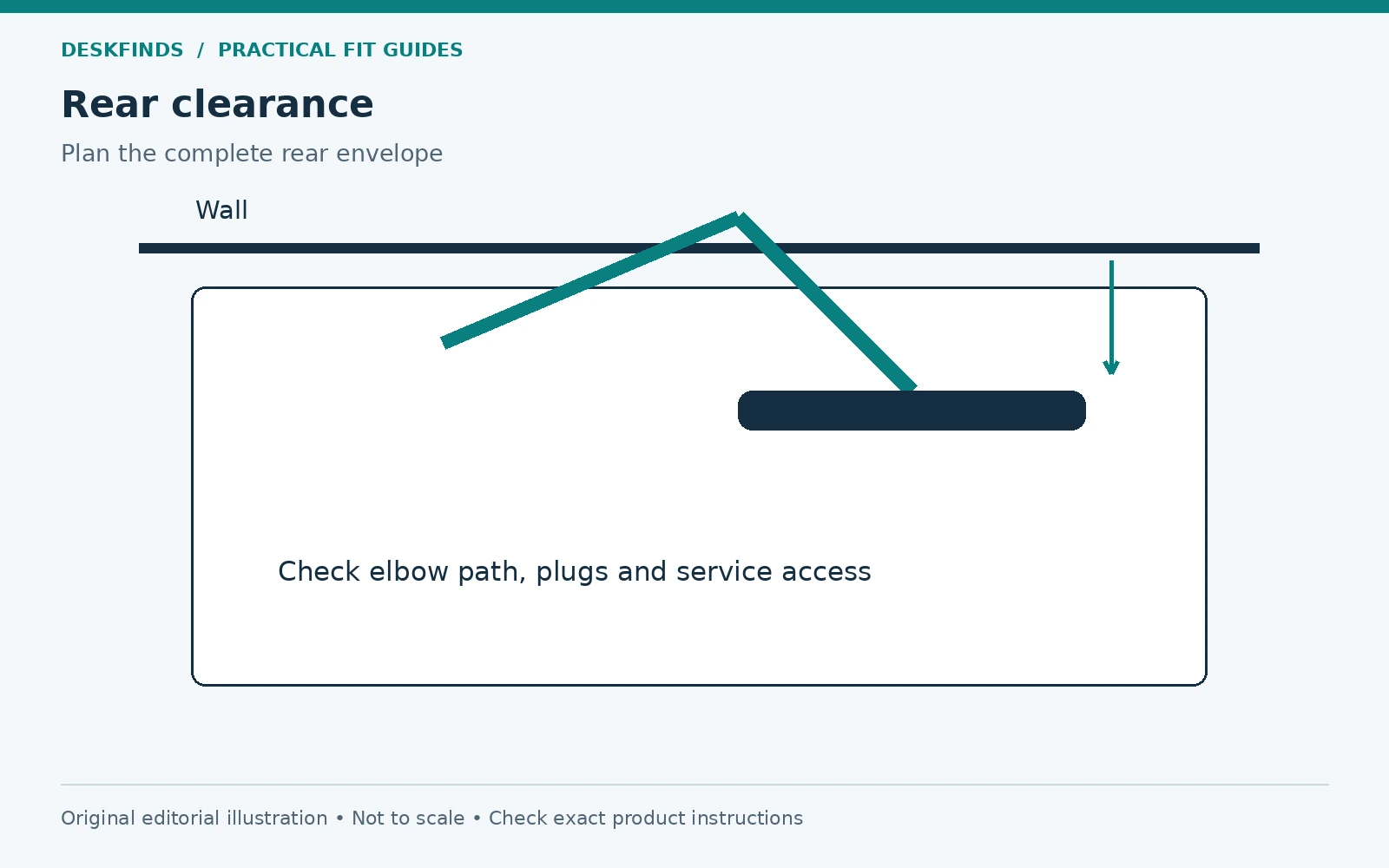
Pushing a desk against the wall can make a small room feel less crowded, but it can also leave a monitor arm with nowhere to fold. The screen may fit above the desktop while an elbow, cable connector, or clamp screw hits the wall behind it. The useful measurement is therefore the space occupied by the entire assembly in the positions you actually need.
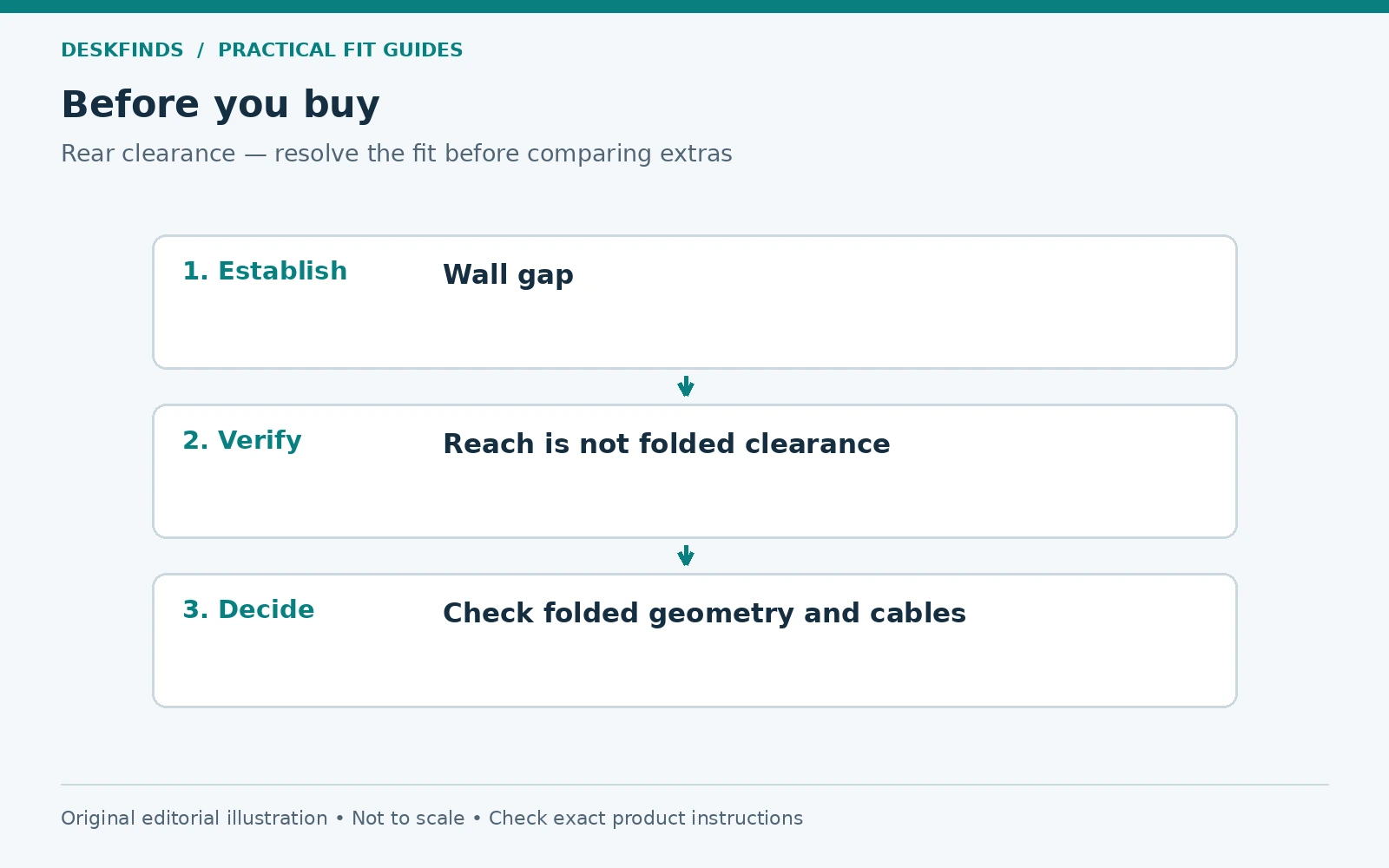
Quick answer: There is no universal rear-clearance number for monitor arms. Check the mount's dimensional drawings, the clamp hardware, the screen's intended position, and the path of the joints and cables. Measure both the final working position and the movement needed to reach it. Maximum forward reach does not tell you minimum wall clearance.
This guide uses original planning examples rather than tested dimensions for a particular model. For the basic mounting measurements, start with our desk measurement guide, then use the following checks to plan the wall side of the setup.
Separate four different clearances
First is base clearance: room for the clamp body, screw, handle, pole, and any mounting cover. Some parts sit below the top and others project behind it. A desk may clear the wall at desktop height but collide lower down, especially where a skirting board or power outlet pushes the furniture away from the wall unevenly.
Second is joint clearance. An articulated arm can fold sideways, backward, or in a combination that changes with screen position. The elbow may travel behind the base even if the display remains in front of it. A photograph with the screen fully extended rarely reveals the most restrictive folded configuration.
Third is cable clearance. Power and display plugs need space at the monitor, and the cable must bend without being crushed or pulled. A plug that points directly toward the wall can determine the final gap more than the arm itself. Include adapters and the real cable ends rather than drawing only the thin cable line.
Fourth is service clearance. You need to reach any fastener, release plate, adjustment point, or cable clip that the instructions require. A configuration that can only be assembled away from the wall may still be usable, but plan how it will be maintained without dragging a loaded desk across the floor.
Establish where the screen should finish
Sit in your normal working position before drawing the arm. Place the existing monitor where you can read comfortably without leaning forward or twisting. Adjust text size if the screen position is being dictated by tiny text. Mark the approximate location of the screen plane with a strip of removable tape on the desk, where the finish permits it.
Now note the monitor's actual width and depth, including any unusually thick rear housing. Screen diagonal alone cannot describe the space it occupies. A curved ultrawide may have substantial depth and a different balance from a flatter panel of similar advertised size. Verify its weight and mount compatibility separately.
The arm's job is to reach that useful position while remaining within all installation limits. Do not start with the deepest fold the arm can achieve and then accept an uncomfortable screen position because it looks neat. Our monitor distance guide explains the viewing considerations to assess alongside the mechanical fit.
Read the right drawing
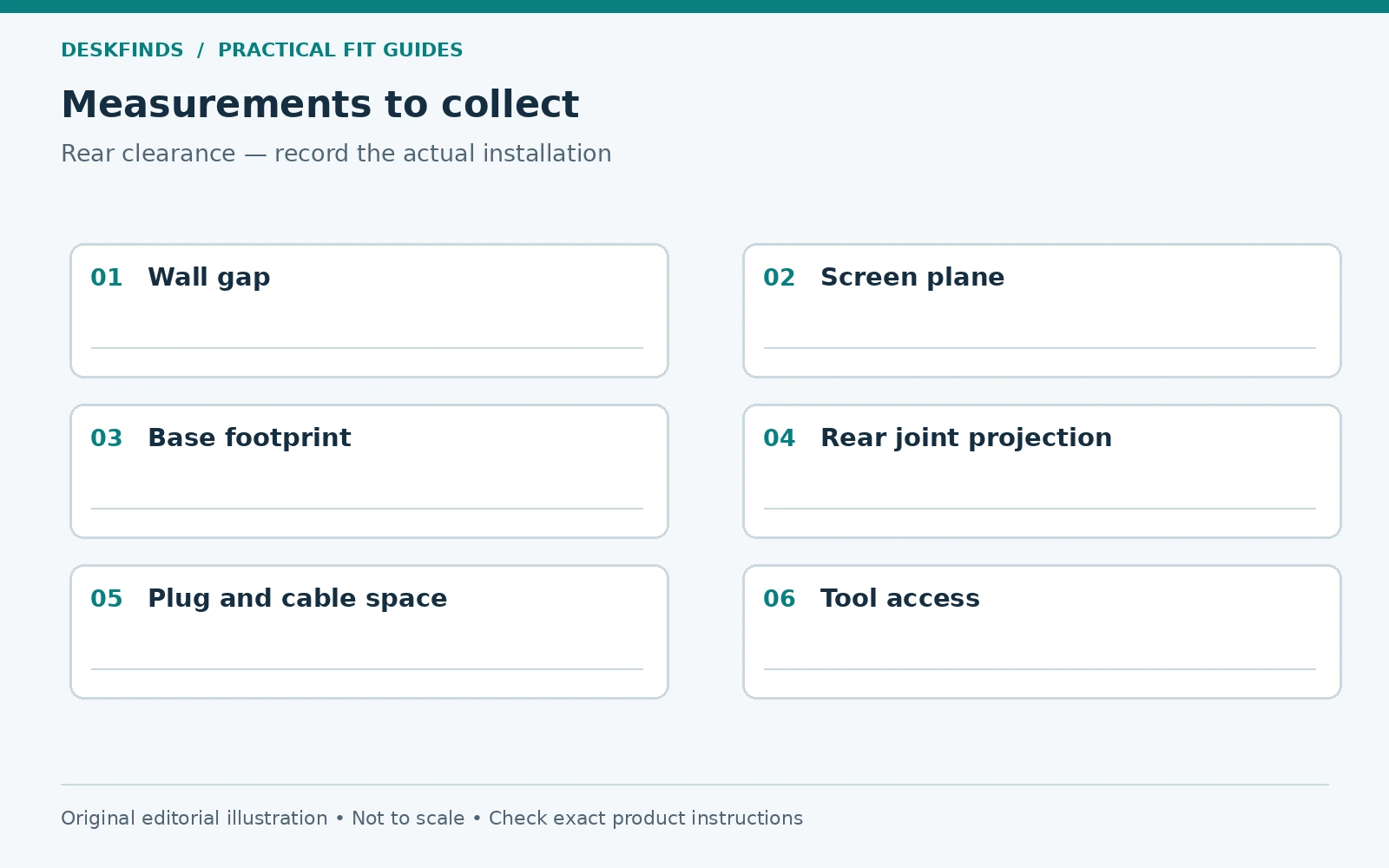
Look for a top view, side view, range-of-motion drawing, and clamp dimensions for the exact arm and base. Product pages often highlight maximum extension and vertical travel because they are easy to compare. Those figures do not show whether the elbow can fold forward, remain over the top, or require space behind it.
Identify the drawing's reference points. A reach dimension may run from the pole center to the mounting plate, not from the desk's back edge to the front of the display. Add the base location, monitor housing, and any adapter only after you understand those references. Mixing reference points can create a reassuring number that describes no real configuration.
If the drawings do not reveal the rear envelope, ask the manufacturer for the distance from the mounting point to the rearmost component in your proposed folded position. Include a sketch of the desk and wall. A precise question is more useful than asking whether the arm is “good for shallow desks.”
Make a top-view mock-up
Draw the back edge of the desktop, wall, intended mounting point, and screen plane on paper. Use a consistent scale. Mark a circle or rectangle for the base and simple strips for the arm segments, using documented dimensions where available. Movable paper strips can show why one mounting position creates a backward elbow while another allows a sideways fold.
This is a planning tool, not a structural model. It does not prove the arm will reach every angle, clear its own joints, or support the screen. Use it to identify questions for the actual drawing and manual. Do not infer unlisted movement just because two paper strips can overlap.
Next, mark cables and obstacles. A wall shelf, window sill, socket, curtain, radiator, or desk hutch can occupy the same rear space as the arm. Look above and below the screen height too. A screen that clears the wall at one elevation may meet a shelf when raised for another user.
| Planning layer | Include on the sketch |
|---|---|
| Fixed furniture | Desktop edge, wall, shelf, window trim |
| Mount hardware | Base, clamp, pole, arm joints |
| Display | Housing depth, plate and any adapter |
| Connections | Plug bodies and cable movement allowance |
| Access | Tools, quick release and cable clips |
Choose a base location with the whole desk in mind
A base directly behind the center of the screen is not always the most compact arrangement. Depending on the arm's design, an offset base may let its sections fold along the back edge rather than projecting toward the wall. Confirm that arrangement in the manual and keep the screen within the permitted range.
An offset position can create other conflicts. The arm might cross a lamp base, cover a cable opening, or swing through a second monitor. It can also place the clamp on a part of the desk with different structure or an obstructed underside. Recheck material compatibility and mounting surfaces when you move the proposed base.
On a standing desk, consider the entire height range. A rear shelf or windowsill that clears the arm when seated may interfere when the desk rises. Cable slack must work at both extremes without becoming trapped against the wall. Our standing desk cable guide covers the moving-desk side of that decision.
Worked example: a shallow desk against a wall
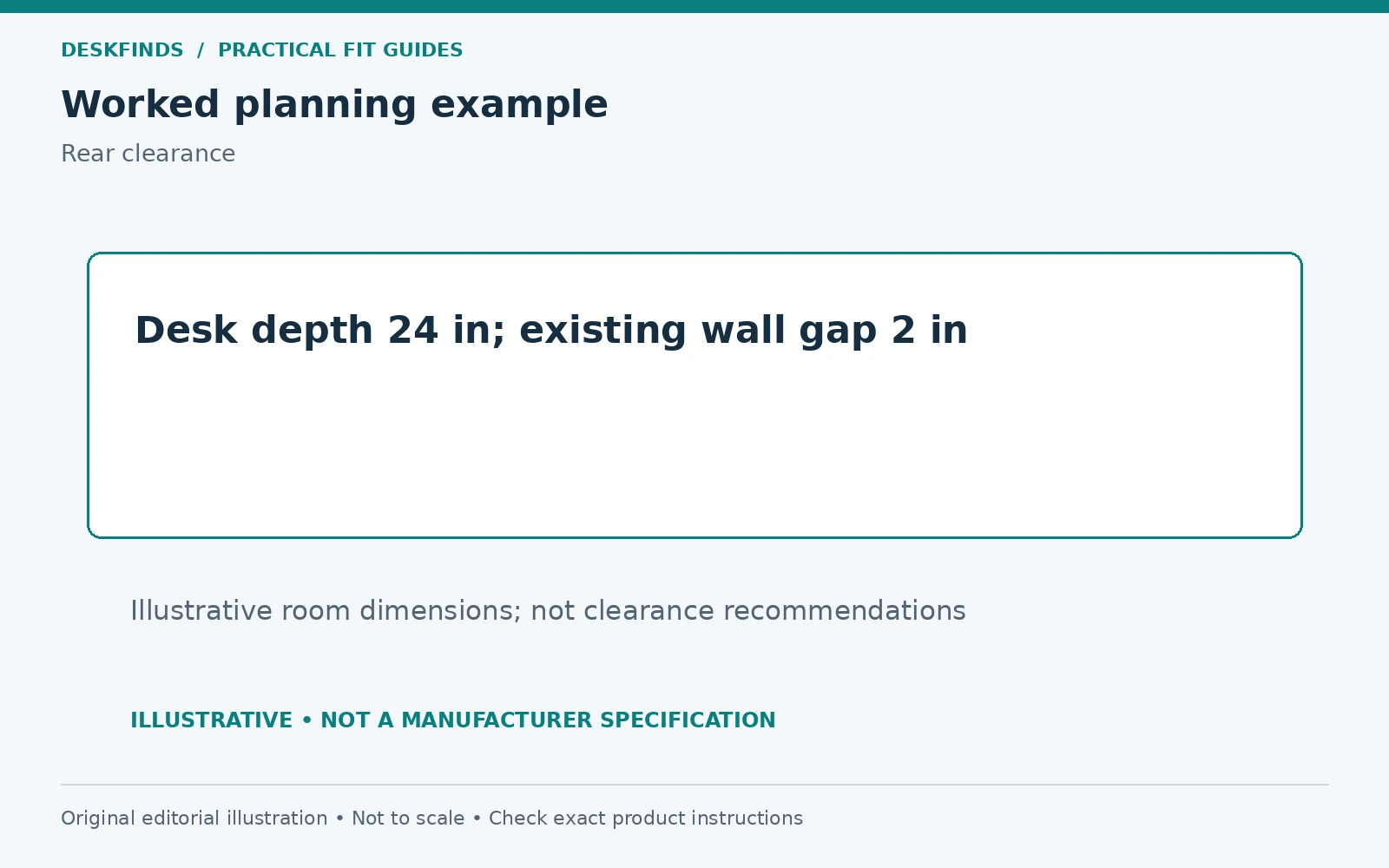
Imagine a desk that is 24 inches deep, with the back edge two inches from the wall. The user wants the display face roughly 18 inches behind the front edge. These are illustrative room measurements, not recommended universal dimensions. They establish a target screen position and an existing rear gap to compare with a specific mount.
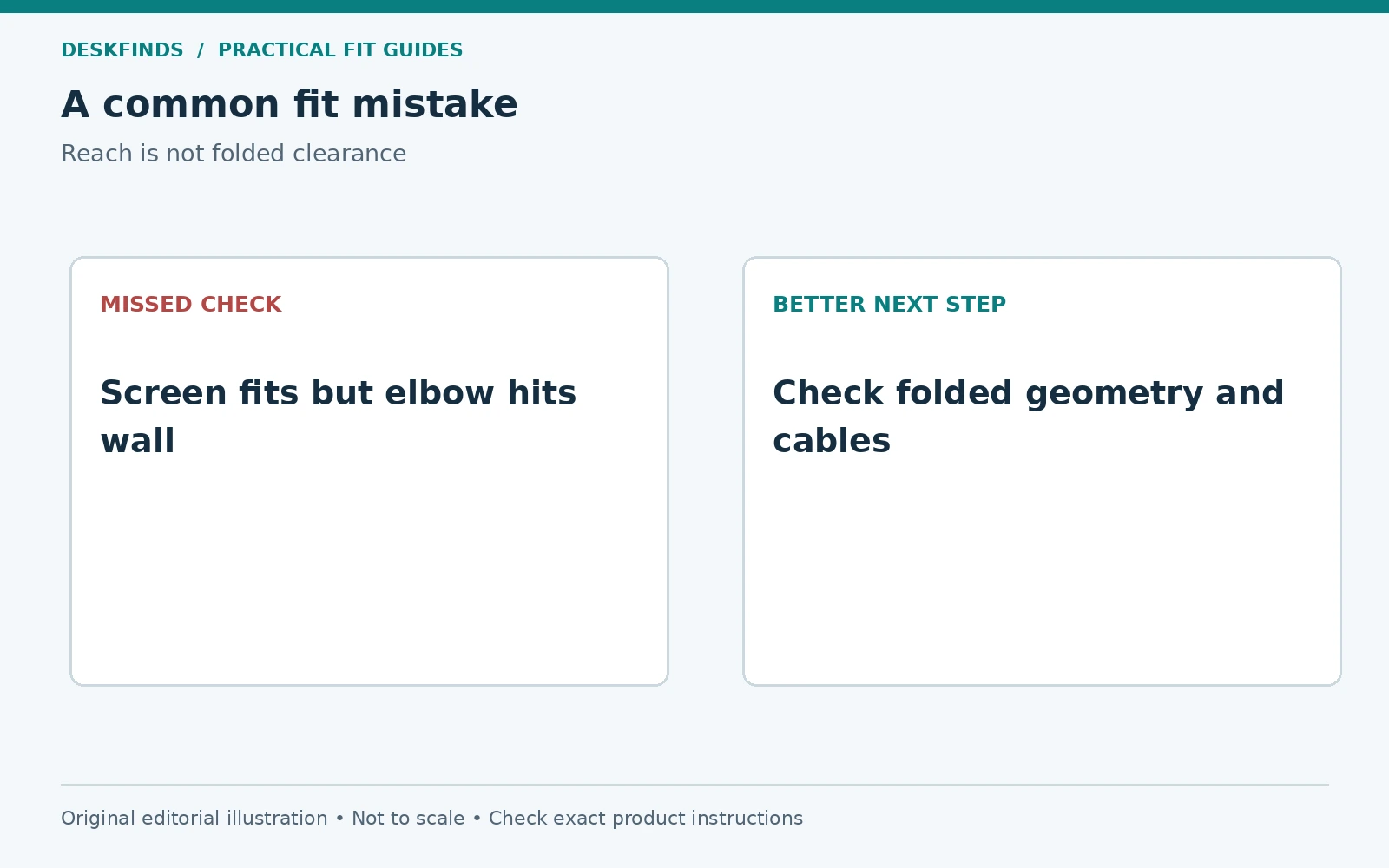
The selected arm's diagram shows a configuration that reaches the target, but its folded elbow extends farther back than the existing gap allows. Moving the monitor forward solves the collision while reducing useful viewing distance. That is a compromise, not a successful fit. The buyer should compare another base position or a different mount design.
A second candidate folds along the rear of the desktop in its documented configuration. It may suit the layout, provided its clamp, screen load, and mounting surface also qualify. The relevant difference is folded geometry, not which arm advertises the longest reach. A longer arm can be harder to contain on a shallow workstation.
Dual monitors need a combined movement check
For two screens, draw both housings and both arm paths. Check whether the screens can meet at the desired angle without the elbows competing for the same space. Also check whether one screen can move without hitting the other screen's cables or mount. A symmetrical product photo does not guarantee a symmetrical fit on your desk.
Decide whether the screens will be side by side, one vertical, or used with a laptop. Those choices change the useful center point and may require a different base location. The screen that you use most should not be displaced merely to make the hardware look balanced. Our dual-monitor versus ultrawide guide can help define the layout first.
If a dual assembly requires an unacceptably large wall gap, compare separate arms, a suitable pole-based arrangement, or original stands. Each has its own load and footprint checks. Avoid adding extensions or reversing components unless the manufacturer explicitly permits it; improvised geometry can change more than the space behind the desk.
Do not solve cable pressure with a blind adapter purchase
Before buying a right-angle connector, identify the actual port orientation, adapter dimensions, and signal requirements. Some adapters point in the wrong direction for a particular recessed port. Others add a rigid lever or occupy the neighboring connection. A shorter-looking connector is not necessarily less intrusive once installed.
Confirm that any cable or adapter supports the required display mode and power function. Keep the plug accessible enough to remove without pulling on the cable. Avoid forcing a tight bend at the strain relief simply to gain a small rear gap. If the connection cannot sit naturally, change the screen or arm position.
Route cables through the intended clips with enough slack for the permitted motion. Check the cable at the nearest and farthest screen positions, not just the desk's normal view. A cable that becomes taut can move the display or load its socket. A loose loop can instead catch the wall or become pinched in a joint.
Installation and movement checks
Assemble the mount according to its instructions with adequate support for the screen. If you need to move the desk away from the wall for access, do that before loading the arm. Protect the wall and do not use contact with it as a stop unless the product is specifically designed for that purpose.
Move through the intended positions slowly, watching the rearmost hardware and the cable ends. Check seated and standing positions where applicable. Look from the side as well as above; a clamp screw or connector can be hidden from the normal chair position. Keep hands away from joints and do not force a stop.
Once the layout works, record the required wall gap. Include any skirting-board offset and the space needed for sockets. A small floor marker, where appropriate for the finish and room rules, can make it easier to restore the position after cleaning. Photograph the final cable route so maintenance does not accidentally eliminate the slack.
When another support method is the better fit
A compact original stand may consume more surface area but need less rear movement space. A suitable monitor riser can add storage below it, though its height and load still need checking. For some shallow desks, reorganizing the base footprint is more useful than adding an articulated mechanism that pushes the screen forward.
A wall mount can remove the desk-side elbow but needs an approved wall installation and may still project from the wall. A pole-style mount has different adjustment trade-offs and should be assessed from its own drawings. The correct comparison is the complete occupied space in your room, not the product category's reputation for saving space.
Use our monitor arm guide only after you know the available envelope. Shortlist models whose documented geometry fits the desk, screen, wall, and access requirements. Then compare convenience features. A mount that fits naturally will be more useful than one that needs the desk pulled into the walkway every time the display moves.
A final purchase worksheet
Write down the desk depth, planned screen plane, current wall gap, maximum permitted rear projection, and clamp access requirements. Add the actual screen housing depth and plug orientation. Attach a top-view sketch of the arm in its normal position and in the positions you expect to use occasionally. Keep unknown dimensions marked as questions.
Before checkout, ask yourself whether the plan works without pushing the display too close, twisting cables, or blocking a route through the room. If it does not, change the layout or mount before installation. The purpose of measuring rear clearance is to preserve usable desk depth, not merely to make the screen hover above the top.
Measure the connector end of the system
A useful rear-clearance check starts at the screen's ports, not at the outer edge of the arm. Identify whether the display connections face backward, downward, or into a recessed compartment. Measure the plug body after installation and note whether your fingers can reach its release or grip. A cable that is difficult to disconnect becomes a maintenance problem even if it just clears the wall.
For a downward-facing port, check the path below the panel and across the arm. For a rear-facing port, check the wall gap at the actual screen height. An adapter may change both the projection and the cable direction. Record its complete installed outline rather than subtracting a guessed amount from the original plug length.
If you use several inputs, map all of them together. A power lead, display cable, USB upstream cable, and headset connection can occupy different sides of the housing. One neatly routed cable does not establish room for the others. Leave the screen serviceable without disconnecting unrelated equipment from the desk.
A repeatable room check after moving furniture
Take a top-view photograph or save a simple sketch of the final base and screen positions. Write the wall gap at desktop height and note any lower obstruction such as skirting board. If the desk is moved for cleaning, restore the documented gap before adjusting the arm. Do not let the wall become the physical stop that tells you the desk has moved too far.
Recheck the full route when a new screen, lamp, shelf, or cable is added. A monitor upgrade can change housing depth and connector placement even when the diagonal size stays similar. A new adapter may be rigid enough to become the rearmost component. These changes can invalidate a previously workable arrangement without changing the arm at all.
For a shared desk, record the positions used by each person. One user may keep the screen close to the base while another pulls it forward and raises it. The necessary rear envelope is the union of those intended positions, not just the neatest one. If the room cannot accommodate both, agree on another layout before relying on the arm's full advertised travel.
This record also makes a manufacturer question easier to resolve. You can show where the collision occurs and which movement is needed, rather than asking for a generic recommendation for a small desk.
Sources and scope
- UPLIFT Enfield monitor arm - example of model-specific rotation limits and mounting configurations.
- Ergotron desk mount resources - dimensional and installation resources for individual mounts.
Room examples, sketches and worksheets are original planning aids. Check the current manual for the exact mount, monitor and desk before installing equipment.