
Ultrawide vs Dual Monitor: Which Is Better for Your Desk?
Ultrawide vs dual monitor comparison covering desk space requirements, ergonomics, GPU demands, price, and use case fit. Includes comparison tables and a verdict by setup type.
Affiliate Disclosure: We may earn a small commission on qualifying Amazon purchases at no extra cost to you. Full disclosure →
Quick answer: For most home office and small desk setups, an ultrawide is the cleaner, simpler choice. Dual monitors win on total screen real estate and flexibility, but they require more desk space, more cables, and a more powerful GPU. The right choice depends on your desk size, use case, and whether you value screen count or screen continuity.
The Core Difference
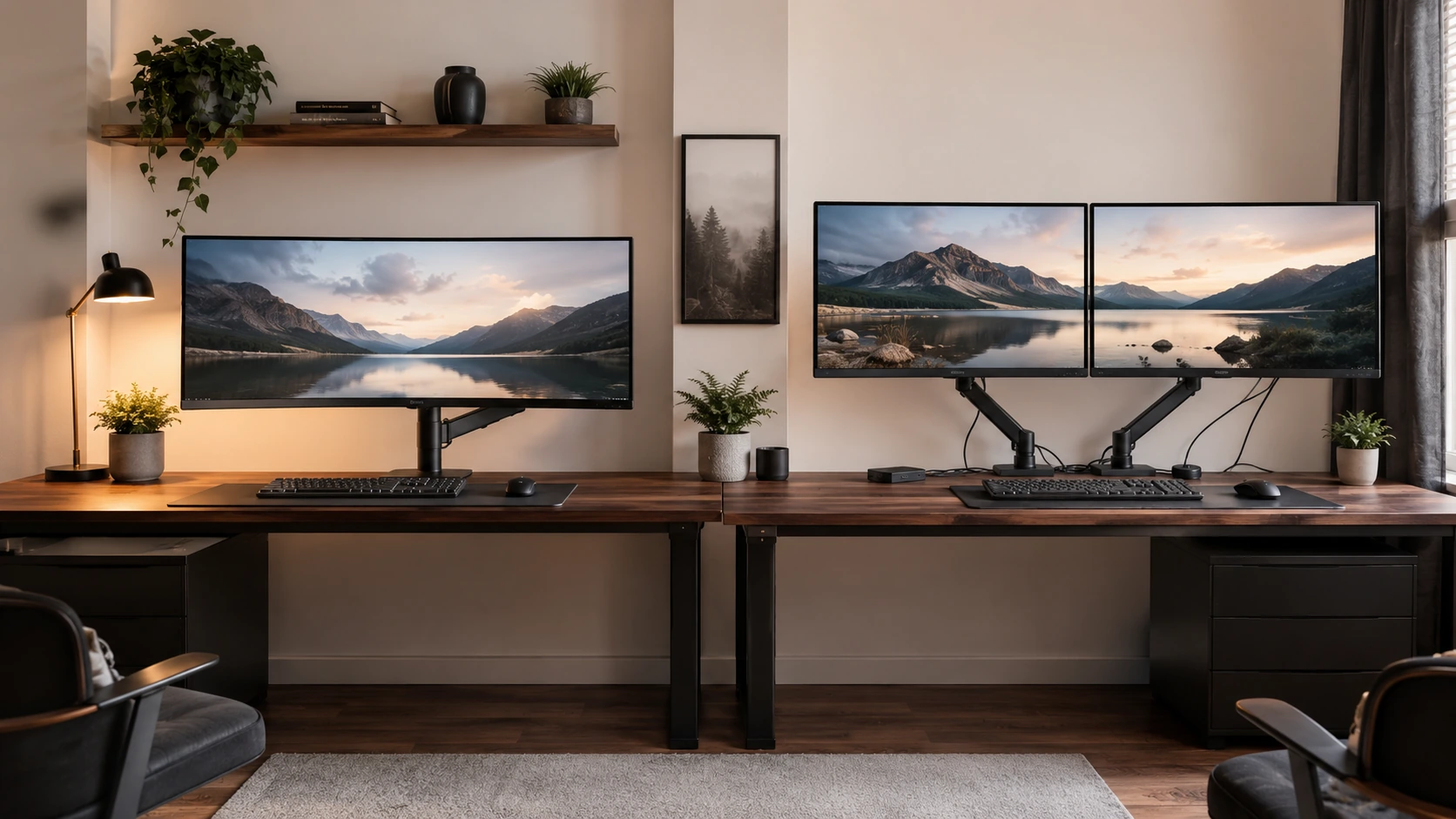
An ultrawide monitor extends the standard 16:9 aspect ratio into a 21:9 or 32:9 format, giving you a single continuous screen surface. Dual monitors place two separate 16:9 (or 16:10) panels side by side, with a physical bezel line running down the center.
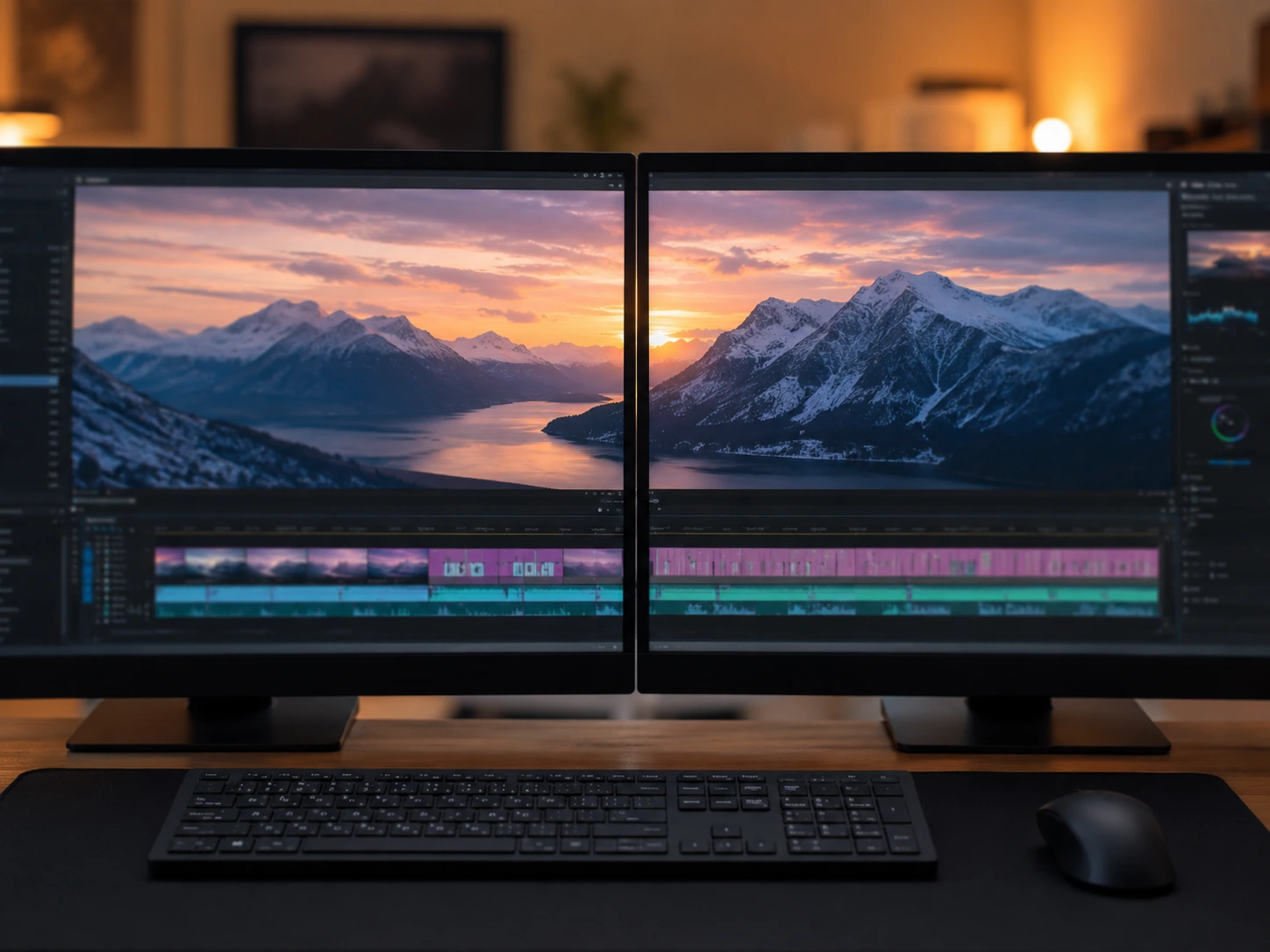
This distinction matters more than it sounds. The bezel gap in a dual setup is not just aesthetic. It actively interrupts your visual field during full-screen video, code review, gaming, and creative timelines. An ultrawide eliminates that interruption entirely.
Side-by-Side Comparison
| Ultrawide (34" 3440x1440) | Dual Monitor (2x27" 2560x1440) | |
|---|---|---|
| Total pixels | 4,953,600 | 7,372,800 (+49%) |
| Desk width needed | ~32" (81cm) | ~54"+ (137cm+) |
| Bezel gap | None | Center break |
| Cables required | 1 display cable | 2 display cables + power |
| GPU demand | Moderate | Low-moderate (each screen independent) |
| Color consistency | Single panel = uniform | Two panels rarely match exactly |
| Price | $200-500 | $400-700 (2 monitors) |
| Setup complexity | Simple | Requires cable management |
The Desk Space Problem Competitors Don't Mention
Most ultrawide vs dual monitor comparisons focus on pixels and bezels. What they consistently miss: dual monitors physically require more desk space than most home offices have.
Two 27-inch monitors side by side occupy approximately 54 inches (137cm) of horizontal desk space just for the screens, before accounting for stands, side clearance, or anything else on your desk.
The average compact desk (48"-55" wide) physically cannot accommodate two 27" monitors without the outer monitors hanging off the edges or requiring awkward angling. This is the real reason most dorm rooms, small apartments, and compact home offices use ultrawides - not preference, but constraint.
| Desk width | Can fit dual 24"? | Can fit dual 27"? | Can fit 34" ultrawide? |
|---|---|---|---|
| Under 48" | Tight | No | Yes |
| 48"-55" | Yes | Tight | Yes |
| 55"-60" | Yes | Yes | Yes |
| 60"+ | Yes | Yes | Yes (with room to spare) |
If your desk is under 55" wide, an ultrawide is almost always the correct answer before any other consideration. Check the Best Standing Desk Under $500 guide if you're also thinking about a wider desk.
Ergonomics: The Neck Strain Problem Nobody Discusses
Dual monitor setups introduce a positioning challenge that single-screen setups do not have: where do you look most of the time?
If you primarily use one monitor and glance at the second, the optimal setup is one monitor centered with the secondary monitor at an angle. If you split usage 50/50, you will be constantly turning your neck to the non-center screen, which over an 8-hour workday creates cumulative cervical strain.
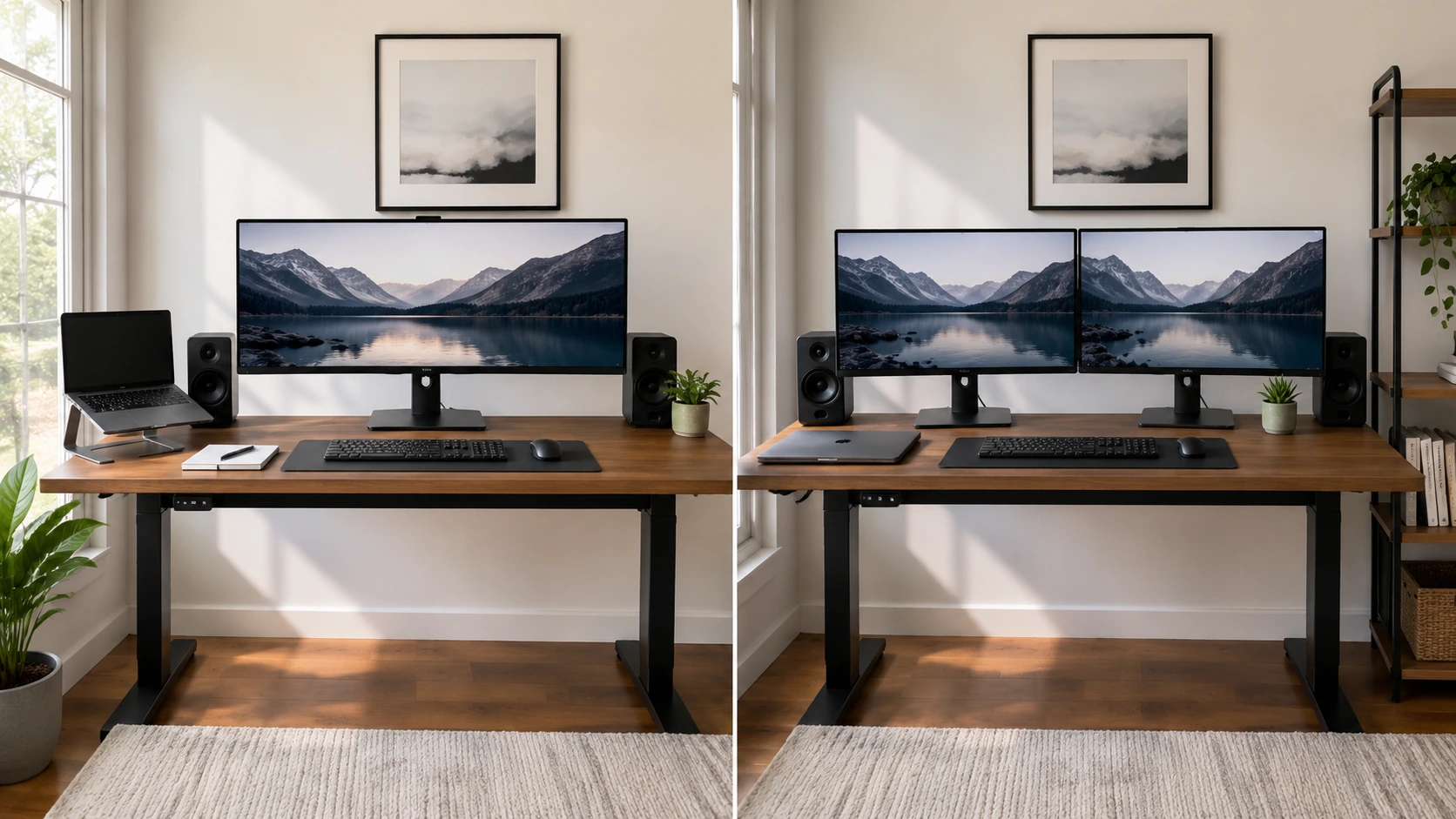
Ultrawides solve this by default: all content is on a single centered panel. You look straight ahead. Peripheral content (chat, music player, reference windows) is visible without head rotation.
| Setup | Head rotation required | Neck strain risk |
|---|---|---|
| Single ultrawide 34" | Minimal - only eye movement | Low |
| Dual monitor, one primary | Frequent turns to secondary | Medium |
| Dual monitor, equal split | Constant alternation | High for users with neck issues |
| Super ultrawide 49" | Eyes only, no head turn needed | Very low |
GPU Requirements: What Each Setup Actually Demands
Ultrawide (3440x1440 at 144Hz): Requires approximately 15-20% more GPU performance than a standard 1080p monitor to drive gaming at equivalent frame rates. For productivity, the GPU demand is minimal.
Dual 1440p (2560x1440 x2): In gaming, your GPU renders to the primary monitor only. The second is just showing a desktop or browser. GPU demand for gaming is equivalent to single 1440p. For full-screen video on both monitors simultaneously, the demand is moderate.
Key point: For gaming, dual monitors do NOT double GPU load. Only the active game screen is rendered at full resolution. An ultrawide at 3440x1440 actually requires more GPU power per frame than a single 1440p panel.
Use Cases: When Each Setup Wins
Best for Ultrawide
Video/audio editing: Timeline editing is where ultrawide shines definitively. A 3440-pixel-wide timeline shows more clip data without scrolling than any 1440p or 4K 16:9 monitor. The continuous surface means no bezel splitting your timeline.
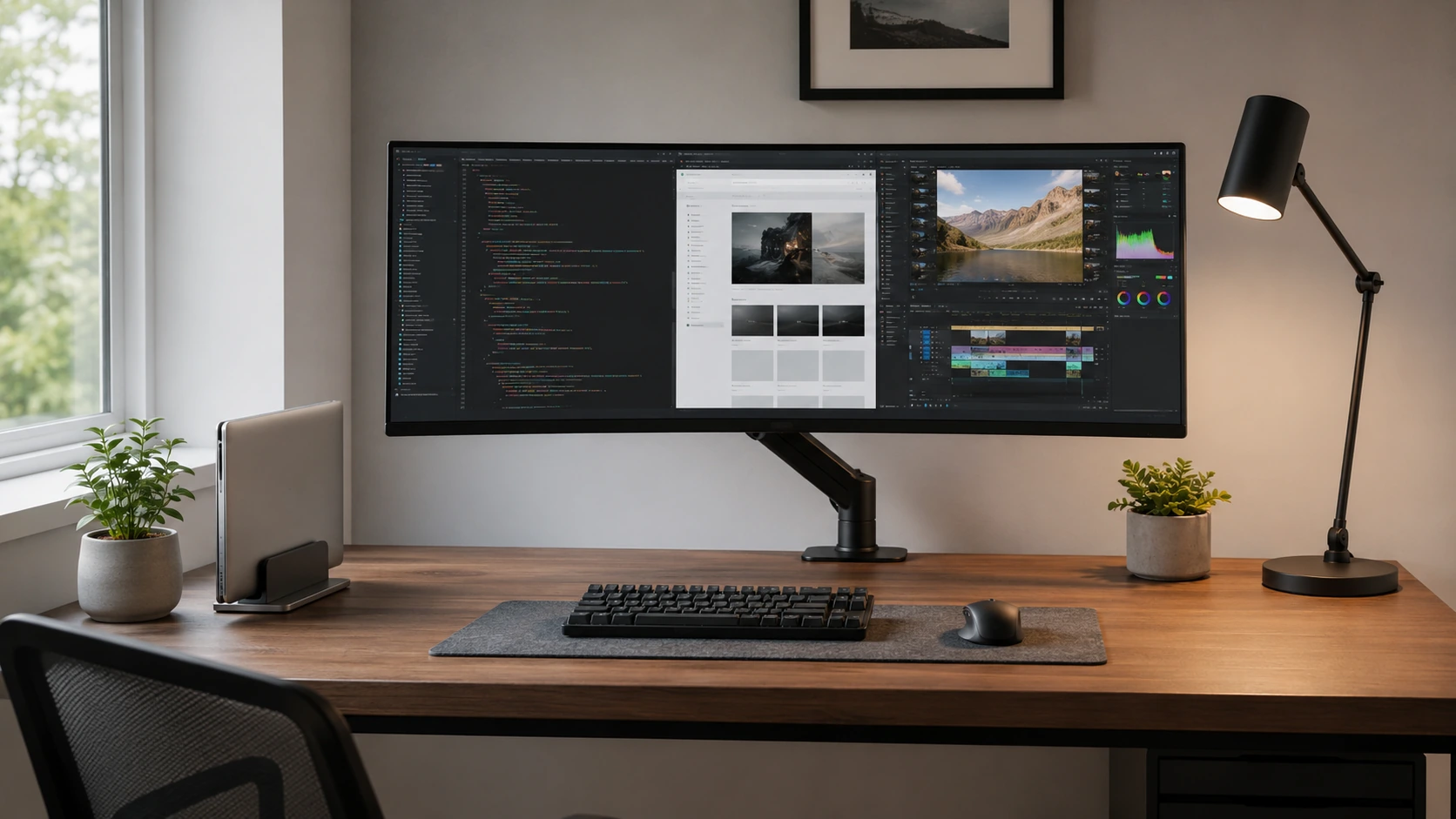
Coding: Side-by-side code + terminal or code + documentation is the natural workflow. An ultrawide handles this without the gap of dual monitors and without requiring two separate windows to be perfectly positioned.
Gaming: Single-display gaming with no bezel break and native 21:9 aspect ratio in games that support it. Note: not all games support 21:9 natively - verify compatibility before buying.
Small desks: Any desk under 55" wide. The ultrawide fits; dual monitors often do not.
Clean cable management: One display cable vs two dramatically simplifies under-desk routing.
Best for Dual Monitors
Raw screen area for research-heavy work: Lawyers, researchers, and writers who need a full document on one screen and references on another benefit from the literal additional physical space.
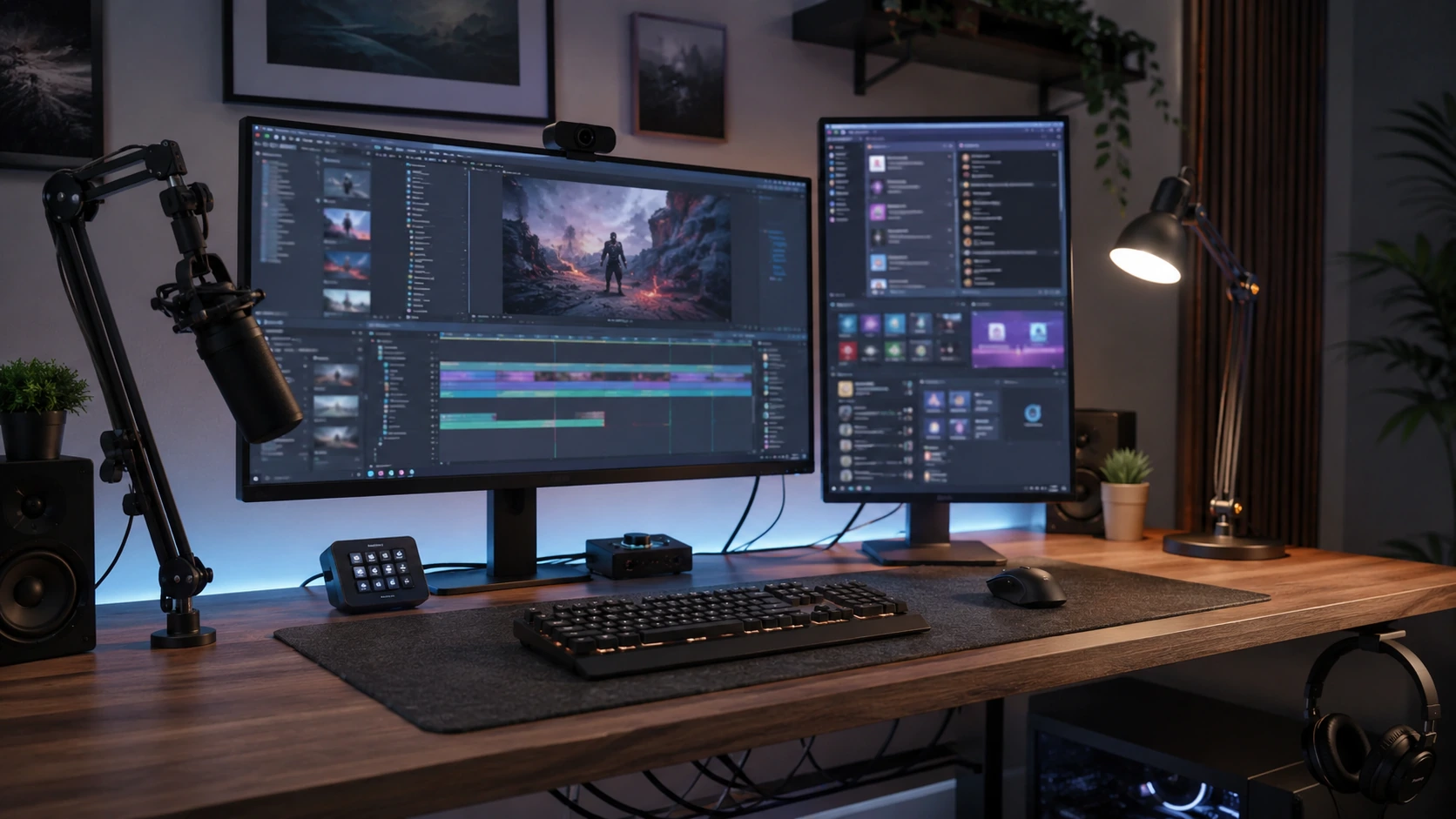
Streaming/content creation: One monitor for the game or creation tool, one monitor showing chat, stream dashboard, and alerts. These workflows genuinely benefit from two separate full screens.
Budget-conscious upgrades: If you already own one monitor, adding a second is cheaper than buying an ultrawide. A second 24" 1080p monitor costs $100-150, while the cheapest ultrawide is $150-200.
Multi-application workflows: Running two completely separate applications simultaneously (a stock ticker on one screen, trading platform on another) benefits from two independent windows.
Price Reality Check (2026)
| Setup | Entry cost | Recommended cost |
|---|---|---|
| Ultrawide 29" 2560x1080 100Hz | ~$150-200 | ~$200 (LG 29WQ600-W) |
| Ultrawide 34" 3440x1440 144Hz | ~$200-280 | ~$250 (Sceptre C345B) |
| Dual 24" 1080p (2 monitors) | ~$200 (2x$100) | ~$300 (2x$150) |
| Dual 27" 1440p (2 monitors) | ~$400 (2x$200) | ~$500 (2x$250) |
For equivalent visual workspace quality, a 34" 3440x1440 ultrawide at ~$200-280 provides a comparable experience to dual 27" 1440p monitors at $400-500, plus the ergonomic and cable management advantages.
How We Picked
Every product in this guide was evaluated across five criteria, weighted for real small-space use. We do not claim hands-on lab testing — our evaluation is based on verified buyer feedback patterns, published product specifications, and structured comparison criteria.
Small-Space Fit
Physical footprint, mounting options, and whether the product works without consuming space you don't have.
Build Quality
Materials, finish durability, and construction quality as indicated by product specs and verified buyer feedback patterns.
Ease of Use
Setup time, daily usability, and how much adjustment the product requires once in place.
Value for Money
Price-to-performance ratio compared to competing products in the same subcategory.
Buyer Feedback
Patterns from verified Amazon reviews — what real buyers praise and complain about most over time.
Verdict: Which Should You Buy?
Buy an ultrawide if:
- Your desk is under 55" wide
- You want a clean, cable-light setup
- You use video editing, audio production, or coding workflows
- You game on a single screen and want immersion
- You're starting fresh and want simplicity
Buy dual monitors if:
- Your desk is 60"+ wide and you have monitor arms
- You already own one monitor and want to expand cheaply
- Your workflow genuinely requires two completely separate full screens simultaneously (streaming, trading, dual-app monitoring)
- You do work that benefits from a 50/50 two-screen split
The honest conclusion: For the majority of home office workers, students, and casual gamers on a desk under 55" wide, an ultrawide is the better single investment. Dual monitors are a legitimate upgrade for workflows that genuinely need them, not for most people.
Also see: Best Standing Desks Under $300 if desk width is your constraint, and Standard Desk Height Guide to get ergonomics right after choosing your display.
Frequently Asked Questions
Is ultrawide better than dual monitors for work?
For most home office workers on desks under 55" wide, yes. An ultrawide eliminates the bezel gap, fits on smaller desks, requires fewer cables, and reduces neck rotation. Dual monitors win on raw pixel count and for workflows that genuinely require two fully independent screens simultaneously.
Does ultrawide hurt GPU performance?
For productivity tasks, no. For gaming, a 3440x1440 ultrawide requires approximately 15-20% more GPU resources per frame than a single 2560x1440 panel. Dual monitors do not double GPU load for gaming - only the active game window is rendered at full resolution.
Can you game on ultrawide?
Yes, and many games support 21:9 natively with a wider field of view. Not all games support 21:9 - some show black bars or stretch. Verify game compatibility before buying. For competitive multiplayer, some players prefer standard 16:9 for faster frame rates at lower resolution.
Is 29-inch ultrawide good enough, or do I need 34 inches?
A 29" 2560x1080 ultrawide is a good entry point at $150-200, but the 1080 vertical resolution is limiting for productivity (less vertical content per window). A 34" 3440x1440 at $200-280 is meaningfully better - more vertical space, higher pixel density, and the aspect ratio works better for side-by-side windows. The $50-80 price difference is worth it for most buyers.
Do I need a monitor arm for ultrawide?
Not required, but recommended. A monitor arm lets you push the ultrawide back on smaller desks, freeing desk depth that the stand would otherwise occupy. It also makes height and tilt adjustments easier. For desks under 24" deep, a monitor arm makes an ultrawide significantly more usable.
Related Buying Guides
7 Best Standing Desks Under $300 in 2026: Dual Motor, Compact, and Small Apartment Picks
5 Best Standing Desks Under $500 in 2026: Dual Motor, L-Shaped, and Premium Picks
Standard Desk Height: What It Is and How to Find Yours
Ergonomic Chair vs Gaming Chair: The Real Difference
Want to browse more options? See all related products on Amazon.
Browse on AmazonEvaluation note: Products in this guide were assessed on overall score, small-space fit, build quality, ease of use, value for money, and buyer feedback from verified Amazon reviews. We do not claim hands-on product testing.
Read our full methodology →