
Will a Clamp-On Keyboard Tray Fit Your Desk?
Affiliate Disclosure: We may earn a small commission on qualifying Amazon purchases at no extra cost to you. Full disclosure →
A clamp-on keyboard tray can lower your typing surface and recover desktop space. It can also collide with a desk frame, trap your thighs, or leave the mouse hanging off a platform that looked generous in a product photograph. The advertised tray width is only one part of the fit.
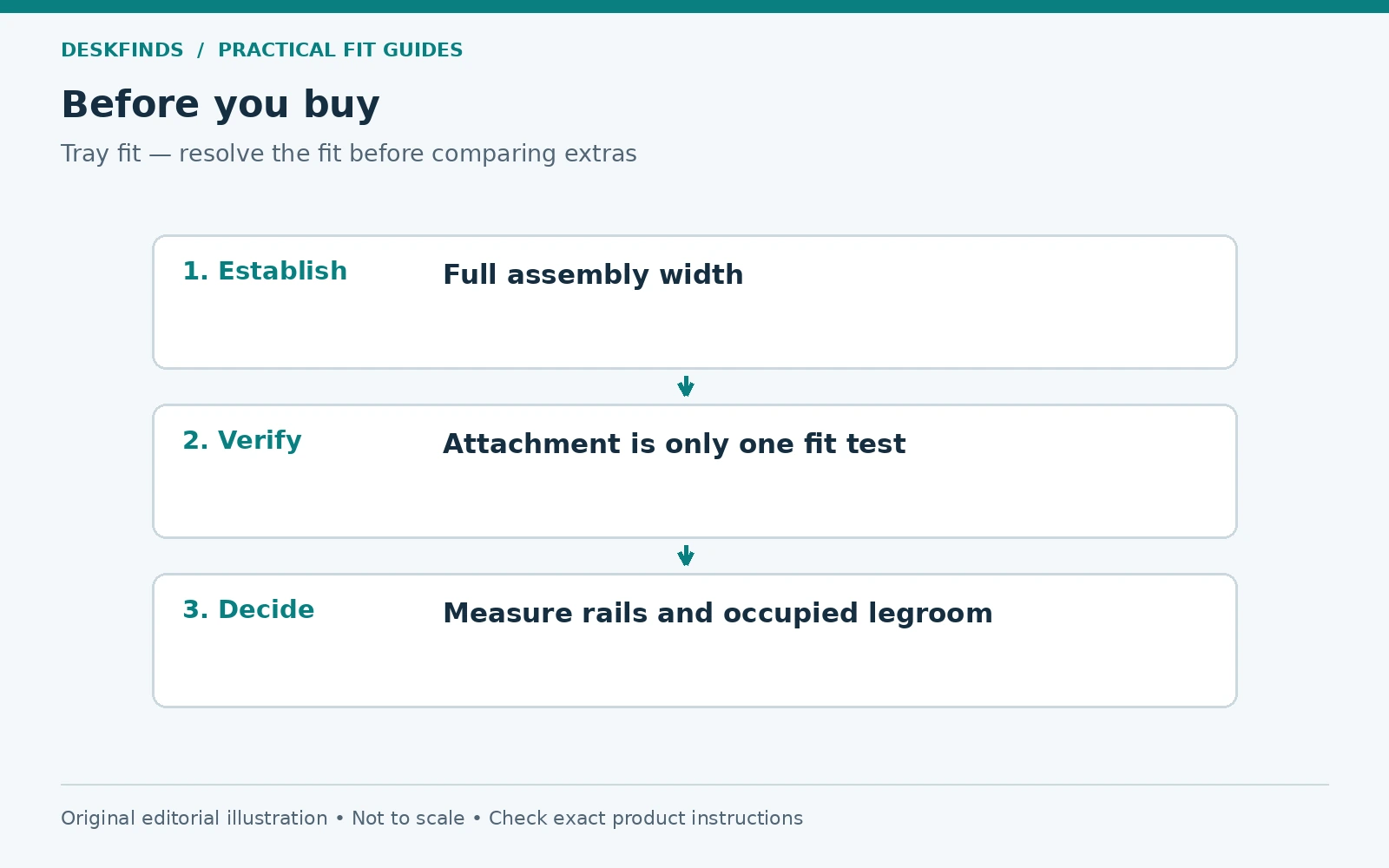
Quick answer: Check the complete clamp-to-clamp width, permitted desktop thickness, underside obstructions, platform drop, slide-out distance, and remaining legroom. Measure with your chair set for actual work. A tray that attaches successfully is still unsuitable if it forces you away from the desk or prevents comfortable keyboard and mouse use.
This guide is a measurement and layout process, not a recommendation to install any particular tray. Manufacturer instructions control the mounting details. Our keyboard placement guide explains why keyboard and screen positions should be considered together.
Decide what problem the tray needs to solve
Write down the main reason for adding the tray. If the desktop is too high for typing, a lower platform may help. If the problem is a crowded surface, rearranging the equipment might be enough. If your existing chair cannot approach the desk because its arms hit the top, a tray may move the keyboard outward but leave the underlying clearance problem unresolved.
Set your chair to a usable seated position before measuring. Sit with the back supported, feet supported, and shoulders relaxed. Put the keyboard at a position where you can type without reaching. Note the surface height and distance from your body. This gives you a target to compare with a tray's adjustment range rather than buying the greatest possible drop.
Consider how often you switch between typing, writing, and other tasks. A tray that works for keyboard use can create an obstacle when you want to pull closer to the desktop for paperwork. The right solution should support the whole workday, not only the photograph of the finished setup.
Measure the complete width, not just the platform
Product listings may give the usable platform width, overall width including clamps, and shipping dimensions in different places. Identify each one. Two clamps can add width beyond the typing surface, and the assembly may need extra room to operate its screws or handles. Desk legs near the front corners can obstruct those parts.
Measure the clear span between everything beneath the front edge: legs, panels, drawers, and frame brackets. Do not assume the desk's advertised width equals that span. A 40-inch desktop can have substantially less clear space between its supports, particularly if it includes side storage or a wide structural frame.
Then compare your keyboard and mouse arrangement with the usable platform. Include the mouse's actual movement area and any wrist support you intend to keep. A tray that holds a full-size keyboard with no room left for the mouse solves only half the input-device problem. Consider a smaller keyboard only if it suits your work.
Check the desk edge and both clamp surfaces
Measure thickness at the actual proposed mounting points. A decorative front lip, bevel, or stepped underside may make those points different from the rest of the top. The clamp's upper and lower contact surfaces must seat as the instructions require. A clamp partly resting on trim can appear tight while remaining poorly supported.
Inspect the top construction and finish. A clamp's opening range is not an approval for glass, hollow-core panels, or damaged composite board. Verify the material restrictions for the tray and the desk. If the instructions exclude your surface, do not compensate by tightening harder or adding an unapproved stack of pads.
Locate the clamp screws and check how you will turn them. A drawer or apron can block access even when the clamp itself fits. Some designs need space to swing a handle during installation; others use a tool from below. The access requirement belongs in the measurement record alongside the final mounted dimensions.
Map the underside before ordering
Use a flashlight to identify aprons, crossbars, cables, control boxes, and existing accessories. Make a simple underside sketch from the front edge backward. Mark where the clamps will land and where the rails will extend. On a standing desk, include the frame members and anything that moves with the top.
A front apron is especially important. The desktop may be thin enough for the clamp, but the apron can prevent the lower jaw from reaching a flat contact area. A crossbar farther back can interfere with the rails when the tray slides inward. Neither problem is solved by checking the top thickness alone.
Keep the area needed for knees and thighs visible on the drawing. Cable trays, drawers, and keyboard hardware often compete for the same space. Adding them one at a time without a shared plan can leave you with three accessories that each fit individually but cannot be used together.
| Measurement | Compare with |
|---|---|
| Flat edge thickness | Clamp minimum, maximum and contact requirements |
| Clear span between supports | Full assembly width, including clamps |
| Front edge to crossbar | Rail and stowed-platform depth |
| Underside to thighs | Lowest hardware position at your seated setting |
| Platform projection | Chair position and room circulation |
Calculate the platform height and remaining legroom
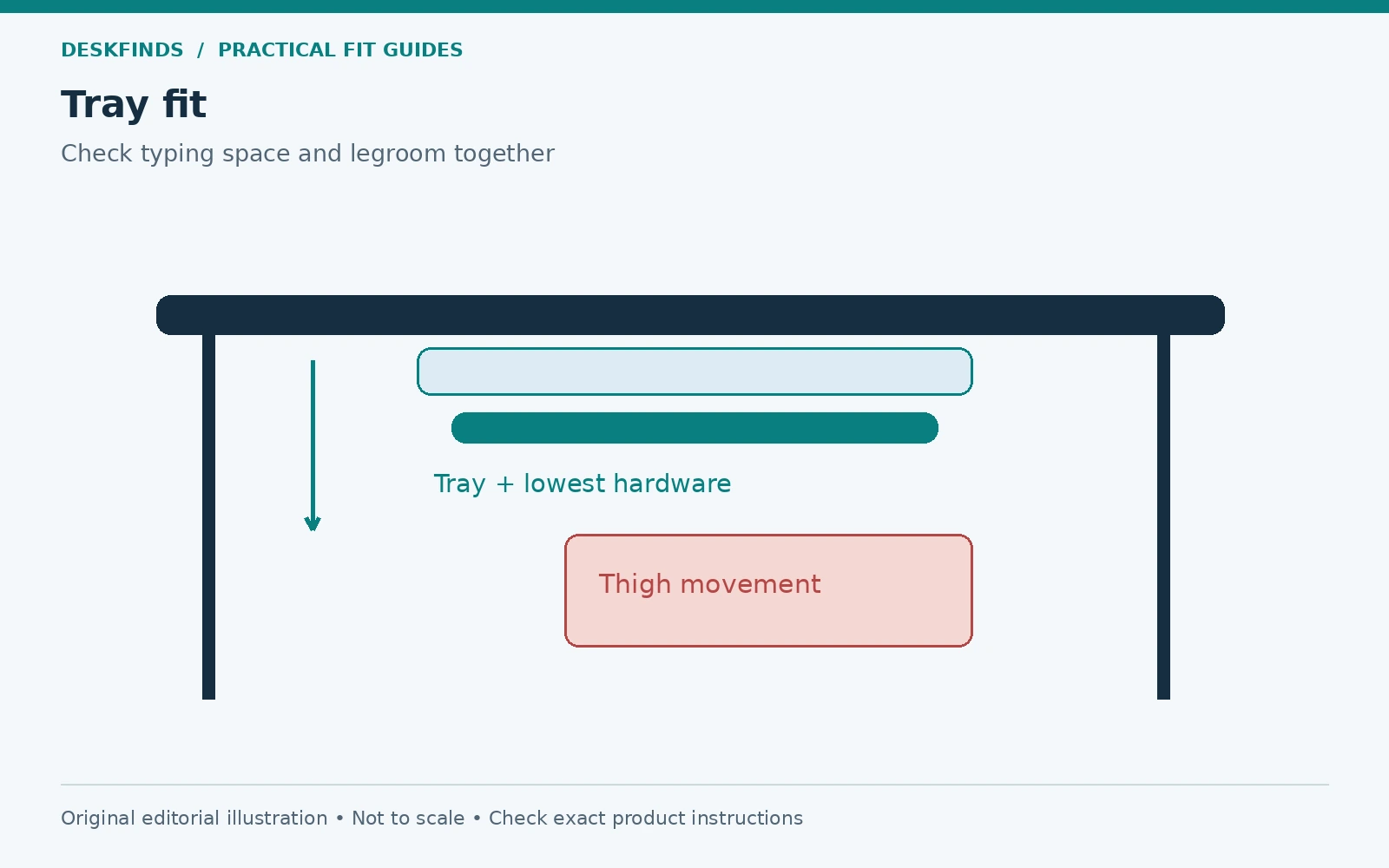
Find the distance from the desktop to the tray surface and to the lowest piece of hardware. These are different measurements. The tray surface determines typing height; a clamp screw, rail, or bracket may be the first part your leg encounters. Include both in the comparison.
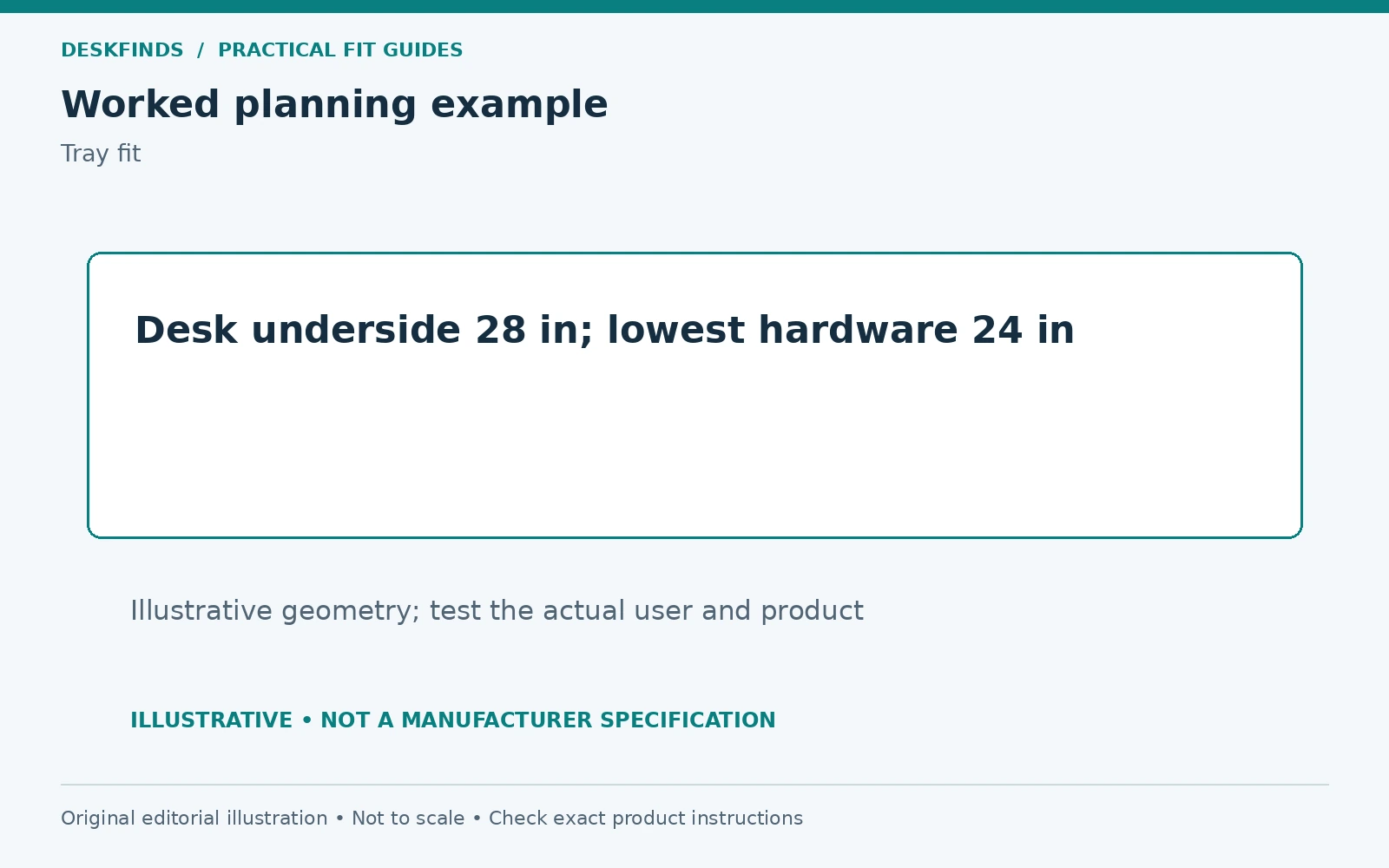
For an illustrative example, suppose the underside of a desktop is 28 inches above the floor and the lowest tray hardware would be 24 inches above the floor. That leaves a different usable space from a product description saying the platform drops only three inches. The example is not a fit recommendation; your seated thigh height and movement must be checked directly.
Use a cardboard mock-up supported independently of the desk to visualize the proposed surface. Do not sit beneath an unstable object. The goal is to see whether you can approach, type, shift position, and stand up without contact. A few seconds of static sitting is not enough to reveal the effect of normal leg movement.
Test keyboard and mouse positions together
Place both devices on a paper rectangle matching the tray's usable surface. Put that rectangle at the intended distance from your body. Try a normal editing or spreadsheet task rather than only resting your hands. Check whether the mouse can stay beside the keyboard without your elbow drifting far outward.
If you use a number pad frequently, keep that need in the layout. A compact keyboard can create mouse space, but it changes the work pattern for data entry. A separate number pad can be moved as needed, though it also needs storage. Avoid turning an equipment fit problem into a daily workflow annoyance.
Check the height of the keyboard itself. A tall keyboard on a low tray can behave differently from a thin keyboard on the same surface. Tilt adjustment also matters, but do not assume that more positive tilt is better. Assess the combined position of the tray, device, chair, and your hands.
Slide-out distance changes your seat position
The platform may extend beyond the front edge of the desk, moving your body farther from the monitor. That can be helpful if the screen was too close, or unhelpful if you must lean forward to read. Recheck display position and text size rather than judging the tray in isolation.
Measure the room behind the chair with the tray extended. In a bedroom, the extra projection can narrow the passage between the chair and the bed. In a shared room, it may interfere with another person's route. Our chair clearance guide covers that wider space calculation.
Also check how the tray stows. Some designs leave part of the platform or clamp assembly in front of the desk even when pushed in. Others need a clear underside depth that your desk does not provide. Ask for a stowed-position drawing if the listing only shows the tray extended.
Worked example: a desk with a front apron
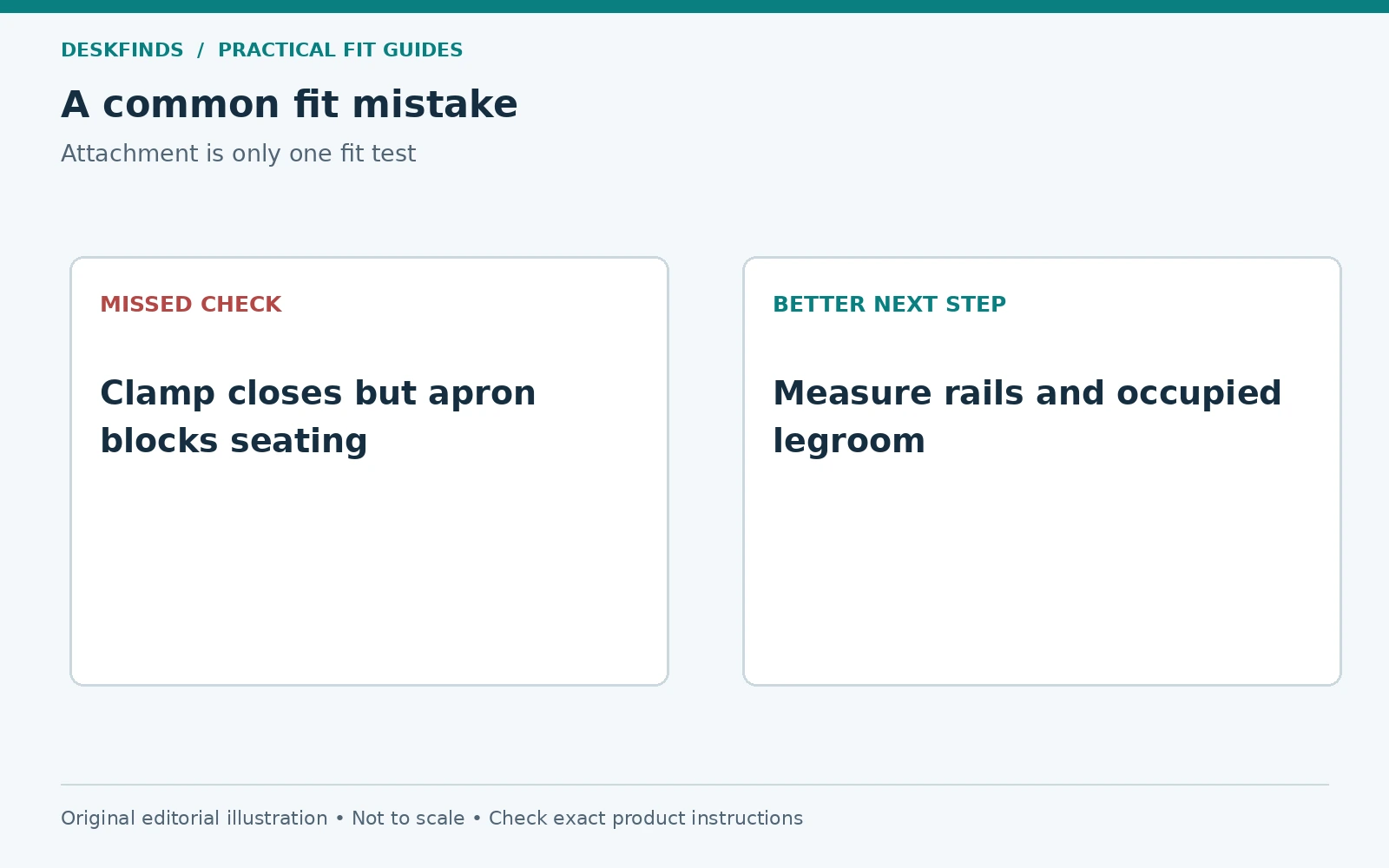
A buyer has a compact writing desk with a one-inch top and assumes any clamp listed for that thickness will fit. Under the front edge, however, an apron extends down and backward. The lower clamp pad cannot reach the flat underside without hitting it. The top-thickness check passes, but the contact-surface check fails.
The buyer considers moving the tray off-center to avoid the apron bracket. That position leaves too little room between a side drawer and the opposite leg, and it shifts the keyboard away from the screen. Mounting it there would replace one fit problem with another. The better choice is to compare a tray specifically designed for the geometry or use another workstation arrangement.
A manufacturer-approved spacer system may be an option for some rail-mounted designs, but it should not be invented for a clamp tray. Confirm the exact compatible parts and the effect on legroom. Lowering hardware to clear an apron also brings it closer to your thighs, so the second consequence needs its own check.
Worked example: a standing desk with accessories
A second buyer has a suitable flat edge, but already uses a cable tray and a control keypad. The proposed keyboard tray rails overlap the cable tray when stowed. Moving the cable tray rearward appears possible, but the desk's frame and power connections must still remain accessible.
Draw all the components on one underside plan and check the desk through its permitted height range. The keyboard platform, chair arms, and any nearby cabinet should remain clear. Do not relocate a control box or drill into the frame without following the desk manufacturer's directions. Accessory installation should not compromise the desk's own assembly.
Finally, check the standing typing position. A tray's drop may make the keyboard too low at the desk's maximum height for a particular user. A solution that works while seated is not automatically suitable for standing. Our standing desk height guide provides context for evaluating both modes.
Install only after the layout passes
Read the complete instructions before attaching anything. Confirm all parts are present, protect the floor during assembly, and support the tray while securing the clamps. Use the stated mounting method and load limit. A keyboard tray is not a handle for moving the desk or a surface to lean on while standing up.
After installation, move the platform through its permitted travel without equipment first if the instructions allow. Check for rubbing, trapped cables, and incomplete engagement. Add the keyboard and mouse only after the assembly is secure, then route their cables with enough slack for full movement.
Reassess the workstation with your chair in use. Ensure you can enter, leave, shift your legs, and reach the desktop without striking hardware. If the setup causes contact or reaching, adjust within the supported range or remove it. The absence of wobble does not prove that the ergonomic fit is good.
Choose among the alternatives
If a clamp tray fails the geometry check, a screw-mounted tray may offer another layout, but it requires an approved attachment surface and permission to drill. A different desk height, a suitable chair adjustment, or reorganizing the desktop may solve the original problem with fewer moving parts. Each option should be judged against your actual task.
If storage is the main need, do not buy a keyboard tray merely because it resembles a drawer. Our clamp-on desk drawer guide covers a different product role. Our keyboard tray drawer roundup can help compare configurations once you know the available space.
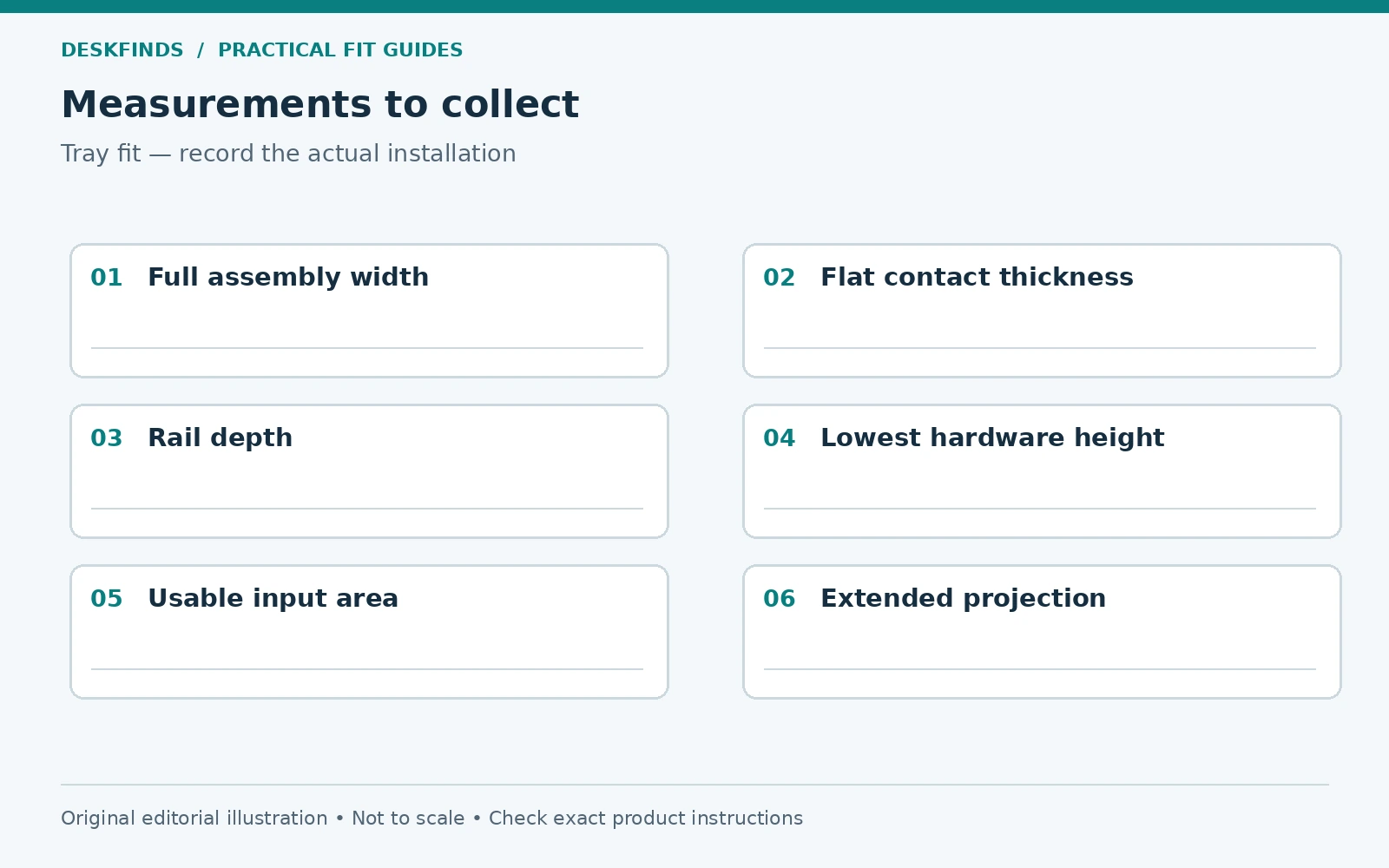
Before buying, save a worksheet with the full width, clamp contact points, rail depth, lowest hardware height, usable platform, and extended projection. Attach an underside photograph. Those details let you ask a seller a specific compatibility question and reduce the chance of discovering the decisive obstruction after unpacking.
Make a five-minute task test more informative
A short fit test should include several kinds of input, not just a few keystrokes. Open a document, select text with the mouse, use the keyboard shortcuts you rely on, and enter a line of numbers if that is part of your job. Notice whether the platform lets the mouse stay near the keyboard and whether you can see the screen without leaning.
Then switch to a non-typing task. Move the keyboard as you would to write a note, reach for a notebook, and bring your chair closer to the desktop. A fixed drop or protruding rail may interfere only during that transition. Record the conflict rather than concluding that the tray is comfortable because the first typing position felt acceptable.
Finally, simulate a normal pause: move your legs, change position, and get out of the chair. If the template catches your thigh or forces you to turn awkwardly, choose another position or design. The tray should fit a range of ordinary movements, not one carefully arranged posture. A mock-up is particularly useful for discovering this before any clamps mark the desk.
Ask for dimensions in a form you can compare
When a listing is incomplete, send a labeled underside photograph and ask for the complete installed width, lowest hardware point, rail depth, and full projection. Ask whether those figures refer to the platform alone or the entire assembly. If there are several versions, state the exact model and color option, since a product family can contain different mechanisms.
For a desk with an apron, include its distance from the front edge and its vertical drop. For a standing desk, include the position of the frame rail. A seller cannot assess a hidden obstruction from a photo of the upper surface. A rough drawing with clear measurements is often more useful than several attractive room photographs.
Keep unresolved figures marked as unknown. Do not convert a visual estimate from a product image into a specification. If a dimension decides whether the tray clears your thighs or frame, it is worth obtaining directly. A return policy can reduce purchasing uncertainty, but it does not replace a fit plan or guarantee that installation leaves the furniture unmarked.
Decide whether the daily adjustment is realistic
Some arrangements need the tray moved, tilted, or stowed whenever the desk changes tasks. Count those actions during a typical day. A mechanism that is easy to demonstrate once may be inconvenient when repeated between calls, writing, and keyboard work. Check whether controls are reachable without crouching or stretching.
If two people share the desk, test both settings and the transition between them. The adjustment should remain within the supported range and leave legroom for each user. If the tray works only for one person, a different input surface or desk arrangement may be the more useful shared solution.
Sources and scope
- VIVO clamp-on keyboard tray with drawer - example product documentation for a particular clamp-on design.
- OSHA keyboard workstation guidance - input devices should be considered with the other workstation components and adequate leg space.
Examples and measurement methods are original planning guidance. No universal tray drop, clearance, or installation torque is implied; use the specifications for the exact products involved.