
How to Route Laptop Charger Cables So They Don’t Pull Devices Off the Desk
Affiliate Disclosure: We may earn a small commission on qualifying Amazon purchases at no extra cost to you. Full disclosure →
A charger cable can become a small but persistent source of tension: the adapter hangs over the edge, the lead catches a chair, or a moving laptop reaches the end of a tightly routed cable. The solution is to manage the weight and movement of the system, not simply attach the cable more firmly to the desk.
Quick answer: Support adapters as their instructions require, route leads away from moving furniture and walkways, and leave appropriate slack for the laptop's normal positions. Use compatible cable guides for guidance rather than treating a device port or clip as an anchor for heavy equipment. Replace damaged parts through the proper product route instead of taping over the problem.
This guide covers desk layout and handling. It does not recommend electrical repairs, modified connectors, or universal bend-radius figures. Our cable management types guide provides broader product context.
Find the source of the pull
Observe the cable path with the laptop in its normal supported position. Is the power brick hanging, a loop catching the chair, or the cord stretched between a wall outlet and the computer? Identify the source before buying clips. A clip in the wrong place can transfer the same pull to a different connector.
Check the entire route, including the supply side of a separate adapter. The laptop lead may have slack while the mains lead is stretched behind furniture. A cable can also be trapped by a drawer or desk frame. Trace each section without pulling live equipment or reaching into an unsafe space.
Stop using damaged components and follow the manufacturer's guidance. Fraying, a loose connector, discoloration, or other concerning signs are not merely organization issues. Do not continue routing around a defect to keep the setup working. Our sources include manufacturer handling information, not a repair procedure.
Give the adapter a suitable resting place
A separate power brick should be supported and ventilated according to its instructions. Do not let its weight hang from the laptop connector or a small cable clip. A stable suitable location can remove much of the pull before any cable management accessory is added.
Avoid burying the adapter in bedding, fabric storage, or an enclosed space contrary to its requirements. Hiding it can make inspection and access harder. A cable tray may be useful if compatible with the device and installation, but the loaded dimensions and ventilation need checking. Our cable tray guide covers the space below the desk.
Keep the adapter accessible for disconnection and inspection. A location behind a heavy cabinet may look tidy but create difficult maintenance. The goal is a stable, serviceable power arrangement, not the complete disappearance of every component.
Map the laptop's real movement
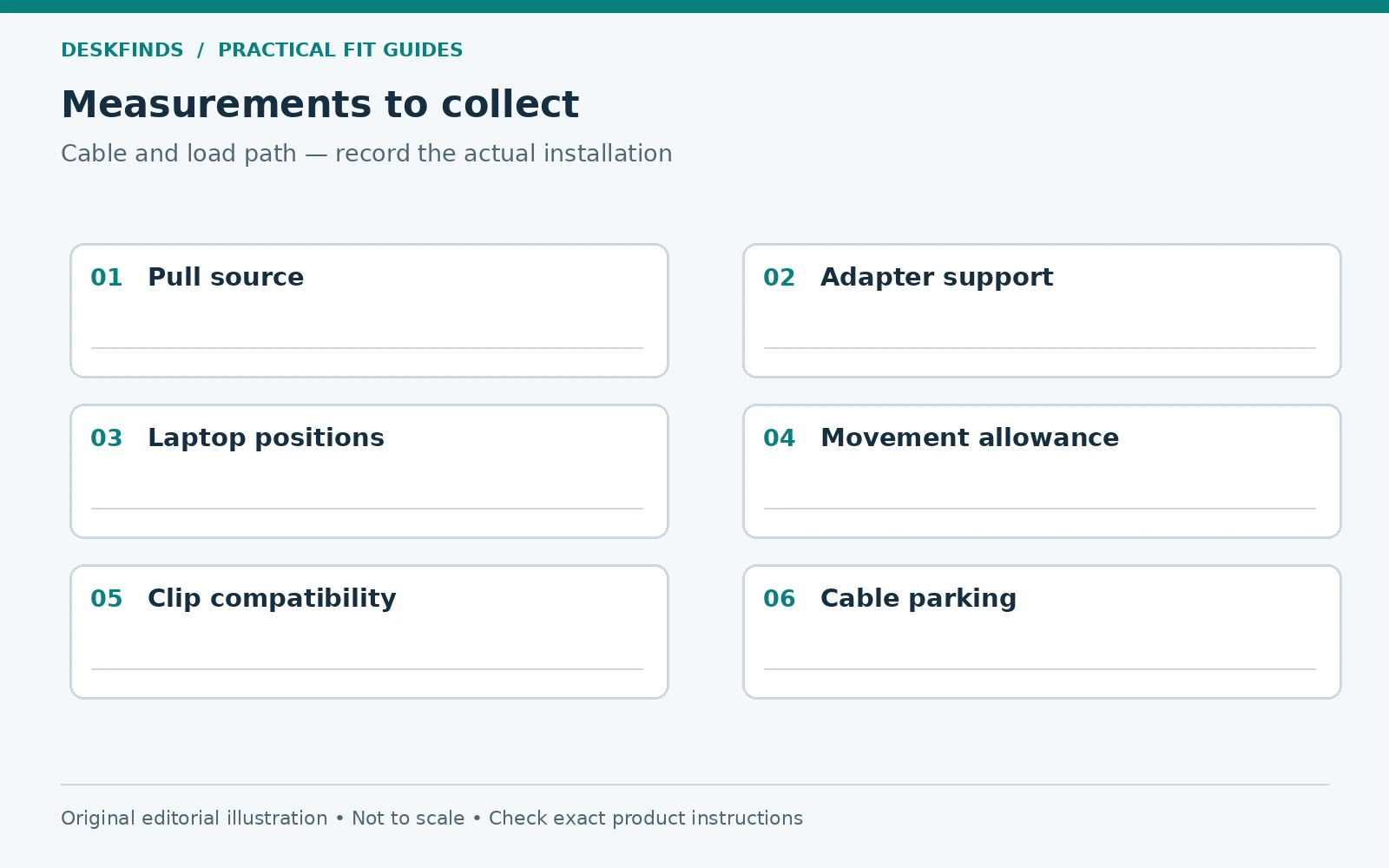
List the positions the laptop uses: normal work, a call, paper-work transition, connection to a dock, and removal from the desk. Mark the route between them. A cable that is just long enough at one endpoint can become taut during an ordinary shift.
Include lid movement and any stand adjustment where relevant. A connector can approach a stand edge or cable clip as the device moves. Follow the laptop and stand instructions and keep vents clear. Do not use a cable to hold the laptop in a position its support cannot maintain.
If the laptop is removed daily, plan how the disconnected cable end is parked. It should remain accessible without dangling into a walkway or falling behind furniture. A suitable holder can help, but it must match the cable and surface rather than pinch the lead or place pressure on the connector.
Create a route with deliberate slack
Leave enough movement allowance for the intended positions without creating loose loops in the chair path. The exact amount depends on the cable, device, and route. Do not use a generic loop size as a universal rule. Check the system through the actual movement it needs to perform.
Keep slack near the moving device in a controlled, supported route where appropriate, not hanging as a heavy bundle from the port. Avoid sharp edges, tight bends, and pinch points. Follow cable and equipment instructions. A tidy-looking line should not be under constant tension.
For a standing desk, identify which equipment moves with the top and which remains fixed. The transition needs to accommodate the desk's permitted range. Test setup movement with the equipment handled as instructed, and stop if any lead catches. Desk motion should not be limited by a stretched charger cord.
Choose clips by cable and surface
A clip's opening, material, attachment, and intended use matter. It should accept the cable without crushing it and remain attached to a compatible surface. A rough underside, textured paint, or soft finish may be excluded. Read the exact product instructions rather than treating all adhesive clips as interchangeable.
Do not assume a clip intended to guide a cord can support a charger brick or resist a trip force. Those are different loads. A stronger adhesive is not automatically the answer if the route crosses a walkway. Remove the cause of the pull instead of increasing the force the connection can transmit.
| Route element | Useful check |
|---|---|
| Adapter | Supported and ventilated as instructed |
| Laptop port | No hanging load or constant tension |
| Guide or clip | Correct cable size and permitted surface |
| Moving section | Enough allowance for normal positions |
| Floor route | Clear of feet, casters and furniture movement |
| Disconnection | Plug can be reached and handled correctly |
Keep the cable out of the chair's operating area
Trace where the chair rolls, swivels, and moves during entry and exit. A cable that rests safely behind the desk can fall into this area if its end is unplugged. Plan both connected and disconnected states. Our chair clearance guide maps the movement zone.
Avoid running a charging lead across an essential route merely because it reaches the nearest outlet. A cover or clip does not automatically make an unsuitable route acceptable. Reorient the workstation, use an appropriate manufacturer-supported cable arrangement, or seek professional advice about the supply location where needed.
Keep loops away from drawer slides and adjustable frame parts. Open drawers and check desk movement during the planning stage. A cable can be caught only occasionally, which makes the problem easy to miss during a static tidy-up.
Example: the power brick hangs behind the desk
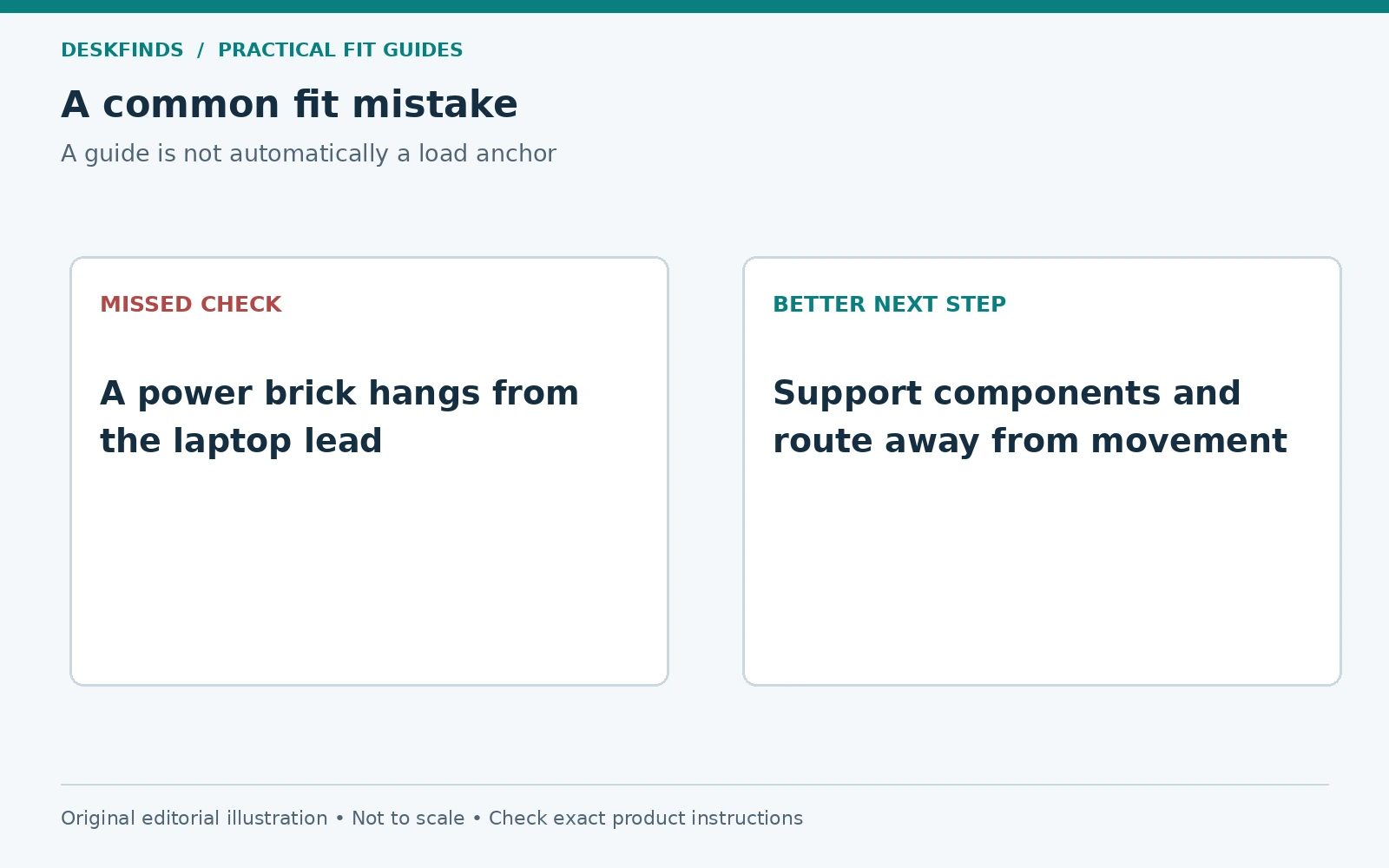
A user places a laptop on a stand and routes the charging lead neatly along the edge. The separate adapter hangs below the desktop, pulling on the lead and sometimes shifting the laptop. Adding another clip near the computer would leave the unsupported weight unresolved.
The user provides a suitable supported location for the adapter according to its instructions and revises the cable path with appropriate movement allowance. The laptop and stand remain stable without the cable acting as a restraint. The route is checked when the laptop is moved for a call or removed from the desk.
This case illustrates why supporting the component comes before fastening the lead. A cable manager should organize the route, not disguise a load hanging from a connector. The same principle applies to docks and other small powered devices.
Example: a standing desk exposes a fixed-length route
Another user ties the charger lead tightly along a desk leg. At seated height the arrangement looks clean. When the desk rises, the fixed-to-moving connection reaches its limit and starts pulling the adapter. The issue is movement planning, not a need for tighter ties.
The user follows the desk and power equipment instructions to revise the route and provide suitable allowance. The adapter remains supported, and the full intended height range is checked. No cable is used as an accidental stop. If a permitted route cannot reach the supply, the room arrangement needs reconsideration.
Do not generalize the revised loop length to another desk. Different travel ranges, devices, and connection points change the requirement. Record the actual route and recheck it after moving furniture or adding equipment.
Use a deliberate disconnect sequence
Follow the device instructions for disconnecting power and peripherals. Handle the plug or connector as directed rather than pulling the cable. Support the device so it does not slide while the connection is released. Keep frequently used connectors accessible enough that correct handling is easy.
For a pack-away workstation, label the cable ends and give them a parking location. Our evening office reset guide explains how to plan that transition. A cable that falls behind the table every evening adds avoidable handling and may be pulled back by the lead.
If several devices use similar-looking connectors, identify them accurately. Do not assume they are interchangeable solely from shape. Compatibility includes the cable and power requirements. Clear labels can prevent a routing improvement from creating a connection mistake.
Reassess accessories that promise breakaway protection
A magnetic or breakaway connection can have model-specific behavior and requirements. Do not assume it protects against every trip, supports every charging function, or removes the need for a good route. Use only compatible products and follow the device manufacturer's guidance.
A generic adapter can add rigid projection, affect neighboring ports, or introduce another connection point. Verify the installed dimensions and technical support before purchasing. The safest planning approach is to prevent the pull rather than rely on a connector to release in an assumed way.
If a device repeatedly disconnects or a port feels loose, treat it as a product issue rather than fastening the cable more firmly to hide the symptom. Seek appropriate service. Cable organization should preserve normal operation, not compensate for damage or unreliable contact.
Keep a simple route record
Photograph the completed arrangement and note the normal device positions. Recheck when the desk, chair, stand, or charger changes. A replacement adapter may have a different cable exit or body size even when it serves the same laptop. The old route may no longer fit naturally.
Inspect frequently handled cables as the manufacturer recommends and keep damaged parts out of service. Avoid tight storage coils or pressure that contradicts their instructions. A well-planned route should make inspection easier because the components remain visible and accessible.
Compare cable clips and raceways after defining the route. Choose the smallest suitable system that supports the real movement and surface conditions. The useful result is a laptop that can be used, moved, and disconnected without its power lead becoming a hidden pulling force.
Draw the load path as well as the cable path
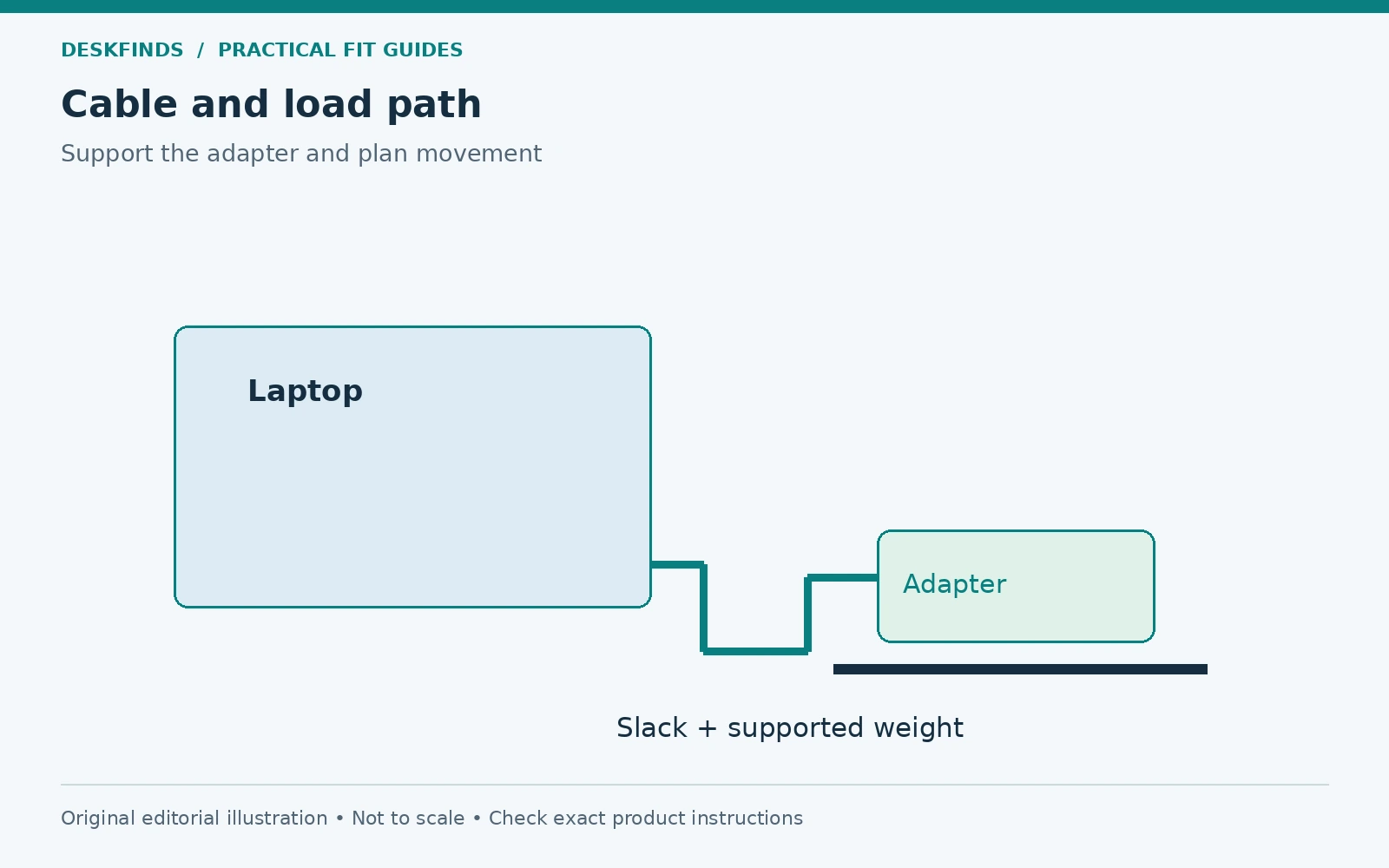
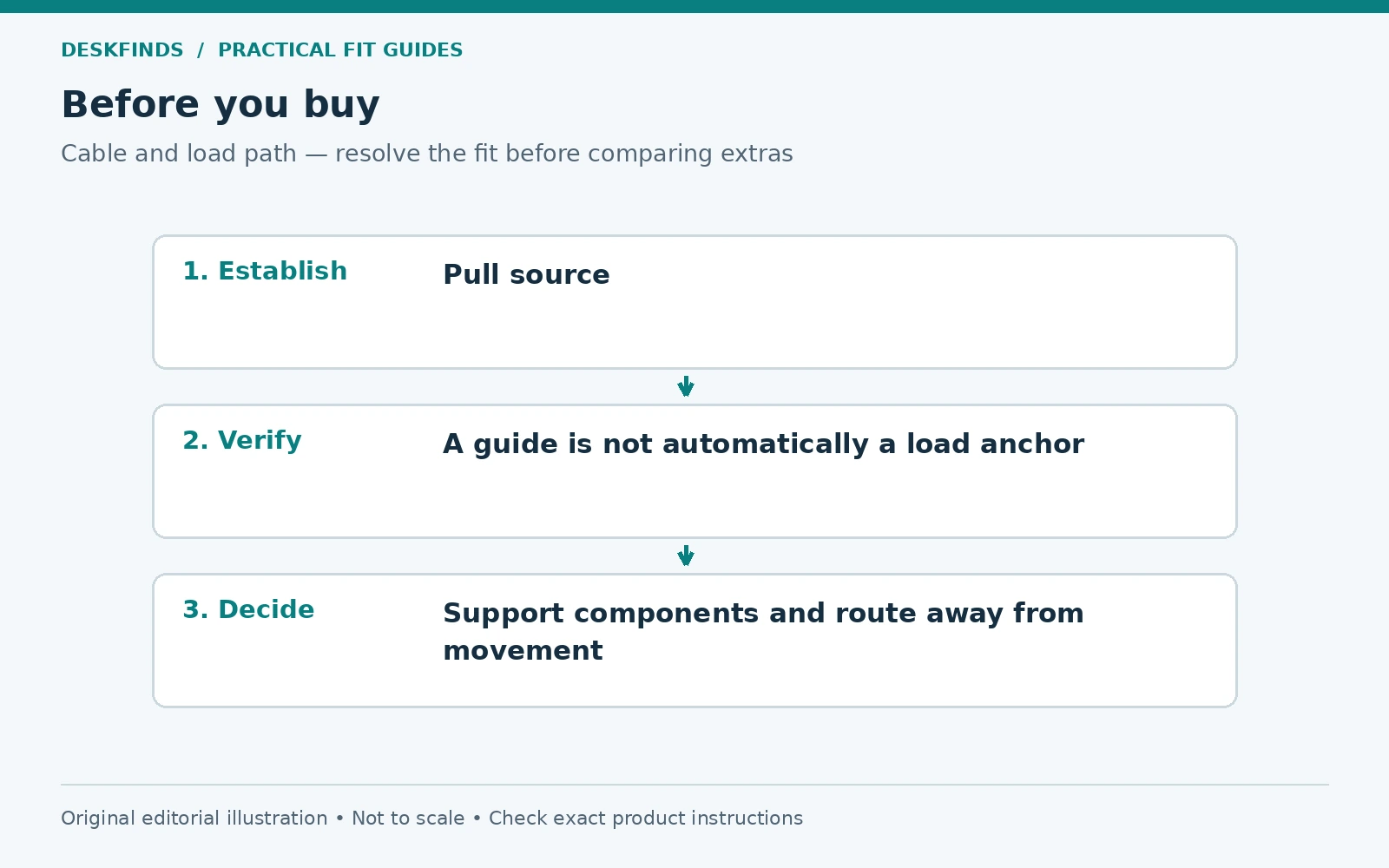
Mark where each component's weight rests: laptop on its support, adapter on its suitable surface, cable slack on its intended route. Then mark any section that hangs or pulls. This drawing can reveal why a neat line still loads a connector. The route should guide the cable without making a small port support a power brick.
Do not treat every clip as an anchor. Read its intended role and surface requirements. A guide that keeps a lightweight lead from falling may not be designed to resist a person catching the cable. Increasing adhesive strength can leave the trip force transmitted to the laptop instead of removing the hazard. The more direct improvement is to keep the route out of the catch area.
Check the complete route with the laptop in each ordinary position. If the device moves for paper work, calls, or packing away, include those states. The shortest tidy route may not be the most useful one. Deliberate movement allowance is part of the design, not excess cable that must always be eliminated.
Use a disconnected-state check
Unplug the laptop using the prescribed method and observe where the cable end rests. It should not drop into the chair area, pull the adapter from its support, or disappear behind a cabinet. A suitable parking point can keep the end accessible without pinching it or loading the connector.
Then reconnect normally. Check whether you can grasp the plug without lifting the laptop awkwardly or pulling the lead around a sharp edge. A route that works only while connected is incomplete for a portable device. Daily handling often reveals the friction that a static cable photograph hides.
For shared use, label the parked lead by function or compatible device where appropriate. A cable end that looks like another may have different capabilities. Keep the connection map clear so an organization improvement does not create a charging mistake.
Plan the floor transition deliberately
If any part of the route reaches the floor, map the chair's movement and the room's walking path. Keep the cable away from caster travel and places where feet normally land. Do not rely on people remembering to step over a lead each time. A routine obstacle is a layout problem.
Check the transition from the wall outlet to moving desk equipment. A suitable route may need a different desk orientation or supply arrangement. Follow the power equipment instructions and seek qualified advice when room-level provision is the limiting factor. A cable sleeve cannot make every extension route appropriate.
After cleaning or moving furniture, repeat this check. Cables can be trapped behind a leg or placed beneath a mat even when the original layout was clear. Save a simple reference photo and restore the route before returning equipment to normal use.
Create a replacement brief before ordering a cable
Record the device, required function, supported power arrangement, connector geometry, useful route length, and any relevant manufacturer restriction. Do not select only by the plug shape or the longest available length. Compatibility and physical fit both matter.
If a longer supported cable or manufacturer accessory is considered, check how it changes slack and adapter placement. More length can solve tension but create a new loop in the chair path. Plan where that allowance goes. The correct length serves the intended positions without a forced bend or unnecessary floor route.
When a damaged part is replaced, remove it from normal use rather than leaving it in the spare-cable drawer without a clear status. Follow appropriate recycling or service guidance. The final system should make it easy to identify the correct intact components and handle them properly every day.
Keep the cable guide's role clear
Write down what each attachment is intended to do: retain an unplugged end, guide a light lead, or support a component through a documented mounting system. These are different roles. If a new adapter or cable changes the load, reassess the arrangement instead of assuming the existing clip remains suitable. A clear role also helps during cleaning, when a guide may be moved or removed. Restore the intended path before normal use so the connector does not quietly become the support for a hanging object again.
Sources and scope
- Apple power adapters and cables - manufacturer handling and damaged-part guidance for compatible Apple products.
- 3M five-cord organizer - example of product-specific surface compatibility, not approval for supporting adapter weight.
The route map and cases are original editorial analysis. No electrical repair, universal strain limit or third-party charging compatibility is established.