
How to Mount a Cable Tray Without Blocking Your Knees
Affiliate Disclosure: We may earn a small commission on qualifying Amazon purchases at no extra cost to you. Full disclosure →
The underside of a desk looks like unused storage until you sit beneath it. A cable tray can hide adapters and loose wiring while occupying the exact space your knees need to move. The solution is to plan the tray around your seated position, the desk frame, and the cables' movement rather than simply centering it under the top.
Quick answer: Mark your leg movement area first, then choose a tray location outside it. Check the tray's loaded height, clamp or screw hardware, cable exits, access for plugs, and clearance through the desk's operating range. A tray's advertised width and depth do not describe the full space occupied by adapters and cable bends.
This guide covers layout and manufacturer-approved installation. It does not recommend modifying electrical equipment or drilling into an unknown desktop. For the broader system, see our standing desk cable management guide.
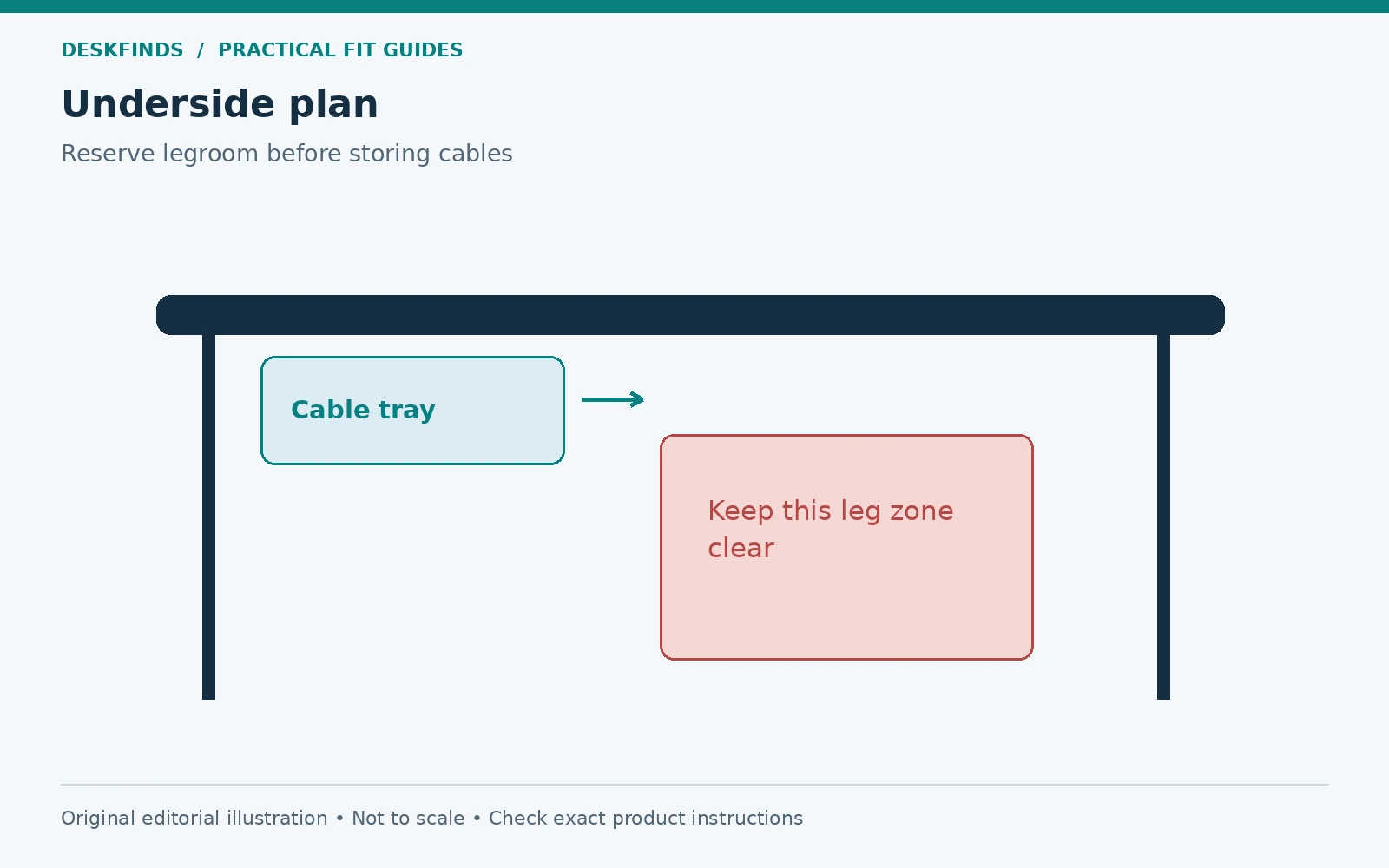
Define the leg zone before the storage zone
Sit at the desk with your normal chair adjustment, keyboard, and monitor positions. Move your legs as you normally would while working, entering, and leaving the chair. Note where your knees rise and how far they move forward. Also consider another person who regularly uses the desk; one person's clearance may not suit everyone.
Mark the underside area that needs to remain clear using a removable method compatible with the finish. You can instead draw it on a photograph or paper plan. Avoid applying tape to a surface that may be damaged. The goal is to create a visible exclusion zone, not to measure a single point and assume the rest is unused.
Include a footrest, under-desk bike, drawers, and chair arms in the plan. These change how you approach the desk and where your legs travel. If you already feel cramped, adding a low-hanging tray is unlikely to solve the workstation. Clear the existing obstruction or reconsider the furniture layout first.
Inventory the cables and adapters
Lay out the items you want the tray to hold while everything is disconnected safely as needed. Identify each power adapter, dock cable, display cable, and extension lead. Remove obsolete wiring rather than building a larger storage system around it. Label both ends of cables that are difficult to distinguish.
Measure the largest adapters with their plugs inserted. The bare adapter dimensions can underestimate the loaded height or width substantially. Include cable exits and a natural bend without forcing the connector. Check the adapter manufacturer's ventilation and mounting instructions; not every power brick should be enclosed or stacked.
Keep electrical load and physical fit separate. A tray that holds all the adapters does not establish that one power strip can supply them appropriately. Follow the strip and device instructions, use suitable certified equipment for your location, and avoid daisy-chaining power strips. Our power strip comparison explains the product distinction.
Read the tray's complete dimensions
Look for the basket dimensions, mounting footprint, overall installed drop, and any protruding hardware. A shallow basket may hang from deep brackets. A clamp screw can extend lower than the tray itself. Product images shot from above often conceal those details, so use a dimensional drawing when possible.
Check whether the stated capacity is a load limit, volume, or simply a marketing description. Do not estimate permissible load from the tray material. The installation depends on the tray, mount, desktop, and supplied hardware together. Confirm any restrictions on glass, hollow-core, beveled, or unusually thick surfaces.
Consider the direction in which cables leave the basket. Side exits can help separate routes but may add width. A closed-end tray may require bending cables around an edge. If you need frequent access to a dock or charger, check whether the tray can be reached without crawling into the knee zone or pulling equipment from the desktop.
Draw a usable underside plan
Sketch the desktop from below with the front edge clearly labeled. Mark legs, aprons, frame rails, control boxes, existing screw holes, and the knee zone. Add the proposed tray outline and its mounting points. This exposes conflicts before the product arrives and helps you ask the manufacturer about uncertain locations.
A tray near the rear edge often leaves more legroom, but it can collide with the desk frame or wall-side cables. A side position may be accessible but can conflict with a drawer or chair arm. There is no single location that works for all desks; compare the actual geometry and required access.
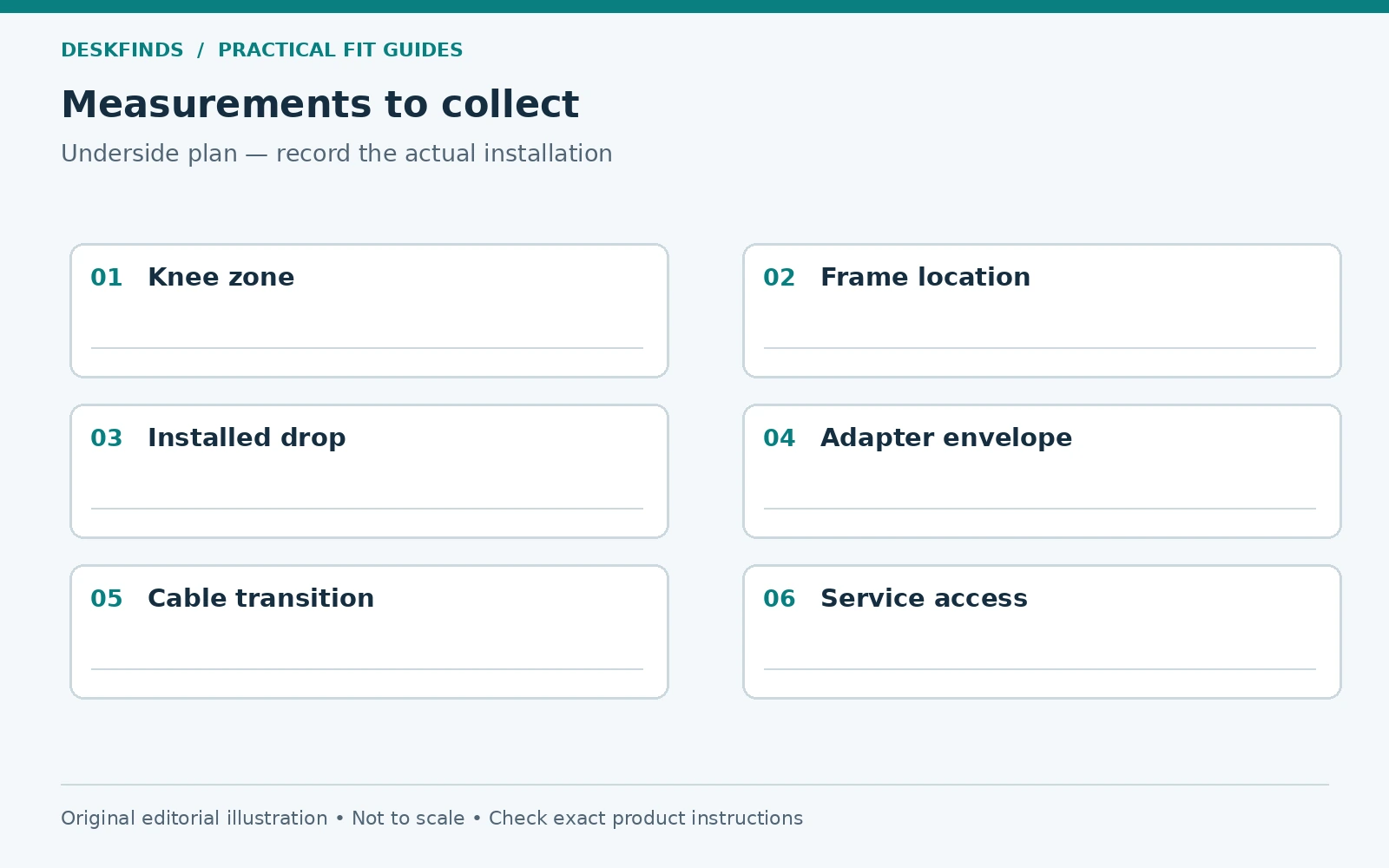
| Plan element | Check before installation |
|---|---|
| Knee zone | Clear of the loaded tray and all mounting hardware |
| Frame and apron | No overlap with clamps, screws or basket |
| Power access | Plugs can be inserted and removed without strain |
| Cable route | No sharp pinch, forced bend or moving-joint crossing |
| Service access | Adapters remain visible enough to inspect and replace |
Use a loaded-height mock-up
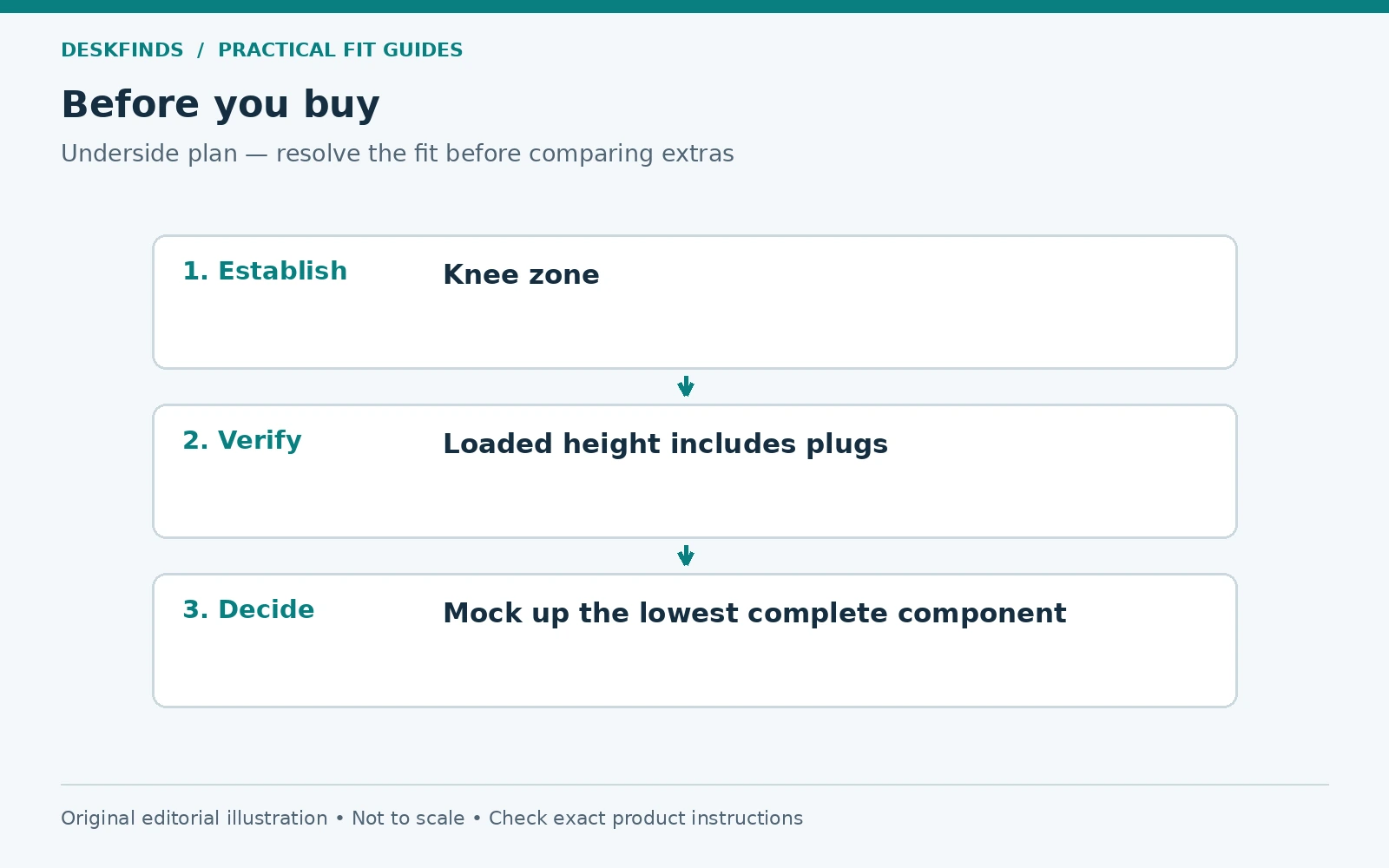
Cut cardboard to represent the tray's full installed outline, including its lowest hardware point. Add a second marker for adapters or plugs that project beyond the basket. Hold or support the template safely while checking the location; do not leave an unstable object over your legs or near equipment.
Test entry and exit from the chair, not only your resting seated position. Slide the chair closer, shift your knees, and stand up. A tray that just clears your thighs while still can become an obstacle during normal movement. Repeat the check with the intended footrest or other under-desk equipment in place.
If the mock-up conflicts, moving the tray sideways may help, but verify the new mounting surface and cable path. Reducing its size may be more useful than lowering it beneath a frame rail. A smaller tray holding only necessary cables can be easier to access and less intrusive than a large basket filled with excess wiring.

Choose between clamp and screw mounting
A clamp tray avoids drilling only when the desk edge and material are compatible with its instructions. Measure the actual contact locations and identify anything that prevents the lower jaw from sitting flat. Confirm that the clamp itself does not become the lowest obstacle near your knee. No-drill does not mean no risk to the finish or structure.
A screw-mounted tray needs an approved attachment surface and the correct hardware. Verify desktop thickness, construction, screw length, and any prohibited drilling zones. Do not choose screws by eye or assume the supplied screws suit every top. A screw emerging through the upper surface is an avoidable and expensive mistake.
If the furniture belongs to a landlord, employer, or college, obtain the relevant permission under the room rules before modifying it. A reversible clamp may still be restricted. Keep the original furniture condition documented, and do not conceal damage under an accessory. Our no-drill dorm setup guide covers reversible planning choices.
Route moving and fixed connections separately
On a standing desk, devices attached to the desktop generally move together, while wall outlets and some floor equipment remain fixed. Identify the transition between those groups. Provide the cable movement allowance required by the desk and devices so the top can travel without pulling plugs or trapping loops.
Do not attach cables to a moving joint or structural part unless the instructions specify that route. Keep wiring away from lift mechanisms, pinch points, and sharp edges. A neat bundle is not useful if it prevents inspection or becomes taut when the desk rises. Reusable ties can make adjustments easier without creating an over-tight bundle.
Cycle the desk through the heights you actually use while watching the route, following its operating instructions. Check both endpoints and the movement between them. Nearby shelves, windowsills, cabinets, and chair backs can introduce collisions at intermediate positions. Stop if any cable catches rather than trying to pull it free while the desk moves.
Keep ventilation and access in the plan
Do not pack adapters tightly just to keep everything invisible. Follow each device's instructions for airflow and operating environment. Keep objects from pressing against connectors or switches. If the basket becomes a pile of power bricks and tangled loops, separate the functions or reduce what it holds.
Place frequently used connections where you can reach them without pulling on neighboring cables. A phone charger that is unplugged daily may belong at the desk edge rather than buried underneath. A docking station with front-facing ports may need an accessible shelf or mount designed for it. Cable storage and device access are different needs.
Leave labels visible enough to identify what can be disconnected safely. Photograph the final arrangement and keep the tray load within its stated limit. When adding a new device, reassess the route rather than pushing another adapter into the remaining gap. Small additions can gradually erase the clearance that made the original installation work.

Example: a shallow desk with a central frame rail
A user chooses a wide cable tray to sit just behind the front edge. The mock-up shows that its basket clears the knees, but its clamps extend into the thigh movement zone. Moving it backward brings the basket against a central frame rail. Neither position passes the full check.
The user removes two unused cables and chooses a shorter tray that fits toward one rear side on an approved mounting surface. The adapter plugs remain accessible from the side, and the main leg zone stays open. The smaller product solves the actual need more effectively than lowering the original tray to clear the rail.
The result depends on the measured desk, not a general rule that trays belong on one side. Another desk might require a different location or no tray at all. A cable sleeve and a few approved attachment points can be enough when the underside has very little usable space.
Example: a sit-stand desk with a wall outlet
Another user has a well-positioned basket but ties the mains lead tightly along a leg. At seated height the route looks tidy; when the desk rises, the lead reaches its limit before the top reaches the desired position. The problem is the fixed-to-moving transition, not the basket's capacity.
The user follows the desk and power equipment instructions to provide an appropriate route and movement allowance. The power strip remains supported as intended, and no connector carries the weight of the bundle. The desk is checked through its operating range before normal use resumes. A cable route should accommodate movement naturally rather than resist it.
If the route cannot be made suitable without crossing a walkway or using an inappropriate extension arrangement, relocate the workstation or consult a qualified electrician about the outlet location. A cable tray cannot solve every room-level power problem. Keep the installation within the equipment's permitted use.
Maintenance that preserves the original clearance
Inspect the tray when cleaning the desk and whenever equipment changes. Look for loose permitted fixings, damaged cables, trapped loops, and adapters that have shifted. Remove dust according to device instructions with power disconnected where appropriate. Do not spray cleaning liquid into a loaded tray.
After moving furniture, check that the wall gap, outlet access, and desk-height travel are unchanged. A chair mat or rug added later can alter how you sit beneath the desk. An accessory drawer can conflict with a tray that previously had ample room. Treat the underside as a shared layout rather than independent storage slots.
When choosing equipment, our under-desk cable tray guide is the next step after measuring. Compare installed drop, attachment method, access, and the actual items to be stored. The best tray is large enough for the necessary wiring while leaving the workspace below the desk usable.
Create a cable schedule before filling the basket
Give each cable a row in a simple table with its source, destination, whether it moves with the desk, and how often it is disconnected. This exposes connections that do not belong in the same hidden bundle. A laptop lead used several times daily needs different access from a monitor power lead that rarely moves.
Mark the fixed-to-moving transition explicitly. On an adjustable desk, most desktop equipment may travel together, but a wall outlet, floor computer, or nearby printer may stay still. Each connection crossing that boundary needs an appropriate route and movement allowance. Do not assume that one long loop serves every cable equally well.
Use the schedule to remove obsolete connections and shorten the list of items the tray must hold. A smaller necessary inventory can allow a shallower tray outside the knee zone. This is a more direct improvement than buying the largest basket and then trying to hide everything in it. Keep spare cables in a separate, labeled storage location rather than under your knees.
Test access to a single failed device
Imagine that one adapter needs replacing. Can you identify it, unplug it safely, release its cable, and remove it without pulling other plugs? If the answer requires unloading the entire basket, revise the layout. Serviceability is a useful test because it reveals whether the arrangement is organized or merely concealed.
Position labels where they remain visible from the access side. Keep reusable ties easy to release, and avoid fastening unrelated cables so tightly that one cannot be removed. Support the devices and plugs as instructed while working. A tray should not require hanging a heavy adapter by its cable during a routine change.
Check access to any power-strip switch or status indicator as well. The installed position should preserve the functions you need to inspect. If a large adapter obscures them, change the slot allocation or mounting position. Our large-adapter power strip guide helps plan the outlet geometry before the basket is loaded.
Compare a tray with a lighter cable-only solution
If the desk has little underside space, distinguish storing adapters from guiding cables. A suitable sleeve or approved clips may organize the leads while power devices remain in an accessible, ventilated location. That can preserve legroom and reduce the amount suspended beneath the top. The alternative still needs a safe route and compatible attachment method.
For a rental desk, a reversible arrangement may also simplify removal. Check the owner's rules and the product's surface requirements. Do not attach clips to a rough or damaged finish merely because the load is light. A small accessory can still leave marks or detach if used on an excluded surface.
The decision should come from the cable schedule and underside map. If the tray adds useful containment without blocking movement or service, it is doing its job. If it creates more complicated access and lower obstructions, a simpler system may serve the same devices better.
Sources and scope
- OSHA desks guidance - general reference on leg space and workstation obstructions.
- Belkin power strips - distinction between power products and manufacturer safety information.
- UPLIFT assembly resources - desk-specific installation and operating resources.
The layout methods and cases are original editorial examples. Follow the instructions for the exact tray, desk and electrical equipment.