
How to Choose a Desk Mat That Leaves Room for Monitor and Lamp Bases
Affiliate Disclosure: We may earn a small commission on qualifying Amazon purchases at no extra cost to you. Full disclosure →
A desk mat can organize the input area, but a large rectangle can also overlap a monitor foot, sit under half a lamp base, or cover the controls and cable openings you need. Choosing the largest size that fits the desktop is not the same as choosing the size that fits the workstation.
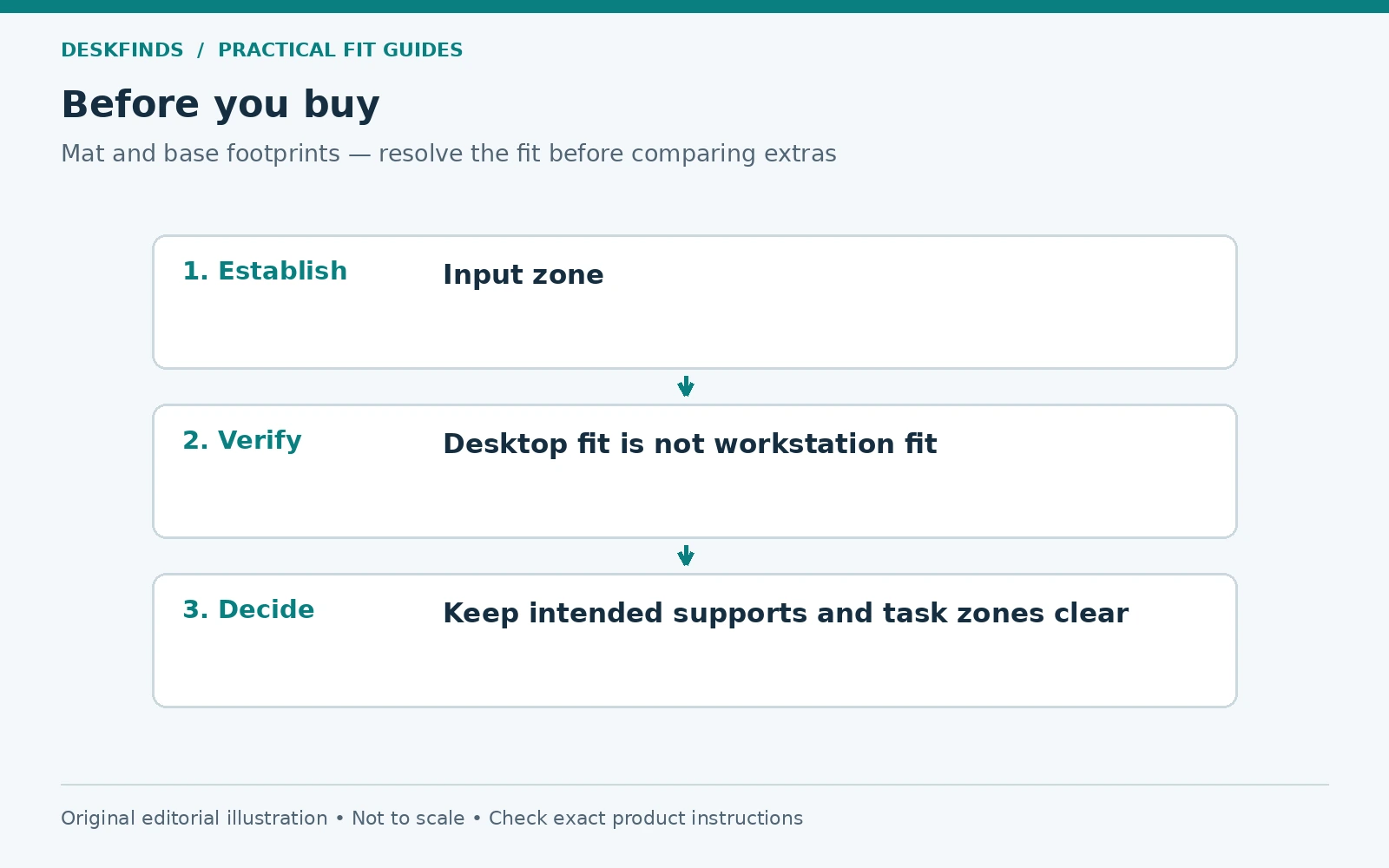
Quick answer: Map the keyboard, real mouse movement, writing tasks, and complete equipment bases first. Decide which items the mat is intended to support, then compare its outline and thickness with that plan. Keep bases fully supported as their instructions require, avoid a step beneath part of a support, and verify surface and device compatibility.
This guide concerns a desktop mat, not a floor chair mat. Our desk mat versus chair mat guide explains that distinction. No mat is treated here as universal protection from heat, liquids, scratches, or electrical concerns.
Define the mat's main role
Decide whether you need a mouse surface, a writing surface, a visual input zone, or protection appropriate to particular objects. These roles can overlap, but they have different dimensions and material requirements. A mat chosen mainly for appearance should still permit the work and equipment support around it.
List what will remain on the mat during use. The keyboard and mouse may be permanent, while paper, a tablet, or a calculator appears occasionally. Do not include a monitor or lamp base automatically. Check whether those products and the mat are intended to be used together, including stability and heat requirements where relevant.
Keep expectations specific. A material described as water-resistant is not a promise that a spilled drink cannot reach the desk or equipment. A soft surface is not a guarantee against every mark. Read the exact care and use instructions rather than turning a general material label into a protection claim.
Trace the real input area
Place the keyboard at its useful position and perform a normal mouse task. Mark the area the mouse actually uses, not just the device's body. Include common activities such as selecting text, navigating a spreadsheet, or moving across a large display. A small remaining corner may fit the mouse but restrict the action.
Add any wrist support, number pad, or other input device you regularly use. Decide whether those objects move together or need separate landing areas. If a mat must accommodate the full set, compare the loaded layout rather than the keyboard alone. Full-size keyboards vary, so use actual dimensions.
Leave the front edge of the desk usable. Do not shift every input device forward merely to keep a mat clear of monitor feet. The mat should fit the task, not dictate an awkward reach or hand position. Our mixed-task desk layout guide helps establish the zones before choosing the rectangle.
Map every base that touches the area
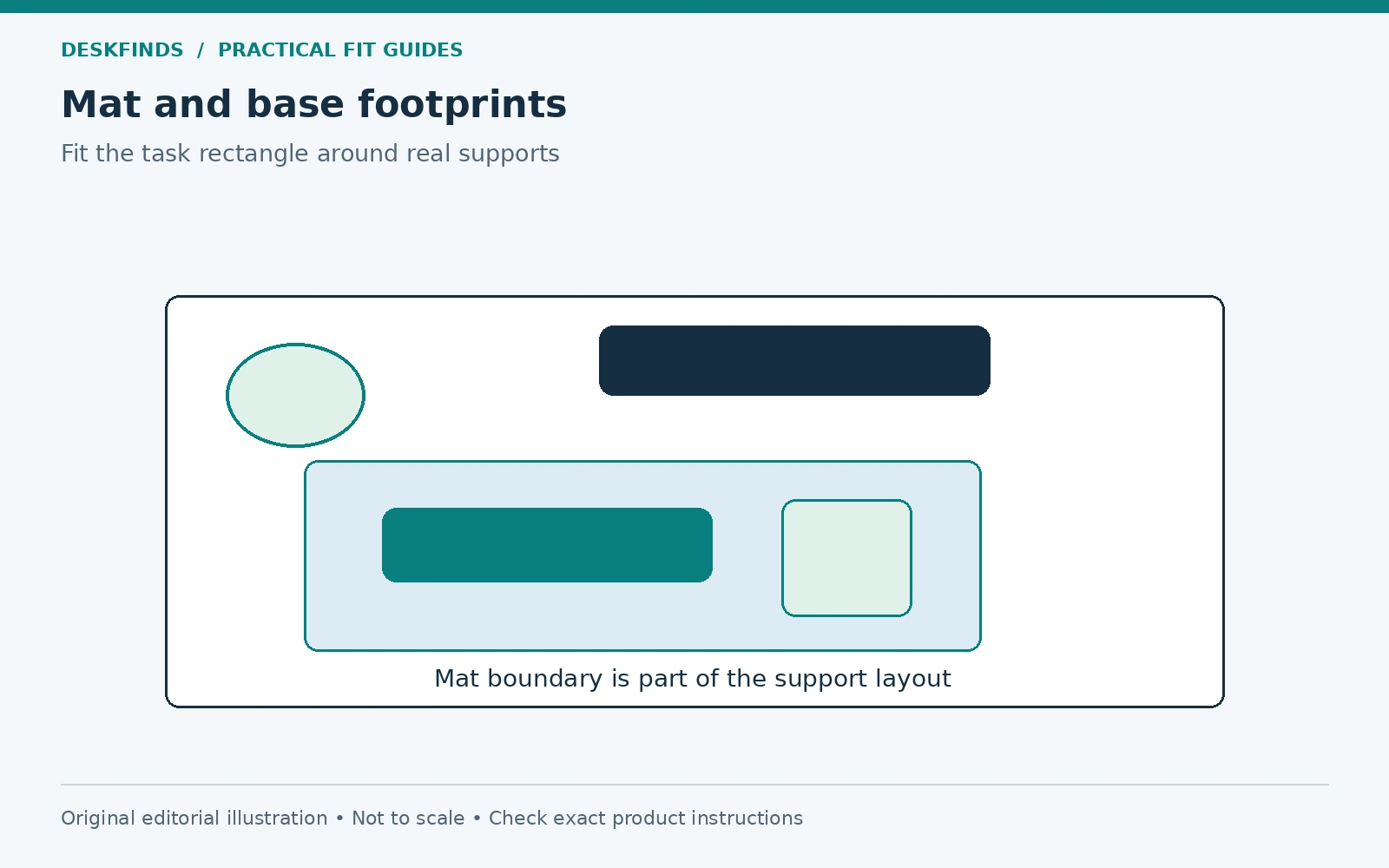
Trace the complete monitor base, lamp base, speaker feet, stand legs, and other supports near the proposed mat. Include small projecting feet that may be difficult to see from above. A monitor's panel width does not describe its stand footprint, and a lamp's slim stem can sit on a broad heavy base.
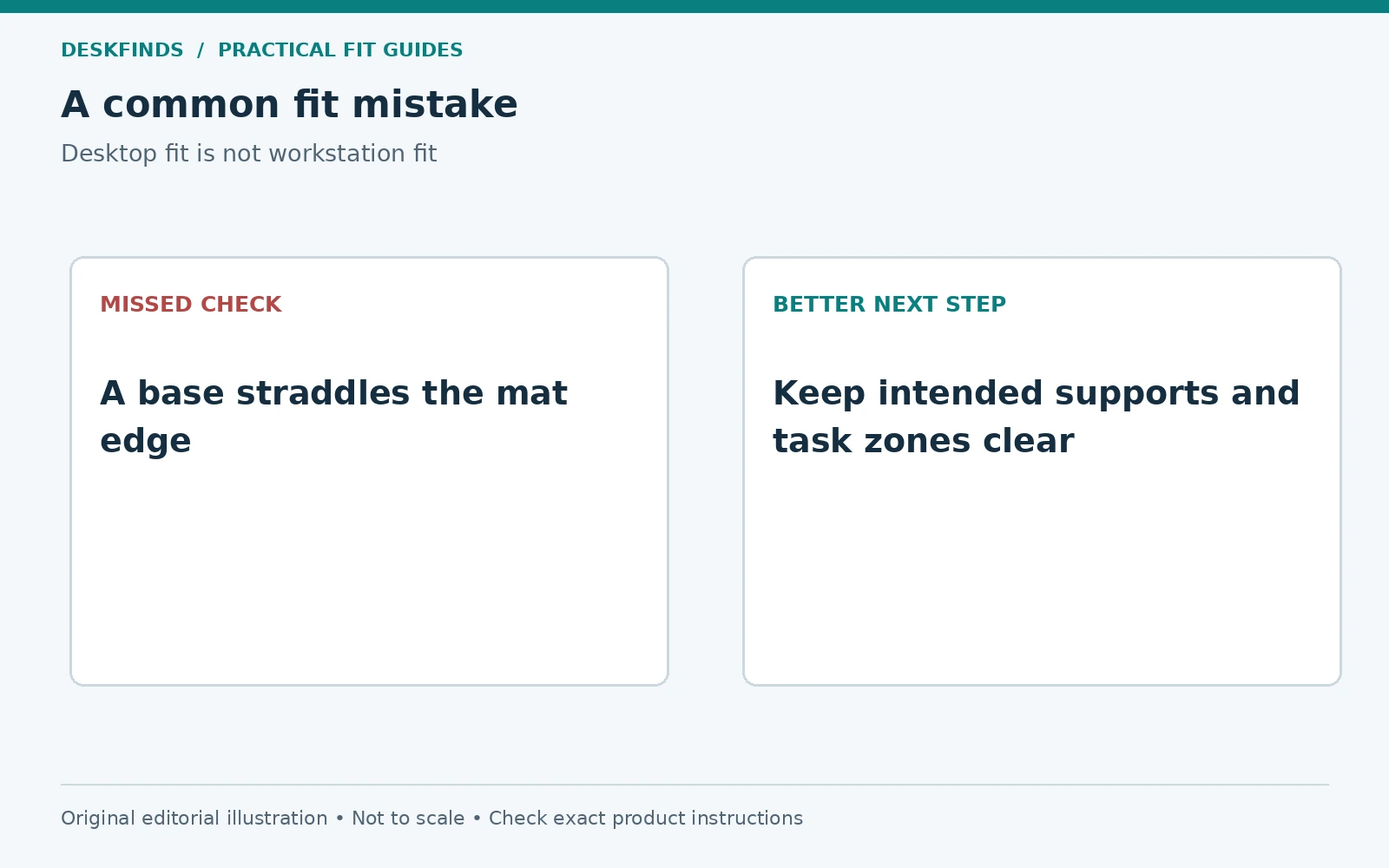
Mark which supports would sit entirely on the mat, entirely off it, or partly across its edge. The third condition deserves particular attention. A thickness step can change contact or stability, depending on the product. Do not assume that a heavy object makes partial support harmless. Follow the equipment requirements.
Check the surface under the mat too. A raised seam, cable, or debris can create an uneven area even when the mat looks flat. Use the products on clean suitable surfaces as instructed. A mat is not a way to conceal a damaged or uneven support location.
Compare width and depth independently
A wide mat may serve the keyboard and mouse while a deep mat reaches beneath monitor feet. Another size may offer enough depth for writing but leave too little lateral mouse space. Compare both dimensions against the task map rather than ranking mats only by area.
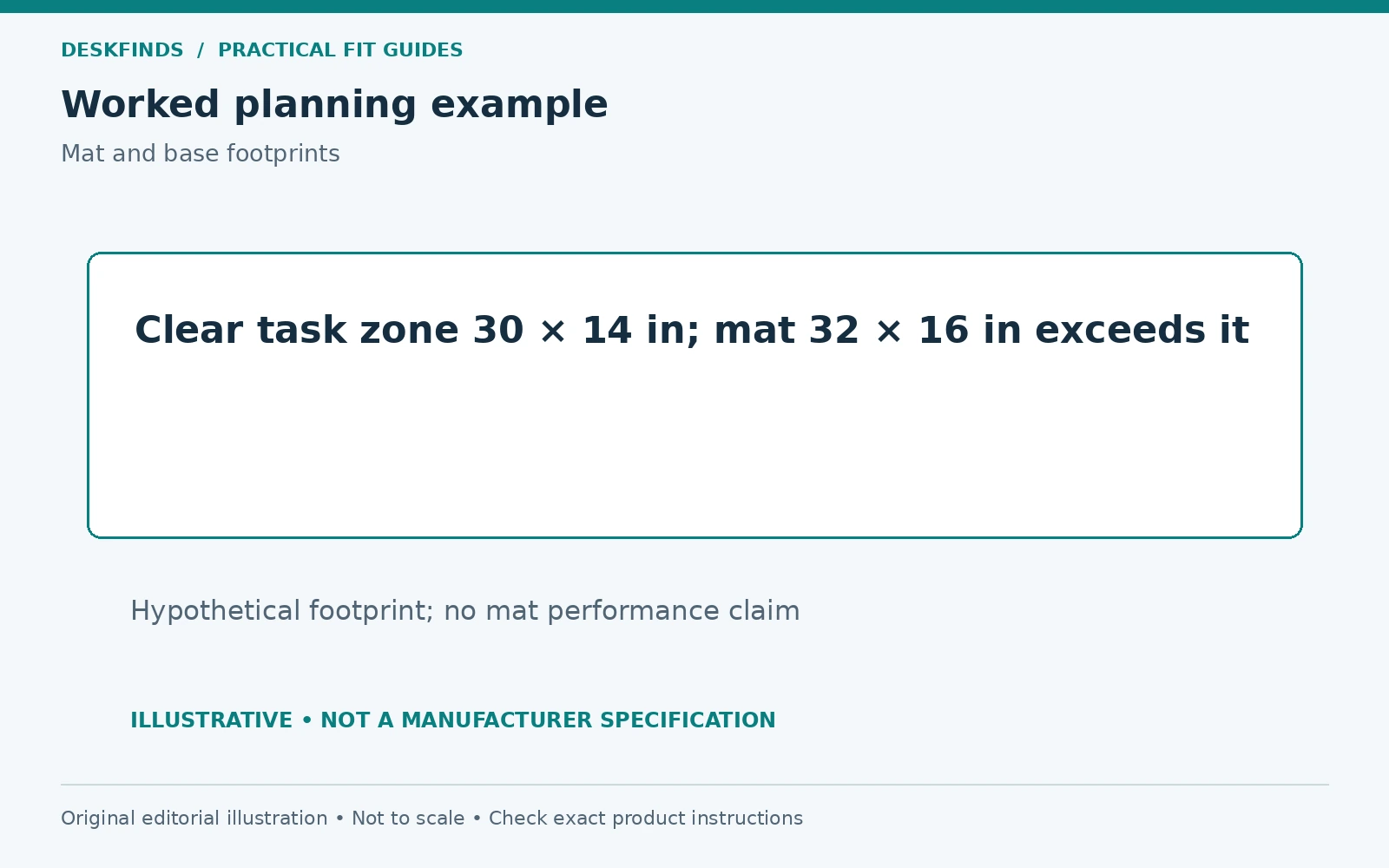
For an illustrative layout, suppose the clear input zone is 30 inches wide and 14 inches deep, while a candidate mat is 32 by 16 inches. The candidate exceeds that zone even if it fits the overall desktop. Those hypothetical measurements show why the relevant reference is the useful clear area, not the desk's outside size.
A smaller mat is not automatically better. It may split the keyboard and mouse across a surface edge or leave the writing task unsupported. The useful size preserves the intended work while avoiding conflicts. Keep the actual objects on the drawing during comparison.
| Layer | Check |
|---|---|
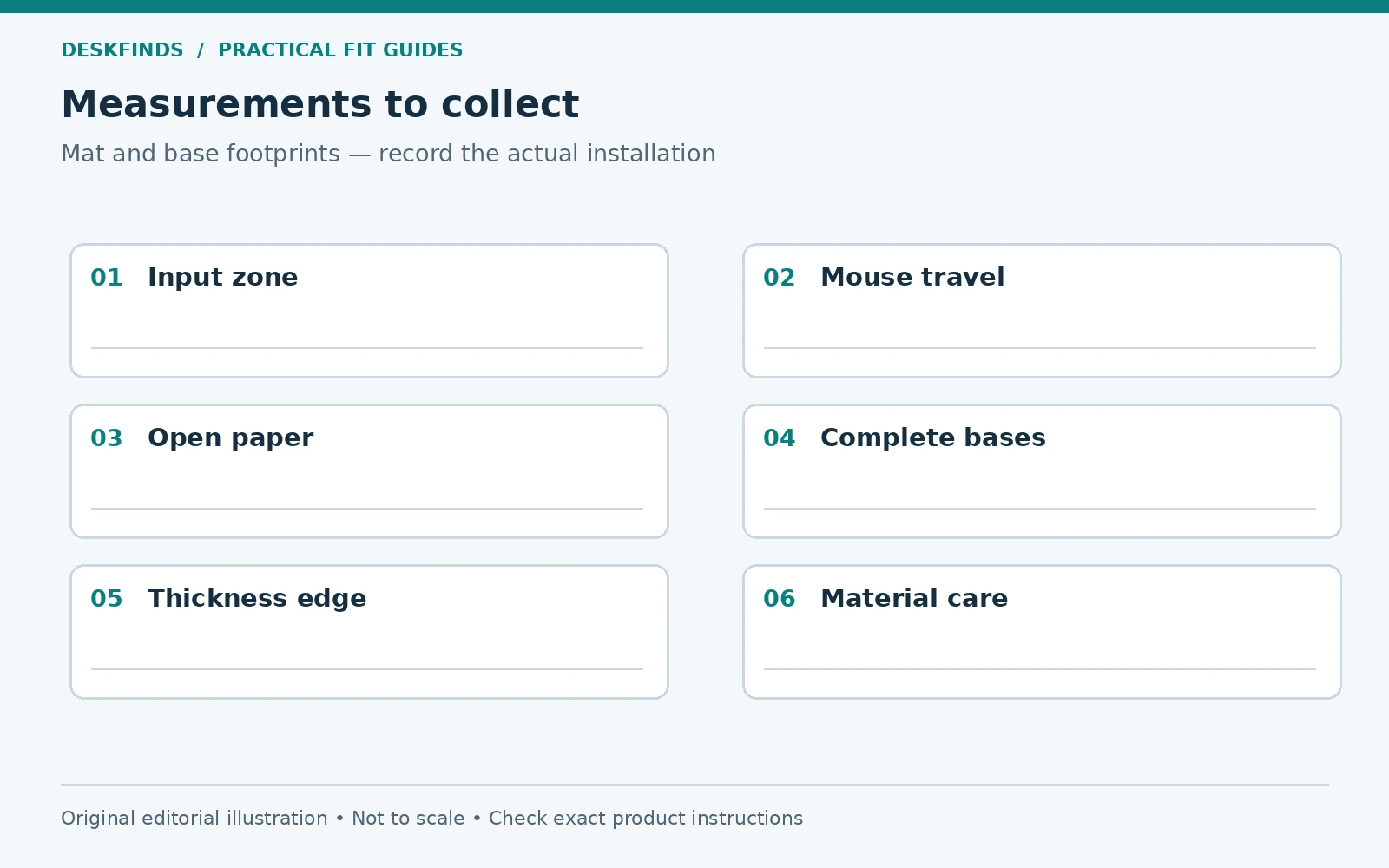
| Input area | Keyboard, mouse travel and other controls |
| Paper task | Open notebook or document, not only closed size |
| Bases | Complete feet and intended support surface |
| Mat | Full outline, thickness, edge and material requirements |
| Desk | Grommets, controls, finish and surface condition |
| Transition | Items can move without catching the mat edge |
Assess thickness and edge behavior
Check the mat's thickness and whether its edge creates a transition beneath equipment. A keyboard or small stand can rock if only part of it sits on a raised layer. The exact effect depends on the feet and material, so test the actual arrangement or obtain product guidance rather than relying on a universal thickness limit.
A curled edge can interfere with movement or make the mat difficult to use. Follow the manufacturer's flattening and care instructions. Do not apply heat or heavy improvised treatment unless permitted. A material can be damaged by an attempt to make it lie flat faster.
If the mat is stored or moved frequently, check whether it is intended to roll and how. A pack-away workspace may need a different material or size from a permanent desk. Our evening office reset guide helps assess the transition rather than only the deployed appearance.
Check mouse and writing performance as separate tasks
Use the actual mouse and connection arrangement on the proposed surface where possible. Sensor behavior can vary with surface and device. Do not assume that a smooth material works identically for every mouse. Check the device and mat information, and use a practical trial when appropriate.
Write on the paper types you normally use. A soft mat may change the feel of handwriting, while a hard surface may suit another task. This is a preference and use question, not a universal quality ranking. Test an ordinary notebook or loose sheet rather than judging the material only by touch.
If you draw, cut, solder, or use hot tools, use equipment specifically intended for those tasks and follow its instructions. A general desk mat should not be treated as a cutting, heat, or electrical-protection surface without explicit approval. Keep task-specific protection separate from the visual desk zone.
Example: a mat catches the front monitor feet
A user selects a large mat from the desk's width. It fits between the side edges, but the monitor's front feet rest partly on it while the rear feet remain on the desktop. The support arrangement now includes a step that the user did not plan. Moving the monitor forward would reduce input space.
The user compares another mat depth and a revised equipment layout, keeping the monitor supported as intended. A smaller mat may work if it still serves keyboard and mouse use. Alternatively, a different suitable stand arrangement may preserve the task zone. The decision follows the full footprint, not the screen diagonal.
A visually centered mat is optional. If an offset position serves the input area and avoids equipment conflicts, it can be more useful. The workstation should be centered on the task rather than the decorative rectangle.
Example: the lamp base consumes the mouse zone
Another user places the lamp on the mat to create a unified look. Its wide base occupies the mouse's ordinary movement area. The mat has enough nominal area, but part of it is assigned to a support that does not need to be there. Increasing the mat size would overlap another stand.
The user tests a compatible lamp position outside the input zone and checks light on paper and screen. Our writing-and-monitor lamp guide provides that task sequence. The base location is chosen for useful light and clear movement, not simply to keep all objects on one material.
If the desk cannot support the lamp elsewhere, another form may be appropriate, with its own attachment checks. Do not place a lamp on an unstable edge or clamp it to an unsuitable surface solely to save mat area.
Use a full-size paper trial
Cut or assemble a paper rectangle matching the candidate mat. Place the real objects around it, then type, use the mouse, open a notebook, and move items through their normal transitions. Mark any equipment foot crossing the edge. This simple trial is more informative than a cropped product photograph.
Keep the trial safe and avoid taping materials to finishes that could be damaged. The paper is a footprint aid, not a performance test for the mat material. It shows whether the size serves the layout; mouse tracking, writing feel, and material compatibility remain separate checks.
Try at least one smaller or differently proportioned outline if the first fails. The useful comparison may be a wide shallow mat rather than a deeper one, or a separate mouse surface and writing area. There is no requirement that one large mat solve every task.
Keep ports, controls and cleaning access available
Do not cover desk controls, ventilation, or cable openings that must remain usable. Check how plugs and cable guides interact with the mat edge. A lead resting beneath the mat can create a ridge or be damaged, depending on the route. Keep cables managed through suitable paths rather than hidden under the input surface.
Follow care instructions for both mat and desktop finish. Remove equipment appropriately before cleaning, and avoid trapping moisture beneath the material. Do not assume that a mat protects a surface indefinitely without inspection. Check the desk periodically for marks or residue using suitable methods.
For shared desks, choose a size that supports each user's useful arrangement or make the transition explicit. Our shared-desk guide can help define common and personal areas. A fixed large mat can become a constraint if users need different input positions.
Buy from a fit and use brief
Write the useful width and depth, included objects, excluded bases, maximum practical thickness, mouse requirements, writing preference, and care constraints. Ask for missing product information before ordering. Color and finish matter after the mat can serve the work without changing equipment support improperly.
Compare our small-desk mat guide and desk mat versus pad explanation. Use the task map as the basis for the choice. The best mat leaves the keyboard, mouse, paper, and surrounding supports working together rather than making the largest possible surface look coordinated.
Build a fit matrix for candidate mat sizes
Draw each candidate outline over the same task plan and mark five results: keyboard support, mouse movement, writing area, base contact, and access to controls. Use words such as clear, overlap, and unresolved rather than inventing a numerical product score. The matrix should reveal which dimension controls the decision.
A wider mat can solve mouse space while a deeper one creates a monitor-foot overlap. A smaller mat can clear the bases but put the keyboard's feet across an edge. The best candidate is not necessarily the largest or smallest. It is the one that supports the chosen tasks and equipment without an unintended surface transition.
Keep the object's actual footprints in every comparison. Removing the lamp from one sketch but leaving it in another makes the mat comparison misleading. If the layout changes, record that as a separate option and check whether the light still serves the task.
Check finish compatibility before leaving a mat in place
Read the care guidance for both the mat and desktop. Materials, coatings, cleaning products, and environmental conditions can interact differently. Do not assume that a premium material or soft backing cannot mark a finish. If compatibility is unclear, ask the relevant manufacturers and follow any permitted test process.
Keep the surface clean and dry as directed, and inspect beneath the mat periodically. A spill can reach an edge or remain trapped in ways that are not obvious from above. Follow the product instructions rather than treating water resistance as complete protection. Electronics and power connections need their own placement precautions.
For a desk you do not own, check room or workplace rules before using attached or potentially marking accessories. A removable mat is simpler than many fixed products, but its contact with the finish still matters. Keep the original surface condition documented where appropriate.
Plan a mixed-material desk deliberately
It is acceptable for the keyboard and mouse to use a mat while a lamp and monitor remain on another suitable surface. Visual consistency is not the only goal. Keep equipment fully supported and test whether moving objects between surfaces catches an edge or changes stability.
If you use a separate mouse pad, include it in the footprint rather than placing it over a large mat by default. Layering adds thickness and another edge. It may be suitable for particular products, but should be assessed from actual use and instructions rather than assumed to improve every setup.
For paper work, try the common writing position with the actual notebook and pen. If the preferred feel requires a different surface, give that task a clear location or planned transition. A single material does not have to serve every activity if a simple two-zone layout works better.
Make the reset routine part of the purchase
A mat moved daily needs a suitable storage shape and destination. Check whether it can be rolled or folded as intended and how it returns to a usable flat state. Do not buy a large permanent-style mat for a pack-away desk without considering that repeated handling.
If the mat stays in place, decide which objects are removed for cleaning and where they rest. A large monitor or lamp can make access more involved. The care routine should be practical enough to follow without dragging equipment across the surface or pulling connected cables.
After a week, note whether the mat edge repeatedly migrates into a base or input area. That can indicate the size, backing, or layout is not serving the task as expected. Reassess the arrangement rather than using equipment weight to pin a poorly fitting mat into place.
Keep the chosen boundary intentional
If a mat ends near a base, record which side of the boundary the support is meant to occupy. This can help restore the arrangement after cleaning. Recheck the full contact pattern rather than simply centering the mat by eye and assuming the equipment remains equally supported.
Sources and scope
- OSHA workstation desks - general context on coordinating input devices and work surfaces.
- Exact mat, mouse, lamp and monitor instructions - required for material, care and support compatibility; no universal mat material is prescribed.
The footprint trial and cases are original editorial planning guidance. No spill, heat, tracking or durability test was performed.