
Best Docking Stations for Laptop and Desktop Setups
Without the right dock, switching between a work laptop and personal desktop means two sets of monitors or an annoying cable-swap routine. With the right dock, one cable connects whichever computer is active to everything.
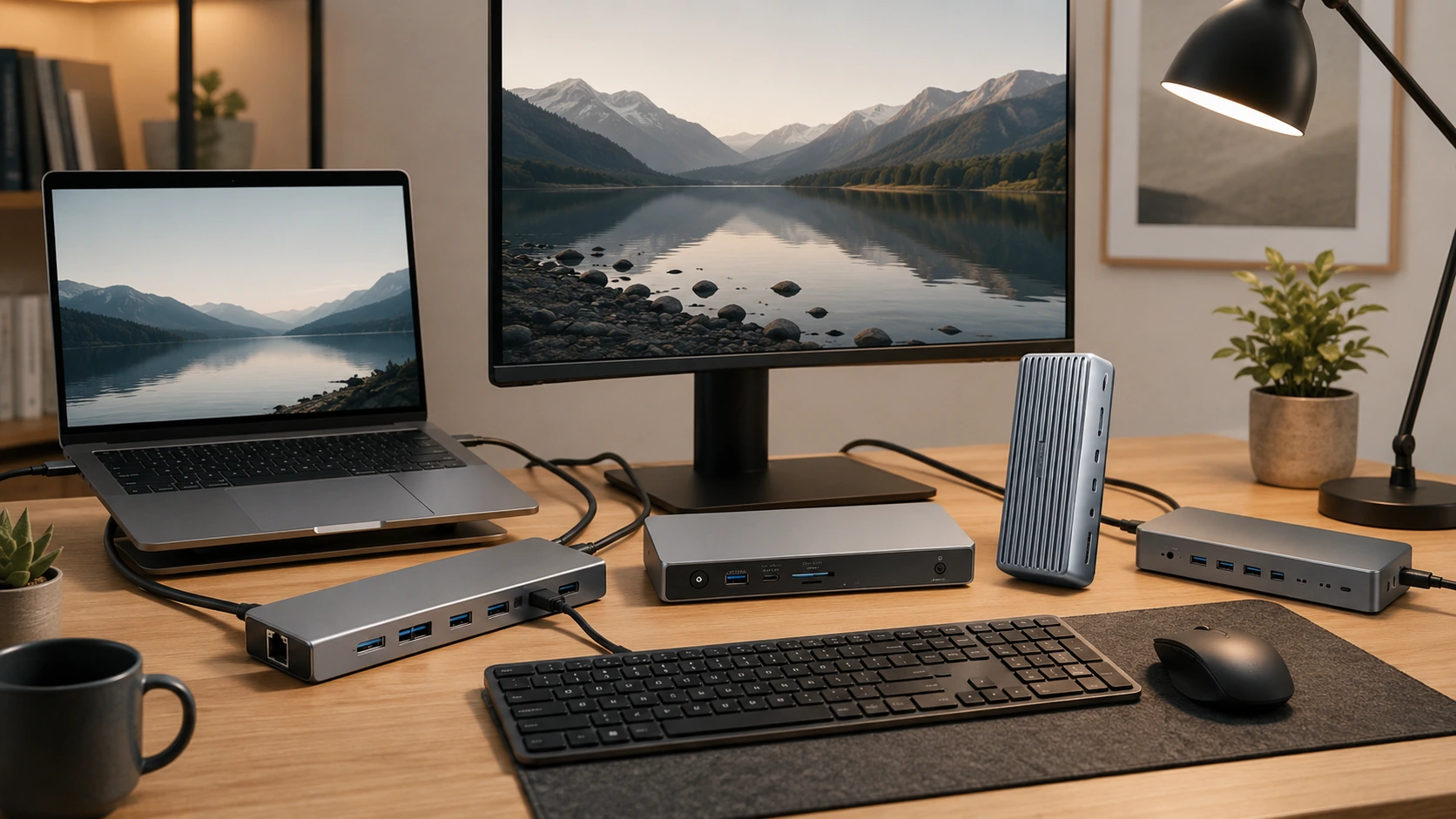
Quick Picks
| Pick | Product | |
|---|---|---|
| Best 8K KVM Dock | AV Access 8K DisplayPort KVM Docking Station (3 Monitors, 2 PCs) | Check price |
| Best Budget KVM Dock | AV Access iDock P10 KVM Docking Station (2 Monitors, 2 PCs) | Check price |
| Best Budget Quad-Monitor Dock | USB-C Docking Station, Quad Monitors with Dual HDMI, DP, VGA | Check price |
| Best KVM Dock | StarTech USB-C KVM Dock (2-Host) | Check price |
| Best USB4 Dock | Plugable USB4 11-in-1 Dual Monitor | Check price |
| Best Thunderbolt 4 | Anker 777 Thunderbolt 4 (12-in-1) | Check price |
| Best Budget | Selore 8-in-1 USB-C Dual Monitor Dock | Check price |
Most desk setups have one computer. But a growing number of people have two: a work laptop that belongs to their employer, and a personal desktop or personal laptop at home. Every morning the work laptop arrives, and every evening it leaves. The personal machine stays.
Without the right dock, this means two sets of monitors, two keyboards, two mice -- or an annoying cable-swap routine every morning and evening. With the right dock, one cable connects whichever computer is active to the full desk setup: monitors, keyboard, mouse, Ethernet, audio, and charging.
This guide is specifically for that dual-computer situation. It covers what a KVM docking station is (and when you need one), what works with both a laptop and a desktop, and four picks for different budgets and connection requirements.
The Key Concept: KVM vs Standard Dock
This is the question everyone skips, so the buying decision gets confusing.
Standard Docking Station
- Connects one laptop to monitors, Ethernet, and peripherals via one cable
- When you switch to your desktop, you disconnect from the dock and plug into the desktop directly
- Fine if your desk is used by one computer at a time, with a few minutes to re-plug
KVM Docking Station
- Connects two computers to the same monitors, keyboard, and mouse
- A button (or hotkey) switches the entire peripheral set between Computer A and Computer B -- monitors change input, keyboard and mouse swap, instantly
- No cable unplugging. No re-plugging. One press or hotkey
| Standard Dock | KVM Dock | |
|---|---|---|
| Connected computers | 1 | 2 |
| Switch method | Unplug + replug cables | Button or hotkey |
| Price | $50--250 | $150--400 |
| Complexity | Simple | More setup |
| Best for | One computer desk | Work laptop + personal machine on same desk |
Does Your Desktop Actually Need a Dock?
Most desktop PCs already have more ports than any laptop: multiple USB-A, USB-C, HDMI, DisplayPort, Ethernet directly on the motherboard. A desktop usually does not need a dock -- it connects directly to monitors and peripherals.
Desktop benefits from a dock when
- The desktop has a Thunderbolt or USB4 port and you want to expand bandwidth
- You are using a KVM setup and both computers need to connect via the same dock
- The desktop lacks a specific port (e.g., older desktop, no USB-C)
Desktop does NOT need a dock when
- It already has HDMI/DP outputs for monitors
- It has enough USB-A ports for keyboard, mouse, and accessories
- It has an Ethernet port
- You plan to switch manually between laptop and desktop cables
All 4 Picks at a Glance
At a Glance
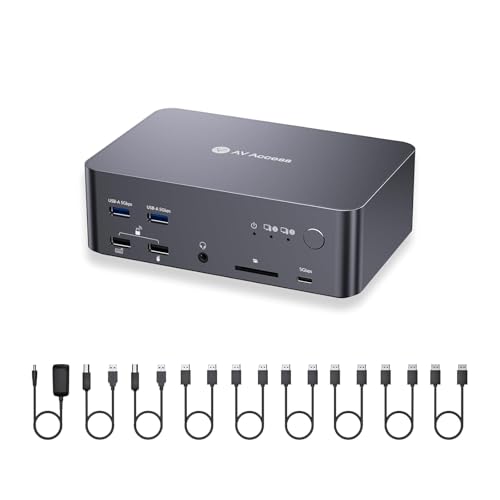
AV Access 8K DisplayPort KVM Docking Station (3 Monitors, 2 PCs)
↓ See why we picked it
AV Access iDock P10 KVM Docking Station (2 Monitors, 2 PCs)
↓ See why we picked it
USB-C Docking Station, Quad Monitors with Dual HDMI, DP, VGA
↓ See why we picked itOur Top Picks
AV Access 8K DisplayPort KVM Docking Station (3 Monitors, 2 PCs)
Why it wins
Based on its listed specs, the AV Access pushes past the StartTech KVM above with support for up to 3 monitors and 8K resolution, plus 6 included DisplayPort cables -- for anyone running a triple-monitor desk that switches between a laptop and desktop, this is the higher-capacity KVM option in this guide.
The included 6 DisplayPort cables are a meaningful convenience for a triple-monitor KVM setup, since sourcing 6 compatible DisplayPort cables separately adds real cost and hassle.
8K support is future-facing more than immediately necessary for most desks -- if your monitors top out at 4K, the StarTech above may cover your needs at a lower price, but if you run 3 displays or plan to upgrade toward 8K, this is the pick built for that.
Check price on AmazonSpecs
- Hosts: 2 simultaneous (KVM switching)
- Monitors: Up to 3, with 8K resolution support
- Cables included: 6 DisplayPort cables
- Best fit: Triple-monitor desks switching between laptop and desktop
Pros
- +Supports up to 3 monitors, more than the dual-monitor StarTech KVM
- +8K resolution support for high-end monitor setups
- +6 DisplayPort cables included
Cons
- −Highest price in this guide
- −8K support is overkill if your monitors are 4K or below
- −DisplayPort-focused -- HDMI-only monitors need adapters
Best for: Desks running 3 monitors that need KVM switching between a laptop and a desktop, and want headroom for higher resolutions.
AV Access iDock P10 KVM Docking Station (2 Monitors, 2 PCs)
Why it wins
Based on its listed specs, the iDock P10 brings 2-host KVM switching, dual-monitor support, Gigabit Ethernet, and EDID emulation to a lower price than the StarTech or AV Access 8K docks above, making it the value entry point for anyone who wants true KVM switching without the higher-end price tag.
EDID emulation is a detail worth knowing about: it keeps your monitor resolution and refresh rate settings consistent even when a computer is disconnected and reconnected, which prevents the annoying resolution reset some budget docks suffer from during KVM switching.
65W PD charging is enough for most ultrabooks but will not fast-charge a power-hungry 16-inch laptop under heavy load, unlike the 90W StarTech above.
Check price on AmazonSpecs
- Hosts: 2 simultaneous (KVM switching)
- Monitors: 2 monitors
- Charging: 65W PD
- Network: Gigabit Ethernet, EDID emulation
Pros
- +Lower price than other KVM docks in this guide
- +EDID emulation prevents resolution reset on switching
- +Gigabit Ethernet included
Cons
- −65W charging is lighter than the StarTech's 90W
- −Limited to 2 monitors, fewer than the AV Access 8K dock above
- −Fewer total ports than the higher-priced KVM options
Best for: Buyers who want genuine 2-host KVM switching at a lower price than premium KVM docks, without needing a third monitor.
USB-C Docking Station, Quad Monitors with Dual HDMI, DP, VGA
Why it wins
This is a single-host dock, not a KVM -- it does not switch between a laptop and desktop with a button the way the picks above do, so it fits this guide's theme less directly. Based on its listed specs, it does support up to 4 monitors across dual HDMI, DisplayPort, and VGA outputs at an unusually low price, which makes it a reasonable pick if you occasionally connect a desktop or laptop to the same multi-monitor array via manual cable swap rather than frequent KVM switching.
VGA output is a notable inclusion at this price -- useful only if you have an older monitor or projector without a digital input, which is increasingly rare but not unheard of in shared or older office setups.
Compatibility is broad (works with Lenovo, HP, Dell, and Windows systems per the listing), but treat this as a budget multi-monitor hub for one computer at a time, not a laptop-and-desktop KVM switch like the other new picks in this guide.
Check price on AmazonSpecs
- Hosts: 1 (manual cable swap to switch computers)
- Monitors: Up to 4 (2x HDMI, DisplayPort, VGA)
- Ports: 3x USB-A 2.0
- Compatibility: Lenovo, HP, Dell, Windows systems
Pros
- +Lowest price in this guide by a wide margin
- +Supports up to 4 monitors, including legacy VGA displays
- +Broad laptop brand compatibility
Cons
- −Not a KVM dock -- no simultaneous 2-host connection or button switching
- −USB-A 2.0 ports are slower than the USB 3.x/10Gbps ports on other picks in this guide
- −Requires manual cable swap to move between laptop and desktop
Best for: Budget buyers who occasionally connect a laptop or desktop to a shared 4-monitor array via manual cable swap, not frequent KVM switching.
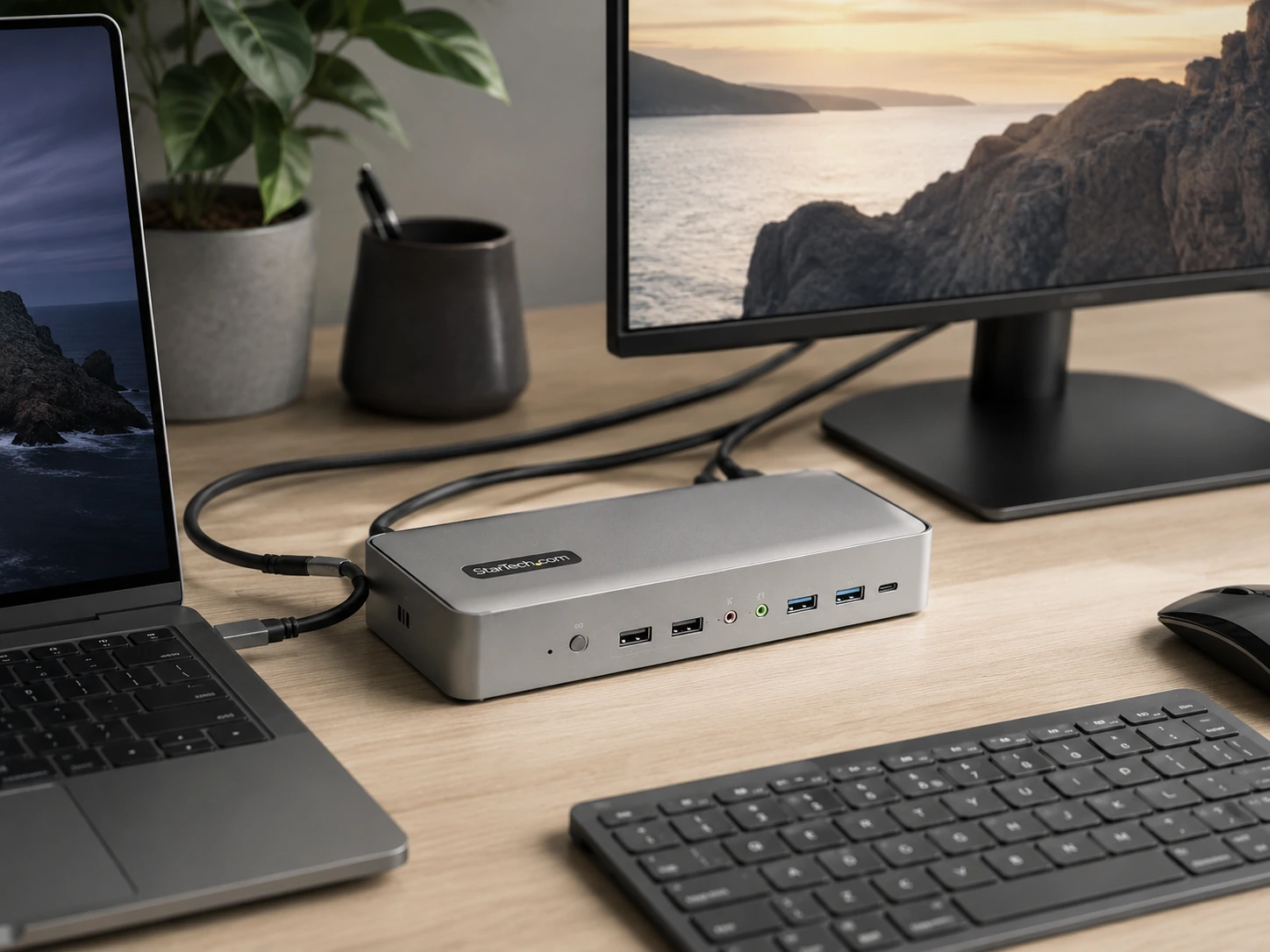
StarTech USB-C KVM Dock (2-Host)
Why it wins
The StarTech Dual-Laptop USB-C KVM Docking Station is the most practical solution for a desk that switches between two computers daily. Both computers connect to the dock simultaneously -- one as the active host, one on standby. A button on the dock (or keyboard hotkey) switches the dual 4K60 DisplayPort monitors, keyboard, mouse, and all peripherals from one computer to the other in under a second.
The power delivery is well-designed: the active host receives 90W (enough for MacBook Pro 14" or any Windows ultrabook), while the standby computer receives 45W to keep it topped up during the switch period. No need to also plug in a separate laptop charger.
Both hosts connect via USB-C, so this works with any USB-C laptop. For desktops without a USB-C port, a USB-C to USB-A cable routes the connection -- though at reduced bandwidth.
Check price on AmazonSpecs
- Hosts: 2 simultaneous (one active, one standby)
- Monitors: 2x 4K@60Hz (dual DisplayPort)
- Active host charging: 90W PD 3.0
- Standby host charging: 45W PD 3.0
- Ports: 2x DisplayPort, 5x USB-A (10Gbps), 1x Gigabit Ethernet, audio
- Switch: Button on dock or keyboard hotkey
Pros
- +True KVM -- one press switches monitors + keyboard + mouse + peripherals
- +Both laptops stay charged while connected (90W + 45W)
- +No cable unplugging required between computers
- +Works with any USB-C laptop (and desktops via USB-C)
- +Dual 4K60 DisplayPort
Cons
- −Expensive (~$300--350)
- −DisplayPort only -- HDMI monitors need an adapter
- −Desktop without USB-C uses USB-A adapter at reduced bandwidth
- −Overkill if you switch computers rarely (manual cable swap is simpler)
Best for: Anyone who switches between a work laptop and personal machine daily on the same desk and wants seamless, one-button switching.
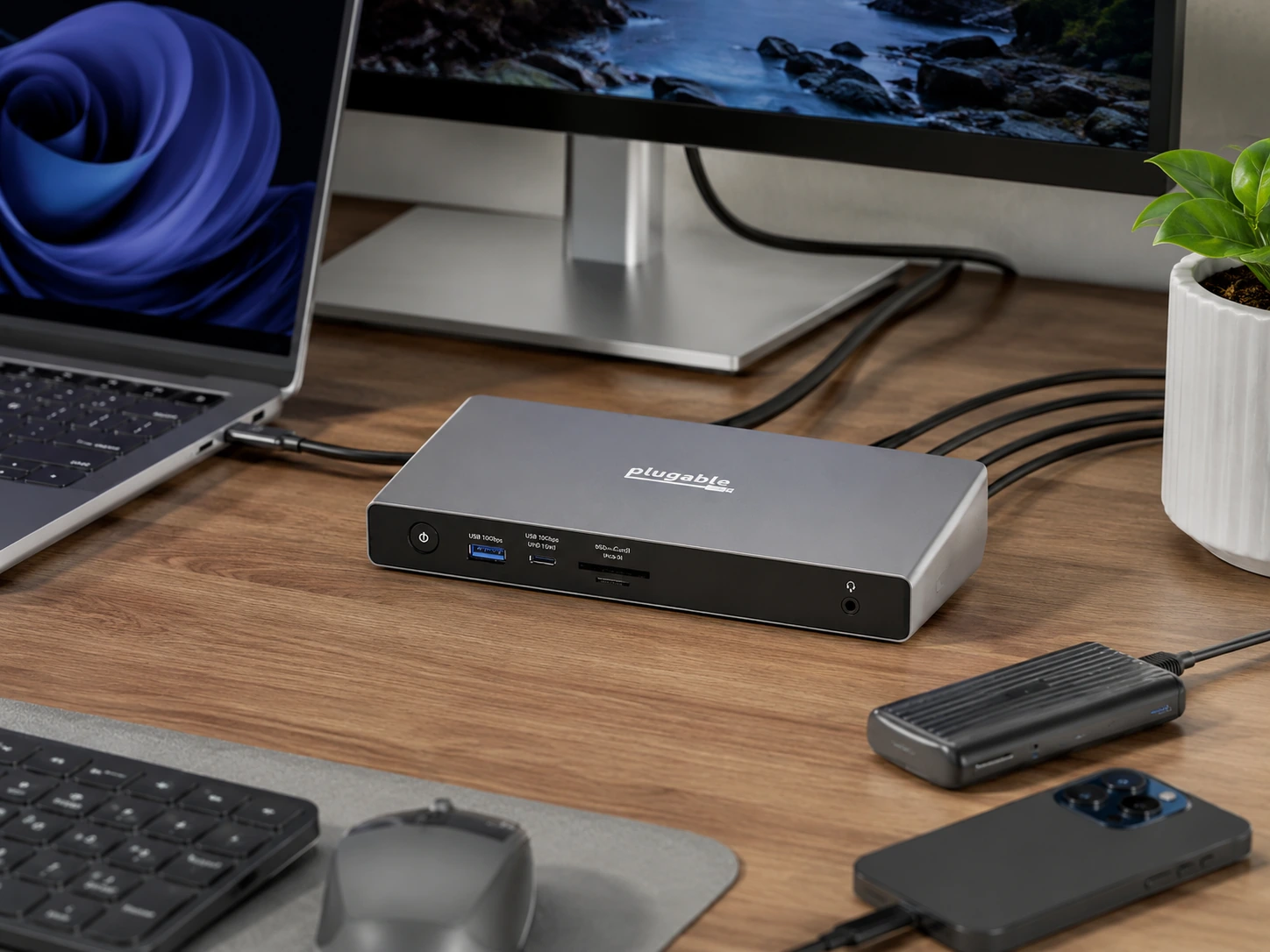
Plugable USB4 11-in-1 Dual Monitor
Why it wins
If you only need one computer connected to the dock at a time and are willing to swap the upstream cable manually, the Plugable USB4 11-in-1 is the smartest pick. USB4 at 40Gbps matches Thunderbolt 4 bandwidth -- without the TB4 price premium. Two HDMI 2.1 ports support dual monitors at 4K@120Hz, which is genuinely better than the 4K@60Hz cap most docks deliver at this price.
This dock works with both your USB4 or Thunderbolt laptop and, if your desktop has a USB4 or USB-C port, it can connect there too. The 100W power delivery charges most laptops at full speed. The 2.5GbE Ethernet handles high-speed network needs.
Check price on AmazonSpecs
- Connection: USB4 40Gbps (works with USB4 + Thunderbolt 3/4 laptops)
- Monitors: 2x 4K@120Hz (dual HDMI 2.1)
- Laptop charging: 100W PD
- Ports: 2x USB 10Gbps, 1x USB 5Gbps, 2.5GbE Ethernet, SD + microSD, audio
- Hosts: 1 (swap cable manually to switch)
Pros
- +4K@120Hz on both displays -- best refresh rate at this price
- +100W laptop charging
- +2.5GbE for high-speed wired network
- +Works on TB3/TB4/USB4 laptops and compatible desktops
- +No driver installation required
Cons
- −Single host only -- manual cable swap to switch computers
- −Requires USB4 or Thunderbolt port on both machines for full performance
- −Some thermal performance issues reported under sustained load
Best for: Single-host setups where one computer uses the dock at a time, or for users with both a TB4 laptop and a desktop with USB4 port who are comfortable with a 30-second cable swap.
Anker 777 Thunderbolt 4 (12-in-1)
Why it wins
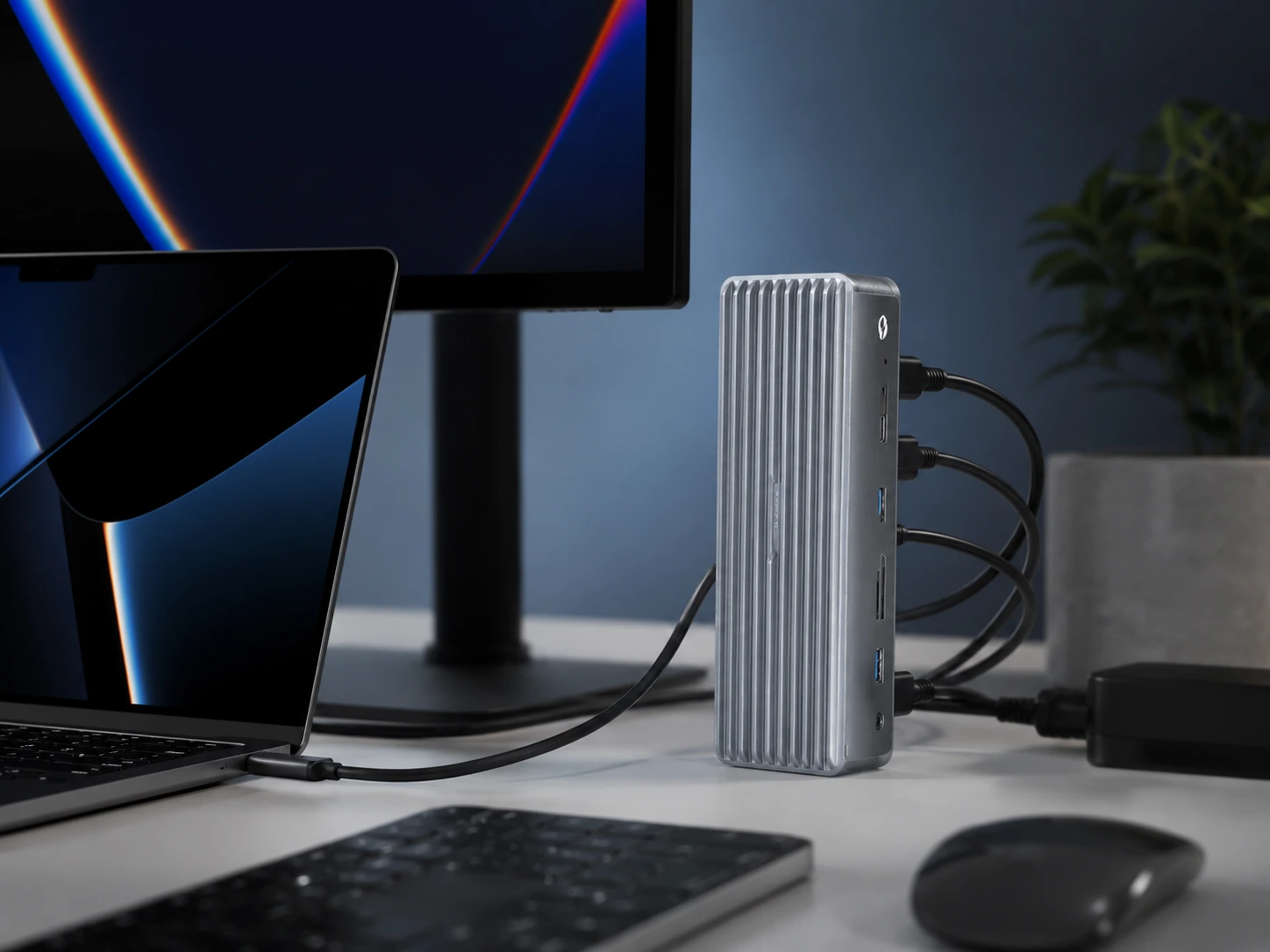
The Anker 777 is the benchmark TB4 dock for a single-computer desk setup -- and it earns a place in this guide because it works with both Thunderbolt 4 laptops and desktops that have Thunderbolt ports. MacBook Pro, MacBook Air, Dell XPS, Lenovo ThinkPad X1 -- any Thunderbolt laptop connects to full desk peripherals via one cable. Desktops with Thunderbolt ports get the same experience.
Twelve ports cover every standard desk peripheral. The downstream Thunderbolt 4 port daisy-chains to a second Thunderbolt device or extends to a third display.
Check price on AmazonSpecs
- Connection: Thunderbolt 4 (40Gbps upstream)
- Laptop charging: 90W
- Monitors: 2x 4K@60Hz (HDMI + DisplayPort) or single 8K
- Ports: 4x USB-A 3.2, 3x USB-C (incl. downstream TB4), HDMI, DP, GbE, SD, audio
- Hosts: 1 (TB4 port on computer required)
Pros
- +Full TB4 bandwidth -- most reliable single-cable desk connection
- +90W charges MacBook Pro 14" at meaningful speed
- +Downstream TB4 port for daisy-chaining
- +12 ports covers all standard desk peripherals
- +Front + rear port layout for easy access
Cons
- −Single host -- cable swap required to switch computers
- −90W charging tight for MacBook Pro 16" under heavy load
- −Requires TB4 port on the computer -- not all desktops have this
Best for: Thunderbolt 4 laptop users who want a reliable single-cable desk connection, with a desktop occasionally connected via cable swap.
Selore 8-in-1 USB-C Dual Monitor Dock
Why it wins
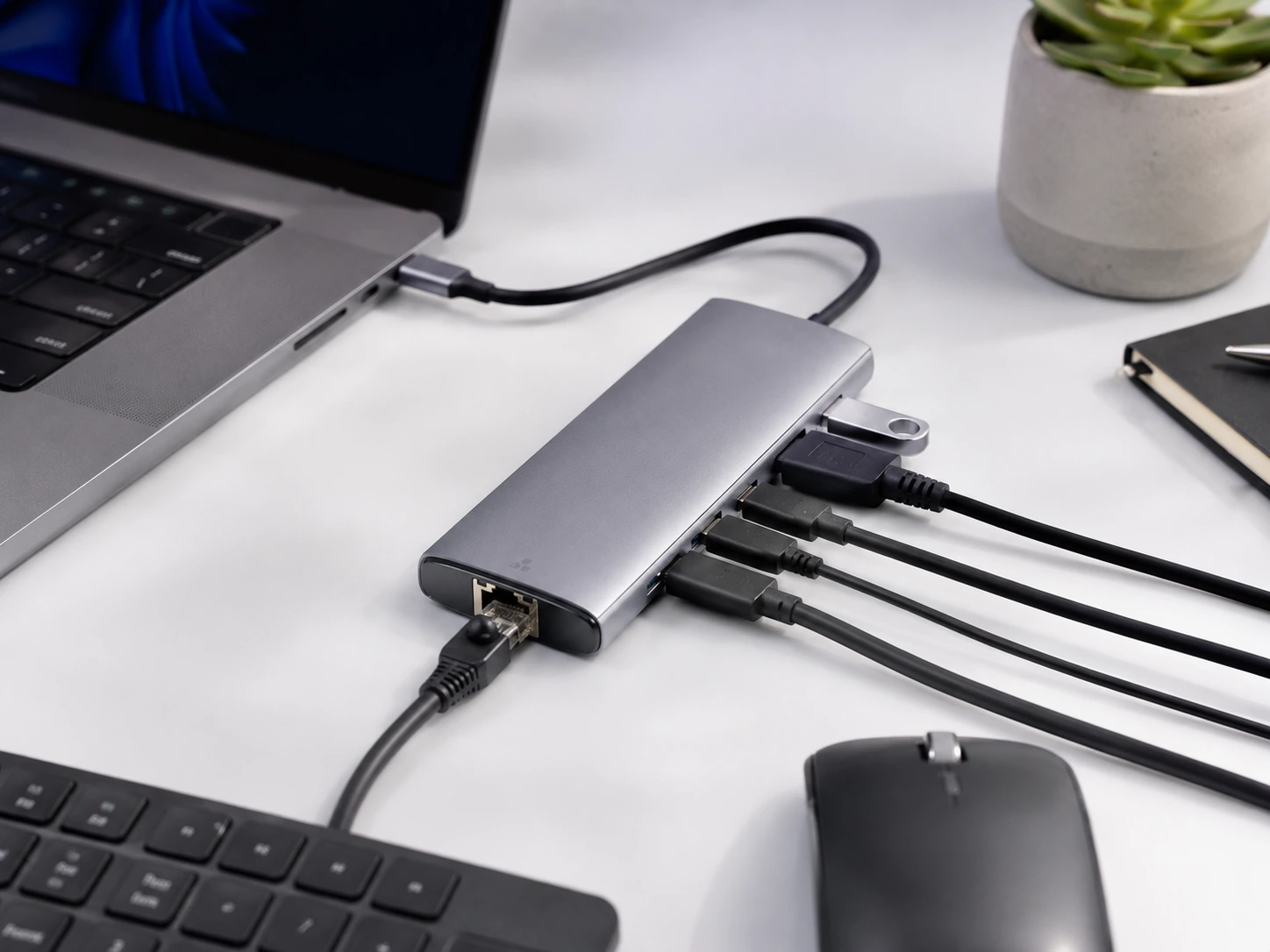
The Selore 8-in-1 costs $35--55 and delivers the core functionality most dual-computer setups actually need: dual 4K@60Hz HDMI outputs, 100W USB-C power delivery, USB 3.0 ports for keyboard and mouse, and an SD card reader. No Thunderbolt required -- any USB-C laptop connects. Any desktop with a USB-C port connects too.
For a setup where the computers switch infrequently (once a day, not once an hour) and the dock cable swap takes 10 seconds, the $200+ savings over the StarTech KVM dock are difficult to justify. The Selore handles the fundamentals cleanly.
Check price on AmazonSpecs
- Connection: USB-C (any USB-C laptop or desktop with USB-C port)
- Monitors: 2x 4K@60Hz (dual HDMI)
- Laptop charging: 100W PD (87W output for safety)
- Ports: 2x USB-A 3.0, USB-C 3.0, SD + TF card readers
- Hosts: 1 (swap upstream USB-C cable to switch)
Pros
- +Under $55 -- lowest price for a functional dual-monitor dock
- +100W PD charges any USB-C laptop
- +Dual HDMI works with standard consumer monitors (no adapter needed)
- +USB-C compatible -- works with almost any modern laptop or desktop
- +No driver installation
Cons
- −Single host -- cable swap to switch computers
- −HDMI only -- no DisplayPort
- −Bandwidth limited vs TB4/USB4 docks (no 40Gbps)
- −Not suitable for triple monitor setups
Best for: Budget setups where both computers use USB-C, monitors use HDMI, and switching frequency is low enough that a quick cable swap is acceptable.
Setting Up One Desk for Two Computers
The One-Cable Swap Approach (Standard Dock)
If you go with a standard dock (Plugable, Anker 777, or Selore):
Computer A (work laptop)
↓ TB4/USB4/USB-C cable
[DOCK] →→ Monitors + Keyboard + Mouse + Ethernet
↑ TB4/USB4/USB-C cable
Computer B (personal desktop/laptop)
When switching: unplug Computer A's cable, plug in Computer B's cable. Takes ~10 seconds. This is the right approach for most people.
The KVM Approach (StarTech KVM Dock)
Both computers connect to the dock simultaneously -- never unplug. Press the button (or hotkey) to switch. Monitors change input, keyboard/mouse transfer, both computers stay charging.
Best when: You switch 5+ times per day, or you never want to touch cables.
Frequently Asked Questions
Can one docking station work with both a laptop and a desktop?
Yes, with two approaches: (1) A KVM docking station connects both simultaneously and switches between them with a button. (2) A standard dock connects one computer at a time -- swap the upstream cable when switching. KVM docks cost more but eliminate cable handling. Standard docks are cheaper and sufficient for infrequent switching.
What is a KVM switch and do I need one?
KVM stands for Keyboard, Video, Mouse. A KVM switch shares one keyboard, monitor set, and mouse between two or more computers. A KVM docking station combines a dock with a KVM switch. You need KVM if you switch between two computers frequently enough that swapping cables is annoying -- typically 5+ switches per day.
Does a desktop need a docking station?
Usually not. Most desktops have enough ports (HDMI, USB-A, Ethernet) built in. A desktop benefits from a dock only in a KVM shared-desk setup where it needs to connect via USB-C alongside a laptop.
What connection does my desktop need for a dock?
USB-C is sufficient for a standard dock (Selore) or KVM (StarTech). USB4 or Thunderbolt provides faster bandwidth (Plugable, Anker 777) but requires those specific ports on the desktop -- uncommon on standard desktops, present on higher-end builds.
Is there a docking station that works with a MacBook and a Windows PC?
Yes -- any USB-C dock works with both. The StarTech KVM dock works with both Mac and Windows on both host connections. The Plugable USB4 dock works with Mac (TB) and any USB4/TB Windows laptop.
Bottom Line
For daily switching between two computers: The StarTech USB-C KVM Dock is the only pick that eliminates cable handling. Both computers stay connected, one button switches everything. Worth the $300+ if you switch multiple times daily.
For occasional switching or single-host use: The Plugable USB4 11-in-1 gives you the best display output (4K@120Hz) and bandwidth for the price. The cable swap is a 10-second trade-off for $150+ in savings.
For tight budgets: The Selore 8-in-1 costs under $55 and handles a functional dual-monitor desk with any USB-C computer.
Browse docking stations on Amazon
KVM, USB4, and TB4 options -- all Prime-eligible.
Shop on Amazon →Related Guides
Best Docking Stations for Desk Setup
Full docking station guide for single-computer setups
Best Charging Stations for Desk
Device charging without monitor connectivity
Best Under-Desk Charging Stations
Hide the dock and cables under the desk
Ergonomic Desk Setup Guide
How to position everything correctly
Last updated: June 2026. Prices verified at time of writing -- always check current Amazon price before purchasing.