
Best Docking Stations for Desk Setup: Clean Picks for Laptop and Monitor Workspaces
A docking station turns six cables into one. Plug in the Thunderbolt or USB-C cable, and the laptop instantly connects to every monitor, peripheral, and charger at once. Pick it up, pull one cable. Come back, plug in one cable.
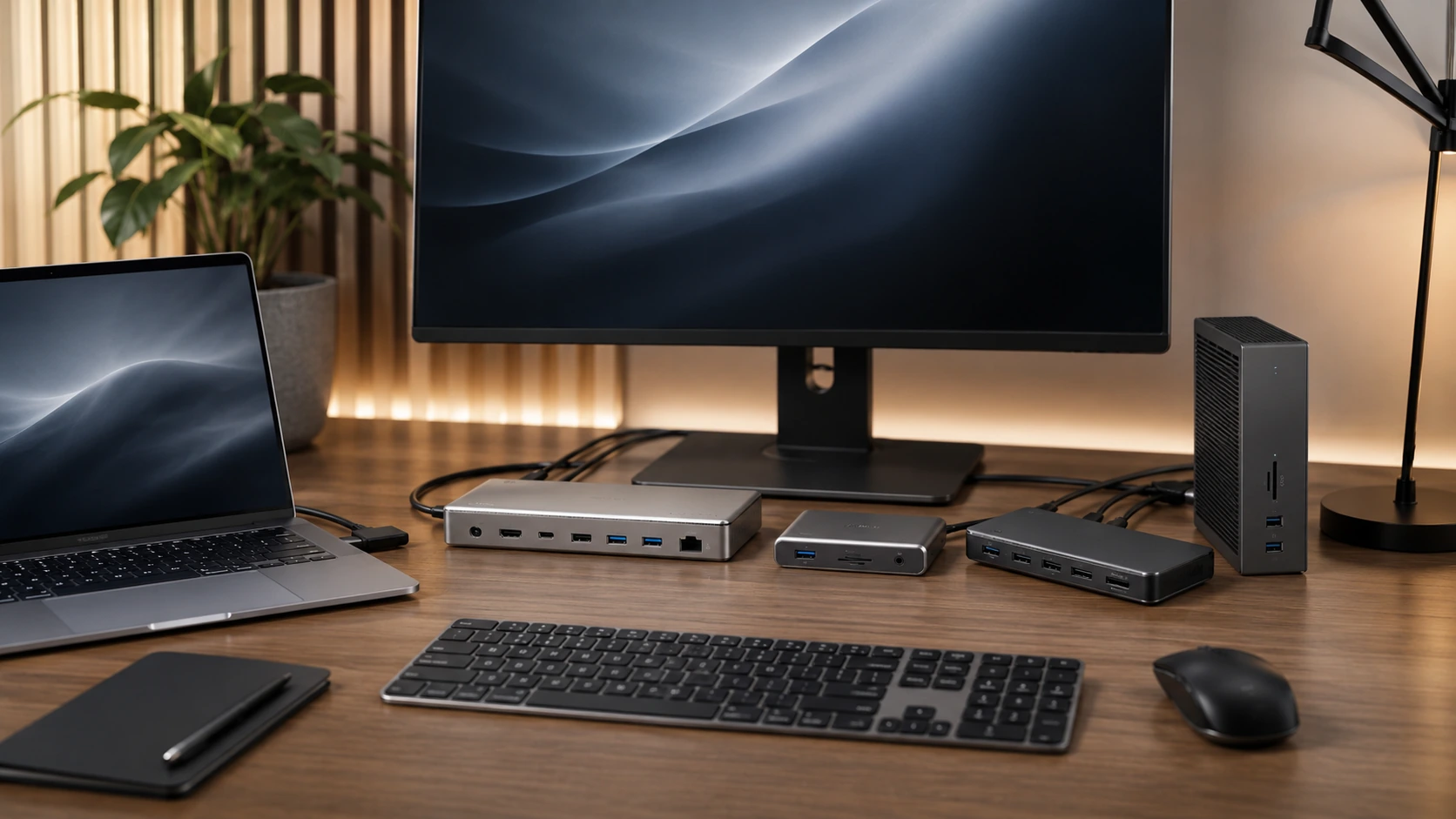
Quick Picks
| Pick | Product | |
|---|---|---|
| Best Overall | Anker 777 Thunderbolt 4 (12-in-1, 90W) | Check price |
| Best for MacBook | CalDigit TS4 Thunderbolt 4 Dock | Check price |
| Best Triple Display | Wavlink Thunderbolt 4 Triple Display | Check price |
| Best USB4 (Non-TB) | Plugable USB4 Dual HDMI Dock | Check price |
| Best Budget Home Office | Anker 8-in-1 USB-C Hub (85W) | Check price |
| Best Premium | CalDigit TS5 Plus Thunderbolt 5 | Check price |
Right now, most laptop desk setups look like this: one power adapter plugged into the wall, one HDMI cable to the monitor, one USB dongle for the keyboard and mouse, one USB-A for the webcam, another USB-C cable dangling for phone charging. Pick up the laptop to take it to a meeting, and you unplug six things. Set it back down, and you replug six things.
A docking station turns that into one cable. Plug in the Thunderbolt or USB-C cable, and the laptop instantly connects to every monitor, peripheral, and charger at once. Pick it up, pull one cable. Come back, plug in one cable.
This guide explains what docking stations actually do, which standard you actually need (hint: most people do not need Thunderbolt 5), and the six best options for real home office and desk setups in 2026.
What Is a Docking Station? (And How Is It Different From a USB Hub?)
This is the question competitors assume you already know the answer to. Most people searching "docking station for desk setup" are not IT professionals -- they have a laptop, they want a cleaner desk, and they are confused about what they actually need.
Docking Station vs. USB Hub vs. Charging Station
| Docking Station | USB Hub | Charging Station | |
|---|---|---|---|
| Connects monitors | Yes (1--4 displays) | Some (limited) | No |
| Charges laptop | Yes (60--240W via 1 cable) | Sometimes | Yes (USB-C PD) |
| USB ports | Yes (4--12 ports) | Yes (4--7 ports) | Yes (2--6 ports) |
| Ethernet / Network | Most docks | Rarely | No |
| SD card reader | Most docks | Some | No |
| Audio jack | Most docks | Some | No |
| Single-cable desk | Yes | No | No |
| Price | $50--420 | $20--80 | $20--200 |
For charging-only (no monitor connection): Best Charging Stations for Desk
Do You Actually Need Thunderbolt 4?
This is the question that matters most for buyers, and the one review sites consistently fail to answer simply.
Thunderbolt 4 vs. USB-C vs. USB4 -- Plain English
| USB-C | USB4 | Thunderbolt 4 | Thunderbolt 5 | |
|---|---|---|---|---|
| Data speed | 5--20 Gbps | 40 Gbps | 40 Gbps | 80--120 Gbps |
| Max monitors | 1--2 (driver-dependent) | 2 | 2 (up to 4 w/ daisy-chain) | 3--4 |
| Laptop compatibility | Any USB-C laptop | USB4/TB laptops | TB3/TB4/TB5 laptops | TB5 laptops |
| Price premium | Lowest | Moderate | High | Highest |
| Requires TB port on laptop | No | Yes (USB4 port) | Yes (TB port) | Yes (TB5 port) |
Choose Thunderbolt 4 if:
- Your laptop has a Thunderbolt port (look for the ⚡ symbol on the port)
- You run two 4K monitors or one 4K + one 1440p
- You need maximum stability and bandwidth (video editors, developers)
- You use a MacBook Pro or MacBook Air M3/M4
Choose USB4 if:
- Your laptop has USB4 but not Thunderbolt (common on mid-range Windows laptops)
- You need two monitors at 4K60 without paying TB4 prices
- The Plugable USB4 dock is a strong choice here
USB-C dock is enough if:
- You only need one external monitor
- You want the most affordable single-cable desk solution
- You are not doing video editing or high-bandwidth work
- MacBook (M1/M2/M3/M4): all ports are Thunderbolt -- get a TB4 dock
- Dell XPS / HP Spectre / Lenovo ThinkPad X1: look for ⚡ on port or check spec sheet
- Budget Windows laptops (under $800): likely USB-C only, not Thunderbolt -- get a USB4 or USB-C dock
All 6 Picks at a Glance
At a Glance
Our Top Picks for Docking Stations for Desk Setup
Anker 777 Thunderbolt 4 (12-in-1, 90W)
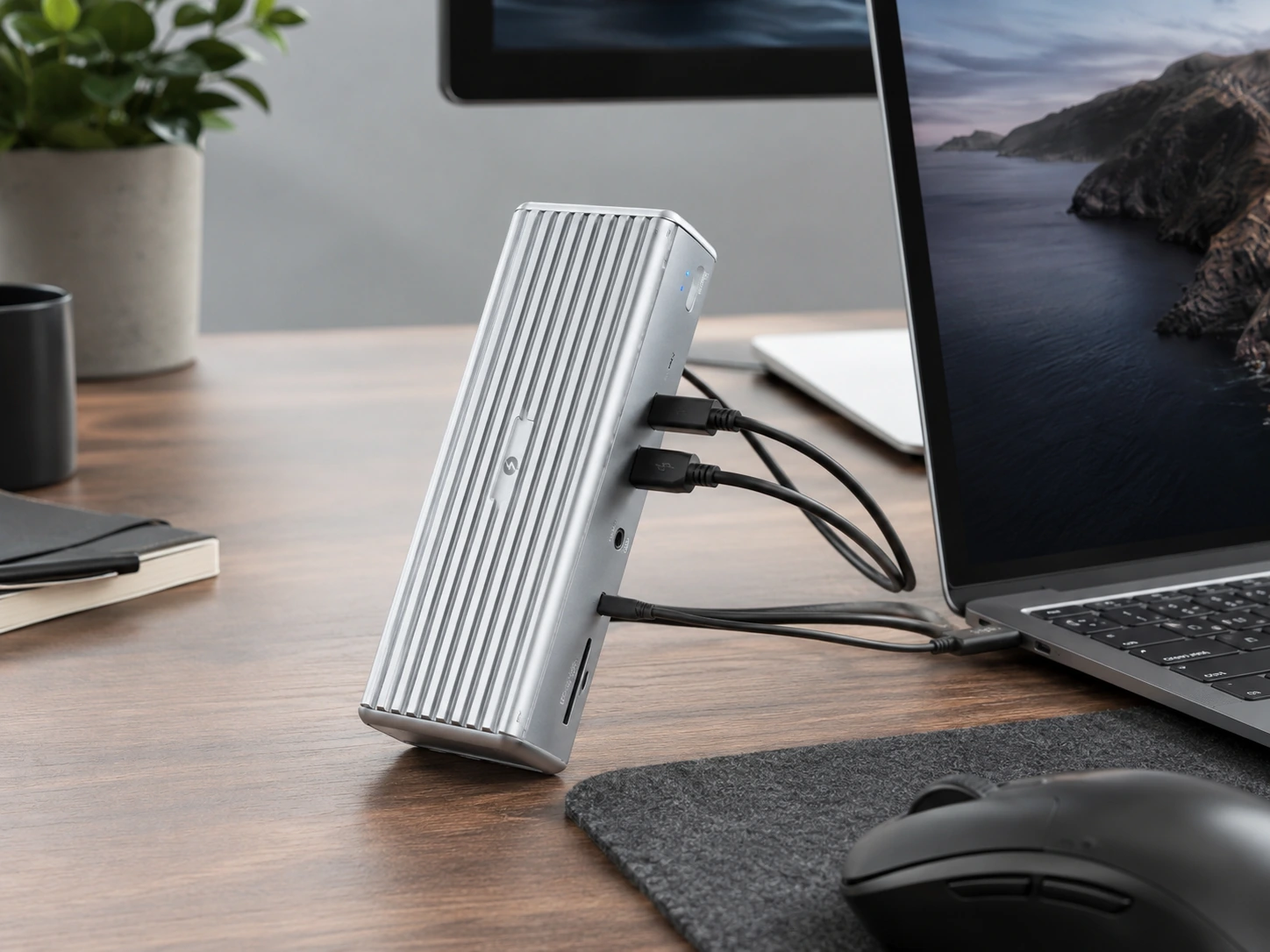
Why it wins
The Anker 777 is the best balanced docking station for most home office and desk setups. Thunderbolt 4 delivers 40 Gbps of bandwidth, two 4K60 display outputs, and 90W laptop charging -- all from one Thunderbolt cable to your laptop. Twelve ports cover every peripheral a standard desk needs: USB-A for keyboard and mouse, USB-C for accessories, HDMI and DisplayPort for monitors, Gigabit Ethernet for wired network, and an SD card slot for cameras.
The design is desk-friendly: a rectangular tower that stands upright or lies flat, with ports accessible on both front and back. The front-facing USB-A and USB-C ports are the practical detail -- you plug in USB drives or charge devices without reaching behind the unit.
At ~$150--180, it sits at a price where Thunderbolt 4 becomes genuinely accessible without the premium of CalDigit or OWC.
Check price on AmazonSpecs
- Connection: Thunderbolt 4 (1x upstream to laptop)
- Laptop charging: 90W via Thunderbolt
- Displays: 2x 4K@60Hz (1x HDMI + 1x DisplayPort)
- Ports: 4x USB-A 3.2, 3x USB-C, 1x HDMI, 1x DisplayPort, 1x Gigabit Ethernet, 1x SD, 1x audio
- Data: 40 Gbps
- Price: ~$150--180
Pros
- +Full TB4 bandwidth at accessible price
- +90W laptop charging -- fast enough for MacBook Pro 14"
- +Front + back port layout for easy access
- +12 ports covers every standard desk peripheral
- +Stable, reliable TB4 performance
Cons
- −90W charging slightly low for MacBook Pro 16" under heavy load (charges, just slowly)
- −No wireless charging pad
- −No 2.5GbE -- Gigabit only
Best for: Home office laptops -- MacBook Air, MacBook Pro 14", Dell XPS, HP Spectre -- with one or two external monitors and standard desk peripherals.
CalDigit TS4 Thunderbolt 4 Dock
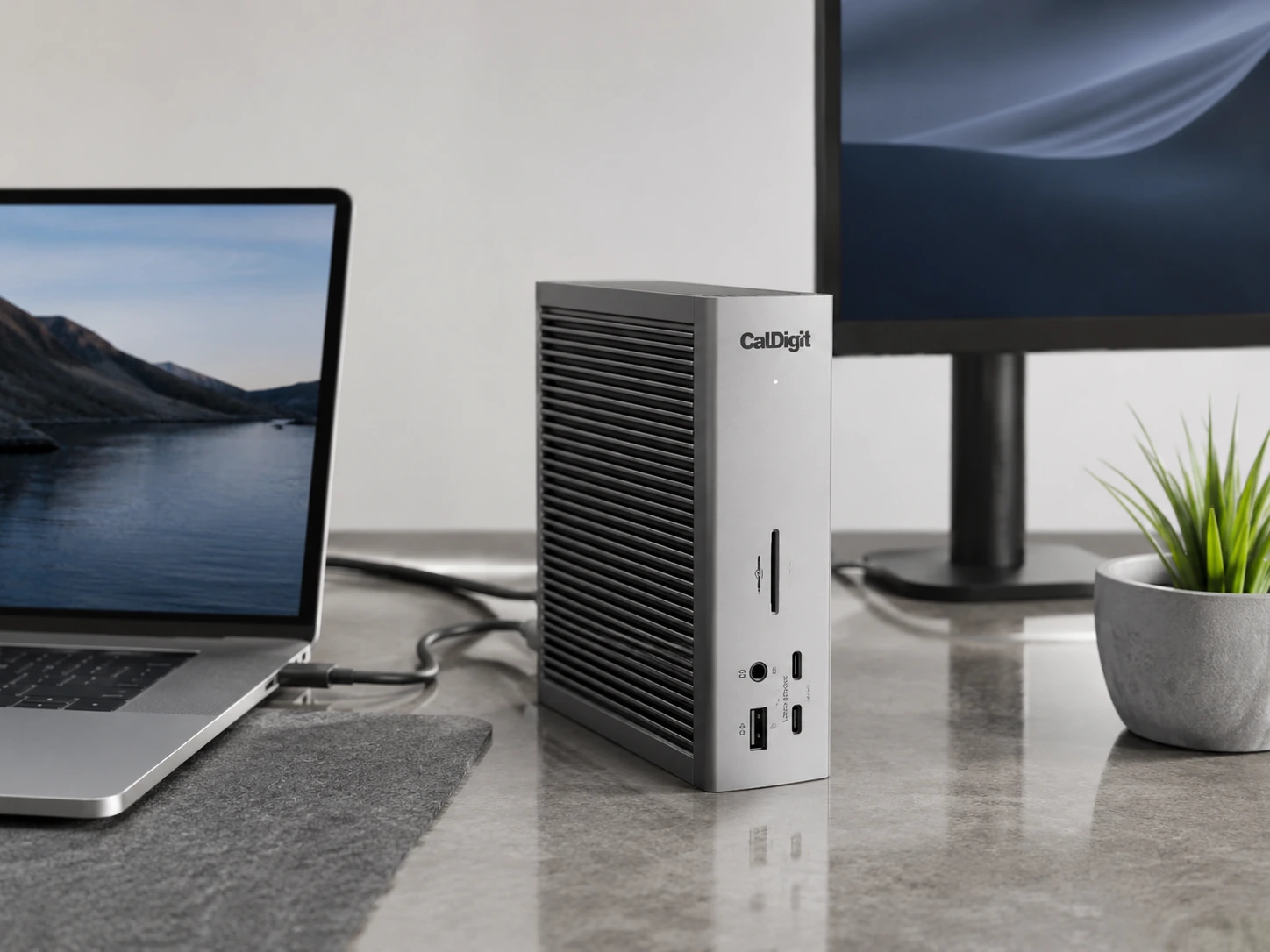
Why it wins
The CalDigit TS4 is the reference dock for MacBook setups. Eighteen ports. 98W laptop charging -- enough to charge a MacBook Pro 14" at full speed under heavy load. 2.5 Gigabit Ethernet -- twice as fast as standard Gigabit, important if you have a 2.5GbE router or NAS. The downstream Thunderbolt 4 port lets you daisy-chain another Thunderbolt device or a second high-res display.
The CalDigit TS4 is not cheap (~$200--250), but for a MacBook Pro desk setup where you want every peripheral connected through one dock with no compromises, it is the benchmark. Reviews consistently rate it the most stable, most compatible Thunderbolt 4 dock on the market.
Check price on AmazonSpecs
- Connection: Thunderbolt 4 (1x upstream to laptop)
- Laptop charging: 98W
- Displays: 2x 4K@60Hz (via downstream TB4 + USB-C)
- Ports: 18 total -- 3x TB4, 5x USB-A, 2x USB-C, 1x HDMI, 1x 2.5GbE, 1x SD, 1x microSD, 1x optical audio, 1x 3.5mm audio
- Data: 40 Gbps
- Build: Aluminum, premium
Pros
- +18 ports -- most comprehensive in this roundup
- +2.5GbE Ethernet -- faster than standard Gigabit
- +98W charging handles MacBook Pro 14" at full load
- +Most stable TB4 dock tested across long-term reviews
- +Optical audio output -- rare on docks
- +microSD slot alongside standard SD
Cons
- −Priciest mainstream TB4 option at ~$200--250
- −Large physical footprint -- needs desk space or shelf
- −Overkill for single-monitor setups
Best for: MacBook Pro users with a multi-peripheral desk: two monitors, NAS or fast router, external SSD, SD card workflow, and full USB coverage.
Wavlink Thunderbolt 4 Triple Display
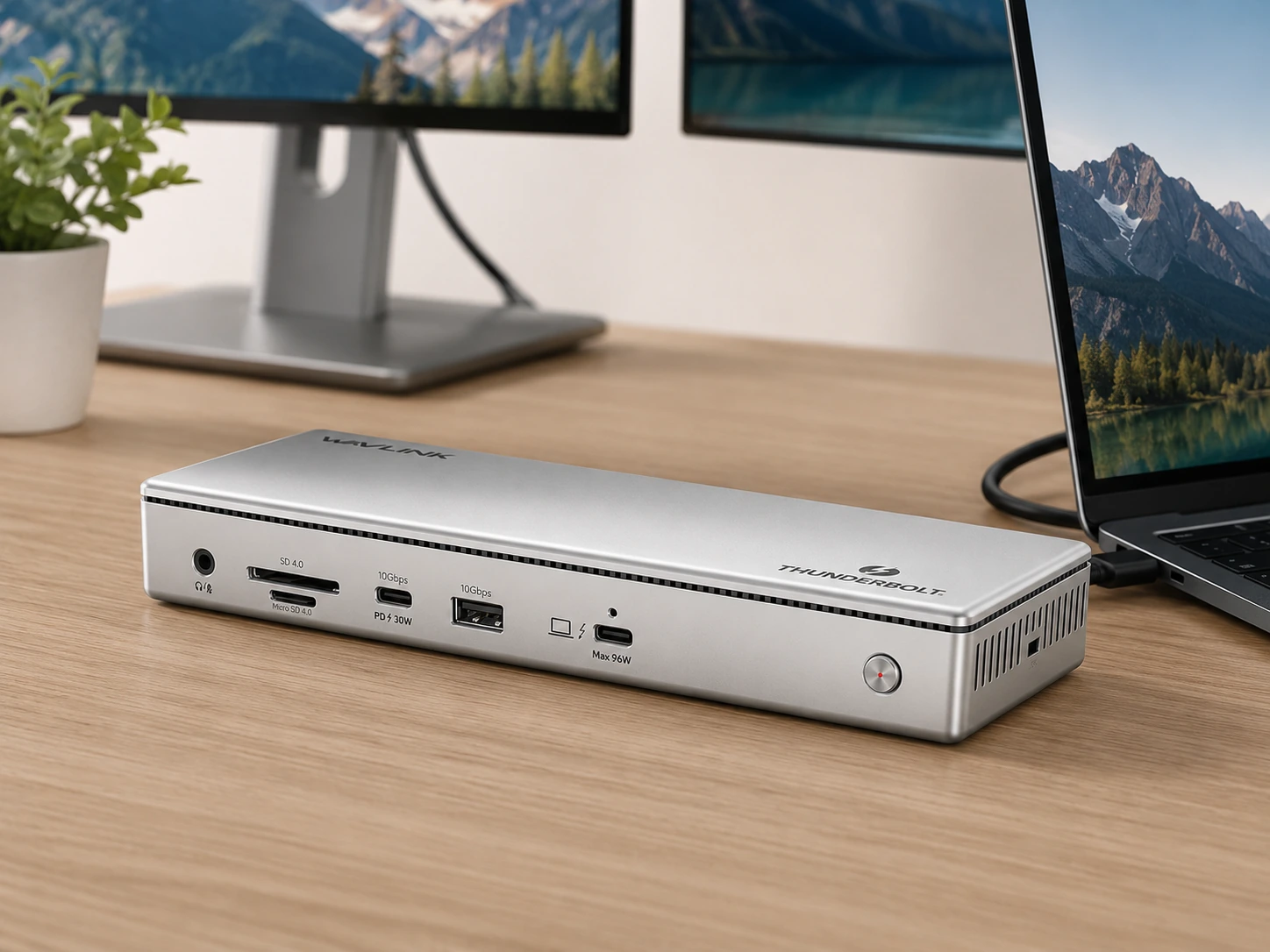
Why it wins
Most Thunderbolt 4 docks support two monitors. The Wavlink TB4 Triple Display Docking Station supports three -- at 4K resolution each -- from a single TB4 connection. For a productivity setup where you run a laptop screen plus two or three external monitors, this is the dock that makes it possible without daisy-chaining.
The 96W laptop charging handles MacBook Pro 14" and most Windows laptops at full speed. Two front-facing USB-C fast-charge ports make it easy to charge a phone or external SSD without reaching behind the dock. The $199 price point makes triple-display TB4 accessible without the CalDigit premium.
Check price on AmazonSpecs
- Connection: Thunderbolt 4 (1x upstream)
- Laptop charging: 96W
- Displays: 3 (2x HDMI + 1x downstream TB4)
- Ports: 2x HDMI 2.0, 4x USB-A 3.2, 2x USB-C (front, fast charge), 1x downstream TB4, 1x Gigabit Ethernet, 1x SD, 1x audio
- Price: ~$199
Pros
- +Three simultaneous external displays from one TB4 cable
- +96W laptop charging -- covers most pro laptops
- +Two front-facing USB-C fast-charge ports
- +Good value for TB4 triple-display capability
Cons
- −Occasional instability reported under heavy simultaneous load
- −Third display requires laptop's own display + TB4 downstream -- verify compatibility first
- −No 2.5GbE -- Gigabit Ethernet only
Best for: Productivity desks with a laptop + two or three external monitors, where a Thunderbolt laptop is available.
Plugable USB4 Dual HDMI Dock
Why it wins
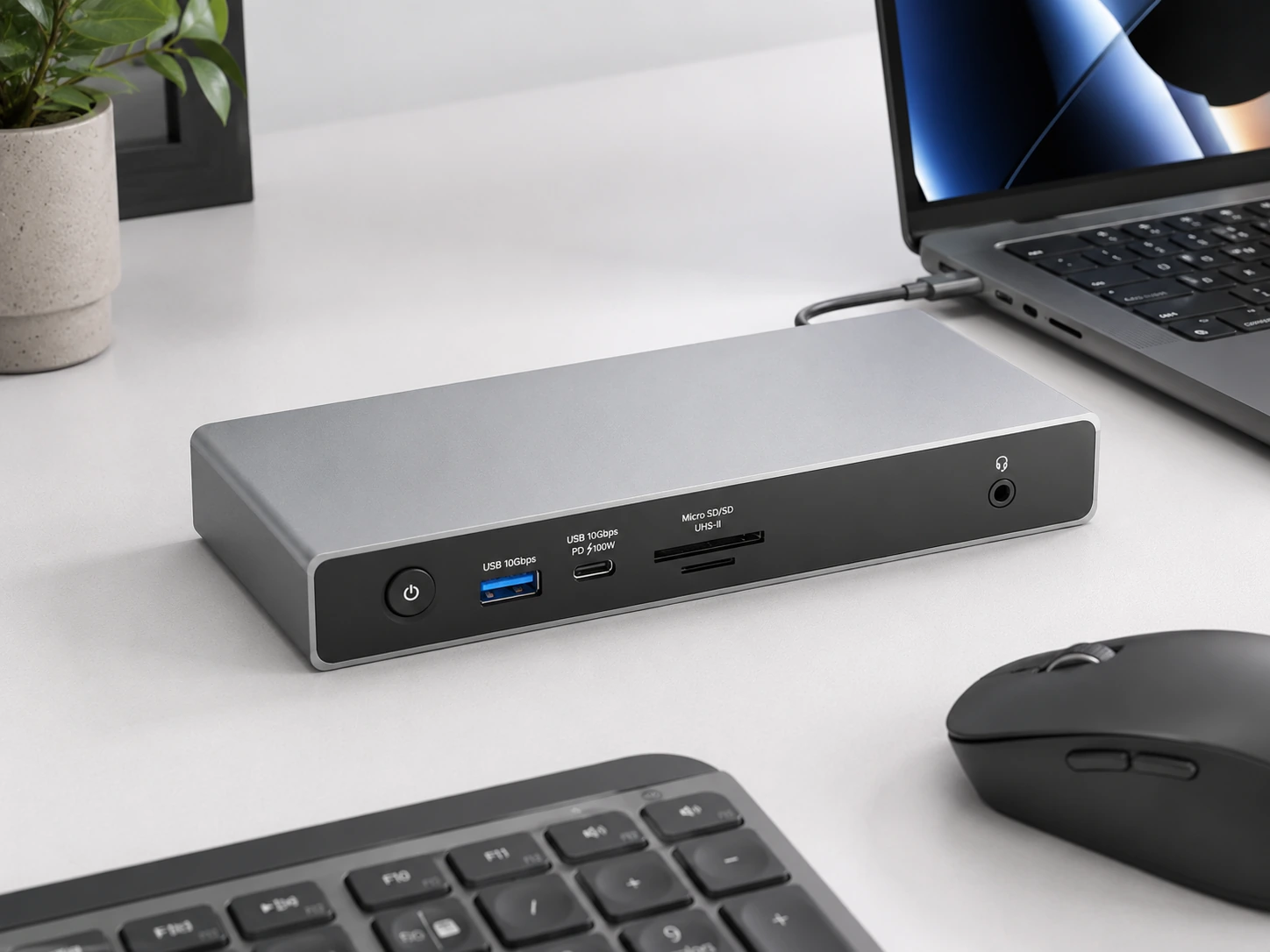
Not every laptop has a Thunderbolt port. Mid-range Windows laptops, Surface devices, and many business laptops from 2022--2024 have USB4 ports but not Thunderbolt. The Plugable USB4 Dual HDMI dock is purpose-built for these setups, delivering dual 4K@120Hz monitor output, 100W laptop charging, and a full port suite at a fraction of the TB4 price.
The 4K@120Hz display output is a genuine differentiator -- most docks at this price cap at 4K@60Hz. For gaming desks or creative setups where high refresh rate matters, this detail is significant.
The USB4 standard operates at 40 Gbps -- matching Thunderbolt 4 bandwidth -- but without the Thunderbolt certification premium.
Check price on AmazonSpecs
- Connection: USB4 (1x upstream to laptop)
- Laptop charging: 100W
- Displays: 2x 4K@120Hz (via 2x HDMI 2.1)
- Ports: 4x USB-A 3.2, 1x USB-C, 2x HDMI 2.1, 1x SD card, 1x Gigabit Ethernet, 1x 3.5mm audio
- Data: 40 Gbps (USB4)
Pros
- +Works on any USB4 laptop -- no Thunderbolt required
- +4K@120Hz on both displays -- gaming/creative capable
- +100W laptop charging
- +Strong value vs. TB4 docks at similar function
- +40 Gbps USB4 bandwidth
Cons
- −USB4 only -- not compatible with older USB-C-only laptops for full function
- −Some thermal performance issues reported under sustained load
- −Gigabit Ethernet only (not 2.5GbE)
Best for: Windows laptop users on mid-range hardware with USB4 ports, dual-monitor desk setups, or anyone who wants 4K@120Hz without paying Thunderbolt prices.
Anker 8-in-1 USB-C Hub (85W)
Why it wins
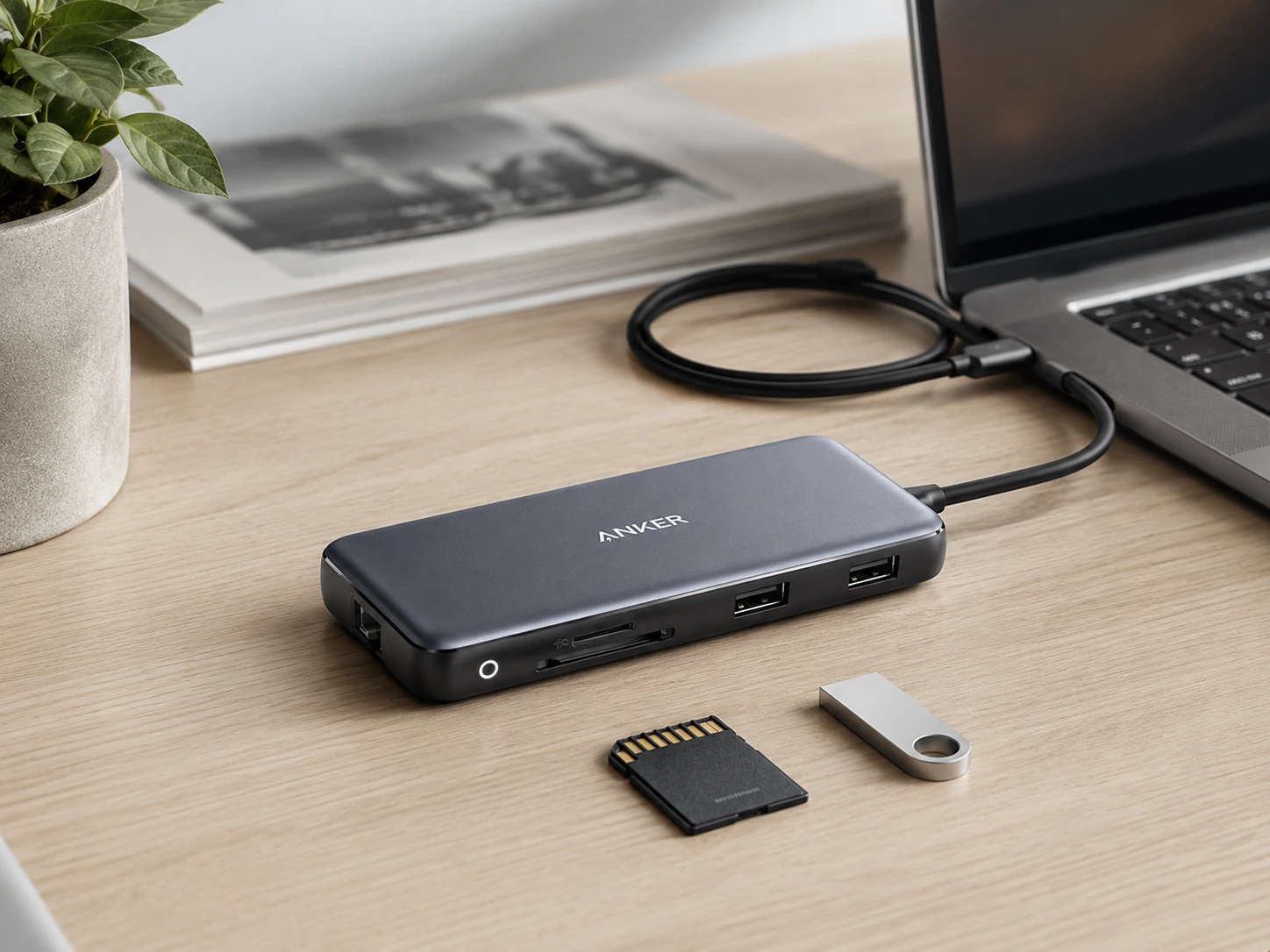
Not every desk needs Thunderbolt. For a home office setup with one external monitor, a wired keyboard and mouse, and occasional USB drive use -- an 85W USB-C hub at ~$55--80 covers everything at a fraction of the TB4 price.
The Anker 8-in-1 has an 85W Power Delivery pass-through port, an HDMI 2.0 output for a single 4K@60Hz display, three USB-A 3.0 ports, a USB-C data port, Gigabit Ethernet, and an SD card reader. No Thunderbolt needed -- any USB-C laptop works.
The compact 4.65-inch length means it sits neatly beside a laptop without dominating the desk. The Gigabit Ethernet inclusion at this price is the standout value detail -- most competitors at this tier omit it.
Check price on AmazonSpecs
- Connection: USB-C (any USB-C laptop)
- Laptop charging: 85W PD pass-through
- Displays: 1x 4K@60Hz (HDMI 2.0)
- Ports: 3x USB-A 3.0, 1x USB-C data, 1x HDMI, 1x Gigabit Ethernet, 1x SD card
- Dimensions: 4.65 x 2.16 x 0.63 inches
Pros
- +Works with any USB-C laptop -- no Thunderbolt needed
- +Gigabit Ethernet included at budget price
- +85W PD charges most laptops adequately
- +Compact 4.65-inch length
- +Strong value for a one-monitor desk
Cons
- −Single monitor output only
- −No Thunderbolt -- bandwidth limited vs TB4 docks
- −85W may be insufficient for MacBook Pro 16" under heavy load
- −No DisplayPort output -- HDMI only
Best for: Single-monitor home office setups, budget-conscious buyers, or any USB-C laptop user who needs Ethernet + USB expansion without spending $150+.
CalDigit TS5 Plus Thunderbolt 5
Why it wins
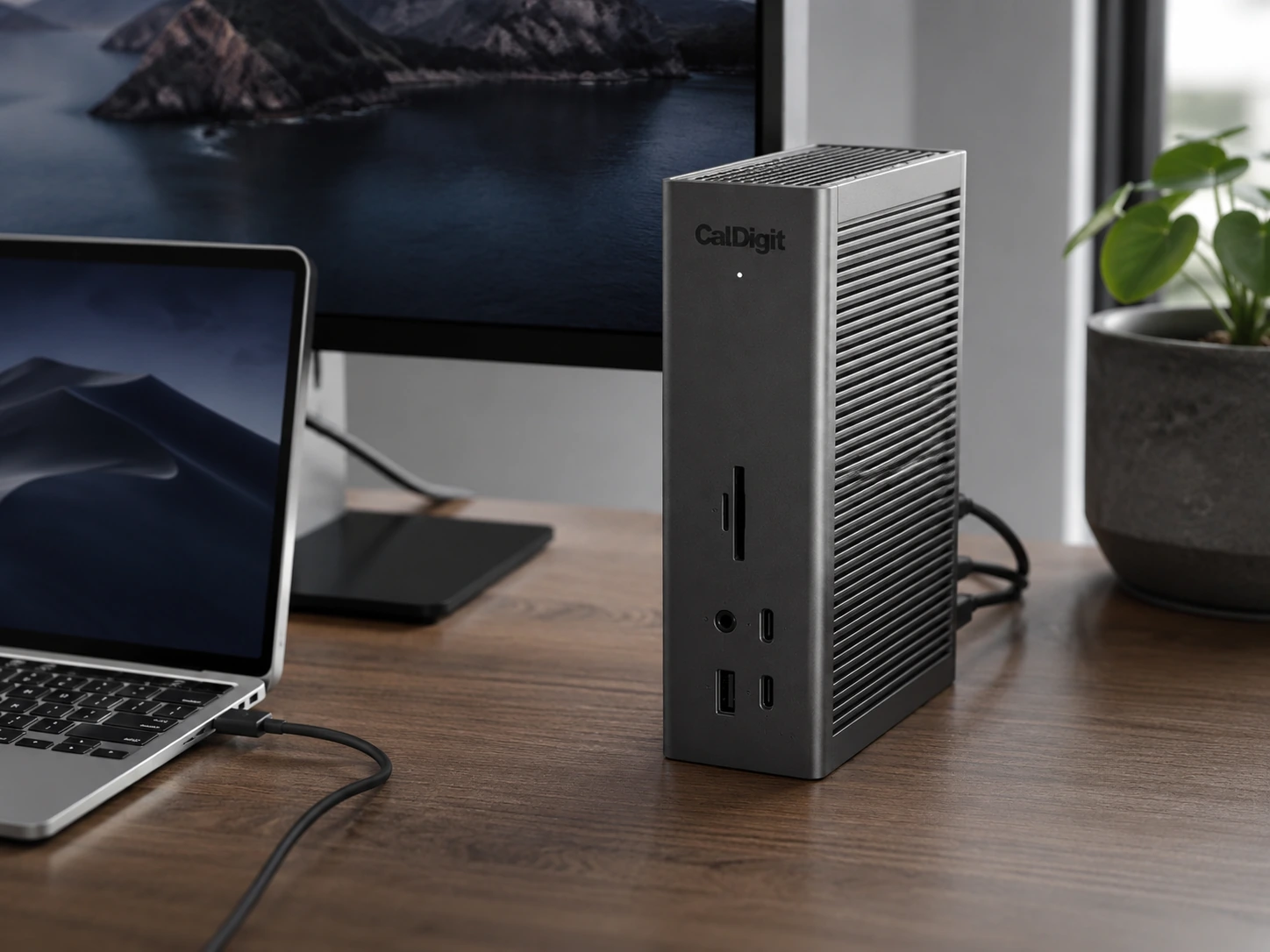
The CalDigit TS5 Plus is overkill for most home offices -- and exactly right for creative professionals, developers running dual external displays at 4K, and MacBook Pro M4 Max users who need every bit of bandwidth available. Twenty ports. 140W dedicated host charging with a 330W total power supply. Thunderbolt 5 bandwidth at 80--120 Gbps. Multiple 4K display support via four Thunderbolt ports. 2.5GbE Ethernet.
The dedicated 140W host charging port -- backed by a 330W PSU -- ensures the laptop never dips into its battery under any load. MacBook Pro 16" M4 Max charges at its maximum 140W rate. No other dock in this guide matches that capability.
At ~$350--420, it is a significant investment. For a desk that represents a professional's primary workstation, it is the most complete single-cable solution available in 2026.
Check price on AmazonSpecs
- Connection: Thunderbolt 5 (1x upstream)
- Laptop charging: 140W dedicated host charging (330W PSU total)
- Displays: Multi-display via 4x TB5 + HDMI 2.1 + DisplayPort 2.1
- Ports: 20 total -- 4x TB5, 4x USB-A, 2x USB-C, 1x HDMI 2.1, 1x DisplayPort 2.1, 1x 2.5GbE, 1x SD, 1x audio
- Data: 80--120 Gbps (TB5)
- Ethernet: 10GbE (10-Gigabit)
Pros
- +140W dedicated host charging -- MacBook Pro 16" M4 Max at full speed
- +20 ports covers any professional desk configuration
- +Thunderbolt 5 bandwidth -- future-proof for years
- +10GbE Ethernet (not just 2.5GbE)
- +Multiple simultaneous 4K/5K/6K display support
Cons
- −Requires Thunderbolt 5 laptop (MacBook Pro M4 Pro/Max, select new Windows laptops)
- −$350--420 price -- serious investment
- −Overkill for single-monitor or casual home office use
- −Large physical footprint
Best for: MacBook Pro M4 Pro/Max users, video editors, developers, or anyone building a permanent professional workstation where bandwidth, charging, and port coverage cannot be compromised.
How to Set Up a Docking Station for Your Desk
Step 1 -- Check Your Laptop Port
Before buying anything, identify what port(s) your laptop has:
Thunderbolt 4 ports -- any TB4 dock works
Thunderbolt -- any TB3/TB4/TB5 dock works
USB4 dock or TB4 dock in USB4 mode
Standard USB-C -- use the Anker 8-in-1 or any USB-C dock, not Thunderbolt
Buying a Thunderbolt 4 dock for a USB-C-only laptop means you overspend on bandwidth the laptop cannot use.
Step 2 -- Count Your Monitors
| Monitor count | What you need |
|---|---|
| 0 (laptop only) | USB-C hub is enough -- no dock needed |
| 1 external monitor | Any USB-C dock with HDMI works |
| 2 external monitors | USB4 or Thunderbolt 4 dock |
| 3+ external monitors | Thunderbolt 4/5 with daisy-chain OR TB5 dock |
Step 3 -- List Your Peripherals
Write down every device you connect to your laptop regularly:
Count the ports and ensure your dock has enough. Most full-size TB4 docks (Anker 777, CalDigit TS4) cover a fully loaded desk without running short.
Step 4 -- Choose Laptop Charging Wattage
| Laptop | Minimum dock charging | Recommended |
|---|---|---|
| MacBook Air M3/M4 | 30W | 60W+ |
| MacBook Pro 14" M4 | 60W | 90W+ |
| MacBook Pro 16" M4 | 100W | 140W+ |
| Dell XPS 13/15 | 45W | 65W+ |
| Lenovo ThinkPad X1 | 65W | 90W+ |
Docks that charge below the laptop's minimum will not charge while the laptop is under load -- the battery drains even when connected. Always verify the dock's Power Delivery wattage exceeds your laptop's minimum.
Step 5 -- Place the Dock on Your Desk
On the desk surface
Standard placement. The dock sits beside the laptop or monitor stand. Route the Thunderbolt/USB-C cable to the laptop and all peripheral cables into the dock.
Under the desk (mounted)
Cleaner surface, all cables routed down and out of sight. Compatible with most docks via under-desk mounts or cable management trays.
On a monitor arm shelf
Some monitor arms have a cable management shelf -- the dock clips onto the arm itself, removing it from the desk entirely.
How We Evaluated These Picks
Connection standard match
Does the dock standard match what the laptop port can actually use? TB4 pricing is only justified for TB-equipped laptops.
Laptop charging wattage
Is the dock's PD wattage sufficient to charge the laptop under real load -- not just at idle?
Port coverage for real desks
Does the port selection cover keyboard, mouse, webcam, Ethernet, SD, audio, and phone charging simultaneously?
Display output stability
Stable at 4K@60Hz under sustained use, not just on cold boot. Multi-monitor stability is the most common failure mode on low-cost docks.
DeskFinds earns a commission on qualifying purchases at no extra cost to you.
Frequently Asked Questions
Do I need Thunderbolt 4 for a docking station?
Only if your laptop has a Thunderbolt port. For MacBooks and premium Windows laptops with the Thunderbolt symbol: yes, TB4 delivers the best performance. For mid-range Windows laptops with USB4 ports: USB4 dock is the right match and costs less. For standard USB-C laptops: a USB-C hub or dock is sufficient for single-monitor use.
Can a docking station charge a laptop?
Yes, all docks in this guide charge laptops via the same Thunderbolt or USB-C cable that connects peripherals. Charging wattage varies: Anker 777 at 90W, CalDigit TS4 at 98W, CalDigit TS5 Plus at 140W dedicated. Always verify the dock's PD wattage is sufficient for your specific laptop model.
What is the difference between a docking station and a USB hub?
A docking station adds monitor output, Ethernet, and full peripheral connectivity via a single cable -- it replaces multiple cables with one. A USB hub expands USB ports and sometimes adds HDMI, but without Thunderbolt's full bandwidth or monitor-driving capabilities. For one-cable desk connectivity including monitors, a dock is required. For just more USB ports, a hub is enough.
Can one dock work for both my laptop and desktop?
This depends on your desktop's ports. Most desktops use USB-A and HDMI directly -- they don't need a dock. For a setup where you switch a dock between a laptop (for travel) and a desktop (at desk), a KVM-capable dock is the right tool.
Does a docking station improve desk cable management?
Dramatically. A fully connected desk without a dock typically has 5--8 cables to the laptop. With a dock: one cable. All other cables run to the dock, which sits to one side or under the desk.
What docking station works with a MacBook Air?
MacBook Air M3 and M4 have Thunderbolt 4 ports. Any TB4 dock works. The Anker 777 is the best value for MacBook Air -- 90W charging is sufficient (Air has a lower power draw than Pro), and the port selection covers any standard desk.
Bottom Line
For most home office and desk setups, the Anker 777 Thunderbolt 4 is the best starting point. Twelve ports, 90W charging, two 4K monitors, Gigabit Ethernet, at a fair Thunderbolt price.
For MacBook Pro heavy users, CalDigit TS4 is the upgrade for MacBook Pro heavy users who need maximum stability and 2.5GbE.
For Windows laptops with USB4 but not Thunderbolt, Plugable USB4 Dual HDMI gives you the same 40 Gbps bandwidth and 4K@120Hz for significantly less money -- if your laptop has USB4 but not Thunderbolt.
Important:
Do not buy a Thunderbolt dock if your laptop does not have a Thunderbolt port. The Anker 8-in-1 USB-C hub at $55--80 covers a single-monitor home office for any USB-C laptop without paying the Thunderbolt premium.
Browse docking stations on Amazon
TB4, USB4, and USB-C options -- all Prime-eligible.
Shop on Amazon →Related Guides
Best Charging Stations for Desk
If you need device charging, not monitor connectivity
Best Multi-Device Charging Stations
When monitors aren't the priority
Desk Setup Essentials
15 must-have items for any desk setup
Ergonomic Desk Setup Guide
How to position everything correctly
Last updated: June 2026. Prices and availability checked at time of writing -- always verify current price on Amazon before purchasing.