
Ergonomic Desk Setup: The Correct Way to Position Everything (2026)
Most people adjust their chair to match their desk. That's backwards -- and it's why neck pain, wrist strain, and eye fatigue are so common in home offices. Here is the correct order.
Most people adjust their chair to match their desk. That is backwards -- and it is why neck pain, wrist strain, and eye fatigue are so common in home offices. The correct sequence is: set chair height for your elbows, then position the monitor for your eyes, then arrange the keyboard and mouse for your wrists.
An ergonomic setup does not require expensive equipment. A $30 footrest and a $26 monitor riser solve the two most common problems. This guide covers six positions you need to get right, the measurements for each, and the specific products that help -- starting with the cheapest fixes.
What this guide covers: ergonomic audit checklist, correct positions with measurements, monitor and chair setup, keyboard and mouse placement, lighting, setup variations for laptop + two monitors + small desks, and a product comparison table.
Recommended Products at a Glance
At a Glance
The 60-Second Ergonomic Audit
Before buying anything, check these five things at your current desk. Each one identifies a specific problem -- and points to the cheapest fix.
Top of monitor at or below eye level?
If no: Raise with a monitor riser or arm
Elbows at ~90° when typing?
If no: Adjust chair height first, then desk accessories
Feet flat on floor (or a footrest)?
If no: Add a footrest if feet dangle
Screen 20–28 inches from your eyes?
If no: Move monitor back or use a riser to push it further
Wrists neutral -- not bent up or down when typing?
If no: Lower keyboard or use a wrist rest when resting
If you answered no to three or more: start with chair height adjustment (free), then footrest, then monitor riser. In that order.
Ergonomic Desk Setup Diagram
Correct measurements for every position in an ergonomic desk setup. Use this as your reference before making any adjustments.
| Position | Correct measurement |
|---|---|
| Monitor height | Top of screen at eye level or 1–2 inches below |
| Monitor distance | 20–28 inches (arm's length from seated position) |
| Chair height | Elbows at 90°, thighs parallel to floor |
| Keyboard height | Wrists neutral, elbows at 90–110° (slightly open) |
| Mouse position | Same surface level as keyboard, close to the body |
| Feet | Flat on floor or footrest -- no dangling |
| Back | Lumbar supported, slight recline 100–110° |
| Neck | Neutral, not forward-leaning -- head over shoulders |
These measurements are based on OSHA and NIOSH ergonomic guidelines adapted for home office desk setups.
Monitor Position
How High Should Your Monitor Be?
The top of your screen should be at or slightly below eye level. Most people sit with their monitors too low because the monitor is placed flat on the desk surface. This forces the neck into a forward-bent position for hours at a time -- the single most common cause of desk-related neck pain.
To check: sit in your normal working position, look straight ahead, and mark where your eye line hits the monitor with a piece of tape. If that line falls below the top third of the screen, the monitor needs to go up. A standard monitor riser raises the screen 4 to 6 inches, which covers most gaps.
How Far Should Your Monitor Be?
The recommended distance is 20 to 28 inches -- roughly arm's length. The quick test: extend your arm toward the screen. Your fingertips should nearly touch it. Larger monitors (27 inches and above) should sit at the farther end of that range. An ultrawide should be at the same distance as a standard monitor -- there is no reason to sit closer because it is wider.
Option A -- Budget fix
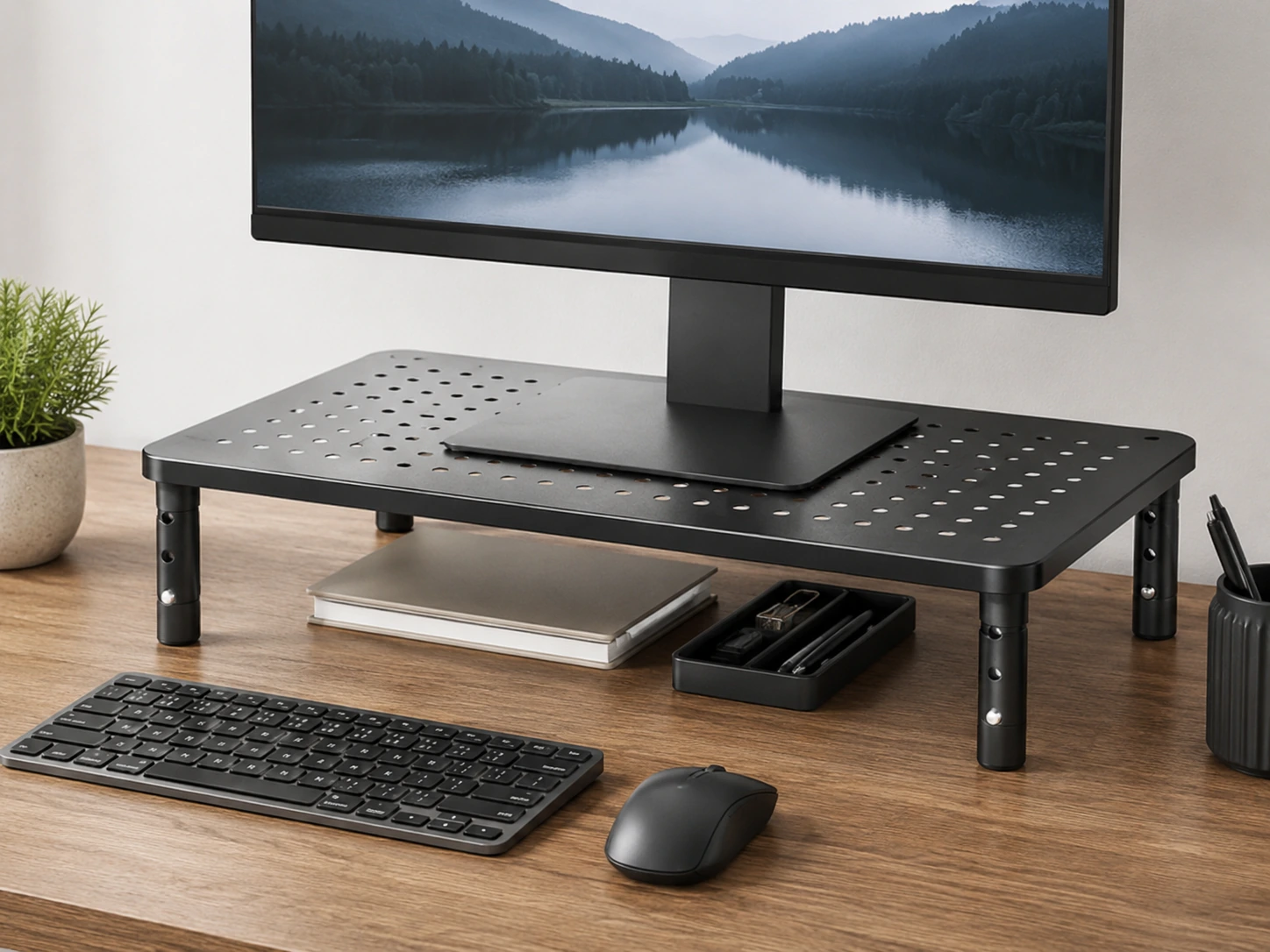
Monitor Riser with Storage
Best for: solid desks, no frequent height changes, want storage underneath
Option B -- Full adjustment
Dual Monitor Arm
Best for: thick desk edges, two monitors, need infinite height control
HUANUO · Amazon Prime eligible
Why it works
- +3 adjustable heights (3.9", 4.7", 5.5") -- covers most monitor gaps
- +Storage space underneath for keyboard, accessories
- +Vented metal platform -- better airflow for laptops
Tradeoffs
- −Fixed height increments -- not infinitely adjustable
- −Plastic feet can slide on very smooth desks
Skip if: You need precise height dialing or frequently change your monitor position -- use a monitor arm instead.
Check price on Amazon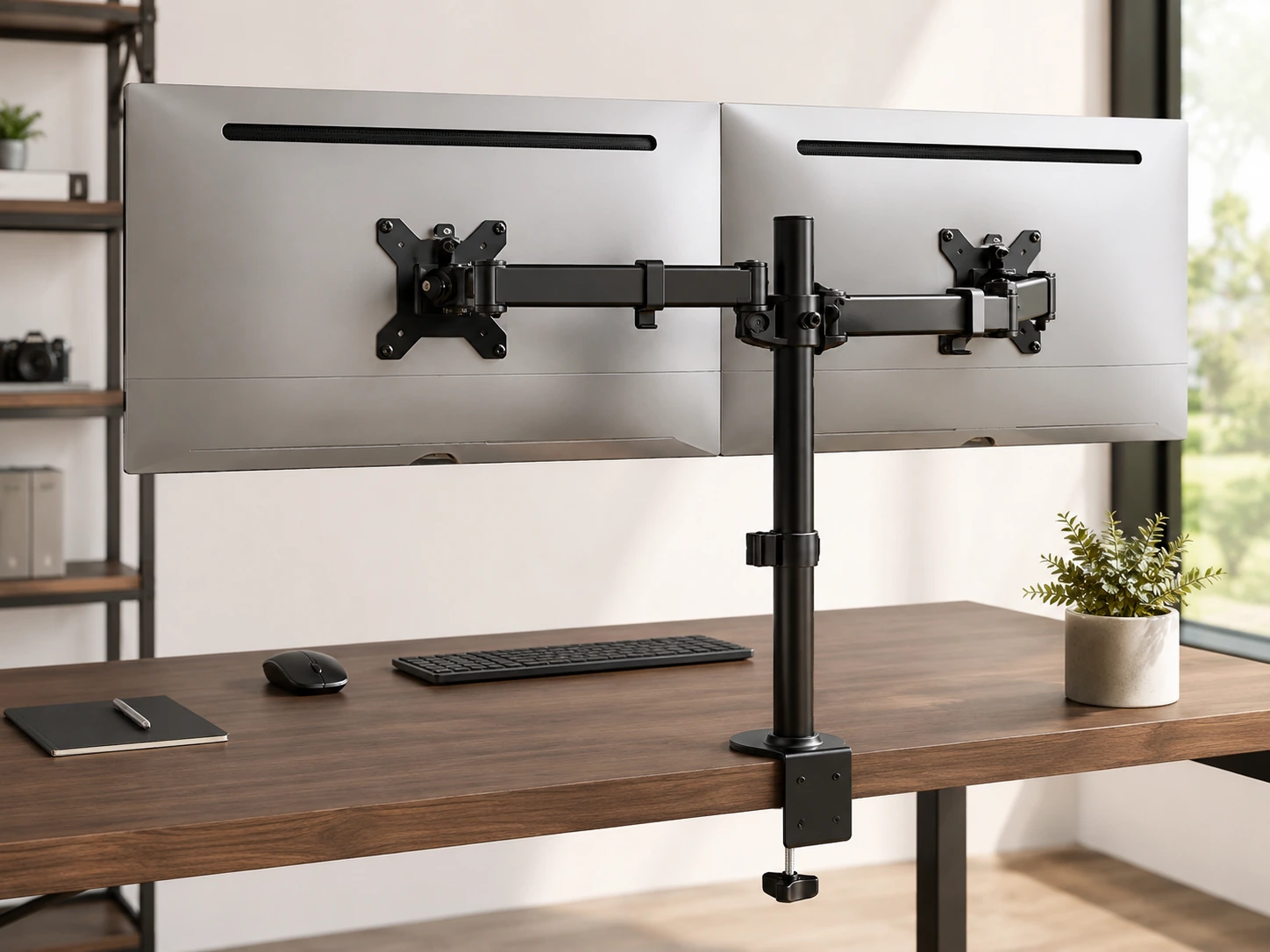
VIVO · Amazon Prime eligible
Why it works
- +Infinite height + tilt + depth adjustment for both screens
- +Clears full desk surface beneath monitors
- +Handles two monitors independently -- different angles each
Tradeoffs
- −Requires desk edge at least 1" thick to clamp securely
- −IKEA LINNMON and thin MDF tops can crack under sustained clamp pressure
Skip if: Your desk top is thin MDF or glass -- use a grommet mount or monitor riser instead.
Check price on AmazonChair and Sitting Position
How to Adjust Your Chair Correctly
Adjust seat height first -- elbows should be at 90° when resting on the desk with shoulders relaxed. This is the anchor for everything else.
Position lumbar support into the curve of your lower back. If your chair does not have adjustable lumbar, a lumbar cushion ($20--30) fills the gap.
Set armrests so shoulders are relaxed and elbows are lightly supported -- not hunched up or dangling down.
If feet do not rest flat on the floor after setting chair height for elbows, add a footrest. Do not lower the chair to reach the floor -- that breaks the elbow angle.
What If You Do Not Have an Ergonomic Chair?
A dedicated ergonomic chair is not a prerequisite for a correct setup. A footrest and a lumbar cushion address the two most common seated posture failures at a fraction of the cost. Reserve budget for a proper ergonomic chair only after you have solved monitor height and keyboard position -- those have more immediate impact on daily discomfort.
When should you invest in an ergonomic chair? If you sit for more than six hours daily, experience lower back pain that does not improve with footrest and lumbar support, or have a specific medical recommendation.
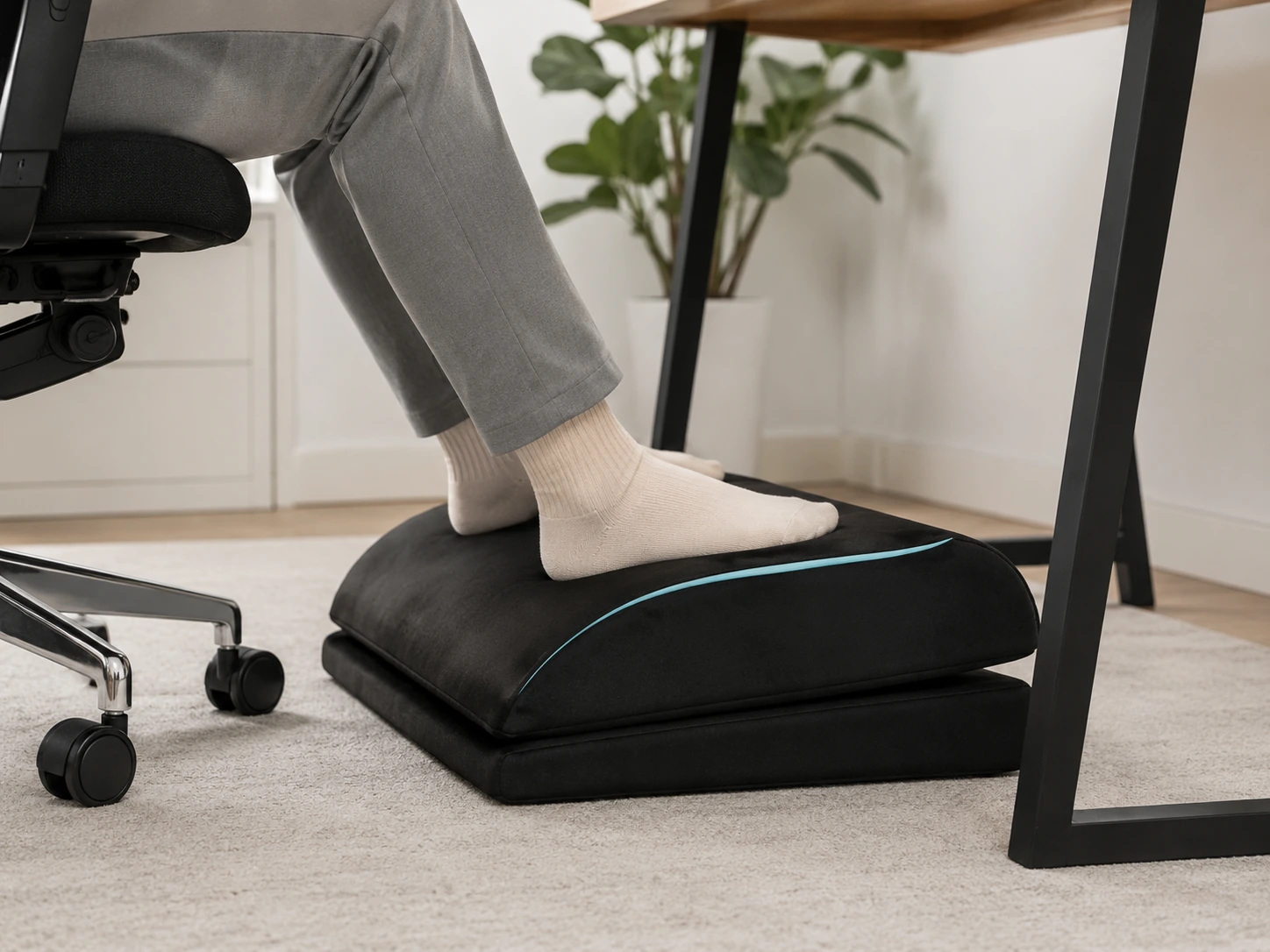
ComfiLife · Amazon Prime eligible
Why it works
- +Corrects dangling feet at any fixed-height desk
- +Adjustable angle (15° to 30°) for different height gaps
- +Non-slip bottom stays in position during the day
Tradeoffs
- −Takes up floor space in tight rooms
- −Memory foam compresses 10--20% after 12--18 months of daily use
Skip if: You already use a height-adjustable standing desk with a chair that sets independently correct positioning.
Check price on AmazonKeyboard and Mouse Position
Where Should Your Keyboard Be?
The keyboard should sit at a height where your elbows are at 90 to 110 degrees -- a slightly open angle is actually better than a rigid 90 degrees for most people. Wrists should be neutral: not bent upward (extension) and not bent downward (flexion).
Wrist rests exist for resting between typing sessions, not for typing on. Keeping your wrists on a rest while actively typing forces the fingers to reach upward, which creates exactly the sustained extension that contributes to cumulative wrist strain. Use the rest when pausing; lift your wrists when typing.
Common Wrist and Shoulder Mistakes
Wrists bent upward while typing
Cause: Keyboard on a desk that is too high
Fix: Lower chair height or use a keyboard tray
Mouse too far from the body
Cause: Reaching forward to the mouse pad
Fix: Keep mouse directly beside the keyboard, close to the body
Shoulders raised while typing
Cause: Desk too high for the chair height
Fix: Adjust chair up or use a lower keyboard surface
Leaning forward toward the screen
Cause: Monitor too far or too low
Fix: Move monitor closer or raise it to eye level
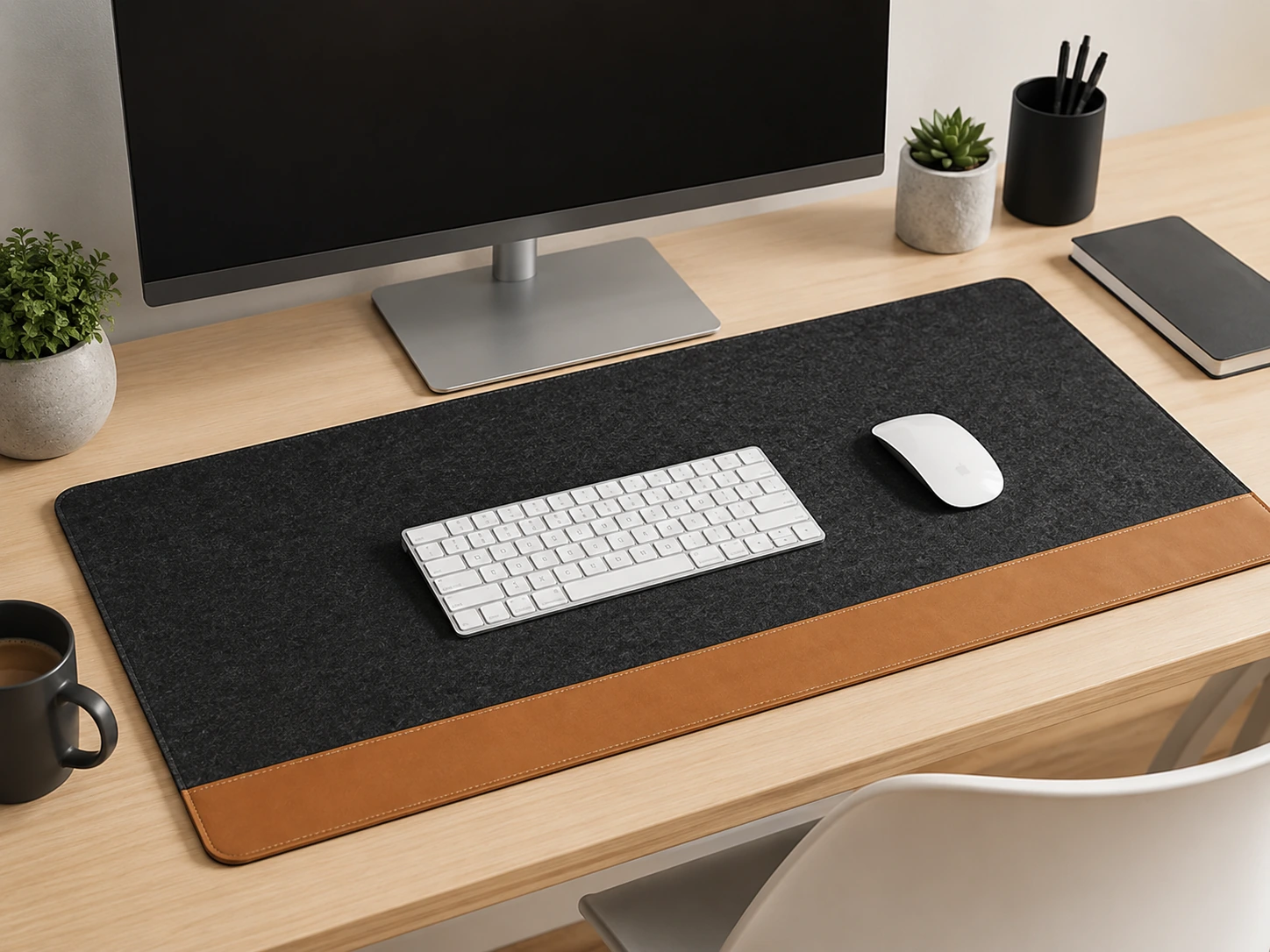
Nordik · Amazon Prime eligible
Why it works
- +Physically defines the keyboard + mouse zone -- enforces correct side-by-side positioning
- +Felt surface cushions wrists during rest between typing
- +35" length covers keyboard and mouse in one surface
Tradeoffs
- −Felt surface absorbs stains -- not suitable for eating at desk
- −Premium price for a mat
Skip if: You use a keyboard tray mounted below the desk -- the mat's positioning benefit is already handled by the tray.
Check price on AmazonLighting and Eye Strain
The Correct Monitor Lighting Setup
Eye strain from a desk setup is almost always caused by contrast -- not by insufficient light. When the screen is significantly brighter or darker than the ambient room light, your eyes constantly adjust between the two. The fix is matching screen brightness to room brightness, not increasing one or decreasing the other.
✗
Monitor facing a window
Direct sunlight causes glare on the screen
✗
Window directly behind you
Backlight creates severe contrast against the screen
✓
Window to your side (90°)
Natural light without glare or backlight contrast
The 20-20-20 Rule
Every 20 minutes, look at something 20 feet away for 20 seconds. This allows the ciliary muscles in the eye to fully relax from near-focus. A monitor light bar reduces glare more effectively than a standard desk lamp because its asymmetric lens directs light downward onto the desk rather than back toward the eyes.
Which lighting option is right for you?
Monitor light bar:best when you have good ambient room lighting and only need to reduce screen glare. Zero desk footprint. Wide-angle desk lamp: best when the room itself is poorly lit, such as a room with no window or late-evening work.
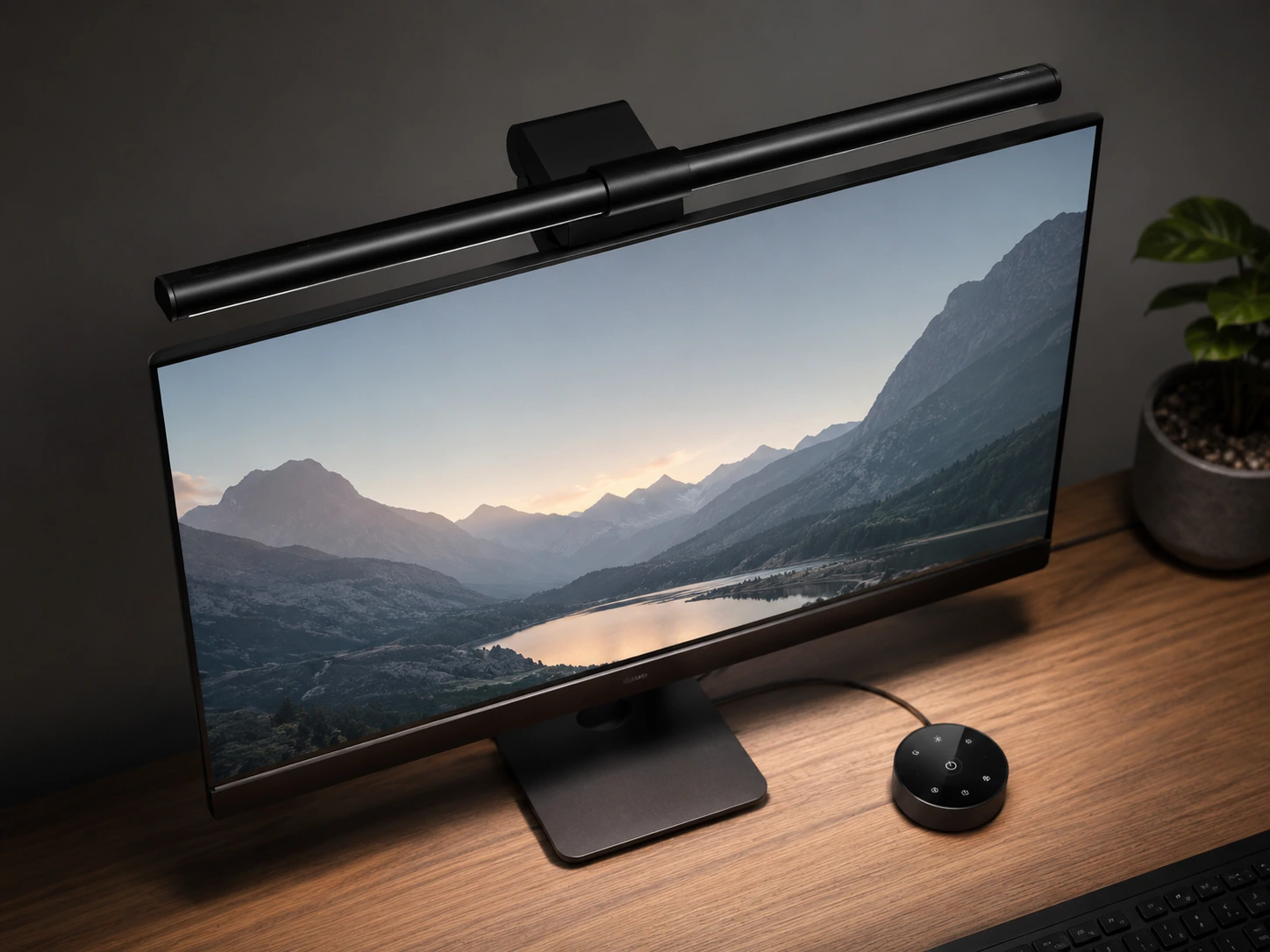
Quntis · Amazon Prime eligible
Why it works
- +Asymmetric lens lights the desk without reflecting on the screen
- +Zero desk footprint -- clips directly on monitor top
- +USB-A powered from monitor -- no extra cables
Tradeoffs
- −Requires flat monitor top -- does not fit curved monitors
- −USB-A only -- no USB-C or direct outlet option
Skip if: You use a curved monitor or your monitor is under 17 inches -- the clip may not seat correctly.
Check price on Amazon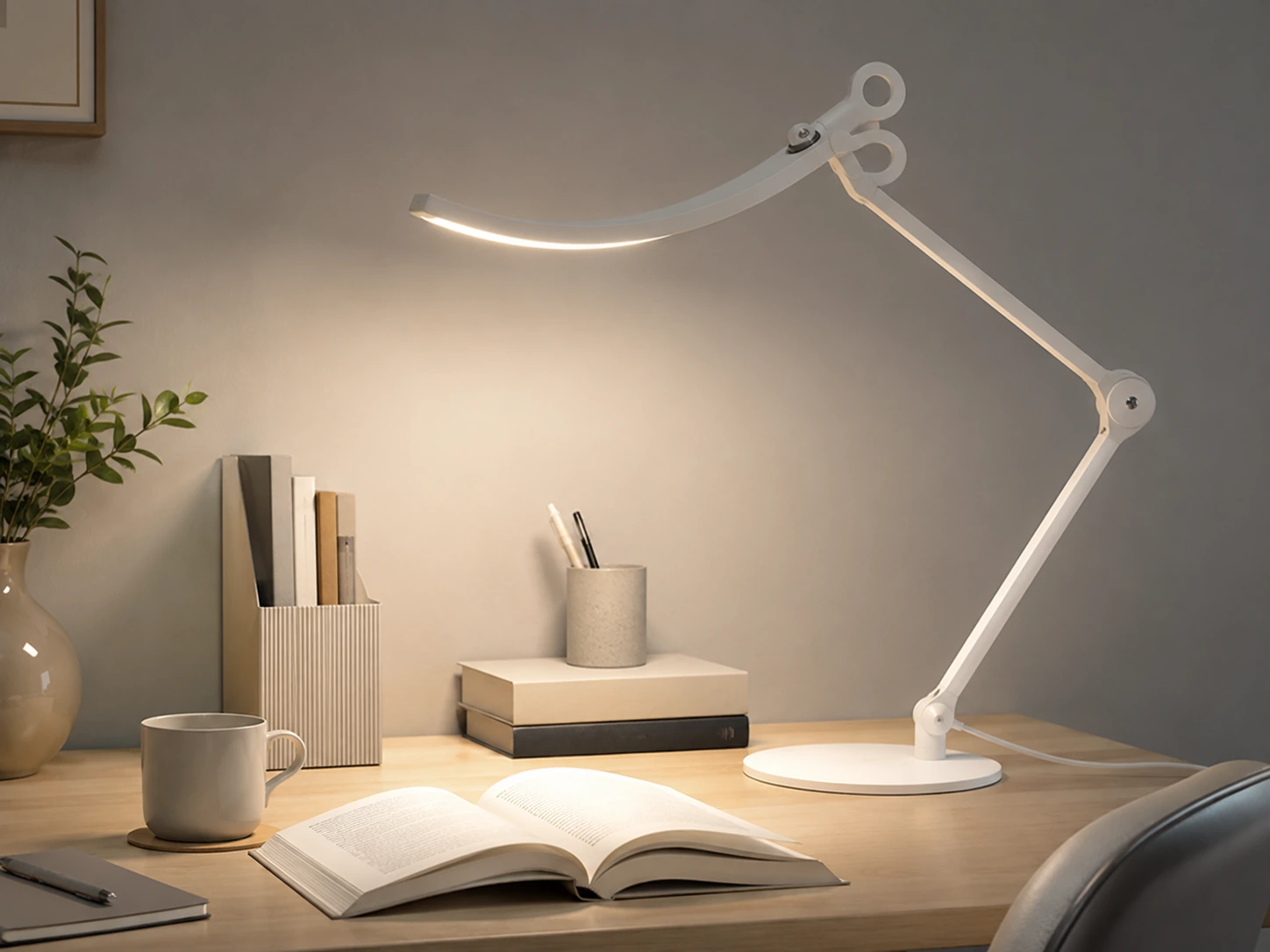
BenQ · Amazon Prime eligible
Why it works
- +Built-in ambient light sensor auto-dims to match room brightness
- +35" wide beam covers full desk without hot spots
- +CRI 95 -- accurate color rendering, less eye fatigue
Tradeoffs
- −Premium price -- highest cost item in the setup
- −Base footprint is 6x6" -- takes desk space unlike a clamp lamp
Skip if: Your desk already has adequate ambient lighting or you primarily use a monitor light bar -- the BenQ adds value mainly when the room itself is poorly lit.
Check price on AmazonErgonomic Setup by Situation
Ergonomic Setup With Laptop Only
A laptop on a flat desk puts the screen between 6 and 10 inches below eye level. After two or three hours in this position, the neck is sustaining roughly 40 to 50 pounds of effective load instead of the normal 10 to 12 pounds. A foldable laptop stand raises the screen to monitor height in under 30 seconds.
The correct combo: laptop stand + external wireless keyboard + wireless mouse. The stand raises the screen, the external keyboard keeps wrists neutral, and the total cost is under $80. This delivers most of the ergonomic benefit of a dedicated monitor for less than the price of a single ergonomic chair.
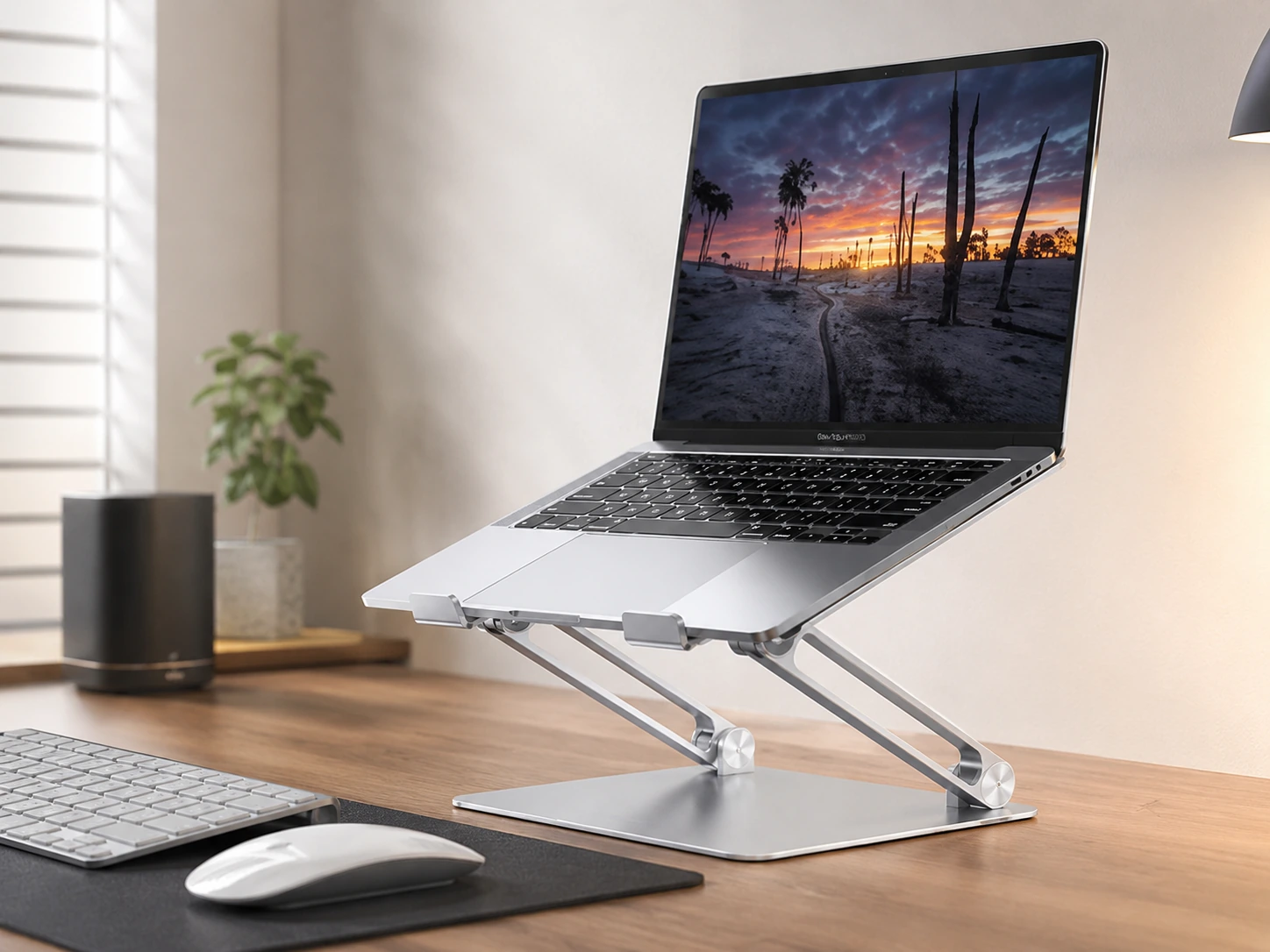
Lamicall · Amazon Prime eligible
Why it works
- +6 height positions -- brings screen to monitor level
- +Folds flat in seconds, portable and lightweight
- +Open vented design improves laptop thermals
Tradeoffs
- −Requires separate external keyboard and mouse to be usable
- −Lightweight frame can shift slightly when adjusting laptop lid
Skip if: You use a docking station with an external monitor -- raising the laptop screen adds no ergonomic value if it's not your main display.
Check price on AmazonErgonomic Setup With Two Monitors
The primary monitor goes directly in front of you at eye level. The secondary monitor sits 30 degrees to the side -- turning your head slightly, not your torso. Avoid placing both monitors side by side directly in front: this forces you to look left or right constantly, which adds lateral neck strain on top of the vertical strain from a low monitor.
If you genuinely use both monitors equally throughout the day, center them and meet them at the midpoint of your natural forward gaze, with each screen angled inward 15 degrees. A dual monitor arm makes this alignment straightforward and keeps the desk surface clear.
Two-monitor rule of thumb
The monitor you look at most should be the one in front of you. If you cannot identify which one that is, center both and angle them inward. If one monitor is clearly dominant, keep it centered and treat the second as a reference panel at 30° to the side.
Ergonomic Setup on a Small Desk
Space constraints require prioritization. In order: (1) monitor height is the highest-impact fix, (2) keyboard and wrist position, (3) mouse reach and foot position. A laptop stand plus external keyboard resolves the first two simultaneously and costs less than $80.
For monitor stands on thin desks: choose a riser with a storage shelf rather than a monitor arm. Arms require a desk edge of at least one inch to clamp securely. Thin IKEA desktop panels like the LINNMON can crack under clamp pressure over time.
For more small desk setup ideas, see our small desk setup guide.
All Recommended Products -- Side by Side
| Product | Score | |
|---|---|---|
| HUANUO Monitor Stand Riser Monitor Riser | 8.8 | Check price |
| VIVO Dual Monitor Desk Mount Dual Monitor Arm | 8.7 | Check price |
| Lamicall Adjustable Laptop Stand Foldable Laptop Stand | 9.1 | Check price |
| ComfiLife Memory Foam Footrest Memory Foam Footrest | 9.0 | Check price |
| Nordik Felt + Leather Desk Mat Desk Mat 35x17" | 9.1 | Check price |
| Quntis Monitor Light Bar Monitor Light Bar | 9.0 | Check price |
| BenQ e-Reading Desk Lamp Wide-Angle Desk Lamp | 9.3 | Check price |
How We Evaluated These Products
Ergonomic impact
Does the product directly address a measurable ergonomic position -- monitor height, wrist angle, foot position?
Setup simplicity
Can a non-technical person set it up correctly without tools or instructions in under 10 minutes?
Desk compatibility
Does it work on standard home office desks including thin desktop panels and narrow surfaces?
Value at price point
Does the ergonomic improvement justify the cost relative to alternatives at the same price?
Product selections are based on research, product specifications, and customer feedback data. DeskFinds earns a commission on qualifying purchases at no extra cost to you.
Frequently Asked Questions
What is the correct ergonomic desk setup?
The correct setup follows five positions: (1) monitor top at eye level, (2) screen 20--28 inches away, (3) chair adjusted so elbows are at 90° with thighs parallel to the floor, (4) keyboard and mouse at elbow height with wrists neutral, and (5) feet flat on the floor or a footrest. The most common mistake is adjusting the chair to match the desk instead of the other way around.
How high should my monitor be for ergonomics?
The top of your screen should be at or slightly below eye level -- about 1 to 2 inches below. Your eyes naturally rest looking slightly downward (around 15°), so placing the screen top exactly at eye level is correct. To measure: sit in your normal working position, look straight ahead, and note where your eye line hits the monitor. If it lands below the top third, the monitor needs to go up.
Can I have an ergonomic setup without an ergonomic chair?
Yes. A dedicated ergonomic chair helps but is not the first priority. A memory foam footrest ($30--40) fixes the most common seated posture issue -- dangling feet. A lumbar cushion ($20--30) supports the lower back on a flat chair. Combined with a correctly positioned monitor, these two additions address roughly 80% of the ergonomic problems caused by poor seating.
What is the best ergonomic desk setup for a small desk?
For small desks, prioritize: (1) a foldable laptop stand or monitor riser with storage to gain height without bulk, (2) a footrest that slides under the desk, and (3) a monitor light bar instead of a base lamp to eliminate desk footprint. A laptop stand plus external keyboard is the most space-efficient ergonomic combo for narrow desks.
How do I set up an ergonomic desk with two monitors?
Place the primary monitor directly in front of you at eye level. Position the secondary monitor 30° to the side so you turn your head slightly -- not your whole body. If you use both monitors equally throughout the day, center them and meet them at the midpoint of your natural gaze. Avoid placing both monitors directly ahead side by side, which forces constant lateral neck movement.
Can a bad desk setup cause carpal tunnel syndrome?
A bad setup does not directly cause carpal tunnel syndrome, but sustained wrist extension -- wrists bent upward while typing -- is a recognized risk factor. If your keyboard sits on top of a high desk and you type with bent wrists for several hours daily, that sustained pressure on the median nerve contributes to cumulative strain over months and years. Keeping wrists neutral while typing and using a wrist rest only during breaks (not while actively typing) significantly reduces that risk.
Where to Start
Fix the highest-impact problem first. For most people, that is monitor height. For people who sit long hours, it is seat height plus a footrest. Start there, let the setup settle for a week, then decide what to add.
Laptop Stand ($30) + Footrest ($33)
Solves the two most common ergonomic problems: screen too low and feet dangling.
+ Monitor Riser ($26) + + Monitor Light Bar ($35)
Adds correct monitor height and removes screen glare from your setup.
+ Desk Mat ($42) + + BenQ Desk Lamp ($100)
Complete ergonomic baseline: positioning, lighting, and keyboard zone all addressed.
Browse ergonomic desk accessories on Amazon
All products are Prime-eligible with free delivery.
Shop on Amazon →