
How to Connect Two Monitors to a Laptop With One HDMI Port

Affiliate Disclosure: We may earn a small commission on qualifying Amazon purchases at no extra cost to you. Full disclosure →
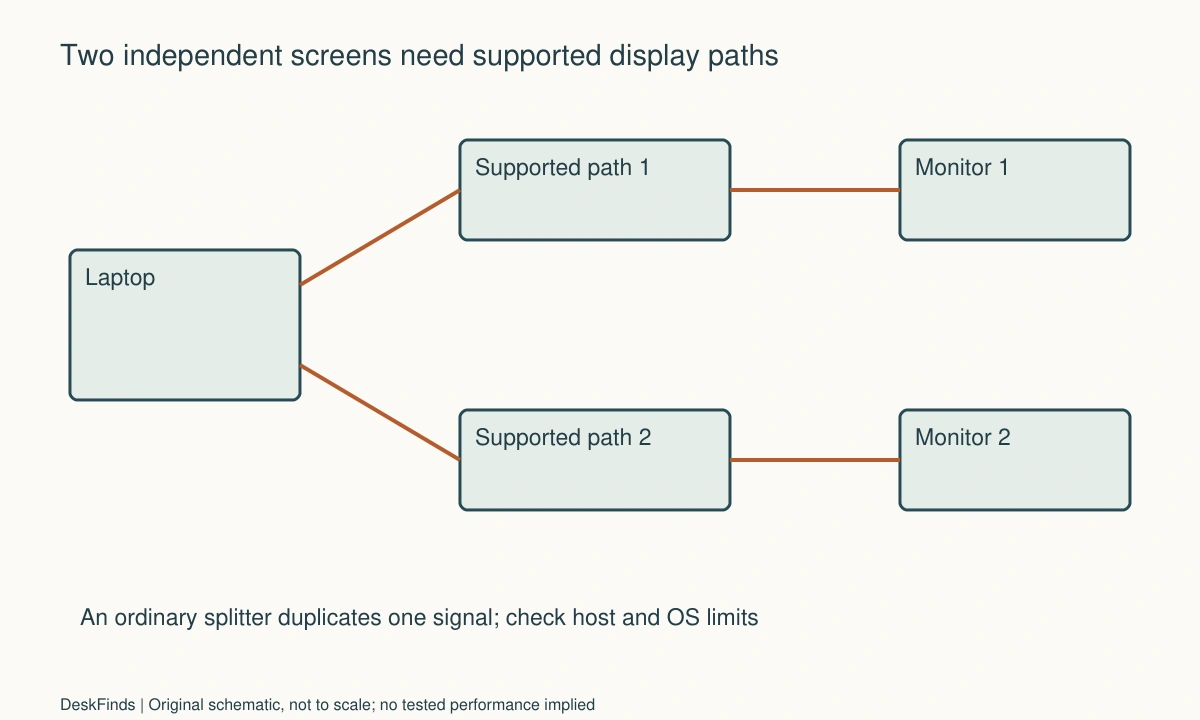
One HDMI socket does not tell you how many external displays a laptop can drive. Another port may provide video, or the laptop may already be at its supported display limit. Before buying a splitter, decide whether you need two copies of one picture or two independent workspaces. That single distinction prevents many disappointing purchases.
Quick answer: Check the exact laptop’s external-display limits and every available video-capable port. Two extended monitors usually require two supported display paths or a compatible multi-display solution. An ordinary HDMI splitter duplicates one signal; it does not create a second independent desktop. Verify the proposed adapter or dock against the host, OS, monitor modes, and any driver restrictions before ordering.
Start with the desktop you want
Describe the work in plain language. You may want a document on one monitor and a spreadsheet on another, with the laptop closed. Alternatively, you may want the same presentation on two screens while the laptop remains open. Those arrangements differ in independent display count, not just cable layout.
Write down whether the laptop screen must stay active. Some model-specific limits and supported modes change with configuration, so do not assume closing a lid always creates another display output. Consult the computer manufacturer’s documentation for the exact generation. A family name shared by several years of laptops is not a sufficient identifier.
Note monitor resolution and refresh rate separately. The question is not merely whether a picture appears; it is whether the complete arrangement supports the modes your work requires. Avoid letting a product description such as dual 4K replace a compatibility answer about your actual computer and operating system.
Understand what an HDMI splitter can do
A typical HDMI splitter distributes one source image to more than one display. That is useful when an audience should see the same content in two places. It does not make the operating system recognize an extra independent workspace from that single source signal.
If a seller uses the word splitter loosely, inspect the product’s actual function. A device may instead be a switch, a USB graphics adapter, or a dock with a documented multi-display method. Ask how the host sees the attached monitors and whether independent extension is supported on your OS. Judge the answer by the architecture, not the product title.
Do not confuse an input selector with an output multiplier. A switch that chooses which computer feeds one monitor solves a different problem. If your real goal is two laptops sharing displays, the two-laptop KVM cable plan is a closer match than adding more outputs to one laptop.
Look for a second native video path
Inspect the laptop’s documented HDMI, DisplayPort, USB-C, USB4, or Thunderbolt capabilities. The physical presence of USB-C is insufficient; the selected port must support the proposed display connection. A laptop can have a data-only port next to another port that supports video, so identify the port as well as the model.
A second supported direct path can keep the system straightforward: one monitor on HDMI and another through a compatible video-capable port and cable. This may leave two connections to unplug, but that can be a reasonable trade for avoiding an unnecessary dock. Check the host’s total display limit before assuming the second port adds capacity.
For connector background, use Thunderbolt and USB-C explained. For a combined power-and-display purchase, use the one-cable dock compatibility checklist. Neither replaces the host manufacturer’s specifications, but each helps you ask the right model-specific question.
Distinguish MST from other dock methods
Multi-Stream Transport, or MST, can carry multiple display streams through a compatible DisplayPort-based path. It requires support across the relevant host, OS, and downstream equipment. Plugable’s compatibility guidance specifically distinguishes Windows support from macOS behavior for its MST products. Do not transfer a Windows dock diagram to a Mac without checking the dock’s Mac-specific table.
A Thunderbolt dock and a USB graphics solution are different architectures from a basic MST hub. A dock may also combine methods. Ask the manufacturer which method produces each display in your proposed arrangement, and whether software is needed. A list of sockets alone cannot answer that question.
If drivers are required, check administrative permissions and application suitability before purchase. A work laptop may prohibit installation, and some graphics-dependent workflows have specific requirements. Do not assume a software display solution behaves identically to a native GPU output. Obtain confirmation for the applications and protected-content needs that actually matter to you.
The docking station ports chart can help organize the interfaces on your shortlist. Add a separate column for the display method and OS restrictions so a larger port count does not hide a less suitable configuration.
Compare resolution, refresh rate, and cable direction
Treat each connection as a chain: host port, dock or adapter, cable, monitor input, and selected display mode. The complete chain must support the desired result. A capable monitor cannot recover a mode that an upstream adapter does not support, and a cable with the correct plugs may have the wrong conversion direction.
Where available, use a direct compatible connection rather than stacking conversions. If conversion is necessary, record the adapter’s supported input, output, and modes. Keep the monitor’s alternative inputs in mind; using a different native input can sometimes remove an adapter from the plan without changing the monitor.
Do not buy two cables merely because they have the same brand or appearance. Check the specification and length needed for the actual route. Leave enough flexibility for normal monitor adjustment, and avoid running a taut video cable through a moving arm. The visual layout and electrical path should be planned together.
Make the physical layout work too
Two functioning monitors can still create an awkward small desk. Outline the bases and the usable input area before choosing screen positions. Allow access to the monitor controls and cable ports. If one screen is secondary reference material, it may not need the same central position as the main work display.
A portrait layout can reduce horizontal spread, but only when the display and mount support that orientation and the rotation route clears surrounding furniture. The portrait-monitor clearance guide addresses that separate geometry problem. Rotating the desktop in software does not establish that the hardware is approved to be turned.
Keep the laptop’s access requirements visible in the drawing. You may need its power button, camera, authentication, or occasional built-in keyboard. A successful dual-monitor setup should not force you to dismantle the screen arrangement whenever the laptop needs attention.
Worked example: an ordinary splitter was the wrong tool
Imagine a hypothetical remote worker with one HDMI port and two existing monitors. The worker wants a browser on the left and accounts software on the right. A cheap two-output splitter appears to match the shopping list because it has one input and two outputs. The intended desktop behavior, however, is independent extension.
The worker first confirms the laptop model and display limit. Its documentation identifies another port that supports the proposed video connection. The monitors also have suitable inputs. A direct second video path is therefore added to the shortlist, alongside a compatible dock. The splitter is removed because duplicating the browser does not meet the requirement.
Next, the worker compares daily use. The direct arrangement leaves two video connections and the charger to unplug. The dock would combine several connections but needs a power brick and a rear-cable area. Since the laptop leaves only occasionally, the extra direct connection is acceptable in this example. There is no reason to pay for a one-cable routine that is not needed.
A different laptop could produce a different answer. If its second port were data-only, the same cable purchase would not solve the problem. If the host had a display limit that ruled out the intended native configuration, the worker would need to evaluate another supported approach or revise the number of screens. The useful sequence is goal, host limits, display method, and then cables.
Troubleshoot by reducing the arrangement
If a supported setup fails, identify whether a display is absent, mirrored, present at an unwanted mode, or intermittently disconnecting. These are different symptoms. Start with one monitor on a documented direct path and confirm its basic operation before adding the second path.
Use the OS display settings to identify and arrange the monitors. Check the selected input on each display. If both show the same image, determine whether mirroring is selected or whether the chosen hardware method only supports duplication on that host. Repeatedly rearranging display icons cannot turn a mirrored-only path into an independent output.
Document the mode that does work. A lower mode succeeding can narrow the question to the requested configuration, but it does not prove a universal cable fault. Share the exact chain and observations with the equipment maker. Avoid changing drivers, firmware, cables, and display settings all at once, because that removes the evidence needed to isolate the issue.
Questions to settle before the return window closes
Independent workspaces
Open different harmless documents on the external monitors and verify the intended arrangement in display settings. Include the laptop screen if required. Record extension versus duplication explicitly. A screenshot of three desktop icons is not a substitute for checking which physical display shows which workspace and whether the setup survives an ordinary reconnect.
Native host limits
Keep the model-specific display specification with the order record. If the proposed arrangement relies on a special supported mode, document its conditions. Do not treat a forum report about a similar laptop as permission to exceed the documented limit. Contact the manufacturer when a required combination is unclear rather than buying successive adapters on speculation.
Software requirements
Identify every required driver and check its current OS support through the official provider. On a managed computer, obtain the relevant approval before making the setup dependent on it. If no software installation is allowed, remove solutions that require it from the shortlist. Installation permission is part of compatibility, not an inconvenience to solve after purchase.
Real task performance
Check the applications, window movements, and display modes used in an ordinary session. An office document, a video meeting, and a graphics-intensive task can place different demands on an arrangement. Report your observations without converting them into a benchmark or a claim about all laptops. If the essential task is unsuitable, prioritize that result over unused advertised features.
Reconnection behavior
Save work and follow the device instructions when disconnecting storage or a dock. Reconnect in the documented arrangement and verify monitor identity, audio selection, and the expected desktop layout. A short delay may be normal for a particular system, but persistent missing screens or repeated manual recovery deserve a model-specific explanation before the return deadline.
The complete cost
Add cables, adapters, a power supply if required, and any suitable monitor supports to the comparison. Count the space occupied by plugs and the time spent reconnecting. The cheapest item with two sockets is not necessarily the least expensive working setup. Choose the arrangement that delivers the independent screens you need within the host’s supported capabilities.

Compare three ways to reach the same desktop
A second native output can be the simplest arrangement when the laptop documents it and the display limit permits the intended screens. Its cost may be only a compatible cable or adapter, but it leaves another connection to handle at departure. Check the actual host ports before treating this as available; an unused USB-C socket may be data-only.
A compatible dock can combine several accessories and sometimes power into a convenient host connection. Its additional enclosure, power supply, and cable area belong in the cost and footprint. The dock’s display method and OS support still need checking. A larger price or a higher port count does not establish the exact two-screen arrangement.
A supported USB graphics solution can be another option when appropriate for the host and applications. It brings software and workflow questions that a native path may not have. Confirm permissions, current OS support, and suitability for the essential task. If the required software cannot be installed, eliminate that option before comparing its advertised display count.
A second scenario: the same dock serves Windows and macOS differently
Consider a hypothetical household with a Windows laptop and a Mac sharing two monitors at different times. The existing dock uses an MST-based multi-display arrangement. On the Windows laptop, its documented configuration can provide the desired independent screens. The users assume the same cable should create the same desktop on the Mac.
They check the dock’s OS-specific documentation instead of changing monitor settings repeatedly. The manufacturer’s MST guidance identifies a different supported outcome on macOS for that product. The users then examine the Mac’s exact external-display limits and the supported alternatives. They do not conclude that every Mac is limited to one external display, nor that every Thunderbolt dock behaves like the existing MST product.
The two machines receive separate connection diagrams. One may use the existing arrangement, while the other may need a different documented path or a revised display plan. If a replacement dock is considered, the question includes both host models and the required independent display modes. The household also decides whether the convenience of one shared connection justifies replacing equipment that already serves one user.
A physically identical USB-C plug is no longer treated as a promise of identical desktop behavior. The buying decision becomes a comparison of supported completed arrangements. If no economical shared solution meets both users’ needs, keeping different connection routines can be more practical than purchasing adapters without a clear architecture.
This scenario is about the distinction between host and OS support, not a claim that a named model was tested. The important result is a documented path for each computer and a clear understanding of whether the screens extend or mirror.
Questions a two-display product listing should answer
Look for a compatibility table that connects host type, OS, number of displays, and supported modes. A statement such as supports dual displays is incomplete if it omits whether the result is extension or mirroring. Ask what changes when the laptop’s own screen remains active and whether the advertised maximum applies to both outputs simultaneously.
Also ask which cables and adapters the supported diagram assumes. A dock might have two outputs of different types, and the intended monitor inputs may require conversion. Confirm the complete route rather than treating every included socket as interchangeable. Keep any stated restrictions with the purchase record so a later cable change does not silently alter the verified configuration.
If a seller cannot resolve an essential detail, do not fill the gap with the most favorable interpretation. Compare another product with clearer documentation or use a simpler supported direct path. The goal is two useful independent workspaces, not merely two illuminated screens.
Sources and scope
- Plugable MST compatibility - Supports the specific distinction between MST host and OS support; alternative architectures require their own documentation.
Editorial note: This is a research-based planning guide, not a hands-on product review. All worked scenarios are hypothetical. Measurements and compatibility must be confirmed for the exact equipment. Photography supplies context, not proof of a tested arrangement.
Photos are illustrative and come from free-license libraries such as Unsplash; diagrams are original to DeskFinds.