
How to Check Whether Your Laptop Can Use a One-Cable Dock
Affiliate Disclosure: We may earn a small commission on qualifying Amazon purchases at no extra cost to you. Full disclosure →
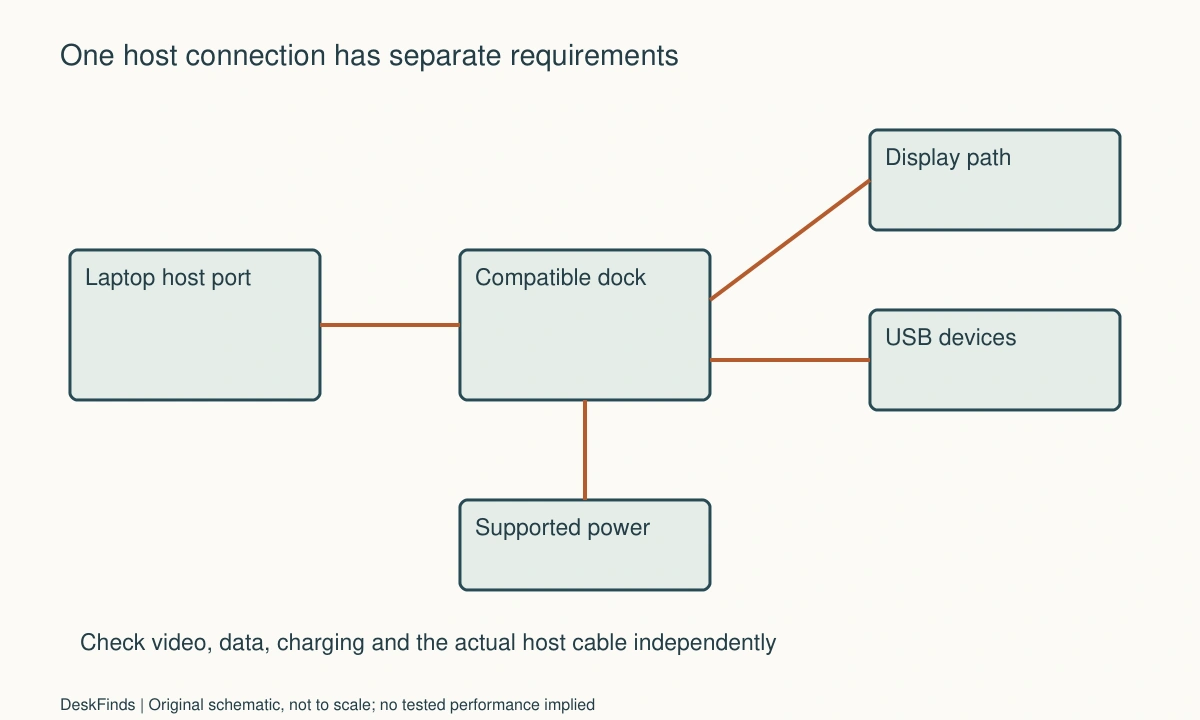
A dock can make a small desk easier to reset, but one cable is a description of a connection, not a guarantee that every feature works. A laptop may accept USB accessories through a port while refusing video or charging through the same connector. The useful purchase is the dock that supports your exact work session, including the moment you arrive and the moment you leave.
Quick answer: Identify the laptop model, operating system, and capabilities of the specific host port. Check the dock’s supported display configuration and power delivered to that laptop, then confirm the supplied host cable. Plan space for the dock, power supply, and every connected plug. A second charger can be a sensible arrangement when one-cable power is insufficient; do not buy around the connector shape alone.
Write a connection brief before comparing docks
Start with what you need connected at the same time. List each monitor’s resolution and refresh rate, a keyboard and mouse, storage, network connection, camera, and audio device. Distinguish occasional equipment from equipment that cannot be interrupted. A card reader used once a week should not displace the connection needed for every work call.
Record the laptop’s full model and generation rather than just the product family. Find its manufacturer’s port specifications and supported external-display limits. If a work computer is managed, ask whether drivers or external accessories require approval. That answer can eliminate an otherwise attractive dock before you spend time comparing its finish or port count.
Keep the brief short enough to send to a seller or manufacturer: laptop, OS, host port, monitors, required charging behavior, and indispensable USB devices. A reply that names those items is more useful than a general statement that a dock works with most computers.
Separate connector, video, data, and power
USB-C describes a connector used by different capabilities. Look for explicit support for the required data protocol, video output, and charging on the selected laptop port. A logo can guide the search, but the model documentation should settle the question. Two similar ports on one laptop may have different documented roles.
For background terminology, read Thunderbolt and USB-C explained. Use that explanation to interpret specifications, then return to the actual model. A compatibility claim for a dock on one host protocol does not establish the same display count or bandwidth on another.
The CalDigit SOHO manual illustrates why this matters: its compatibility discussion separates host capability, display behavior, and charging. That is a model-specific example of the questions to ask, not evidence that every USB-C dock provides its features. Write unresolved functions as questions, rather than silently treating them as included.
Verify the display configuration as a complete chain
A dock with two video sockets does not necessarily provide two independent extended desktops on every laptop. Confirm the host’s supported number of external displays, the dock’s method of producing them, the OS behavior, and the requested resolution and refresh rate together. Ask specifically about extension if that is what you need.
If you intend to use two displays, use the one-HDMI laptop planning guide for the decision process. Avoid purchasing an ordinary splitter because the sockets look right. A duplicated image is useful for some presentations but does not give you another independent workspace.
Include adapters in the diagram. A DisplayPort output converted to HDMI introduces a further compatibility question, including direction and supported mode. When possible, choose an explicitly supported connection path with fewer conversions. Preserve the manufacturer-provided cable information with the purchase record so replacement cables can be selected correctly.

Check power delivered to the computer
Separate the dock’s power-supply rating, power reserved by the dock, and power offered to the host. A pass-through charging port’s headline rating may not be the power that reaches the laptop. Read the dock’s charging table and compare it with the computer manufacturer’s guidance for the actual workload.
A machine may run ordinary office work while showing slow charging under a heavier task. That observation does not by itself prove a faulty battery or a defective dock. Record the warning, connection, and workload, then compare them with the supported specification. Do not work around warnings by choosing undocumented power accessories.
The USB-C Power Delivery guide explains the vocabulary. For purchasing, ask whether the intended host configuration is supported and what power the laptop receives. If the answer is below what your computer requires, compare keeping its normal charger against buying a different supported dock. One extra cable may be cheaper and more dependable than forcing a tidy-looking compromise.
Count the space beyond the dock’s body
Measure the dock with plugs attached. Rear video cables, a rigid host plug, and a power connector can consume more desk depth than the metal box. Include an accessible unplugging route. A dock that fits behind a monitor but requires moving the monitor every evening can undermine the reason for buying it.
Account for the power brick independently. Follow its operating and ventilation instructions, and keep it supported rather than suspended from its cable. Do not hide equipment in a closed decorative box merely because the connections disappear from view. The dock placement guide treats access and heat-management requirements separately from host compatibility.
Decide which cable travels with the laptop. A dedicated host cable kept at the desk avoids dismantling the arrangement each morning. Label the host connection in a way that will not cover product information or obstruct ports. Never assume a replacement charging cable offers the same data or video capabilities as the original host cable.
Test arrival, work, sleep, and departure
Once the dock arrives, keep the original packaging while you check ordinary supported use. Connect the documented power supply and host cable first. Add the monitor, then essential input devices, then the remaining accessories. Record where a failure first appears instead of changing every cable and setting together.
Check a normal work session, a sleep-and-wake cycle, and a supported disconnection routine. Verify the selected microphone and speakers after reconnecting; a device appearing in the OS does not prove your meeting application selected it. Eject removable storage as its instructions require before disconnecting the dock.
If reliability changes when accessories are added, the USB hub device check provides a structured isolation approach. It helps distinguish a physical space problem from an accessory connection problem without presuming that every symptom is caused by insufficient power.

Worked example: the desk that needed two cables
Consider a hypothetical student who uses a laptop for coursework and occasional rendering. The desk has one external monitor, a keyboard, mouse, and portable SSD. The initial goal is one visible cable because the laptop leaves the room every morning. A compact pass-through dock seems ideal until the student compares its documented host power with the laptop’s requirements.
Instead of dismissing the dock or ignoring the difference, the student creates two plans. Plan A uses that dock for data and video, plus the original laptop charger. Plan B uses a larger supported dock whose host charging meets the computer’s documented requirements. Both plans must accommodate the same SSD and monitor; neither receives credit for ports that are not needed.
The student lays out the cable ends using the dimensions in each product’s drawings. The larger dock also brings a larger supply and needs a reachable location. Its neat single host connection saves one daily plug but uses a shelf position previously reserved for books. Plan A needs two host connections yet leaves more free surface and costs less in this hypothetical comparison.
The final decision depends on the routine. If one extra plug is easy to reach and the charger stays at the desk, Plan A may satisfy the actual problem. If daily departures are rushed and the charging arrangement is fully supported, Plan B may justify its size. The lesson is to compare completed setups, not the number of cables shown in a product photograph. No performance result is implied by this example.
When a smaller hub is enough
A full dock is not automatically the correct next step. If the laptop already charges separately and needs only a monitor plus two low-demand input devices, a documented compatible hub may cover the task. Compare the complete power and display path, not the marketing category or the number of connector icons.
Conversely, do not make a tiny hub the center of a demanding setup simply to preserve desk appearance. The host connection, supported peripherals, operating environment, and reliable everyday behavior matter more than a small shell. A slightly larger unit in an accessible location can be easier to maintain than a smaller one buried in cable tension.
Keep the original requirement list when considering upgrades. A future second monitor is worth checking now if it is a realistic planned purchase. An unspecified future need should not become a reason to pay for unsupported or unused capabilities. Ask what would actually require replacing the dock rather than assuming the largest available device is future-proof.
A practical acceptance record
Use a short record to decide whether the delivered configuration meets the brief. Record evidence from the manuals alongside what you observed in normal use. An observed success on one task does not override a documented restriction elsewhere.
Host port and cable
Write the exact port used and the host cable identification. Note whether the cable is supplied or explicitly supported for the intended functions. If a spare cable is essential for travel, verify it independently; a matching plug and successful charging do not establish display support. Keep the working cable at the desk until the spare has passed the same ordinary checks.
Display arrangement
Record each display mode and whether the desktops extend or mirror. Include the laptop screen if you intend to leave it active. If a required mode is unavailable, compare the complete supported chain before buying an adapter. A result at a lower refresh rate is useful evidence, but it is not acceptance of the higher mode you originally needed.
Charging behavior
Note the manufacturer’s supported host power and any system warning during representative work. Do not use a single battery-percentage snapshot as a power test. If a warning remains, obtain a model-specific explanation or choose a supported separate-charger arrangement. Treat charging and video as different items on the record, even when one cable carries both.
Accessory continuity
List the camera, audio device, network adapter, and storage used together. Check that ordinary tasks remain available after reconnection. Keep an interruptible test file separate from important work when assessing storage behavior. A dock that needs regular improvised resets during meetings may be the wrong match even if every advertised port appears in the operating system.
Physical access
Photograph or sketch the final cable route for your own reference, without exposing confidential screens. Check whether a hand can reach the host plug without shifting the display, and whether cables remain relaxed when the laptop is moved into place. Include the brick and any stand in the available space; their dimensions belong to the purchase decision.
Departure routine
Practice saving work, ending calls, ejecting relevant storage, and disconnecting using the documented procedure. Count the actions that must happen every morning rather than just the visible host plugs. If the routine is cumbersome, revise the placement or simplify the accessory list. The best one-cable arrangement is the supported one you can connect and leave consistently.

Compare the dock against the simplest supported alternative
Price two completed arrangements, not two boxes. In the first, keep the laptop’s normal charger and connect the essential display and input devices through documented paths. In the second, use the proposed dock with its required supply and host cable. Include any adapter, compatible cable, and suitable placement accessory that must be purchased separately.
Then compare the daily actions. If the laptop remains at the desk most weeks, eliminating one plug may have little practical value. If it leaves twice daily, a reachable host connection can matter more. Count the actions you actually perform, including storage ejection and checking audio selection. A dock should simplify the routine you have, rather than a routine imagined from a clean product photograph.
Keep reliability requirements concrete. A student who can reconnect a nonessential accessory occasionally has different tolerance from someone joining timed client calls. This does not justify assuming one brand is more reliable; it changes the acceptance criteria. Write down which interruption would make the arrangement unsuitable and check that task during ordinary use while support and return options remain available.
A second scenario: two users, one host cable
Imagine a hypothetical shared desk used by a personal laptop in the evening and a managed work laptop during the day. Both have a USB-C connector, but their supported host capabilities and software permissions differ. The users initially want to leave one dock cable on the table and assume it will provide identical functions to both machines.
They make two compatibility rows. Each row names the computer, OS, selected port, required monitor arrangement, charging needs, and allowed software. The dock manufacturer’s compatibility table is applied to each row independently. A result for the personal laptop is not copied into the work laptop’s row, and the work machine’s restrictions are not treated as something to bypass after purchase.
The users also identify ownership of removable storage. A drive containing one person’s project is not automatically a communal accessory because it is plugged into the shared dock. They agree to disconnect it correctly before changing hosts, or keep it on a dedicated connection. The keyboard and monitor can remain shared without making every connected device part of the handover.
Finally, each person tries the supported arrival routine with noncritical work. They check the actual display mode and selected audio, then repeat the appropriate departure sequence. If one laptop needs its own charger, that difference is labeled in the desk plan. The shared arrangement can still be successful without producing identical behavior from two different hosts.
The scenario illustrates why a dock’s compatibility is a relationship between devices, not a property established by the connector alone. If a required function remains uncertain for either host, the users obtain confirmation or choose another supported arrangement. They do not infer a missing capability from the fact that the other laptop works.
What to send when asking for confirmation
A useful support request names the full laptop model and OS, the specific port, the dock model, each monitor and requested mode, and the peripherals used simultaneously. Include whether the laptop screen stays open and whether separate charging is acceptable. Ask for independent extension when that is the goal; the phrase two monitors can otherwise be interpreted as duplication.
State what documentation you have already checked and which point remains unanswered. For example, you may know that video is supported but not whether the proposed mode works with both displays active. A focused question is easier to answer than a request to guarantee every possible feature. Retain the reply with the order and verify the delivered model and cable match it.
Sources and scope
- CalDigit SOHO manual - Illustrates model-specific host, display, charging and cable requirements; not a universal dock specification.
Editorial note: This is a research-based planning guide, not a hands-on product review. All worked scenarios are hypothetical. Measurements and compatibility must be confirmed for the exact equipment. Photography supplies context, not proof of a tested arrangement.
Photos are illustrative and come from free-license libraries such as Unsplash; diagrams are original to DeskFinds.