
How to Check a USB Hub When Your Webcam or Microphone Disconnects
Affiliate Disclosure: We may earn a small commission on qualifying Amazon purchases at no extra cost to you. Full disclosure →
A webcam disappearing from a meeting can have several causes: a cable, host port, hub, power arrangement, permissions, or the application selecting another device. Buying a powered hub immediately may change the setup without revealing the actual problem. A short connection map and a controlled comparison usually produce a more useful next step.
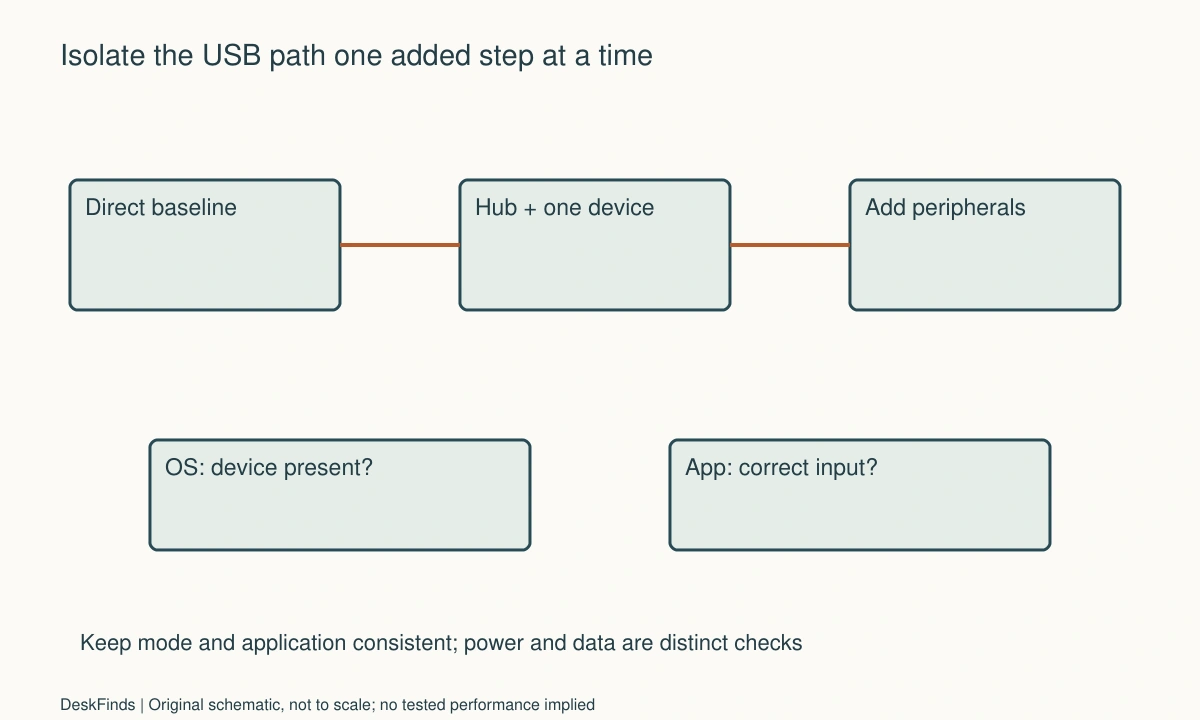
Quick answer: Test the affected device directly on a supported host port with its specified cable, then add the hub and other peripherals one at a time. Keep the application and device mode consistent. Record whether the device disappears from the operating system or only from the meeting app. Check the hub’s data and power specifications separately, and use official support guidance for the exact equipment.
Describe the symptom before changing hardware
Write down what you see: the camera preview freezes, the device vanishes from the application, the OS reports a disconnect, or audio silently moves to a built-in microphone. These are not interchangeable. A different camera being selected after reconnecting can look like a connection failure when the original camera is still available.
Note when it happens. Does it follow waking the laptop, starting a call, attaching storage, or moving the display? Include whether only one peripheral fails or the whole hub disappears. Time and trigger observations help support staff ask a narrower question than a general report that USB is unreliable.
Do not repeatedly interrupt an important meeting to investigate. Save a non-confidential test window and use the application’s preview or test function. Ask permission before recording another person’s voice. A controlled private comparison is more useful than an uncontrolled live call with several simultaneous changes.
Draw the actual USB path
List the host port, upstream cable, hub or dock, downstream cable, and affected device. Add any extension, adapter, selector, or monitor USB hub in the path. The connection may be more complicated than the visible box on the desk, particularly when a monitor also serves as a dock.
Mark power inputs separately. A hub’s external supply can support a documented power arrangement, but it does not necessarily increase the upstream data capability. Likewise, a higher advertised data rate does not establish that every connected device receives the required power. Keep both questions visible.
For category distinctions, see docking stations and USB hubs. If a selector is part of the route, use the USB sharing switch guide to identify which computer currently owns the device. A switch changing hosts is a deliberate disconnection, not the same symptom as a random dropout.
Establish the direct baseline
Connect the webcam or microphone directly using the manufacturer’s supported cable and host port. Logitech’s setup guidance recommends a direct webcam connection rather than a hub as a baseline. That is a useful comparison step, not proof that all hubs are incompatible with all cameras.
Keep the same application and intended mode where possible. Check device permissions and the selected camera or microphone. If it fails directly, follow the device maker’s troubleshooting path before treating the hub as the sole suspect. Test on another supported port or host only when that comparison is appropriate and permitted.
Record both successes and failures. A direct connection working once does not establish long-term reliability, but it gives you a simpler arrangement to compare against. Do not call it a benchmark or a stress test. The aim is to reproduce ordinary use with fewer variables, not to invent a lab result from a short observation.
Add one part of the route at a time
Once the device works directly, connect it through the hub with no optional peripherals. Use the documented upstream cable and supply. If the problem appears at this point, the added path becomes the next focus: hub compatibility, cable, host connection, power arrangement, and current official software or firmware guidance.
If that arrangement works, add the keyboard and mouse, then other devices individually. Leave high-activity storage transfers until you have a safe nonessential test context. Do not experiment using the only copy of important files. Check whether the problem follows a particular combination rather than presuming that the last device attached is defective.
Keep a simple table with configuration, application, mode, and observation. Avoid changing a camera’s mode and the upstream cable in the same comparison. A lower mode working may be useful evidence for support, but it does not independently establish the cause or justify accepting a configuration below your requirements.
Distinguish OS recognition from application selection
A device can be listed by the operating system while the meeting application uses something else. Check the app’s selected input after a reconnect, sleep cycle, or host switch. A webcam with a built-in microphone can create separate audio and video selections, so inspect both.
If only one application has the problem, compare its official settings and support guidance before changing the desk hardware. If the device disappears at the system level, record that separately. Do not combine those observations into an unsupported claim that the hub lacks enough power or the microphone requires a special driver.
For a microphone-specific interface decision, read XLR and USB microphones. Changing interface category is a larger purchase decision, and it should not be the first response to an unexamined application selection issue.
Inspect movement and cable access
Check whether normal monitor adjustment pulls the webcam cable, whether the hub hangs from its upstream lead, or whether a chair catches a loop. Observe the ordinary route without deliberately bending or stressing connectors. Replace damaged equipment using the maker’s guidance rather than using tape to keep an unreliable connection at a particular angle.
Support the hub and any power supply in their intended arrangement. A crowded tray can obscure product labels, power connections, and ventilation requirements. The dock placement guide separates physical access from electrical compatibility so a tidy installation does not become impossible to inspect.
Do not buy a very long replacement cable solely to move the hub out of sight. Confirm the cable’s capability and supported length for the actual device path. Extensions and adapters belong in the connection record because they can change the arrangement that the manufacturer is being asked to support.
Worked example: the microphone had not disconnected
Consider a hypothetical home worker whose colleagues sometimes hear distant room sound after the laptop wakes. The worker assumes the USB microphone is disconnecting through the hub and plans to replace the hub with a powered model. Before ordering, the worker checks the OS and meeting application’s device lists.
The microphone remains available, but the application is using the laptop’s built-in microphone after a particular reconnect sequence. A direct connection is tested with the same application and mode. The worker then repeats the normal documented hub arrangement, checking the application’s selection each time. These observations narrow the support question to device selection behavior rather than proving a general USB power problem.
The worker records the app version, OS, microphone model, and sequence that changes the input. Official application guidance is consulted, and a pre-call device check is added while the underlying behavior is resolved. No new hardware is bought on the strength of the original assumption alone.
Another desk could have a genuine system-level disconnect or a cable fault. The example does not imply that settings solve every problem. It shows why a precise symptom can prevent an unnecessary purchase and why the same word, disconnected, should not describe every change in what a caller hears.
Know when to ask for model-specific help
Contact the relevant manufacturer when the documented supported arrangement fails and you have a reproducible record. Include the host model, OS, hub, supply, cables, peripheral, application, and observed trigger. Explain whether the direct baseline works and which added step changes the outcome.
Avoid sending confidential recordings or screenshots containing work data. A short written sequence and device list often provide enough context to begin support. If a support agent requests further diagnostics, follow the official process appropriate to the device and your organization’s policies.
If a critical camera works reliably only on a direct supported connection, reserving that port can be a reasonable practical choice. A hub is useful when it supports the task, not when every port must be filled. Reorganizing lower-priority accessories may solve the desk problem without escalating to a more complex dock.
A comparison log worth keeping
Exact failure
Write what stopped working and where it disappeared. Distinguish a frozen picture, missing device, wrong selected input, and poor audio. Include the trigger and approximate sequence. This prevents later comparisons from treating a different symptom as confirmation of the same cause, and it gives support a concrete starting point instead of a general complaint about USB quality.
Direct connection
Record the supported host port and cable used for the simplest arrangement. Note the application and intended mode. If it fails directly, stop expanding the hub configuration and follow the device or host guidance. If it works, preserve that baseline so the next change can be compared with something specific rather than with memory of an earlier call.
Hub alone
Add only the hub path and its documented power arrangement. Record every adapter and extension. Check ordinary use before introducing other peripherals. If the symptom appears, keep the working direct arrangement available while seeking help. Do not add several new devices in the hope that a different combination will somehow make the first comparison clearer.
Simultaneous devices
Add peripherals in a named order and note which are active. A storage drive merely connected is not the same workload as a transfer, and an idle camera is not the same state as a call preview. Keep important data out of exploratory transfers. The log should describe what actually happened, without assigning an electrical cause that you have not established.
Application recovery
After a supported reconnect, verify selected camera, microphone, and speakers. Note any manual action needed to restore them. Decide whether that action is acceptable for routine use while the issue is investigated. A device can be technically recognized yet poorly suited to a setup that requires repeated recovery immediately before meetings.
Purchase decision
Use the evidence to choose a next step: replace a documented faulty cable, reserve a direct port, ask for compatibility confirmation, or compare another supported hub. Avoid buying on a single headline such as powered or high speed. The right replacement addresses the supported path and essential task identified by the log, rather than the most plausible explanation before testing.
Read a powered-hub claim carefully
External power and upstream data capability answer different questions. Check the hub’s documented supply, device limits, port roles, and supported host connection. A power input may support a particular bus-power arrangement without changing the shared data path. Conversely, a fast-rated upstream link does not establish that every attached device receives the power or compatibility it needs.
Treat compatibility statements as specific. If the listing names cameras generally but your device and intended mode are essential, ask about that combination. Include simultaneous audio and storage use if relevant. A manufacturer can assess a concrete topology more usefully than a request to guarantee that the hub works with everything.
Do not compare products by adding the maximum speed printed beside each downstream port and assuming that total is available simultaneously. Use the manufacturer’s actual topology and performance guidance. For this troubleshooting task, the first goal is ordinary reliable operation of the required devices, not an unsupported calculation of a theoretical bandwidth budget.
A second scenario: the symptom followed monitor movement
Consider a hypothetical worker whose webcam preview drops out only when the monitor is repositioned. The camera connects through a hub, so the worker initially suspects the hub’s power supply. A direct supported baseline is checked, and the connection map includes the cable running through the monitor arm’s management route.
During ordinary permitted adjustment, the worker observes that the lead becomes taut near one position. The worker does not repeatedly bend the connector or deliberately reproduce stress. The equipment is returned to a safe supported arrangement, and the cable route is compared with the camera and arm instructions. Any damaged component is handled through the appropriate replacement or support process.
The next comparison keeps the application and camera mode unchanged while using a supported relaxed route. If the symptom changes, that observation is recorded as evidence about the arrangement, not as proof that every earlier dropout had the same cause. The hub remains in the connection record, but it is no longer the only plausible source of the problem.
Before purchasing another hub, the worker asks whether the intended route can be achieved with a documented compatible cable and the existing arm. A longer cable is not selected on length alone; its capabilities and the device’s supported connection method matter. If an extension would create an unsupported path, the physical layout is revised instead.
The example shows why timing and movement belong in a troubleshooting note. It does not claim a particular cable failed a laboratory test or that rerouting always resolves disconnects. A reproducible ordinary observation can narrow the question without encouraging deliberate connector stress.
Decide what evidence justifies replacement
Replacement is easier to assess when the direct baseline works, the added path is documented, and a specific component or supported combination consistently changes the result. Even then, describe observations accurately and let the relevant support process address compatibility or defects. Avoid labeling a product unsafe or universally unreliable from one unexplained symptom.
If a device works only through a simpler direct path, reserving that path can be a valid operational choice while the issue is resolved. Move low-priority accessories to the hub if their supported use allows it. The desk does not need every lead consolidated to be organized effectively.
Keep the original working record after making a change. Note the new cable, port, supply, or software state and what was observed. If the problem returns later, that record prevents the investigation from restarting with vague memories. A useful troubleshooting guide leaves the reader with a better question and a simpler supported arrangement, not merely a list of products to buy.
Sources and scope
- Logitech connection guidance - Supports a direct webcam connection as a baseline; does not establish that every hub is unsuitable.
Editorial note: This is a research-based planning guide, not a hands-on product review. All worked scenarios are hypothetical. Measurements and compatibility must be confirmed for the exact equipment. Photography supplies context, not proof of a tested arrangement.
Photos are illustrative and come from free-license libraries such as Unsplash; diagrams are original to DeskFinds.