
How to Share a Keyboard and Webcam With a USB Switch
Affiliate Disclosure: We may earn a small commission on qualifying Amazon purchases at no extra cost to you. Full disclosure →
Sharing a keyboard between computers is straightforward in principle: one set of input devices is selected for one host at a time. Adding a webcam changes the problem. The meeting application may need to reacquire it, the switch must support that device path, and the camera can vanish from one computer at the exact moment you press the selector.
Quick answer: Use a USB sharing switch designed to connect the required computers and peripherals. Verify its upstream ports, supported USB capabilities, power arrangement, and compatibility with the exact webcam. Test the keyboard first, then the camera in the actual meeting application. A USB switch does not switch an ordinary monitor’s video input; plan that separately or choose a suitable KVM.
Define the devices that really need sharing
List each device and why it should move between hosts. A keyboard and mouse may serve both computers all day. A webcam may only need to serve one computer during work hours. A storage drive may be better kept dedicated, even if the switch has an unused port. Sharing everything is not automatically the cleanest working arrangement.
Record whether the keyboard and mouse use separate cables, a shared receiver, or another connection method. Check the receiver’s documented behavior through the proposed switch. Keep Bluetooth pairing separate from USB selection; pressing a USB selector does not necessarily change a device’s Bluetooth host.
The KVM switch overview explains the difference when video must move too. For a full two-laptop cable arrangement, see the KVM cable planning guide. If manual monitor input selection is acceptable, a USB switch can remain a focused solution rather than becoming an incomplete substitute for a KVM.
Read the computer-side port labels
Identify upstream connections intended for the computers and downstream connections intended for devices. Follow the manufacturer’s diagram exactly. The connector shape alone is not a reliable instruction, especially when a product uses similar-looking ports on several sides.
The StarTech USB221SS is a useful specific example: its documentation describes sharing a single USB peripheral between two computers. That does not establish that any sharing switch supports four devices, an arbitrary hub, or every webcam. Treat the number of hosts, number of shared ports, and supported topology as separate specifications.
Never substitute an improvised computer-to-computer cable for a designed sharing device. Use the documented cables and supported power input. If the product needs auxiliary power for a proposed combination, verify what is required and whether it is included. Additional power does not automatically solve a protocol or application-compatibility problem.
Separate bandwidth from power
A switch can offer a particular USB data capability while having separate limits on bus power and peripheral support. A webcam operating at one mode may require a different supported path from a basic keyboard. Do not infer camera suitability from the fact that letters appear correctly when you type.
Write the webcam model and intended mode in the compatibility question. Include other devices that will operate simultaneously, such as a microphone or storage drive. Avoid adding a downstream hub unless the switch maker supports that topology. More physical ports can make the wiring convenient while leaving the shared upstream path unchanged.
For a structured way to isolate a failing setup, use the webcam and microphone USB connection guide. Its direct-connection baseline helps you compare the same camera with and without the additional switching path. It does not presume that every dropout is a bandwidth problem.
Plan the monitor separately
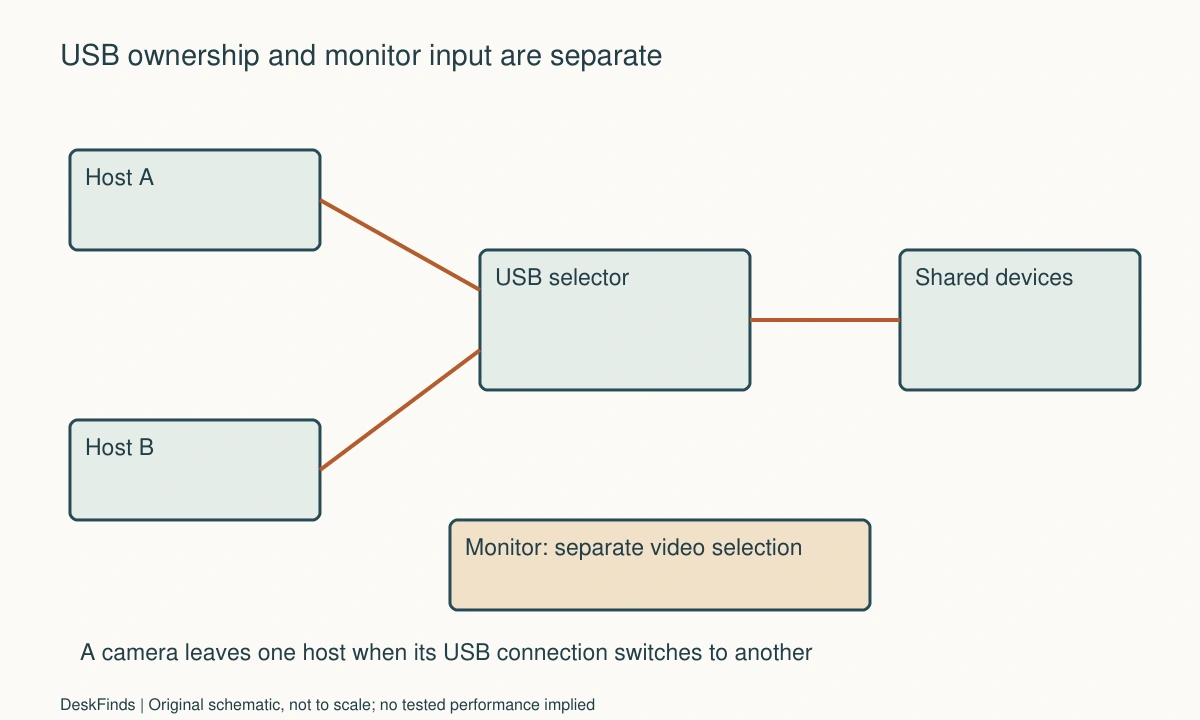
A basic USB sharing switch does not carry ordinary HDMI or DisplayPort video. If each computer connects to a different monitor input, label those connections and decide how you will change the selected input. Some monitors provide their own documented USB switching features, but do not assume a video input selection changes USB ownership unless the manual says so.
Think through the complete action at the desk. You may need to switch the USB selector and then choose the monitor input. That can be perfectly acceptable when changing computers only a few times daily. If you switch constantly, one coordinated KVM action may better fit the routine, provided the video modes and hosts are supported.
Keep selection controls close enough to use without reaching through cables. A small wired button can be useful, but it adds another lead. A switch placed behind a monitor is not space-efficient if the user must repeatedly pull the monitor forward to reach it.
Protect call continuity
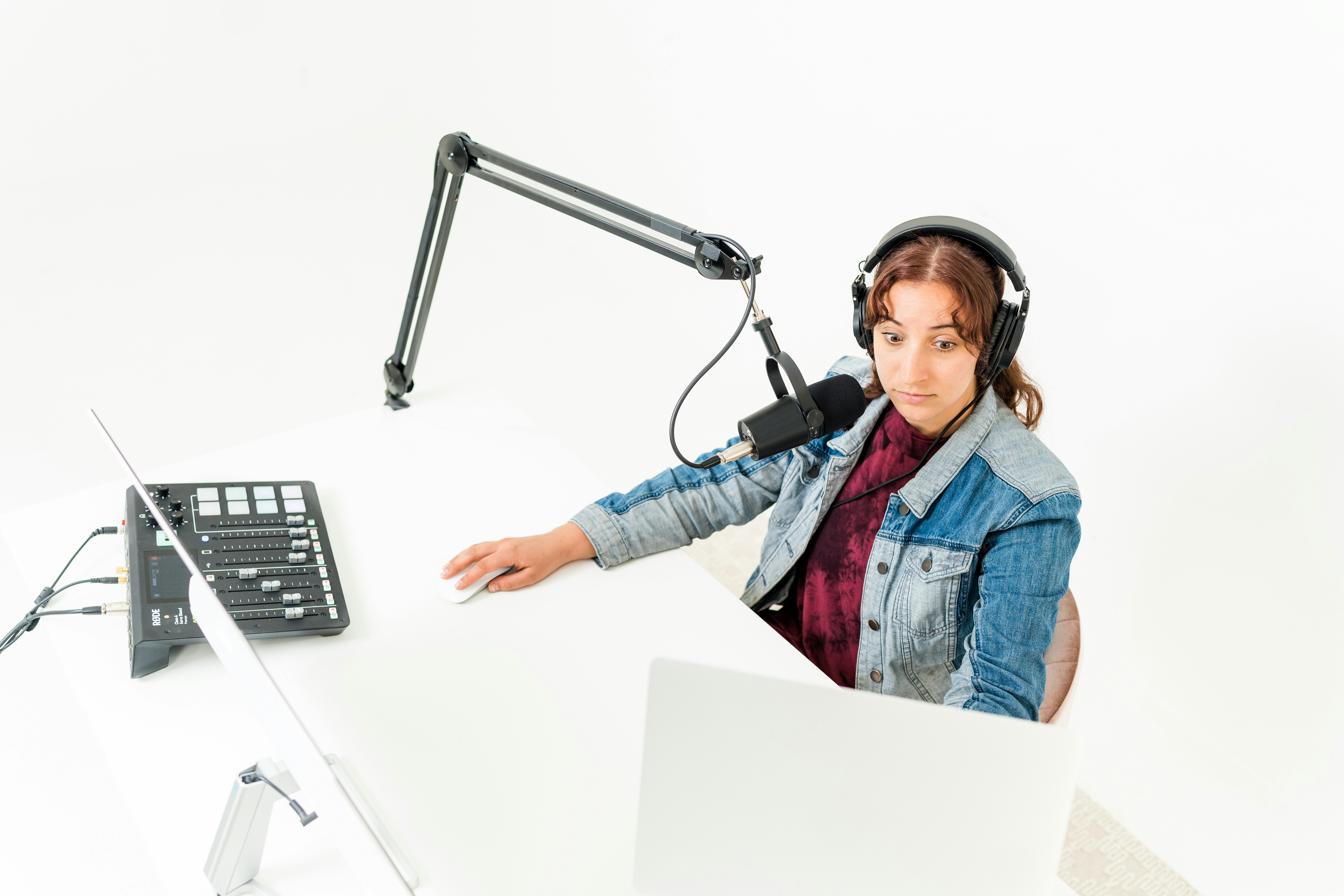
Before switching a shared webcam, end or pause the relevant task as the application allows. Expect the computer losing the USB device to lose access to that camera. The second computer’s meeting app may select another camera or wait for the device to appear. Check the application’s device menu rather than relying on the camera’s indicator alone.
A microphone built into the webcam can move with it. That matters if you expected audio to remain on the first computer. Make a device ownership list for camera, microphone, and speakers independently. Test with a private preview or non-confidential meeting rather than discovering the behavior during a client call.
If uninterrupted work calls are essential, dedicate the webcam to the work host and share only input devices. A separate occasional camera for the personal host may create less disruption than a more elaborate switching path. The useful metric is the reliability of the complete task, not the percentage of accessories shared.
Place the hardware around cable movement
Measure the switch body with every host and peripheral plug inserted. Side-facing connectors can consume the space beside a laptop, while rear-facing connectors can interfere with a wall. Leave a route to disconnect devices by their plugs without tugging the switch out of position.
Check the webcam cable when the monitor changes height or angle. The switch should not become a fixed anchor that pulls the camera mount. Keep loose leads out of the mouse area and avoid pinching cables under a laptop or monitor base. A supported cable route is more useful than a very short route under tension.
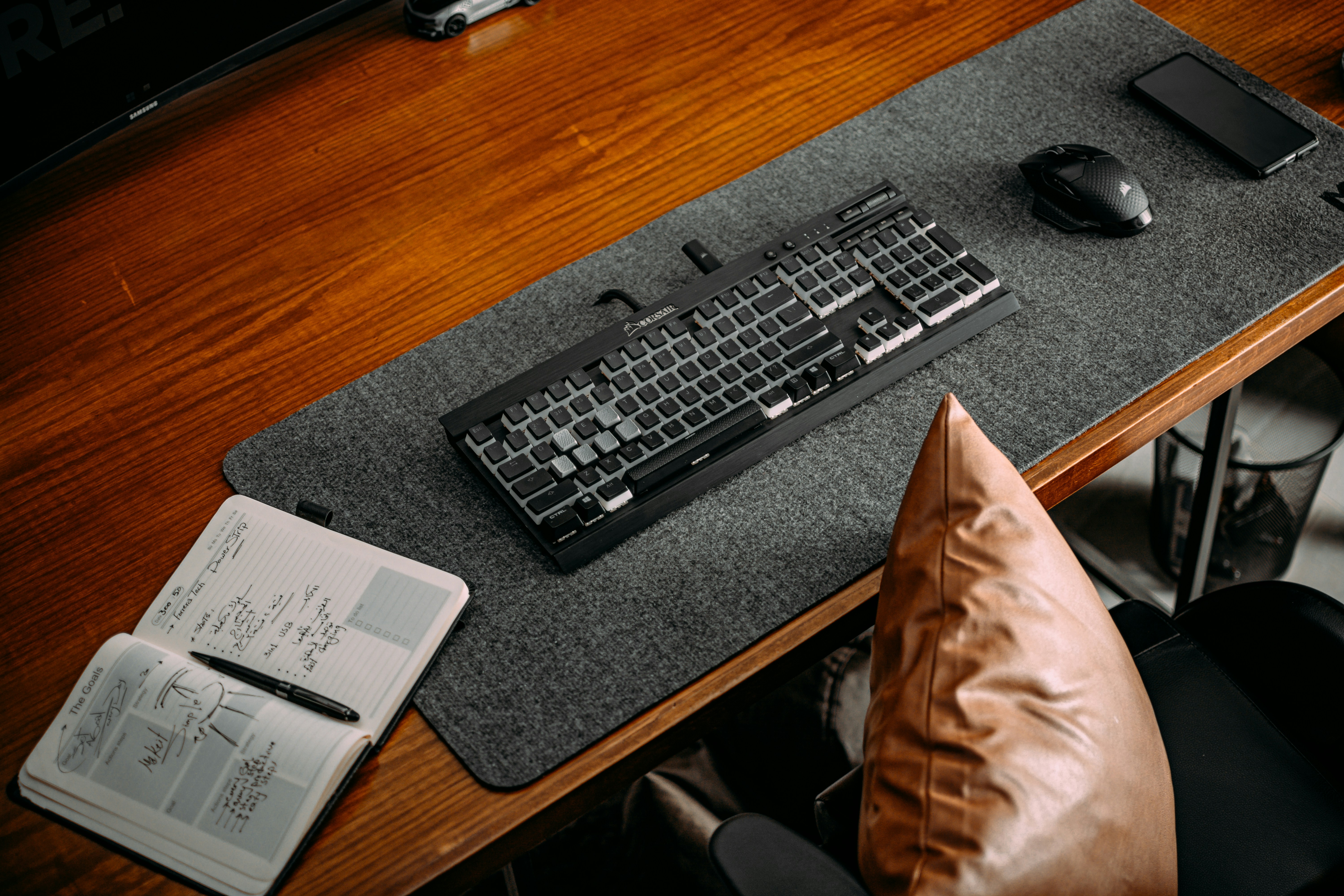
The mouse pad sizing guide can help preserve usable movement space when the selector sits beside the keyboard. Reserve a control zone outside the ordinary mouse sweep, especially if an accidental press could switch the camera away during a meeting.
Worked example: sharing less made the desk easier
Imagine a hypothetical designer with a work laptop and a personal desktop. The monitor has two usable inputs, and the designer is happy selecting them manually. The original plan is to share a keyboard, mouse, webcam, USB microphone, and portable SSD through one small switch.
The designer maps the consequences of pressing the selector during a work call. The camera and microphone would leave the work laptop. If the SSD were active, switching it would introduce an unwanted disconnection. The apparent convenience of moving five devices together conflicts with the actual workflow.
The revised plan shares only the keyboard and mouse. The work camera and microphone stay dedicated, and the SSD stays on the host that owns the current project. An occasional personal call uses a separate supported camera arrangement. The switch’s unused capacity is not a failure; it provides no benefit if using it interrupts important work.
The designer then tests the keyboard’s special functions and the wireless receiver through the selected product. The monitor input is labeled separately from USB ownership. A small reminder beside the selector names the two actions needed to move between computers. The result in this hypothetical case is a less ambitious but more understandable desk. No claim is made that a particular unnamed switch passed these tests.
Isolate failures without guessing
If a device fails through the switch, verify it directly on each intended host using its supported cable and application. A camera that is unavailable directly needs a host or camera check before the selector becomes the main suspect. Keep the camera mode and application consistent while comparing paths.
Add the switch with only the keyboard connected, then add the mouse, then the camera if sharing remains appropriate. Record the first combination that changes behavior. Test host A and host B separately; a difference may relate to the host port, cable, permissions, or software rather than to the switch alone.
Do not interpret auxiliary power as a universal repair. Likewise, buying a faster-rated cable cannot correct an unsupported topology or a meeting application’s device selection. Use the observations to ask a specific support question that includes the host, device, cables, switch, mode, and exact symptom.
Acceptance questions for a shared-device desk
Can you identify the selected host?
Check the selector’s indicator from the seated position, but verify its meaning in the manual. Give each host a clear label if needed. Before typing sensitive material, confirm which application receives input. An indicator is most useful when the person using the desk understands whether it identifies a host, power, or another device state.
Do all necessary keyboard functions work?
Try ordinary typing, modifiers, shortcuts, and any essential extra keys. If a keyboard relies on software, check that software on each host. A basic typing result does not confirm every special function. If a feature is not supported, decide whether it matters rather than repeatedly changing unrelated settings in search of a perfect result.
Does the camera return in the real application?
Use the same webcam mode and meeting program you intend to use. Switch only outside an important call, then check camera and microphone selection. Record the steps needed to restore the preview. A camera that appears in the OS but requires an inconvenient application restart may still be a poor workflow fit, even when the USB connection is technically recognized.
Is the power arrangement documented?
Record the supplied cables and any required auxiliary source. Keep spare adapters out of the plan unless their use is supported. A product drawing with no power supply shown does not establish that your entire peripheral combination can operate without one. Confirm the supported arrangement before making the selector inaccessible behind furniture.
Can you recover without dismantling the desk?
Keep host plugs reachable and know which lead belongs to each computer. If a direct comparison is necessary, you should be able to bypass the switch without lifting a monitor or dragging a powered device. This is a service-access decision, not an invitation to unplug equipment during active transfers or ignore the device maker’s disconnection procedure.
Is sharing still worth the extra step?
After a representative work session, count the actual selection actions and interruptions. If manual monitor selection plus USB switching is easy, keep the arrangement simple. If coordinated video and input switching is essential, revisit a compatible KVM. If only one device truly needs sharing, choose around that requirement instead of filling every port because it exists.

Compare sharing with dedicated accessories
Estimate the actual duplication avoided. A basic keyboard and mouse may be easy to share, while a camera used continuously by one host gains little from switching. Include the selector’s cost, required cables, supported power source, and the time spent restoring application selections. A second inexpensive accessory can sometimes simplify a specific routine, but compare real requirements rather than assuming duplication is always cheaper or always wasteful.
Keep storage outside the comparison unless it genuinely needs to move between hosts through the supported device. A sharing switch is not a file synchronization system. It changes which computer has access to a peripheral; it does not resolve permissions, application state, or the required disconnection procedure for active storage. Do not use convenience language to hide those separate tasks.
If the desk must switch video too, compare the complete KVM alternative with the USB-only plan. The USB plan may involve two actions: select the host on the switch and choose the monitor input. A KVM may combine them when supported, but it introduces video-mode and host-path requirements. The right choice depends on the transition you repeat, not on which box sounds more capable.
A second scenario: a wireless receiver changed the shortlist
Consider a hypothetical user whose keyboard and mouse share one USB receiver. The user expects a two-host USB switch to move that receiver between a work computer and a personal computer. The product listing names keyboard and mouse support but gives little information about the specific receiver and its software features.
The user records the receiver model and the essential functions: ordinary typing, pointing, and a small number of extra controls. The switch manufacturer is asked about the supported device path and any relevant restrictions. The user also checks whether software is needed separately on each host and whether installation is allowed on the work computer.
After delivery, the receiver is tested through the documented switch arrangement using harmless tasks. Basic input and the essential extra functions are checked separately. If ordinary typing works but a special function does not, the user does not describe the entire device as either fully compatible or completely broken. The acceptance decision reflects which functions are actually required.
The webcam is then considered independently. It may remain dedicated even if the receiver shares successfully. The user avoids adding a downstream hub merely to fill a desired port count unless that topology is supported. The resulting setup has a clear owner for every device and a small number of predictable selection actions.
This scenario illustrates why a receiver should be identified as a device in its own right. It does not establish that every receiver works through every switch or that software-dependent functions follow automatically when the basic USB connection changes hosts.
Make the host change obvious to the person using it
Place a clear host identifier near the selector or retain a simple diagram. Check its meaning against the product’s indicator behavior. Before typing private material, confirm the intended host and application. A monitor showing one computer while the keyboard controls another is possible in a USB-only arrangement, so do not rely on the visible screen alone.
If the second computer is asleep, use the documented wake behavior rather than pressing the selector repeatedly without understanding its state. A delay or unavailable device can have several causes. Record the sequence and follow official guidance. Clear ownership and a deliberate transition reduce confusion more effectively than adding another unverified switching layer.
At the end of the trial, keep only the devices whose sharing provides a clear benefit. A partially shared desk can be a complete solution. The useful outcome is that each required task continues predictably when the user changes computers, not that every available port is occupied.
Sources and scope
- StarTech USB221SS documentation - Specific two-host, single-peripheral sharing example; not evidence for every switch, hub or webcam combination.
Editorial note: This is a research-based planning guide, not a hands-on product review. All worked scenarios are hypothetical. Measurements and compatibility must be confirmed for the exact equipment. Photography supplies context, not proof of a tested arrangement.
Photos are illustrative and come from free-license libraries such as Unsplash; diagrams are original to DeskFinds.