
How to Keep a Portable SSD Accessible on a Small Desk

Affiliate Disclosure: We may earn a small commission on qualifying Amazon purchases at no extra cost to you. Full disclosure →
A portable SSD is small enough to disappear behind a monitor, but that does not make the location convenient. You still need to identify the drive, reach its cable, follow its operating instructions, and disconnect it correctly. A useful place is one that keeps storage out of the ordinary hand path while leaving the connection visible and manageable.
Quick answer: Place the SSD on a stable, dry, supported surface within a relaxed cable route of the intended host port. Preserve the manufacturer’s operating and heat-management requirements. Avoid covering the enclosure with an improvised holder or suspending the drive from its cable. Check that you can save work, eject it as required, and remove the plug without moving other equipment.
Decide whether the drive lives at the desk or travels
A drive that leaves with the laptop needs a different routine from one that stays connected for backups. Write down who uses it, which computer owns the active files, and how often it moves. A permanent-looking attachment can become frustrating when the drive must be packed every afternoon.
For a traveling drive, reserve a hand-accessible landing spot beside the laptop rather than at the far end of a cable maze. For a stationary drive, prioritize a supported placement and identifiable lead. In both cases, avoid an ambiguous pile where two similar enclosures can be confused during a rushed departure.
Keep physical organization separate from data protection. A neat mount does not create a backup, encryption, or access control. Follow your organization’s requirements for confidential data. This guide concerns placement and handling; it does not certify a storage strategy or make a particular device appropriate for regulated information.
Map the complete connection path
Record whether the SSD connects directly, through a dock, or through another supported interface. Include the cable supplied or specified for the drive. A charging cable with the right connector is not automatically suitable for storage data, and a different host connection can change available performance.
The USB4 enclosure guide covers an adjacent storage category, but a self-contained portable SSD should be selected and handled according to its own documentation. Do not open a sealed product or treat it like a user-serviceable enclosure unless the manufacturer explicitly provides for that.
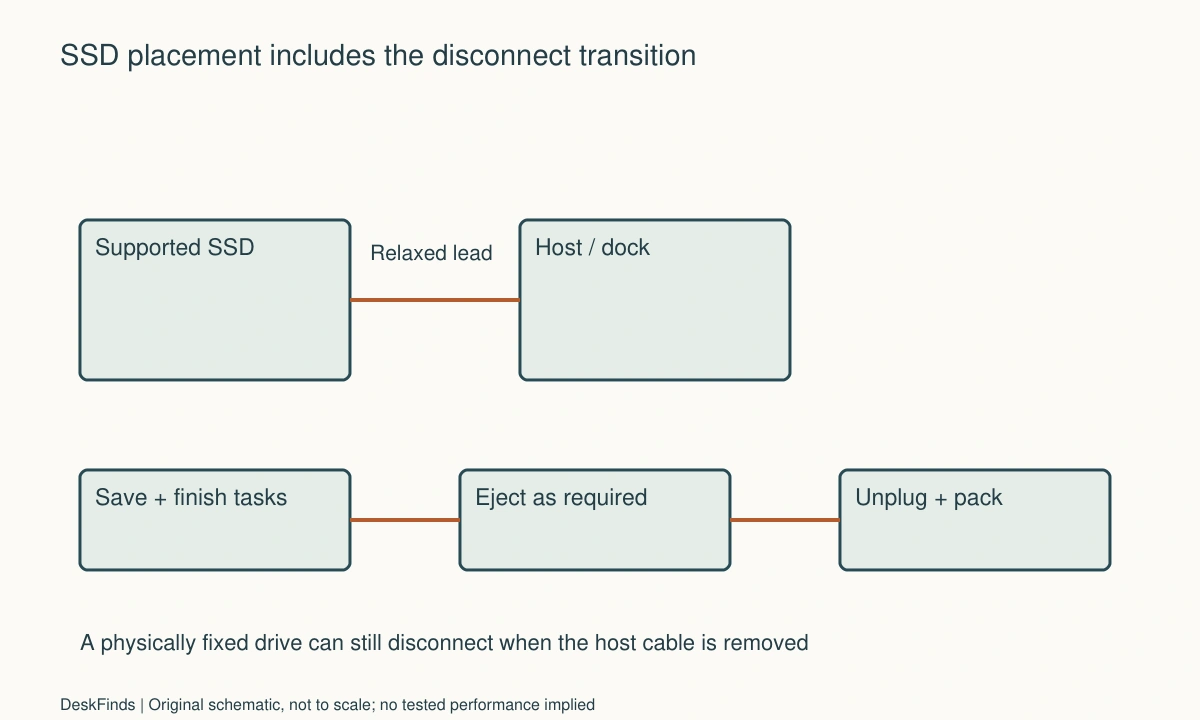
If a dock is involved, consider what happens when the laptop’s single host cable is removed. The SSD disconnects with the dock, whether or not its enclosure remains neatly fixed to the desk. The one-cable dock checklist helps include that departure step in the larger arrangement.
Give the connector a relaxed route
Position the drive so neither cable end is loaded by its weight. Leave enough length for the laptop’s normal position and any documented movement. Avoid a taut diagonal across the keyboard, a loop that catches a sleeve, or a plug pressed against a wall by furniture.
Check the full plug body, not just the port opening. A rigid adapter can extend the effective lever on a small connector. Prefer a documented compatible cable with a practical route over stacking adapters simply to make the line look shorter. If a cable bends immediately at the connector, compare another placement before adding accessories.
Do not pull on the cable to retrieve a hidden drive. Put the enclosure where it can be grasped or released using the supported holder’s method. Service access should be possible without dragging a monitor base, lifting a powered dock, or reaching blindly into an under-desk cable bundle.
Evaluate holders by contact and access
A product advertised as a universal SSD holder still needs checking against enclosure dimensions, weight, connector location, and operating instructions. Look at what touches the drive and what remains uncovered. A clamp that blocks the port or a sleeve that interferes with the product’s heat-management design is not a fit merely because the drive can be inserted.
Avoid attaching adhesives directly to a drive or furniture without compatibility guidance. The enclosure’s finish, temperature during use, and removal requirements matter. An attachment advertised as removable does not guarantee damage-free removal from every surface. A simple stable desk location can be preferable to an unsupported mounting experiment.
If a manufacturer provides a compatible mount, read its installation and removal instructions as part of the purchase. Account for the added depth behind a monitor and any interference with the display’s vents or controls. Never use the SSD holder to carry another unsupported item or to anchor a cable under tension.
Preserve operating conditions
The Samsung T7 manual is a model-specific reference for connection, disconnection, handling, and operating precautions. Use the manual for your own drive rather than borrowing another model’s limits. Do not infer an acceptable enclosure temperature from touch alone or apply a universal temperature threshold from an unrelated product.
Keep the drive clear of spills and places where papers or soft materials routinely cover it. If a shelf becomes a pile of notebooks every evening, a location that is clear at setup time may not remain clear in normal use. Make the permitted operating state easy to maintain instead of depending on a daily reminder to uncover the drive.
For a dock beside it, consult the dock placement guide. The SSD, dock, and power supply can each have different placement requirements. Grouping them into one decorative container does not make those requirements disappear.
Build a visible disconnect routine
Before unplugging, save and close relevant work, allow active tasks to finish, and use the drive and OS’s required eject procedure. The Samsung manual specifically calls for safe removal for its product. Follow the current instructions applicable to your device and system rather than assuming a drive with no moving parts can always be pulled out immediately.
Put the drive where its identity is visible during this routine. If you have two similar drives, use an appropriate external label or label the cable without covering technical information. Distinguish the work drive from a backup destination in your own system. Avoid placing confidential project names on visible labels in a shared room.
A USB sharing switch introduces another kind of disconnection. Read the shared USB device guide before adding storage to a switched group. If the drive must remain active while you move keyboard control between hosts, dedicate it to the relevant host instead.

Worked example: the hidden drive delayed every departure
Imagine a hypothetical student who edits video on a small desk and carries the SSD to a campus workstation. The drive initially sits behind the monitor because that location leaves the front surface empty. Its cable also passes under a lamp base, and the student has to reach around the display to identify which drive is connected.
The problem is not a lack of storage capacity or a slow interface. It is the mismatch between a daily travel routine and an inaccessible parking place. The student maps the departure sequence: save the project, finish transfers, eject the correct drive, reach the plug, pack the drive, and pack the cable. The hidden location adds unnecessary handling at several steps.
The revised arrangement uses a clear supported surface beside the laptop, outside the mouse sweep. A suitably specified cable follows a relaxed route without crossing the writing area. The drive remains identifiable, and the cable can be unplugged by its connector after the required software steps. A protective travel case is kept separately and used according to the drive’s handling guidance.
A second drive used only at home receives a different location because it does not need daily retrieval. The student does not force both drives into identical holders for visual consistency. The planning benefit comes from matching each location to its use, not from claiming that a particular mounting product improves reliability or transfer speed.
Keep a small record of the working arrangement
Write the host port, cable, drive model, and any intermediate dock in one place. If the connection later becomes unreliable, that record gives you a baseline. Compare the drive directly using a supported connection before blaming its holder or purchasing a faster hub.
If the problem follows movement, inspect the cable route and documented connection rather than deliberately stressing the connector. Stop using damaged cables or equipment and follow the maker’s support process. A stable placement is meant to reduce accidental movement; it is not a reason to ignore a recurring disconnect.
Retain the drive’s instructions and the holder’s specifications if you buy one. Product revisions can change dimensions or supported accessories. An online photograph of a similar enclosure does not confirm fit, and an improvised shim does not establish that a holder is appropriate for an expensive storage device.
Six placement decisions to settle
The landing surface
Check that the entire enclosure is supported in its intended orientation and cannot be pushed into the chair or bag path by ordinary desk activity. Include the size of the connected plug. If the space is also used for a mug or loose papers, assign a different purpose to that area or choose another location rather than hoping the conflict will not occur.
The host connection
Record the exact port and supported cable, including any dock between the drive and laptop. Check the drive’s ordinary recognition and file access before arranging a permanent route. A successful charging cable test proves little about storage. Keep a known supported cable available so later comparisons can be made without rebuilding the whole workstation.
The grasping route
Practice retrieving the enclosure without pulling on the wire. If a holder is involved, understand its release method before installing it behind furniture. Allow room for your actual hand, not just the drive body. A tiny physical gap can be large enough for the device but too small for routine insertion and removal.
The operating state
Compare the planned contact surfaces, orientation, and surrounding objects with the drive’s instructions. Do not cover an enclosure simply because it lacks a visible fan. Avoid extrapolating another model’s heat limits. If the maker cannot confirm the proposed holder or enclosed location, choose a more conventional supported placement and keep the question separate from cable organization.
The shared-device consequence
Identify every action that disconnects the drive: unplugging the laptop, changing a sharing switch, removing power from a dock, or packing the drive. Put the required save and eject steps before those actions. A fixed mount can make a drive feel permanent while its USB path remains removable, so the routine should follow the connection rather than appearance.
The next trip
Check where the disconnected drive and cable go when leaving the room. A travel case should fit the actual device and protect it according to its instructions, without encouraging storage while connected in an unsupported operating state. Keep a short departure list if necessary. The practical goal is an accessible drive at work and an orderly transition when it travels.

Compare a holder with an ordinary supported landing place
A holder earns its place when it solves an identified handling problem, such as repeated accidental movement or difficulty finding a traveling drive. Compare it with a clear supported surface first. Include any mounting hardware, surface restrictions, release action, and effect on the enclosure’s operating conditions. An accessory should improve the completed routine rather than add an installation project to an already manageable desk.
For a drive that rarely moves, an accessible location with a relaxed cable may be enough. For a drive that travels daily, quick supported removal can matter more than concealment. For several similar drives, identification and ownership may be the main constraint. These are different requirements, so a single universal holder recommendation would be less useful than a shortlist based on the actual problem.
Avoid assigning performance benefits to physical organization. Moving a drive closer to the laptop does not by itself establish a faster data path, and a metal holder is not automatically an approved heat-management accessory. If speed is the concern, identify the supported host, cable, interface, and workload separately. Placement should be judged by access and documented use conditions.
A second scenario: the drive stayed fixed while the host changed
Imagine a hypothetical editor with a portable SSD attached to a dock on a shared desk. The drive is held neatly beside the monitor and rarely touched. The editor assumes it is effectively permanent because the enclosure never moves, then changes the laptop connected to the dock during an active project session.
A connection map makes the hidden transition clear. Removing the host cable disconnects the SSD from the first computer even though the drive remains physically in its holder. The editor revises the handover sequence: finish relevant tasks, save work, follow the required ejection procedure, and only then change the host connection. The holder does not replace those software steps.
The editor also checks whether both computers should access the drive at all. Work ownership, permissions, and application requirements are considered through the appropriate policy rather than inferred from the shared dock. If the SSD belongs to one workflow, a dedicated connection may make the arrangement easier to understand. Sharing a keyboard does not require sharing project storage.
The physical plan is then adjusted so the drive’s identity can be checked without removing it. Its label does not reveal confidential project details or cover technical information. The cable and holder remain accessible for service, and the departure routine names the drive explicitly. The tidy mount becomes part of a clear process instead of making a removable device look less removable than it is.
This hypothetical example does not claim a data-loss event or certify a backup method. It shows that fixed placement and continuous electronic connection are different states. The buying decision should preserve the actions required by the actual drive and host system.
Write a holder compatibility question precisely
Include the exact SSD model, enclosure dimensions, intended orientation, host cable, and whether it travels. Ask about supported contact and any operating restrictions. If the holder attaches to a monitor or desk, include that surface and the installation method. A response saying it fits many drives is not the same as confirmation of the complete proposed arrangement.
Ask how the drive is released and whether the connector remains accessible with the intended cable. If a protective sleeve is involved, clarify whether it is intended for storage, operation, or both. Do not assume a travel-protection claim authorizes continuous connected use inside an enclosure.
If no supported holder answers the requirement, choose a clear ordinary location while continuing the search. A small drive does not need an elaborate mount to be well organized. The useful outcome is that it remains supported, identifiable, accessible, and handled through the correct disconnect routine whenever the host or work session changes.
Sources and scope
- Samsung T7 manual - Model-specific connection, safe disconnection and operating precautions; consult the manual for your own drive.
Editorial note: This is a research-based planning guide, not a hands-on product review. All worked scenarios are hypothetical. Measurements and compatibility must be confirmed for the exact equipment. Photography supplies context, not proof of a tested arrangement.
Photos are illustrative and come from free-license libraries such as Unsplash; diagrams are original to DeskFinds.