
Why Your Monitor Shakes When You Type-and What to Check First
Affiliate Disclosure: We may earn a small commission on qualifying Amazon purchases at no extra cost to you. Full disclosure →
A screen that trembles with every keystroke can make a workstation feel much less solid than it looks. The movement may come from the monitor stand, an articulated arm, the desktop, the desk frame, or the floor. Buying a heavier mount before locating the source can leave the same shake in place with more weight attached to it.
Quick answer: First identify where movement begins. Watch the desk edge, mount base, joints, and screen while typing normally. Check assembly, mounting compatibility, cable tension, and desk position using the manufacturers' instructions. Stop using the setup if you see damage, a slipping base, or progressive movement. Do not treat every shake as a spring-tension problem.
This is a non-destructive observation process. It does not replace a product inspection or authorize tightening beyond the manual. For a screen that slowly drops rather than vibrates, consult the specific arm's adjustment instructions; those are different symptoms.
Describe the movement before changing anything
Note when the shake occurs: only while typing, when the mouse moves, when someone walks past, or when the desk changes height. Record whether the whole desk moves or only the display. A brief video from the side can reveal movement that is hard to see while you are working.
Separate vibration from drift. Vibration is motion that follows a disturbance and then settles. Drift is a screen or joint gradually changing position. A loose base may create either, but the checks are not identical. Also distinguish movement of the panel housing from movement of the image; display flicker or signal problems require a different investigation.
Keep the task ordinary. Do not shake the desk vigorously to create a dramatic comparison, push a screen beyond its limits, or lean on an unsupported arm. You want to understand the disturbance produced by normal work. A destructive test tells you little about an acceptable installation and can damage equipment.
Make a simple observation map
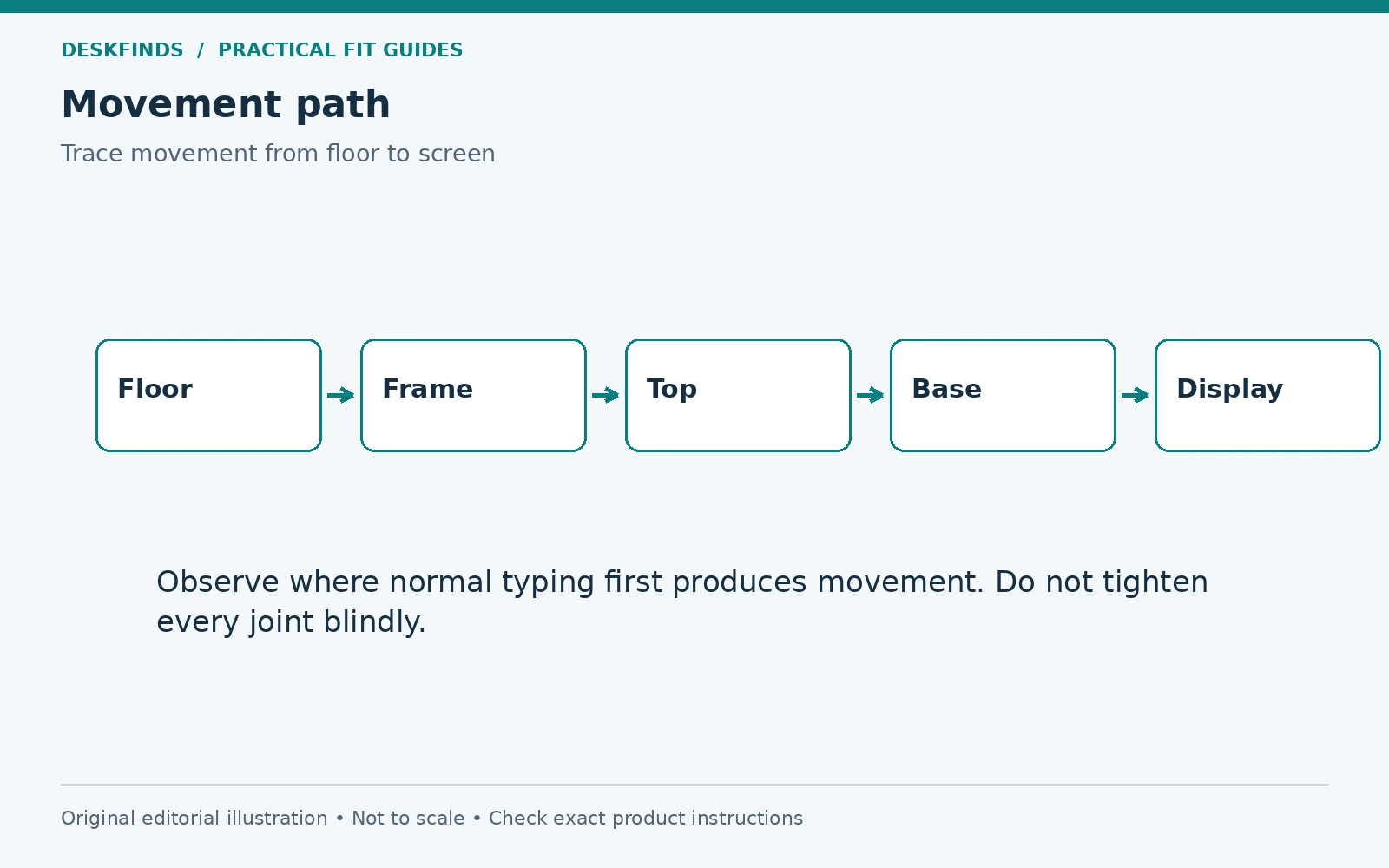
Stand beside the desk while another person types normally, if someone is available. Observe the floor contact, frame, top, mount base, arm joints, and screen in that order. If working alone, use a stable camera position and compare the components against a stationary background. Keep equipment and cables away from walkways.
The first visible moving component is a clue rather than a definitive diagnosis. A flexible top can transmit movement to the arm, which then magnifies it at the screen. A cable rubbing the wall can create a second motion. Write down what you see before changing multiple things and losing the original pattern.
| Observation | Next question |
|---|---|
| Entire desk rocks | Are the floor contacts level and the frame correctly assembled? |
| Desktop moves relative to frame | Are the permitted fixings secure and the top sound? |
| Base shifts relative to top | Is the mount correctly seated on an approved surface? |
| Arm moves but base stays fixed | Is the load and configuration within the manual? |
| Only screen housing appears loose | Is the plate and screen attachment correct? |
Check the desk's own assembly
Find the exact desk instructions and identify the fasteners that are meant to be checked. A loose foot-to-leg connection or frame joint can affect the whole assembly. Follow the stated method and tools; do not assume every visible screw should be tightened as far as possible. Some fittings have specific functions or adjustment procedures.
Inspect the desktop attachment and look for missing parts or damaged holes. A stripped fixing is not solved by repeatedly applying more force. If you discover damaged furniture, contact the manufacturer or a suitable repair professional before adding a mount or load. A monitor arm cannot compensate for a compromised desk.
For an adjustable desk, compare the movement at the heights you use. An extended structure may behave differently from the same desk lowered. That observation can help support identify the issue, but it is not proof of a defect or an instruction to work at an unsuitable height. Use the desk's own troubleshooting process as the next reference.
Examine the floor contacts
A desk can rock because one foot is not bearing as intended. Check for uneven flooring, an uneven rug, debris, or a foot resting partly on a mat. If the desk has leveling feet, adjust them only within the documented range. Do not create a high, unstable stack of improvised shims to chase a perfectly rigid feel.
A soft surface may allow more movement even when all feet make contact. Note that condition when comparing behavior. Moving the desk to a different surface can be a useful observation if it can be done safely after removing or supporting equipment as required. Do not drag a loaded mount across the floor for a quick test.
If the desk is on casters, verify that the correct casters are installed and used as the manufacturer permits. Locks may prevent rolling but not eliminate all movement. Replacing feet or casters changes the desk configuration and should be checked for compatibility, height, and load. The original support arrangement is an important baseline.
Inspect the monitor mount's contact with the desk
Look at the upper base and lower clamp pad. They should contact the surfaces specified in the installation instructions. A rounded edge, bevel, cable opening, or frame member can prevent proper seating. Check whether the base is square to the top and whether it has left a new depression or other damage.
If the desk is hollow-core, glass, or otherwise restricted by the mount instructions, stop and resolve that compatibility issue. A clamp that can close is not necessarily an approved attachment. Our hollow-core desk guide explains why reinforcement plates do not automatically establish structural suitability.
Do not tighten a moving base repeatedly without understanding why it moves. Incorrect contact, surface damage, or an incompatible top can make added pressure harmful. Support the screen and follow the manufacturer's removal or reinstallation procedure. If the mounting point is deteriorating, continued use is not a troubleshooting strategy.
Check load, extension, and the screen connection
Confirm the monitor's weight without its original stand, plus adapters or accessories the arm supports. Compare that installed load with the exact arm's permitted range. For spring-assisted designs, minimum load can matter as well as maximum load. Do not rely only on the diagonal-size range in a marketplace title.
Observe the arm in its normal working position. A long extension can make movement more noticeable than a compact position, but changing the position should not force an unsuitable viewing distance. If a documented alternative fold reduces vibration while preserving the workstation layout, it may be useful. If not, it is a diagnostic clue rather than a complete fix.
Check the monitor plate, release mechanism, and fasteners according to the manual. Incorrect screw length or missing specified spacers can cause a mounting problem. Never open the monitor housing to address external mount movement. If the plate cannot be secured using the specified parts, ask the monitor and mount manufacturers for compatibility guidance.
Spring tension is not a universal cure
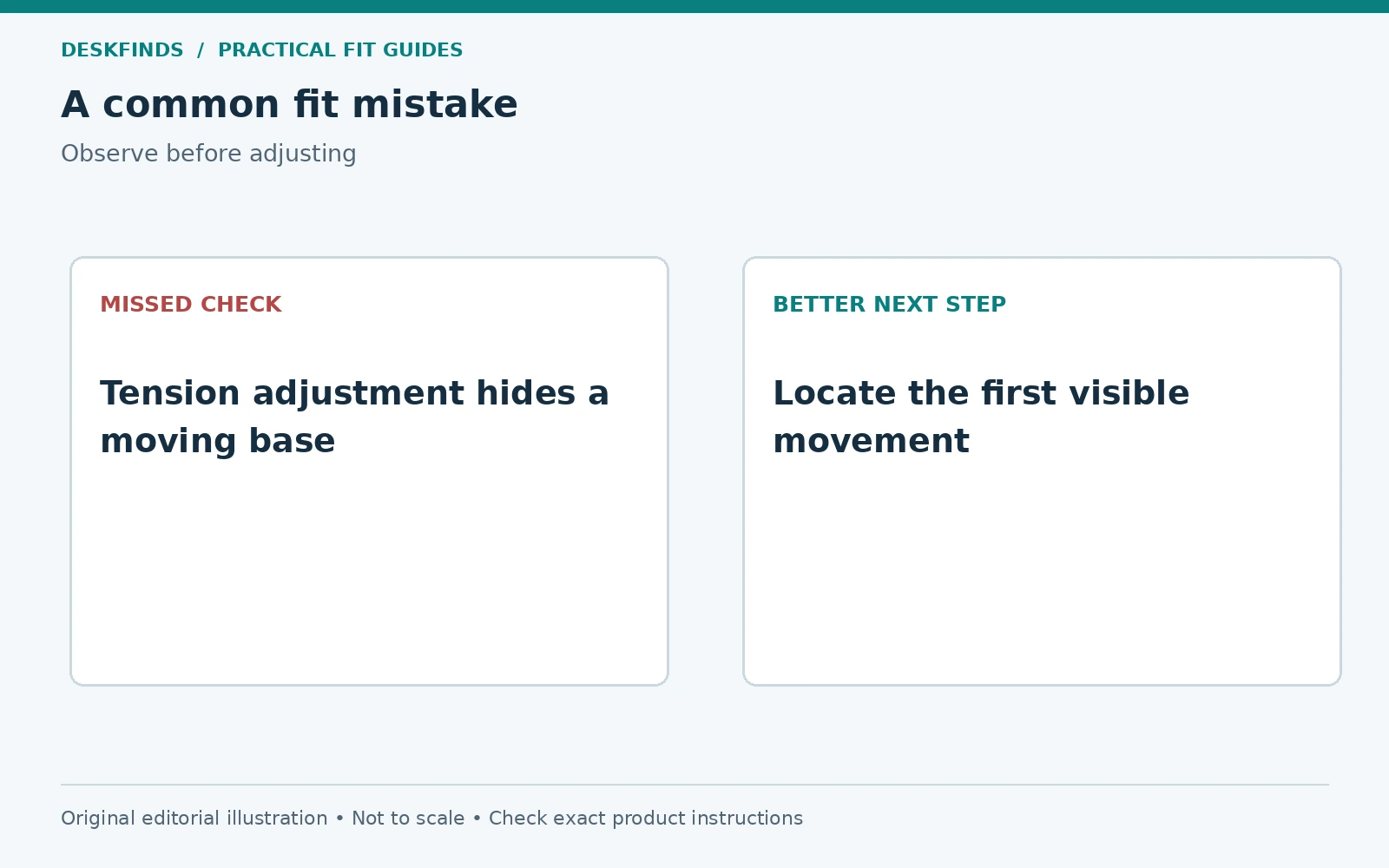
An arm's spring adjustment typically balances the supported load so the screen stays at a selected height. That is different from correcting a loose base or flexible desk. Turning the tension adjuster because a screen vibrates can create a new problem if the screen begins to rise or fall unexpectedly.
Follow the exact adjustment instructions, including load support, direction, and any limits. Do not copy the number of turns used on a different arm in a video. Similar-looking mounts can have different mechanisms. If the screen will not remain positioned within the permitted adjustment range, verify the load and contact support.
Other joints may have their own adjustments or may not be user-adjustable. Identify them from the manual rather than tightening every pivot. An over-tightened joint can become difficult to move or be damaged. The objective is correct operation, not maximum resistance at every connection.
Eliminate cable pulls and accidental contact
Watch the cables while typing and moving the screen through its intended range. A taut cable can pull a display toward a dock or wall. A cable loop trapped between the desk and wall can transmit movement in an unexpected way. Leave the movement allowance required by the mount and device instructions.
Check for objects touching the arm or display: a shelf edge, speaker, lamp, acoustic panel, or window blind. Remove incidental contact without removing necessary support. Do not wedge the screen against a wall to stop vibration; that hides the motion and can load the housing or connectors in ways they were not designed for.
On a standing desk, repeat the cable check at both working heights. A route that is loose when seated can be tight when raised. Our standing desk cable management guide helps plan the moving connections. Secure cables in approved locations without trapping them in the desk mechanism.
Worked example: the arm is blamed, but the desk moves
A user notices both monitors wobbling while typing. The screens use separate arms, so buying two replacements would be expensive. A side-view recording shows the desktop edge moving before either screen. The bases remain aligned with the top, and the arm joints are not visibly slipping.
The desk instructions reveal a permitted frame-fixing check. A loose connection is corrected using the stated procedure, and ordinary typing produces less movement. The observation does not prove every part is perfect, but it identifies a meaningful source before more equipment is purchased. The user then checks the rest of the assembly and records the result.
If movement remains, the next step is a focused support request with the desk model, height, top, load, floor surface, and video. That is more actionable than saying the monitor arm is bad. Replacing an arm may still be appropriate later, but only after the evidence points to its role.
Worked example: one screen shakes more than the other
Another user has a stable desk with two displays. One arm is extended far to the side to make room for a lamp. Its screen shakes more, though both bases remain secure. Moving the lamp and using an approved, less extended arm position reduces the visible motion without changing the screen's useful location.
This is a layout improvement rather than a claim that all extended arms are unsafe. The user verifies load, fasteners, and cable slack as well. If the screen still drifts, the arm's balancing procedure is assessed separately. Different symptoms can coexist, so a successful change to one does not close every question.
The lesson is to preserve the intended workstation while reducing avoidable leverage and contact. If a less extended position brings the screen too close or blocks the keyboard, it is not a practical solution. Compare a better-fitting mount geometry or desk arrangement instead of accepting a new discomfort.
Keep a one-change test log
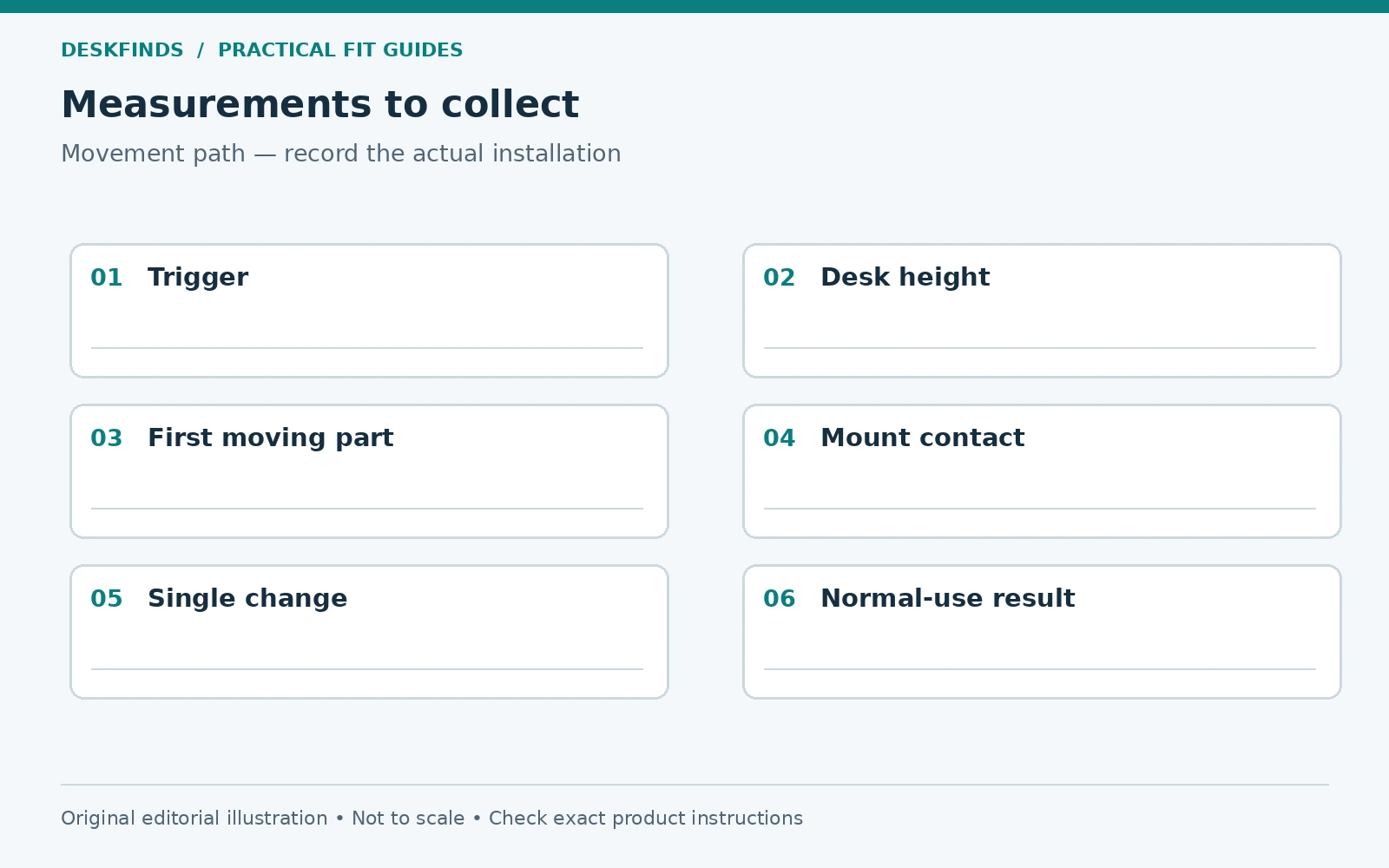
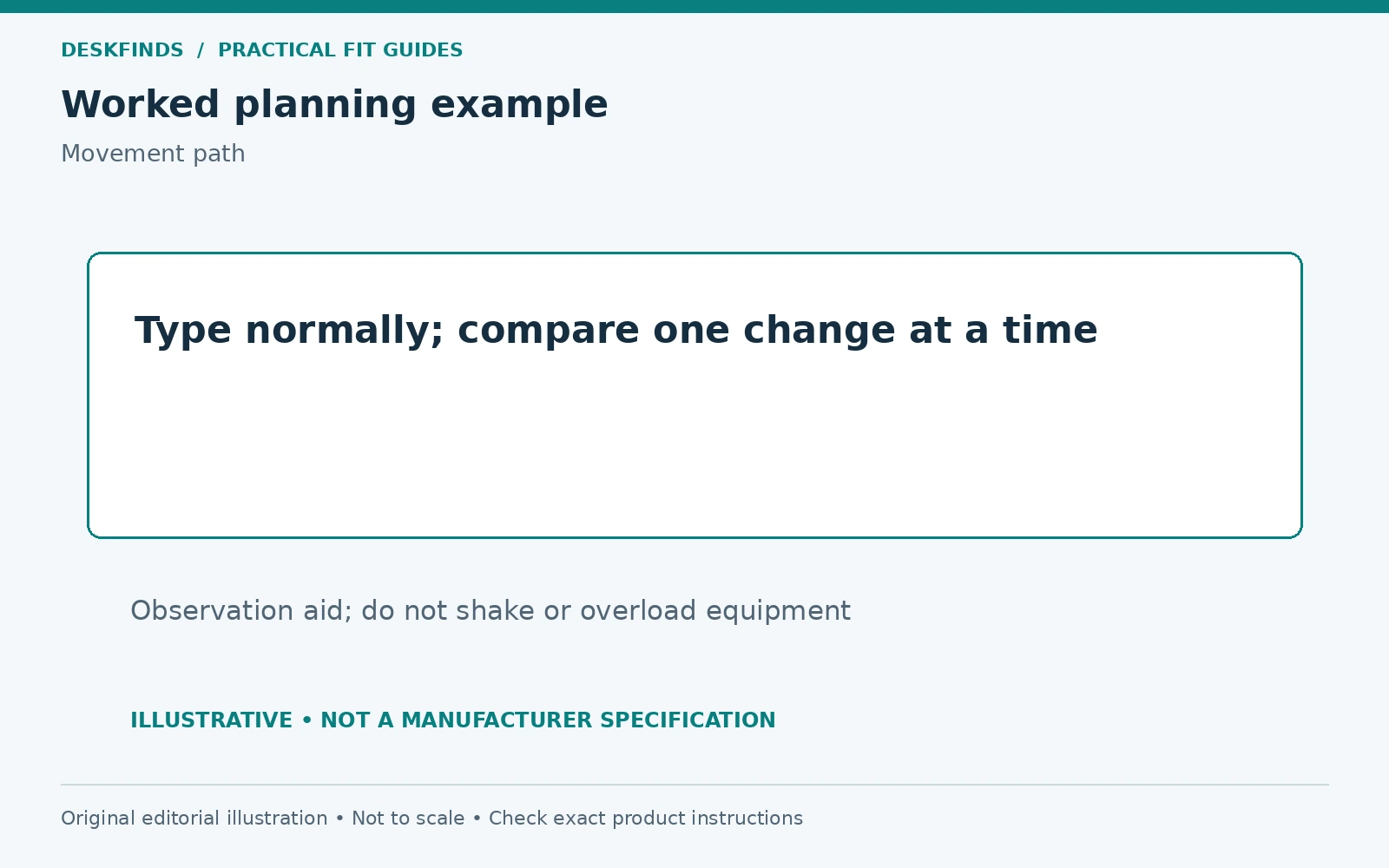
Record the original symptom, the single change made, and the result during the same ordinary task. Use consistent desk height, screen position, and typing conditions where possible. This is not a laboratory test, but it prevents confusing several simultaneous adjustments with a confirmed cause.
Stop if you encounter damage, electrical concerns, or hardware that will not secure as directed. Avoid taking apart spring mechanisms or making structural modifications. A short log, photographs, and model numbers can help manufacturer support decide whether replacement parts, reassembly, or professional inspection are appropriate.
Once the setup is sound, compare equipment only against the remaining need. Our monitor arm guide and small-desk layout guide can help you evaluate alternatives. The best purchase is the one that addresses the identified constraint, rather than adding weight to an unresolved moving structure.
Prepare a useful video for support
Frame the desk foot, desktop edge, mount base, and screen in one view where possible. Use a stationary reference behind the desk so small movement is visible. Record ordinary typing and briefly show the desk height and screen position. Do not push hard on the assembly or create a larger disturbance merely to make the video persuasive.
If the movement appears only at one height or with one screen position, show those conditions separately. Keep the comparison simple and label what changed. A video with several simultaneous adjustments can be difficult to interpret. State whether the symptom is new, gradual, or present since assembly, and whether any equipment or furniture recently changed.
Add the desk and arm model numbers, top construction, monitor load, floor type, and any accessories. Include photographs of the mounting contact surfaces where they can be obtained safely. Support can then compare the installation with its intended configuration. Avoid disassembling a loaded mount solely to obtain a photograph; follow the removal procedure first if inspection requires it.
Distinguish a useful layout change from a hidden fault
Moving a screen closer to its base can reduce visible motion in some arrangements. That observation is useful, but it should not be used to conceal loose hardware, damaged material, or a load outside the permitted range. Resolve those conditions independently. A less extended arm is still attached to the same mounting point.
Similarly, moving the desk against a wall can reduce movement by introducing contact, but that does not establish a correct repair. The wall may receive vibration, cables may be trapped, and a moving desk may collide with it. Use only support arrangements the furniture is designed to accept. Do not wedge objects behind the monitor or arm as an improvised stabilizer.
If the desk is sound but its normal flexibility remains distracting, compare alternatives using the actual load and room geometry. A different top, frame, support method, or screen position may be appropriate. The purchase decision should follow the identified source and the manufacturers' guidance rather than a promise that a heavier arm eliminates every kind of shake.
Know when to stop testing
Stop if the desktop shows a new depression, crack, separation, or spreading damage. Stop if the base shifts, a fastener will not hold as intended, or the screen cannot remain supported during normal adjustment. These are reasons to remove the load safely and seek guidance, not opportunities for another round of tightening.
Do not open a gas-spring assembly, drill additional holes, or replace structural fasteners with arbitrary alternatives. A replacement part should be specified for the product and configuration. If a repair professional is needed, provide the observation log and product documents so the assessment starts from the actual installation.
Once an issue is resolved, repeat only the normal-use check that revealed it and inspect the affected area as instructed. There is no benefit in escalating to aggressive shaking after a sensible repair. Keep the setup within its intended use and preserve the evidence needed if the symptom returns.
If the desk is close to a wall, also check the complete rear arm envelope.
Sources and scope
- UPLIFT desk troubleshooting - model-specific desk assembly and movement checks.
- Ergotron WorkFit-LX - manufacturer notes on desk stability transferring to a mounted assembly.
The observation map and cases are original diagnostic planning examples. They are not a hands-on comparison or a substitute for inspection of damaged furniture.