
Where to Put a Macro Pad or Number Pad on a Small Desk
Affiliate Disclosure: We may earn a small commission on qualifying Amazon purchases at no extra cost to you. Full disclosure →
A compact control pad can save repeated keyboard actions and still make a small desk harder to use. If it occupies the mouse’s turning space, hides a notebook, or triggers shortcuts in the wrong application, its tiny footprint is misleading. Start with the actions you want to improve, then give the pad a position that supports those actions without disrupting the rest of the desk.
Quick answer: List the repeated commands or numeric-entry tasks first. Check the device’s software, permissions, and host support, then compare positions outside the normal mouse sweep and within practical reach. Include cable exits and a safe parking state. Test application focus and profile behavior before assigning consequential commands. A number pad and a programmable macro pad solve different problems even when they have a similar shape.
Choose the job before the device
A number pad primarily supports numeric entry, while a programmable control pad can invoke supported shortcuts or actions. Some devices overlap, but do not assume a numeric keypad can perform every automation or that a macro pad reproduces a familiar number-entry layout.
Write five actual repeated tasks, not a wish list of possible automations. Examples might include entering invoice amounts, changing a drawing tool, opening a frequently used application, or applying a supported shortcut. Estimate frequency from ordinary work rather than marketing claims about time saved.
If the task is drawing, use the tablet and keyboard layout guide to decide which controls the non-pen hand needs. If it is spreadsheet entry, compare the keyboard’s existing number row or built-in keypad before buying a second device. A new control pad is useful when it addresses a repeated constraint.
Check software and permissions
Read the exact model’s host and software requirements. A managed computer may prohibit installation, plugins, accessibility permissions, or automation features. Confirm those restrictions before making the device essential to your routine. A pad recognized as basic input may not provide its advertised advanced functions without software.
Elgato’s hotkey guidance illustrates application-specific profiles and shortcut actions for its ecosystem. That is a model-and-software example, not a guarantee that every programmable keypad supports automatic profiles. Check the current documentation for the product and host you will use.
Keep employer data and credentials out of custom buttons unless the relevant policy permits the use. Avoid assigning passwords, private client information, or sensitive text to a casually accessible key. This guide concerns placement and ordinary action planning, not approval for bypassing software controls or automating a restricted workflow.
Map the mouse’s real working area
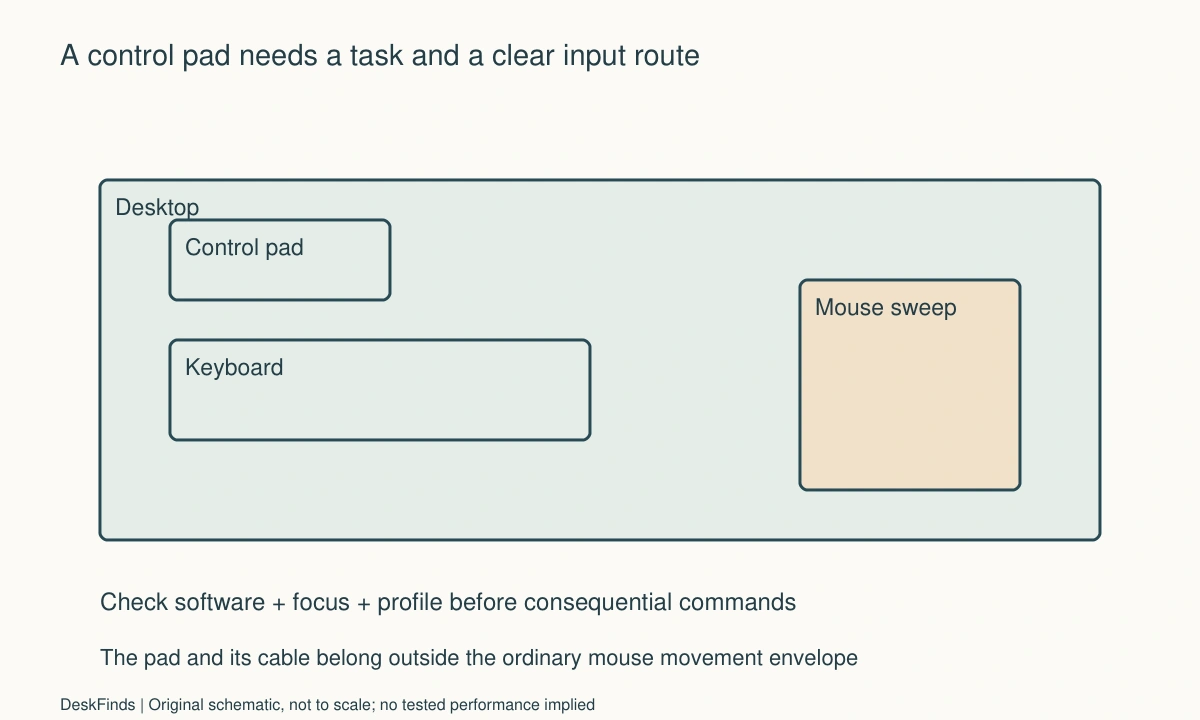
Use the mouse at your ordinary settings and observe its usual sweep, including diagonal movement and repositioning. Do not reserve only the sensor’s path; the body, cable, and hand need room too. A macro pad placed in an apparently empty corner may become an obstacle during a wide movement.
The mouse pad size guide provides size terminology, while the low-sensitivity mouse-space guide explains a task-based measurement. Keep the control pad outside that working envelope unless a deliberate task transition moves one device out of the way.
Check cable exits on both devices. A pad’s side cable can cross the mouse route even when the pad body does not. Prefer a relaxed supported cable path over a taut lead tucked under the pad. If the device is wireless, include its supported charging routine and any receiver location in the plan.

Compare left, right, and above-keyboard positions
A side position can make the pad easy to reach while leaving the keyboard centered for typing. Which side is useful depends on the task and hands involved. Do not assume every right-handed person wants the pad on the left; numeric entry, pen input, and mouse-heavy tasks can call for different arrangements.
An above-keyboard position can use shallow spare depth but may increase reach. Check it with the actual keyboard angle and monitor base. Avoid stacking the pad on an unstable riser or placing it where your hand repeatedly presses against a cable or monitor control.
A task-specific position can be effective on a tight desk. Bring the keypad into the main area for a batch of numeric entry, then park it on a supported surface when the mouse becomes primary. Include the transition in the comparison rather than forcing every device to remain permanently deployed.
Make profile and focus behavior visible
A shortcut often acts on the foreground application. If focus changes, the same key can produce a different result or no result. Test with harmless commands and nonessential documents. Do not begin by assigning deletion, submission, purchase, or other consequential actions that would be difficult to undo.
If the device supports automatic profiles, verify how it identifies the active application and what happens when a dialog or another program takes focus. Give buttons labels you can recognize at the actual viewing angle. A small display or icon is useful only if it tells you what the key will do in the current state.
For a desk shared by two computers, the USB switch guide addresses host ownership. A macro pad can be selected to one host while the monitor shows another, so keep that possibility in mind before using commands that affect active work.
Account for reading angle and touch
A tilted pad may be easier to read while using more depth or changing cable clearance. Use the supplied or compatible supported base and permitted angles. Do not prop it against another device where ordinary key presses can dislodge it.
Check whether you can identify and press the intended control without moving the keyboard. If a pad relies on looking down for every command, it may still suit occasional actions, but the claimed convenience should be judged against your actual routine. Avoid inventing a productivity percentage from a brief trial.
Keep frequently used harmless actions easy to distinguish. Separate commands that have similar labels but different consequences. A layout that reduces accidental selection can be more valuable than one that exposes the maximum number of functions at once. More pages of buttons are not automatically more useful.
Worked example: a number pad was needed only in batches
Imagine a hypothetical freelancer who uses a compact keyboard and occasionally enters expense amounts. A separate number pad seems useful, but the initial permanent position occupies the space used by the mouse during editing work. The pad fits physically, yet its placement conflicts with the more frequent task.
The freelancer observes the weekly routine and finds that numeric entry happens in short batches. A task-specific setup is compared: the pad moves into a central supported position during that batch and returns to a defined parking area afterward. The mouse remains available without its normal sweep being blocked for the rest of the day.
A programmable pad is also considered, but its extra features require software not needed for the numeric task. The freelancer checks whether simple number entry, familiar key spacing, and the existing application shortcuts already solve the problem. The more elaborate device is not favored merely because it can do more.
The chosen hypothetical arrangement is evaluated with the actual invoice form and harmless sample data. The reset routine includes putting the pad away and checking that its cable does not cross the keyboard. The example demonstrates matching deployment to task frequency; it does not claim that one keypad style improves speed for every user.
Keep the setup understandable after a break
Document the few actions you actually use. If a profile becomes a collection of experiments, remove or revise entries that create confusion. Keep the default state recognizable so returning to the desk after a trip does not require rediscovering what each button means.
After a software update or host change, test essential commands with noncritical material. A working button label does not prove the target application still interprets a shortcut the same way. Use official software guidance for changed behavior rather than adding more automation layers to compensate blindly.
For a shared desk, make personal control layouts easy to identify and avoid exposing another user’s data. If a device must be reconfigured between users, include that setup time in the purchase decision. A pad that is convenient for one person’s highly customized workflow may not be the simplest communal input device.
A six-point trial record
The repeated task
Name the exact action and how often it occurs in ordinary work. Compare the existing keyboard shortcut or number-entry method before adding a device. If the task is rare, a temporary deployment may be sufficient. Keep the benefit statement concrete, such as reducing a repeated reach, rather than assigning an unsupported percentage improvement in productivity.
Host support
Record the OS, required software, permissions, and whether configuration must be installed on every computer used. Verify managed-device restrictions before buying. If the advanced function is unavailable, decide whether basic input still justifies the product. Recognition by the operating system and access to every advertised feature are separate acceptance criteria.
Physical envelope
Outline the pad, base, plug, and normal hand approach. Check it with the keyboard, mouse, and notebook present. Include a parking place if the pad moves between tasks. A compact body does not guarantee a compact working arrangement, especially when a side-facing connector or a tilted base uses the last available strip of desk.
Action certainty
Test each intended command in the correct application using harmless material. Change focus deliberately and observe the supported profile behavior. Label ambiguous actions more clearly or remove them. Do not treat a successful hotkey in one window as proof that the same button will act safely in every context, particularly when the host or active program changes.
Ordinary key use
Press the controls in the intended supported position and check that the base remains properly placed. Do not improvise a steep angle or a loose support to improve visibility. If reading the labels or reaching the keys is awkward, compare another permitted position before changing the whole desk. The usable angle is part of the footprint.
Reset and maintenance
Return the device to its planned state after the task, including any profile change or charging step. Keep a short record of essential assignments. If maintaining the pad takes more effort than the action it replaces, simplify the setup. A small number of clear supported functions can provide more value than a complicated layout that requires frequent repair.

Compare permanent and temporary deployment
A permanently placed pad makes sense when its commands are used throughout the day and its footprint does not interfere with primary input. A temporary pad can suit a short batch of numeric entry or a specific creative task. Include the supported parking surface, cable route, and setup action in that comparison rather than assuming temporary means disorganized.
For a wired device, check whether moving between the two positions keeps the lead relaxed. For a wireless device, include charging, battery care, and any host-selection procedure. A connection method should be chosen for its documented suitability and the routine, not just because it hides a cable. The pad body still needs a useful location in either case.
Compare the number of repeated actions the pad removes with the actions it adds. Opening software, selecting a profile, moving the pad, and checking focus may be worthwhile for a complex repeated task. They may be excessive for an occasional shortcut already easy on the keyboard. Describe that tradeoff concretely without inventing a time-savings percentage.
A second scenario: the same button meant two different things
Imagine a hypothetical editor who uses a programmable pad for several applications. The pad sits in a narrow space above the keyboard, and automatic profiles are configured through supported software. A familiar icon appears in two profiles, but the associated actions are different.
During a harmless trial, the editor changes foreground applications and checks what the button will do. The label is too similar to distinguish the current action easily from the seated position. The editor revises the layout with clearer wording and separates consequential actions from ordinary navigation. The goal is not to display as many functions as possible, but to make the current state understandable.
The editor also checks what happens when a dialog, browser window, or another program takes focus. Only behavior documented and observed in the supported arrangement is relied upon. If the software cannot provide the required context certainty, a simpler manual profile or ordinary keyboard shortcut may be preferable for that action. No feature is assumed to exist on every programmable pad.
Placement is reviewed alongside the software. A better angle may improve label visibility but increase depth or cable projection. The editor uses a compatible supported base and leaves the mouse sweep clear. Moving the pad to the side is compared with reducing the number of visible actions. Physical readability and action certainty are treated as related, separate checks.
This hypothetical scenario shows why a macro pad is more than a collection of extra keys. Its usefulness depends on the user knowing which action belongs to the current host and application. The example makes no claim that a particular product prevented an error or that automatic profiles are universally reliable.
Start with reversible, low-consequence commands
During setup, use navigation, harmless text in a test document, or another easily reversible supported action. Confirm focus and profile changes before adding more complex workflows. Do not use a real purchase, deletion, submission, or sensitive-data operation as the first test of an unfamiliar button.
Keep a clear difference between a shortcut and a complete workflow. A button invoking one supported application command may be easy to understand, while a multi-step action can depend on windows, timing, permissions, and application state. Add complexity only when it addresses a real repeated need and can be maintained within the relevant software and organizational rules.
Review assignments after the initial trial. Remove abandoned experiments and ambiguous icons. A small stable set of useful actions is easier to remember than several pages built from possibilities you rarely use. The pad should reduce a known repeated effort, not become another system that needs frequent repair before ordinary work begins.
If the desk is shared, keep each person’s configuration and host ownership clear. A common physical position does not mean the same key performs the same action on both computers. Include the handover and reset process in the acceptance decision, especially when the monitor input and USB ownership can be selected independently.
Sources and scope
- Elgato hotkey guidance - Specific ecosystem example of shortcut and profile behavior; not a universal macro-pad feature list.
Editorial note: This is a research-based planning guide, not a hands-on product review. All worked scenarios are hypothetical. Measurements and compatibility must be confirmed for the exact equipment. Photography supplies context, not proof of a tested arrangement.
Photos are illustrative and come from free-license libraries such as Unsplash; diagrams are original to DeskFinds.