
How Much Desk Space Do You Need for a Low-Sensitivity Mouse Setup?
Affiliate Disclosure: We may earn a small commission on qualifying Amazon purchases at no extra cost to you. Full disclosure →
A large mouse pad cannot create space that the keyboard, monitor base, and desk edge already occupy. For a low-sensitivity setup, the useful question is how much unobstructed movement your actual tasks need. Measure that movement before ordering a pad whose advertised size may include areas you cannot use.
Quick answer: Keep your normal mouse and application settings, observe representative movements, and mark the complete mouse-and-hand envelope on the desk. Include diagonal travel, recentering, cable or bungee space, and the keyboard’s real position. Choose a pad that covers the usable surface without unsupported overhang or conflicts. Do not use DPI alone as a universal formula for pad size.
Keep the settings you actually use
Record mouse sensitivity settings, relevant application settings, and any profile changes. The same advertised DPI can produce different practical movement when software behavior differs. A pad-size decision should reflect your working setup, not a generic number copied from another person’s gaming profile.
A manufacturer explanation of DPI can help with terminology, but the buying measurement is the real movement needed for your task. Avoid changing sensitivity during the first layout comparison, because that would change the requirement you are trying to measure. If you later choose to change settings, evaluate that as a separate option.
The mouse pad sizing guide covers common dimensions and categories. This guide focuses on the space that remains usable after the rest of a compact workstation is in place.
Observe movement through representative tasks
Use a harmless representative task in the application that matters. Include long horizontal and vertical movements, diagonal travel, and the action of lifting or recentering the mouse where that is part of your normal technique. Do not assume a single straight swipe describes the full envelope.
Mark the approximate body and hand positions with a non-damaging planning method, or use a paper outline outside the active surface. Keep liquids and loose objects away while observing. This is a layout observation, not a standardized performance test or advice to perform repetitive movement for a fixed duration.
If two people share the desk, observe each person’s ordinary setup separately. A pad can be large enough for one sensitivity and too restricted for another. Compare whether a simple task-state change can accommodate both before assuming one permanent position must serve every user identically.
Distinguish pad area from usable area
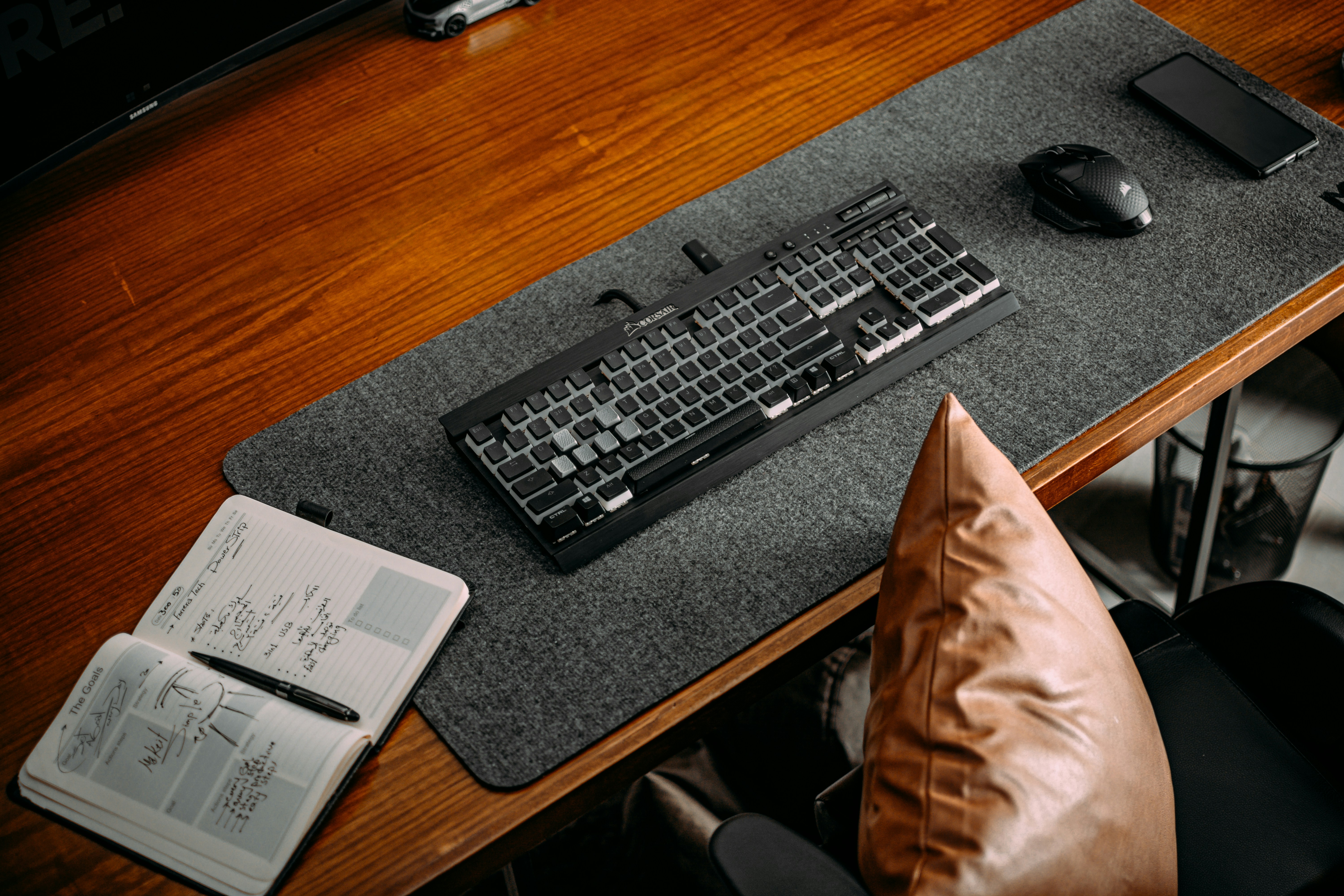
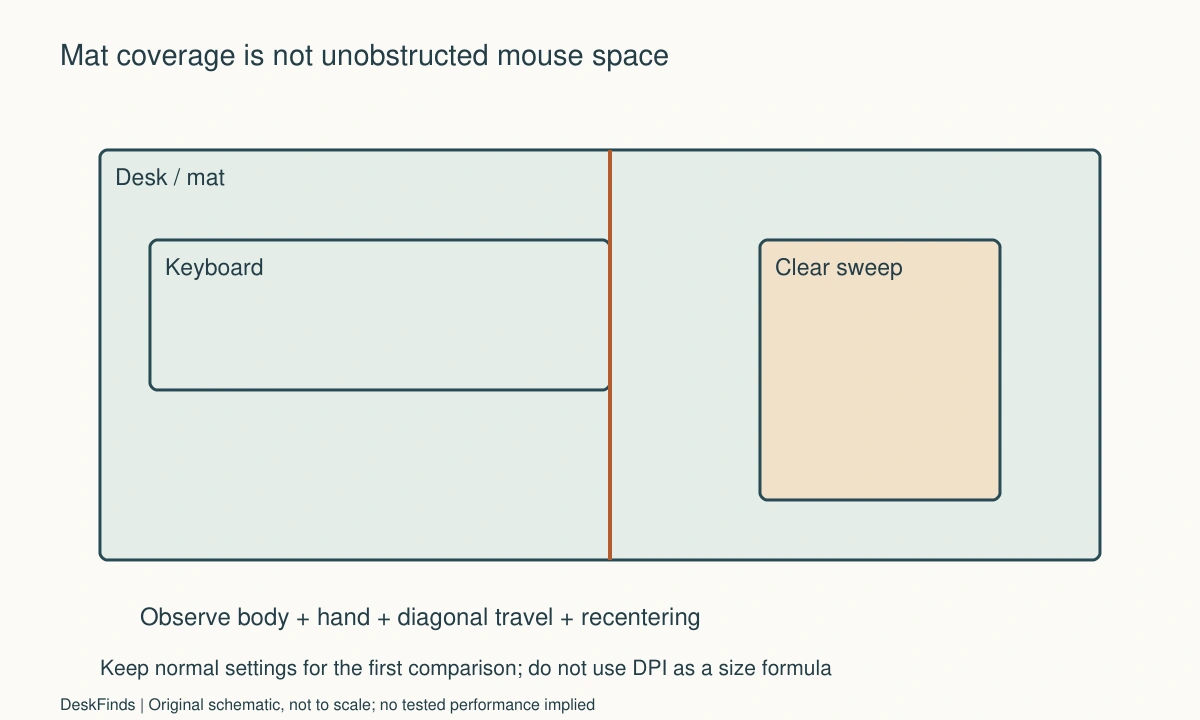
A desk mat may extend under a keyboard, monitor base, or lamp, leaving only part of its surface available for mouse movement. Measure the clear region rather than the total mat. A large rectangle printed on a listing does not describe the unobstructed space in your room.
Include the mouse body and hand, not only the sensor. The sensor can remain on the pad while the shell or fingers strike a keyboard corner. Likewise, a desk edge can constrain a movement even when the pad technically reaches it. Check the actual interaction, especially at the lower and side boundaries.
The macro pad placement guide addresses another accessory that often occupies this region. Treat a control pad, speaker control, or phone stand as an obstruction if it sits in the mouse’s ordinary route, however small its base may be.

Check the keyboard position first
A keyboard’s width can determine how much lateral mouse space remains. Keep the typing position useful rather than pushing the keyboard far aside solely to fit a larger pad. If a compact keyboard is being considered, compare the keys and functions you actually need before buying another device.
A separate number pad can be deployed only when required, while a full-size keyboard keeps those keys permanently available. Neither choice is universally better. The number pad and macro pad guide helps compare task frequency and parking space rather than treating a narrower keyboard as a free gain.
Check notebook and document use too. If paper occupies the mouse area during calls or study, plan distinct states. A large pad does not prevent a notebook from taking over its surface. The layout should acknowledge which object is primary during each task and where the others are supported.
Add the cable’s movement envelope
For a wired mouse, observe the cable through the intended range without pulling it taut. A monitor base, desk lip, or nearby charger can change how it moves. Keep the lead from catching a sharp corner or dragging another device. Do not route it under a heavy base merely to make it less visible.
If a bungee is considered, include its own base and the supported cable arrangement. It can manage a particular route but does not add desk width or make an undersized pad sufficient. Confirm that it works with the mouse cable and location instead of assuming every raised cable arrangement behaves the same way.
For a wireless mouse, include the supported charging or battery routine and receiver placement. Wireless operation removes a moving cable from the immediate sweep, but it does not reduce the space needed by the mouse body and hand. Avoid choosing an input technology solely to disguise a physical layout conflict.
Compare surface and edge behavior
Use a pad intended for the desk surface and mouse. Check the manufacturer’s care instructions and any relevant sensor compatibility. A thick soft mat, curled edge, or unsupported overhang can change ordinary use, so evaluate the delivered product in its permitted condition rather than forcing it flat with improvised heat or weight.
Keep the entire working area supported. A pad extending beyond the desk is not additional reliable mouse space. Trim a product only if the manufacturer explicitly permits it; cutting can affect construction and is not a general solution for a poor size choice.
The desk mat versus chair mat guide distinguishes unrelated surface-protection categories. Do not borrow care or material assumptions from a floor mat when choosing a desktop input surface.
Worked example: the larger mat had the same usable strip
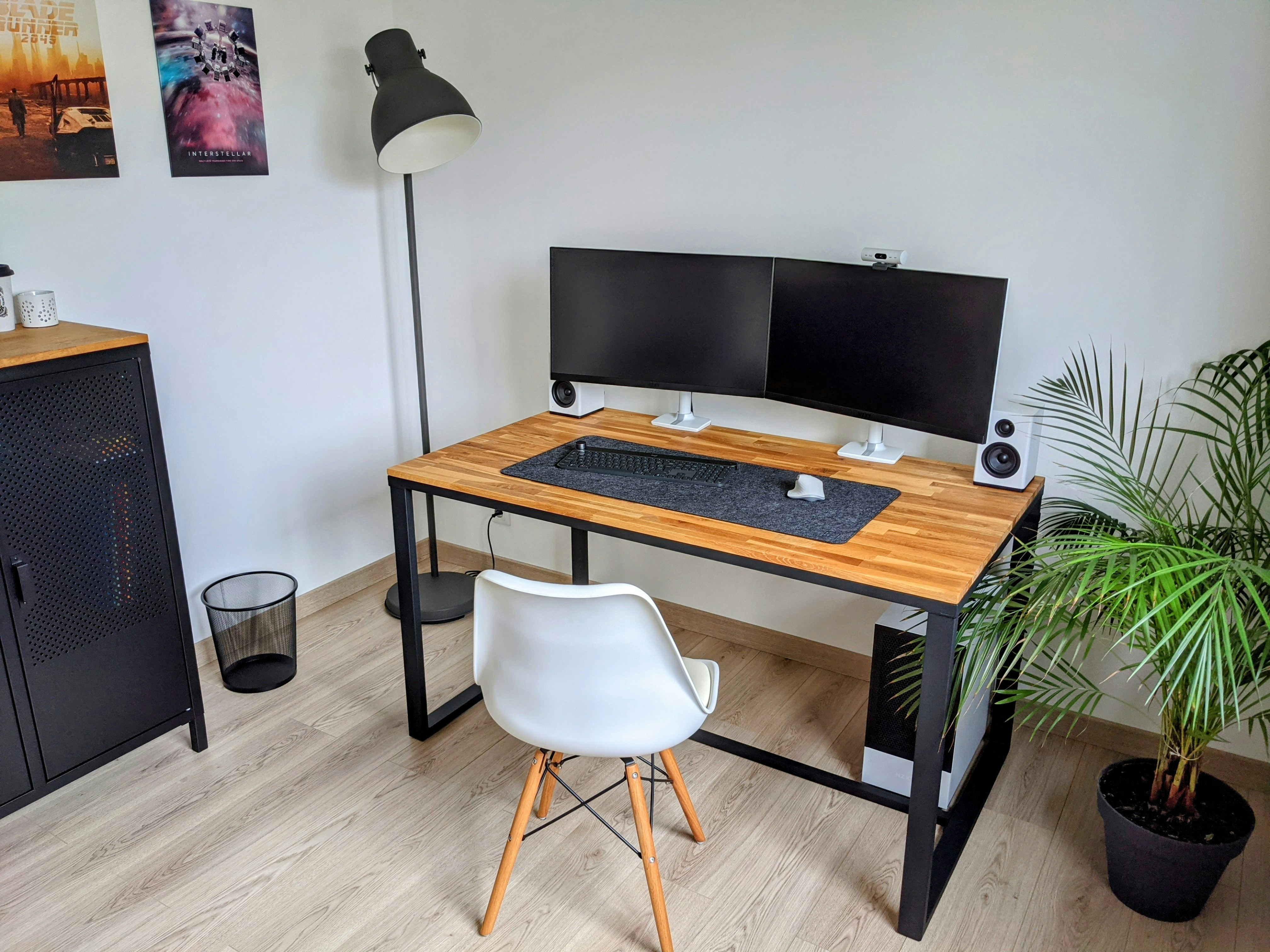
Imagine a hypothetical user who prefers low sensitivity and repeatedly reaches the edge of a small pad. The first proposed purchase is an extended mat wide enough to span the whole desk. However, the keyboard, monitor stand, and a controller occupy most of that extra surface.
The user marks the actual clear region with the normal settings unchanged. The extended mat would add coverage under stationary devices but little additional movement where the mouse needs it. The limitation is the arrangement, not just the current pad’s outer dimensions.
The user compares moving a small controller outside the sweep, shifting a supported monitor base within its allowed position, and using a task-specific parking place for a notebook. A compact keyboard is considered only after checking needed keys. Each change is evaluated separately so the user can see which obstruction is actually removed.
In this hypothetical case, a better layout creates a clear movement region, and a suitable pad is then chosen to cover it. Another user might decide that a supported change in sensitivity is preferable, but that is a separate usability decision. The example does not promise an aiming improvement or recommend a universal pad size; it shows how to avoid buying coverage that remains unusable.
Avoid using discomfort as a sizing calculator
If ordinary use is uncomfortable, a larger pad alone may not address the cause. Review the whole workstation and seek appropriate professional advice for persistent symptoms rather than treating a product purchase as treatment. This guide makes no medical claims about sensitivity, posture, or injury prevention.
For general workstation principles, use the official guidance relevant to your workplace. Keep layout observations specific: the mouse hits the keyboard, the cable catches, or the notebook occupies the clear area. Those are concrete constraints you can address without claiming that one product category is inherently ergonomic for everyone.
Do not make yourself perform exaggerated movements just to justify a pad. Observe ordinary tasks and take normal breaks. The goal is to support how you work, not to train around a crowded desk or turn a shopping decision into an endurance exercise.
Six measurements that matter
Settings and task
Record the mouse profile and application used during observation. Keep them unchanged for the first layout comparison. A DPI label alone does not describe the practical movement envelope. If you later alter sensitivity, repeat the relevant ordinary task and record that as a different configuration rather than mixing the observations together.
Clear width and depth
Measure the unobstructed region after placing the keyboard, monitor supports, and daily accessories. Distinguish that region from the total desk or mat size. Include the actual position of the chair and working edge. A pad that fits the furniture can still leave too little free movement if its useful area is occupied by stationary equipment.
Body and hand route
Observe the complete mouse and hand envelope, including diagonal travel and recentering. Check for contact with keyboard corners and nearby controls. Do not reduce the record to sensor travel alone. If you need to move another object for a task, give it a planned supported destination so the cleared space is repeatable rather than temporary clutter elsewhere.
Cable or charging
For a wired device, check relaxed cable movement and any compatible bungee footprint. For a wireless device, include the supported charging routine and receiver arrangement. Neither connection choice eliminates the need for body clearance. A cable accessory should solve a documented routing problem, not serve as an assumed substitute for missing desk width.
Pad support and care
Check that the working surface lies fully supported in the intended location and remains within the manufacturer’s use conditions. Follow the stated cleaning and flattening guidance. If the product arrives curled or unsuitable, use the seller’s support or return process instead of applying an improvised remedy that could damage it or the desk.
Shared-task reset
Restore the pad and accessories after writing, drawing, or numeric entry. Check that the ordinary mouse route is available again without hunting for a place to put other equipment. A successful small-desk layout can have several deliberate states. The important part is that each state has enough usable space and a clear transition back to the next task.
Compare coverage with clearance
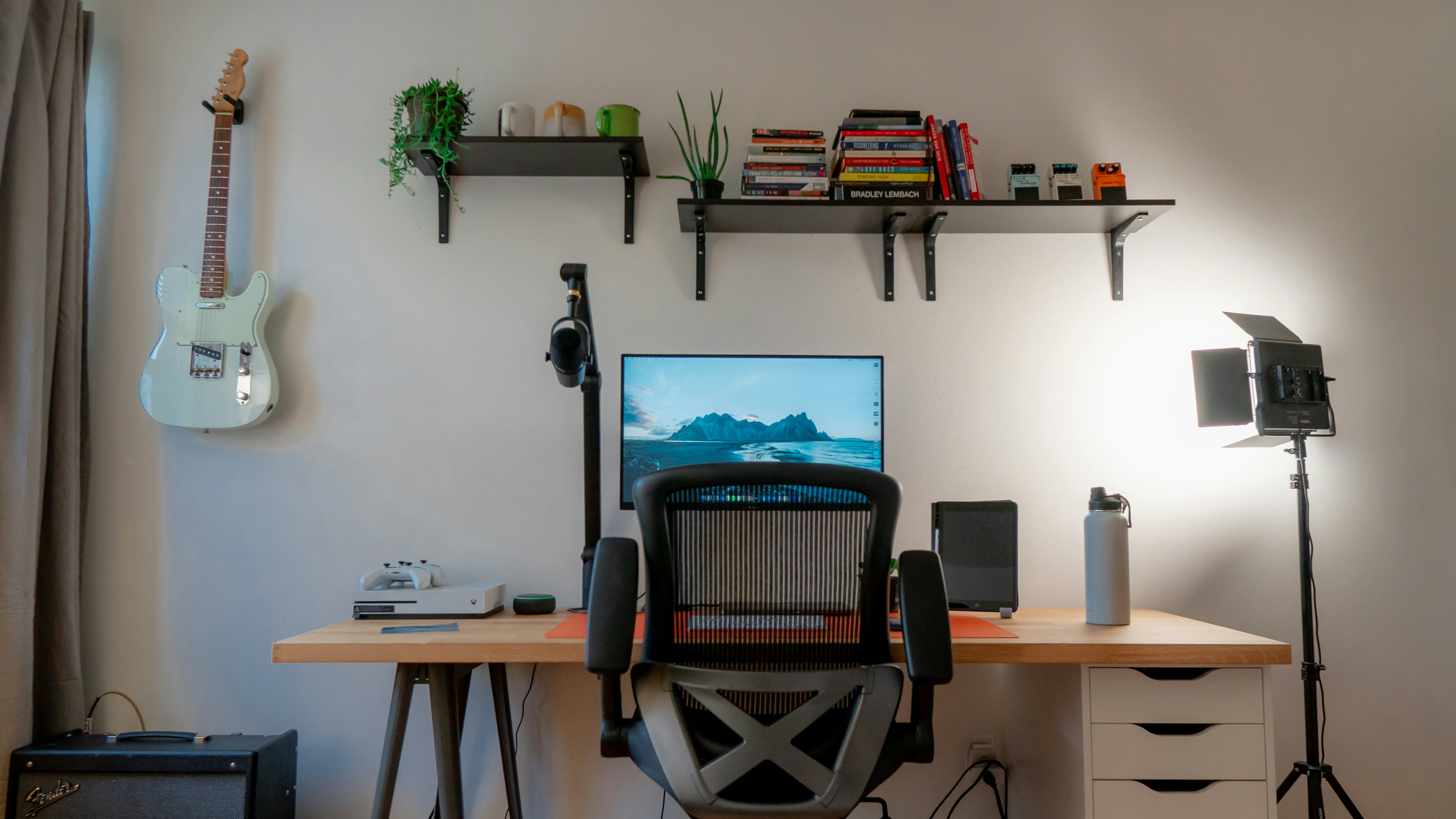
A larger mat provides more surface coverage, but only a layout change can remove an object occupying the mouse route. Before choosing a size, distinguish missing pad material from missing unobstructed desk. If the mouse already reaches a keyboard or speaker before the pad edge, another layer under those objects will not solve the primary conflict.
Compare two outlines: the pad’s outer rectangle and the usable movement region after equipment is placed. Include the curved or irregular boundaries created by monitor bases and desk edges. A simple width measurement can overstate the room available for diagonal movements. The useful purchase is the surface that covers the clear region you can actually use.
Consider whether an extended mat serves another legitimate purpose, such as a continuous surface under a keyboard, without claiming that all of it becomes mouse space. That can still be a reasonable choice. The key is accurate benefit: coverage, appearance, and mouse clearance are different reasons to buy and should not be collapsed into one oversized dimension.
A second scenario: a shared desk had two movement envelopes
Imagine a hypothetical pair of roommates using one desk at different times. One uses relatively small mouse movements for office work; the other uses a wider ordinary sweep in a specific application. Both initially assume a single centered pad position should suit them because the mouse model is the same.
They record each user’s actual settings and representative task separately. The wider envelope conflicts with a small desktop control and a notebook parking place, while the narrower envelope does not. Rather than changing one person’s settings without need, they compare a simple end-of-session reset that moves those accessories to suitable supported locations.
The pad is then chosen to cover the common clear surface, with each user’s keyboard position documented. No equipment is left overhanging the desk to create apparent extra width. The wired mouse’s route is checked through both positions, or the wireless charging routine is included if that is the selected supported device arrangement.
The roommates agree on an ordinary default state and a short transition for the wider-movement task. If that transition is too cumbersome, they compare another supported layout rather than relying on one person to avoid hitting the control. The decision respects the actual task difference instead of using a universal DPI-to-pad-size rule.
This hypothetical example does not recommend a particular sensitivity or claim a performance improvement. It shows that the same desk and mouse can have different practical space requirements when the user and application change. A shared solution can include deliberate states rather than one permanent compromise.
Decide whether another purchase addresses the constraint
A compact keyboard, wireless mouse, bungee, or monitor arm can each change part of the arrangement, but none should be bought merely because a large pad looks crowded. Identify the obstruction first. A narrower keyboard may remove a lateral conflict while losing needed keys; a wireless mouse may simplify a cable route while leaving the same body envelope.
If a monitor support is changed, verify its own compatibility and load requirements. Do not move a heavy display to an unsupported position just to gain mouse space. Include the cost and footprint of the complete supported alternative, and compare it with a simple task-state change that uses existing equipment.
Keep comfort and performance claims modest. Your own ordinary observation can show that the mouse no longer contacts a keyboard in a specific layout. It does not prove reduced injury risk or better accuracy for other users. Describe the arrangement and the concrete task result, leaving medical and competitive-performance conclusions outside the evidence.
After the layout is settled, choose a suitable pad material and size using its instructions and return terms. Check the delivered product in its permitted condition. If it does not lie or function as documented, use the maker’s care or support process rather than modifying the desk around an unsuitable mat.
Sources and scope
- Glorious mouse-setting terminology - Background on sensitivity terminology; desk area recommendations come from original task-based analysis.
Editorial note: This is a research-based planning guide, not a hands-on product review. All worked scenarios are hypothetical. Measurements and compatibility must be confirmed for the exact equipment. Photography supplies context, not proof of a tested arrangement.
Photos are illustrative and come from free-license libraries such as Unsplash; diagrams are original to DeskFinds.