
How to Place a Desktop Computer in a Small Room Without Blocking Airflow
Affiliate Disclosure: We may earn a small commission on qualifying Amazon purchases at no extra cost to you. Full disclosure →
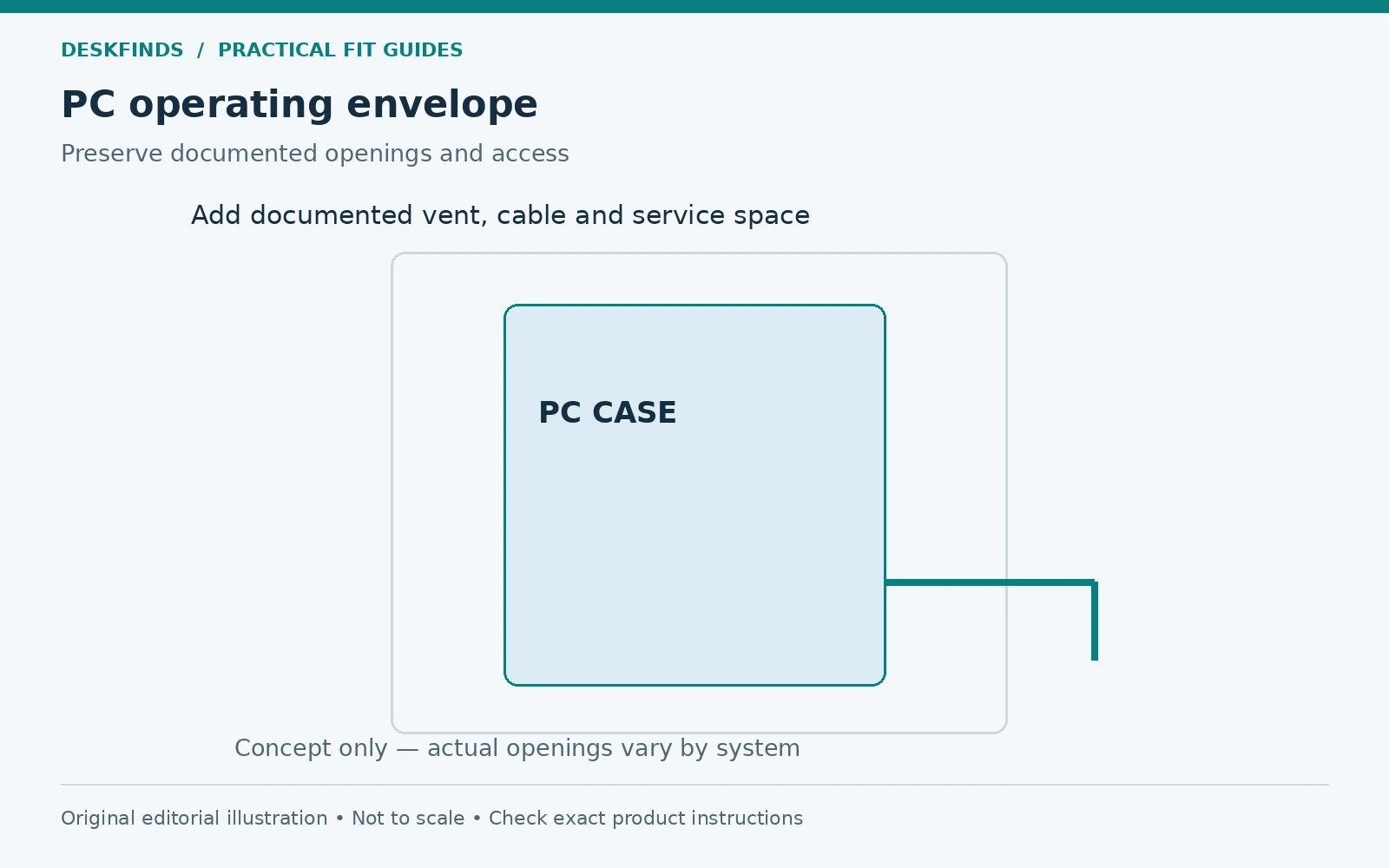
A PC tower can fit beneath a desk while its vents face a cabinet, its bottom intake sinks into a soft surface, or its rear cables press against the wall. The case dimensions describe the box, not the space needed to operate and maintain it. A useful location preserves support, airflow, access, and the room's normal movement.
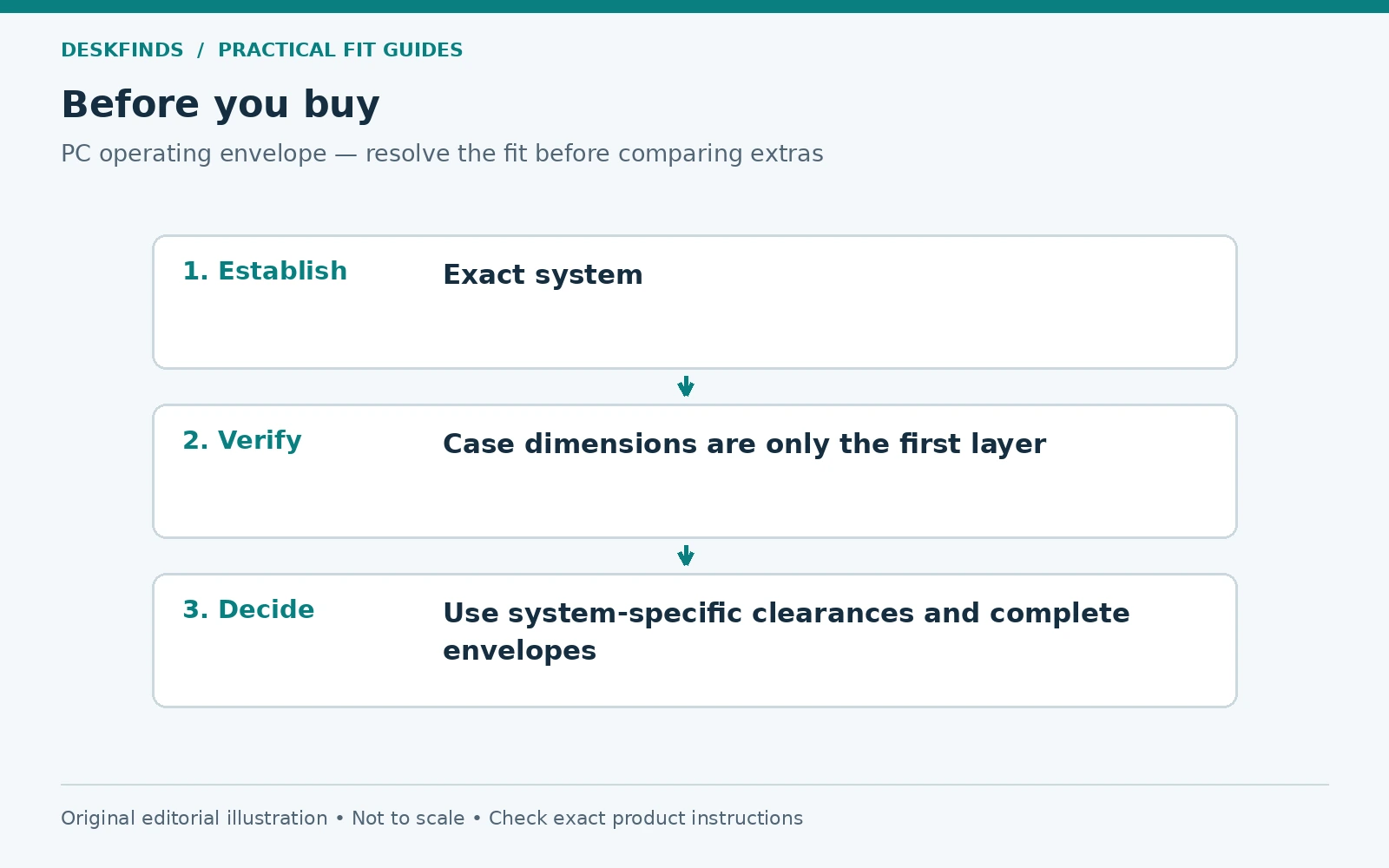
Quick answer: Identify the exact computer or case requirements, locate its ventilation and service areas, and map the complete installed envelope with plugs and cables. Choose a stable suitable surface and keep the required clearances. Do not assume every tower can operate in a closed cabinet, on its side, or in a generic hanging holder.
This guide covers external placement. It does not prescribe internal cooling changes, overclocking, or a universal clearance number. Our PC tower placement guide provides broader layout context; this article adds a small-room airflow and access worksheet.
Identify the actual system and its requirements
For a prebuilt computer, find the full model and current setup and safety documents. For a custom system, use the case and relevant component instructions. The ventilation arrangement can differ substantially between cases that look similar from the front. Do not infer it from size labels such as mini tower or gaming tower.
Record the permitted operating orientation, required surrounding space, environmental conditions, and support needs. Identify any restrictions on enclosed furniture. If the manual does not answer a decisive question, ask the manufacturer rather than copying a distance from another model's guide.
Include the installed configuration. Added filters, external accessories, drive access, and rear connections can change the space used. A case's bare dimensions are a starting point, not the final room envelope. Keep the exact system record with the placement plan.
Locate vents without assuming a standard direction
Inspect the exterior and documentation to identify ventilation openings and the manufacturer's intended airflow paths. A decorative front panel may hide side openings, while a bottom intake may need particular support clearance. Do not assume all front openings are intake and all top openings are exhaust.
For a custom build, confirm the installed fan arrangement from the actual system information and appropriate instructions. Do not open or modify the system merely to follow a generic room-layout article. If internal inspection or service is needed, use the proper shutdown and handling procedure or qualified support.
Noctua's fan-direction guidance is an example of component-specific information. It does not establish the complete airflow of every finished computer. Room placement should preserve the actual system's intended openings rather than rely on a generic diagram of a different case.
Draw the complete operating envelope
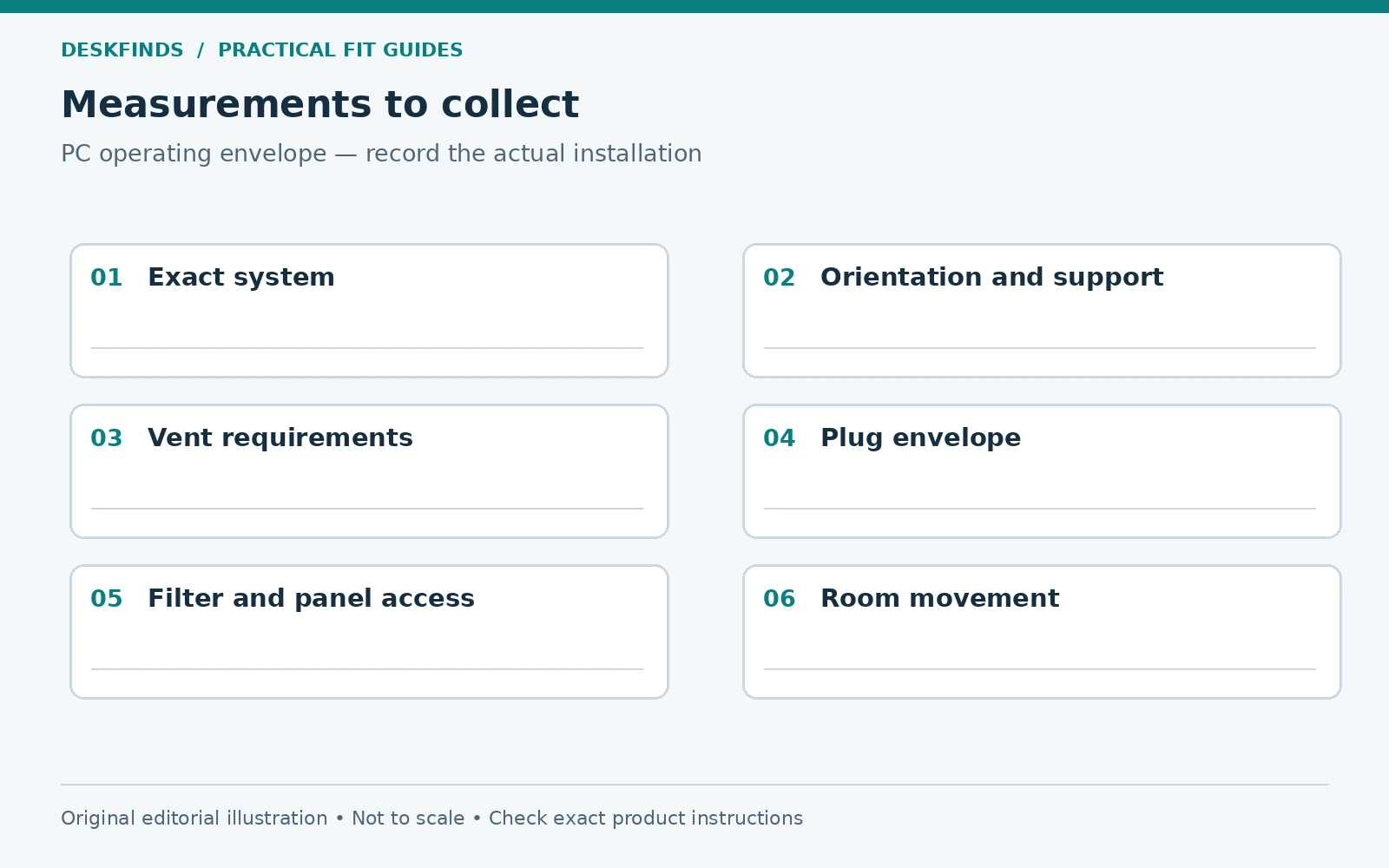
Start with the case footprint and add the manufacturer-required surrounding clear areas. Mark the rear plugs and natural cable bends, side-panel access, filter removal, and any front controls or ports. Keep each requirement labeled so a connector gap is not confused with an airflow requirement.
Check the room obstacles around that envelope: desk legs, drawers, cabinets, walls, curtains, bags, rugs, and the occupied chair. A location can fit the case while failing one of the added layers. Our chair clearance guide helps keep the user's movement separate from the computer's space.
If the desk moves, map the tower and cables through the full intended height range. A floor-standing PC remains fixed while desktop devices may rise. A desk-mounted holder moves with the top but introduces load, mounting, and collision questions. Neither arrangement is universally simpler.
Choose a support surface suited to the computer
Follow the system's requirements for stability, orientation, and surface. A soft rug can interact differently with feet and bottom openings from a hard suitable platform. Do not assume that any board or stand is an approved solution merely because it raises the case above the floor.
A dedicated stand needs a compatible footprint, load rating, support arrangement, and installation. Include the case feet and any projecting parts. A small platform that supports only part of the case is not a successful fit unless explicitly intended. Do not balance a heavy tower on improvised narrow supports.
If the PC is placed on the desk, include its weight in the desk's permitted loading and preserve the input area. A desktop placement can improve access while consuming useful work space. The correct choice depends on the system and room, not a blanket rule that the floor is always wrong or the desk is always best.
| Envelope layer | What to verify |
|---|---|
| Case | Exact dimensions, orientation and support |
| Ventilation | Actual openings and model-specific clear space |
| Connections | Plug bodies, cable bends and movement allowance |
| Service | Panels, filters and accessible controls |
| Furniture | Load, mounting and collision conditions |
| Room | Chair path, curtains, heat sources and cleaning access |
Assess enclosed furniture carefully
A cabinet opening can be larger than the tower while still restricting airflow. The computer's own vents do not establish that the surrounding enclosure is suitable. Follow the system's enclosure requirements and obtain manufacturer guidance for an uncertain furniture plan.
Opening the cabinet door during use may not resolve every issue. Rear or side paths can remain obstructed, and service access may still be poor. Do not present an open door as universal approval. The exact arrangement needs adequate conditions for the system and should remain practical in normal room use.
Avoid cutting furniture or adding improvised fans as a casual placement workaround. That changes the furniture and airflow design and may require a different assessment. Choosing another suitable location can be simpler than trying to convert a decorative cabinet into a computer enclosure.
Check hanging holders as complete mounting systems
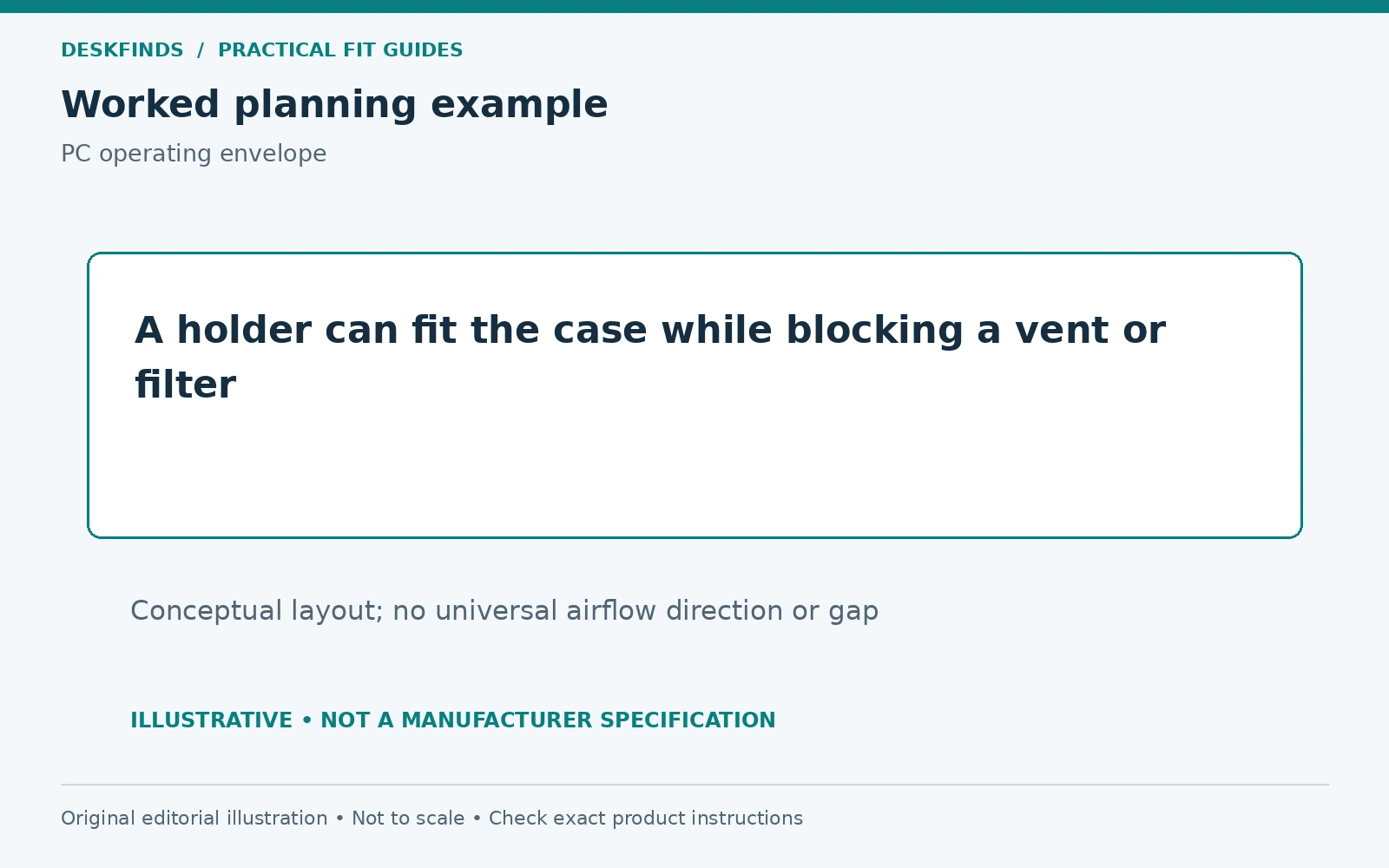
Verify the holder's supported case dimensions, weight, attachment surface, and permitted orientation. Include how its straps, pads, or brackets contact the case. A holder can fit the box while covering a vent, control, or service panel. The support and airflow checks both need to pass.
The desk also needs to support the installed holder and computer in the intended location. A clamp or screw mounting method requires its own surface approval. Do not transfer a desk's distributed top-load rating to an underside mounting point without the appropriate documentation.
For adjustable desks, assess the moving load, cable routes, and collision path. Our cable management guide covers the moving-to-fixed transitions. A computer attached beneath the top should not meet a cabinet, wall feature, or chair during the desk's operating range.
Example: the case fits the cabinet but the vents do not
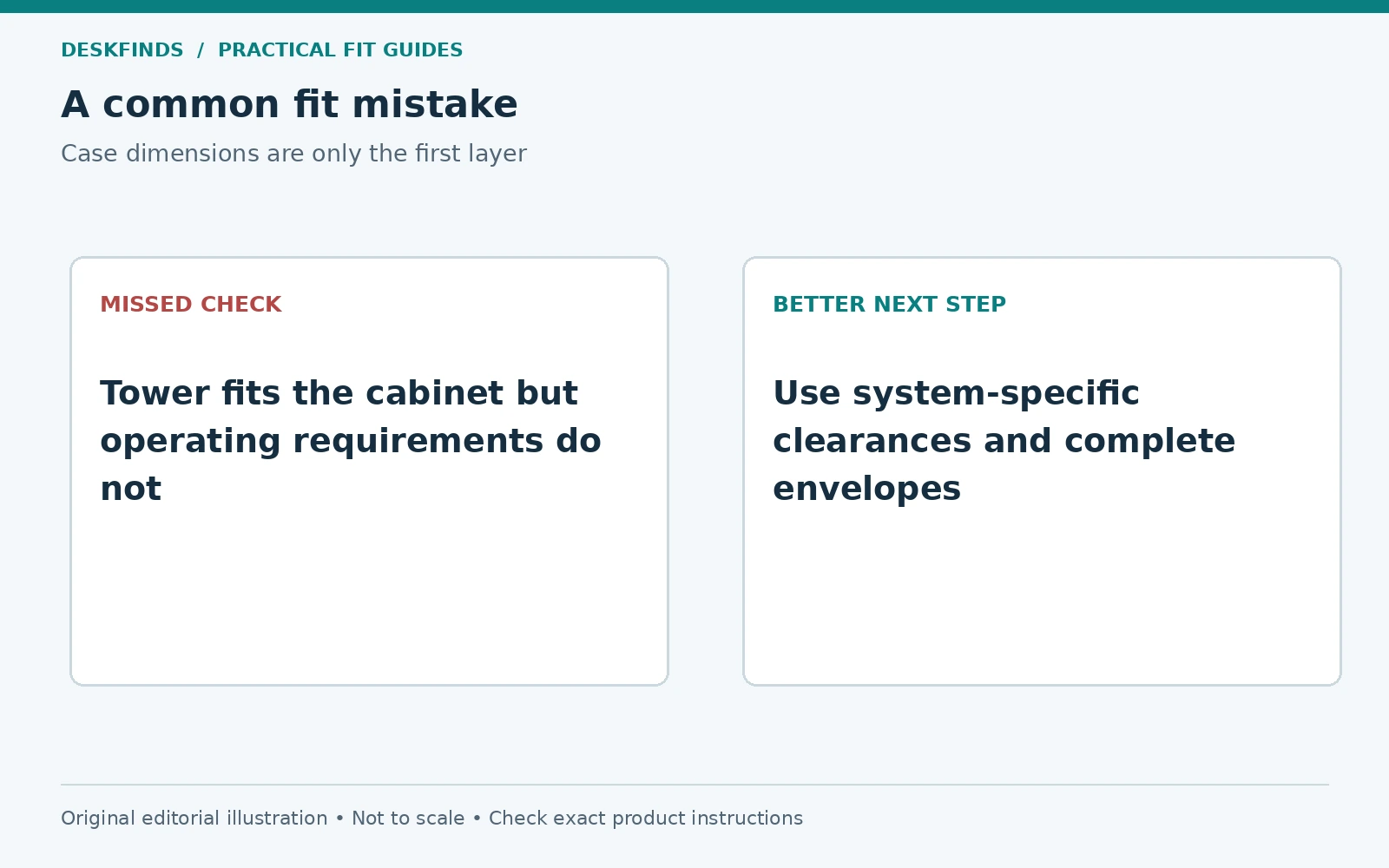
A user measures a tower and finds a cabinet bay larger in width, height, and depth. Once installed, the rear cables consume much of the remaining gap, and the ventilation openings face close panels. The bare-box fit passed, but the complete operating plan is unresolved.
The user checks the system's enclosure guidance and compares another location with the required space. The cabinet is not treated as suitable simply because the front door can remain open. If the manufacturer cannot verify the arrangement, a different support or room position is chosen.
This case illustrates why case volume and cabinet volume are poor substitutes for an envelope drawing. The relevant paths, plugs, and access openings can control the decision even when there appears to be spare space around the box.
Example: a holder blocks maintenance access
Another user chooses a hanging holder that accepts the case's dimensions and weight. Its support crosses a filter-removal path, making routine cleaning require full removal of the tower. The configuration may also need more clearance during desk movement than the user expected.
The user compares the exact holder instructions and service requirements before installation. A different supported design or stationary location may provide easier maintenance. The goal is not merely to suspend the case successfully, but to keep it operable and serviceable through ownership.
A rare service task can have a planned removal procedure if the products permit it and handling is practical. That should be an explicit trade-off, not a surprise discovered after dust has accumulated. Keep the correct parts and instructions available for the procedure.
Route cables without using connectors as restraints
Measure power, display, data, and peripheral routes with the PC in its intended position. Leave the allowance required for device and desk movement without creating loops in the chair path. Support components as instructed and avoid tight bends or pressure against a wall.
A rear plug can become the rearmost part of the system. Do not push the tower backward until the cable stops it. Our cable pull-prevention guide explains why a tidy route should not transmit load to a connector. The same principle applies to a desktop's rear ports.
Label leads where useful for service. A clear connection map reduces the need to pull several cables to identify one device. Keep access to controls and required disconnection points. A hidden tower should not become an inaccessible tangle.
Compare normal operation after a permitted placement change
Use the system's documented monitoring and diagnostic resources where appropriate. Observe ordinary workload behavior, fan noise, warnings, or unexpected shutdowns without running an improvised stress test from this guide. Do not claim a cooling improvement from a single brief impression.
Keep conditions comparable if you are investigating a placement issue. A different room temperature or workload can change observations. Manufacturer diagnostics and support are more useful than a generic temperature threshold applied to every processor or system. The exact components determine the relevant limits.
If the system shows overheating warnings, damage, or other concerning behavior, follow its support guidance rather than continuing use to complete a comparison. Do not remove covers or disable controls to make a restrictive placement seem workable. Room planning is not a substitute for hardware troubleshooting.
Preserve cleaning and inspection access
Keep filters, vents, and the surrounding surface accessible according to the system's maintenance instructions. A location that cannot be reached without moving heavy furniture may discourage routine care. Plan the handling method and service space before choosing the most hidden corner.
Follow the manufacturer's cleaning procedure and power precautions. Do not spray liquids into vents or use a generic method on every component. Dust management is part of ownership, but a room guide should not invent internal servicing instructions. Use the appropriate documentation or qualified service.
Recheck the location when adding storage, curtains, a rug, or a larger cable bundle. The tower may not move while its environment becomes more restrictive. A simple room plan labeling the required open areas helps prevent them being filled with temporary bags or boxes.
Choose from a system-specific placement brief
Write the exact case or computer model, orientation, support footprint, weight, required ventilation space, connection envelope, service paths, and room constraints. Ask for any missing requirement that determines suitability. Do not buy a holder or cabinet on outside dimensions alone.
Compare under-desk tower holders and stands for large towers only after the brief is ready. A useful small-room location supports the computer's actual operation while preserving the desk and room tasks around it.
Create an opening-by-opening placement sheet
List every exterior opening or service area that matters to the exact system: ventilation, filter access, side panels, front controls, ports, and any drive access. Mark its direction and the requirement from the documentation. This is more useful than labeling the whole rear of every PC exhaust and the whole front intake.
Add the actual cable plugs and their natural bends to the sheet. A large connector or adapter can occupy space needed for another function. Keep physical connector clearance separate from the ventilation requirement, then ensure both are satisfied in the final location. One gap may serve more than one purpose, but only if each requirement remains met.
Use the sheet to compare a floor platform, desk position, and compatible holder on the same basis. Do not omit a service panel from one option to make it look smaller. The useful candidate supports ordinary operation and the ownership tasks the computer will need later.
Keep an enclosure question specific
If considering a cabinet, provide its internal dimensions, openings, intended door state, cable route, and the computer model to the manufacturer or appropriate support source. Ask whether the arrangement meets the system's requirements. A statement that the tower fits a furniture bay is not an answer about ventilation.
Do not generalize a clearance from an older technical guide for another model. Case layout, cooling, orientation, and installed components can differ. Even a correct historical specification can be misapplied to the wrong system. Keep the actual product identity at the top of the placement brief.
If the enclosure cannot be verified, choose another suitable location rather than relying on leaving a door open or adding a small fan by intuition. Those changes may not address the actual path or environmental conditions. Room layout should preserve the documented operating design instead of creating an unassessed substitute.
Plan maintenance as a normal use state
Identify which filters or panels are intended for user access and how the computer is shut down, disconnected, and handled for that work. Leave a suitable route and landing area where needed. A hidden tower may be visually tidy but inconvenient enough that routine care is postponed.
Keep correct fasteners and accessories indexed if removal is part of the approved process. Do not mix computer parts with furniture screws or replace a missing item with a near match. Our packing and labeling guide uses the same principle for a room move: preserving the parts and connection knowledge is part of preserving the equipment.
After maintenance or furniture cleaning, restore the documented cable and support arrangement. A lead trapped behind the tower or a bag placed beside an intake can change the result without any hardware fault. Recheck the relevant clear areas before normal use.
Use observations to decide the next question
If normal operation changes after relocation, record the workload, room conditions, warnings, and system behavior using supported tools. Do not infer a universal thermal result from fan noise alone. A louder fan can have several causes, and a quiet system is not proof that every component is within its intended conditions.
Follow the manufacturer's troubleshooting path and stop when it calls for service or identifies a concerning condition. The placement worksheet can help support understand the environment, but it is not a replacement for diagnosis. Do not remove covers, defeat controls, or run repeated heavy workloads to make a restrictive location appear acceptable.
A clear record can show whether the next step is moving furniture, correcting a cable route, cleaning as instructed, or obtaining hardware support. The goal is a system that operates in its documented environment, not a particular temperature or noise claim invented for the room layout.
Keep the final placement record current
Save the system identity, support, clear areas and cable route together. When a case, holder or major room object changes, revisit the affected layer. The old setup's successful use is useful history, but it does not establish compatibility for a new enclosure or blocked opening.
Sources and scope
- Dell desktop care and handling - manufacturer guidance on ventilation, enclosures and product-specific instructions.
- Dell overheating support - manufacturer troubleshooting context, not a universal temperature limit.
- Noctua fan-direction guidance - component-specific example; not a complete airflow map for every system.
The envelope worksheet and cases are original editorial analysis. No PC temperature, noise or performance test was performed.