
3 wins
3 wins
USB-C Hub vs Docking Station: Which One Does Your Desk Actually Need?
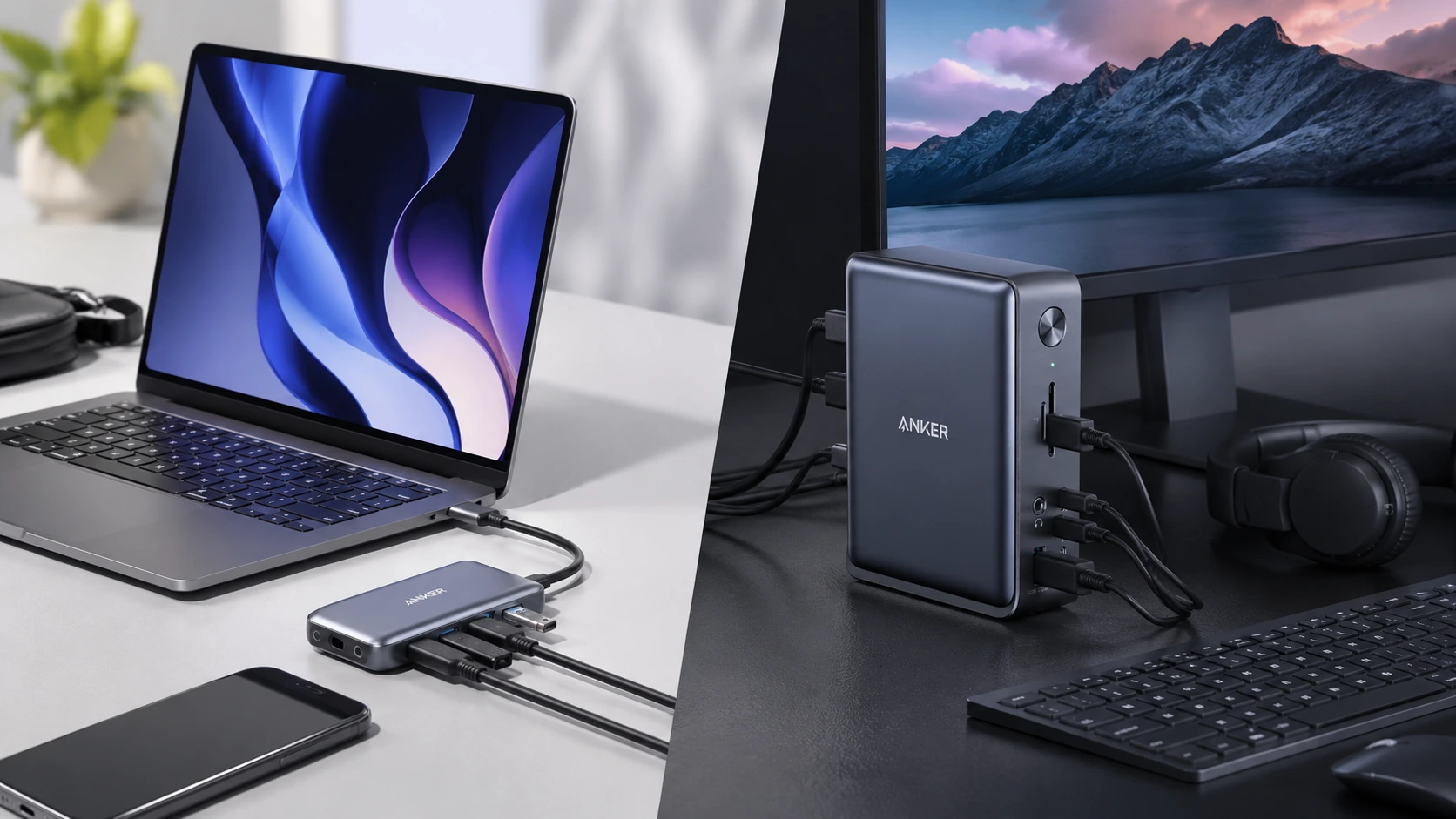
If your laptop only has one or two USB-C ports, you've faced this decision: pick up a $30 hub, or invest in a proper docking station? The answer depends entirely on how many screens you run, whether you commute, and how many peripherals you connect daily. This guide breaks down exactly where each option wins — and which one fits your setup.
We may earn a commission when you buy through Amazon links. This guide is based on product specs, buyer feedback, use cases, and comparison criteria — not paid placement. Learn more.
Quick Answer
Get a USB-C Hub if...
- ✓ You commute or work from multiple locations
- ✓ You only need one external monitor
- ✓ Your budget is under $60
- ✓ You want minimal desk clutter
Get a Docking Station if...
- ✓ You use two or more external monitors
- ✓ You connect 6+ peripherals daily
- ✓ You want a one-cable desk setup
- ✓ You have a permanent desk setup
Head-to-Head: 6 Criteria
Port Count
Docking Station winsHubs top out at 7–8 ports. Docks start at 10 ports and go up to 13+, covering display, USB, Ethernet, SD, audio, and PD simultaneously without sharing bandwidth.
Hub
7–8 ports typical. Covers most daily tasks.
Dock
10–13 ports. One cable to desk; everything connects at once.
Display Support
Docking Station winsHubs support one external display at 4K@30Hz. Docks support 2–3 displays at 4K@60Hz. For single-monitor users, a hub is enough; dual monitors require a dock.
Hub
Single 4K display, usually 30Hz.
Dock
Dual or triple 4K@60Hz — depends on model and laptop.
Portability
USB-C Hub winsHubs are bus-powered and pocket-sized — drop them in a bag without thinking. Docks need a power adapter and desktop placement. If you commute, a hub is the only practical choice.
Hub
Pocket-sized, bus-powered, carry everywhere.
Dock
Desktop appliance — requires a power outlet and a permanent spot.
Power Delivery
Docking Station winsDocks deliver true 85–100W via their own power adapter. Hubs share the host laptop's power budget — heavy loads can reduce effective PD to 60–70W.
Hub
85–100W pass-through but depends on laptop's USB-C controller.
Dock
Full 85–100W from dedicated adapter — no bottlenecks.
Price
USB-C Hub winsA capable hub costs $30–$55. A capable dock starts at $100. The price gap is real — justify it only if you need dual displays or a truly permanent desk setup.
Hub
Excellent quality from $28. Lower ceiling.
Dock
Quality starts at $100. Justifiable for power users.
Setup Simplicity
USB-C Hub winsBoth are plug-and-play, but hubs have fewer cables and no power adapter to route. Docks require power cable + laptop cable + peripherals — more cable management needed.
Hub
One cable from laptop. Minimal desk clutter.
Dock
Power brick + laptop cable + peripherals. More cable management.
Which One Should You Get?
Answer these questions in order to find your match.
Do you use two or more external monitors?
Do you carry your laptop between home and office daily?
Do you need Gigabit Ethernet for video calls or large file transfers?
Is your budget under $60?
Do you plug in 6+ peripherals at the same time (headset, external SSD, keyboard, mouse, printer...)?
Do you want a one-cable desk setup — plug in one USB-C and everything connects?
Best USB-C Hubs
Portable, bus-powered, and ideal for one-monitor setups.
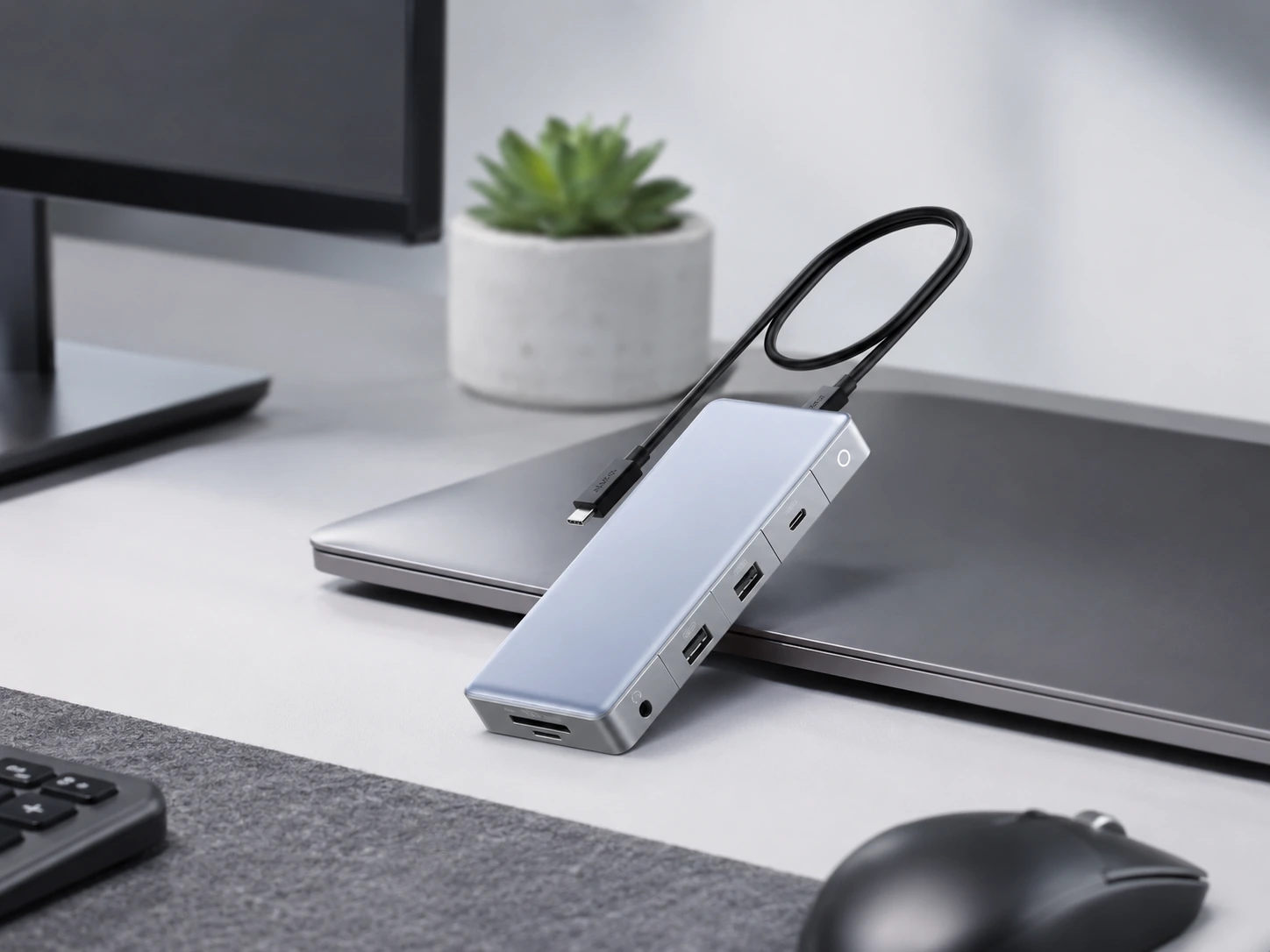
Anker 341 USB-C Hub (7-in-1)
4K HDMI, 2× USB-A 3.0, USB-C PD, SD/microSD · PD: 85W pass-through
Why it works
- 7 ports covers most laptop workflows (display + USB + card reader)
- 4K@30Hz HDMI for crisp monitor output
- 85W PD keeps your laptop charged while working
- Compact bus-powered — no separate power brick needed
Tradeoffs
- One HDMI only — no dual-display support
- USB-A ports share bandwidth at heavy loads
- No Ethernet port
Reddit: Consistently recommended in r/laptops and r/MacBookPro for everyday WFH use. Praised for reliability over years of daily use.
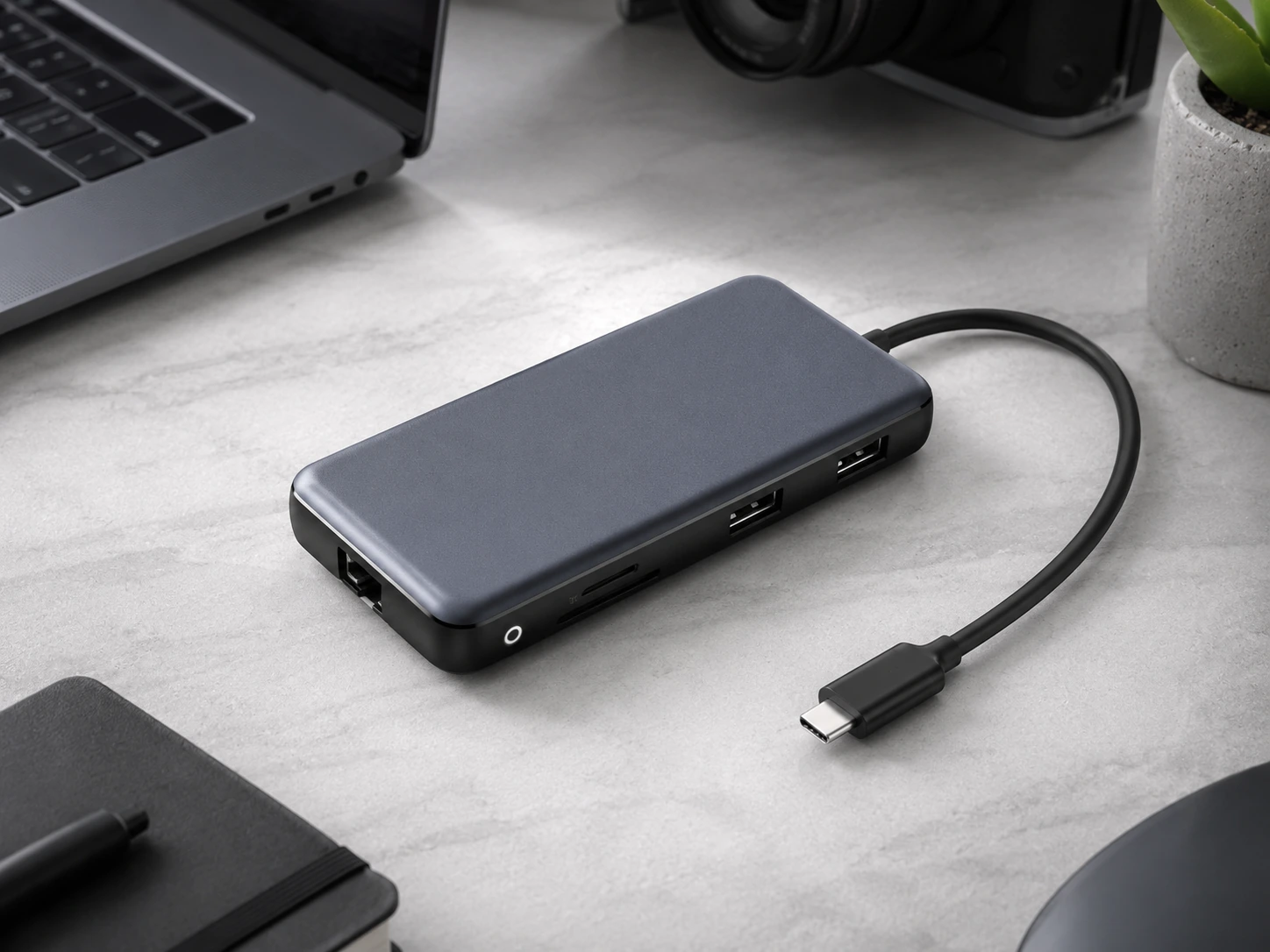
Anker 555 USB-C Hub (8-in-1)
4K HDMI, 2× USB-A 3.0, USB-C PD, Ethernet, SD/microSD · PD: 100W pass-through
Why it works
- Adds Ethernet over the 341 — faster, more stable internet
- 100W PD handles power-hungry 15-inch MacBooks
- Still compact enough for a laptop bag
- Well-built aluminum housing runs cool
Tradeoffs
- Single HDMI — no dual-monitor setup
- More expensive than most 7-in-1 hubs
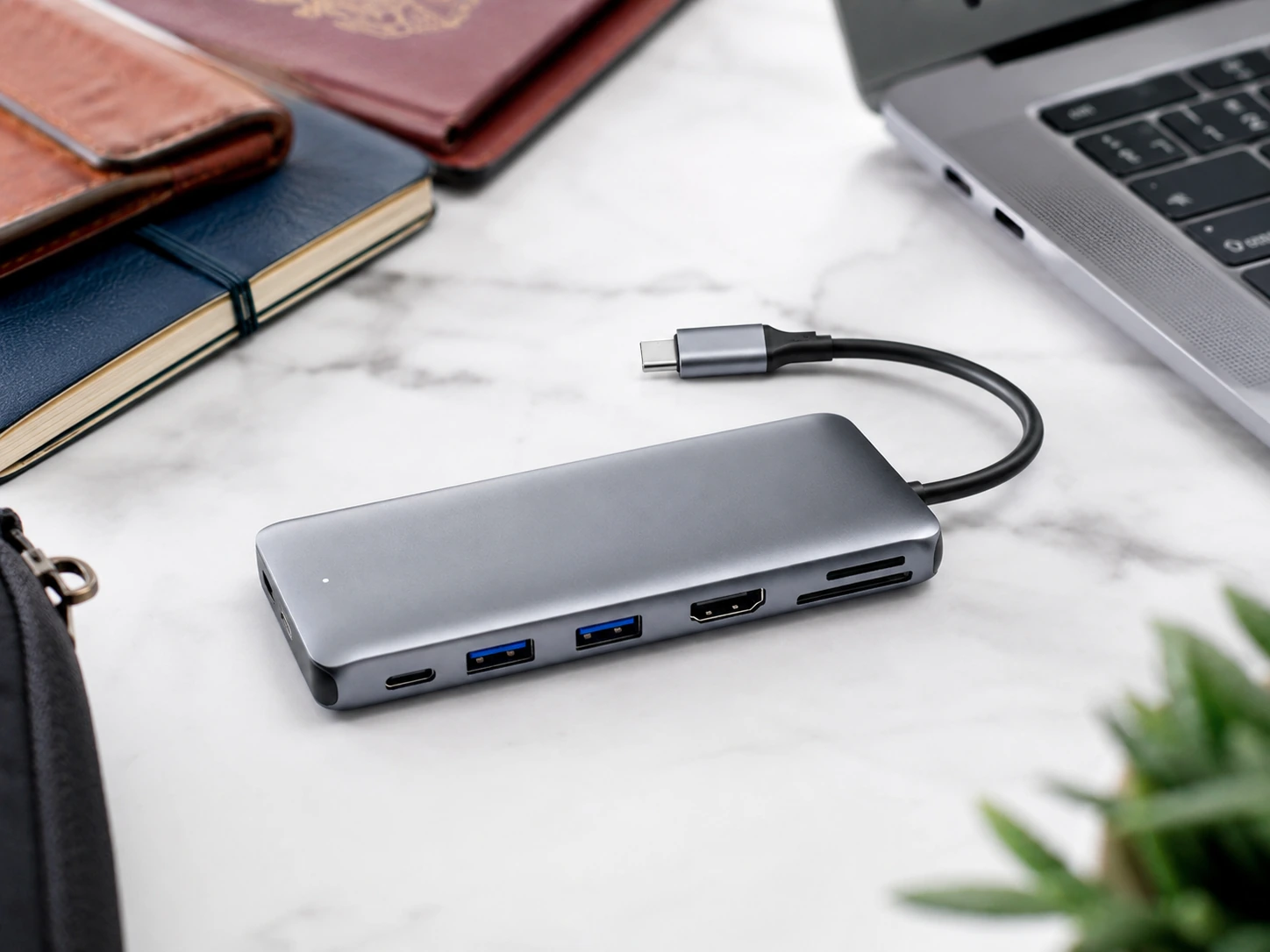
Anker 7-in-1 Travel USB-C Hub
4K HDMI, 2× USB-A 3.0, USB-C PD, SD/microSD, USB-C data · PD: 100W pass-through
Why it works
- Slim profile fits a laptop sleeve or shirt pocket
- 100W PD for fast charging on the go
- Folds away cleanly — no dangling cables
- All-metal body survives daily pack/unpack cycles
Tradeoffs
- No Ethernet — Wi-Fi only on the road
- 4K@30Hz only (not 60Hz)
Best Docking Stations
Permanent desk setups, dual monitors, and full port coverage.
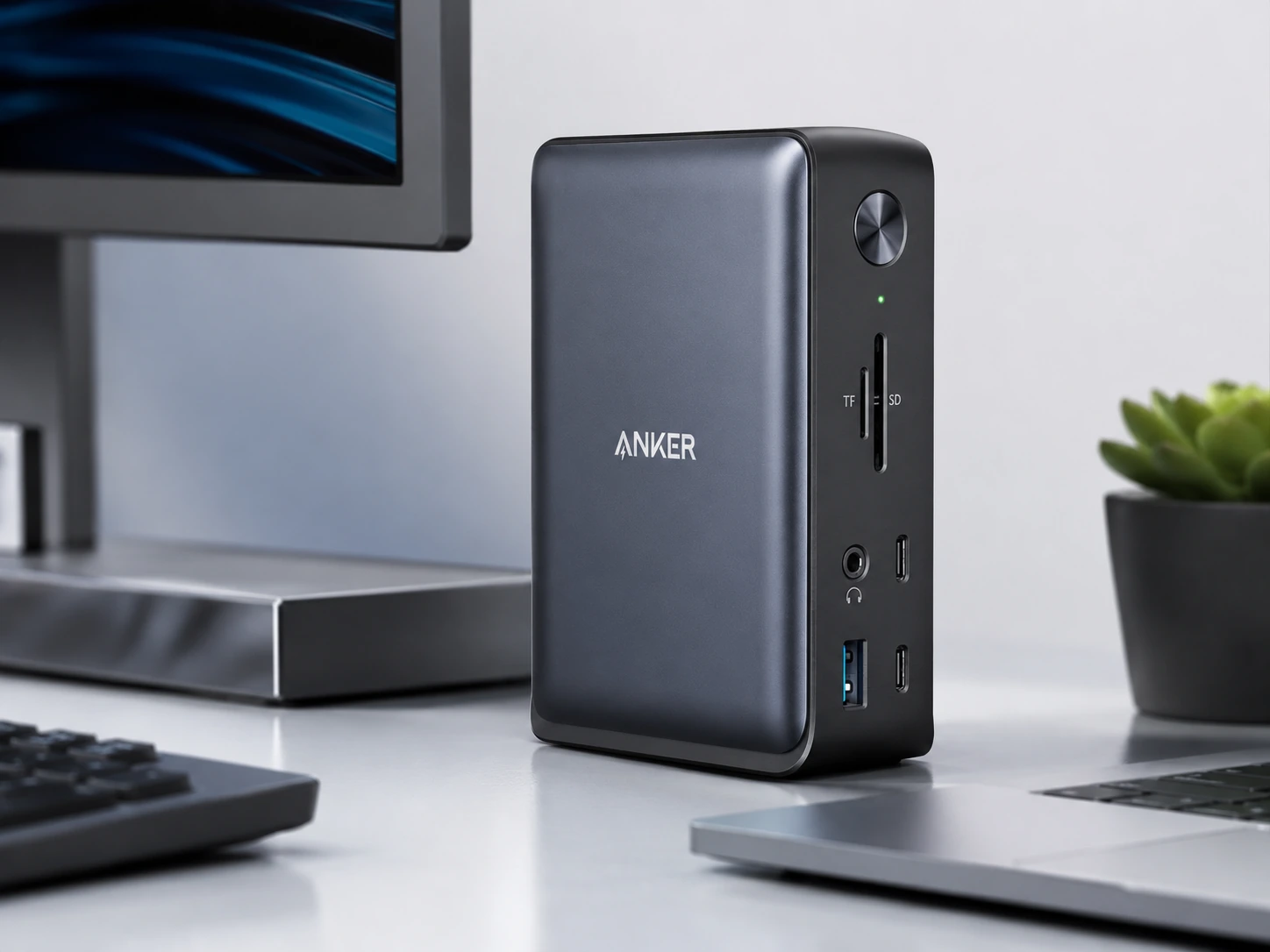
Anker 575 USB-C Docking Station (13-in-1)
2× HDMI 4K, DisplayPort, 3× USB-A, 2× USB-C, Ethernet, SD, Audio · PD: 85W laptop charging
Why it works
- Dual 4K HDMI + DisplayPort for triple-display setups
- 13 ports — replaces every dongle on your desk
- Own power adapter — no bandwidth throttling
- Works as a permanent desk hub, just swap the laptop cable
Tradeoffs
- Requires a power outlet — not truly portable
- $120+ investment vs a $35 hub
- Overkill for single-monitor setups
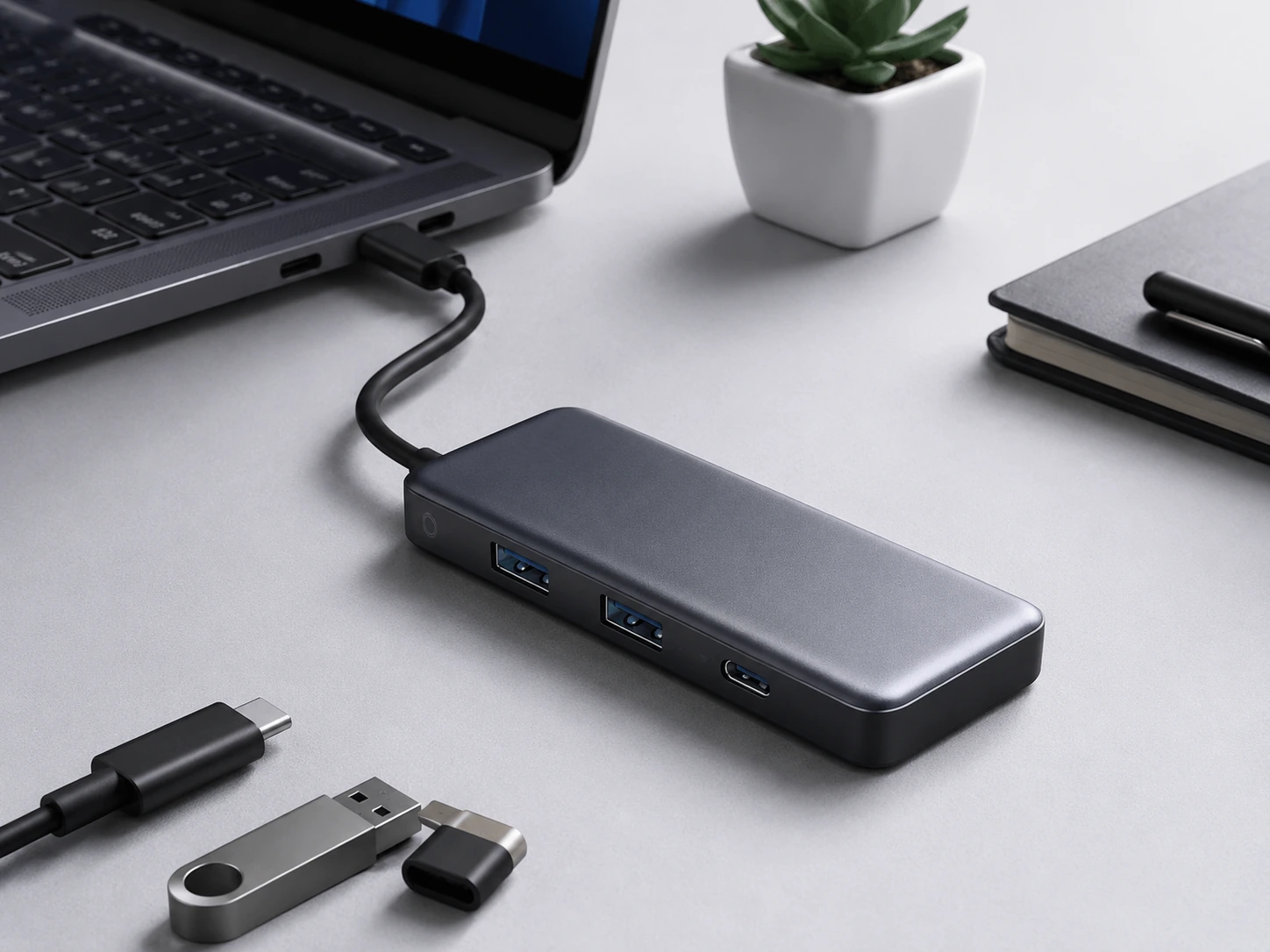
Anker 575 USB-C Hub (12-in-1, Triple Display)
2× HDMI, DisplayPort, 3× USB-A, 2× USB-C, Ethernet, SD/microSD, Audio · PD: 100W pass-through
Why it works
- Supports dual 4K@60Hz output — for power users
- 100W PD covers the most demanding laptops
- Compact for a triple-display dock
- Anker reliability backing a premium feature set
Tradeoffs
- Pricier than the 575 13-in-1 for fewer total ports
- Requires compatible Thunderbolt 3/4 or USB4 laptop for full dual-4K
Recommendations by Use Case
Daily Commuter / Hybrid Worker
USB-C HubAnker 7-in-1 Travel Hub
Slim enough for a shirt pocket, 100W PD for all-day charging, and 4K output for a meeting room projector or home monitor. Pack it without thinking.
View on AmazonWFH / Single-Monitor Home Office
USB-C HubAnker 555 USB-C Hub (8-in-1)
Ethernet for stable video calls, 4K monitor output, and 100W PD — everything a single-monitor WFH setup needs without a power-brick dock.
View on AmazonDual-Monitor Power User
Docking StationAnker 575 USB-C Docking Station (13-in-1)
Dual 4K displays, 13 ports, full PD — one cable connects your laptop to the entire desk. The upgrade is justified once you need two screens.
View on AmazonSmall Desk / Minimal Setup
USB-C HubAnker 341 USB-C Hub (7-in-1)
The Anker 341 sits flat under a monitor or clips out of sight. Adds 4K output, USB-A ports, and card reader for $28–$40 without cluttering a compact desk.
View on AmazonSummary: Hub vs Dock
| Factor | USB-C Hub | Docking Station |
|---|---|---|
| Price | $28–$70 | $100–$160 |
| Portability | Pocket-sized, bus-powered | Desktop appliance |
| Display support | Single 4K (usually 30Hz) | Dual/triple 4K@60Hz |
| Port count | 7–8 ports | 12–13 ports |
| Power delivery | 85–100W (shared budget) | 85–100W (dedicated adapter) |
| Best for | Commuters, small desks | Power users, permanent setups |
Common Mistakes to Avoid
Buying a hub expecting dual-monitor support
Most USB-C hubs support one HDMI output only. If you plan to run two monitors, you need a docking station with dual display outputs and a Thunderbolt 3/4 or USB4 laptop. Verify your laptop spec before buying.
Ignoring your laptop's USB-C controller
Not all USB-C ports are equal. Some carry only data and charging — not video. DisplayPort Alt Mode or Thunderbolt is required for external monitor output. Check your laptop's spec sheet for the ports labeled 'Thunderbolt' or 'DP'.
Over-buying a dock for a portable lifestyle
A $120 dock requires a power adapter and a fixed desk spot. If you commute daily or work from different locations, a $35–$50 travel hub does 90% of the job and fits in your pocket.
Assuming all hubs charge at the rated wattage
A hub rated '100W PD' still shares the laptop's USB-C power budget. Under heavy GPU or CPU load, effective charging may drop to 60–70W. For MacBook Pro 16-inch or gaming laptops, verify the hub's active PD delivery with reviews.
Frequently Asked Questions
What is the difference between a USB-C hub and a docking station?
A USB-C hub is bus-powered (draws power from your laptop), portable, and handles 4–8 ports. A docking station has its own power adapter, sits permanently on a desk, and handles 10–13+ ports including dual monitor outputs. Hubs are for portability; docks are for permanent desk setups.
Can a USB-C hub support dual monitors?
Most cannot. Standard USB-C hubs support one external display via HDMI or DisplayPort. Dual-display support requires a docking station (or a USB4/Thunderbolt hub with MST support, which costs dock prices anyway).
Is a docking station worth it?
Yes, if you have a fixed desk and want one-cable convenience — plug in a single USB-C and your monitor, keyboard, mouse, Ethernet, and audio all connect. The productivity gain is real once you cross 4+ daily peripherals. The $100–$150 cost is a one-time desk upgrade.
Will a USB-C hub work with any laptop?
With any laptop that has a USB-C port, yes — for data and charging. For video output, your laptop needs a USB-C port that supports DisplayPort Alt Mode or Thunderbolt 3/4. Most MacBooks and recent Windows laptops do; older budget laptops may not.
What is the best USB-C hub for MacBook?
The Anker 555 (8-in-1) is a top choice for MacBook Air and Pro users — it adds Ethernet, a 4K display, USB-A ports, and 100W PD charging. For MacBook Pro 16-inch, consider a dock if you use dual monitors, since MacBook Pro supports up to three external displays with Thunderbolt.
Can I use a USB-C hub with a gaming laptop?
Yes for data, charging, and display. However, gaming laptops with high TDP may require 100W+ to charge under gaming load — verify the hub's PD wattage. The Anker 555 or 575 dock handles most gaming laptops at idle to moderate load.