
How to Set Up Two Video-Call Workstations in One Room
Affiliate Disclosure: We may earn a small commission on qualifying Amazon purchases at no extra cost to you. Full disclosure →
Two desks can fit one room while two simultaneous calls do not work well together. Each microphone may hear the other person’s voice, speaker playback can create echo, and the camera can show activity behind the user. A divider alone does not turn one room into two isolated offices.
Quick answer: Decide whether the users join the same meeting or different meetings, then plan separate camera views, suitable headset or microphone arrangements, room routes, and overlapping-call rules. Test both people speaking during a representative call before buying dividers or extra microphones. Headphones reduce playback into the room but do not silence either person’s speaking voice.
Separate the two meeting situations
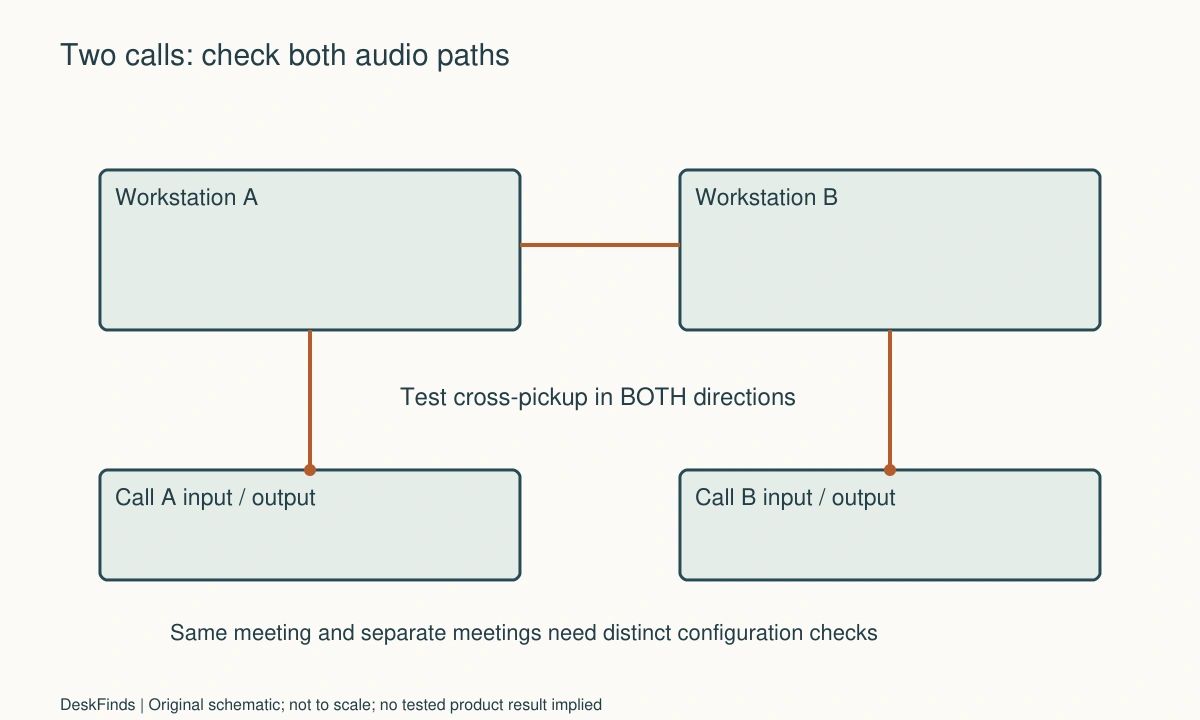
When two people join the same meeting, duplicate active audio devices can create an echo path. Follow the meeting platform’s current guidance about which devices join audio. Muting a microphone alone does not remove its speaker output.
When they join different meetings, the main issue may be each voice entering the other microphone. The setup needs pickup control and a household routine. A single shared room speaker is generally a different arrangement from two independent private calls.
Draw both occupied workstations
Include chairs, screens, microphone supports, doors, and storage access. Two desktop rectangles do not describe the room while people work. Check that either person can stand and leave without requiring the other to stop a call.
Put cameras on the plan as well. A chair or door behind one user may be in the other’s view. Choose a position that supports the normal room route rather than depending on everyone remaining motionless during meetings.
Compare orientation options
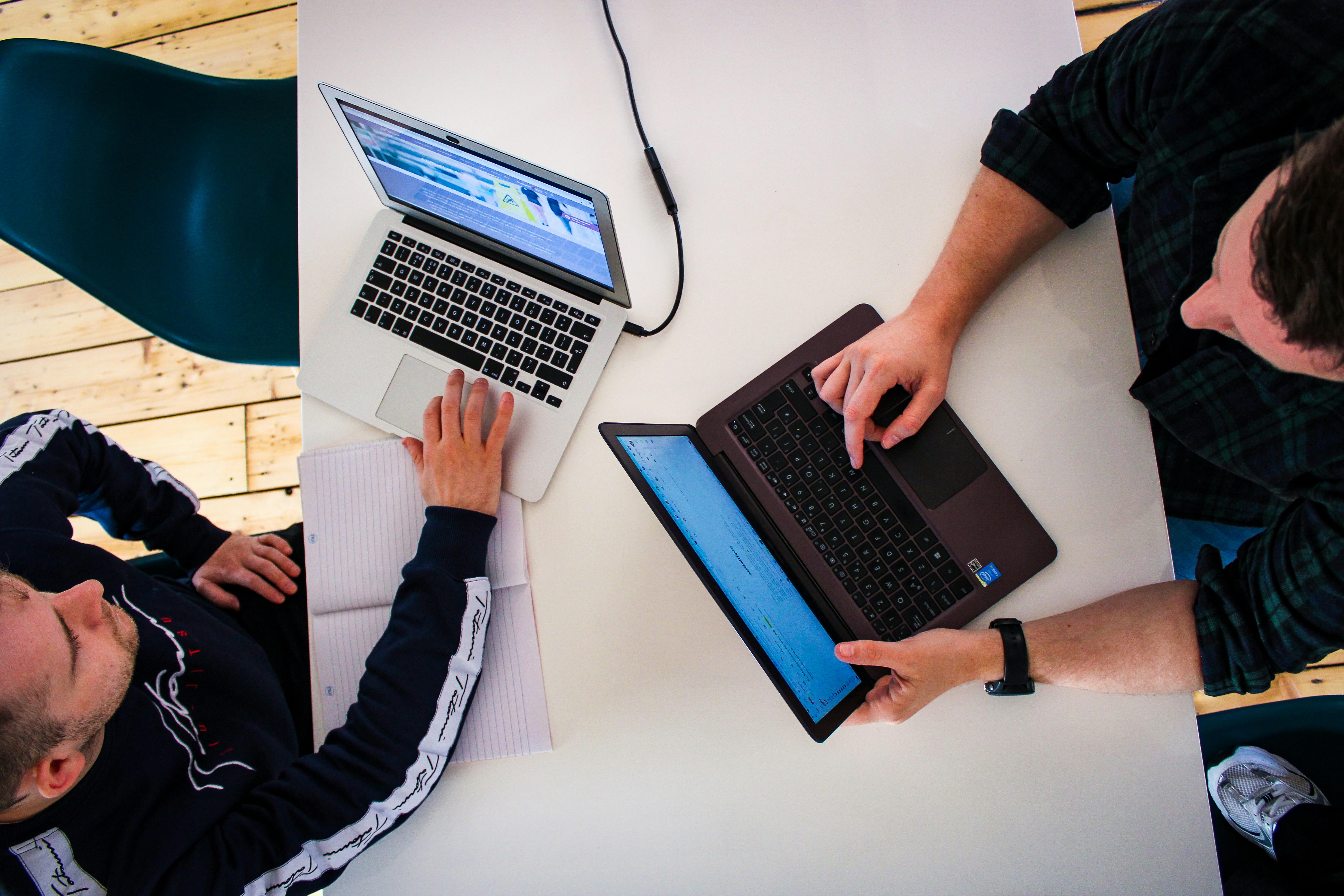
Back-to-back, side-by-side, and perpendicular desks create different sight lines and voice paths. No orientation guarantees isolation. Try available arrangements with the actual microphones and ordinary speaking levels.
Do not put the main screens at awkward angles solely to make a diagram symmetrical. The users need useful keyboard and display positions. A slightly staggered layout can sometimes improve camera framing, but it still requires an audio test.
Choose each audio chain deliberately
Confirm the selected input and output on both computers. A headset can keep incoming meeting audio out of the room and may place the microphone usefully near the speaker’s mouth. Check actual fit, comfort, software support, and recording results.
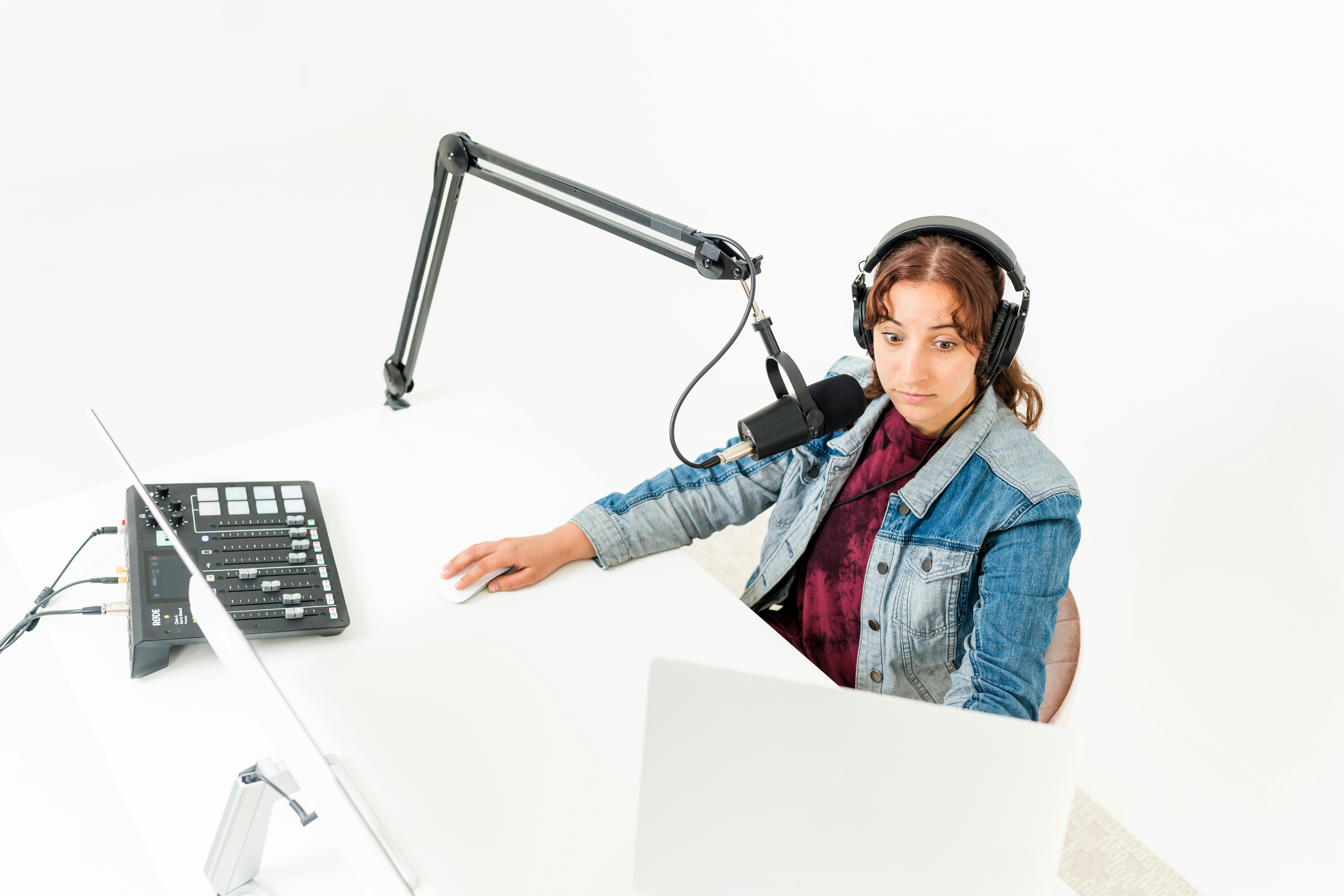
A separate microphone can work when positioned and configured appropriately, but it adds space and another pickup question. A large podcast microphone is not automatically better for a shared room. Compare the complete result rather than product size or price.
Test overlapping speech
Record or hold an authorized test in which one person speaks while the other listens, then both speak. Check what remote participants hear through each input. Keep private conversation and confidential screens out of the test.
Noise processing can behave differently with simultaneous voices. A setting that removes typing may not remove another person’s intelligible speech, and aggressive suppression may affect the user’s voice. Test the actual meeting software and permitted settings.
Plan camera backgrounds independently
Use the live preview at the actual seat and camera height. Check doorways, the other worker’s screen, whiteboards, and reflective surfaces. A virtual background is not a dependable confidentiality control.
For framing equipment, see webcams in a tight space. For a physical background, compare setups without a blank wall. Each camera view should work without obstructing the room.
Keep dividers honest
A divider can screen movement and provide a visual boundary. Its acoustic effect depends on design and placement, and open edges remain. Do not describe a folding screen as soundproof or assume upholstery establishes a performance rating.
Measure feet, panel angles, and the folded storage state. Preserve exits, ventilation, and daylight as appropriate. A divider that repeatedly meets chair bases or blocks a wardrobe creates a new daily problem even if it looks good on camera.
Agree on overlapping-call rules
Identify critical meetings, predictable time windows, and an alternate location if available. Use a visible but respectful signal for recording or confidential calls. Agree which person moves when simultaneous use is genuinely impractical.
Avoid solving every conflict by asking one user to whisper or hold an uncomfortable microphone position. Equipment changes and schedules should support ordinary work. If privacy is essential and the room cannot provide it, use another appropriate location.
Example: good single-user tests fail together
Imagine two users who each sound clear when testing alone. During simultaneous meetings, one person’s voice is audible on the other’s call. Both already wear headphones, so removing speaker playback has not solved voice pickup.
They verify the selected microphones, compare supported mouth-to-microphone positions, and test a different desk orientation. The result improves but does not provide confidentiality. They retain the practical audio changes and schedule sensitive calls separately instead of buying a decorative screen as a privacy guarantee.
For a meeting attended by both users, they follow platform guidance to avoid duplicate room audio. That is a separate configuration from the independent-call arrangement, so they document the switch. Zoom’s echo guidance identifies multiple active room audio paths as a possible cause; apply the current instructions to the actual devices.
Review the room after a week
Check fatigue, interruptions, chair routes, and whether either user regularly changes devices or locations. A successful trial should resemble normal work, not two carefully scripted minutes. See conference speakerphones versus headsets for the equipment distinction.
Keep the smallest set of equipment that supports the routine. If repeated simultaneous calls remain disruptive, a second genuine work location may provide more value than progressively filling the room with microphones, screens, and treatment intended for different problems.
For headset and room-audio roles, compare speakerphones and headsets.
Build two configuration cards
If the users sometimes attend one meeting and sometimes separate meetings, write those configurations separately. Each card should identify the active input and output on both devices, who joins computer audio, camera framing, and any platform-specific instructions. A configuration suitable for independent calls can create duplicate room audio in a shared meeting if used without adjustment.
Keep call controls accessible to both users. A headset hidden beneath a divider or a microphone parked outside reach can make muting awkward. Test ordinary actions such as answering, sharing a screen, reaching for notes, and leaving the chair. A technically clear recording is not enough if the users cannot operate the setup without interrupting each other.
For different meetings, assess cross-pickup in both directions. One person’s microphone may reject some room sound more effectively in a particular position, while the other captures speech clearly. Do not average those results into an overall good-room rating. Each worker needs an acceptable signal and a realistic privacy arrangement for their own task.
A visual boundary can be valuable even when it provides little isolation. It may keep movement out of a camera or reduce distraction. Describe that benefit accurately. Check the divider’s feet, panel angles, and folding route against both occupied chairs and the door. Do not let a screen intended to improve calls remove a person’s easy exit from the workstation.
Agree how exceptions are handled. A sensitive client call, interview, or recording may need another approved location even when ordinary meetings are manageable. Decide the alternative before the conflict occurs. The goal is a stable shared routine, not equipment that supposedly removes every limitation of using one room for two voices and two sets of work.
Worked trial: separate calls and a shared meeting
Imagine two people working on independent calls from one room. Both use headphones, so incoming audio does not play through laptop speakers. Their individual tests sound clear, but simultaneous speech is still audible on one call. The room’s own voices have not disappeared merely because playback is private.
They verify input selection and compare supported microphone positions while keeping normal speaking levels. A different desk orientation improves the result for one user but places the other’s doorway in frame. Camera and audio checks are recorded separately instead of declaring the orientation universally better.
A modest visual screen is trialed in a supported arrangement. It improves the background but does not establish confidentiality. The users keep it only after confirming chair movement, daylight, and access. Sensitive overlapping work still uses a separate location or schedule.
Later, both attend the same team meeting. They follow the platform’s current guidance for multiple devices in one room rather than leaving every microphone and speaker path active. The shared-meeting card records this different setup. Simply muting one microphone while leaving room speaker playback may not remove the echo route, so audio joining and output choices are checked explicitly.
They test returning to independent calls afterward, ensuring each computer again uses its intended headset. This avoids a common failure in which yesterday’s special configuration silently becomes today’s default. A short configuration note is easier to maintain than repeated improvised troubleshooting during a real meeting.
After a normal week, they review interruptions and comfort. The final system may still require coordination, but it no longer attributes every issue to a missing accessory. Audio paths, voice pickup, visual background, operating controls, and household scheduling each have a defined role and a realistic limit.
For the software concept behind a returning room signal, review echo cancellation.
Keep a shared-room test representative
Include the work that actually overlaps. If one person often presents while the other types, test that combination. If both speak at once, include ordinary overlapping speech. A silent second person during a two-minute demonstration cannot establish that the room supports a full day of independent calls.
Use harmless sample material and appropriate permission. Record only what is needed to evaluate the setup, and do not expose client documents, names, or private conversations. A configuration note can describe the issue without storing unnecessary meeting content. Follow organizational rules for recording and software use.
Check comfort and control access over a normal session. A microphone position that sounds clear but blocks the screen or requires leaning is not a sustainable improvement. Headphones also need to suit the user and device. The room should not depend on either person tolerating an awkward arrangement solely to make the other workstation possible.
For a shared meeting, document which device handles room audio and how the others join according to the platform guidance. For independent calls, restore the intended individual inputs and outputs. A quick pre-call check can prevent a previous special setting from becoming a confusing default. Keep the cards short enough to use rather than writing a long troubleshooting manual nobody opens.
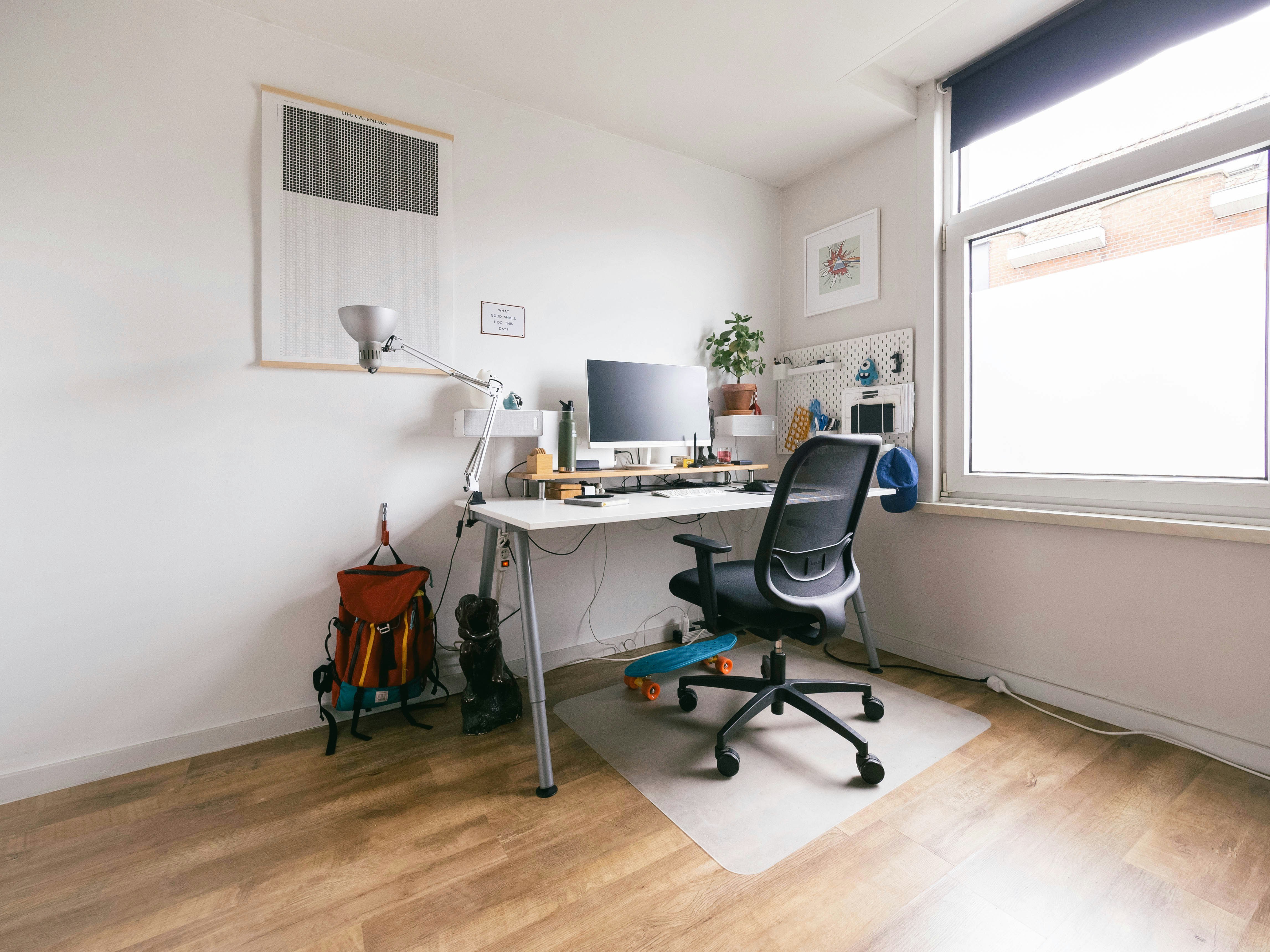
Review the physical routes with both chairs occupied. Check that the divider, bag, and any stand remain clear when either user stands or reaches storage. A room that works only if one person waits for the other to move should be described as sequential use, not simultaneous access. That can be acceptable when agreed, but the distinction belongs in the plan.
If the resulting coordination burden is high, compare another real work location with the cost of more accessories. A second suitable place for occasional critical calls may provide more value than an elaborate attempt to make one room behave like two isolated offices. Keep useful improvements already achieved, but avoid treating every remaining limitation as evidence that another microphone, panel, or screen must be purchased.
A successful shared setup can include explicit limits. Ordinary meetings may work well while sensitive interviews or recordings use another space. Stating that limit makes the arrangement more reliable and honest than promising equipment will prevent every interruption or cross-pickup event.
Your practical comparison worksheet
Use the following checks with the actual people, objects, and room in your plan. Record a measured value, an observed task result, or the exact product information that answers each point. Keep unresolved details separate from confirmed ones. A result about one feature should not silently establish another: physical fit, ordinary use, support, and care may require different evidence. Work through the checks before ordering, then repeat the relevant actions with the delivered item while the return terms apply. The worksheet is a planning aid rather than a product test or approval for an improvised installation.
1. Meeting relationship
Identify whether the two users attend the same meeting, separate meetings, or alternate between those states.
Document different audio configurations where needed. Duplicate active audio in one shared meeting and cross-pickup during independent calls are separate problems.
2. Occupied layout
Draw both chair-and-person footprints, doors, drawers, and the routes used to stand and leave during a call.
Keep access usable without requiring the other person to stop work or move equipment. Two desk rectangles alone do not establish room fit.
3. Selected devices
Check input and output on both computers in the actual meeting software after docking or reconnecting headsets.
A clear test from another microphone or application does not confirm the intended work configuration. Retain the selected-device information on each setup card.
4. Cross-pickup
Test one voice, the other voice, and overlapping speech through each microphone using ordinary levels and authorized sample conversation.
Evaluate both directions independently. Headphones reduce playback but do not remove spoken sound from the room or guarantee confidentiality.
5. Camera views
Inspect both previews with people working and moving normally, including screens, doors, reflective surfaces, and private material.
Use appropriate physical privacy handling rather than relying on a virtual background to conceal sensitive information or another person’s activity.
6. Divider fit
Measure deployed feet, panel angles, height, and folded storage in relation to both users.
Choose it for documented functions. A visual improvement does not establish isolation, and a stable room route remains necessary during calls.
7. Controls and transitions
Rehearse muting, sharing, note-taking, answering, and switching between independent and shared meetings.
Keep settings and hardware accessible. A good recording is not a complete solution if ordinary controls require reaching across the other workstation.
8. Exception routine
Agree the alternative location or schedule for meetings needing greater privacy or fewer interruptions than the shared room can provide.
Use that plan before a sensitive call begins. Equipment choices should support a realistic routine rather than promise a second isolated office inside one room.
Sources and scope
- Zoom: managing audio echo - Primary software guidance on audio paths, including multiple active room devices. Confirm current instructions for the actual setup.
Editorial note: This is a research-based planning guide, not a hands-on product review. Worked examples are hypothetical. Follow the exact product instructions and resolve compatibility, installation, and care questions before relying on the arrangement.