
How to Choose a Webcam for a Tight Space Behind Your Chair
Affiliate Disclosure: We may earn a small commission on qualifying Amazon purchases at no extra cost to you. Full disclosure →
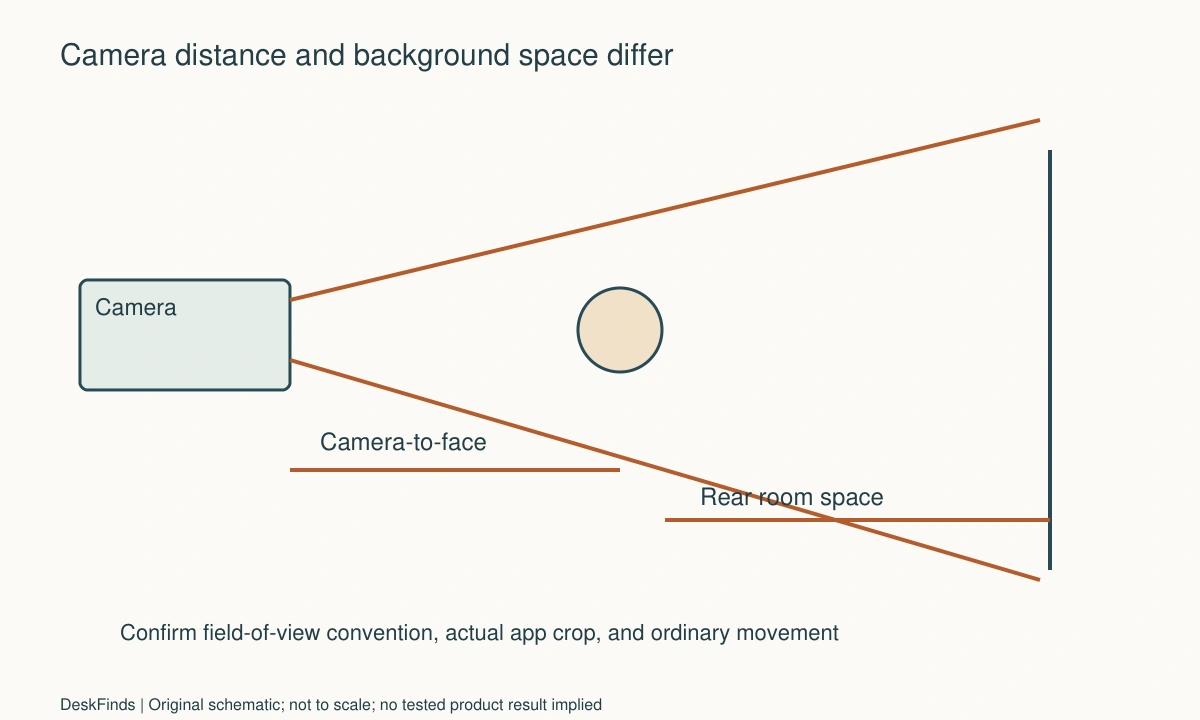
When a chair sits close to a wall, the camera may show too much face, too little background, or a visible edge of the room despite apparently limited space. The useful frame depends on camera-to-person distance, field of view, aspect ratio, mounting position, and the meeting application’s crop.
Quick answer: Measure the camera-to-face distance and inspect the actual preview in your work application before choosing a webcam. Confirm whether field of view is horizontal, vertical, or diagonal, and check supported crop or zoom features. A wider lens includes more surroundings; it does not automatically make a cramped background look better.
Distinguish two distances
Distance behind the chair affects background composition and room movement. Distance from camera to face affects framing. They are related through the layout but are not interchangeable measurements.
Draw a side view with the camera, screen, chair, user, and wall. A deeper monitor stand can move the camera closer to the face even when the chair’s rear clearance is unchanged. Keep the useful screen position rather than shifting it solely for the camera.
Start with the existing camera
Open the actual meeting app and preview at the normal seat position. Check shoulders, headroom, background edges, and the effect of ordinary movement. Save no sensitive screenshots unnecessarily; a simple written description or clean test frame is enough.
Confirm the application uses the intended camera. Software effects, automatic framing, and a crop can change the visible area. Compare with another permitted camera app if you need to distinguish hardware framing from meeting-software behavior.
Read field-of-view specifications correctly
A manufacturer may specify diagonal field of view rather than horizontal. Do not compare a diagonal number on one camera with a horizontal number on another as though they describe the same frame. Aspect ratio also matters.
Logitech lists different field-of-view options for certain Brio models. Check the exact product, software support, and operating system rather than assuming every camera in the family has the same adjustment. A related model’s feature list is not confirmation.
Decide what should be included
For a solo call, a narrower useful frame may exclude distracting room edges. For demonstrations or two people, more coverage may be needed. Define the task before selecting the widest camera available.
A wide view can reveal the bed, doorway, or another person’s screen. If privacy matters, inspect the full frame without relying on a virtual background. Physical layout and information handling remain part of the decision.
Evaluate crop and digital zoom
Cropping can narrow the visible frame but may change available detail. Check the supported modes and the resolution used by the meeting platform. A high advertised sensor resolution does not guarantee every cropped call mode has the same quality.
Test normal movement after cropping. An overly tight frame may cut off the head or hands as soon as you lean. Choose useful tolerance rather than centering one perfect still pose.
Check mount and camera height
A monitor clip needs a compatible edge and must not press the screen or obscure controls. A tripod or separate stand needs its own footprint. Include cables and any webcam-light combination in the arrangement.
Position the camera for the task without making the display difficult to use. A camera placed very high to avoid background clutter changes the view of the face and desk. Test the resulting frame rather than assuming height is always an improvement.
Plan lighting within the tight space
A lamp or compact light may help the face, but check glare, reflections in glasses, and spill to another occupant. Do not crowd a light against the wall or fabric background contrary to its instructions.
A bright window behind the user can challenge the image. Changing the desk orientation, using suitable window control, or selecting another time may matter more than upgrading resolution. The webcam lighting guide addresses that separate issue.
Use geometry as a rough check
For a rectilinear lens with a known horizontal field of view, visible width at distance d is approximately 2d × tan(horizontal angle ÷ 2). This is an idealized planning relationship, not a promise of an exact app frame.
Do not insert a diagonal specification into that formula. Lens correction, aspect ratio, crop, and software can alter the result. Use the preview to confirm the actual configuration before ordering a background or screen sized from a calculation.
Example: wider is the wrong purchase
Imagine a user close to a rear wall whose current camera includes an unwanted doorway at the side. A wider camera would capture even more of that area. The user instead checks a documented narrower setting or appropriate crop, preserving enough room for normal head movement.
The crop improves the visual frame but does not fix a bright window reflection or a poor camera mount. Those are assessed separately. A physical background is considered only after the final field of view and room route are known.
The result is a task-based choice rather than a maximum-specification purchase. For more background options, see calls without a blank wall. If two people share the room, test their activity in the frame rather than judging an empty background.
Make a useful buying record
Record the camera distance, required frame, orientation, mount, supported software, and normal call mode. Include any employer restrictions on installing utilities. The webcam field-of-view guide explains terminology; your preview and exact product support determine fit.
Choose a camera that produces a useful frame from the position you can actually use. More width, resolution, or zoom has value only when it solves the identified framing problem without introducing a new one.
For image-size terminology, review webcam resolution.
Compare cameras with one framing brief
Write what the frame must include: face and shoulders, occasional hands, a physical object, or a second person. Also write what must remain outside it, such as a doorway or private screen. A camera with more width may help one brief and fail another. Keep the brief tied to the real desk and seat rather than the largest feature list available within budget.
Record camera-to-face distance separately from rear chair clearance. They answer different questions. You can have ample space behind the chair and a close camera because the screen sits near the front of a shallow desk. Conversely, a wide desk can place the camera farther away without creating room for a large physical background. Use both plan and side views if these distances are easy to confuse.
For each candidate, identify the field-of-view convention and the mode in which it applies. Diagonal and horizontal figures cannot be compared directly without the necessary aspect-ratio and geometry information. If a utility offers named framing settings, check that it supports the exact model and your permitted operating system. Employer restrictions on software installation can make an otherwise useful feature unavailable in practice.
Keep resolution and crop together. A useful narrow crop may have less detail than the full frame, and the meeting platform can apply its own processing. Do not infer the final call quality from the sensor’s maximum advertised resolution. Test the output mode you actually use, including the network and application limits relevant to that work, without promising a universal result from a specification alone.
Mounting deserves its own check. A clip may overlap a thin bezel, a light bar, or a camera cover. A separate stand adds a footprint and cable route. The best optical framing is irrelevant if the camera cannot be supported without contacting the screen improperly or displacing essential tasks. Choose a coherent installed arrangement rather than treating the camera as weightless and invisible around the monitor.
The final trial should include speaking, note-taking, leaning normally, and reaching for required controls. A good frame has useful tolerance. It should not require the user to remain in a narrow pose for every meeting.
Worked comparison: the narrow setting solves only one issue
Imagine a worker whose chair is close to a wall and whose current camera includes a doorway beside the head. A wider webcam is advertised as helpful for small rooms, so it enters the initial shortlist. The worker writes a solo-call brief and discovers the unwanted doorway is the main framing problem.
The live preview is checked in the actual work application. The worker confirms the selected camera, aspect ratio, and any existing effect or crop. The camera-to-face distance is measured without changing the useful screen position. The background distance is recorded separately.
A supported narrower setting excludes the doorway while retaining headroom and ordinary movement. The wider candidate would have included more of the room, so it is no longer preferred simply for its field of view. A crop is also tested, with the worker comparing actual call detail rather than assuming maximum sensor resolution survives every mode.
The first narrow frame is too tight when the worker looks down at notes. The setting is relaxed slightly or another supported camera position is tested. The goal is a usable range of movement, not a centered still portrait. The worker checks that private papers remain outside the real frame rather than trusting a virtual background.
A lighting problem remains: a bright window produces an unsuitable image in the normal work period. The worker evaluates window control or another supported light arrangement. A camera upgrade may help some imaging tasks, but the original framing improvement is not treated as a guarantee that lighting and reflections are solved.
Finally, the mount is checked with the monitor and any light bar. A separate stand would block the writing area, while a compatible clip arrangement preserves it. Controls and cable access remain usable. The chosen camera now answers the framing brief from an appropriate physical position.
The record includes exact model, mode, utility support, crop, mounting, and useful distances. It can be repeated after moving the desk. It is not a universal recommendation that all cramped rooms need a narrow or wide webcam; the required frame and supported installed arrangement determine the answer.
For mount categories, compare webcam mounting types.
Check framing before buying the background
Select the camera configuration first, then measure the physical background it needs. Buying a wide screen or backdrop from an assumed lens angle can consume room space unnecessarily. A camera change later can reveal edges, stands, or private areas that were outside the previous frame.
Keep an unprocessed check in the routine. Software effects and automatic framing can change with application, mode, or movement. The underlying real view should still respect the work’s privacy requirements. A narrow crop can reduce visible surroundings, but it is not a substitute for putting sensitive information in an appropriate location.
If the camera includes automatic framing, evaluate whether it follows the intended person and how it behaves when another occupant passes. Do not assume a feature demonstrated in a product video is supported in every application or useful in a shared room. Check the exact model’s current instructions and permitted software configuration.
Consider cable and mount service as well. The camera may need disconnecting, updating, or repositioning. Keep access without pulling leads or pressing on the display. A stand or clip should not become trapped behind a fixed background that must be dismantled for a basic connection task.
During the final trial, use the ordinary call resolution and an appropriate sample conversation. Include note-taking, reaching, and the movement that previously caused framing problems. Keep the result tied to that mode. A high-resolution still image taken in another application does not establish the behavior of a normal work call.
Retain the useful settings and distances with the model information. The record helps after changing desks, displays, or meeting software. It also makes a future upgrade concrete: compare what the current arrangement cannot do, rather than buying wider coverage or more pixels without a defined framing need.
Your practical comparison worksheet
Use the following checks with the actual people, objects, and room in your plan. Record a measured value, an observed task result, or the exact product information that answers each point. Keep unresolved details separate from confirmed ones. A result about one feature should not silently establish another: physical fit, ordinary use, support, and care may require different evidence. Work through the checks before ordering, then repeat the relevant actions with the delivered item while the return terms apply. The worksheet is a planning aid rather than a product test or approval for an improvised installation.
1. Framing brief
List people, objects, and normal movement that must remain visible, alongside room features that should remain outside the real frame.
Choose coverage from that brief. Wider is useful for some demonstrations and can be counterproductive when the actual goal is excluding distracting surroundings.
2. Camera distance
Measure from the intended camera position to the face while screen and inputs remain useful.
Keep this separate from the distance behind the chair. Rear room space alone does not establish how tightly the camera frames the person.
3. Field specification
Record whether the maker states horizontal, vertical, or diagonal field of view and which aspect ratio or mode it describes.
Do not insert a diagonal number into a horizontal-width calculation or compare unlike figures as if they were the same specification.
4. Software support
Check the exact camera, utility, operating system, and workplace permission for framing controls or auto-framing.
A feature on a related model or an unavailable application is not a usable setting for this workstation. Test in the real call application.
5. Crop detail
Compare supported crop or zoom with the actual output resolution and normal meeting mode.
Judge the transmitted result rather than the maximum sensor label. Keep enough movement tolerance that routine note-taking does not leave the frame.
6. Mount fit
Inspect clip contact, monitor edge, controls, light bars, cable route, and any separate stand footprint.
Use the camera’s intended support without pressing the display or displacing essential desk tasks merely to obtain a preferred optical angle.
7. Light and privacy
Test normal work hours, windows, glasses reflections, private screens, and ordinary activity behind the user.
Treat lighting and information handling independently. A better frame or software effect does not guarantee every image or confidentiality problem is resolved.
8. Repeatable setup
Record model, mode, supported settings, mount, distance, and the task movements tested.
Repeat the relevant checks after a desk, screen, or software change. A successful frame applies to the actual configuration, not every future camera position.
Sources and scope
- Logitech BRIO specifications - Primary example of diagonal field-of-view and supported adjustment information for a named model.
Editorial note: This is a research-based planning guide, not a hands-on product review. Worked examples are hypothetical. Follow the exact product instructions and resolve compatibility, installation, and care questions before relying on the arrangement.