
How to Choose a Screen Protector for a Touchscreen Laptop

Affiliate Disclosure: We may earn a small commission on qualifying Amazon purchases at no extra cost to you. Full disclosure →
A laptop screen protector can match the diagonal size and still interfere with the camera, touch input, pen use, or lid closure. Touchscreen laptops need a model-specific fit check because the front glass and hinge arrangement are part of the working device.
Quick answer: Match the complete laptop model and screen variant, verify that the protector supports touch and any pen you use, and check its coverage, cutouts, attachment, and closed-lid requirements. Follow the laptop maker’s guidance about accessories between the display and keyboard. Never force a lid closed against an added layer.
Decide which problem you want to solve
Choose between a clear protective film, matte film, privacy filter, and removable screen. These products can feel and behave differently. Do not buy a privacy filter when your only goal is scratch protection unless you also accept its viewing tradeoffs.
Write down the main requirement: reducing reflections, protecting a surface, limiting off-axis viewing, or changing stylus feel. That requirement will help you reject products that fit physically but do not support your task.
Identify the exact device and panel
Find the model number and generation in the system information or on the device label. Some laptop families offer touch and non-touch versions with different front assemblies. Screen size alone cannot distinguish them.
Check whether the device is a conventional clamshell, detachable tablet, or convertible. A protector for one design may not accommodate the camera, sensors, hinge clearances, or tablet-mode handling of another. Use an explicit compatibility list when available.
Check touch support as a stated specification
Look for support for the device’s input system, not merely the word transparent. A manufacturer may support touch on some filters but not others. Confirm the exact product code instead of generalizing from a brand’s whole range.
If using a pen, check stylus compatibility separately. A matte surface may alter friction and appearance, and the effect is not identical across products. If precise drawing matters, consider a returnable product with clear model support rather than relying on an unrelated customer review.
Map the front face
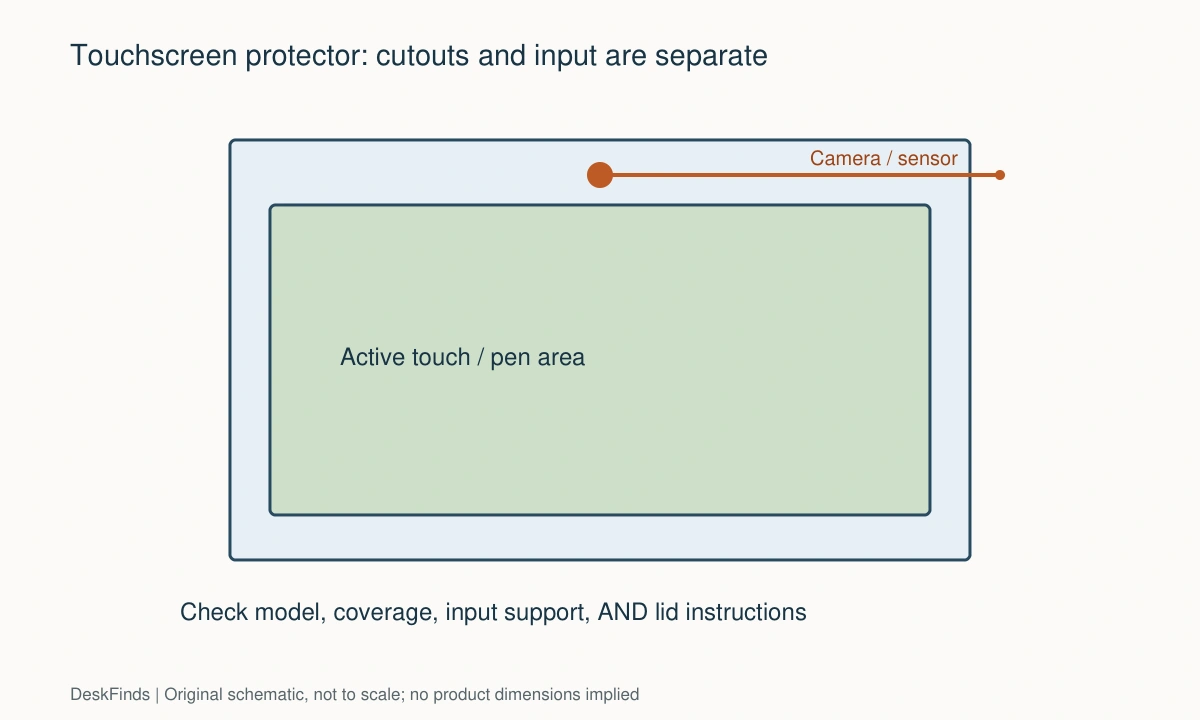
Note the active image, surrounding glass, camera, infrared sensors, microphone holes, and any front controls. A full-coverage protector needs suitable cutouts. A cutout placed slightly incorrectly can matter even when the image area is covered neatly.
Measure the intended coverage area according to the maker’s instructions. Do not infer exact dimensions by scaling a promotional photo. If the seller provides only a diagonal and no model list, ask for a dimensioned drawing before purchase.

Respect lid closure requirements
Laptop lids can have very small clearances. An added frame, magnetic strip, or camera cover may create a pressure point between the display and keyboard. Check the device maker’s guidance and remove accessories before closing when directed.
A protector marketed as thin is not automatically approved for every laptop. Do not press on the lid or add a heavy object to make it latch. If closure changes, stop and resolve the incompatibility rather than treating resistance as normal.
Choose an attachment method
Adhesive films usually require careful alignment and a clean surface. Removable filters may simplify sharing but need compatible attachment points and a safe place to store the sheet. Magnetic systems can involve model-specific fittings.
Check the removal instructions and compatibility with existing coatings. Avoid stacking multiple protectors unless explicitly supported. Extra layers can introduce new optical and fit problems without guaranteeing useful protection.
Consider reflections and readability
A matte finish can change how reflections appear, but it may also change the perceived texture of text and images. A privacy filter changes off-axis visibility by design. Evaluate the tradeoff for the actual work rather than assuming every extra layer improves the screen.
For color-sensitive work, look for appropriate product information and test within the return period. Do not describe a generic protector as color-neutral without evidence. The original screen and the added layer form one viewing system.
Plan installation around the device instructions
Power down and prepare the screen using the laptop and protector makers’ approved cleaning methods. Use a clean, stable workspace with good light. Check orientation and cutouts before removing adhesive liners.
Do not use scraping tools or unapproved solvents to chase a dust speck. Follow the supplied installation procedure, including any alignment guides. If a product is damaged or its adhesive behaves unexpectedly, consult the maker rather than experimenting on the display.
Test normal interaction
After correct installation, check taps, scrolling, edge gestures, on-screen keyboard use, and pen input if applicable. Compare with your normal tasks. Also test camera access and any face-recognition feature without making assumptions about the cutout.
Check convertible positions the device supports. A filter that stays aligned on a desk may behave differently in tablet mode. Confirm that it cannot slide into a hinge or cover a ventilation opening.
Compare candidates with a task matrix
| Your priority | Evidence to seek |
|---|---|
| Touch navigation | Exact product’s touchscreen support |
| Pen drawing | Device and stylus compatibility, surface characteristics |
| Privacy | Specified viewing direction and usable orientation |
| Full glass coverage | Model-specific shape and sensor cutouts |
| Daily lid closure | Device maker’s accessory guidance |
| Frequent sharing | Removable system and protected storage |
Our laptop privacy-screen guide explains privacy use more broadly. For this purchase, keep the fit and input requirements specific to your device. An accessory is useful only when the laptop remains fully usable in all the modes you need.
Three touchscreen use cases
Clamshell laptop used mainly for typing
Model fit and closed-lid guidance deserve special attention. The protector may be unobtrusive while the screen is open yet add a layer the device maker says to remove before closing. Include that action in your daily routine, especially if you commute with the laptop.
Check the camera and sensors as well as the image. A product’s photograph may show a similar laptop with a different camera arrangement. Match the specific model and generation rather than relying on a familiar brand logo.
Convertible laptop used with a pen
Test the pen and touch behaviors in the positions you normally use. The protective surface can change friction and appearance, and a removable filter may not stay aligned when the laptop becomes a tablet. Look for explicit support for these uses.
Do not evaluate from a single tap on the center of the screen. Try edge gestures, writing near the corners, scrolling, and palm-related behavior in your ordinary software. Compare against your known device behavior, and follow support guidance if something changes after installation.
Shared screen with occasional privacy needs
A removable privacy layer can be convenient when you alternate between individual work and showing the screen to someone else. It also introduces a storage and handling task. Keep the removed filter flat, clean, and protected from the contents of your bag.
Check attachment durability and replacement parts if daily removal is expected. Adhesive consumables and alignment features may affect long-term practicality. A permanent clear film and a removable privacy filter are different choices, even if both appear in the same search results.
For camera attachment considerations, review webcam privacy covers.
Ask a model-specific question
Send the seller the complete laptop model, screen variant, intended input method, and whether you close the lid with the accessory attached. Ask for the exact product code it supports. This gives a more useful answer than asking whether a brand’s filters generally work with touchscreens.
If the answer addresses only diagonal size, the touch, cutout, and closure questions remain open. Resolve them independently. A product can pass the dimensions and still fail your most important use case.
What to record during a return-period trial
Keep the original packaging and instructions. Record installation issues, changes in readability, touch response, pen feel, camera use, and whether the product stores conveniently. Do not leave adhesive or protective liners in place during normal use unless the instructions require them.
If compatibility is poor, stop using the accessory and follow the approved removal procedure. Avoid experimenting with unapproved solvents or sharp tools on the display. A returnable, explicitly supported product is often a more sensible first attempt than a generic sheet requiring modification.

Separate an accessory promise from a device requirement
A seller may describe a product as suitable for touchscreens in general. Your laptop maker may have additional guidance about coatings, lid clearance, or accessories. Read both. A general marketing statement should not override a restriction applying to the exact device.
Apple’s guidance about camera covers illustrates the importance of tight display-to-keyboard clearance on some laptops; it does not establish that every touchscreen laptop or every film has the same restriction. Use such guidance for the specific device and accessory it addresses. Do not convert a camera-cover thickness instruction into a universal screen-protector specification.
Record what must happen before closing or carrying the laptop. If a removable filter needs its own sleeve, include that sleeve in the bag arrangement. A product that is easy to remove at a desk may be inconvenient when commuting, changing rooms, or using tablet mode several times a day.
Keep your main input requirement visible in the shortlist. A protector useful for occasional touch navigation may not suit detailed pen drawing. Likewise, a surface intended to change pen friction may be an unwanted optical tradeoff for reading dense text. Choose according to the task you actually perform.
When the trial ends, decide from fit, function, readability, handling, and closure together. Passing four of those does not compensate for failing a required fifth. If the product cannot be used as instructed on the device, choose another supported option or keep the screen unmodified rather than forcing a generic accessory into the routine.
Before applying an adhesive product, inspect the delivered outline against the screen with protective liners still in place where the instructions allow that check. Confirm the camera and sensor cutouts and the exact product code. This preliminary check is not the final touch test, but it can reveal an incorrect shipment before installation becomes difficult to reverse. If you use a device supplied by an employer, confirm that adding the accessory is permitted. Managed-device policies may determine the acceptable product or installation process independently of physical fit. Keep those requirements with the compatibility record so a replacement order follows the same supported arrangement.
If the laptop sits above the desk, compare laptop-stand fit.
Worked example: a convertible laptop used for notes
Imagine a user choosing a protector for a convertible touchscreen laptop used for typing, pen notes, and video calls. A generic film matches the advertised diagonal, and a removable privacy product lists a related laptop family. Neither listing alone confirms the whole use case.
The user records the exact generation and screen variant. The camera and sensor arrangement differ from the related model shown in the listing, so the compatibility question is sent to the supplier with the complete device code. The user does not treat the family name as confirmation.
The main priority is then clarified. Pen notes are frequent, while visual privacy is occasional. A permanent privacy layer may introduce an unwanted viewing tradeoff for the primary task. The user compares a supported clear or matte option with a removable privacy solution, keeping the two functions separate.
For the pen-compatible candidate, touch and pen support are checked as explicit specifications. After correct installation, the user tests normal writing software, edge gestures, scrolling, and camera functions. A successful center-screen tap would not be enough to establish that the device remains useful in tablet mode.
Lid guidance is reviewed independently. If an attachment or removable layer must come off before closing, that step receives a protected storage place in the bag. The user does not force the lid shut or borrow a thickness rule from an unrelated device. Device-specific instructions determine the routine.
The trial record notes readability, pen feel, alignment while converting modes, and handling between sessions. If one required function fails, the user follows the approved removal and return process. Modifying a cutout or adding another layer is not assumed to be a harmless fix.
The useful outcome is a protector chosen for the complete device and task pattern. Matching the glass outline is necessary but insufficient. Touch input, stylus work, sensors, closure, and movement between modes each contribute to compatibility, and a product should not be described as suitable until the required parts of that routine are supported.
For coverage measurements on separate displays, use monitor privacy-screen measurement.
Your eight-point comparison worksheet
Use these checkpoints to compare the actual room, furniture, or device with a candidate product. Keep each result separate; a favorable overall impression cannot resolve a failed required function. Blank record fields are deliberate so you can use your own measurements rather than copying hypothetical examples.
1. Device identity
Record full model, generation, display variant, and whether the laptop is a clamshell, detachable, or convertible.
Match the accessory’s supported device list before using diagonal size as a fit filter; family names can cover different front assemblies.
2. Primary objective
Choose physical protection, reflection control, privacy, or a particular pen surface as the main requirement.
Evaluate tradeoffs against that objective so a physically fitting filter is not purchased for a function it does not provide.
3. Touch and pen
Find the exact product’s stated touchscreen and stylus support rather than a general statement about the brand.
Check the input method separately from dimensions, and ask the maker when the device or pen combination is not explicitly covered.
4. Coverage outline
Mark the active image, surrounding glass, rounded corners, and all sensor or camera positions.
Compare cutouts and attachment points at full size where possible; a nearly correct outline can still obstruct an essential feature.
5. Lid closure
Read the laptop maker’s guidance about accessories between display and keyboard, including removal before closing when required.
Never force closure or assume that a thin product is approved for every hinge and display-clearance design.
6. Surface preference
Consider the effect of matte, clear, and privacy layers on your text, images, and pen tasks.
Look for relevant product information and test normal work rather than accepting a universal claim that every added layer improves the display.
7. Installation process
Prepare the screen using approved cleaning methods and inspect orientation and cutouts before exposing adhesive.
Follow the supplied alignment procedure and avoid stacking layers or using improvised removal chemicals on coated glass.
8. Working modes
Test the device’s ordinary laptop, tablet, camera, and pen functions after correct installation where those modes apply.
Choose an accessory that remains suitable across your actual routine, and address any changed behavior before continuing daily use.
Sources and scope
- Kensington: touchscreen privacy-screen product information - An example of explicit touchscreen support on a named product; not a claim about every protector.
- Apple: camera-cover and lid-clearance guidance - Device-specific camera-cover example demonstrating why lid-clearance instructions matter; not a universal film-thickness limit.
Editorial note: This is a research-based planning guide, not a hands-on product test or a certification of a custom installation. Dimensions described as hypothetical are examples. Follow the exact product instructions and confirm unresolved compatibility before buying.