
How to Choose a Laptop Stand That Fits a Thick or Heavy Laptop

Affiliate Disclosure: We may earn a small commission on qualifying Amazon purchases at no extra cost to you. Full disclosure →
Laptop stands are often grouped by screen size, but the screen diagonal does not describe a thick workstation laptop’s base, weight, feet, ports, or lid balance. A stand that carries a slim notebook may offer too little support or an unsuitable retaining lip for another machine.
Quick answer: Compare the laptop’s actual width, depth, thickness, weight, feet, and vent locations with the stand’s supported geometry and load limits. Check the retaining lip, stability with the lid open, port access, and intended typing method. A claimed screen-size range is a starting filter, not a complete fit specification.
Record the laptop in its working configuration
Find the exact model and measure the base, including any projecting hinge area or attached protective shell. Record the manufacturer’s weight and account for accessories that remain attached when the stand is used.
Do not use shipping weight. A bulky charger is not part of the supported laptop unless it rests on the stand, while an attached case changes the contact geometry even if its weight is small. Document the actual configuration rather than a bare-device assumption.
Distinguish open and vertical stands
An open elevated stand supports a laptop being viewed with its lid open. A vertical holder stores it on edge, usually for use with external input and display equipment if the laptop supports that operating mode. Their fit checks are different.
For a vertical holder, the slot must match the device’s thickness and supported orientation. For an open stand, platform depth, retaining lip, feet, and lid position are more important. Do not infer one type’s suitability from the other.
Check the support area
Compare the stand’s rails or platform with the laptop’s underside. The laptop’s rubber feet should meet appropriate support where required. A device overhanging the platform is not automatically unsuitable, but the maker must support the intended size and contact arrangement.
Inspect whether the hinge or rear protrusion shifts weight behind the supporting area. A heavy laptop with a large open screen can behave differently from a compact closed device. Do not balance an expensive machine on a stand outside its stated use.
Inspect the retaining lip
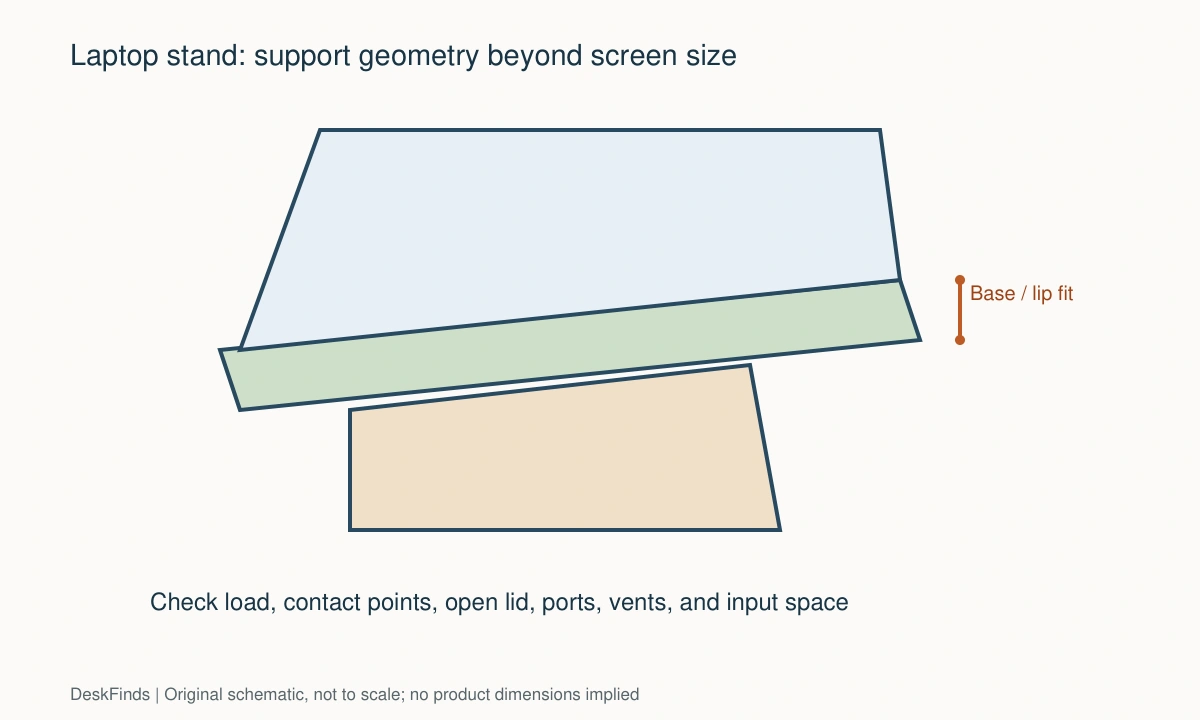
Measure the front profile of the laptop and any case. The lip should engage as intended without pressing keys, blocking the trackpad, or contacting a fragile edge. A thick base can sit above a short lip rather than being retained by it.
A very tall lip may interfere with the wrists if typing on the built-in keyboard. Decide whether the stand is intended for direct typing or for use with external input devices. The product’s supported mode matters more than a promotional pose.

Read the load specification correctly
Confirm the stand’s stated maximum load for the actual configuration. Adjustable joints, extension height, and tilt can affect permitted use, so read the instructions rather than treating one headline capacity as permission for every position.
Do not add a homemade weight test or assume that a metal stand must be stronger than a composite one. Construction details, joints, and the maker’s verified limits are more useful than material appearance alone.
Check adjustment and locking
For a heavy laptop, height and angle adjustments may require supporting the device or removing it first. Follow the specified procedure. Choose a stand whose normal adjustment you can perform without risking a slip.
Check whether tools are needed and where they are stored. A stand that repeatedly changes height between users needs a more practical routine than one set once and left alone. Convenience should not depend on loosening a joint while the device is unsupported.
Keep vents unobstructed
Locate intake and exhaust openings in the laptop documentation. Compare them with rails, pads, and the platform surface. A stand with holes is not automatically compatible with every underside ventilation pattern.
Do not promise that elevation will solve overheating. If the laptop has temperature or performance problems, follow its maker’s diagnostic guidance. The stand’s basic requirement is not to obstruct the intended airflow or create an unstable arrangement.
Include ports and cable weight
A side rail or lip can cover ports even when the laptop is securely supported. Test the actual plug shapes for power, video, networking, and peripherals. Right-angle connectors can help only if electrically and physically suitable.
Support cables so their weight does not pull the laptop toward an edge. Keep a service loop for lid movement and any stand adjustment. An external dock can reduce the number of leads at the laptop, but it brings its own compatibility requirements.
Set the screen and inputs independently
If the laptop is raised for viewing, use external input devices when appropriate for sustained work. Make room for them before choosing stand depth. A stand that solves screen height but consumes the mouse area may worsen the whole setup.
Check screen position with the lid at its normal angle. The top of the stand is not the top of the screen. A tall platform can place a large display higher than you want even at the lowest setting.

Compare the complete fit
| Laptop feature | Stand check |
|---|---|
| Base width and depth | Supported footprint and contact positions |
| Thickness or case | Retaining lip or vertical-slot compatibility |
| Working weight | Published load limit and configuration |
| Open lid | Stability and usable viewing position |
| Vents | Unobstructed intake and exhaust routes |
| Ports | Plug access and cable strain |
Our external keyboard and mouse guide covers the input side of an elevated setup. Choose a stand from documented support and your actual device geometry. A large screen-size label alone cannot establish that a thick, heavy laptop will sit securely.
Three laptop configurations to compare
Heavy mobile workstation with the lid open
Record the working weight and base geometry, then inspect where the stand supports it. A large lid can change the balance when opened to the normal viewing angle. Confirm the maker supports the intended device size and configuration.
If adjustment requires removing the laptop, plan a clear nearby surface for that step. Do not hold a heavy machine with one hand while loosening an unfamiliar joint with the other unless that is the specified method. The adjustment routine should remain practical after the first setup.
Thick laptop inside a protective shell
Measure the shell as part of the device. It can change the retaining-lip engagement, contact points, and vertical-slot fit even when its added weight is modest. Check whether both the stand and laptop instructions permit the arrangement.
Do not compress a shell into a holder or use an excessive clamp force to overcome a thickness mismatch. A case can also cover vents or interfere with support pads. Treat the actual assembled device as the object being supported.
Vertical storage with an external display
Confirm that the laptop supports the intended closed-lid operation and that cooling and connections remain appropriate. The holder’s slot range must suit the device at the supported contact area. Adjustable padding should be used according to the holder’s instructions.
Check cable exits and the weight of connected adapters. A side-facing connector can become a downward-facing load in a vertical orientation. Support leads so they do not pull the laptop or torque a port, and keep the holder stable on the desk.
For vertical-device storage, compare adjustable vertical laptop stands.
Use a port-access rehearsal
List every connected device and draw the plugs at full size where possible. Include bulky power connectors, card readers, networking adapters, and right-angle cables. A stand rail can cover the only port needed for charging even though the laptop itself sits securely.
The same check applies to folding stands used while traveling. Your office cable arrangement may not match the hotel or shared workspace. Keep the support simple and compatible rather than adding adapters solely to bypass a badly placed stand rail.
Separate stand stability from thermal promises
A stable support with unobstructed vents is a basic fit requirement. It is not proof that the laptop will run cooler under every workload. Avoid using a general stand purchase as the only response to unusual heat, shutdowns, or fan behavior.
Follow the laptop maker’s diagnostic guidance for those problems. If a cooling accessory is considered, assess it as a separate product with evidence relevant to your machine. A visually open stand can still place a pad across an important vent or support the base at an unsuitable point.
For thermal expectations, review cooling-pad effectiveness.
Recheck after a laptop upgrade
Keep the stand drawing and compatibility information. A replacement laptop with the same diagonal size may be heavier, thicker, or use different vent and port positions. Repeat the contact and cable checks before treating the old stand as a permanent accessory for every future machine.

Choose for the device you have
A stand marketed for a large diagonal can still have a small support platform, while a stand with a modest size label may explicitly support a particular heavy laptop. Read the actual compatibility and load information. Do not infer support from the largest screen shown in a promotional image.
Keep the laptop’s protective shell and connected accessories in the evaluation. Removing a case every morning may be acceptable for some users, but it changes the routine and creates another storage task. If the case must stay on, its thickness and contact geometry belong in the required specification.
Check the lowest useful screen position as well as maximum elevation. A heavy laptop often has a large display, and a tall fixed stand can raise it more than you want. Test the screen in the intended viewing position with external inputs arranged on the desk before choosing a platform height.
For a shared stand, record how adjustment is performed with each laptop. The lighter machine may fit a slot or lip differently from the thicker one. Use only the documented adjustment range and suitable pads. Do not make an unstable fit appear secure by overtightening a holder or adding arbitrary packing.
Consider serviceability and portability separately. A solid fixed stand may suit a permanent desk, while an adjustable folding design may suit travel if it supports the load and routine. Compare the complete device-and-stand arrangement in each location. The useful result is secure support, accessible ports, unobstructed airflow, and a workable screen/input layout, rather than winning a specification comparison on maximum height alone.
Worked example: a thick laptop in a stand labeled for its screen size
Suppose a user has a heavy laptop with a thick base and a protective shell. A stand lists a screen-size range that includes the laptop, so it appears suitable. The user records the device’s actual weight, depth, shell thickness, feet, ports, and vents before ordering.
The platform is wide enough, but the front lip does not engage the shell as the stand’s instructions require. Removing the shell would change the contact geometry, so the user decides whether that is a practical supported routine. The fit is not confirmed by compressing the shell or adding an improvised retaining block.
Another stand has an appropriate retaining arrangement and documented load support. Its side rail, however, overlaps the charging port. The user draws the actual connector and natural cable exit. A right-angle cable is considered only after its orientation and electrical suitability are verified; the goal is not simply to make a photograph look tidy.
The open-lid configuration is tested as instructed on a suitable surface. The screen’s normal angle and the stand’s height affect the viewing position. Maximum elevation is not useful if the large display ends up too high at the lowest setting. External keyboard and mouse placement are included in the same desk trial.
Vent locations are checked against support pads. The user does not assume an open-looking platform improves cooling or that elevation will fix an existing thermal problem. Any unusual laptop heat or shutdown behavior remains a separate diagnostic question for the device maker.
The final shortlist compares stable supported contact, retention, load, viewing position, ventilation, and cable access. A stand labeled for a larger diagonal can still fail several of those checks. Conversely, a model explicitly supporting the actual device geometry may be a better choice even if its marketing title is less expansive.
When the laptop is replaced later, the record is reused but the conclusion is not. A new machine with the same screen size can have different weight, vents, and port locations. Rechecking those details keeps a once-useful stand from becoming an assumed fit for every future device.
For the viewing-height question, use the laptop-stand height guide.
Your eight-point comparison worksheet
Use these checkpoints to compare the actual room, furniture, or device with a candidate product. Keep each result separate; a favorable overall impression cannot resolve a failed required function. Blank record fields are deliberate so you can use your own measurements rather than copying hypothetical examples.
1. Working device
Record exact laptop model, base dimensions, working weight, case or shell, and attached accessories that remain during use.
Compare the actual configuration with the stand’s intended support rather than using screen diagonal or shipping weight alone.
2. Support footprint
Locate the stand’s rails or platform under the laptop feet and inspect any rear overhang or hinge projection.
Confirm the maker supports the contact arrangement; a similar-looking slim notebook in a photo does not validate a heavier machine.
3. Retaining feature
Measure the front lip or vertical slot against the laptop’s thickness and contact geometry, including any case.
Ensure retention works as designed without pressing controls, fragile edges, or wrist areas used during direct typing.
4. Load configuration
Read capacity and any limits tied to height, tilt, extension, or adjustment procedure for the exact stand.
Do not treat one headline load figure as approval for every position or rely on metal appearance as proof of strength.
5. Open-lid balance
Check the intended lid angle and screen position with the stand on its suitable stable surface.
A machine supported while closed still needs a separate open-use assessment because the lid changes the working geometry.
6. Vent locations
Map intake and exhaust openings from device documentation and compare with pads, rails, and platform areas.
Keep the intended airflow unobstructed and avoid claiming a stand will fix a thermal fault without relevant evidence.
7. Connected ports
Include actual plug shapes, cable exits, adapter weight, and any movement when adjusting the stand or lid.
Keep rails clear of required ports and support cables so their weight does not pull the laptop or strain connectors.
8. Input arrangement
Place external keyboard and mouse when the screen is raised, then check work-surface depth and usable viewing height.
Choose the stand as part of the complete workstation; improved screen height should not remove the space needed for comfortable input.
Sources and scope
- Rain Design: mStand specifications and compatibility FAQ - Example of checking a stand’s dimensions and named device support; no endorsement of thermal marketing claims.
Editorial note: This is a research-based planning guide, not a hands-on product test or a certification of a custom installation. Dimensions described as hypothetical are examples. Follow the exact product instructions and confirm unresolved compatibility before buying.