
How to Plan a Printer Station on a Small Shelf or Rolling Cart
Affiliate Disclosure: We may earn a small commission on qualifying Amazon purchases at no extra cost to you. Full disclosure →
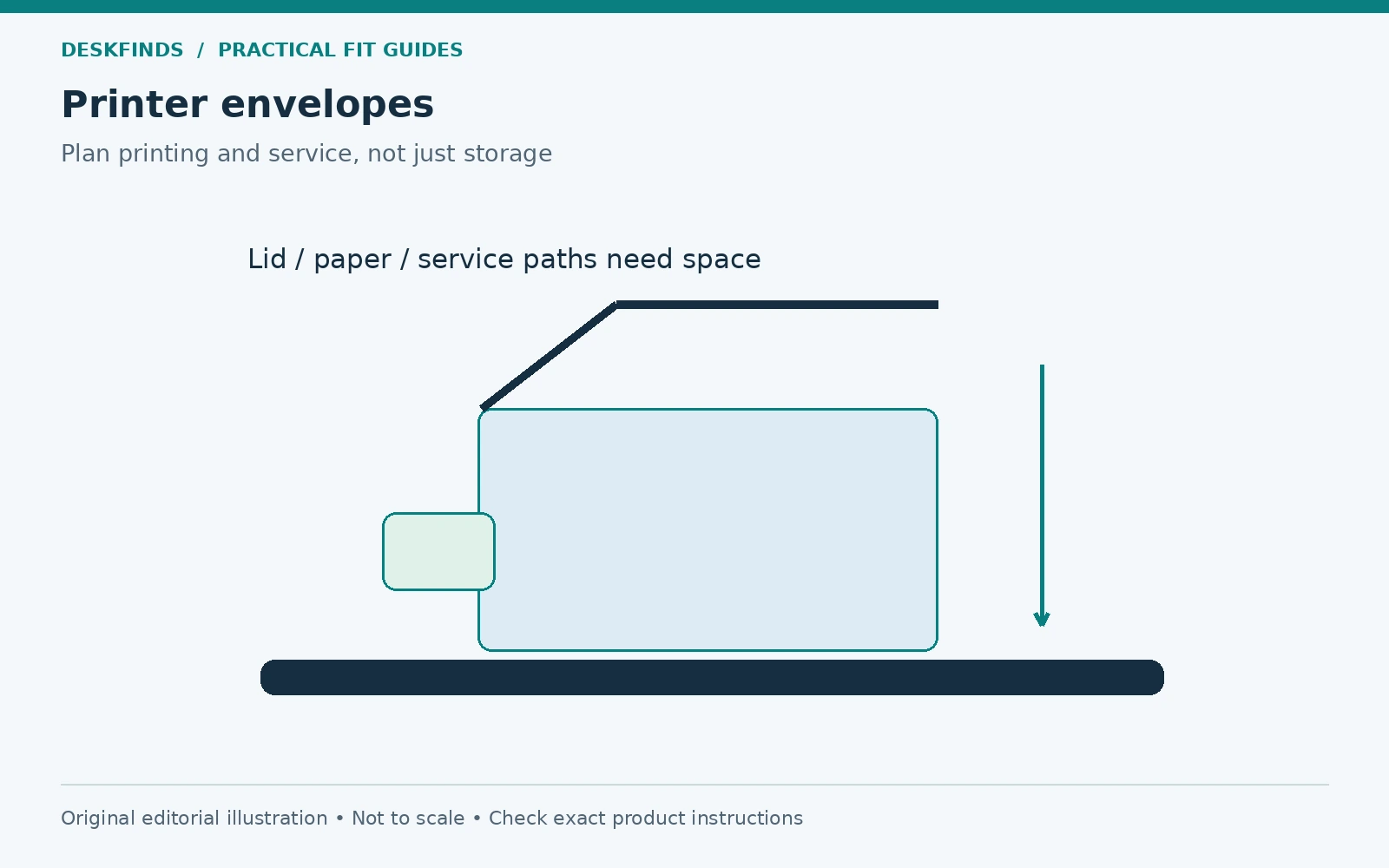
A printer can fit on a shelf when closed and still be impossible to use there. Paper trays extend, scanner lids lift, service covers open, and cables need room behind the housing. The support also has to suit the printer's weight and operating conditions. A useful station is designed around printing and maintenance, not just storage.
Quick answer: Use the exact printer manual to map the closed footprint, operating clearances, paper paths, scanner access, ventilation, and service openings. Then verify the shelf or cart's support, dimensions, load, and stability requirements. Do not assume a stand is suitable because its top is slightly larger than the printer body.
This guide covers workstation planning. It does not provide a universal printer-clearance figure or permission to move a printer while operating. Our printer care guide addresses a different part of ownership.
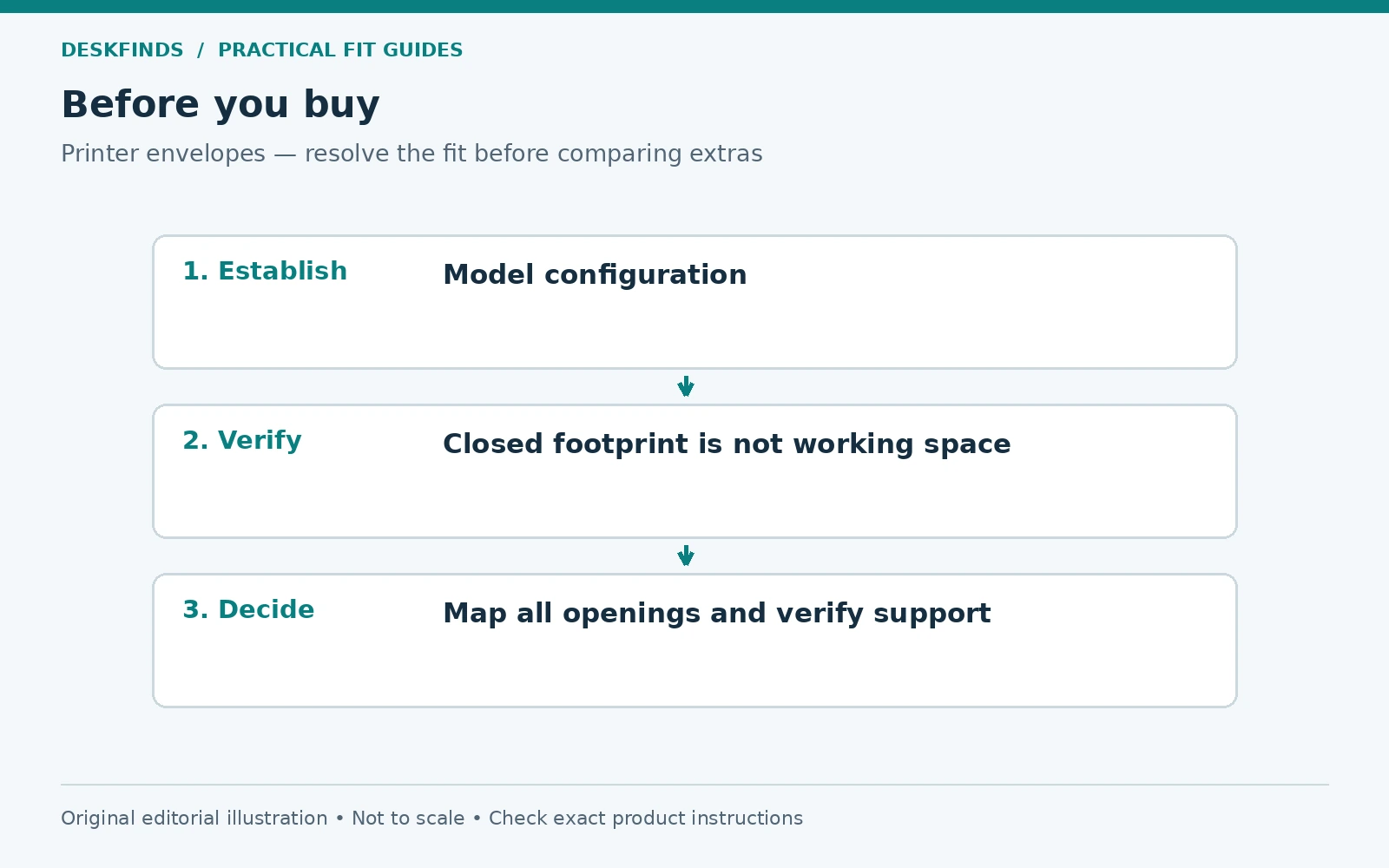
Identify the full printer configuration
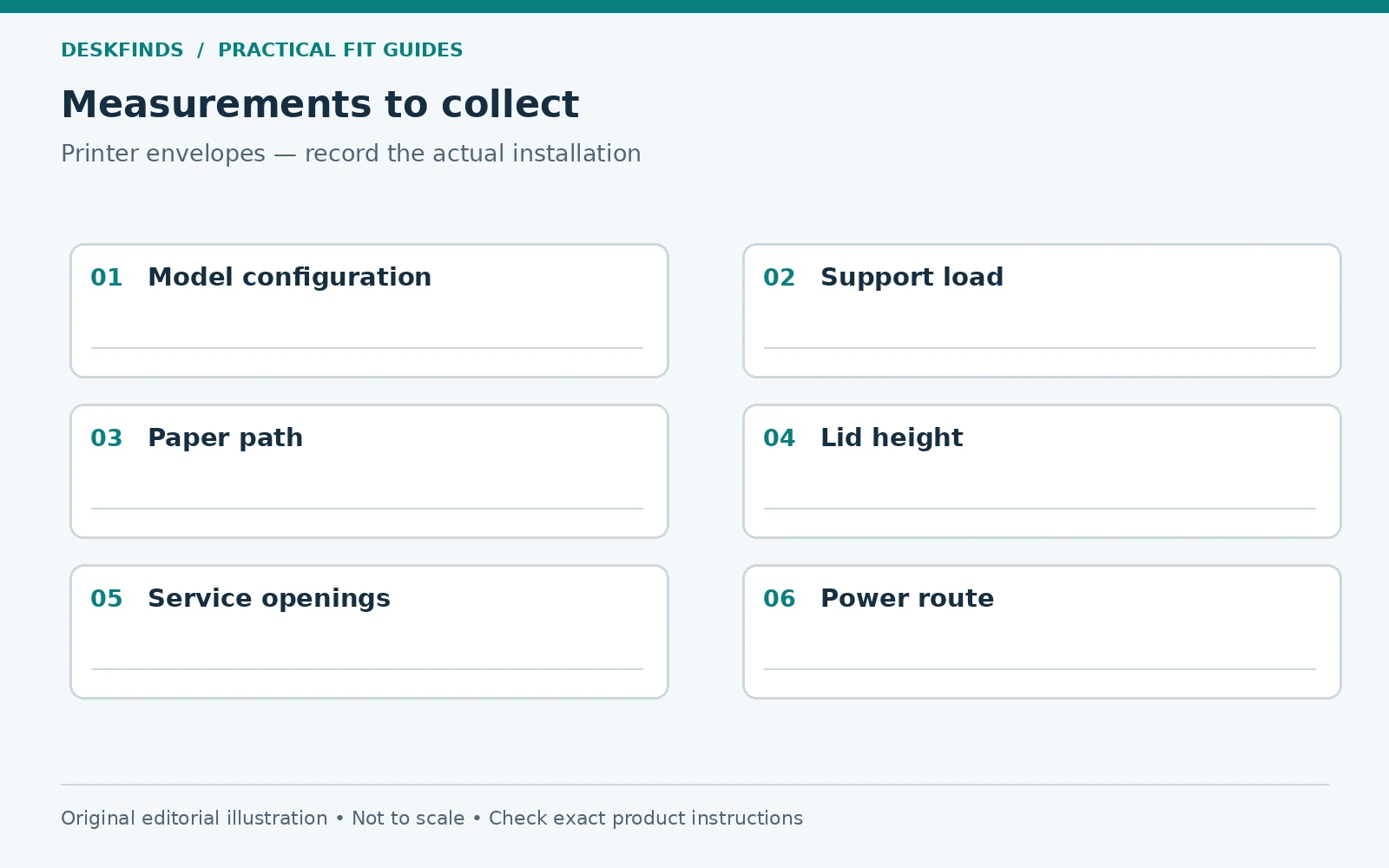
Find the complete model and any installed accessories, such as an extra paper cassette or feeder. The footprint may differ from the basic product shown in a listing. Use the manual and dimensions for the actual configuration. Include the printer's weight and the effect of loaded paper where the documentation specifies it.
List the functions used: printing, scanning from the glass, automatic document feeding, copying, special-media loading, and routine maintenance. A station that supports printing alone may block a scanner lid or rear feed. Plan for the functions you actually need rather than assuming every opening will remain closed.
Record the power and network connections. A wireless printer still needs power and may need occasional cable access. Keep the relevant ports reachable without pulling the machine off its support. The rear connection envelope is part of the station's depth.
Draw the closed and operating envelopes
Start with the closed housing footprint, then add input and output trays in their intended working positions. Include paper supports and stoppers. A rear feeder can need space for paper to stand or bend as the manual describes. Do not reduce those requirements to make the station look compact.
Next, draw the scanner lid, feeder cover, cartridge or tank access, jam-clearance panels, and any other service openings. Some may be used rarely, but they still need a safe access plan. A printer that must be lifted while loaded every time a cover opens may not suit the shelf.
Keep manufacturer-required ventilation and surrounding clearance distinct from the physical opening paths. A cover that clears a wall does not prove airflow is adequate. Use the exact manual instead of borrowing a distance from a different printer model or a generic stand review.
Verify the support surface
Check the shelf or cart's usable top dimensions, load limits, condition, and intended use. The printer should be supported as its instructions require. Do not leave feet hanging over an edge or use a flexible basket as a platform unless explicitly designed and approved for that purpose.
Read total and per-shelf limits separately. A cart's overall capacity does not mean all of it can sit on the top shelf. Add paper, supplies, and other stored items to the plan. Do not infer capacity from metal construction or a product photograph showing a printer.
If the furniture requires anchoring or another stabilizing measure, include that installation. A rolling cart's mobility may be affected by required restraints. Follow its instructions rather than removing a safety condition to preserve easy movement. The support needs to work in the actual room, not only in isolation.
Check height and user access
Place the printer at a height where the intended user can load paper, read controls, retrieve output, and use the scanner appropriately. A high shelf may keep the machine out of the way but make these actions awkward. A very low position can also make frequent handling inconvenient.
Test the largest ordinary document on the scanner or feeder path. A book may need a different opening action from a loose sheet. Do not force a lid beyond its intended range. If the station cannot support the scanning task, compare another location rather than treating the feature as unusable by default.
For shared users, check reach and access individually. A location convenient for one person may not serve another. The planning goal is not a universal ideal printer height; it is a station the actual users can operate and maintain within the equipment instructions.
| Envelope | Include |
|---|---|
| Resting | Complete configured housing and feet |
| Printing | Input supports, output tray and paper path |
| Scanning | Lid or feeder movement and document handling |
| Service | Ink, toner, jam and cable access |
| Support | Usable surface, capacity and required stability measures |
| Room | Doors, chair route, ventilation and power access |
Plan the paper supply as part of the station
Keep the current paper supply in a location suited to its storage instructions and easy to replenish. A sealed ream can have a different storage footprint from loose paper in a tray. Avoid placing heavy supplies where they make the cart top-heavy or exceed a shelf limit.
Separate paper from liquids and unrelated clutter. A printer shelf often becomes a convenient landing area, but objects should not block ventilation, covers, or output. Keep the operating zone clear even when the printer is idle. The space exists for a function, not as extra general storage.
If multiple formats are used, label them clearly and keep the printer's loading guidance available. Our Letter and A4 storage guide covers physical file storage, but printer media compatibility must come from the printer documentation. Storage fit does not establish feed compatibility.
Decide whether a cart is genuinely useful
A cart can make access easier only when it can move appropriately and has a suitable route. Check the caster arrangement, floor, locks, load distribution, and permitted movement method. A cart parked in a narrow gap may be unable to turn out for service. Our cart fit guide covers that route.
Plan the cables before moving the cart. Do not let a power or network lead become the stop that prevents movement. Disconnect or manage connections as the device instructions require. A printer should not be dragged by its cables or moved while operating contrary to its manual.
If the printer needs transport preparation before meaningful movement, account for that in the ownership routine. A cart may still serve as a support, but it is not automatically a daily mobile workstation. Distinguish rolling furniture from a device designed for movement while loaded and connected.
Example: the printer fits until the output tray opens
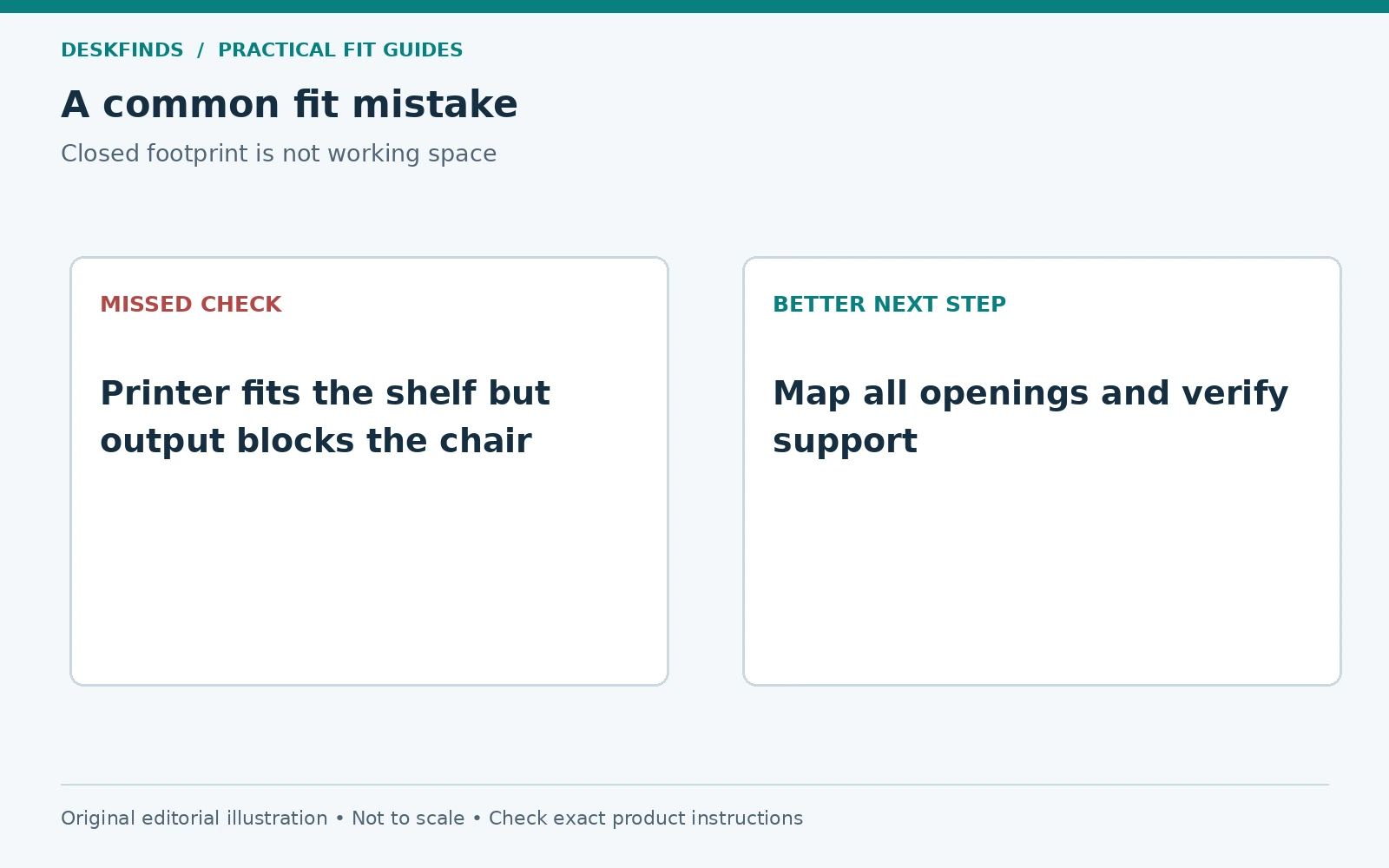
A buyer selects a shelf from the printer's closed dimensions. During printing, the output tray projects into the chair route, and paper is difficult to retrieve without moving the chair. The housing fits, but the operating envelope conflicts with the room.
The buyer models the open tray and compares another orientation or location. A deeper support alone may not solve the route if the output still faces the walkway. The useful change is the one that preserves both the printer's intended operation and the room's access.
This case illustrates why a product page's closed footprint is only one line in the planning brief. Paper handling and surrounding circulation need to be tested with the printer in use, not only with every tray folded away.
Example: a shelf blocks the scanner and service cover
Another printer sits beneath a fixed shelf. There is enough height for the closed machine but not for the scanner lid or a maintenance panel. The user begins pulling the printer forward whenever scanning is needed, placing part of its support near the edge.
The station should be redesigned rather than normalizing that maneuver. A different shelf spacing, compatible stand, or separate scanning arrangement may be appropriate. Any furniture adjustment must follow its own instructions, and the printer must remain supported as intended.
A service opening used rarely still needs a safe plan. If maintenance requires removing the printer, verify the handling and transport requirements and whether the user can perform the move. Avoid a location that turns every routine consumable change into a difficult lift.
Keep power, cables, and airflow accessible
Follow the printer's supply requirements and the instructions for any power equipment. Do not assume a nearby desk strip is suitable merely because an outlet is free. Keep plugs accessible as required and route cables away from casters, drawer slides, and sharp edges.
Leave natural cable bends and space for the installed plugs. A rear-facing connector can set the minimum practical wall gap even before ventilation is considered. Do not push the printer against a wall to keep the cart within a small footprint. The complete operating requirements control the space.
Avoid enclosing the printer in a cabinet unless the exact product instructions and installation support that use. Opening doors during printing may not resolve every clearance or airflow condition. Ask the manufacturer about an enclosed plan rather than inferring approval from a furniture listing.
Test the station before loading all supplies
With the equipment installed as directed, check paper loading, output retrieval, scanning, controls, and the relevant service openings. Do not force a panel or tray to clear furniture. Watch the surrounding room during each action, including nearby doors and the chair position.
Add supplies within the furniture's limits and reassess stability and access. Keep frequently used items reachable without leaning on the printer. A printer housing is not an extra shelf unless the manufacturer explicitly provides that function. Avoid storing objects on scanner lids or paper supports.
Record the final layout with a simple photo and a list of required clear spaces. This helps prevent later storage additions from blocking an opening. A station can begin well planned and become impractical as paper, boxes, and chargers accumulate around it.
Choose a stand from the operating brief
Before comparing products, write the required support footprint, load, working height, open-tray depth, lid height, rear clearance, service access, and cable route. Keep unknown figures as questions for the manufacturer. A stand's printer-friendly label is not a substitute for those measurements.
Use our small printer stands and printer stands with storage to compare candidates after the brief is ready. Consider whether the storage helps paper handling without compromising the support or access.
A useful printer station supports the complete cycle: load, print, retrieve, scan, maintain, and clean. The best small-space choice is not necessarily the smallest surface. It is the smallest arrangement that serves those actions with the equipment supported and the room still usable.
Build a five-envelope purchase sheet
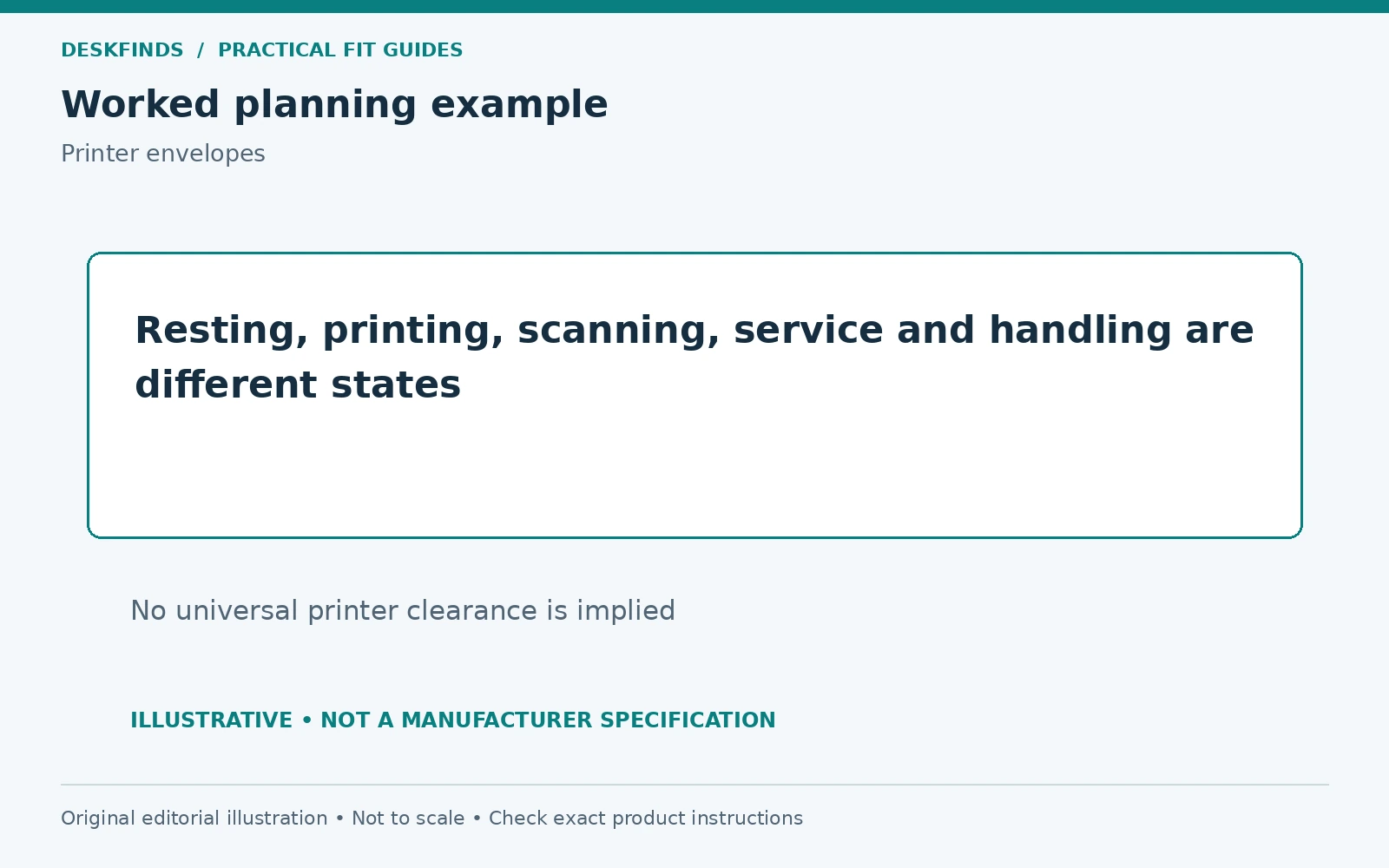
Draw five outlines for the same printer: resting, printing, scanning, service, and handling. Label the reference points and list the manual requirements next to each. A single maximum rectangle can be useful for room planning, but keeping the outlines separate shows which action controls a particular dimension.
For example, the output tray may control front projection, a rear feeder may control depth, and the scanner lid may control height. A service panel may require access from a side that a cabinet would block. These are illustrative relationships, not claims about every printer. Read the actual model's instructions before assigning the space.
Put the support surface and room obstacles beneath the outlines. Check whether the printer remains supported during every permitted action. Do not count pulling it partly off the shelf as a normal way to gain clearance. If removal is required for service, record the prescribed handling and a suitable temporary location.
Plan a paper refill from start to finish
Take a representative paper pack from its storage position, open it, load the printer as instructed, and return the remaining paper to appropriate storage. The station needs enough handling space for this routine. A shelf that holds the printer and a paper ream tightly may leave nowhere to manage the refill.
Keep formats and media types identifiable. The printer's compatibility and settings come from its manual, while the storage location should protect the media as required. A convenient open basket is not automatically suitable for every paper or environment. Avoid mixing loose formats in a way that encourages incorrect loading.
Consider the user who performs the refill. Controls and trays should be reachable without leaning on an unstable cart or using the printer as a handhold. If the task requires an awkward lift or blocked approach, revise the height or location. The useful station includes the person's actions, not just equipment dimensions.
Check service access before the first problem occurs
Identify the routine consumables and likely access panels from the manual. Confirm that each can be reached without moving unrelated heavy furniture or disconnecting a tangle of other devices. A station designed only for normal printing can turn a simple consumable change into a difficult job.
Keep the model details and relevant instructions with the station record. If support asks for access to a panel or serial label, you should know how the printer can be handled appropriately. Do not remove furniture safety hardware or force a cover to clear an obstruction. Access should follow a planned route.
If moving the printer is necessary, use the exact transport and handling instructions rather than a generic assumption that rolling the cart is harmless. Some preparations are model-specific. A cart can be useful support without making the device freely mobile in every state.
Make the storage below support the printer task
Assign lower shelves to suitable supplies within their load limits and access needs. Keep frequently used paper or small consumables reachable without destabilizing the cart. Do not store liquids or unrelated objects where a spill or falling item could affect the printer. The furniture's storage capacity should serve the station's function.
Label the categories and leave the opening paths clear. A box placed beneath a service panel may be easy to overlook until it is needed. A cable coil can migrate into a caster or drawer path. Review the complete loaded station, not only the top surface.
Before buying, compare one stationary support and one mobile option against the same five-envelope sheet. Mobility is valuable only if the route, cables, load, and device instructions allow the intended movement. The better choice is the one that makes printing and maintenance straightforward in the actual room.
Keep the operating outline clear
Mark the required clear areas on the station plan and review them when supplies are added. An empty patch beside a printer may be the space needed for a panel, paper support or cable bend. Treat that area as functional capacity rather than unused storage. A short note near the supply inventory can help shared users understand why it should remain available. Recheck the plan after a printer upgrade, because a similar closed footprint can hide a different paper path or service opening. The station should be reassessed from the new manual, not inherited from the old machine.
Sources and scope
- Epson rear-feed loading example - model-specific example showing that paper handling uses opened supports and trays.
- Epson transport example - illustrates model-specific movement preparation, not a universal printer procedure.
The envelope map and cases are original editorial planning guidance. Obtain the exact printer and furniture manuals before installation.