
How to Use a Monitor Light Bar With a Webcam
Affiliate Disclosure: We may earn a small commission on qualifying Amazon purchases at no extra cost to you. Full disclosure →
A monitor light bar and a webcam often want the same piece of space: the center of the display's upper edge. Even when both can be attached, the camera may see the lamp, its cable may cross the lens, or a counterweight may cover a vent or sensor. Combining them requires more than stacking one accessory on the other.
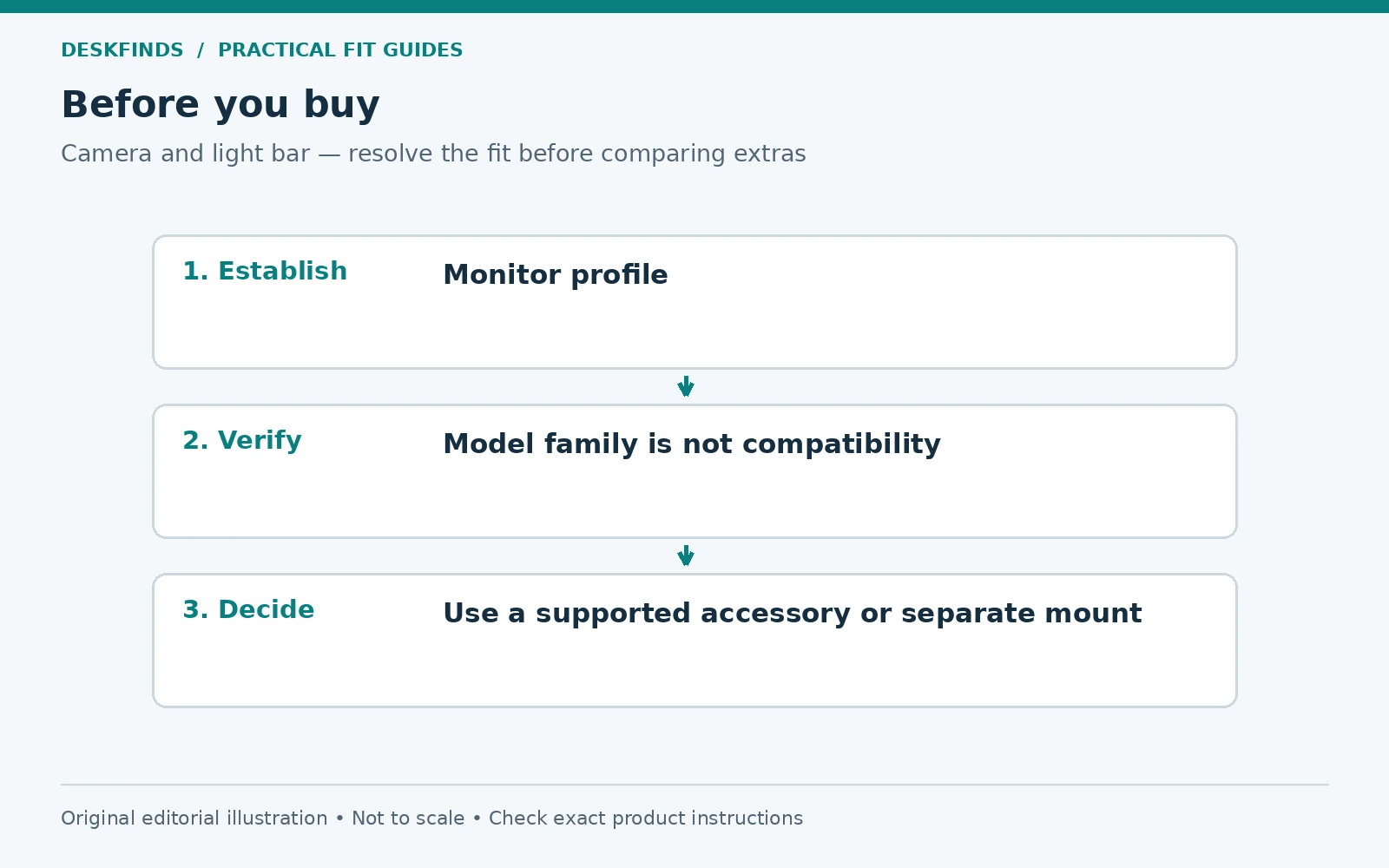
Quick answer: Check the exact monitor, lamp, camera, and any mounting adapter as a system. Use an accessory explicitly compatible with the lamp model where available, or a separately supported camera position. Preserve the monitor's vents, sensors, microphones, and controls. Test mechanical fit and camera image separately; a stable mount does not guarantee a useful view.
This guide addresses external cameras and built-in cameras on desktop displays. It does not certify a combination from photographs alone. Our webcam mount guide covers general mounting choices; this article focuses on the crowded top edge.
Identify everything on the monitor's upper edge
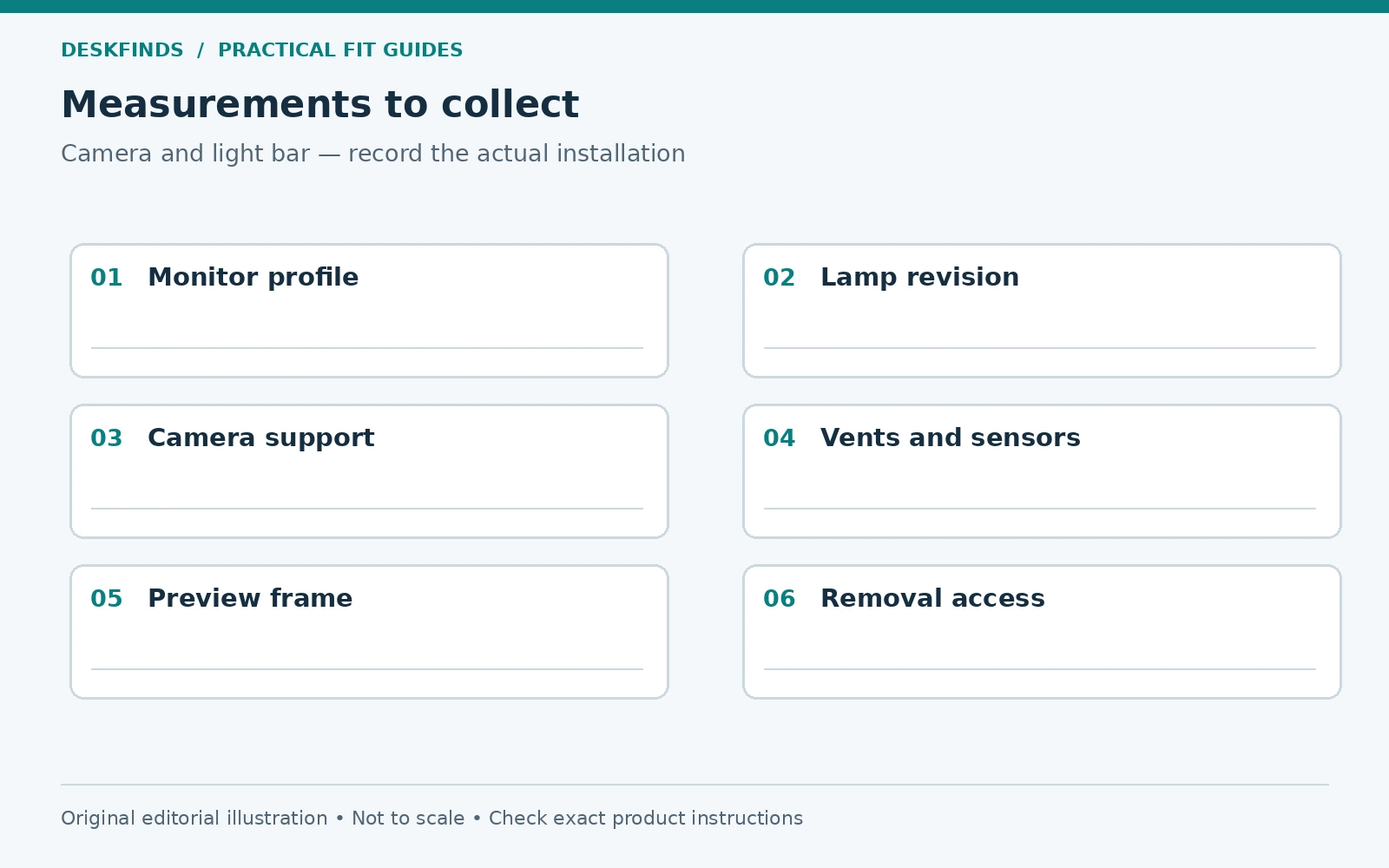
Find the display's exact model and inspect its top profile. Note thickness at the intended contact point, curvature, a raised camera module, vents, microphones, sensors, and controls. A thin bezel at the front can hide a much deeper rear housing. Measure where the lamp actually bears, not only the visible border.
Check the monitor manual for accessory restrictions. Do not assume the top edge is intended to support arbitrary extra weight. The lamp's permitted screen-thickness range and contact geometry also matter. A product that fits one flat display may not suit another with a curved back or a central protrusion.
Take a side-view photograph for planning or support. Mark the proposed camera and lamp positions on a copy rather than attaching them experimentally to an uncertain surface. Keep personal information out of screenshots or reflections. A clear profile photo is more useful for compatibility than a front view that hides the housing.
Confirm the exact light-bar revision
Similar lamp names can describe different clamps, counterweights, sensors, and supported accessories. Read the manual for the specific model and revision. A webcam bracket sold for one light bar should not be assumed to fit another in the same brand family. Check the accessory's compatibility list directly.
Identify where the lamp is allowed to contact the monitor and how its balance mechanism works. Do not add a camera to the counterweight or tube unless the design permits it. Extra mass can change the balance and contact pressure. An accessory described as magnetic may still require a particular supplied mounting plate and installation process.
BenQ, for example, provides model-specific webcam accessory information. That is useful evidence that the accessory question should be resolved at model level, not a general recommendation that every camera can sit on every ScreenBar. Confirm the current supported combination and instructions before buying or attaching parts.
Choose between a shared mount and separate supports
A compatible shared accessory can preserve central camera placement while leaving the lamp in its intended position. Check its load, attachment method, adjustment range, and removal instructions. Include the camera's own clip or base if it remains part of the installation. Do not count the bare camera body alone.
A separate stand, arm, or shelf can avoid loading the lamp, but needs a stable support and a useful camera position. It also occupies desk or room space. A side position may be mechanically simple while producing an unwanted viewing angle. Test the image before committing to a support arrangement.
A built-in camera may require a different solution because it cannot move independently. Check whether the lamp can be positioned as its instructions allow without covering the lens or nearby sensors. If the central top edge is occupied, choose another compatible light rather than assuming an offset installation is permitted.
Make a side-view clearance drawing
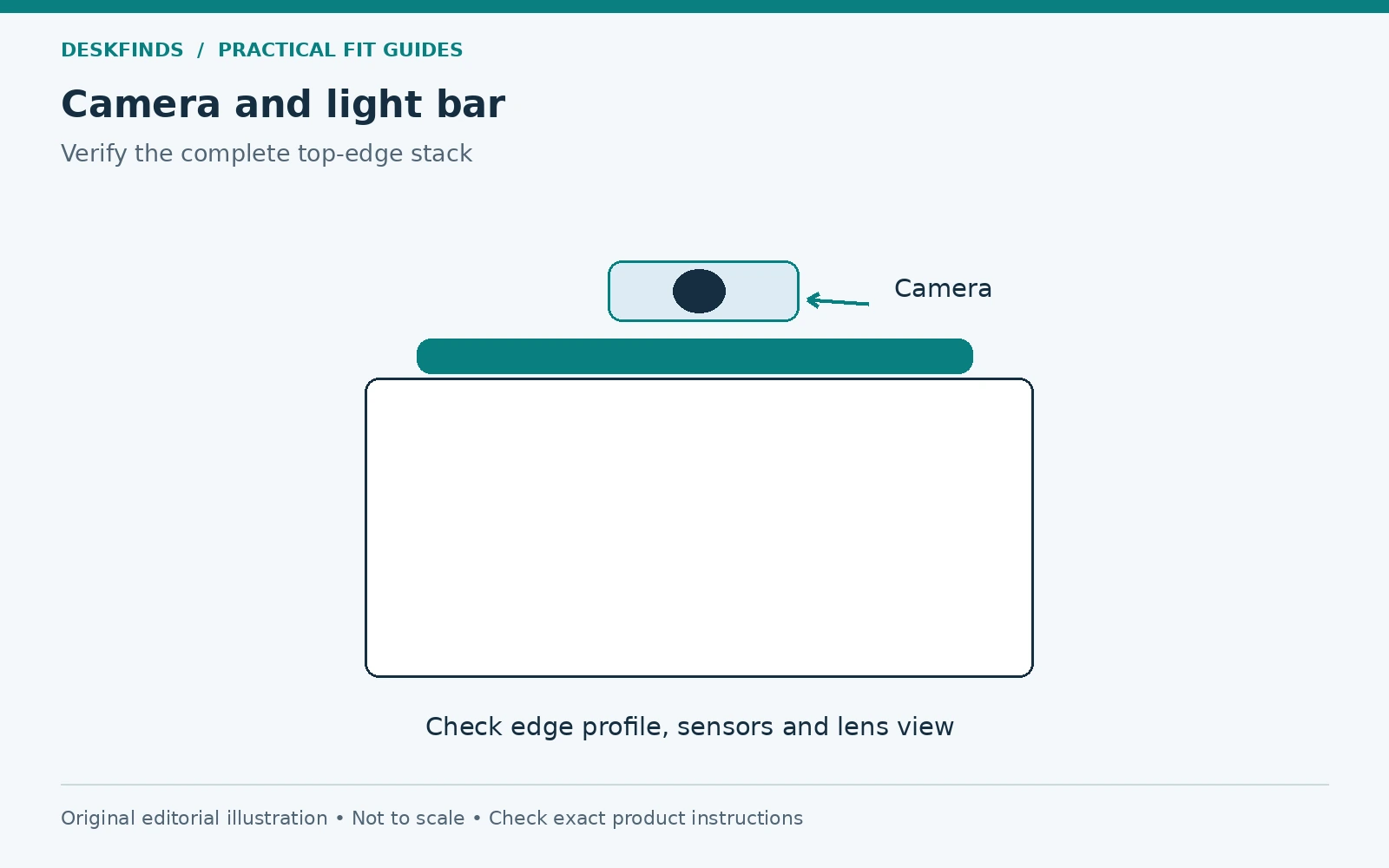
Draw the screen front, upper edge, rear housing, lamp clamp, lamp tube, camera body, and cable exits. Use documented dimensions where available. Mark any counterweight swing or adjustment path. The objective is to expose unanswered questions, not to infer strength or movement from a simplified sketch.
Add the camera's field of view as a planning cone. It can reveal why a lamp positioned in front of the lens might appear in the image. The actual camera preview remains the test, because field of view can change with software cropping and settings. Keep mechanical and optical clearance distinct.
| Layer | Check |
|---|---|
| Monitor | Contact surface, vents, built-in devices and restrictions |
| Light bar | Permitted clamp position, balance and adjustment |
| Camera support | Explicit compatibility and supported load |
| Camera view | Lamp or cable visible in the frame |
| Connections | Natural cable bends and access for removal |
| Maintenance | Each accessory can be adjusted or removed correctly |
Do not stack clips without an approved arrangement
A webcam clip designed to grip a monitor edge may not seat properly on a lamp tube or adapter. It can appear secure while touching at only a small point. Do not rely on a tight-feeling clip as proof that the support geometry is suitable. Use the intended mounting interface.
Avoid improvising with adhesive tape, putty, or heavy objects to counterbalance a camera. Added layers can change contact, removal, and heat conditions. If a manufacturer-approved accessory uses adhesive, follow its surface preparation, placement, curing, and removal directions exactly. Approval for that accessory does not transfer to a homemade stack.
If the combination cannot be verified, a separate camera support or a conventional desk lamp may be simpler. The purpose is useful lighting and calls, not preserving a predetermined accessory arrangement. Fewer devices on the top edge can leave better access to the display's original features.
Test the camera image in the software you use
Open a local preview before a call and inspect the full frame. Look for the lamp tube, a cable, reflections, or an unexpectedly high camera angle. Check the framing with your normal seated position and screen height. Do not judge from a close-up view while standing beside the desk.
Turn the lamp on and off while keeping the camera and room otherwise unchanged. Notice whether the image changes in a useful way or develops a distracting bright area. Automatic exposure can react to light sources and backgrounds. This is an observation check, not a claim about every camera's sensor behavior.
Test the applications and modes you use, including any crop or background feature. A lamp outside one cropped view may appear in a wider preview. Keep private room details out of shared test images. There is no need to send a live message or join a meeting to assess basic framing locally.
Keep desk lighting separate from face lighting
A monitor light bar is generally intended to illuminate a work area according to its design. Do not assume it is the right key light for a face on camera. A configuration that serves the keyboard can leave the face poorly lit or create an awkward angle. Evaluate those tasks separately.
If a separate face light is needed, position it using the product instructions and the camera preview. Avoid shining light directly into the lens or creating a new screen reflection. Our webcam lighting guide provides general background. The light-bar fit question does not replace the call-lighting question.
Also test ordinary document work with the camera installed. A bracket or cable can obstruct lamp adjustment or sensors. A combination that looks good on calls should still let the lamp serve its intended task. The two accessories need to remain independently useful.
Example: a camera mount fits the lamp family but not the revision
A buyer sees a webcam accessory under the same brand as a light bar and assumes it is universal. The accessory instructions list specific models, and the buyer's revision is not included. Its attachment surface differs from the version shown in the installation diagram.
The correct next step is to ask the manufacturer about the exact combination, not force the bracket into place or copy a video of another model. If no supported accessory exists, a separate camera stand or another light arrangement can solve the task. The shared brand name is not enough evidence.
This case also applies to replacement mounting plates. A plate left from an earlier lamp may not be reusable on a new model. Check the part and removal requirements rather than transferring adhesive hardware casually between products.
Example: the mount is stable but the view is wrong
Another user installs a supported bracket correctly. The camera now sits higher and farther forward than before, and the usual call framing includes the lamp edge. The mechanical installation passes, but the optical result needs adjustment within the supported range.
The user checks the local preview, normal chair position, and software crop. If a useful view cannot be achieved, another camera position may be better. Lowering the monitor merely to restore the old camera angle could compromise the screen position. The complete workstation should remain useful.
A short comparison record helps: camera position, screen height, lamp setting, and application mode. This avoids attributing every image change to the lamp when another setting changed at the same time. Keep the final configuration simple enough to restore after cleaning.
Route cables without loading the accessories
Leave the movement allowance required by the display mount, lamp, and camera. A taut USB cable can pull a small camera out of position even when the bracket itself is correct. Guide cables without making their connectors support weight or forcing tight bends near the housing.
Check the rear space at all intended monitor positions. A counterweight, bracket, or plug can become the rearmost part of the setup. Our monitor arm rear-clearance guide helps assess that envelope. Do not let the wall serve as an accidental support or stop.
Keep cables clear of vents, microphones, sensors, and release controls. Label similar USB leads if needed so one device can be removed without disturbing the other. A tidy shared top-edge arrangement should remain serviceable rather than becoming a permanently tangled stack.
Prepare a compatibility request before checkout
Send the manufacturer the monitor model and side profile, lamp revision, camera model and weight, and proposed accessory part number. Ask whether the combination is supported and whether it affects vents, sensors, or the lamp's operation. Request the current instructions rather than only a yes-or-no sales reply.
If any decisive measurement remains unknown, keep it marked as a question. A return policy can help with a residual fit uncertainty, but it does not establish an approved mounting surface. Do not install on a restricted display simply to see whether it holds.
Once the combination is verified, compare monitor light bars against the remaining requirements. If another support is needed, compare camera mounts on their own footprint and view. The useful result is a clear call image and a well-lit task area with each product mounted as intended.
Make an interference checklist for built-in devices
A display can contain more than a camera near its upper edge. Check the manual and inspect for microphones, ambient-light sensors, presence sensors, vents, and controls. Mark them on the side-profile drawing. Do not assume that leaving the lens uncovered means the complete display remains unobstructed.
Ask whether a proposed accessory changes the operation of any of those features. A camera bracket can be mechanically compatible with a lamp while still occupying space needed by the monitor. The relevant compatibility is the complete combination, not just the two aftermarket accessories. Send the manufacturer the exact display model when asking for advice.
If a feature seems to behave differently after installation, compare it with the original configuration using the product's supported settings. Do not disable a safety or required function merely to preserve the stack. A separate lamp or camera support may be a better arrangement than trying to make every accessory share the same small edge.
Record a useful local preview comparison
Use a plain local preview and write down the camera position, screen height, lamp setting, room light, and application crop. Check a normal seated view, then the range of positions you actually use during calls. The purpose is to find intrusions and framing changes without joining a meeting or exposing private room details.
Look at the edges as well as the center. A cable can enter the frame only when the camera is tilted, and a lamp can appear only in a wider mode. Save an image for your own setup record if appropriate, but do not treat it as a universal performance result. Automatic exposure and software processing can change between conditions.
If the camera image changes when the lamp is switched on, separate direct lens effects from changes in room illumination or background. Adjust one supported variable at a time. A useful preview is evidence about your configuration, not proof that a light bar improves or harms every webcam.
Preserve the removal sequence
Read how the camera accessory is removed before installing it. Some systems use a release direction or mounting plate that is easy to misunderstand later. Keep the instructions with the parts, and leave enough access to perform the sequence without pulling on the monitor or lamp tube.
When cleaning or changing the display, support each item as instructed. Do not lift the whole stack by the camera or use the lamp as a handle. A supported combination still has separate handling requirements. Label small parts so an old plate or fastener is not mistaken for the correct part on a new revision.
The final setup record should include the monitor, lamp, camera, accessory part number, and a photo of the approved arrangement. If one component changes, revisit compatibility rather than assuming the record transfers. The same brand and a similar shape do not establish the same interface.
Decide when separate supports are worth the space
Compare the desk footprint of a suitable camera stand with the uncertainty and adjustment burden of a shared top-edge mount. A separate support may be easier to frame and service even if it uses a small patch of surface. Conversely, an explicitly compatible accessory may be the simplest option when the combination is documented and the view works.
Include the cable route and room movement in that comparison. A stand placed at the front of the desk may interfere with papers or be easy to knock. A rear support may be hard to reach. The goal is not to avoid every extra base, but to choose a stable, serviceable arrangement that supports both lighting and calls.
Keep the final view reproducible
Save the supported camera angle, monitor position and application view in a short setup note. After cleaning or reconnecting equipment, check the local preview before an important call. A cable moved to the other side of the bracket can enter the frame even when the main hardware appears unchanged. The note should help restore a useful configuration without encouraging force or unsupported adjustments.
Sources and scope
- BenQ webcam accessory - model-specific accessory information.
- BenQ ScreenBar Pro manual - installation reference for that exact product, not every light bar.
The side-profile checklist and examples are original editorial analysis. No combination was physically tested for this article, and no universal stacking method is implied.