
How to Arrange a Small Desk for Handwriting During Video Calls
Affiliate Disclosure: We may earn a small commission on qualifying Amazon purchases at no extra cost to you. Full disclosure →
Taking handwritten notes during calls can turn a small desk into a constant shuffle of keyboard, mouse, notebook, and charger. The problem is usually not the notebook’s closed size. It is the active writing area, hand movement, and transition between typing and writing.
Quick answer: Map the open notebook and writing arm first, keep a useful input-device position, and give temporarily displaced equipment a stable parking place. Check camera framing, microphone pickup, and cable movement during a real call. Use a document camera only if sharing handwriting is required; personal notes and live demonstrations are different layouts.
Decide what the handwriting is for
Private notes may remain outside the camera view. Sharing a page with remote participants needs a separate framing and privacy plan. A notebook held toward a face camera may be difficult to read and can expose unrelated pages.
List the paper size, binding, writing hand, and tools used. A thick planner, loose sheet, and ring binder occupy different shapes when open. Include a calculator or reference sheet only if it is genuinely part of the task.
Establish the writing position
Place the notebook at a comfortable angle and outline the active hand and forearm area. Sit in the intended chair and write several full lines. Do not judge fit from a closed book placed neatly beside a keyboard.
Align the body with the task when writing becomes sustained. Keeping the torso fixed toward the screen while reaching far sideways can make a seemingly efficient arrangement awkward. A temporary keyboard move may provide a better transition.
Give the keyboard a real parking place
Test moving the keyboard to the rear, side, or a suitable storage bay without stretching leads or covering controls. The destination must support it securely. Do not balance it on a speaker, open drawer, or laptop hinge.
If a riser is used, measure the complete keyboard envelope and clear opening. A shelf’s outside width is not the parking width. Consider whether moving the keyboard changes the microphone cable or meeting controls you still need during notes.

Preserve mouse access
The mouse may be needed to mute, share, or navigate while the notebook is open. Include its active movement area, not just the shell. A compact keyboard can create space, but check the workflow cost of changing key layout.
If the user writes with one hand and points with the other, the arrangement can support both tasks at once. Do not impose a mirrored layout solely from writing handedness. The mouse-grip guide helps evaluate the pointing device itself.
Check camera behavior while looking down
Use the real call preview and take notes normally. The camera frame may cut off the head when you lean or show a page you intended to keep private. Choose useful framing tolerance instead of a perfect upright still pose.
A camera mounted above the screen should not make the display difficult to read. If a separate document camera is required, plan its stand, cable, page area, and switching process as another device, not an invisible accessory.
Keep microphone performance consistent
Writing can add desk contact sounds, and looking down may change mouth-to-microphone position. Test speech while writing rather than comparing only silent note-taking. A headset or properly positioned supported microphone may help the routine, subject to actual results.
Do not buy a shock mount to solve every pen or keyboard sound. Airborne noise and vibration need separate diagnosis. See desk-to-microphone vibration when the noise follows physical desk contact.
Light the page without spoiling the call
Check handwriting readability, hand shadow, screen reflections, and face lighting together. A task lamp aimed at the page may change camera exposure or reflect in glasses. Move the lamp within its supported range and test the full call view.
A notebook’s glossy cover or white page can also reflect light. Do not compensate for glare by adopting a poor body position. Adjust the light, page, or camera arrangement rather than treating each element independently.
For the lighting distinction, review task and ambient light.
Manage notes and privacy
Give active pages a folder or tray when the call ends. Keep confidential notes out of shared surfaces and follow workplace handling rules. A small desk benefits from a clear endpoint for paper rather than an expanding stack beneath the keyboard.
If showing handwriting, inspect the entire visible page and surrounding desk before sharing. Camera switching, screen sharing, and document capture should be tested with harmless sample material. Avoid discovering a privacy problem during a real client meeting.
Example: two states replace repeated improvisation
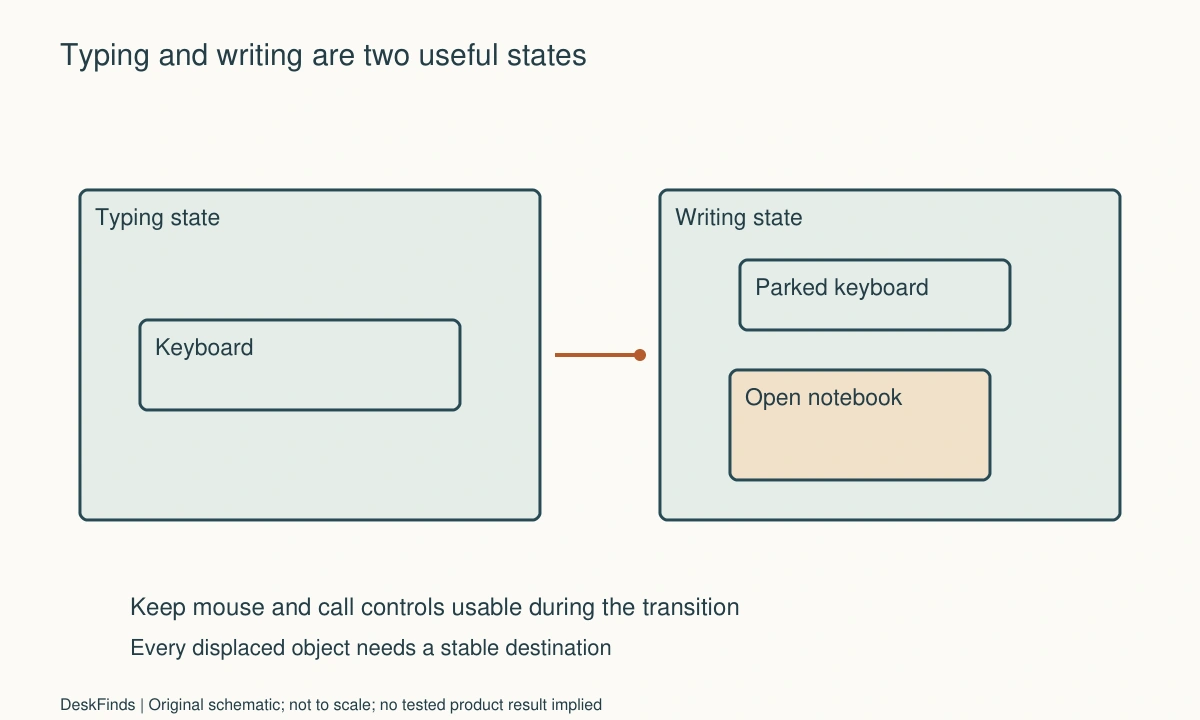
Imagine a worker with a full-size keyboard, mouse, and open planner. The planner fits only by pushing the mouse outward and covering the keyboard’s mute shortcut. The worker creates a typing state and a writing state instead of trying to keep everything fixed.
In the writing state, the keyboard moves to a stable rear position with suitable cable slack. The mouse remains reachable, and meeting controls are checked before the call. The planner’s full open area sits in front of the worker, with the pen cup outside the forearm path.
A test call reveals a desk thump when the planner closes and a lighting reflection during notes. Those issues are corrected separately. The layout is retained only after typing, writing, muting, and standing up all work normally.
Compare accessories against the transition
A smaller keyboard, document holder, movable caddy, or different screen support can help when it resolves an observed conflict. None should be purchased simply to fill unused corners. The desk organizer types guide helps identify storage roles.
The final setup should make note-taking an ordinary task, not a disruptive desk rebuild. Keep the active writing rectangle, necessary call controls, and stable equipment parking visible on the plan whenever the notebook or input devices change.
Make two desk states before buying accessories
Draw a typing state and a writing state with the same equipment. In the typing state, the keyboard and pointing device should remain usable with the screen. In the writing state, the open notebook and active arm need a useful position, while essential call controls stay accessible. The transition should have a stable destination for every displaced object rather than a series of temporary balancing acts.
Map the whole notebook. A planner’s cover, binding, tabs, and open pages can occupy much more space than its nominal paper size. Test full lines across a page, turning pages, and closing the book. If the user writes with one hand and points with the other, preserve that useful combination where possible. A generic handedness diagram should not override the actual task sequence.
Keep call operation visible. The user may need to mute, respond to chat, share a screen, or navigate a document while writing. A keyboard parked out of reach can remove the shortcut used for those tasks. Decide whether another supported control path is available, and test it before a real call. A physically tidy writing arrangement is incomplete if the meeting becomes difficult to operate.
For shared handwriting, define the presentation separately. A document camera, overhead view, scanned page, or other permitted method may require different equipment and privacy checks. Use harmless sample pages while testing. Do not discover during a client call that the camera includes unrelated notes, names, or a reflective screen. Personal note-taking does not automatically require a second camera at all.
Choose storage for the end of the session. One active-paper location can prevent notes from accumulating under the keyboard and gradually consuming the transition area. Follow relevant document-handling requirements and keep private material outside both face-camera and document-camera views. If notes become reference or retained records, give them the appropriate next destination.
The final accessory should answer an observed interruption. A smaller keyboard may create room; a caddy may move small supplies; a suitable holder may improve reference access. Buying all three at once makes it harder to judge which one helps. Test the simplest coherent arrangement first and preserve enough flexibility for a different notebook or task later.
Worked trial: the notebook fits but the call controls disappear
Imagine a worker with a full-size keyboard, right-side mouse, and a thick planner. The planner opens on the left but overlaps the keyboard whenever the worker writes a full line. The first plan is a larger desk organizer, even though storage is not the main conflict.
The worker instead outlines the active notebook and forearm area and creates two states. During writing, the keyboard moves to a stable rear location with appropriate cable slack. The mouse stays reachable. The transition is repeated several times with actual typing and notes rather than judging the desk’s resting appearance.
A test call reveals that the keyboard’s familiar mute shortcut is now out of reach. The worker checks an available permitted on-screen control arrangement and verifies it remains accessible with the planner open. The layout is retained only when ordinary call operation works without leaning or moving the notebook every time.
The microphone test includes speaking while looking down. A different pickup balance and a desk thump from closing the planner become audible. These are addressed as separate position and mechanical-route questions. The worker does not assume a pop filter or general noise suppression will solve every writing-related sound.
Lighting is tested next. The page is readable, but a glossy cover reflects into the camera when turned. The notebook angle and suitable lamp position are adjusted without making handwriting awkward. A clean sample page is used if sharing is tested, and unrelated notes remain physically outside the frame.
At the end of the session, the planner and loose active papers go to a defined location. The keyboard returns to the typing state without reconnecting several devices. The worker checks standing up and leaving the desk with the chair and bag in their normal positions.
The result is a small workstation with a repeatable task transition, not every object permanently displayed at once. A compact keyboard remains a possible later purchase if the actual work justifies it, but the trial has already identified the dimensions and controls that replacement must preserve.
For reference-paper support, compare desk organizer formats.
Choose a replacement notebook or keyboard from the layout
If the planner changes, repeat the open-shape test. A larger binding, harder cover, or different page-turning direction can invalidate an otherwise reliable transition. Keep the measurement record based on the actual object rather than a generic A4, letter, or notebook label.
If a compact keyboard is considered, list the functions it must preserve before choosing a size. Number entry, navigation, shortcuts, and device switching may matter during calls. The space saved should have a defined use, such as keeping the notebook aligned or the mouse accessible. Smaller is not automatically more efficient when the work becomes harder.
A document holder can improve reference access, but its base and removal route belong on the desk plan. A thick book may need different support from a loose sheet. Avoid buying a holder from maximum paper size alone, then balancing a heavy planner against it without documented suitability.
Keep private note-taking and presenting notes separate in the final routine. The face camera can remain configured for conversation while a sharing method is activated only when needed. Test switching with harmless material and confirm which camera or window the meeting actually transmits. A neat paper arrangement does not by itself prevent accidental disclosure.
Finally, perform the transition when the desk is normally occupied. A mug, charger, headphones, or bag can gradually take over the keyboard’s parking area. Give that area a clear role and move unrelated storage elsewhere. The best arrangement survives ordinary use without requiring every object to be removed from the room before a call.
Your practical comparison worksheet
Use the following checks with the actual people, objects, and room in your plan. Record a measured value, an observed task result, or the exact product information that answers each point. Keep unresolved details separate from confirmed ones. A result about one feature should not silently establish another: physical fit, ordinary use, support, and care may require different evidence. Work through the checks before ordering, then repeat the relevant actions with the delivered item while the return terms apply. The worksheet is a planning aid rather than a product test or approval for an improvised installation.
1. Writing purpose
Separate private note-taking from handwriting that must be shared on camera, and list the actual paper, binding, and tools used.
Do not add a document camera automatically. Sharing requires its own frame and privacy plan, while private notes can remain outside the camera view.
2. Active paper
Outline the open notebook, binding, full writing movement, page-turning, and any essential reference material.
Compare this shape with the task area rather than measuring only a closed cover. Align the user with sustained writing instead of forcing a distant side reach.
3. Typing state
Arrange screen, keyboard, mouse movement, and required controls for normal computer work before testing the transition.
Preserve the functions the job needs. A smaller layout is useful only if the saved space matters and essential shortcuts or entry tasks remain practical.
4. Keyboard parking
Move the actual keyboard to a stable intended destination and inspect cable slack, supported storage clearance, and access to other controls.
Do not balance it on equipment or pull connectors taut. A parking route should remain repeatable after the desk is occupied normally.
5. Call operation
Rehearse muting, chat, sharing, navigation, and returning to typing while the notebook stays open.
Keep a practical permitted control path. A clean writing rectangle does not help if the worker cannot operate the meeting without repeated rearrangement.
6. Camera and microphone
Test normal speech while looking down and taking notes, including page movement and closing the book.
Separate framing, privacy, airborne sound, and transmitted vibration. One accessory or software effect should not be credited with solving unrelated routes.
7. Lighting
Write full lines under the ordinary lamp and screen conditions, checking shadows, reflections, face appearance, and camera exposure.
Adjust supported light and page positions together. Do not preserve a good call image by making the writing position or page visibility unsuitable.
8. Session endpoint
Assign the planner and active papers a storage destination, then return the keyboard and small tools to the typing arrangement.
Keep private notes appropriately protected and the transition area free. A useful layout includes both the start and end of handwritten work.
Sources and scope
- OSHA document holders - General support and placement context. The task-state and camera scenarios are original editorial exercises.
Editorial note: This is a research-based planning guide, not a hands-on product review. Worked examples are hypothetical. Follow the exact product instructions and resolve compatibility, installation, and care questions before relying on the arrangement.