
How to Stop Desk Vibrations From Reaching Your Microphone
Affiliate Disclosure: We may earn a small commission on qualifying Amazon purchases at no extra cost to you. Full disclosure →
A thump in a recording can travel through the desk, stand, arm, and microphone even when the room itself is fairly quiet. That mechanical route differs from airborne keyboard clicks. A pop filter in front of the microphone does not interrupt a vibration path through its support.
Quick answer: Identify whether the noise follows contact with the desk or remains when the microphone has an independent supported mounting arrangement. Check the desk, stand, arm, cable, and microphone’s existing isolation. Use a compatible shock mount or another approved support when it addresses the identified path. Do not assume every microphone needs an external shock mount or that a boom arm automatically isolates vibration.
Reproduce the ordinary noise
Record normal typing, using the mouse, placing a cup down gently, and adjusting position. Do not hit the desk hard or overload an arm to demonstrate a fault. Use the same recording settings and include speech so changes can be judged against the desired signal.
Label each action in the recording or keep a separate written sequence. Low-frequency thumps and high-frequency clicks can coexist. The useful question is which event creates which part of the unwanted signal, not whether the recording contains any sound at all.
Confirm the active input and processing
Select the intended microphone explicitly in the recording or meeting application. Disconnecting or reconnecting a dock can change input selection. A recording from the laptop microphone cannot validate a shock mount on an unused external microphone.
Keep automatic processing consistent during a comparison. Where the software permits, a local recording can help identify raw behavior, while a call test shows the practical result. Follow workplace restrictions on installing recording tools or changing managed settings.
Trace the physical connection
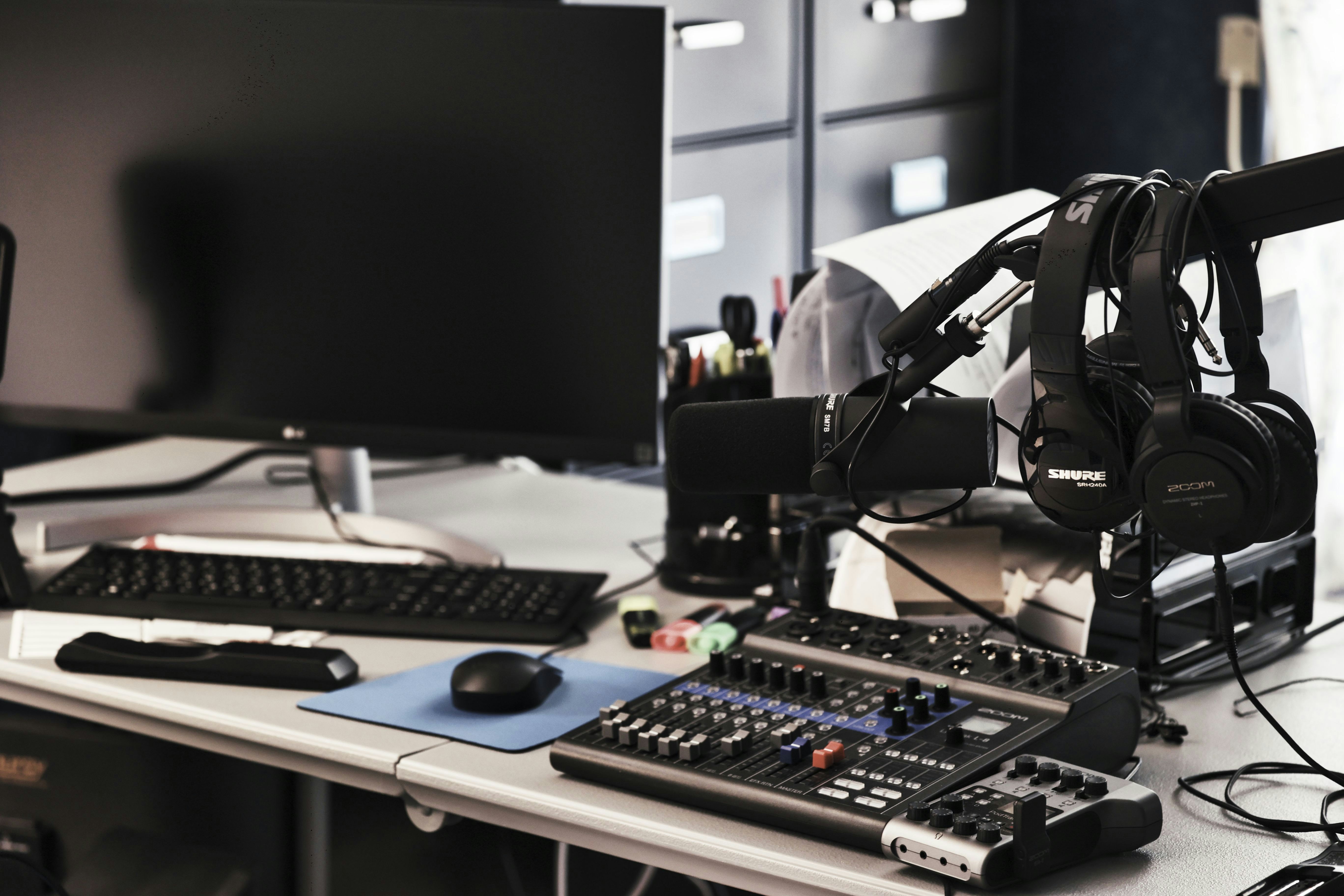
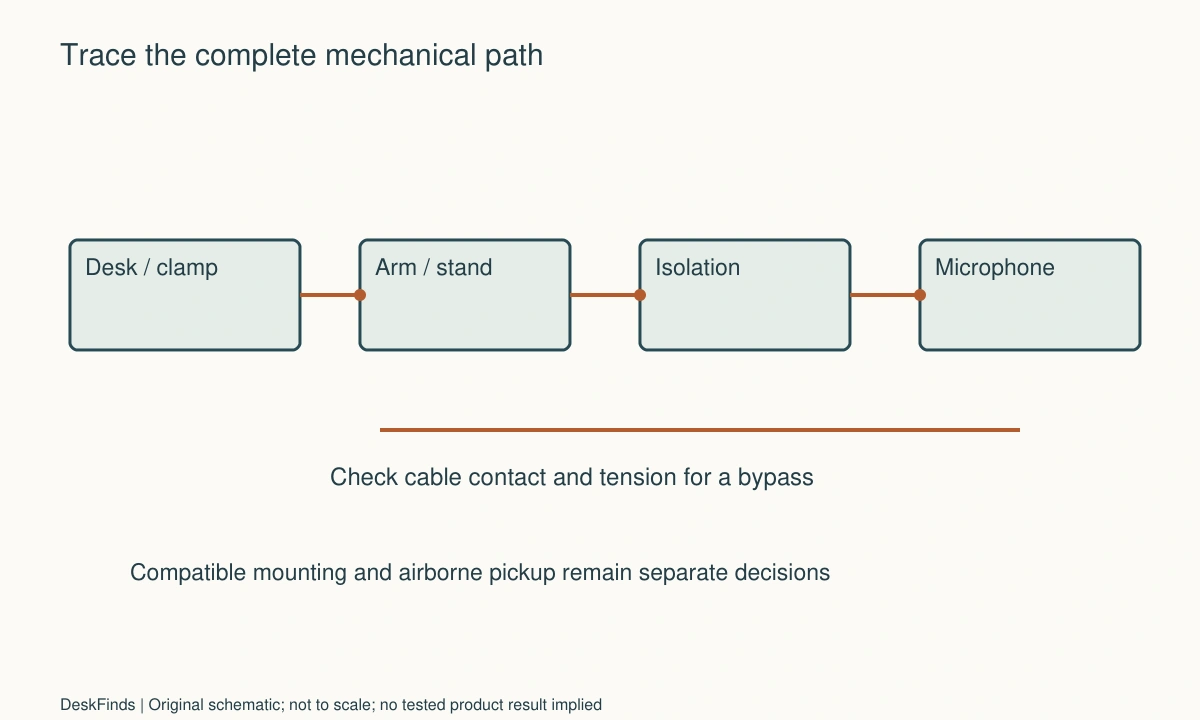
Draw the path from desk surface to microphone: clamp, arm joints, adapter, mount, and microphone body. For a desktop stand, include the base and feet. Look for a rigid bypass around any isolation element.
A cable pulled tight against the arm or desk can create another contact route. Leave appropriate slack without allowing loops into keyboard or chair movement. Follow the microphone and arm instructions for cable routing; do not hang a heavy adapter from the microphone connector.
Check the desk before adding accessories
Loose furniture fasteners or a rocking keyboard can increase disturbances. Follow the maker’s assembly and maintenance instructions. Do not stabilize a desk by removing structural members or adding improvised concentrated loads.
Compare ordinary contact with the desk against the recording. If every small movement produces a strong thump, the supporting system deserves attention. A microphone accessory may help one part of the path but cannot certify that the furniture is correctly assembled.
Understand what a shock mount does
A shock mount is designed to reduce certain mechanically transmitted disturbances between its support and the microphone. Its effectiveness depends on the design, supported microphone, loading, and installation. It does not make airborne noise disappear.
Check whether the microphone already includes internal or supplied isolation. Some Shure models, for example, have internal shock mounting; that fact applies to the named models, not every microphone. Consult the exact documentation before purchasing an additional mount.
Check mount compatibility in full
Confirm the microphone model, body fit, retention design, supported weight where stated, thread or adapter requirements, and orientation. A matching thread does not prove that a suspension fits the microphone body. Avoid forcing a universal cradle around controls or connectors.
The arm must also support the combined microphone, mount, and required accessories. Follow its adjustment procedure. A new shock mount can add size and change the microphone’s position, so repeat reach and room-clearance checks rather than treating it as a weight-only addition.
Consider an independent support
A suitable floor stand or separate stable support may interrupt the desk route. It introduces a floor footprint, trip concerns, height requirements, and another place where vibration can enter. Choose a documented support arrangement rather than balancing a microphone on nearby furniture.
In a small room, a floor stand can conflict with the chair or wardrobe. Test the complete route before buying. For mounting and reach, use the boom-arm measurement guide.
Avoid confusing other accessories
A pop filter mainly addresses breath-related disturbances in front of the microphone. A windscreen has its own intended use. Neither should be represented as a general solution for support-borne desk impacts.
An acoustic panel addresses room reflections, while software suppression processes the captured signal. These can be useful for other identified issues. Keep a separate decision for each route rather than buying an accessory bundle under the broad label of better audio.
Example: the cable bypasses the isolation
Imagine a correctly supported microphone in a compatible suspension. The user still hears thumps during keyboard movement. The path drawing shows the cable tightly fixed from the microphone connector to the arm before the suspension can move as intended.
Following the product’s routing instructions, the user provides appropriate slack and removes unintended hard contact. A repeat of the same ordinary typing sequence improves the result. No extra mount is purchased because the existing isolation had not been allowed to function in its intended arrangement.
A separate airborne click remains. It is treated as a keyboard and pickup-position issue rather than evidence that all mechanical isolation has failed. This distinction prevents repeated shock-mount purchases for sound arriving through the air.
Confirm the change during real work
Repeat speaking, typing, mouse use, and normal desk actions. Check that the microphone stays securely retained, the arm remains within its supported range, and cables do not pull connectors. An improvement that requires an unstable or obstructive position is not a useful final arrangement.
Keep the before-and-after files labeled with the configuration. They document a comparison for your setup, not a laboratory result. For broader pickup terminology, review microphone polar patterns and keep it separate from the mechanical mounting problem.
Build a route diagram before a shopping list
Write each physical connection in order. A desktop stand may have a weighted base, rubber feet, a rigid column, a clip, and a microphone. An arm adds a clamp and several joints. A supplied suspension may sit between support and microphone, while a cable can touch both sides of that intended isolation. This diagram helps distinguish a compatible mount problem from an installation detail.
The microphone documentation should determine whether external isolation is needed or supported. Do not generalize from one model’s internal construction. The same applies to thread adapters: matching threads permit a mechanical connection, but do not establish body fit, suspension loading, or arm balance. Compare the complete installed assembly and any manufacturer restrictions.
A shock mount also changes clearance. It can widen the microphone’s outline, lower or raise the capsule relative to the arm, and move controls or connectors closer to another object. Place its full shape in the desk sketch. Check speaking, looking at the screen, and returning the microphone to its parked position. A mount that helps one recording but obstructs ordinary work is not a complete improvement.
If a floor stand is considered, map the chair and walking route. The absence of a desk clamp does not make the support free of mechanical disturbances. Floor contact and handling still exist, and the stand needs suitable loading and stability. Use an approved arrangement rather than putting a stand in a doorway or between chair wheels.
Finally, keep diagnostic and performance claims separate. A normal typing comparison may show an audible improvement for your setup. It does not establish a transferable isolation rating or prove that all noise followed the same route. Preserve the before-and-after files and the route diagram so a later cable, arm, or microphone replacement can be checked without assuming the original result applies unchanged.
Worked trial: a new arm does not remove the thump
Imagine a worker who replaces a small desktop stand with a boom arm expecting keyboard impacts to disappear. The arm frees desktop space, but recordings still contain a low thump. The worker verifies the selected input and repeats an ordinary sequence: speech, typing, mouse movement, and gently placing a notebook down.
The route diagram shows the arm remains rigidly attached to the same desk. It changed position and storage, not necessarily isolation. The worker checks the arm, desk clamp, and microphone assembly against their instructions. A structural desk brace is not removed, and no weight is added to the desk as an improvised damping experiment.
The microphone has a documented compatible shock mount. Before ordering, the worker checks the mount’s body fit, retention, orientation, connector access, and the arm’s support for the complete assembly. The additional bulk fits only in one useful position, so the screen and lamp paths are included in the plan.
After correct installation, the cable is routed as specified with appropriate slack. An initial overly tight cable connection is corrected because it contacts the support in a way that defeats the intended arrangement. The same typing sequence is recorded again under matching conditions.
The thump is less objectionable in this personal comparison, but the sound of a clicky keyboard remains. The worker investigates airborne pickup separately rather than tightening the suspension or buying another one. The mount is not credited with removing every source in the room.
The final check uses an ordinary call with speech while typing. The microphone stays retained, controls remain reachable, and the arm can park without pulling the cable. This result validates a useful routine for the actual configuration. It does not certify a numerical isolation improvement or imply that every arm-mounted microphone needs the same accessories.
For a mounting comparison, see boom arms and desk stands.
An installation check before recording a real session
Clear enough room to follow the arm and microphone installation procedure. Some adjustments require supporting the device or using a particular tool. Do not place expensive equipment on a partly secured assembly while testing fit. A geometric mock-up can identify collisions, but it is not a load-bearing substitute for the correct hardware.
Confirm adapters in both directions. A thread conversion can permit attachment while adding height or changing how a mount seats. Use the specified parts and retention arrangement. Do not assume every visible threaded connection is interchangeable, and do not force a part to compensate for an uncertain thread or body fit.
Once installed correctly, check the controls and cables with the user in place. A gain control hidden behind a suspension ring can make ordinary adjustment awkward. A connector pressed against the screen or arm may introduce strain even when the microphone is securely retained. Move the supported arrangement or choose another compatible accessory rather than accepting a difficult control position as the cost of isolation.
Repeat the practical sequence with the desk’s normal objects restored. A notebook, lamp base, or charging lead can add contact that was absent in an empty-desk trial. Check the parked microphone as well as the speaking position. The cable should remain within its intended route when the arm folds away, and equipment should not hit the monitor or wall.
If a thump persists, return to the route record. The disturbance may enter through another contact point or be airborne. Further tightening is not a general diagnostic method and can damage hardware. Use the maker’s troubleshooting guidance and, where needed, contact support with the exact configuration and a harmless labeled sample.
Keep claims tied to observations. You can say a particular ordinary action became less objectionable in your trial without assigning a numerical isolation rating. If the work requires repeatable measured performance, use appropriate equipment and expertise. The distinction protects the value of a useful personal setup comparison while avoiding an unsupported promise about the mount’s behavior in every room or on every desk.
For the microphone connection choice, compare XLR and USB microphones.
Your practical comparison worksheet
Use the following checks with the actual people, objects, and room in your plan. Record a measured value, an observed task result, or the exact product information that answers each point. Keep unresolved details separate from confirmed ones. A result about one feature should not silently establish another: physical fit, ordinary use, support, and care may require different evidence. Work through the checks before ordering, then repeat the relevant actions with the delivered item while the return terms apply. The worksheet is a planning aid rather than a product test or approval for an improvised installation.
1. Input identity
Check the recording and meeting applications select the intended microphone after reconnecting docks or USB devices; identify processing that may change the comparison.
Keep local and call observations separate. A shock-mount trial is irrelevant if the active input is still the laptop microphone rather than the mounted device.
2. Contact event
Record ordinary typing, mouse use, and gentle object placement in a labeled sequence, with speech included at the normal working position.
Avoid hard impacts or improvised load tests. Use the event sequence to locate a route, not to invent a professional isolation rating.
3. Support chain
List desk, clamp, arm or stand, adapters, mount, and microphone in order; identify where an intended flexible suspension is located.
Check for rigid bypasses and follow assembly instructions. Moving the microphone to an arm can improve placement without interrupting the original desk-vibration path.
4. Existing isolation
Read the exact microphone documentation for supplied or internal isolation and supported external accessories.
Do not generalize another model’s construction. Buy an external mount only when compatibility and the identified mechanical issue justify it.
5. Cable behavior
Inspect tension and contact near the connector, suspension, arm, and desk while moving the microphone through its normal positions.
Route leads as directed with useful slack and supported adapters. A tidy but taut cable can create an unintended connection or strain the port.
6. Combined load
Compare the microphone, mount, adapters, and relevant accessories with the arm’s supported configuration and adjustment instructions.
Keep the complete installed outline in the plan as well as the mass. Added isolation can change reach, balance, and clearance around the screen.
7. Independent stand
Map an approved floor or separate support with its feet, chair route, height, and cable path included.
A different support can interrupt one route while adding another. Preserve stable use and safe movement rather than balancing equipment on improvised nearby furniture.
8. Repeatable result
Repeat the same ordinary tasks after installation, then check speech during actual work and the microphone’s parked position.
Keep remaining airborne clicks as a separate issue. Retain the configuration record so future equipment changes trigger the relevant checks again.
Sources and scope
- Shure microphone mounting guidance - Named microphone models and internal shock-mount context; not a universal need for an external mount.
- Shure S39A/S37A stand guide - Primary example of a designed isolation support, not proof of the trial results described here.
Editorial note: This is a research-based planning guide, not a hands-on product review. Worked examples are hypothetical. Follow the exact product instructions and resolve compatibility, installation, and care questions before relying on the arrangement.