
How to Choose a Monitor Arm for a Desk With a Rear Crossbar

Affiliate Disclosure: We may earn a small commission on qualifying Amazon purchases at no extra cost to you. Full disclosure →
A rear crossbar can block a monitor-arm clamp even when the desktop thickness is within the arm’s published range. The lower pad, clamp body, and adjustment screw need a usable space under the top. Moving the clamp a little may expose a different support or weaker desk region.
Quick answer: Map the rear frame in side view and from underneath, then compare the arm’s complete clamp envelope with the available space at a permitted mounting location. Confirm desk material and load suitability. Consider an approved top-mount clamp, grommet mount, or another support only when its own installation requirements are met. Do not remove a structural crossbar to make a clamp fit.
Identify what the rear bar does
The obstruction may be a structural stretcher, frame rail, cable tray, or decorative panel. Use the desk instructions to identify it. A removable cable basket and a structural brace should not be treated as equivalent parts.
Record the desk model and any optional accessories. Some frames change with size or configuration. A mounting location that works on one desktop may be blocked on a wider or height-adjustable version.
Make an underside map
Measure from the rear edge inward to the front and back faces of the bar. Record the gap between the desktop underside and the bar, plus the bar’s depth and height. Mark fasteners and any uneven contact areas.
Repeat at several points along the rear edge. The center may differ from the corners, and leg brackets may occupy the side positions. Use the exact place you intend to mount, not the most generous gap elsewhere.
Get the complete clamp drawing
The thickness range is only one part of the clamp specification. Ask for the depth of the lower assembly, pad diameter or contact area, screw travel, and the clearance needed to operate it.
A clamp body may pass behind a bar while its lower pad cannot reach a suitable surface. Conversely, the pad may reach but the screw cannot be turned. All parts of the installation need a feasible path.
Check contact surfaces and material
The lower pad should contact the intended desk surface according to the instructions. Do not let it bear on a rail or thin decorative panel unless the mounting system explicitly permits that arrangement.
Confirm the desktop construction and manufacturer approval for clamping. A thick edge or a reinforced-looking frame does not establish that a hollow or composite top can carry the proposed monitor-arm load. Treat mounting geometry and material suitability as separate tests.

Include the wall behind the desk
A clamp that clears the crossbar may project behind the desktop. Check the wall gap, outlet location, and cable connectors. The monitor arm itself also needs room to fold and move.
Do not choose a mount only because it attaches. Place the screen at the useful viewing position on the plan and verify that the arm can reach it without colliding with the wall. Our monitor-arm measurement guide covers the broader placement checks.
For the wall behind the frame, check baseboard and outlet clearance.
Evaluate a top-mount clamp carefully
Some compatible arms offer clamps tightened from above. These may reduce the access needed for a tool below the desk, but they still have a lower contact assembly. The crossbar can remain an obstruction.
Check that the alternative clamp is approved for the exact arm and desktop. Accessory compatibility within one brand is not automatic. Use a part number and drawing rather than relying on a similar product photo.
Evaluate grommet mounting separately
A grommet mount needs a suitable hole, desktop construction, and underside space for its hardware. An existing cable hole may be too large, incorrectly placed, or incompatible with the mounting kit.
Drilling a new hole is a modification requiring the desk maker’s permission and a suitable location away from frame parts and wiring. Do not assume drilling solves a crossbar problem when the lower plate would still meet the same bar.
Consider a different support system
A freestanding monitor stand avoids a desk-edge clamp but uses desktop area and still needs a suitable load rating and stable surface. A wall mount changes the installation to the wall and introduces its own structure, fixing, and movement requirements.
Choose the option that supports the screen in the right place with a documented installation. A more complicated adaptation is not necessarily a better use of space than a compact stand.
Check adjustable-desk motion
For a standing desk, include frame movement, cable travel, and the monitor’s complete range. Keep the arm and its wiring clear of fixed wall objects throughout the intended desk-height range.
Do not use collision detection to compensate for an unresolved mounting layout. Follow the desk and arm installation procedures, including any load balancing or adjustment instructions for the exact monitor.

Send a clear compatibility request
| Information | Why support needs it |
|---|---|
| Desk model and material | Establishes construction and permitted mounting |
| Rear-edge-to-bar dimensions | Shows the available clamp pocket |
| Underside gap | Determines whether the clamp assembly can enter |
| Monitor model and weight | Supports the arm compatibility check |
| Arm and clamp part number | Identifies the actual hardware |
| Photos with scale | Clarifies brackets, rails, and cable obstructions |
Choose the arm only after the mounting pocket, contact surfaces, and screen position pass. If the plan requires removing a structural bar or inventing a spacer system, return to a documented alternative instead.
Compare three mounting pockets
Open gap above a low crossbar
A visible gap may appear generous until the lower clamp pad and screw are drawn into it. Measure the gap at the intended mounting point and compare the complete hardware. Check how the pad is positioned during installation, not only where it ends up after tightening.
If the hardware cannot enter or be operated according to the instructions, the final-looking fit does not count. A clamp assembly that would fit only after removing a structural bar is not a normal compatible installation.
Crossbar directly behind the desktop edge
Here the bar can prevent the lower clamp reaching the underside. A deeper clamp might collide farther inward, while a slimmer compatible clamp might still need a clear contact area. Ask the arm maker for the actual alternative hardware dimensions.
Do not place a clamp pad on a random frame rail to create an apparent grip. That changes the load path from the intended desktop contact. Use that arrangement only if both makers explicitly support it for the desk and arm involved.
Standing-desk frame with central and side obstructions
The center may contain a drive system or crossbar while the sides contain leg brackets. Map the full rear edge rather than assuming a corner is free. Include cable trays and controller wiring added during desk assembly.
A permitted side position can change how far the arm must reach to center the screen. Confirm the screen’s useful position and the arm’s range before moving the mounting base. Avoid solving the clamp pocket while creating an arm that is permanently overextended or blocked by the wall.
Make a cardboard hardware envelope
A non-load-bearing paper or cardboard outline can help compare clamp dimensions with the frame. Label it as a geometric mock-up and do not use it as an installed spacer or reinforcement. The purpose is to reveal collisions before you order heavy hardware.
Include the adjustment-tool path and the lower pad. If the manufacturer cannot supply a needed dimension, mark the purchase unresolved. Estimating a critical dimension from a product photograph is a weak basis for supporting an expensive monitor.
Keep alternatives documented
For an approved grommet kit, inspect the lower plate and hole requirements before considering drilling. For a wall mount, resolve wall construction and fixings independently. For a freestanding stand, confirm desk surface and load suitability. Each alternative changes the installation problem rather than making it disappear.
Keep the final desk, arm, clamp, and monitor identifiers together. If you later replace the screen or desktop, repeat the relevant compatibility checks. A previous successful installation applies to that configuration, not automatically to every product added afterward.

Choose the mounting location before the arm style
The most attractive arm may be irrelevant if the desk offers no approved mounting pocket for it. Begin with the locations the desk can support, then compare arms that can attach there and reach the desired screen position. This reverses the common mistake of buying the arm first and searching for a place to clamp it afterward.
If more than one location passes, compare cable access and arm movement. A side location can leave the rear crossbar clear but place the base close to the mouse area or another clamp. A rear corner may improve one route while limiting how the arm folds against the wall. Draw the complete working arrangement.
Check the monitor with any accessories that affect the supported configuration. Follow the arm maker’s method for determining compatible weight and mounting, and use the correct hardware for the monitor. Mounting-pocket fit does not establish screen compatibility or correct adjustment.
For a desk with an optional cable tray, ask whether that accessory can be repositioned as instructed. Moving a nonstructural organizer may be a simpler documented solution than changing the arm. Keep its new location clear of knees, chair movement, and any standing-desk mechanism.
Retain the underside sketch after installation. It is useful when replacing a monitor, adding another clamp, or moving the desk. If the setup changes, revisit the relevant checks rather than treating a past successful mount as approval for a larger load or a different desktop. A documented configuration is easier to maintain than an adaptation whose load path is no longer clear.
Check how the arm is installed and adjusted before placing valuable equipment on it. Some stages may require supporting the screen or using specified tools. Plan enough room around the desk to follow that process even if the final clamp position is compact. A mounting pocket that works only after the furniture is pushed tightly against a wall can leave insufficient access for correct setup. Complete the instructed installation with the desk in a suitable position, then verify the final wall gap and cable paths. Keep the required support and adjustment steps distinct from a simple geometric mock-up of the clamp.
For screen attachment, review VESA mounting patterns.
Worked example: moving the clamp creates a reach problem
Imagine a standing desk with a rear crossbar close to the desktop. The buyer wants a monitor arm and finds that the center rear position lacks room for the standard lower clamp assembly. The first idea is to move the base to a side corner.
An underside map shows a clear side pocket, but the desk maker’s material and mounting requirements still need to be confirmed there. The buyer obtains that information before treating the visible gap as an approved mount. The lower pad and adjustment access are checked with the actual clamp drawing.
The arm can attach in the side pocket, yet the screen cannot reach the preferred centered reading position without an unsuitable arrangement of joints. The mounting problem has changed into a reach problem. Choosing a viable base location is necessary, but it does not establish that the arm can do its intended job from that location.
A compatible alternative clamp is considered. A top-tightened design simplifies tool access but still has a lower contact component that meets the crossbar. The buyer rejects the assumption that tightening from above eliminates all underside hardware. Complete drawings remain essential.
A grommet kit is also reviewed. The existing cable hole does not satisfy the kit’s documented requirements, and a new location would still sit over the frame. Drilling is not pursued without a suitable approved plan. The crossbar is retained because it is structural.
The buyer finally compares a different documented arm-and-clamp combination with a compact freestanding stand. Each is assessed for screen placement, desk area, load support, and the standing desk’s motion. The best option may use a little more desktop if it avoids an unsupported adaptation.
The retained map includes the final hardware and monitor identifiers. A future screen change will require a new compatibility check, not merely a spring adjustment. This example separates mounting pocket, contact approval, arm reach, screen support, and desk movement. A successful decision needs a coherent result across the whole configuration rather than one place where a clamp can physically be squeezed.
For the alternative interface, compare grommet and clamp mounting.
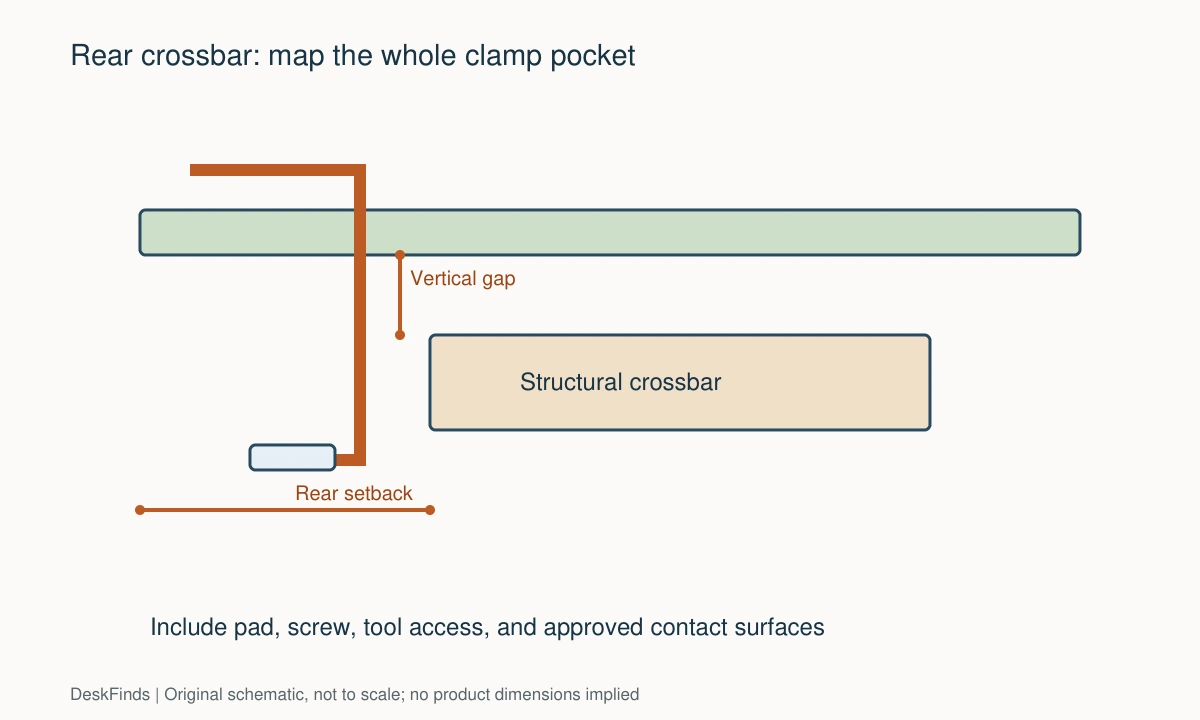
Your eight-point comparison worksheet
Use these checkpoints to compare the actual room, furniture, or device with a candidate product. Keep each result separate; a favorable overall impression cannot resolve a failed required function. Blank record fields are deliberate so you can use your own measurements rather than copying hypothetical examples.
1. Frame identity
Use the desk instructions to distinguish structural crossbars, cable baskets, decorative panels, and optional accessories.
Do not remove an obstruction until its purpose and permitted handling are clear; a structural brace is not equivalent to a cable tray.
2. Rear setback
Measure from the actual desktop rear edge to each face of the bar at the intended mount position.
Compare with clamp reach and body depth, keeping the same reference edge in the desk and hardware drawings.
3. Vertical pocket
Record the clear gap below the top and above the bar, including fasteners or brackets that reduce it locally.
Use the lowest controlling point rather than an average gap, and check the installation path as well as the tightened position.
4. Clamp assembly
Obtain pad size, body dimensions, screw projection, and the room needed for adjustment tools.
A desktop-thickness range covers only part of the fit; every part must enter, seat, and be operated as intended.
5. Contact approval
Confirm desktop material and the surfaces on which upper and lower clamp components are designed to bear.
Do not load an arbitrary frame rail or unknown hollow core because it appears to provide a convenient mounting point.
6. Screen position
Place the monitor in its intended reading position and compare the arm’s reach, joints, and wall clearance from the viable base location.
A clear clamp pocket is useful only when the arm can also support the screen where you need it.
7. Alternative hardware
Match any top-mount clamp or grommet kit to the exact arm and verify its separate installation envelope.
Do not assume another clamp from the same brand is compatible or that a top-tightened design has no lower obstruction.
8. Future movement
For adjustable desks, check mounted equipment, wiring, and wall objects throughout the intended desk-height range.
Keep the complete loaded system clear by design and repeat the check when screen, mount, or cable equipment changes.
Sources and scope
- Ergotron: mount accessories - Reference for approved alternative mount kits; confirm the exact arm and kit pairing.
- Ergotron: desk mounting systems - Primary overview of desk mounting interfaces; original crossbar worksheets are geometric planning aids, not load tests.
Editorial note: This is a research-based planning guide, not a hands-on product test or a certification of a custom installation. Dimensions described as hypothetical are examples. Follow the exact product instructions and confirm unresolved compatibility before buying.