
How to Use a Dining Table as a Workstation Without Taking It Over

Affiliate Disclosure: We may earn a small commission on qualifying Amazon purchases at no extra cost to you. Full disclosure →
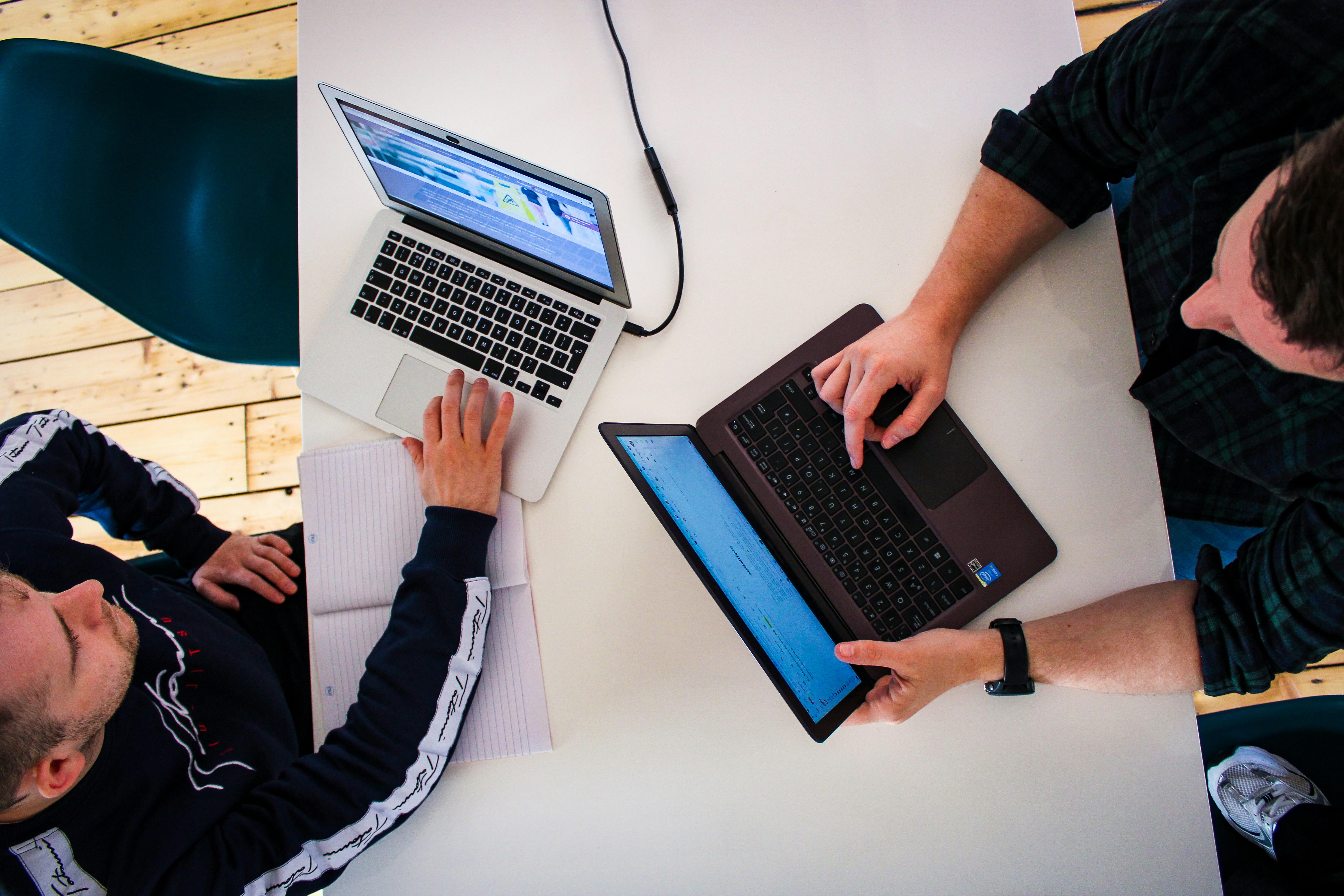
A dining table can be a useful temporary desk, but its depth and size do not automatically make it a comfortable all-day workstation. It also needs to return to food, conversation, and household use. The reset is part of the setup, not an afterthought.
Quick answer: Use one defined working place, keep the essential equipment in a portable kit, protect the finish with compatible materials, and give every device a real storage destination. Set the chair, screen, and input devices for the work you do, then rehearse a complete meal-time reset before adding more equipment.
Define the working session
A laptop used for a short administrative task needs less support than a full day of spreadsheet work. Identify the longest normal session and the tasks that require paper, an external screen, or a pointing device.
Decide whether the table must remain partly available while you work. A shared household may need one clear eating place or a route to the kitchen. Mark that boundary before equipment spreads across the whole surface.
Choose the seat by the task
Test the table and chair together. A dining chair may be too low relative to the work surface, and a thick table apron may limit leg clearance. Changing only the screen position cannot fix a poor keyboard height.
Use stable, purpose-built adjustments where needed. Avoid stacking loose cushions or raising furniture with improvised objects. If the table cannot support an acceptable working position for long sessions, treat it as a temporary station and plan another arrangement for sustained work.
Separate the laptop screen from typing when needed
Raising the laptop can improve the screen position, but the built-in keyboard rises with it. For sustained typing on a raised laptop, an external keyboard and mouse allow independent positioning. Include their storage and setup time in the plan.
A portable monitor adds a separate screen but also a stand, cable, and power question. Only add it when it solves a clear task problem. An accessory that saves time during work but takes too long to pack away may be a poor fit for this table.
Make a one-trip kit
Choose a caddy, bag, or shallow bin that holds the keyboard, mouse, charger, notebook, and small accessories without crushing cables. Keep frequently needed items together instead of returning them to several rooms.
The laptop may need its own protected position. Do not load it underneath heavy peripherals or store it where spills from the dining area can reach it. If the kit is carried daily, check the handle, weight, and storage shelf before choosing its size.
Protect the table appropriately
Check the furniture maker’s care instructions. A desk mat can protect against some scratches, but its backing may interact with certain finishes. Test suitability rather than assuming every rubber or plastic pad is safe for every table.
Keep equipment feet and the surface beneath them clean. Grit trapped under a protective mat can still mark a finish. Remove the mat for cleaning as directed and do not put a hot charger or covered device on materials that could retain heat.
Build a cable route that leaves the room usable
Locate the outlet before choosing a seat. Keep cords away from chair legs and routes used by people carrying food. Do not run a taut charging cable diagonally across a shared walkway.
A long cable is not automatically a good route. Use products suitable for the intended purpose and avoid pinching cords under table leaves or doors. If safe power access is unavailable, another seat or another room may be the better option.
Keep food and work as separate states
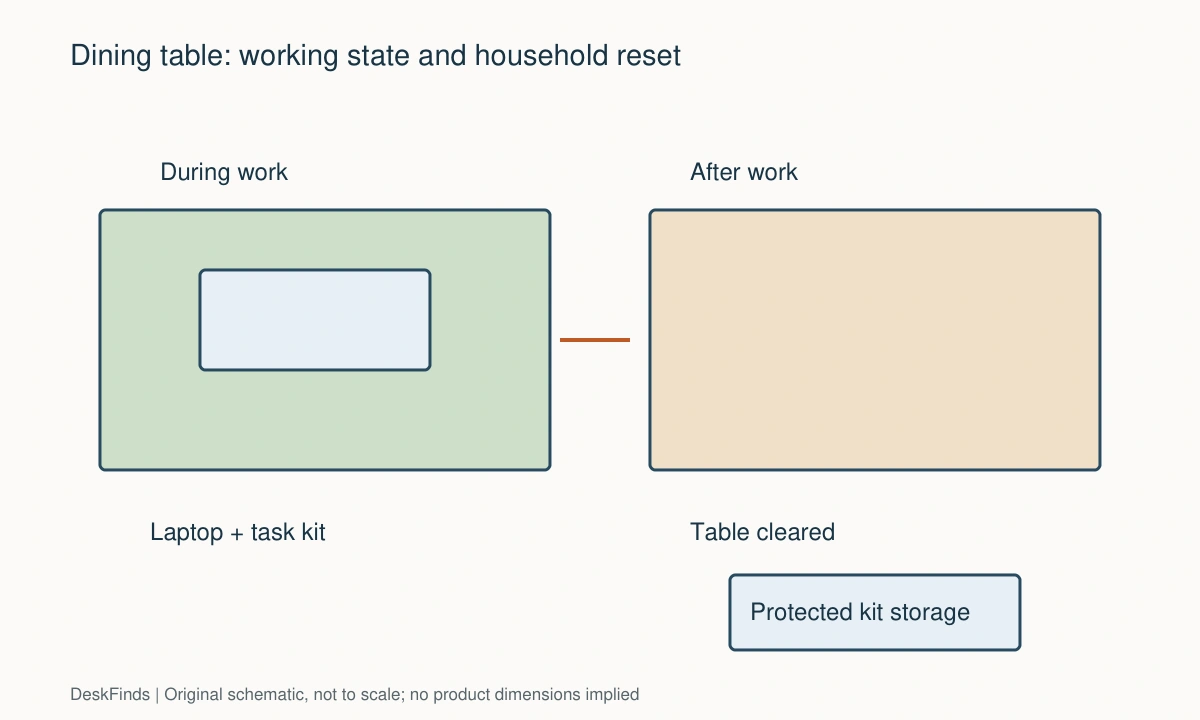
A visible boundary is useful when other people share the table. Use a removable work mat or a designated tray to make the working area clear, then remove the equipment fully before meals.
Do not describe moving a laptop a few inches from a plate as a complete reset. Store devices and papers where drinks, serving dishes, and table cleaning will not reach them. Washable dining protection and electronics storage solve different problems.
Rehearse the reset
Close and save work, disconnect the appropriate leads, put small devices in the kit, store the laptop, remove the mat, and inspect the surface. Give adapters time and space to cool as their instructions require before enclosing them.
Then set the table for its household use. If the reset requires several trips or leaves loose cables on the floor, simplify the kit. A good target is a repeatable routine you can perform even when tired, rather than a speed promise that ignores your equipment.
Handle papers deliberately
Use one active folder or document tray instead of several open piles. Separate confidential work papers from household mail. If your employer has rules about remote-work devices or documents, follow them when choosing storage.
A table that must clear daily is poorly suited to a paper system with no endpoint. Decide what remains active, what gets filed, and what can be discarded. Our desk-declutter checklist can help reduce the kit before you buy storage.

Choose accessories by reset cost
| Accessory | Useful when | Reset question |
|---|---|---|
| Foldable laptop stand | Screen needs independent height | Does it pack without tools? |
| External keyboard | Laptop is raised for typing | Where does it store flat? |
| Portable monitor | Work genuinely needs another screen | Can the panel be protected between meals? |
| Caddy | Several small items travel together | Does the loaded kit fit its shelf? |
| Desk mat | Finish compatibility is confirmed | Can it be stored without permanent curling? |
A successful dining-table workstation leaves the household table available when work ends. Buy fewer accessories if that makes the transition reliable. The arrangement should support both your work and the room’s shared purpose.
Choose a kit for the actual work pattern
Short laptop sessions
For occasional administration, a modest kit may be enough: laptop, suitable charger, pointing device if needed, and one notebook. Keep the storage container close enough that resetting does not require a trip upstairs. The table should not accumulate spare accessories for hypothetical future tasks.
Check whether the laptop can operate for the session without a cable across a shared route. Battery use can simplify a short session when appropriate, but it is not a solution for every workday. Plan charging around the device’s instructions and your actual needs.
Full-day work at a shared table
Longer sessions may justify an external keyboard, mouse, and screen support. Compare their working benefit with the reset effort. A lightweight stand that packs easily may be useful, while a large fixed monitor can make the dining purpose difficult to restore.
If full-day use is frequent, assess whether another compact workstation would serve the household better. A dining table can be part of a temporary arrangement without becoming the permanent answer to every office requirement. Base that decision on comfort and shared access, not just available surface area.
Work with active paperwork
Use one active folder or lidded paper tray that fits the storage destination. Keep loose pages from spreading under dishes, mats, or another person’s belongings. A paper boundary also makes it easier to confirm that confidential material has been put away.
Do not store papers against warm adapters or put heavy equipment on the folder. The kit needs compartments or a loading order that protects its contents. Test it fully loaded, since a container that looks spacious empty may be awkward when the charger and notebook are included.
If the laptop is raised, plan external input devices.
Time the reset without turning it into a speed contest
Perform the complete reset once during the trial and note which steps take effort. The purpose is to find friction, not to promise a universal two-minute routine. A device shutdown or cooling requirement should not be skipped to make the process look fast.
If several small items are easy to forget, group them in a removable tray. If the laptop needs a separate trip, place its protected storage near the kit. If cable removal is the slowest step, simplify connections using compatible equipment rather than leaving a trip hazard in place.
Respect other users of the room
Agree when the working setup is present and what surface remains available. Keep chairs, placemats, and household supplies accessible. A work kit stored on the only spare dining chair has not fully returned the room to normal use.
Review the arrangement after a week. If meals are delayed by packing or work is interrupted by every household task, change the location or reduce the equipment. The goal is a sustainable shared routine, not proving that a dining table can function like a dedicated office in every situation.

Compare the total daily effort
List the tasks needed to start work and the tasks needed to return the table to household use. Include fetching equipment, connecting cables, positioning the chair, storing papers, and cleaning the surface appropriately. A setup that looks minimal may still require many trips if its belongings are scattered around the home.
Choose a storage destination before choosing the kit container. Measure the shelf or cupboard and the route to it. A tall caddy with a convenient handle may not fit the available shelf, while a shallow lidded box may stack better but be awkward to carry. Match the container to both movement and storage.
Do not buy extra equipment only to make the table resemble a permanent desk. A second monitor, microphone arm, or large lamp should answer a specific need strong enough to justify its reset cost. If several permanent accessories are essential, reconsider whether a compact dedicated workstation would serve you better.
If you share the table, agree a visible end state: no electronics on chairs, no loose leads across the floor, and active papers stored. These are household workflow choices rather than technical standards. They help prevent work from expanding into every available surface.
Review the plan when your work changes. A new role involving frequent calls or paper records may need a different arrangement from occasional laptop administration. The dining-table solution should adapt to the real workload. Keeping it temporary when appropriate is a valid decision, and the equipment kit can remain useful for travel or occasional overflow work even after another workstation is added.
For daily paperwork, compare organizers and trays.
Worked example: turning a laptop session into a reliable reset
Suppose a household table is used for remote work during the day and meals each evening. The worker starts with a laptop, charger, notebook, mouse, and several loose adapters. Every evening the equipment moves to different chairs and shelves, so the table looks clear while the room remains cluttered.
The first improvement is assigning storage. The laptop gets a protected location away from food preparation, and a shallow kit container is selected to fit a nearby cupboard. The container is tested with the actual accessories before purchase. A tall organizer is rejected because its handle prevents it fitting the shelf.
Next, the working position is checked. Raising the laptop helps the screen but makes built-in typing unsuitable for the sustained task, so external inputs are considered. Their working benefit is weighed against the extra items in the reset. The kit is rearranged so the keyboard stores without carrying the laptop’s weight.
Power creates another decision. The original seat needs a lead across the route from kitchen to table. A different seat provides a more practical route, but introduces a screen reflection. The worker tests the new orientation and suitable window treatment before choosing it. The cable problem is not solved simply by buying a longer lead.
The reset is rehearsed after an ordinary session: save work, handle device power state appropriately, disconnect, store the laptop and kit, remove the compatible protective mat, and inspect the surface. Cooling or care requirements are retained rather than skipped to make the routine faster. The worker notes two forgotten adapters and gives them fixed compartments.
After several days, the household reviews whether the table remains available at the agreed time. If frequent calls or additional screens make the routine too demanding, a compact dedicated station becomes a reasonable next step. The portable kit remains useful. The aim is not to prove that one table can satisfy every office need, but to create a practical shared arrangement for the workload that actually exists.
For a separate removable work surface, compare everyday folding desks.
Your eight-point comparison worksheet
Use these checkpoints to compare the actual room, furniture, or device with a candidate product. Keep each result separate; a favorable overall impression cannot resolve a failed required function. Blank record fields are deliberate so you can use your own measurements rather than copying hypothetical examples.
1. Session length
Identify the longest normal work session and the tasks requiring typing, handwriting, or an external screen.
Choose support for those actual tasks, and reassess the location if sustained work cannot be accommodated comfortably.
2. Chair and apron
Check seat height, foot support, table apron clearance, and the position of the keyboard together.
Do not solve screen height while leaving the input surface unsuitable; the whole seated arrangement should remain usable.
3. Working boundary
Reserve the portion of the table needed by other household users and mark the active equipment area.
Reject accessories that force work beyond that agreed area unless the household routine can accommodate the change.
4. Loaded kit
Pack the real keyboard, mouse, notebook, cables, and small tools into the intended container before judging its capacity.
Choose a shape that protects devices and fits its shelf; a container’s nominal volume does not reveal how equipment stacks.
5. Finish compatibility
Check the table maker’s care guidance against mat backing, equipment feet, cleaning products, and moisture exposure.
Use compatible protection and keep trapped grit out; adding a mat does not guarantee protection for every finish.
6. Power route
Trace the charging lead with chairs occupied and people moving between the kitchen and table.
Change the seat or cable route when needed instead of running a taut lead through the room’s normal passage.
7. Storage destination
Give the laptop and kit an actual protected location away from meals, spills, and ordinary table cleaning.
A device moved onto another dining chair or the floor has not completed the reset; include that destination in the routine.
8. Meal-time handover
Save work, follow device shutdown and cooling requirements, pack equipment, remove work protection, and inspect the surface.
Test the full sequence during an ordinary day, then simplify repeated trips and forgotten items without skipping necessary device care.
Sources and scope
- OSHA: workstation components - General workstation-component reference; household reset routines here are original planning examples.
Editorial note: This is a research-based planning guide, not a hands-on product test or a certification of a custom installation. Dimensions described as hypothetical are examples. Follow the exact product instructions and confirm unresolved compatibility before buying.