
10 Desk Upgrades Under $100 That Make a Real Difference (2026)
10 desk upgrades evaluated specifically for small desks and student/remote-work setups -- monitor arms, ergonomic keyboards, wrist support, cable management, and more. All under $100, most under $60.
Most desk upgrades fall into two categories: things you'll notice every single day, and things you'll forget you bought within a week. This guide only covers the first kind.
We evaluated upgrades specifically for small desks (under 48 inches wide) and student/remote-work setups where the goal is maximum impact per dollar. Each of the 10 upgrades addresses a specific, measurable pain point -- more desk space, less wrist fatigue, no more cord hunting, cleaner power setup.
Impact vs. Cost -- Know What You're Buying
| Upgrade Type | Daily Impact | Time to Feel It | Cost Range |
|---|---|---|---|
| Monitor arm | ★★★★★ | Immediately | $35-$80 |
| Ergonomic keyboard + mouse | ★★★★★ | 1-2 weeks | $30-$70 |
| Wrist rest / arm support | ★★★★★ | Immediately | $25-$40 |
| Footrest | ★★★★★ | 1 week | $25-$35 |
| USB-C charging station | ★★★★★ | Immediately | $50-$80 |
| Powered USB hub | ★★★★★ | Immediately | $20-$45 |
| Cable management | ★★★★★ | Immediately | $10-$25 |
The 10 Upgrades
Mount Your Monitor on a Gas-Spring Arm
The #1 desk upgrade for small spaces
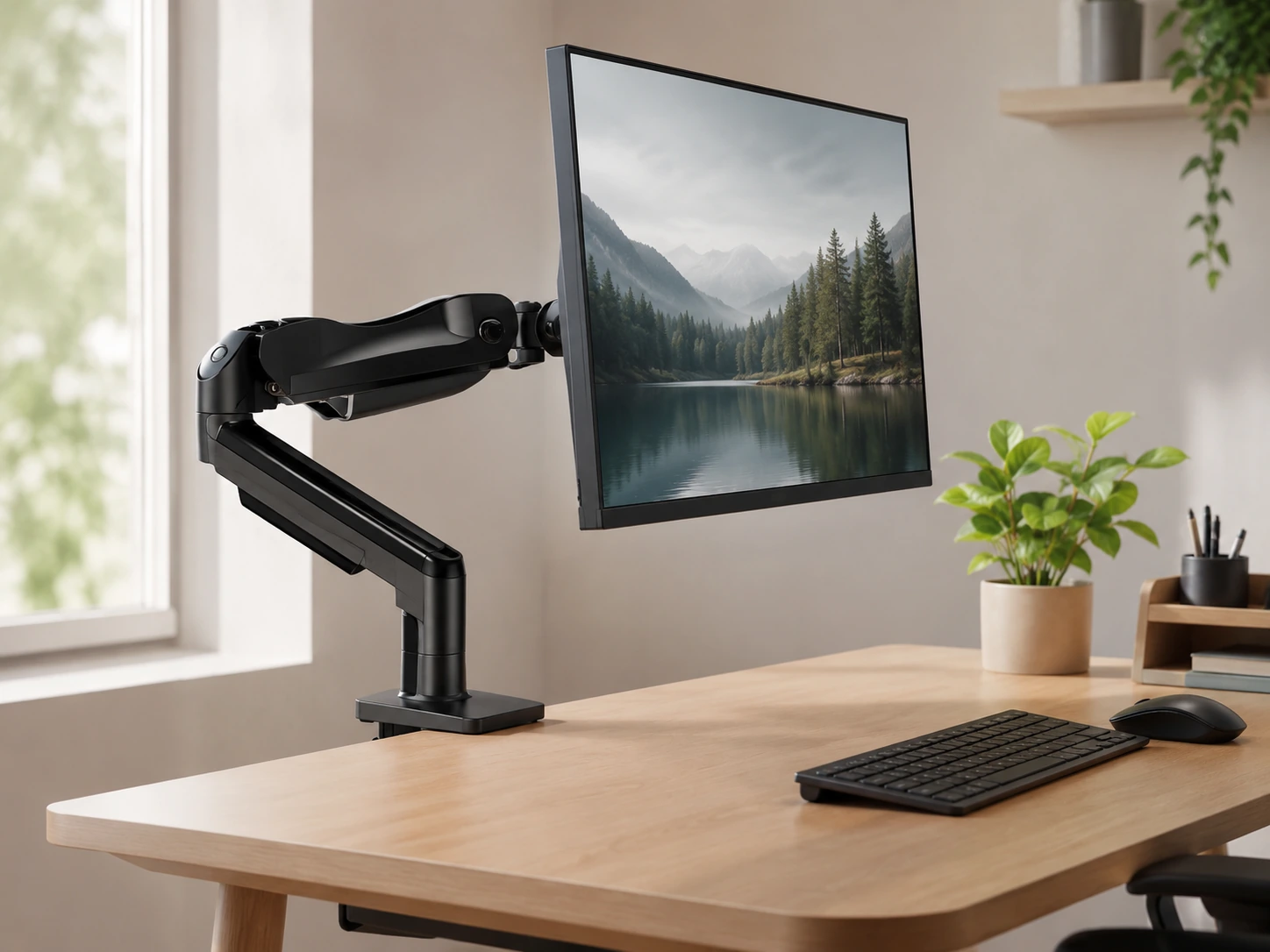
A monitor stand occupies 6-10 inches of desk depth permanently. A gas-spring arm replaces that footprint with a single pole clamp and puts the monitor in the air -- completely freeing the desk zone beneath it. Gas-spring arms float with one hand, stay exactly where you put them, and last years. The price premium over friction arms is worth paying.
HUANUO FlowLift Single Monitor Arm
Gas-spring, rated for 4.4-19.8 lbs, covers 13"-32" screens, installs in under 5 minutes with C-clamp or grommet. Tested for 20,000 motion cycles -- more than a decade of daily adjustments. +85/-50 tilt, 90 swivel, 360 rotation.
Best for
Most single-monitor setups. The default recommendation for anyone with one screen under 32".
Specs
- Fits: 13"-32", 4.4-19.8 lbs
- Mount: C-clamp or grommet
- Motion: Gas-spring, tool-free
- VESA: 75x75 and 100x100mm
HUANUO Dual Monitor Stand
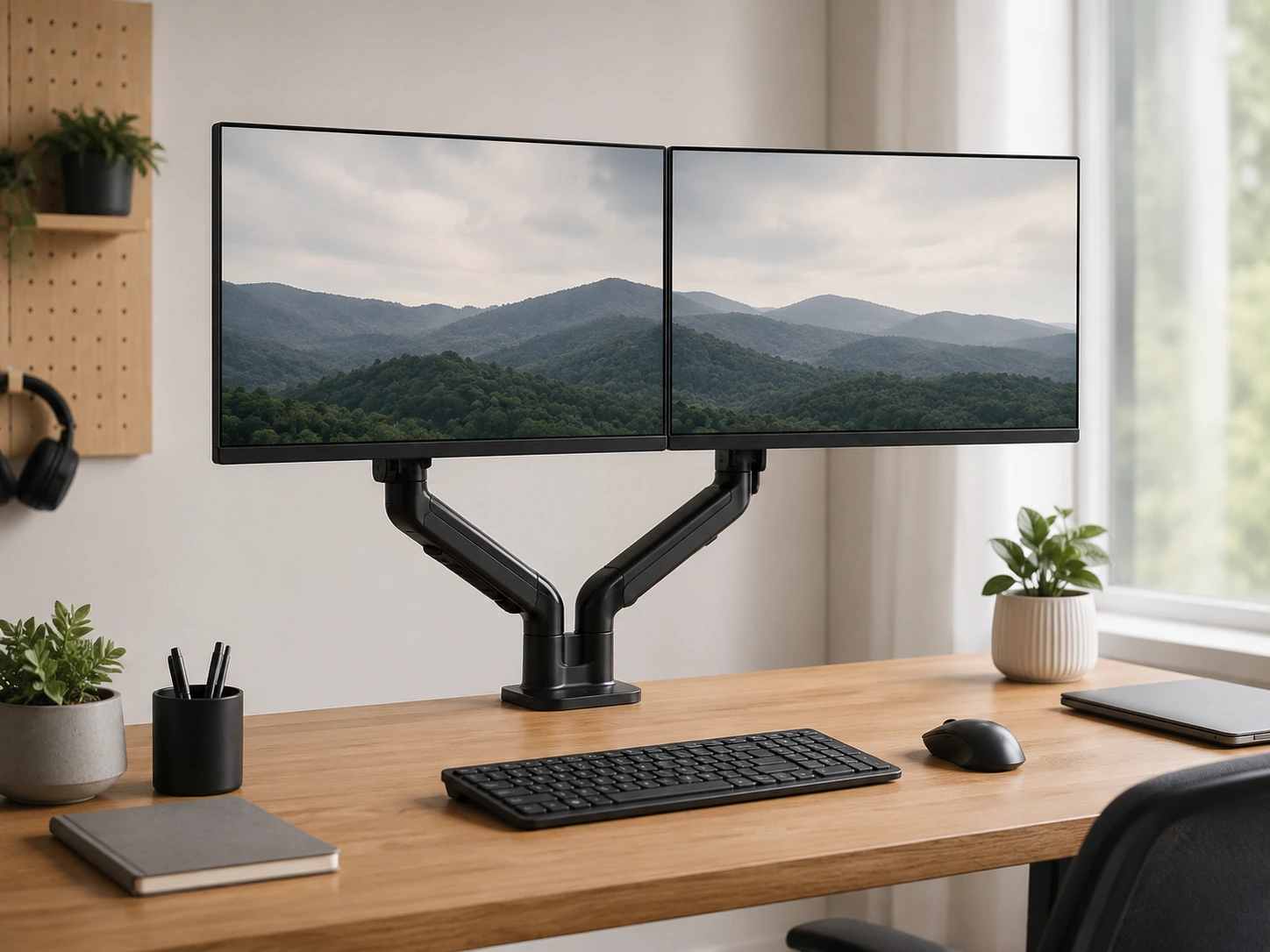
Two fully independent arms off one clamp base -- frees both monitor footprints simultaneously. On a 40" desk with two monitors, recovers 12-18" of depth that was previously occupied by two stands.
Best for
Dual-monitor setups on any desk size. Single clamp replaces two separate stands.
Specs
- Fits: 13"-32" per arm, 4.4-19.8 lbs each
- Arms: Fully independent
- Mount: C-clamp or grommet
- VESA: 75x75 and 100x100mm
Add a Laptop Arm Alongside Your Monitor
Raise the laptop to secondary display height
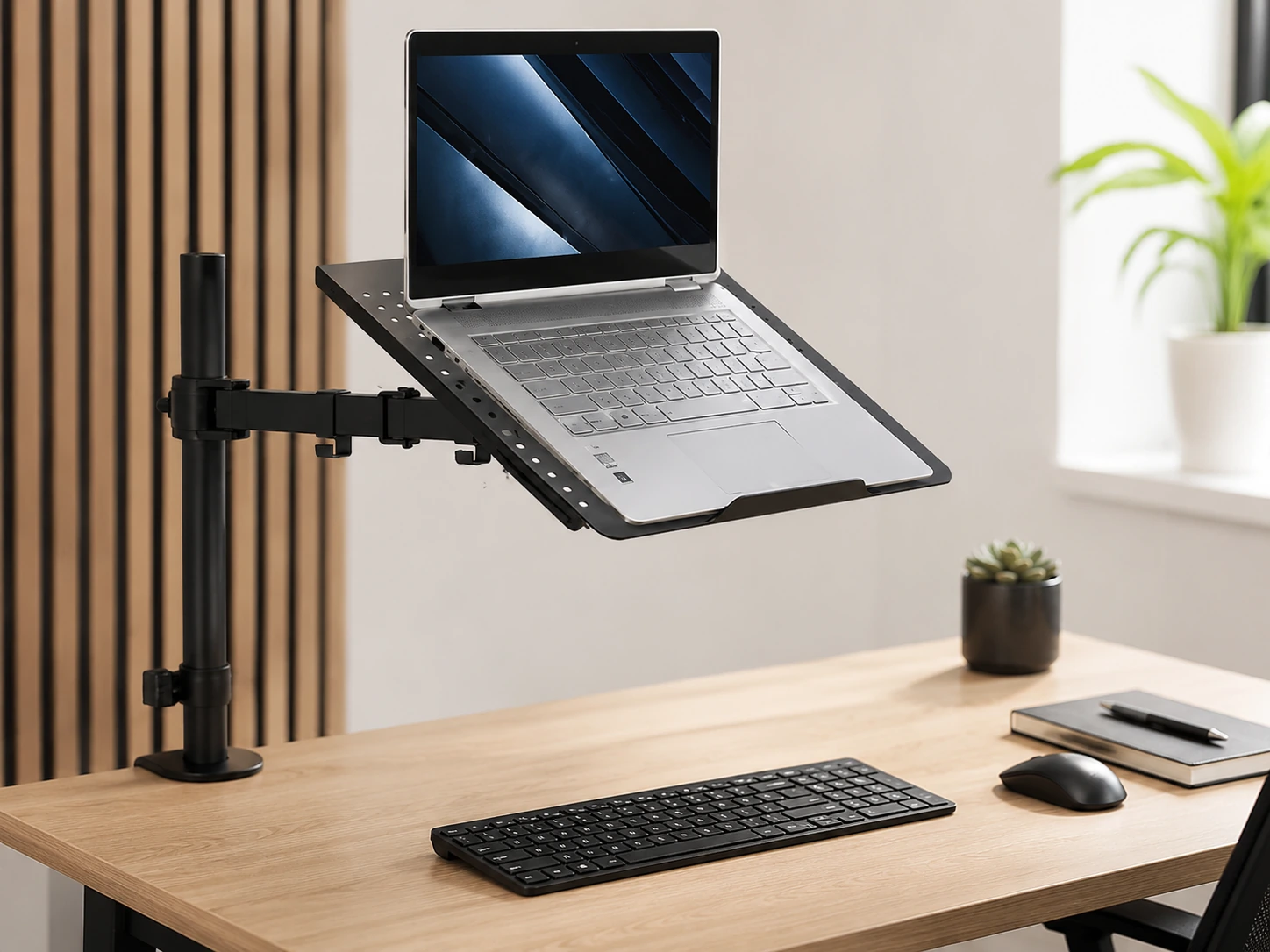
If you use both a laptop and an external monitor, a laptop arm raises the laptop to secondary display height -- freeing the desk surface it was occupying and creating a proper dual-display ergonomic setup. Before: laptop flat on desk eating 6-8" of depth. After: laptop at eye level beside your main monitor, desk surface fully clear.
VIVO Single Laptop Desk Mount
Holds laptops up to 17", mounts via C-clamp or grommet -- same installation as a monitor arm. Positions the laptop at secondary display height alongside your main monitor.
Best for
Users with a monitor arm already installed and a laptop to add as a second display.
Specs
- Fits: Laptops up to 17"
- Mount: C-clamp or grommet
- Adjustment: Fully adjustable extension
VIVO Monitor + Laptop Combo Stand
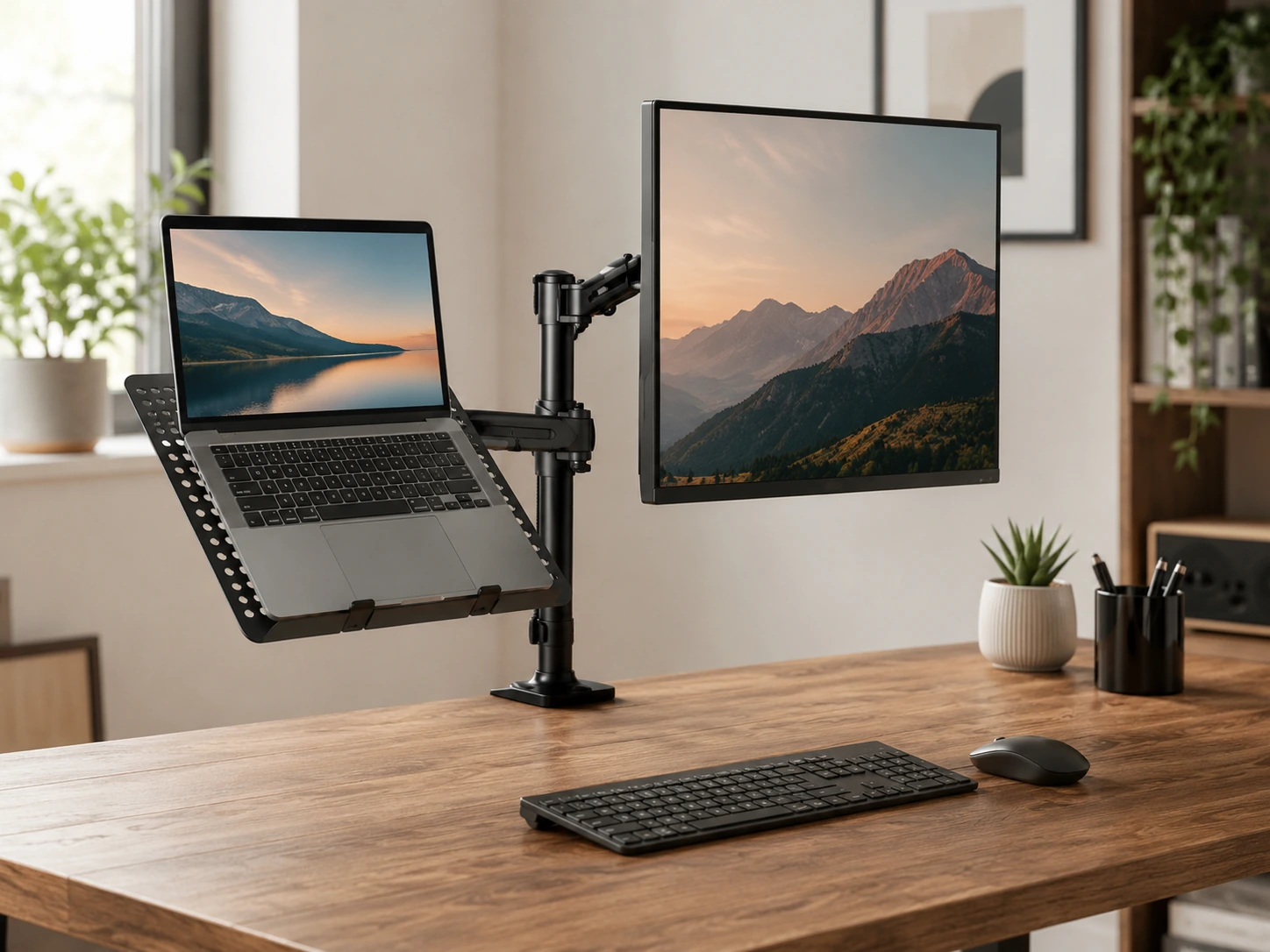
Monitor mount and laptop tray off a single clamp -- one installation point for both devices. Laptop tray extends from the same center pole as the monitor mount.
Best for
Thin desk edges where only one clamp fits, or users who want fewer mounting points.
Specs
- Monitor: Up to 32", VESA 75/100mm
- Laptop tray: Up to 17"
- Mount: C-clamp or grommet, single point
Note: Mechanical arm (not gas-spring). Repositioning requires loosening a knob. Fine for a setup you configure once and leave.
Switch to a Wireless Ergonomic Keyboard
Eliminate cable clutter + wrist fatigue
A standard keyboard has two problems: the cable adds cord clutter, and the flat layout forces wrists into a slightly pronated position that accumulates fatigue over hours. Ergonomic wireless keyboards solve both. A slight wave or curved layout lets wrists remain in a neutral position -- the difference compounds over a full work or study day.
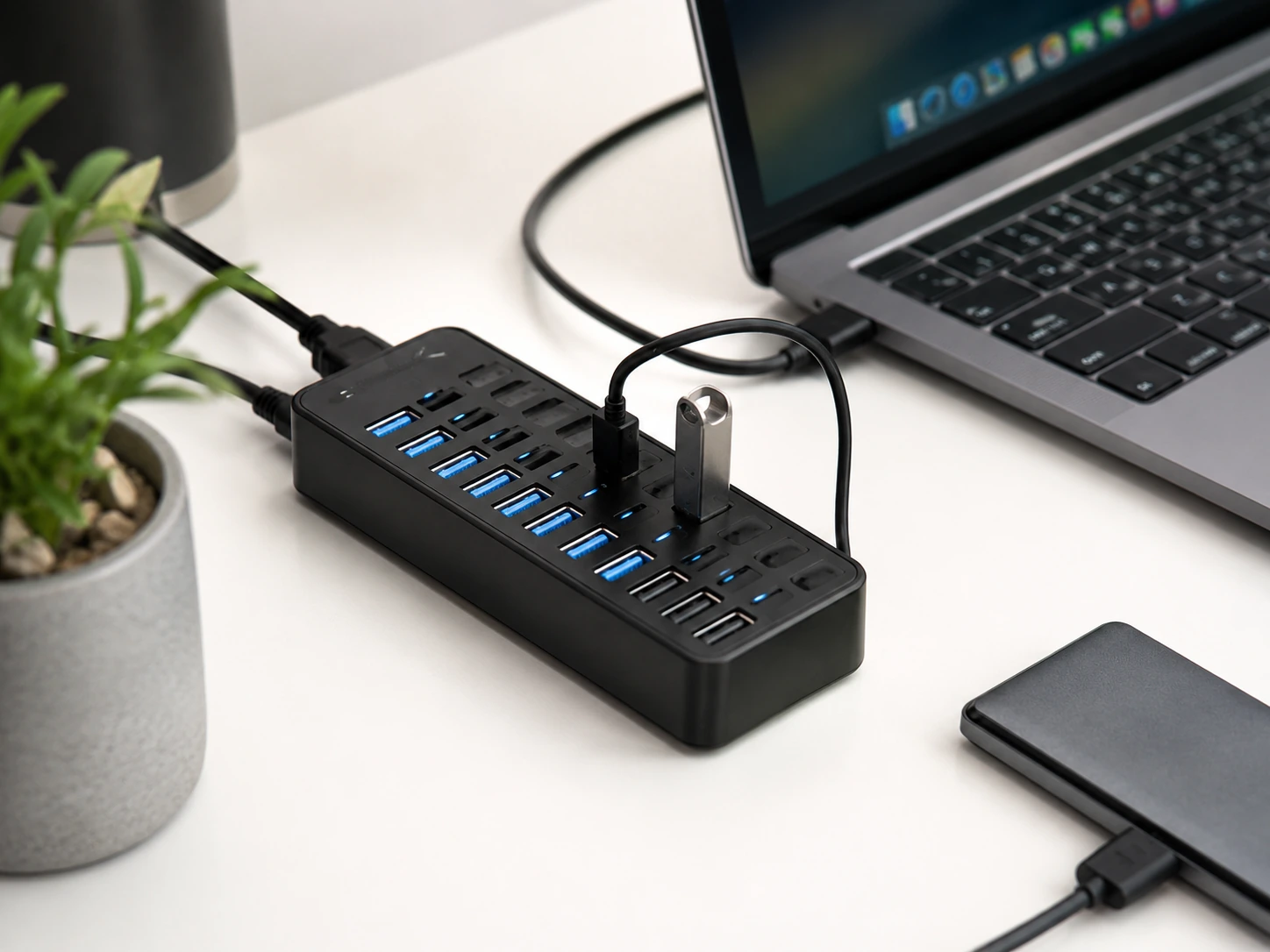
Trueque KM23 Wireless Keyboard + Mouse
Full-size wireless keyboard with built-in wrist rest, a phone holder slot, and quiet keystrokes. Mouse included. The phone holder on the frame keeps your phone at eye level beside your screen without a separate stand.
Best for
Students and remote workers who want one wireless set with everything -- keyboard, mouse, wrist support, phone stand.
Specs
- Layout: Full-size
- Wireless: 2.4G, USB nano receiver
- Extras: Built-in palm rest, phone holder slot
- Battery: Sleep mode (battery saving)
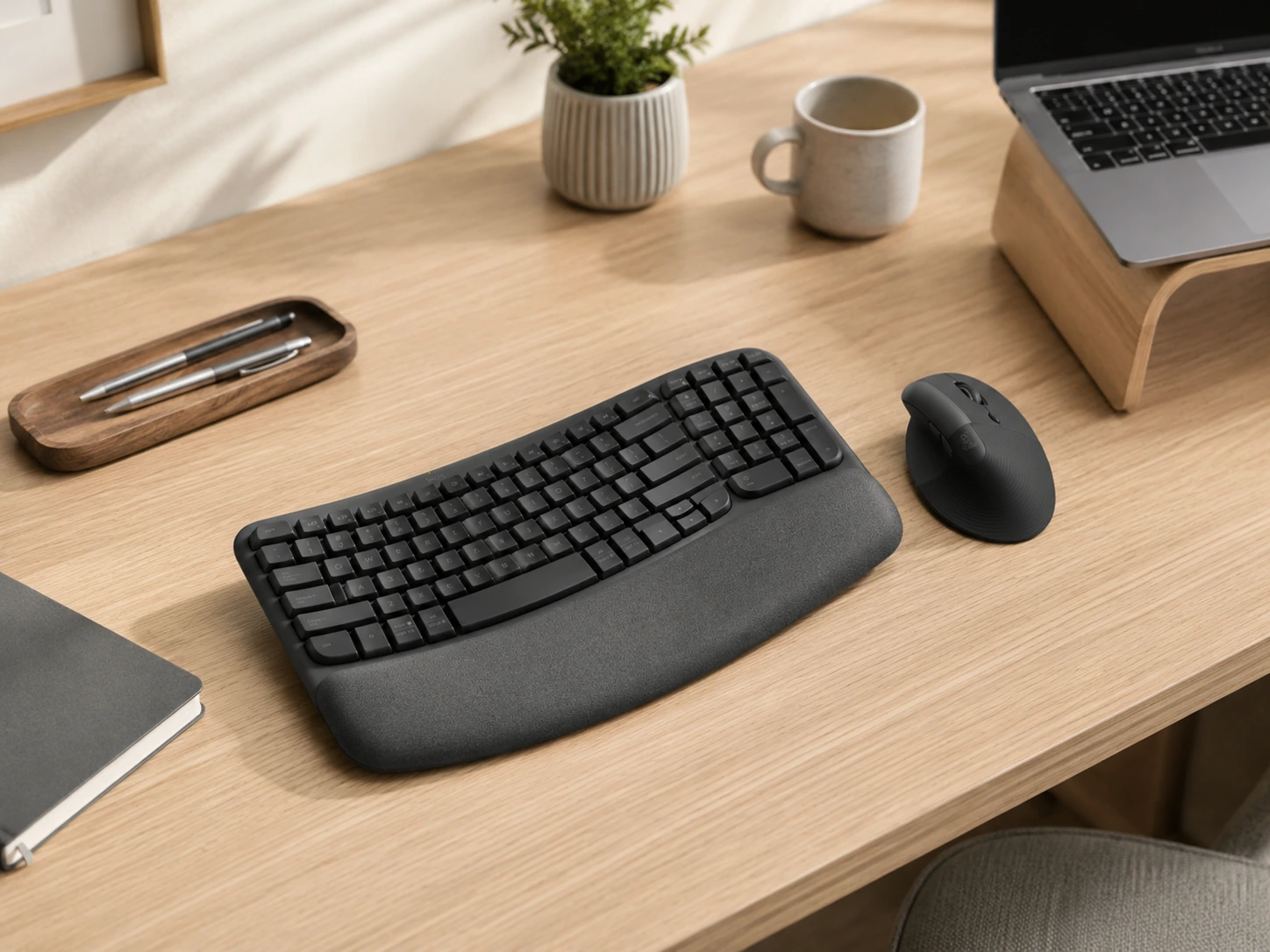
Wave Keys Wireless Keyboard + Mouse
Classic wave/curve layout across key rows -- the ergonomic principle that reduces wrist pronation during long typing sessions. Cushioned palm rest wider and softer than most budget keyboards.
Best for
Anyone who types 4+ hours daily and wants the ergonomic curve benefit without premium brand prices.
Specs
- Layout: Full-size, wave-curved
- Wireless: 2.4G, 3-level DPI mouse
- Extras: Cushioned palm rest
- Compatibility: PC, Mac, Windows
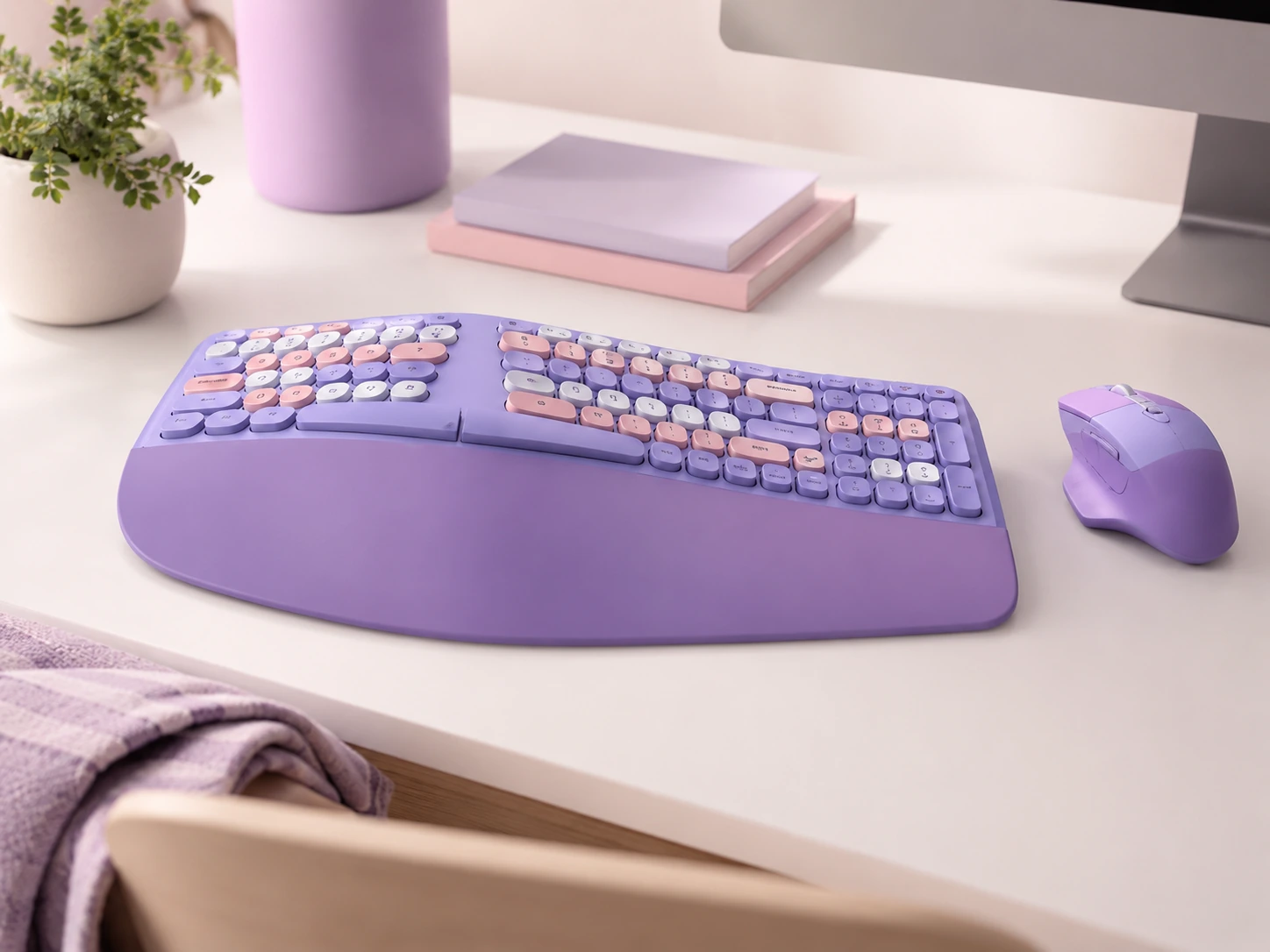
Wireless Ergonomic Keyboard + Mouse (Color Options)
Same wave-key ergonomic concept with integrated wrist rest, in a split colorblock design. Available in purple and other colors for setups where desk aesthetic matters.
Best for
Students who want functional ergonomics plus a desk setup with personality.
Specs
- Design: Split/colorblock, wave layout
- Wireless: 2.4G
- Extras: Wrist rest included
- Compatibility: PC/laptop/Mac
Add Wrist and Arm Support
The most underrated upgrade on this list
Typing with your wrist resting on a hard desk edge compresses the carpal tunnel slightly for the entire duration of your session. A padded armrest supports your entire forearm -- not just the wrist -- reducing shoulder and upper arm tension. With a static wrist pad, your forearm still hangs in the air held up by shoulder muscles. With a full armrest, both wrist and forearm rest and shoulder muscles fully relax.
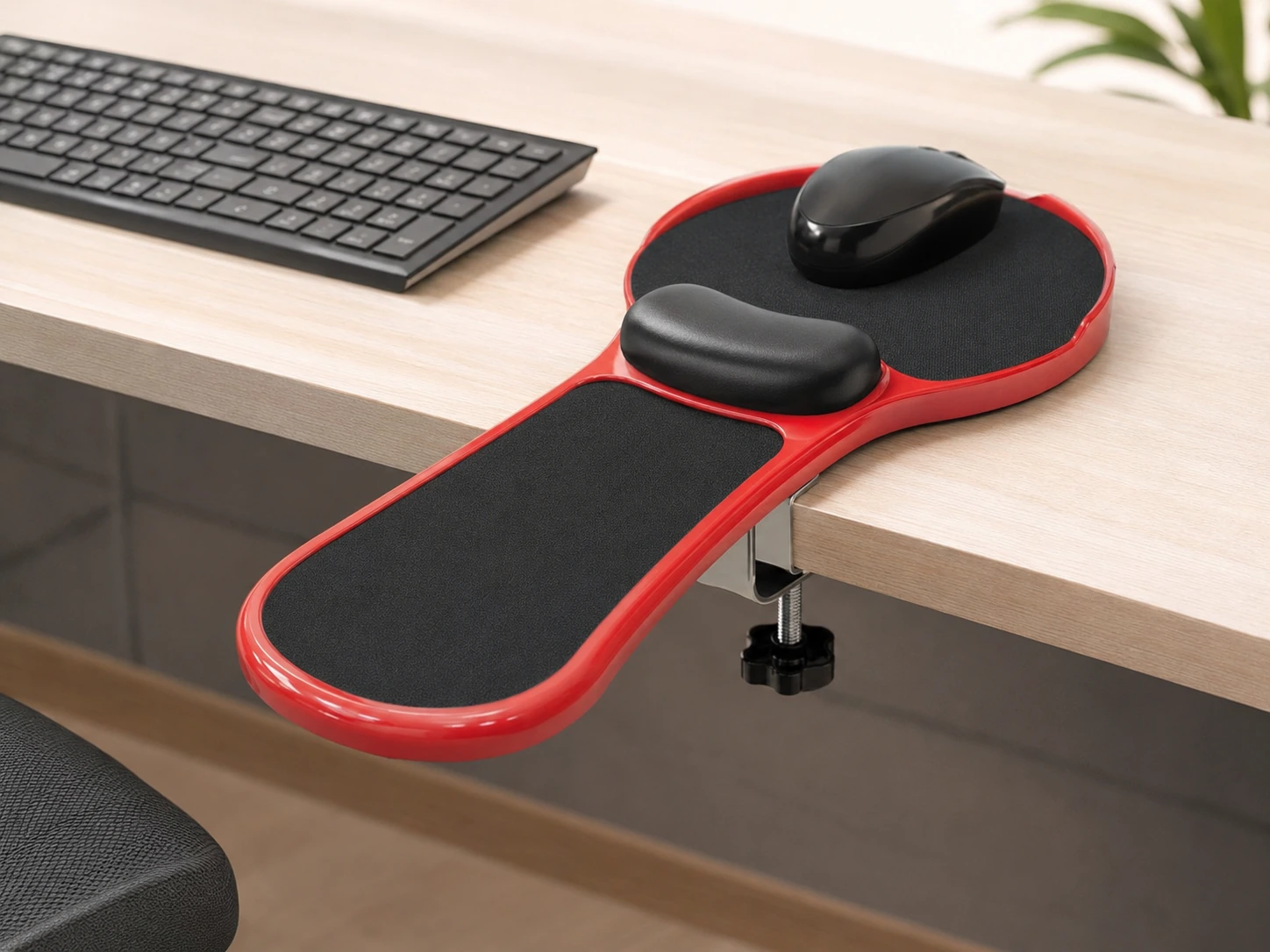
Premium Adjustable Wrist Rest Armrest
Clamps to the desk edge and provides a padded forearm support platform that rotates to follow your arm as you move. Height adjustable. Works as a desk armrest or chair armrest replacement.
Best for
Heavy mouse users (designers, editors, spreadsheet users) and anyone who feels tension in their shoulder, neck, or upper arm during desk sessions.
Specs
- Mount: Clamps to desk edge
- Support: Full forearm + wrist platform
- Motion: Rotates to follow arm movement
- Adjustment: Height adjustable
Install an Under-Desk Footrest
Fixes posture chain from the ground up
If your desk is at standard height (29-30") and you're between 5'4" and 5'10", your feet likely don't rest flat on the floor while your arms are at a 90 typing angle. A footrest fills that gap. The chain reaction: feet flat on a surface, knees at 90, hips level, spine in neutral position, less lower back tension over a multi-hour session.
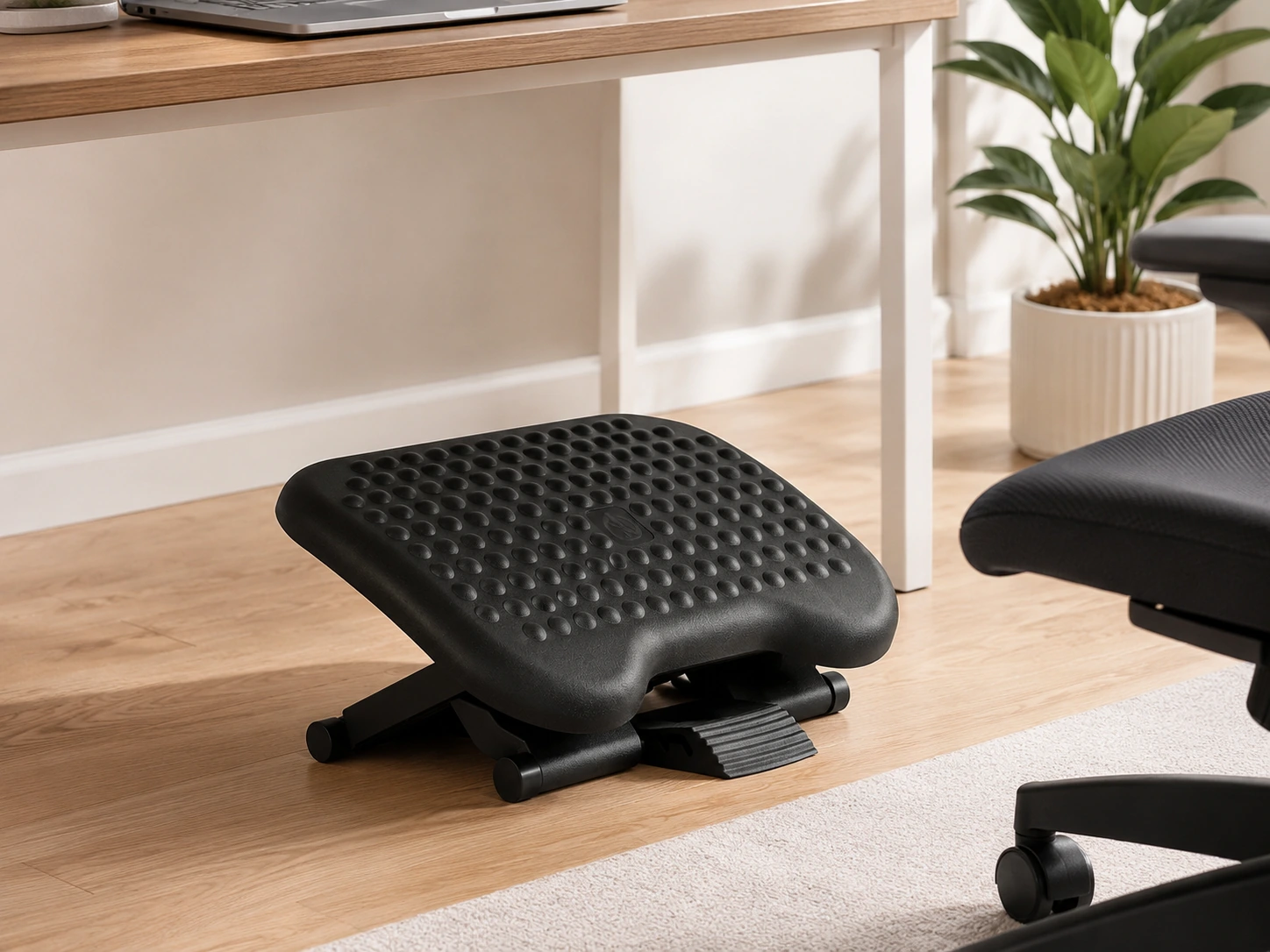
Mount-It! Ergonomic Under-Desk Footrest
Three height levels (2.75", 4.75", 6.75") and adjustable tilt angle let you dial in exact foot position for your height and chair. Textured surface promotes gentle foot movement for better circulation. Also functions as a laptop stand on top.
Best for
Anyone whose feet don't rest flat comfortably while typing. Test: if there's a gap between your feet and the floor at your normal typing position, this fixes it.
Specs
- Heights: 2.75" / 4.75" / 6.75"
- Surface: Textured non-slip
- Tilt: Adjustable angle
- Bonus: Built-in laptop stand on top platform
Replace Your Power Strip with a USB-C Charging Station
One outlet, one cable per device
Modern USB-C (PD) chargers deliver enough wattage to charge a MacBook Pro (90W), an iPhone (20W fast charge), a tablet (45W), and a second phone simultaneously -- off one outlet. The desk cleanup is immediate. Three adapters on your power strip become one compact unit using one outlet.
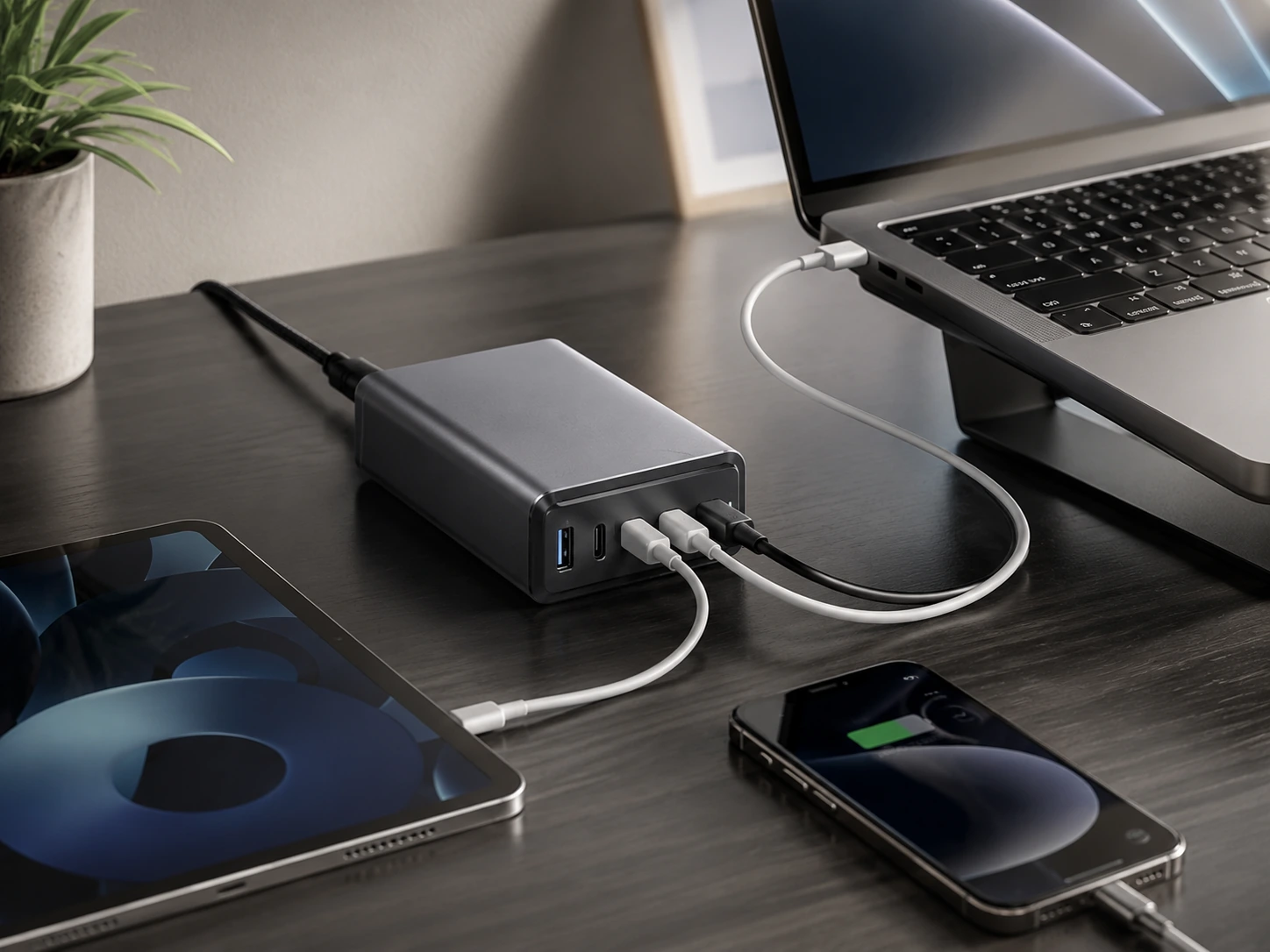
Satechi 108W Pro USB-C Desktop Charger
Two USB-C PD ports (90W + 18W) and one USB-A replace your laptop charger, phone charger, and tablet charger with a single compact unit. 90W port charges MacBook Pro M-series from 0-50% in approximately 30-40 minutes.
Best for
MacBook, iPad, and iPhone users. Works with any USB-C device.
Specs
- Port 1: USB-C PD 90W (laptop)
- Port 2: USB-C PD 18W (phone/tablet)
- Port 3: USB-A (legacy devices)
- Total: 108W output
- Compat.: MacBook M1-M4, iPhone 16, iPad Pro
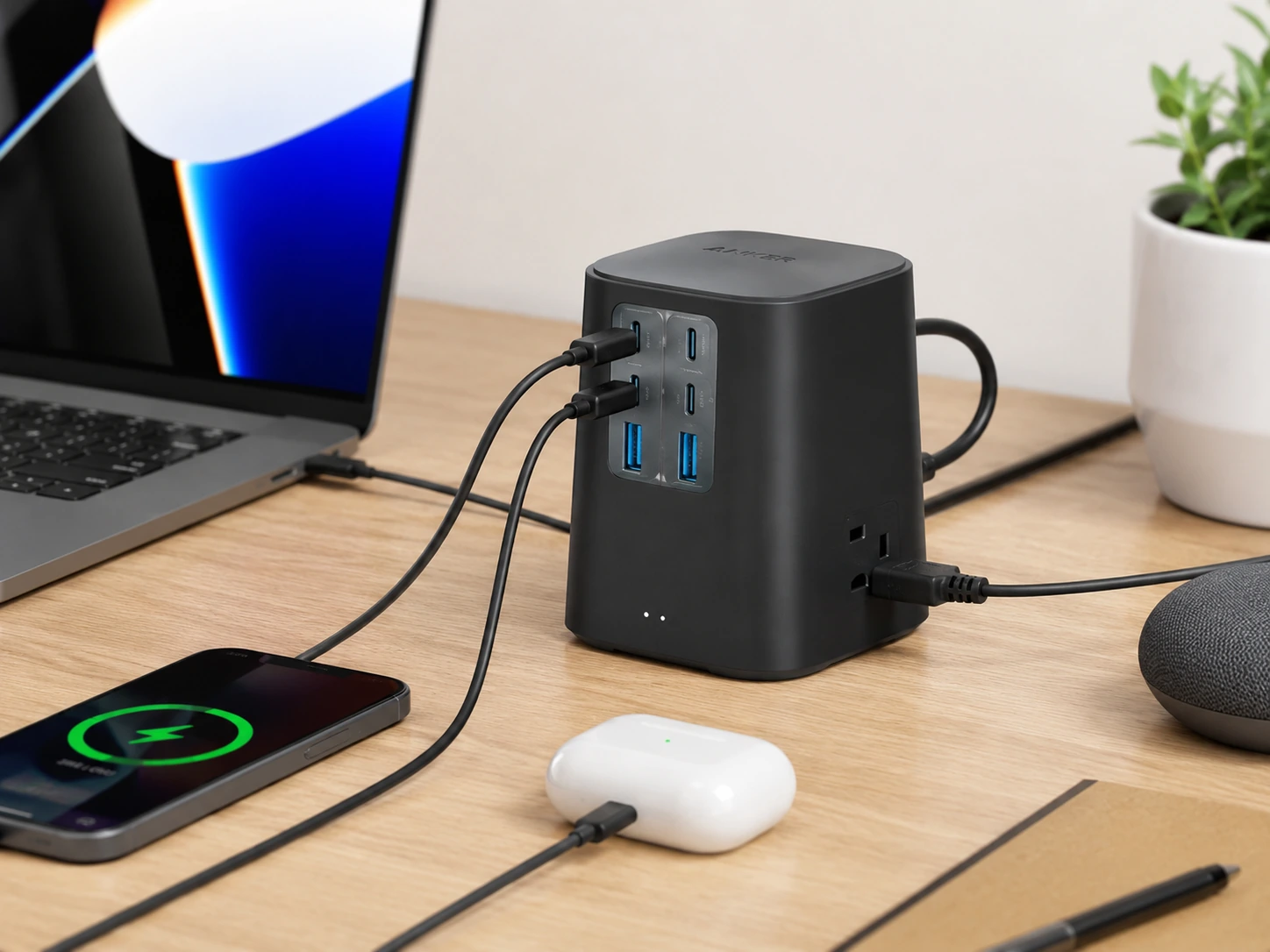
Anker 9-in-1 Power Strip 100W
3 AC outlets + 2 USB-A + 4 USB-C ports (100W total) in one compact strip with 300J surge protection. Everything -- laptop, phones, tablets, desk lamp, monitors -- off one strip.
Best for
Users who still need AC outlets for devices without USB-C cables (monitors, lamps, older equipment).
Specs
- Outlets: 3 AC + 2 USB-A + 4 USB-C
- Output: 100W total USB
- Surge: 300J protection
- Cord: 5ft flat-plug
Add a Powered USB Hub
No more dropped connections under load
If your laptop has 2 USB-C ports and you need to connect a mouse, keyboard, external drive, webcam, and card reader simultaneously -- a powered hub solves this without the instability of unpowered hubs that drop connections under load. Powered means it has its own AC adapter, so devices get consistent wall power, not drawn from your laptop battery.
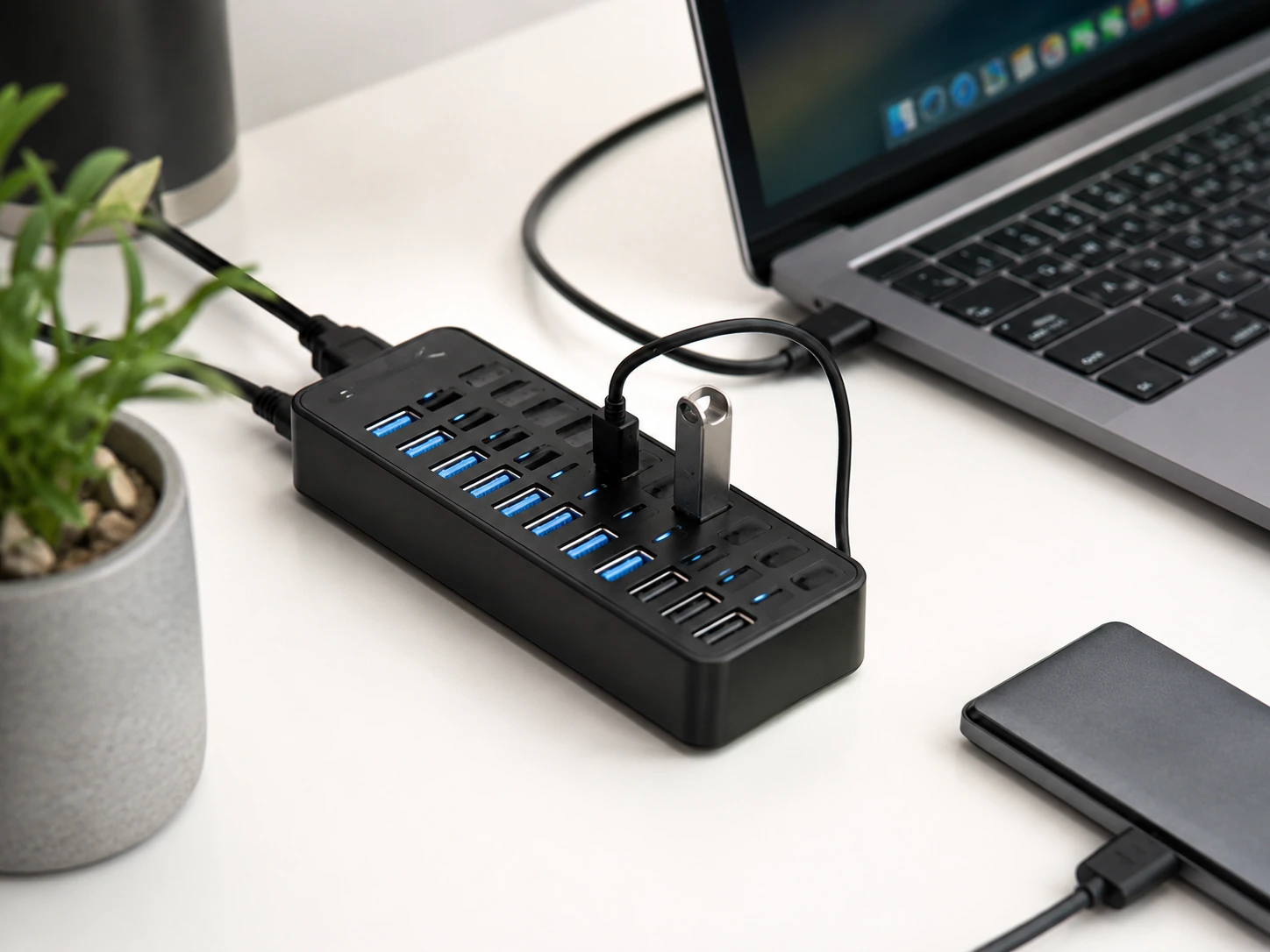
Sabrent 10-Port USB 3.0 Hub
10 ports (7 data + 3 smart charging) with individual LED-lit switches per port. Individual port switches let you power-cycle a single device without physically disconnecting it -- useful for restarting a USB drive or reconnecting a finicky peripheral.
Best for
Power users with 5+ USB devices, or anyone who has experienced dropped connections or slow charging from an unpowered hub.
Specs
- Ports: 7 data (USB 3.0, 5Gbps) + 3 smart charging
- Switches: Individual LED per port
- Power: Included 60W AC adapter
- Compat.: Mac, PC, PS5, Xbox
Eliminate Cord Chaos with a Cable Box
Lowest cost, highest visual impact
A cable management box doesn't organize your cables -- it hides them. Your power strip, all the brick adapters, and the cord tangle go inside. What was a floor-level mess becomes a clean rectangular surface. The visual difference is instant -- and video call backgrounds improve immediately.
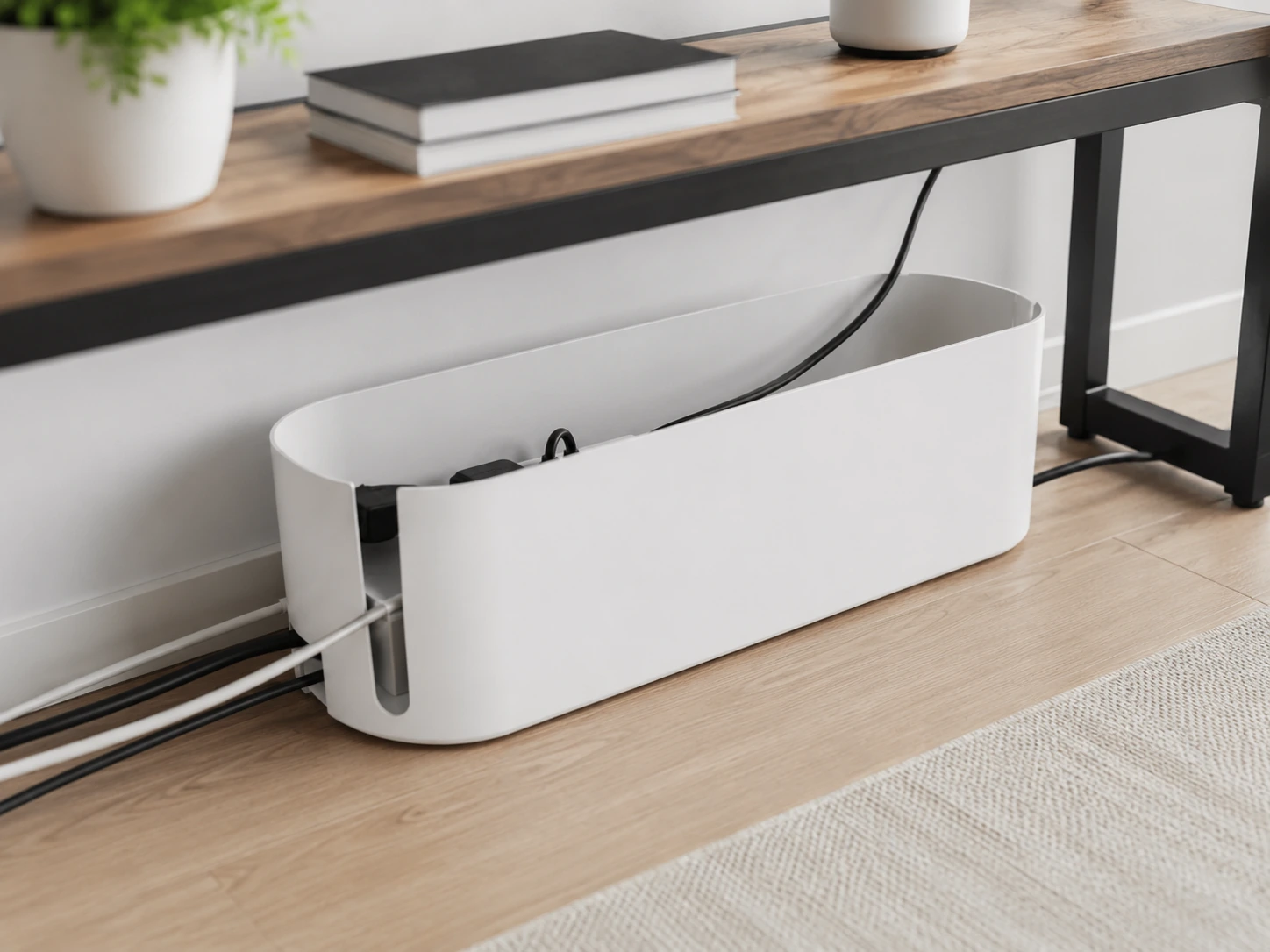
D-Line Cable Management Box Large
Fits power strips up to 14" long (most 6- and 8-outlet strips). Two cable routing openings on each end. Interior height accommodates USB brick adapters sitting alongside the power strip. Exterior looks like a small box -- not obviously a cable hider.
Best for
Anyone with a visible power strip + adapter tangle on the floor or desk. Single-purchase solution to cord clutter.
Specs
- Fits: Power strips up to 14" long
- Openings: Two cable entry/exit points
- Exterior: 12.75" x 5" x 4.5"
- Colors: Black or white
Add Wrist Pads for Keyboard + Mouse Zones
Cheapest ergonomic upgrade available
If you bought a keyboard with a built-in wrist rest (Upgrade 3), you don't need this. If you're keeping your existing keyboard and just want wrist protection, a standalone wrist rest pad costs $10-$20.
Note: A wrist pad supports only the wrist zone. If you use a mouse heavily (4+ hours/day), consider the full armrest in Upgrade 4 instead -- it covers more of the arm and reduces shoulder tension a wrist pad can't address. The keyboard combos in Upgrade 3 (Trueque, Wave Keys) include integrated wrist rests -- if you chose one of those, skip this upgrade.
Go Wireless: The Complete Desk Declutter
Final step to a fully clean desk surface
The cumulative effect of Upgrades 1-9 is dramatic, but the final visible clutter on most desks is the keyboard and mouse cables. Going wireless is the last step. All three options use 2.4G wireless (nano USB receiver, not Bluetooth) -- more reliable than Bluetooth for desktops and better for fast typing.
| Starting Setup | Recommended Combo | |
|---|---|---|
| Needs all-in-one with phone stand | Trueque KM23 | View review |
| Types heavily, wants wave layout | Wave Keys Combo | View review |
| Wants color options + ergonomics | Purple Ergonomic Combo | View review |
Which Upgrade Should You Do First?
Priority order for most small-desk setups:
If desk feels cramped
Monitor arm first (Upgrade 1)
Nothing else physically recovers desk surface. Everything else organizes what's already there; the monitor arm eliminates a physical object.
If neck or back hurts after sessions
Monitor arm + footrest (Upgrades 1 + 5)
Monitor at eye level, feet supported -- fixes the two most common posture problems simultaneously.
If wrists hurt or feel tight
Ergonomic keyboard + armrest (Upgrades 3 + 4)
Wrist pain from typing is cumulative and addressable. Start with the keyboard; add the armrest if pain persists after 2 weeks.
If outlet / cord chaos is the main frustration
Charging station + cable box (Upgrades 6 + 8)
Under $100 combined, eliminates the visible cord problem immediately.
If have $50, want maximum impact
HUANUO single arm (~$40) + D-Line cable box (~$12)
The arm frees desk space; the cable box cleans up what's underneath. Two products, one afternoon, immediately noticeable result.
Before You Buy: 3 Things to Check
Does your monitor have VESA holes?
Monitor arms require VESA mounting holes on the back of your monitor. Most monitors from 2018 onward have VESA 75x75mm or 100x100mm. Older monitors and all-in-ones (iMac, Surface Studio) typically cannot be arm-mounted.
How thick is your desk edge?
C-clamp arms work on desk edges up to 3-4" thick. Most IKEA tabletops (LINNMON, BEKANT) are 1.25-1.5" thick -- fine. Check if your desk has a hollow edge before purchasing; some cheap tabletops crack under clamp pressure. Use the grommet mount option on these desks.
Is your desk surface smooth enough for adhesive mounts?
For drawers, shelves, or armrests with VHB tape, the surface needs to be clean, dry, and non-porous. VHB tape doesn't bond well to textured, matte-finish, or dirty surfaces. Wipe with isopropyl alcohol before applying.
Full Quick Reference -- 13 Products, 10 Upgrades
| Upgrade | Product | |
|---|---|---|
| 1A - Single monitor arm | HUANUO FlowLift Single | Check price |
| 1B - Dual monitor arm | HUANUO Dual Monitor Stand | Check price |
| 2A - Laptop arm | VIVO Single Laptop Mount | Check price |
| 2B - Monitor + laptop combo | VIVO Combo Stand | Check price |
| 3A - Wireless ergonomic KB | Trueque KM23 | Check price |
| 3B - Wave layout KB | Wave Keys Combo | Check price |
| 3C - Color option KB | Purple Ergonomic Combo | Check price |
| 4 - Wrist + arm support | Premium Wrist Rest Armrest | Check price |
| 5 - Footrest | Mount-It! 3-Height Footrest | Check price |
| 6A - USB-C charging station | Satechi 108W Pro | Check price |
| 6B - Power + USB hub | Anker 9-in-1 100W | Check price |
| 7 - Powered USB hub | Sabrent 10-Port Hub | Check price |
| 8 - Cable management | D-Line Cable Box Large | Check price |
How We Evaluated These Upgrades
Each upgrade was evaluated on daily usage impact, ergonomic benefit with a realistic timeline, cost relative to alternatives at the same price tier, and compatibility with common small-desk setups (IKEA tables, dorm desks, 40-48 inch workstations).
Daily impact
Does this change something you notice every single session, or something you adjust once and forget?
Ergonomic benefit
Based on published ergonomic research, not marketing claims. Timelines for feeling the benefit are realistic estimates, not best-case.
Price-to-value ratio
Compared against alternatives at the same price tier. A $40 gas-spring arm is evaluated against $25 friction arms, not $200 premium options.
Small-desk compatibility
Verified compatibility with IKEA LINNMON, standard dorm desks (1-1.5" thick), and desks under 48" wide.
This guide reflects research across published specifications, manufacturer documentation, and analysis of verified Amazon buyer review patterns.
Frequently Asked Questions
Is a gas-spring monitor arm worth the extra $15-20 vs a friction arm?
Yes, unambiguously. Gas-spring arms float -- you reposition with one hand, let go, it stays. Friction arms require loosening a knob, repositioning, retightening. You stop adjusting friction arms after week two because it's annoying. Gas-spring arms you actually use. The daily ergonomic benefit of a monitor arm depends entirely on whether you actually adjust it -- so mechanism quality directly determines the value you get.
My monitor arm keeps drooping -- is it broken?
Check the tension adjustment. Most arms (including HUANUO) have a tension screw or dial on the arm's lower joint or vertical post. Tighten it clockwise. If the arm continues to droop after maximum tension, the arm's weight capacity may be too low for your monitor -- check the rated weight vs. your monitor's actual weight.
Do I really need a footrest if my feet touch the floor?
If your feet rest flat comfortably while your arms are at 90 for typing, no. But "feet touching the floor" and "feet resting properly" are different -- many people touch the floor but have knees above 90 or feet slightly forward, which still strains the lower back. Test: sit at your desk in your typing position and check if your knees and hips are at roughly 90. If not, a footrest will help.
Will an ergonomic keyboard actually reduce wrist pain?
For most people, yes -- with a realistic timeline. Ergonomic keyboards don't cure existing injury; they prevent cumulative strain from continuing to build. Most users report a noticeable reduction in end-of-day wrist tension within 1-2 weeks of switching. If you have sharp or persistent wrist pain already, consult a doctor before relying on a keyboard upgrade as the only intervention.
Can I mount a monitor arm on an IKEA LINNMON desk?
Yes -- LINNMON is one of the most common arm-mount surfaces. Use the C-clamp mount, not the grommet option. LINNMON's hollow tabletop structure isn't ideal for grommet drilling. The C-clamp on the edge is the standard approach and works reliably. Confirmed by thousands of Reddit and forum posts from IKEA desk users.
Does wireless keyboard/mouse connectivity cause lag for gaming?
For productivity use, 2.4G wireless keyboards and mice are effectively indistinguishable from wired at human perception speeds. For competitive gaming (sub-1ms input latency matters), wired or premium gaming wireless is preferable. The Trueque and Wave Keys combos are productivity-grade wireless -- excellent for everything except competitive FPS or rhythm games.
Browse all desk upgrade products on Amazon
See current prices, deals, and Prime shipping options
Shop Desk Upgrades on Amazon