
4 Best USB4 Docks with DisplayPort in 2026
We compared USB4 docks with DisplayPort by native uncompressed video versus DisplayLink, since gaming and protected content playback fail on DisplayLink docks.

New to Amazon Prime?
Get fast, free shipping on every pick in this guide, plus Prime Video and exclusive deals.
Try Prime Free


At a Glance
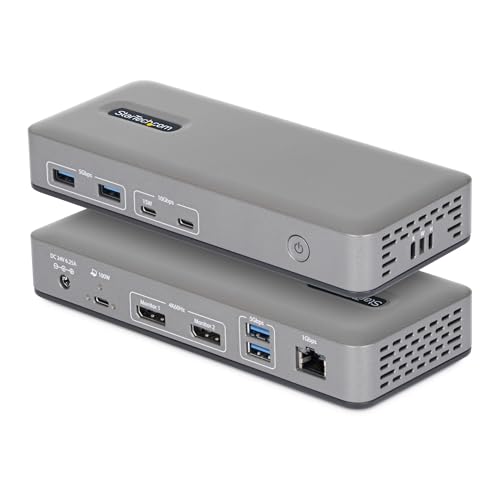
StarTech Driverless Thunderbolt 3 Dual DisplayPort Mini Dock
↓ See why we picked itA dock with DisplayPort output can route video through your laptop's native GPU for uncompressed, full-performance visuals, or through DisplayLink technology that compresses the signal in software, and the two approaches behave very differently for gaming and protected content playback.
We compared this lineup on native versus DisplayLink video paths, host charging capability, and price, since one listing explicitly states its DisplayLink-based dock does not support gaming or protected content playback like Netflix or Hulu.
5 Criteria to Look For Before Buying a USB4 Docks with DisplayPort
Key buying criteria so you get the right fit the first time.
DisplayLink Technology Explicitly Cannot Support Gaming or Protected Content Playback
The Plugable pick's listing specifically and explicitly states it does not support gaming or protected content playback such as Netflix or Hulu, a real technical limitation of DisplayLink's software-based video compression approach, not a minor caveat buried in fine print. This matters significantly if you plan to game or stream video services through your external monitors connected to the dock, where a DisplayLink-based dock simply won't work for those use cases regardless of its other strengths, and matters less if you only use the dock for office productivity, web browsing, and document work. Check whether a dock's DisplayPort or HDMI output is powered by native GPU video or DisplayLink technology before assuming any dock with the right connector will support your intended gaming or streaming use case.
Not Every Dock Charges the Connected Host Laptop, Even When It Handles Display and Data Duties Well
The Plugable pick's listing specifically discloses that this docking station does NOT charge the host computer, meaning you'll still need your laptop's original charger connected separately even while using the dock for displays and peripherals. This matters if you were hoping to consolidate to a single cable for both charging and display connectivity, where this dock's lack of charging capability would be a real limitation, and matters less if you're comfortable keeping your laptop's original charger plugged in alongside the dock. Check whether a dock specifically states host laptop charging capability rather than assuming any dock with a USB-C connection also charges your laptop.
An Integrated, Non-Detachable Cable Trades Replaceability for a Guaranteed Cable Quality Match
The Lenovo pick's integrated USB4 cable is built directly into the dock, ensuring the cable is always matched to the dock's exact bandwidth and power specifications without risk of a lower-quality substitute cable degrading performance, but this also means the cable cannot be replaced if it becomes damaged, requiring replacement of the entire dock instead. This matters if cable damage from wear, pets, or accidents is a realistic concern in your environment, where a detachable cable design lets you simply replace just the cable, and matters less if the dock will sit in a low-traffic, protected location where cable damage is unlikely. Consider whether an integrated or detachable cable design better suits your specific environment and risk of physical cable damage over the dock's lifetime.
BYOD-Specific Engineering Addresses Real Deployment Challenges That a Standard Home Dock Doesn't Solve
The StarTech BYOD-focused pick specifically includes built-in lock slots and Surface/VESA mounting compatibility, features engineered for scalable, zero-touch rollouts across shared workspaces and corporate environments where multiple different devices connect to the same dock over time and physical security matters. This matters if you're deploying docks across a shared office, coworking space, or hot-desking environment, and matters less for a single dedicated home office desk where physical security and multi-device rollout aren't practical concerns. Consider whether your specific deployment context (shared workspace versus single dedicated desk) benefits from BYOD-specific security and mounting features before choosing based on core display specs alone.
Per-Chip Mac Compatibility Details Matter Even for Docks That Broadly Claim macOS Support
The StarTech mini dock's listing specifically documents that dual display support works on M1, M2, M3 Max/Pro, and M4 Pro/Max MacBooks, while base M-series MacBooks and iPad Pro M1 and later are limited to a single external display, a granular compatibility breakdown that matters directly if you're on a base-tier Mac chip. This matters significantly if you own a base M-series Mac and are expecting dual-display support from any Mac-compatible dock, and matters less if you already own a Pro, Max, or Ultra-tier Mac chip. Check a dock's specific per-chip Mac compatibility documentation rather than assuming a general 'macOS compatible' claim guarantees the same display capability across every Mac chip generation.
4 Best USB4 Docks with DisplayPort in 2026
Lenovo USB4 Smart Dock 5500
About this pick
This dock's integrated USB4 cable is built directly into the unit, combining high-speed data, power delivery, and display support through one permanently attached connection rather than a separate cable that could be lost or swapped for a lower-quality one. Its combination of HDMI 2.1 and DisplayPort 1.4 outputs gives you two genuinely different connector types for whatever displays you have on hand.
Compared to the StarTech and Plugable picks below, this one's 100W USB Power Delivery covers demanding laptops while its comprehensive USB-A and USB-C port selection handles a wide range of peripherals. Its built-in Gigabit Ethernet ensures stable wired network access independent of Wi-Fi conditions.
Best for buyers who want an integrated cable design with both HDMI 2.1 and DisplayPort 1.4 outputs in one dock.
Best for: buyers who want an integrated cable design with both HDMI 2.1 and DisplayPort 1.4
Check price on AmazonPros
- +Integrated cable design eliminates a separate cable to lose or swap
- +Both HDMI 2.1 and DisplayPort 1.4 outputs in one dock
- +100W charging covers demanding laptops
Cons
- −Highest price in this comparison at under $300
- −Integrated cable can't be replaced if damaged, unlike a detachable one
StarTech Driverless USB-C Dual DisplayPort Dock, BYOD
About this pick
This dock's dual 4K 60Hz DisplayPort output specifically uses uncompressed video powered by your laptop's native GPU rather than software compression, delivering genuinely higher-fidelity dual-display output for demanding visual workflows. Its listing explicitly targets scalable, zero-touch rollouts across shared workspaces, corporate environments, and BYOD (bring your own device) deployments specifically.
Compared to the Lenovo pick above, this one's driverless plug-and-play design works on Windows with no software to install, though the listing explicitly states it is not compatible with macOS or ChromeOS. Its built-in lock slots and Surface/VESA mounting compatibility support secure, organized shared-desk deployments.
Best for buyers who specifically want native uncompressed dual DisplayPort output for BYOD or shared workspace deployments.
Best for: buyers who want native uncompressed dual DisplayPort for BYOD or shared workspace deployments
Check price on AmazonPros
- +Native uncompressed video for genuinely higher fidelity
- +Specifically engineered for BYOD and shared workspace deployments
- +Built-in lock slots and VESA mounting for secure setups
Cons
- −Explicitly not compatible with macOS or ChromeOS
- −No stated Ethernet speed beyond standard Gigabit
StarTech Driverless Thunderbolt 3 Dual DisplayPort Mini Dock
About this pick
This mini dock's dual 4K 60Hz DisplayPort output also uses direct GPU performance with no software or compression, matching the pricier StarTech pick's native video quality at a small fraction of the price. Its listing specifically documents per-chip Mac compatibility: dual display on M1, M2, M3 Max/Pro, and M4 Pro/Max MacBooks, with single display on base M-series MacBooks and iPad Pro M1 and later.
Compared to the BYOD-focused StarTech pick above, this one's extra-long 11-inch attached cable is specifically designed to reduce port strain on 2-in-1 convertible laptops or laptops mounted on riser stands. Its Gigabit Ethernet with PXE boot and Wake-on-LAN support still targets enterprise deployment scenarios despite the dramatically lower price.
Best for buyers who want native uncompressed dual DisplayPort output at the lowest price in this comparison by a wide margin.
Best for: buyers who want native uncompressed dual DisplayPort at the lowest price by a wide margin
Check price on AmazonPros
- +Lowest price in this comparison by a dramatic margin
- +Native uncompressed video matches the pricier StarTech pick's quality
- +Compatible with Windows, macOS, and Ubuntu, broader than the BYOD pick
Cons
- −Fewer total ports than the more expensive picks
- −Detailed per-chip Mac limits still apply for dual-display support
Plugable Dual DisplayPort & HDMI Docking Station
About this pick
This dock's listing is unusually transparent about its DisplayLink technology's real limitations, explicitly stating it does not support gaming or protected content playback like Netflix or Hulu, and does not charge the host computer, disclosures that directly shape whether this dock fits your actual use case. Its sleek vertical form factor supports dual 4K monitors at 3840x2160@60Hz through either DisplayPort or HDMI outputs.
Compared to the native-video StarTech picks above, this one specifically markets itself as best suited for web browsing, productivity, and office applications rather than gaming or streaming protected video content. Its broad OS compatibility spans Windows, macOS (with a required driver), and ChromeOS, though it explicitly does not work with Linux.
Best for buyers who specifically want dual 4K office productivity displays and understand the DisplayLink gaming and streaming limitations upfront.
Best for: buyers who specifically want office productivity displays and accept the DisplayLink gaming/streaming tradeoffs
Check price on AmazonPros
- +Unusually transparent about DisplayLink's real gaming and streaming limitations
- +Vertical form factor with clean cable management for office desks
- +Broad OS support across Windows, macOS, and ChromeOS
Cons
- −Does not support gaming or protected content playback like Netflix or Hulu
- −Does not charge the host laptop, per the manufacturer's own note
How We Evaluated These USB4 Docks with DisplayPort
Each pick was assessed across 5 criteria weighted for real-world use.
Native vs DisplayLink Video
Compared uncompressed native GPU video against DisplayLink software-compressed video paths.
Gaming and Protected Content Support
Compared docks explicitly supporting gaming versus those explicitly excluding it.
Host Charging
Compared docks that charge the host laptop against those that don't.
Deployment Scenario Fit
Compared BYOD/enterprise deployment features against home office productivity focus.
Price and Cable Design
Compared integrated versus detachable cable designs and overall price.
How to Choose the Right USB4 Docks with DisplayPort
By Primary Need
| If you mainly need | Recommended pick |
|---|---|
| An integrated cable with both HDMI 2.1 and DisplayPort 1.4 | Lenovo USB4 Smart Dock 5500 |
| Native uncompressed video for BYOD deployments | StarTech Driverless USB-C Dual DisplayPort Dock |
| Native uncompressed video at the lowest price | StarTech Driverless Thunderbolt 3 Mini Dock |
| Office productivity displays with honest DisplayLink disclosure | Plugable Dual DisplayPort & HDMI Docking Station |
By Budget
| Price range | Recommended pick |
|---|---|
| Under $32 | StarTech Thunderbolt 3 Mini Dock (under $35) |
| Under $110 | StarTech BYOD Dock (under $110) |
| Under $160 | Plugable Dual DisplayPort & HDMI (under $160) |
| Under $260 | Lenovo USB4 Smart Dock 5500 (under $300) |
Native GPU Video vs DisplayLink Compression
Native GPU video (both StarTech picks)
Delivers uncompressed video with full gaming and protected content support, since it's powered directly by your laptop's own graphics hardware.
DisplayLink compression (Plugable)
Explicitly does not support gaming or protected content playback like Netflix or Hulu, since the video is processed in software rather than passed through natively.
If you need to game or stream protected video content through your external monitors, choose a native-video dock like either StarTech pick. If you only need displays for office productivity and web browsing, the Plugable DisplayLink dock's tradeoffs won't matter.
By Deployment Scenario
| Your setup context | Recommended pick |
|---|---|
| Corporate BYOD or shared workspace deployment | StarTech Driverless USB-C Dual DisplayPort Dock |
| Single home office desk | Lenovo USB4 Smart Dock 5500 or StarTech Mini Dock |
For Gaming or Streaming Protected Video Specifically
Look for
A dock explicitly stating native, uncompressed video output rather than DisplayLink technology, since DisplayLink-based docks specifically cannot handle gaming or HDCP-protected content like Netflix.
In this comparison
Both StarTech picks specifically state native GPU-powered video with no software compression, directly supporting gaming and protected content playback.
When to Spend More
Spend more if
You want an integrated cable design with both HDMI 2.1 and DisplayPort 1.4 outputs in one dock, where the Lenovo pick justifies its under $300 price.
Save if
You want native uncompressed dual DisplayPort output at the lowest possible price, where the StarTech Mini Dock delivers that for under $35.
Frequently Asked Questions
Can I stream Netflix through the Plugable DisplayLink dock?
No, the listing explicitly states this dock does not support protected content playback such as Netflix or Hulu due to DisplayLink's technology limitations, so choose one of the native-video StarTech picks instead if streaming protected content is important to you.
What's the most common mistake buyers make when choosing a USB4 dock with DisplayPort?
Assuming any dock with DisplayPort output supports the same gaming and streaming capabilities, without checking whether the dock uses native GPU video output or DisplayLink compression technology, which have fundamentally different capabilities for gaming and protected content.
Is the Lenovo USB4 Smart Dock 5500 worth the price premium over the StarTech mini dock for basic office use?
If you specifically want both HDMI 2.1 and DisplayPort outputs with an integrated cable in one dock, the Lenovo's premium is justified, but for basic dual-DisplayPort display needs, the StarTech mini dock delivers the same native video quality at a dramatically lower price.
Does the StarTech BYOD dock work with my MacBook?
No, the listing explicitly states this specific dock is not compatible with macOS or ChromeOS, designed specifically for Windows-based BYOD and shared workspace deployments, so Mac users should choose the StarTech mini dock or Lenovo pick instead.
Do I need to keep my laptop's original charger plugged in if I use the Plugable dock?
Yes, the listing specifically states this docking station does not charge the host computer, so you'll need to keep your laptop's own charger connected separately even while using the dock for displays and peripherals.
Can I mount these docks to the back of a monitor or under a desk?
The StarTech BYOD dock specifically supports Surface or VESA mounting with separately sold mounting accessories, while checking each other specific listing's stated mounting compatibility is worth doing if a mounted, out-of-sight setup is a priority for your desk.
Bottom Line
best overall: Lenovo USB4 Smart Dock 5500 - best overall pick in this roundup.
See the full rankings above for all picks with pros, cons, and best-for summaries.
Browse on Amazon
All Prime-eligible options with current pricing.
Shop on Amazon →