
Best USB Hub for Desk (2026) -- 8 Picks for Small Desks & Compact Setups
8 USB hubs evaluated for desktop and small-desk use -- sorted by use case. Covers powered vs unpowered, USB-A vs USB-C, grommet hubs, and per-port switch models.
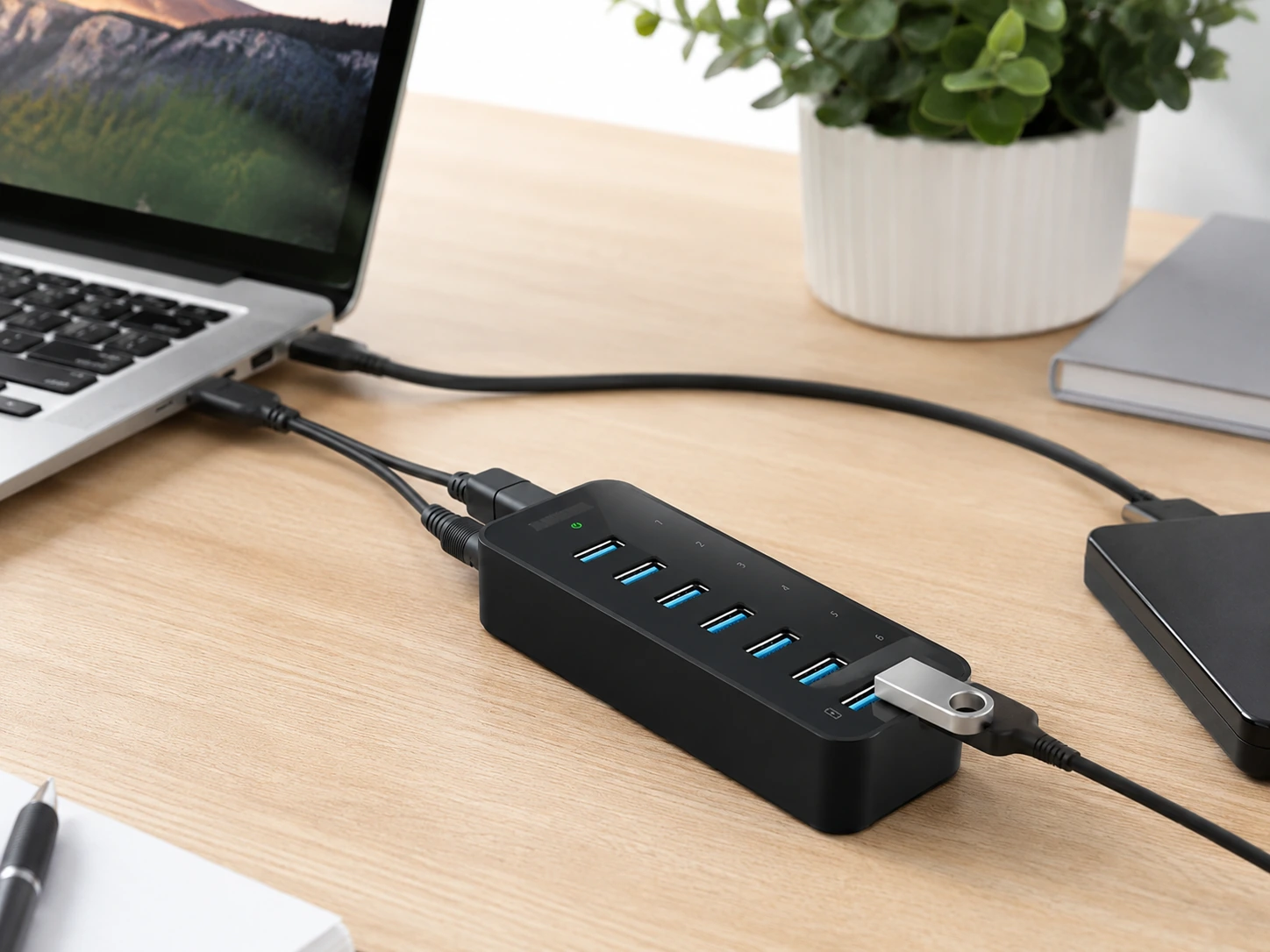
Modern laptops ship with 2-4 USB ports. A typical desk setup needs 6-10: keyboard, mouse, external drive, webcam, phone charger, desk lamp, card reader, microphone. A USB hub is not a nice-to-have -- it's infrastructure.
But not all USB hubs are appropriate for desk use. Travel hubs are compact but unpowered, meaning they draw electricity from your laptop and drop connections under heavy load. The right desk hub is powered, stable, and has enough ports that you stop rotating what's plugged in.
First: Powered vs Unpowered -- The Most Important Distinction
| Powered USB Hub | Unpowered USB Hub | |
|---|---|---|
| Power source | Own AC adapter | Draws from laptop USB port |
| Port stability | Consistent under full load | May drop with many devices |
| Best for | Keyboard, mouse, drives, charging | Occasional use, 2-3 devices max |
| Desk use | Recommended | Only if 3 or fewer devices |
| Price | $20-$45 | $10-$20 |
Rule: If you're plugging in more than 3 devices simultaneously, buy a powered hub. The $10-$15 price difference is worth the connection stability.
USB-A or USB-C Hub -- What to Choose in 2026
| USB-A Hub | USB-C Hub | |
|---|---|---|
| Connects to | USB-A port on laptop | USB-C port on laptop |
| Best for | Most Windows laptops | MacBooks, thin ultrabooks, iPads |
| Data speed | USB 3.0 = 5 Gbps | USB 3.2 = 5-10 Gbps |
| Power delivery | Data only | Some support PD passthrough |
| Typical cost | $15-$35 | $25-$50 |
Bottom line: If your laptop has USB-A ports -- use a USB-A hub. Cheaper, simpler, equally fast for most tasks. If you're on a MacBook or port-starved ultrabook -- get the USB-C model.
Top 8 USB Hubs at a Glance
| # | Product | Score | |
|---|---|---|---|
| 1 | 9.1 | Check price | |
| 2 | 9.0 | Check price | |
| 3 | 8.8 | Check price | |
| 4 | 8.6 | Check price | |
| 5 | 8.3 | Check price | |
| 6 | 8.7 | Check price | |
| 7 | 8.0 | Check price | |
| 8 | 7.8 | Check price |
6 Things to Look For Before You Buy
How many devices will you connect?
Count your actual current devices, then add 2 for growth. 1-3 devices: 4-port unpowered works. 4-6 devices: powered 7-port is the right fit. 7+ devices: go straight to a 10-port powered hub. Buying "just enough" ports is a false economy -- you'll buy the larger hub within a year anyway.
Powered or unpowered?
If you're connecting any of the following, you need a powered hub: external hard drives or SSDs (power-hungry), multiple charging devices simultaneously, USB-powered lights, fans, or speakers. Unpowered hubs are fine only for low-draw devices: keyboard, mouse, wireless receivers, small USB drives.
USB 3.0 vs USB 2.0 -- don't buy 2.0
USB 2.0 (480 Mbps) is 10x slower than USB 3.0 (5 Gbps). In 2026, there's no reason to buy a USB 2.0 hub. All 8 hubs on this list are USB 3.0 minimum. Visual check: inside of USB 3.0 ports is blue; USB 2.0 is black.
Individual power switches -- underrated feature
Per-port switches let you disconnect a device without physically unplugging it, power-cycle a problematic device without touching others, and keep devices connected but powered off when not in use. Hubs with switches: #1, #2, #3, #4, #7.
Cable length
Most hubs have a 1-2ft built-in cable -- fine if the hub sits beside your laptop. If you want the hub hidden under the desk or behind a monitor, look for 3ft+ cable length (#8) or use a USB extension cable.
Grommet mounting
If your desk has a 60mm grommet hole (common on desks with built-in cable management), consider the grommet hub (#5). The hub disappears into your desk surface -- no visible cable, no hub on the desk.
Reviews: Best USB Hubs for Desk Use
7 data + 1 BC 1.2 charging · 36W AC adapter
36W AC adapter + BC 1.2 charging + Anker build reliability. Every port is USB 3.0 with no speed-downgraded ports hiding in the lineup.
Pros
- Powered via 36W AC adapter -- consistent under full 7-device load
- BC 1.2 charging port fast-charges phones at up to 2A
- 18-month Anker warranty -- longest in this category
- All ports USB 3.0 (5 Gbps) -- no hidden USB 2.0 ports
Cons
- USB-A only -- not ideal if your laptop is primarily USB-C
- 7 ports -- if you need 9+ simultaneous connections, see #2 or #6
Best for: Windows laptop or older MacBook users with 5-7 devices who want a powered hub from a reliable brand.
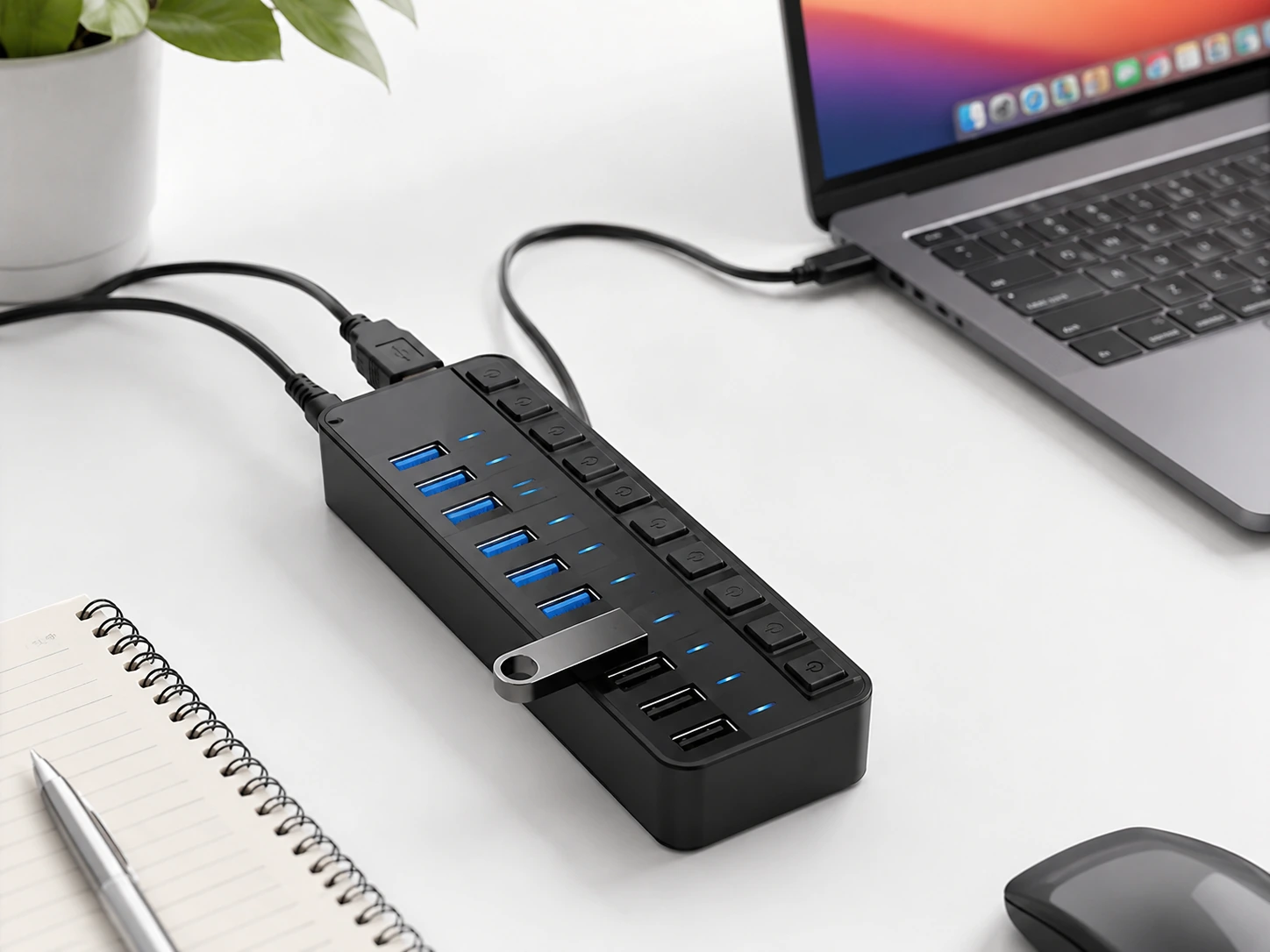
7 data + 3 smart charging · 60W AC adapter · Per-port switches
Per-port LED switches are the key differentiator -- you can power-cycle a single problematic device (USB drive, wireless receiver) without touching the rest of your connected peripherals.
Pros
- 10 ports: 7 USB 3.0 data + 3 smart charging (auto-detects optimal amperage)
- Individual LED-lit power switches on all 10 ports
- 60W AC adapter handles full 10-device load without voltage drop
- Per-port switches let you power-cycle a single device without rebooting
Cons
- Larger footprint than a 7-port hub
- Overkill for 4-6 device setups (see #1 for smaller footprint)
Best for: Heavy users with 8+ connected peripherals -- multiple external drives, full desk of USB accessories.
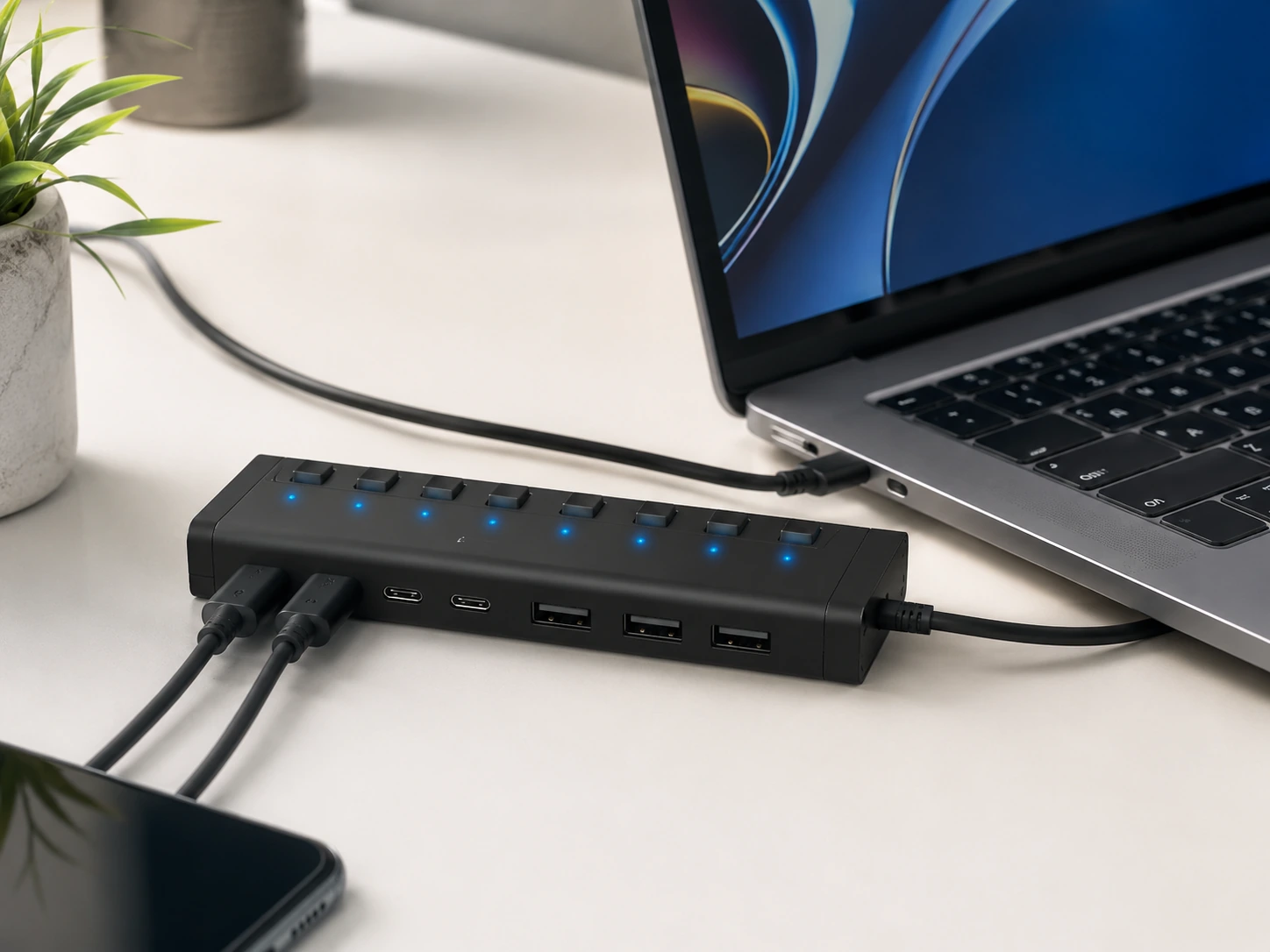
4x USB-C + 3x USB-A · 20W USB-C PD · Per-port switches
Connects via USB-C, keeps connection type consistent for MacBook/iPad Pro users, delivers 20W PD so you can charge a device through the hub itself.
Pros
- 4x USB-C + 3x USB-A -- accommodates both port types from one hub
- 20W USB-C PD port charges a phone or tablet while the hub runs
- Aluminum body: better heat dissipation than plastic under sustained load
- Individual LED power switches on all 7 ports
Cons
- Requires a USB-C port on your laptop to connect -- not for USB-A-only laptops
- Higher price than the USB-A equivalent
Best for: MacBook Air/Pro (2017+), iPad Pro, iPad Air M2+, and any laptop with primarily USB-C ports.
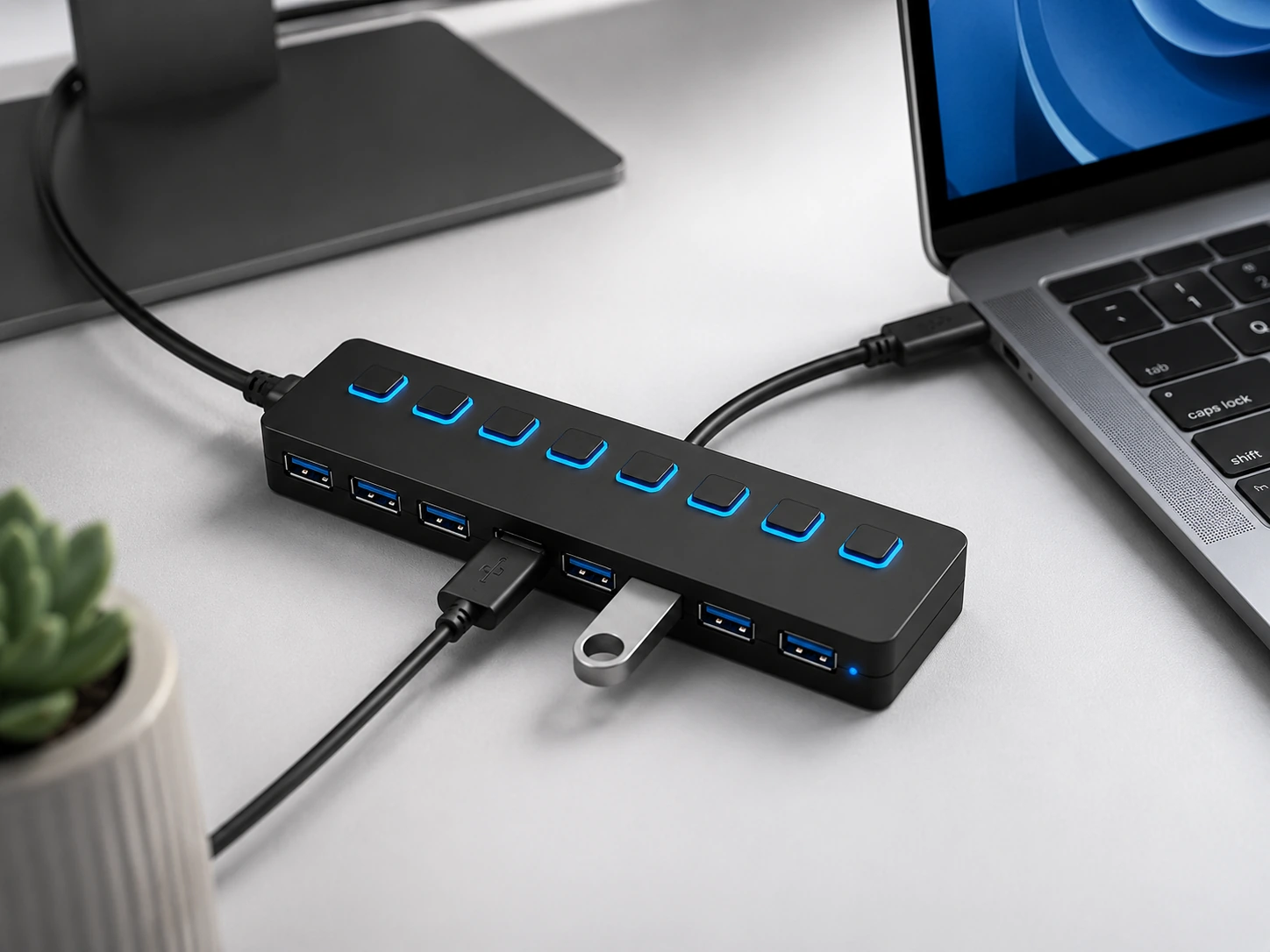
7 data (all with switches) · 12V/4A AC adapter · Per-port switches
Per-port switches at 7-port size. If you need to restart a finicky USB DAC, wireless receiver, or USB key without touching other devices -- this is the right tool.
Pros
- 7 ports with individual LED-lit power switches
- 12V/4A power adapter -- higher amperage than typical 7-port hubs
- All USB 3.0 (5 Gbps) -- no mixed-speed ports
- Smaller footprint than the 10-port while keeping per-port control
Cons
- Slightly larger than Anker 7-port due to the switch panel
- LED lights may be distracting in low-light environments
Best for: Users with 6-7 permanent desk peripherals who want per-port control without paying for a 10-port hub.
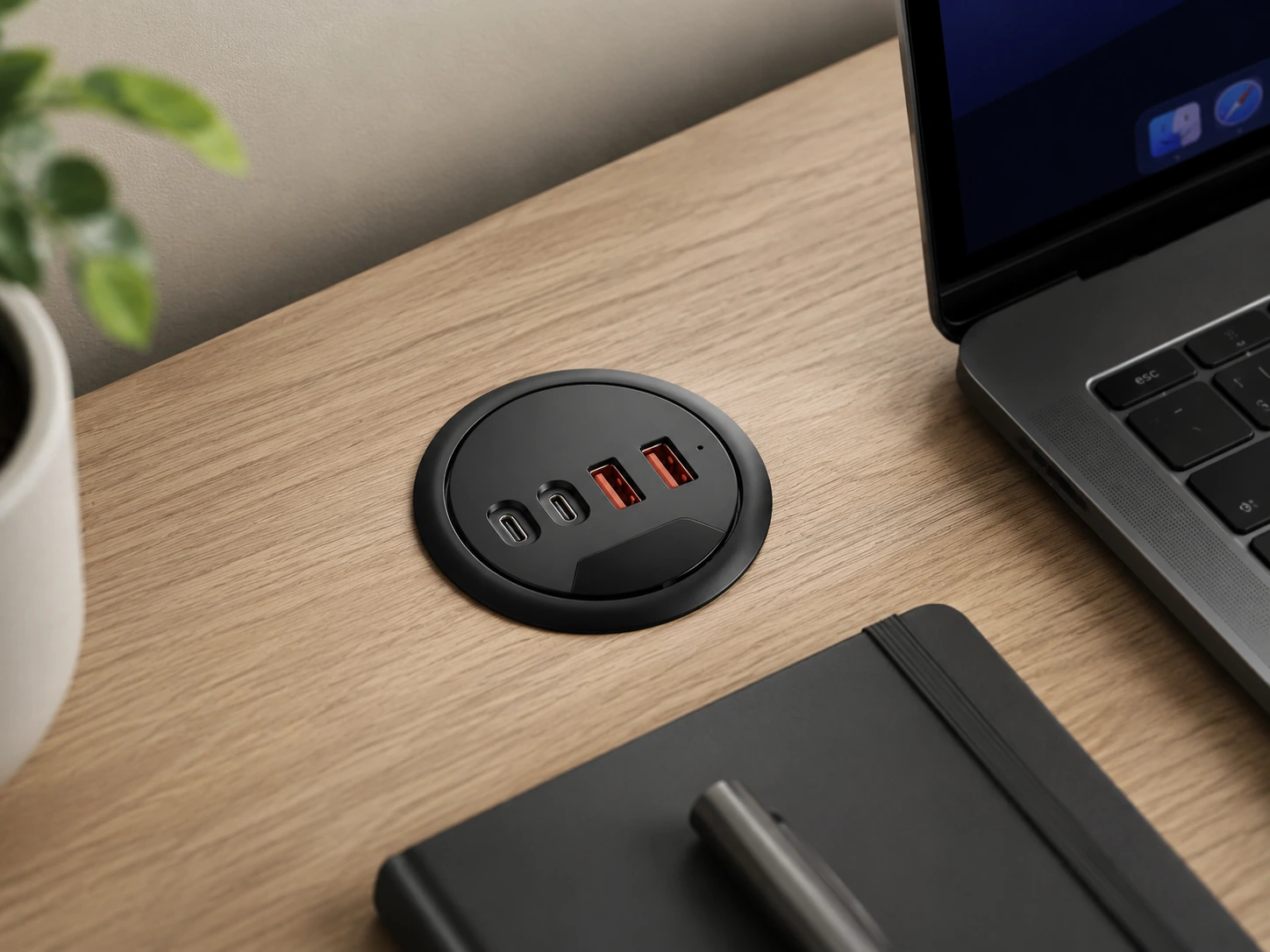
2x USB-A + 2x USB-C · Draws from host (partial)
Replaces the plastic cap that's sitting unused in your desk's grommet hole. Ports emerge from the desktop surface -- no hub visible, no cable running across the desk.
Pros
- Fits through a standard 60mm desk grommet hole -- zero desk surface footprint
- Ports appear flush from the desk surface
- 2x USB-A + 2x USB-C accessible from the top
- 2-minute installation: remove cap, insert hub, route cable underneath
Cons
- Requires a desk with a 60mm grommet hole -- not all desks have this
- Only 4 ports -- not for 7+ device setups
- Not fully powered -- draws from host device
Best for: Anyone with a grommet-hole desk (IKEA BEKANT, standing desks, office desks) who wants the cleanest possible desk surface.
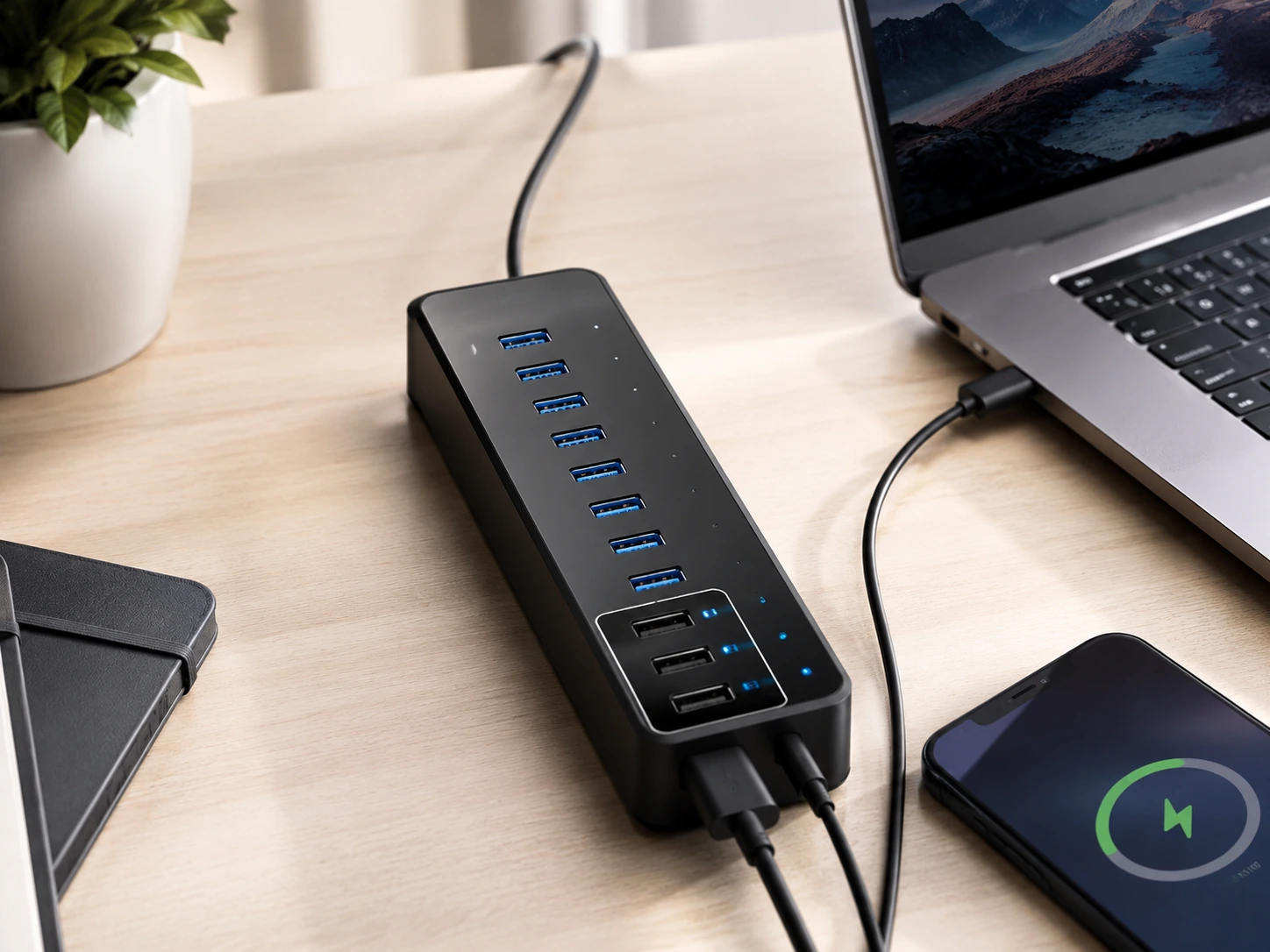
7 data + 3 PowerIQ charging · 60W AC adapter
Choose over Sabrent 10-port when Anker brand confidence and PowerIQ charging intelligence matter more than per-port switching.
Pros
- 10 ports: 7 USB 3.0 data + 3 PowerIQ charging
- PowerIQ identifies optimal charging speed per connected device
- Compact form factor for a 10-port hub
- Anker 18-month warranty on a 10-port unit
Cons
- No individual power switches (unlike Sabrent 10-port)
- Slightly higher price than Sabrent 10-port equivalent
Best for: Desk setups with 8-10 permanent devices -- dual external drives, full peripheral ecosystem, or a shared desk.
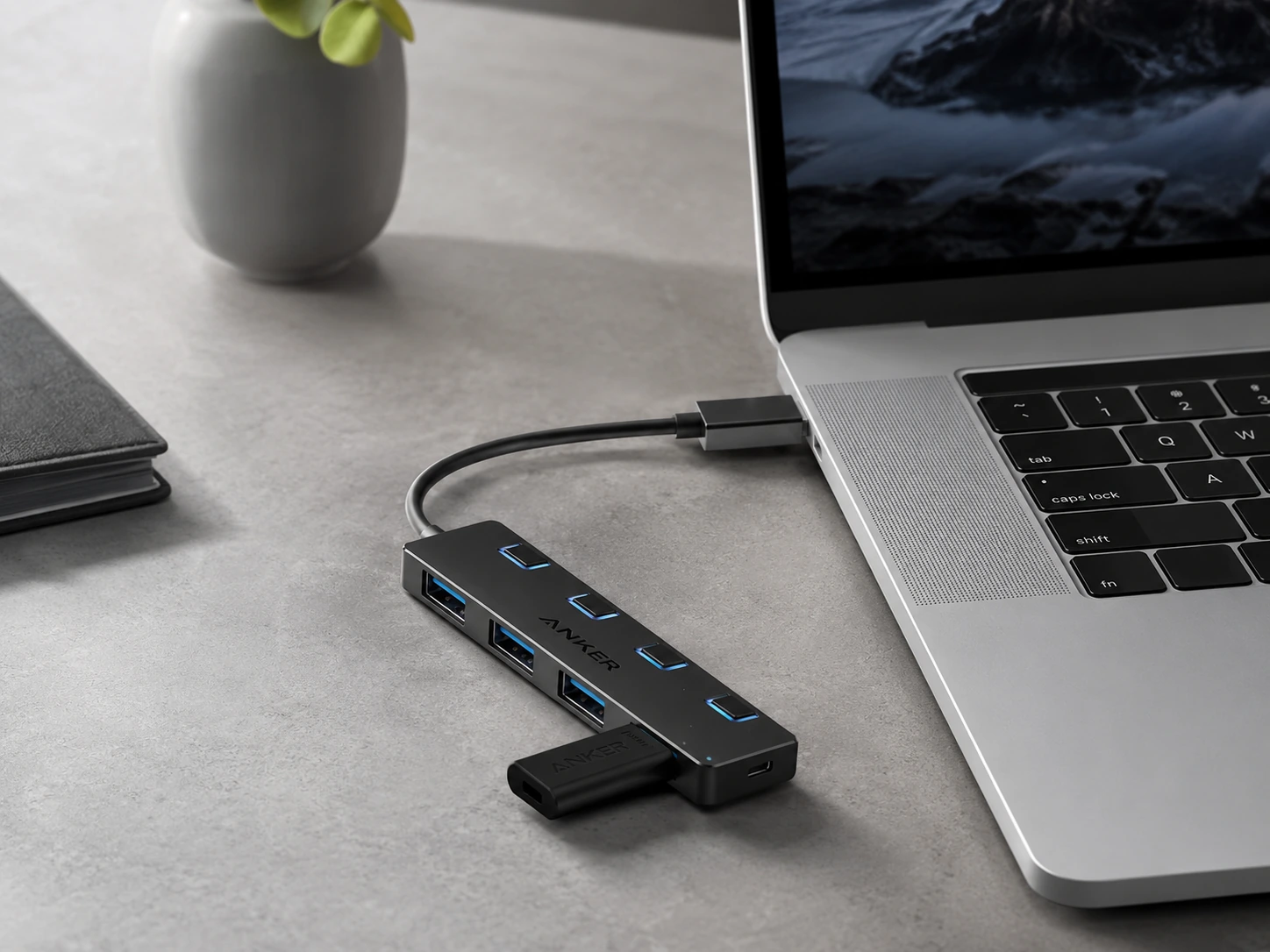
4 data (all with switches) · None (draws from laptop) · Per-port switches
Each port has its own mechanical switch -- you can leave a drive connected but switched off when not in use, preventing it from spinning up every time you plug in the hub.
Pros
- Individual power switches on all 4 ports -- unusual at this price point
- Ultra-compact -- smaller than a deck of cards
- USB 3.0 (5 Gbps) on all ports, no speed compromise for the size
- Anker build quality at minimal price
Cons
- Unpowered -- not stable for external hard drives + charging simultaneously
- Only 4 ports -- quickly outgrown if device count grows
Best for: Students and remote workers with exactly 3-4 peripherals who want Anker build quality at a minimal price.
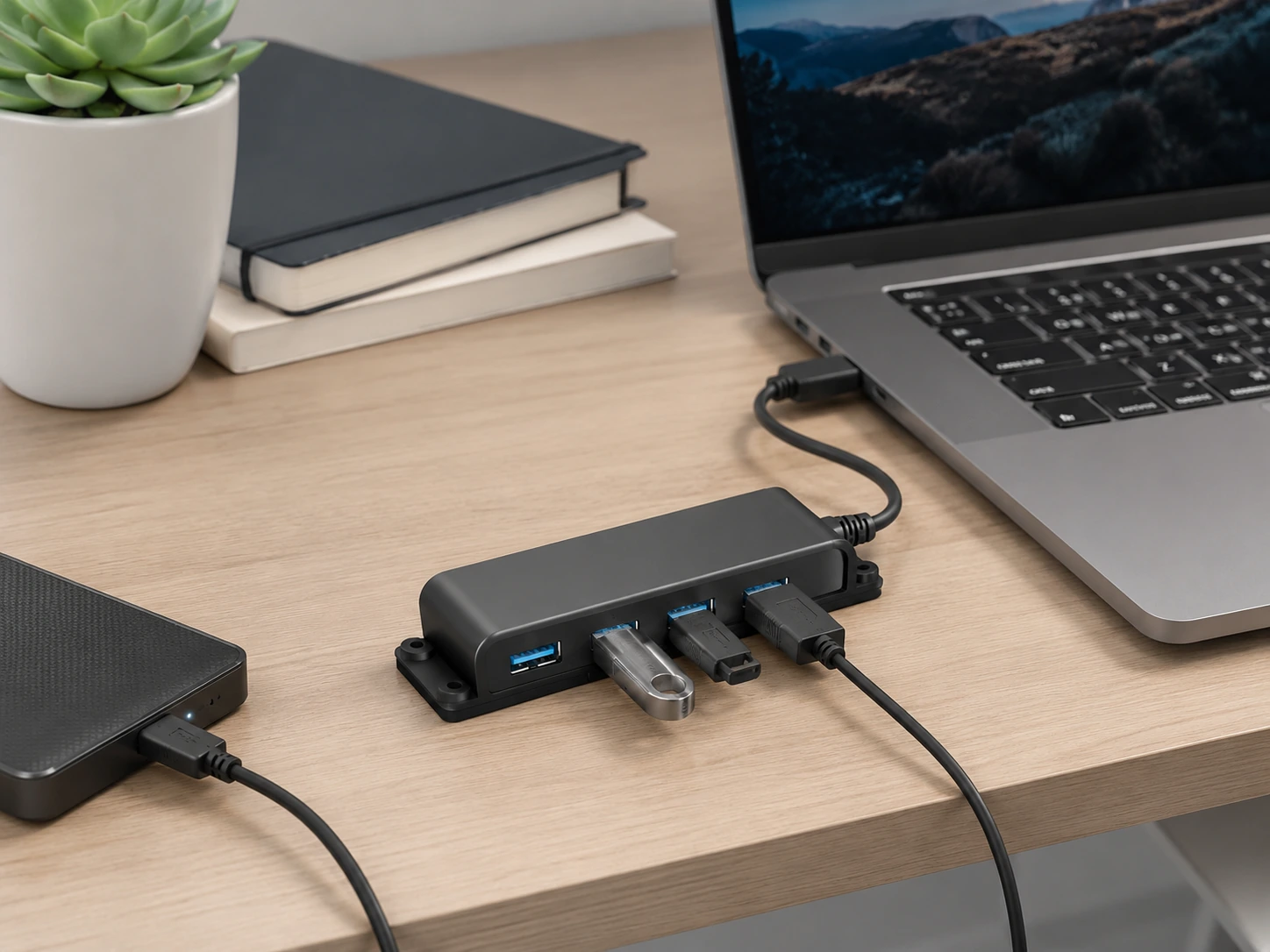
4 data · None (draws from laptop)
3.3ft cable lets you position the hub under your desk or behind your monitor -- out of sight -- with just the 4 ports accessible where you need them.
Pros
- 3.3ft cable -- hub can sit anywhere on or below the desk
- Lightweight -- can be temporarily mounted under the desk with adhesive tape
- Broad compatibility: MacBook, iMac, Surface, PC
- Good travel or backup hub if you sometimes take your setup on the road
Cons
- Unpowered -- same limitation as #7
- No individual switches
- Basic build quality compared to Anker or Sabrent
Best for: Anyone who wants a simple 4-port hub with enough cable to hide the hub itself under the desk.
Which Hub Should You Buy?
| Your situation | Pick |
|---|---|
| Need a solid all-rounder, first hub purchase | #1 -- Anker 7-Port |
| Have 8+ devices, want per-port control | #2 -- Sabrent 10-Port |
| On a MacBook or USB-C laptop | #3 -- SABRENT USB-C 7-Port |
| Want per-port switches on a 7-port unit | #4 -- Sabrent 7-Port LED |
| Have a grommet desk, want zero visible hub | #5 -- Grommet Hub |
| Large setup, Anker brand preference | #6 -- Anker 10-Port 60W |
| Have 3-4 devices, want something compact | #7 -- Anker 4-Port |
| Want flexibility in hub placement | #8 -- 4-Port 3.3ft Cable |
How We Evaluated These Hubs
Port stability under load (30%)
All ports in use simultaneously; no device disconnections or voltage drop.
Port count & variety (25%)
Enough ports; mix of USB-A and USB-C where relevant; dedicated charging ports.
Power supply quality (20%)
AC adapter wattage; stable voltage under full load.
Build quality (15%)
Material (metal vs plastic), cable durability, port fit and feel.
Value (10%)
Price vs comparable options from the same brand tier.
This guide reflects research across published specifications, manufacturer documentation, and analysis of verified Amazon buyer review patterns.
Frequently Asked Questions
Do I need a powered USB hub for a mechanical keyboard and mouse?
No -- keyboards and mice draw very little power (under 100mA each). An unpowered 4-port hub handles keyboard + mouse + wireless receiver + one more accessory without issues. You only need a powered hub when connecting external drives, charging devices, or running 5+ peripherals simultaneously.
Can I use a USB hub to charge my phone faster?
Depends on the hub. Standard USB 3.0 data ports deliver 900mA (about 5W) -- this charges a phone slowly. Look for a hub with a dedicated charging port: BC 1.2 (Anker 7-port), PowerIQ (Anker 10-port), or smart charging (Sabrent 10-port). These deliver 2-2.4A (10-12W) to phones, meaningfully faster.
Will a USB hub slow down my internet if I connect a mouse or keyboard to it?
No. USB hubs don't affect Wi-Fi or ethernet. They share the USB bandwidth of the port they connect to (5 Gbps for USB 3.0), but keyboard and mouse data is negligible -- a full keyboard dataset is less than 1MB/s even during heavy typing. No measurable impact on transfer speed for other devices.
My external hard drive keeps disconnecting from the hub -- why?
Almost certainly an unpowered hub. External hard drives require 900mA-1.5A on startup (spin-up current) -- more than most unpowered hubs can deliver from the laptop's USB port. The drive powers on, demands more current than available, and disconnects. Solution: use a powered hub with its own AC adapter. The Anker 7-port (#1) and both 10-port options (#2, #6) handle this reliably.
Can I daisy-chain USB hubs?
Technically yes -- USB supports up to 5 tiers. Practically, each tier adds latency and reduces total available bandwidth. For stable desk use, don't chain more than two hubs. One powered hub connected directly to your laptop is always preferable to a chain.
What's the difference between a USB hub and a USB docking station?
A USB hub expands USB ports only. A docking station adds display outputs (HDMI, DisplayPort), ethernet, SD card reader, and audio -- plus USB ports -- all from one cable. If you need a monitor output alongside more USB ports, look at docking stations. If you only need more USB ports, a hub is simpler and cheaper.
Do USB hubs work with Mac and PC?
Yes -- all hubs on this list are plug-and-play on Windows (7/10/11), macOS, Chrome OS, and Linux. No driver installation needed. The USB standard is universal.
Browse all USB hubs for desk on Amazon
See current prices, deals, and Prime shipping options
Shop USB Hubs on Amazon