
7 Best Docking Stations Under $150 in 2026
Seven docking stations under $150 compared for driverless or DisplayLink video, real power delivery and port mix for Dell, Lenovo and universal laptops.

New to Amazon Prime?
Get fast, free shipping on every pick in this guide, plus Prime Video and exclusive deals.
Try Prime Free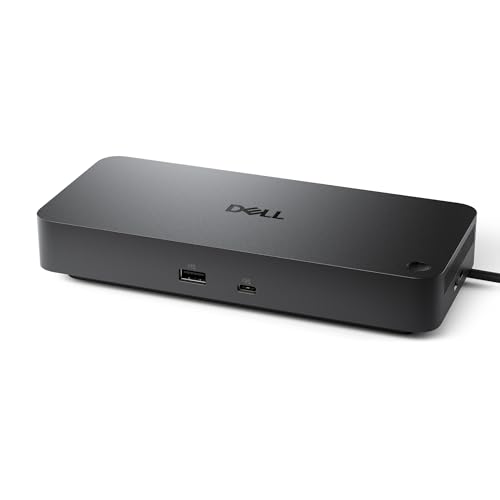




At a Glance
Between about seventy and a hundred and fifty dollars, docking stations split cleanly into driverless docks that send video over the laptop's own port and DisplayLink docks that add extra screens through software. Knowing which your laptop needs saves more money than any spec comparison.
We evaluated seven docks across Dell, Kensington and Lenovo designs, plus one lower-cost universal dock kept as a comparison point. Notes come from listing specifications and buyer feedback, and the picks flag where charging wattage, Mac support or a driver install becomes the deciding factor.
6 Criteria to Look For Before Buying a Docking Stations Under $150
Key buying criteria so you get the right fit the first time.
Real power delivery wattage
The dock's power supply sets the ceiling, and a dock quoting 100W may deliver 85W or 87W to the laptop after its own needs. A laptop that ships with a 100W charger will charge slowly or not at all on a smaller dock. Compare the dock's delivery figure with your laptop's adapter wattage.
Monitor count and refresh rate
One cable can carry only so much video, and triple-screen docks often drop to 4K at 30Hz or 1080p on extra screens. Look for the exact configuration, such as single 4K at 60Hz or dual 4K at 60Hz, and check what your monitors actually need.
Port mix and speeds
USB 2.0 ports are fine for a mouse and keyboard but slow for drives, and 10Gbps ports suit external SSDs. An SD reader and Ethernet matter for specific desks. List the ports you plug in today and match them.
Thunderbolt or plain USB-C host
A Thunderbolt 4 dock needs a Thunderbolt or USB4 laptop for full bandwidth, while a plain USB-C dock works with most laptops but with limits. Pairing the wrong host wastes money. Check your laptop's port label.
Brand-specific docks
Some docks are built for a specific brand of laptop and will not work with others. A Dell dock suits supported Dell models, while a universal dock suits mixed fleets. Confirm compatibility lists.
What the $150 ceiling buys
The cheapest pick here, UGREEN Revodok Pro 3121, is built around two HDMI plus one DisplayPort, 100W power delivery and two 10Gbps USB-C ports, while the priciest, Dell Pro Dock WD25, is built around 100W of charging, a rotating USB-C cable and quad display support under Dell's management tools. Paying more is sensible when you run extra screens, charge a hungry laptop or need Mac-friendly video on one cable. List the monitors, drives and chargers on your desk, then match them against what each dock can actually run at once.
7 Best Docking Stations Under $150 in 2026
Dell Pro Dock WD25
About this pick
The Dell Pro Dock WD25 delivers up to 100W to modern laptops and supports quad display with DisplayPort and HDMI, plus gigabit Ethernet, USB-A and USB-C ports. Its ambidextrous USB-C cable routes left or right, and it belongs to Dell's remotely manageable dock family.
Within this $150 group, Dell Pro Dock WD25 ranks first for 100W of charging, a rotating USB-C cable and quad display support under Dell's management tools. Dell WD19 runs a close second and counters with HDMI 2.0b plus two DisplayPort 1.4 outputs, a 130W adapter and 90W power delivery.
Dell Pro Dock WD25 is aimed at buyers who want a current-generation dock with IT manageability and an ambidextrous cable. It sits at the top of this price tier, so check whether a WD19 would already cover your monitors.
Best for: buyers who want a current-generation dock with IT manageability and an ambidextrous cable
Check price on AmazonPros
- +Four-display support
- +100W charging
- +Cable routes either side
- +Managed by Dell tools
Cons
- −Top of this price tier
- −Best used with newer Dell laptops
Dell WD19
About this pick
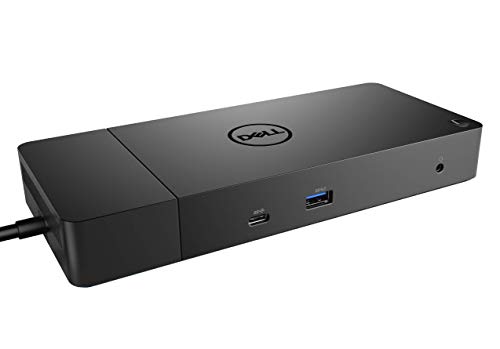
The Dell WD19 is a USB-C dock with one HDMI 2.0b and two DisplayPort 1.4 outputs, one USB-C 3.1 Gen 2 port, three USB-A 3.1 Gen 1 ports, a combo audio port and gigabit Ethernet. The 130W adapter provides 90W of power delivery to the laptop.
Where Dell Pro Dock WD25 leads with 100W of charging, a rotating USB-C cable and quad display support under Dell's management tools, the Dell WD19 answers with HDMI 2.0b plus two DisplayPort 1.4 outputs, a 130W adapter and 90W power delivery, and it gives up a Thunderbolt link.
90W of power delivery will under-charge laptops that need more. Otherwise the Dell WD19 suits office workers who want a proven dock with several video outputs and three USB-A ports.
Best for: office workers who want a proven dock with several video outputs and three USB-A ports
Check price on AmazonPros
- +Three video outputs
- +Established business dock
- +Gigabit Ethernet
- +Three USB-A ports
Cons
- −90W charging cap
- −Older than the WD25
Kensington SD3210U3
About this pick
The Kensington SD3210U3 supports up to three external monitors through one DisplayPort and two HDMI connections, at up to triple 4K at 30Hz or a single 8K display. It is driverless on Windows 10 and 11 with Thunderbolt 5, Thunderbolt 4, USB4 and USB-C Alt Mode laptops, and passes up to 100W of power.
What separates the Kensington SD3210U3 from Dell WD19 above it is focus: driverless triple video with 100W power delivery for Thunderbolt, USB4 and USB-C Alt Mode laptops, and it gives up extended 4K60 on every screen to get there.
Kensington SD3210U3 is aimed at Windows laptop owners who want triple screens with no driver to install. Triple 4K runs at 30Hz, so it suits office content more than fast video.
Best for: Windows laptop owners who want triple screens with no driver to install
Check price on AmazonPros
- +No driver needed
- +Triple video outputs
- +100W charging
- +Works with Thunderbolt and USB4
Cons
- −Triple screens at 30Hz
- −Windows only
Kensington SD4750P
About this pick
The Kensington SD4750P is a USB-C DisplayLink dock for Windows, MacBook, Surface and Chromebook laptops. It has four video outputs (two DisplayPort 1.2++ and two HDMI 2.0) for dual 4K at 60Hz, a 1M USB-C cable and a 135W power supply that delivers up to 85W to the laptop.
Compared with Kensington SD3210U3, which sits one place higher, the Kensington SD4750P is stronger on dual 4K video through DisplayLink with four video outputs and 85W charging but it gives up driverless setup.
DisplayLink needs a driver and the video path adds compression, so do not expect it to suit gaming. Otherwise the Kensington SD4750P suits Mac, Surface and Chromebook users who need two extended 4K screens.
Best for: Mac, Surface and Chromebook users who need two extended 4K screens
Check price on AmazonPros
- +Extended screens on Mac
- +Four video outputs
- +Works with Surface and Chromebook
- +1M cable included
Cons
- −Needs DisplayLink driver
- −85W charging cap
Lenovo USB-C Dual Display Travel Dock
About this pick
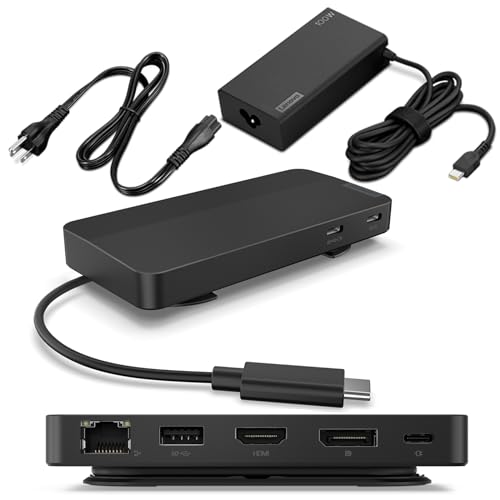
The Lenovo USB-C Dual Display Travel Dock comes with a 100W power adapter, an integrated USB-C cable and seven ports, two of them for dual 4K displays via DisplayPort and HDMI. It is made for universal compatibility across USB-C laptops and is small enough to pack.
The Lenovo USB-C Dual Display Travel Dock sits between Kensington SD4750P and Dell Universal Dock D6000S. It stands out for a 100W charger in the box and an integrated USB-C cable for two 4K displays, whereas Dell Universal Dock D6000S brings connects over USB-C or USB-A and drives up to three 4K displays.
Lenovo USB-C Dual Display Travel Dock is aimed at hybrid workers who move a dock between home and office and want the charger included. It has 7 ports, so it is for a modest peripheral set, not a heavy desk.
Best for: hybrid workers who move a dock between home and office and want the charger included
Check price on AmazonPros
- +Charger included
- +Integrated cable
- +Compact and portable
- +Universal USB-C
Cons
- −Only seven ports
- −Not for a crowded desk
Dell Universal Dock D6000S
About this pick
The Dell Universal Dock D6000S connects any laptop with USB-C or USB-A and lets you drive up to three 4K displays, with PowerShare options and an LED indicator. It is built as a universal dock for home and office, which is why it suits mixed hardware.
Where Lenovo USB-C Dual Display Travel Dock leads with a 100W charger in the box and an integrated USB-C cable for two 4K displays, the Dell Universal Dock D6000S answers with connects over USB-C or USB-A and drives up to three 4K displays, and it gives up a Thunderbolt link.
Video runs through a driver-based path, so install the driver before expecting extra screens. Otherwise the Dell Universal Dock D6000S suits people with a mix of older USB-A and newer USB-C laptops who need one dock for all.
Best for: people with a mix of older USB-A and newer USB-C laptops who need one dock for all
Check price on AmazonPros
- +Works with older laptops
- +Up to three 4K screens
- +Brand-built dock
- +PowerShare charging
Cons
- −Driver install for video
- −Lower charge wattage than newer docks
UGREEN Revodok Pro 3121
About this pick
The UGREEN Revodok Pro 3121 is a 12-in-1 dock with two HDMI ports and a DisplayPort, supporting single 4K at 120Hz, dual 4K at 60Hz or triple 4K at 30Hz. It also provides 100W power delivery, two 10Gbps USB-C ports, two USB-A ports, an SD and TF reader, gigabit Ethernet and a 3.5mm jack.
The UGREEN Revodok Pro 3121 closes the list. Next to Dell Universal Dock D6000S it gives up extended triple screens on a Mac, in return for two HDMI plus one DisplayPort, 100W power delivery and two 10Gbps USB-C ports.
UGREEN Revodok Pro 3121 is aimed at Windows users who want three outputs and fast ports on one cable. On macOS it only mirrors displays, so Mac owners should look elsewhere.
Best for: Windows users who want three outputs and fast ports on one cable
Check price on AmazonPros
- +Three video outputs
- +100W pass-through charging
- +Fast 10Gbps ports
- +SD and TF card readers
Cons
- −Mirror-only on macOS
- −Triple display drops to 4K at 30Hz
How We Evaluated These Docking Stations Under $150
Each pick was assessed across 5 criteria weighted for real-world use.
Video path and monitors
We compared video approach (driverless or DisplayLink), outputs and the resolution each configuration supports.
Power delivery
Dock charging wattage was compared against typical laptop adapters.
Ports and speeds
Port mix, USB speeds, Ethernet and card readers were weighed.
Compatibility
Operating system limits, brand-specific designs and host-port requirements were considered.
Value inside the price ceiling
Cost was set against outputs, charging wattage and port mix, so a dock that spends more must show something the cheaper ones cannot. Every pick here lists below $150, and UGREEN Revodok Pro 3121 to Dell Pro Dock WD25 marks the spread.
How to Choose the Right Docking Stations Under $150
By Monitor Setup
Start with the monitors and laptop you own, as each dock below supports a different screen and charging mix.
| Monitor Setup | Pick from this guide |
|---|---|
| Corporate laptop fleet or modern Dell laptop | Dell Pro Dock WD25: 100W of charging, a rotating USB-C cable and quad display support under Dell's management tools |
| Office desk with several monitors and Ethernet | Dell WD19: HDMI 2.0b plus two DisplayPort 1.4 outputs, a 130W adapter and 90W power delivery |
| Windows laptop that wants no driver | Kensington SD3210U3: driverless triple video with 100W power delivery for Thunderbolt, USB4 and USB-C Alt Mode laptops |
| MacBook or Chromebook user needing real extended screens | Kensington SD4750P: dual 4K video through DisplayLink with four video outputs and 85W charging |
| Carries a dock between home and office | Lenovo USB-C Dual Display Travel Dock: a 100W charger in the box and an integrated USB-C cable for two 4K displays |
| Mixed fleet of old USB-A and newer USB-C laptops | Dell Universal Dock D6000S: connects over USB-C or USB-A and drives up to three 4K displays |
| Windows laptop driving three monitors | UGREEN Revodok Pro 3121: two HDMI plus one DisplayPort, 100W power delivery and two 10Gbps USB-C ports |
By Budget
| Budget | Pick from this guide |
|---|---|
| Under $75 | Dell Universal Dock D6000S (Best USB-A and USB-C Reach); UGREEN Revodok Pro 3121 (Best Triple-Display Value) |
| Up to $106 | Dell WD19 (Best Classic Office Dock); Lenovo USB-C Dual Display Travel Dock (Best Portable Dock) |
| Up to $150 | Dell Pro Dock WD25 (Best Modern Dell Dock); Kensington SD3210U3 (Best Driverless Triple); Kensington SD4750P (Best Mac and Chromebook DisplayLink) |
DisplayLink docks vs Driverless docks
How the dock sends video is the fork that decides what your laptop can run, and it narrows the field fast.
DisplayLink docks
DisplayLink compresses video through a driver, so it can add extended screens on a Mac and some laptops, but it needs a driver and is less suited to fast video. In this guide: Kensington SD4750P, Dell Universal Dock D6000S.
Driverless docks
A driverless dock sends native video over the USB-C or Thunderbolt link with no software, but has limits on screen count and Mac support. In this guide: Dell Pro Dock WD25, Dell WD19, Kensington SD3210U3, Lenovo USB-C Dual Display Travel Dock, UGREEN Revodok Pro 3121.
Most Windows buyers should default to driverless unless they need an extra screen on a Mac.
By Second Priority
| Second priority | Pick from this guide |
|---|---|
| Dell laptop owner wanting a proven dock | Dell WD19 (Best Classic Office Dock): gives up a Thunderbolt link |
| Wants a single 8K or triple 4K at 30Hz | Kensington SD3210U3 (Best Driverless Triple): gives up extended 4K60 on every screen |
| Wants a choice of HDMI or DisplayPort | Kensington SD4750P (Best Mac and Chromebook DisplayLink): gives up driverless setup |
| Wants a 100W charger included | Lenovo USB-C Dual Display Travel Dock (Best Portable Dock): gives up a deep port count |
| Wants a brand dock for several users | Dell Universal Dock D6000S (Best USB-A and USB-C Reach): gives up a Thunderbolt link |
For Hybrid Workers Specifically
Look for
A single cable that charges and drives monitors, a power delivery figure that matches your laptop and a port mix that suits your peripherals.
In this comparison
Lenovo USB-C Dual Display Travel Dock fits best in this list, thanks to a 100W charger in the box and an integrated USB-C cable for two 4K displays.
When to Spend More
Spend more if
You need more wattage, Thunderbolt bandwidth or manageability. Here, Dell Pro Dock WD25 is the example, with 100W of charging, a rotating USB-C cable and quad display support under Dell's management tools.
Save if
You only need extra monitors and basic ports. Here, UGREEN Revodok Pro 3121 is the example, with two HDMI plus one DisplayPort, 100W power delivery and two 10Gbps USB-C ports.
Frequently Asked Questions
Why does my dock only mirror on a Mac?
Multi-stream docks that extend on Windows may only mirror on macOS. DisplayLink or Thunderbolt docks are the usual fix.
How do I know how much wattage my laptop needs?
Check the charger's label. If the dock delivers less than the charger, the laptop may charge slowly or run down under load.
Do I need DisplayLink drivers?
Only for DisplayLink docks, which require a one-time driver install and are less suitable for gaming.
Why is my dock getting hot?
Docks warm when charging a laptop and driving screens. Keep them ventilated and away from stacked electronics.
How should I set up a dock for a clean desk?
Run the single cable to the laptop, mount the dock under the desk or behind a monitor and use short cables.
What do I give up by staying under $150?
Going to the low end, UGREEN Revodok Pro 3121 keeps two HDMI plus one DisplayPort, 100W power delivery and two 10Gbps USB-C ports but gives up extended triple screens on a Mac. Dell Pro Dock WD25 adds 100W of charging, a rotating USB-C cable and quad display support under Dell's management tools, while giving up a low cost. If your monitors and laptop fit the cheaper dock's limits, there is no reason to pay more.
Bottom Line
best overall: Dell Pro Dock WD25 - best overall pick in this roundup.
See the full rankings above for all picks with pros, cons, and best-for summaries.
Browse on Amazon
All Prime-eligible options with current pricing.
Shop on Amazon →